Mount encrypted folders at the same time in Synology DSM
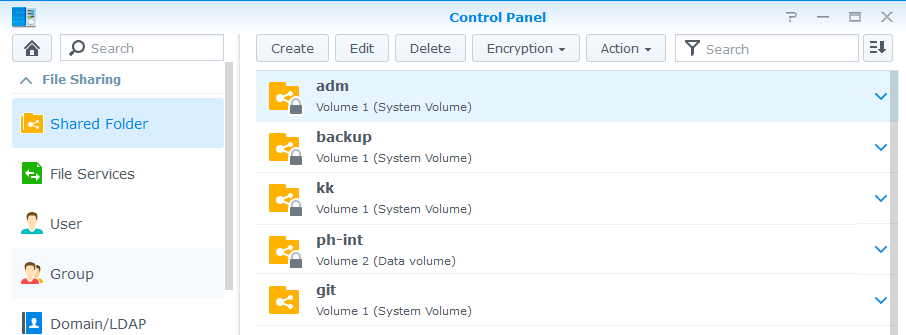
If you have Synology and your paranoid level is> 0, then you are probably using encrypted folders. Encfs-based, this technology works stably and does not cause any inconvenience. In addition, the case when these folders become 2-3, and even each with its own password! Indeed, according to the results of research by British scientists , the level of paranoid individuality only grows over time)
Accordingly, entering 2-3 different passwords after each, albeit quite rare, reboot of the device starts to strain.
Therefore, we will arrange something like a master password.
First, create a new encrypted folder, call it master .
We put the autorun.sh script in it(it is assumed below that you have access to Synology via SSH): where folderx is the folder and PASSWORDx is the password for it. As you can see, we simply mount the encrypted folders one by one, and then unmount the master folder itself. Thus, no one can get to the passwords that are explicitly written in the script. If the folders are already mounted, nothing bad will happen, so we do not do any additional checks. Despite the fact that we do not plan to keep the master folder in a mounted (open) state for a long time, we need to limit access to the autorun.sh script as much as possible:
cat /volume1/master/autorun.sh


synoshare -–enc_mount folder1 PASSWORD1

synoshare –-enc_mount folder2 PASSWORD2

synoshare –-enc_mount folder3 PASSWORD3

synoshare –-enc_ummount master
chown root autorun.sh
chmod 700 autorun.sh
Now the matter is small: we need a mechanism that will monitor the appearance of the autorun.sh file in the master folder and execute it. Let's write a simple service:
Note: The service path is specified for DSM 6.x. For DSM 5.x, the path to the services is: /usr/syno/etc/rc.d/ Note that after updating the system, user services may be deleted.
cat /usr/local/etc/rc.d/S90_automount.sh
autorun=/volume1/master/autorun.sh
sleep=10
if [ "$1" == "start" ]; then
    $0 service &
    echo "Automount service started. Looking for $autorun"
    exit
fi
if [ ! "$1" == "service" ]; then
    echo "Usage: $0 start"
    echo "   Wait for $autorun and run it"
    exit 1
fi
while [ 1 ]; do
sleep $sleep
if [ -f $autorun ]; then
    echo "Found $autorun, running..."
    $autorun &
    sleep 120
fi
done
That's all! As you can see, we simply check the existence of the file in a loop, and if it is found, we execute it. It was possible to optimize the execution and use the inotifywait command instead of the sleep loop, but apparently this package is not part of DSM.
The service has very limited functionality, only one start parameter and no stop and status parameters, but they are not needed.
Now boldly start the service: /usr/local/etc/rc.d/S90_automount.sр start
and check that when mounting the master folder, the folders listed in the autorun.sh file will be mounted within 10-20 seconds, and the master folder itself will be automatically unmounted.
Of the minuses - sooner or later you will forget all your passwords for folders, except for one. And if you suddenly lose the master folder - write is gone!Avoid this if possible!
From the pros - now you can assign arbitrarily long passwords to folders - you will not have to enter them manually anymore!
Have a good administration!