December 1, 2015 at 15:38
How to send IDocs from SAP MII to SAP ERP
Once we were faced with the task of implementing a transaction in SAP MII for the mechanism for creating the correct IDoc and sending it to SAP MDG (this instruction applies to all SAP ERP systems).
The task was as follows: to regularly send the necessary data about contractors from non-SAP systems to SAP MDG using SAP MII.
First, we began to search for a mechanism for sending IDocs from SAP MII to SAP MDG. After a brief search, the RFC function IDoc_INBOUND_ASYNCHRONOUS was found on the SAP MDG side.
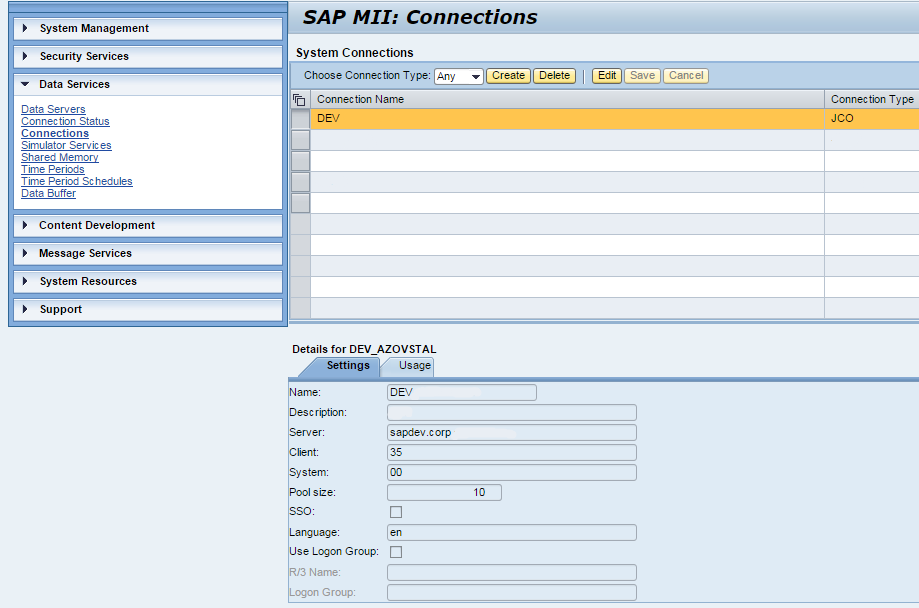
1. You need to create a connection in the XMII admin menu: Data Services - Connections. Create a JCo connection with any name and description, then correctly configure the Server address, Client number, System number (default 00) and Pool size (10 will be enough for the first time) - refer to your SAP basis for details.
2. Next, you need to create the connection settings (user / password) for the connection from the first step in Security Services - Credential Stores. You must specify the Name and Password from the required system (SAP MDG) necessary for calling this RFC function - refer to your SAP basis for details.

3. Now it's time to switch to SAP MII Worbench and create a new transaction. The main blocks of this transaction will be SAP JCo operations.

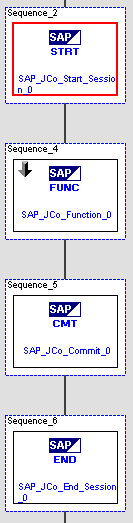
You need to create several blocks in a transaction in the following sequence: SAP JCo Start Session, SAP JCo Function, SAP JCo Commit, SAP JCo End Session.
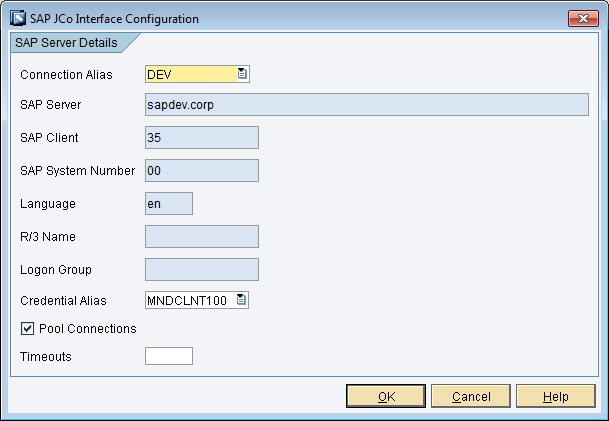
The SAP JCo Start Session operation opens the connection for the RFC in SAP ERP in the created JCo connector and connection settings. Just select a connection from the Connection Alias drop-down list and settings from the Credential Alias drop-down list.
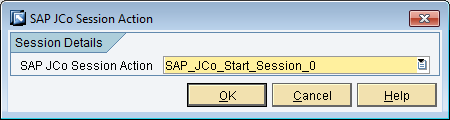
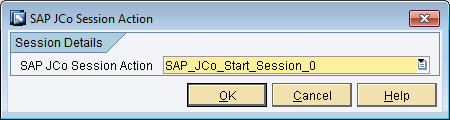
The SAP JCo Function operation directly calls the RFC in SAP ERP. In the SAP JCo Session Action, select the created connection from the previous block and specify the name of the RFC function in the RFC Name (in our case IDOC_INBOUND_ASYNCHRONOUS, but you can find the function you need from the ones available using the Search Pattern).

To get the available fields from the RFC function, run the Generate Sample in the SAP JCo Function operation block.

In the Links Editor for SAP JCo Function, dock the RFC fields with data from your data source.

SAP JCo Commit operation sends the created operation from SAP JCo Function - just select the connection from the previous steps.
SAP JCo End Session closes the created connection to the RFC function.
This is a necessary minimum for this operation. After that, you can check the operation of the transaction.
Hope my tutorial will be helpful.
The task was as follows: to regularly send the necessary data about contractors from non-SAP systems to SAP MDG using SAP MII.
First, we began to search for a mechanism for sending IDocs from SAP MII to SAP MDG. After a brief search, the RFC function IDoc_INBOUND_ASYNCHRONOUS was found on the SAP MDG side.
IDOC_INBOUND_ASYNCHRONOUS
IDOC_INBOUND_ASYNCHRONOUS. This function module is used for SAP release 4.0 and later.
This function module starts inbound processing in the case of port type "tRFC". The function module is a successor to INBOUND_IDOC_PROCESS, which processes IDocs in the Release 4.0 record types. If you are processing IDocs in Release 3.X record types, the function module INBOUND_IDOC_PROCESS must still be called.
The function module checks the ID 'EDI_MES' in authorization object B_ALE_RECV against the received message type.
The IDocs are saved by the function module IDOC_INBOUND_WRITE_TO_DB (a COMMIT for all IDocs) and then transferred directly to the application by the dispatcher module IDOC_START_INBOUND.
1. You need to create a connection in the XMII admin menu: Data Services - Connections. Create a JCo connection with any name and description, then correctly configure the Server address, Client number, System number (default 00) and Pool size (10 will be enough for the first time) - refer to your SAP basis for details.
2. Next, you need to create the connection settings (user / password) for the connection from the first step in Security Services - Credential Stores. You must specify the Name and Password from the required system (SAP MDG) necessary for calling this RFC function - refer to your SAP basis for details.
3. Now it's time to switch to SAP MII Worbench and create a new transaction. The main blocks of this transaction will be SAP JCo operations.
You need to create several blocks in a transaction in the following sequence: SAP JCo Start Session, SAP JCo Function, SAP JCo Commit, SAP JCo End Session.
The SAP JCo Start Session operation opens the connection for the RFC in SAP ERP in the created JCo connector and connection settings. Just select a connection from the Connection Alias drop-down list and settings from the Credential Alias drop-down list.
The SAP JCo Function operation directly calls the RFC in SAP ERP. In the SAP JCo Session Action, select the created connection from the previous block and specify the name of the RFC function in the RFC Name (in our case IDOC_INBOUND_ASYNCHRONOUS, but you can find the function you need from the ones available using the Search Pattern).
To get the available fields from the RFC function, run the Generate Sample in the SAP JCo Function operation block.
In the Links Editor for SAP JCo Function, dock the RFC fields with data from your data source.
SAP JCo Commit operation sends the created operation from SAP JCo Function - just select the connection from the previous steps.
SAP JCo End Session closes the created connection to the RFC function.
This is a necessary minimum for this operation. After that, you can check the operation of the transaction.
Hope my tutorial will be helpful.