Making an HP LJ1000 network printer
The HP LaserJet 1000 is an excellent workhorse, a fast and trouble-free USB printer with low print cost. In the article, I will describe the complexity and subtleties of setting up HP soft printers to work through a router over a network using the example of my LJ1000. Wellcome to cat!
There are a lot of articles on connecting printers via routers on the network, the essence of the majority boils down to the general algorithm - install an alternative firmware on the router (for example, OpenWrt), install support for USB, printers, and the p910nd daemon, then register daemon configs and additional settings.
The peculiarity of HP software printers of models 1000, 1005, 1006, 1007, 1007, 1018, 1020, 1505 is that they do not have a full-fledged control firmware on board, it is loaded by the driver each time the printer is turned on. This article should be suitable for any of these printers, but it is tested only on the HP LJ1000.
The main difficulty when connecting such a printer through a router is to download “firmware” into it, which practically no router with printer support out of the box can do, as well as specialized “print servers”, although I admit that there are models that can do this, however I was not able to find them live.
Intensive study of the issue gave two methods for solving the problem of downloading firmware to the router - on the client side or on the router side. In the first versionthe router is configured as for a regular printer, “firmware” must be sent to print before using the printer for the first time from a computer:
I consider this method insolvent, because it is inconvenient. The printer should work without additional gestures.
The second method for solving the problem is uploading the firmware by the router itself. Moreover, it is desirable that the firmware is loaded not only by turning on the router, but also by the printer’s hot plug.
Now I will describe the configuration process on my existing hardware. In my case, the D-Link DIR-620 Rev A1 router is used. I already tried a lot of firmware with this router, Zyxel Keenetic v1 turned out to be very convenient, however it was the HP LJ1000 with Keenetic that didn’t work, dancing with tambourines did not help. As confirmed by Zyxel tech support: http://forum.zyxmon.org/topic160-keenetic-i-hp-lj-1000.html
I used the latest available version of OpenWrt: 14.07 .
As the basis for customization, I used the article on the OpenWrt wiki . The script has been redone for a normal hot-plug and a stable start of the p910nd daemon.
After flashing the router, we change the default password, activate SSH, configure network interfaces. All further settings are most conveniently done through the terminal client, I used Putty. Settings suggest that the router has Internet access.
So, let's go:
Reboot the router. If everything is configured correctly, then when the router boots up, the printer is reinitialized (you can hear how it restarts). Just in case, we make sure that in System Log there are no errors related to p9100, we connect via SSH, we check the operation of the hotplug script:
There should be a log like this:
Check that the daemon has started:
The command list should contain p910nd :
On this setting on the side of the router can be considered complete.
Further we configure connection from clients. In my case, these were computers with Windows XP, where the necessary printer drivers were already installed.
Open the printer properties:
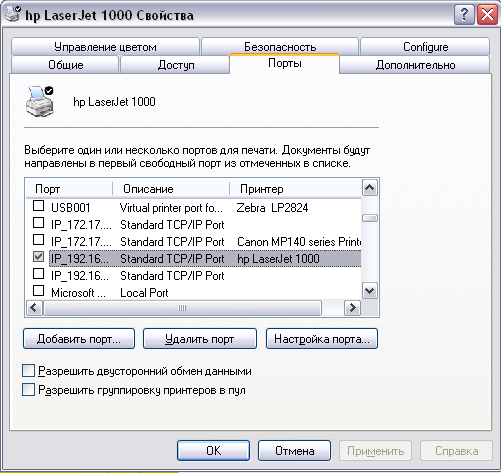
Add a new port -> Standard TCP / IP Port -> New port -> Next -> enter the IP address of the router -> generic Network Card-> Done.
Be sure to uncheck the "bidirectional exchange." This is not widely reported. Other printer models except 1000 work fine with the installed one, but it was with my 1000 that printing did not work until I unchecked and rebooted (important, it won’t work without a reboot).
In the same way, printing from Windows 7 is configured, you also need to uncheck the "bidirectional exchange" box. I did not check for newer ones, but I see no obstacles so that it does not work.
PS: Setting bidirectional exchange in p910nd ( bidirectional ) does not affect the work, in contrast to setting bidirectional exchange on the client side. I tried with the flag turned on and off, the printer behavior did not change. Therefore, it is important to observe disconnection only on the client side.
There are a lot of articles on connecting printers via routers on the network, the essence of the majority boils down to the general algorithm - install an alternative firmware on the router (for example, OpenWrt), install support for USB, printers, and the p910nd daemon, then register daemon configs and additional settings.
The peculiarity of HP software printers of models 1000, 1005, 1006, 1007, 1007, 1018, 1020, 1505 is that they do not have a full-fledged control firmware on board, it is loaded by the driver each time the printer is turned on. This article should be suitable for any of these printers, but it is tested only on the HP LJ1000.
The main difficulty when connecting such a printer through a router is to download “firmware” into it, which practically no router with printer support out of the box can do, as well as specialized “print servers”, although I admit that there are models that can do this, however I was not able to find them live.
Intensive study of the issue gave two methods for solving the problem of downloading firmware to the router - on the client side or on the router side. In the first versionthe router is configured as for a regular printer, “firmware” must be sent to print before using the printer for the first time from a computer:
1. Пуск-Выполнить-CMD
2. В окне консоли COPY ДИСК:\Путь_к_файлу\ИмяФайла.prn \\dnsXXXX\lp
(пример: COPY c:\tmp\sihp1020.prn \\dns323\lp)
I consider this method insolvent, because it is inconvenient. The printer should work without additional gestures.
The second method for solving the problem is uploading the firmware by the router itself. Moreover, it is desirable that the firmware is loaded not only by turning on the router, but also by the printer’s hot plug.
Now I will describe the configuration process on my existing hardware. In my case, the D-Link DIR-620 Rev A1 router is used. I already tried a lot of firmware with this router, Zyxel Keenetic v1 turned out to be very convenient, however it was the HP LJ1000 with Keenetic that didn’t work, dancing with tambourines did not help. As confirmed by Zyxel tech support: http://forum.zyxmon.org/topic160-keenetic-i-hp-lj-1000.html
I used the latest available version of OpenWrt: 14.07 .
As the basis for customization, I used the article on the OpenWrt wiki . The script has been redone for a normal hot-plug and a stable start of the p910nd daemon.
After flashing the router, we change the default password, activate SSH, configure network interfaces. All further settings are most conveniently done through the terminal client, I used Putty. Settings suggest that the router has Internet access.
So, let's go:
- Install the packages you need for the printer, plus a simple editor:
opkg update opkg install kmod-usb-printer usbutils p910nd nano - Write the firmware for the desired printer to the file system of the router. The easiest way is to download the firmware from Oleg: http://oleg.wl500g.info/hplj . In my case, I need firmware for the HP LJ1000 - and download it:
cd /usr/lib/ wget http://oleg.wl500g.info/hplj/sihp1000.dl - We create a script for processing the hotplug event so that the firmware is sent to the printer each time it is connected:
nano /etc/hotplug.d/usb/20-printer
Script code:#!/bin/sh FIRMWARE="/usr/lib/sihp1000.dl" DEVICE=/dev/usb/lp0 if [ "$PRODUCT" = "3f0/517/120" ] then case "$ACTION" in add) /etc/init.d/p910nd stop echo "`date`: Sending firmware to printer." >> /tmp/hl1000 cat $FIRMWARE > $DEVICE sleep 15 echo "`date`: hl1000 added" >> /tmp/hl1000 /etc/init.d/p910nd start echo "Done." >> /tmp/hl1000 ;; remove) echo "`date`: hl1000 removed" >> /tmp/hl1000 /etc/init.d/p910nd stop echo "Done." >> /tmp/hl1000 ;; esac fi
A little bit about setting up the script: first you need to make sure that your printer is located on the path / dev / usb / lp0: the ls / dev / usb command should give a list of devices, among which there will be lp0. Some firmware may create a printer descriptor at / dev / lp0.
Next, you need to register the path to the "firmware" file, and specify the VID / PID of the printer. We look at what is on USB:lsusb -v | grep "ID\|bcdUSB"
Answer:Bus 001 Device 004: ID 03а0:0517 Hewlett-Packard LaserJet 1000 bcdUSB 1.20
3f0 / 517 is the VID and PID of the HP LJ 1000 printer (The first zeros are removed03f0). 120 is a BCD version without a dot. - Open the p910nd configuration file:
nano /etc/config/p910nd
If you already have an entry for the printer, you need to make sure that the path to the printer descriptor is correct. If not, then copy this text:config p910nd option device /dev/usb/lp0 option port 0 option bidirectional 0 option enabled 1
If only one printer is used with the router, then leave this text as it is, but you can use several printers. Then for each of them you will need to specify your port (by default 9100). - In my case, the print daemon starts with a script after downloading the firmware to the printer, so make sure that it does not start when you turn on the router:
/etc/init.d/p910nd disable
Otherwise, the daemon launched too early crashes with the following error:Tue Feb 4 02:29:43 2014 lpr.err p9100d[1207]: bind: Cannot assign requested address Tue Feb 4 02:29:43 2014 lpr.err p9100d[1207]: accept: Bad file descriptor
Reboot the router. If everything is configured correctly, then when the router boots up, the printer is reinitialized (you can hear how it restarts). Just in case, we make sure that in System Log there are no errors related to p9100, we connect via SSH, we check the operation of the hotplug script:
nano /tmp/hl1000
There should be a log like this:
Sending firmware to printer.
hl1000 added
Done.
Check that the daemon has started:
ps | grep p910nd
The command list should contain p910nd :
root@OpenWrt:~# ps | grep p910nd
 1597 root       780 S    {p910nd} /usr/sbin/p9100d -b -f /dev/usb/lp0 0
 1849 root      1492 S    grep p910nd
On this setting on the side of the router can be considered complete.
Further we configure connection from clients. In my case, these were computers with Windows XP, where the necessary printer drivers were already installed.
Open the printer properties:
Add a new port -> Standard TCP / IP Port -> New port -> Next -> enter the IP address of the router -> generic Network Card-> Done.
Be sure to uncheck the "bidirectional exchange." This is not widely reported. Other printer models except 1000 work fine with the installed one, but it was with my 1000 that printing did not work until I unchecked and rebooted (important, it won’t work without a reboot).
In the same way, printing from Windows 7 is configured, you also need to uncheck the "bidirectional exchange" box. I did not check for newer ones, but I see no obstacles so that it does not work.
PS: Setting bidirectional exchange in p910nd ( bidirectional ) does not affect the work, in contrast to setting bidirectional exchange on the client side. I tried with the flag turned on and off, the printer behavior did not change. Therefore, it is important to observe disconnection only on the client side.