Features of DNS resolver in Windows 10 and DNS Leak
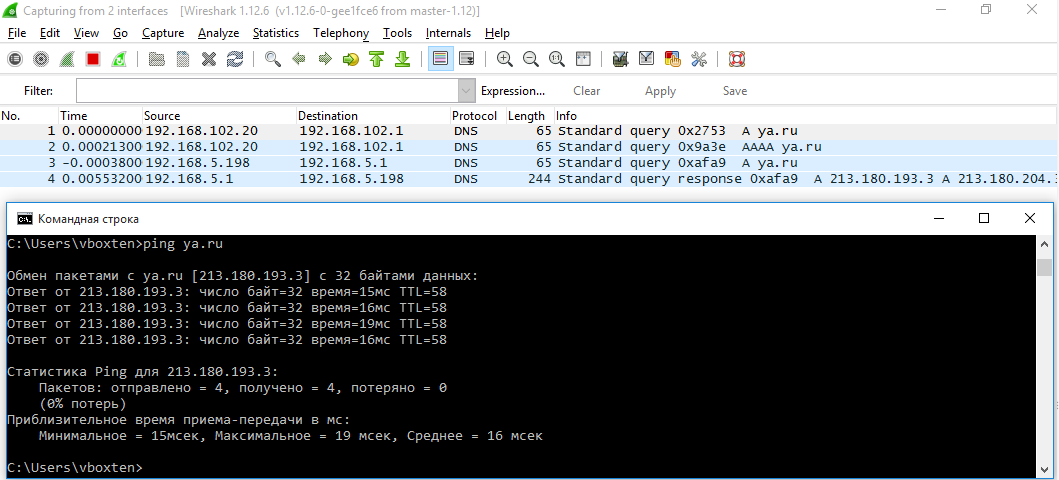
TL; DR: DNS resolver in Windows 10 sends requests to all DNS server addresses known to the system in parallel, binding the request to the interface, and uses the answer that came faster. In case you use a DNS server from a local segment, this behavior allows your ISP or an attacker with a Wi-Fi point to spoof DNS records, even if you use a VPN.
Modern versions of Windows add headaches to active VPN users. The DNS resolver up to Windows 7 inclusive had predictable behavior, making queries to DNS servers in the order of priority and priority of DNS servers, in general, like all other OSs. This created the so-called DNS Leak (leak of the DNS query through the external interface when the VPN is connected) only if the DNS server inside the VPN tunnel did not respond on time, or respond with an error, and, in general, was not such a glaring problem .
Windows 8
With the release of Windows 8, Microsoft added a very interesting feature to the DNS resolver, which, as I can tell from Google, went completely unnoticed: Smart Multi-Homed Name Resolution. If this feature is enabled (and it is enabled by default), the OS sends requests to all known DNS servers on all network interfaces in parallel, linking the request to the interface. This was probably done in order to reduce the waiting time for a response from the preferred DNS server if for some reason it could not answer in the timeout allotted to it (1 second by default), and immediately, after the timeout, give a response from the next highest priority server. Thus, in Windows 8 and 8.1, all your DNS queries “leak” through the Internet interface, allowing your ISP or Wi-Fi point owner to see which sites you visit, provided that your routing table allows queries to the DNS server via the Internet interface. Most often, this situation occurs if you use a DNS server inside the local segment, such DNS raise 99% of home routers.This functionality can be disabled by adding to the registry branch: A
HKEY_LOCAL_MACHINE\Software\Policies\Microsoft\Windows NT\DNSClientDWORD parameter with a name:
DisableSmartNameResolutionand any value other than zero, which returned the old resolver behavior.
Windows 10
Although Windows 8 and 8.1 sent all your requests without your knowledge through the public interface, it was problematic for an attacker to redirect a DNS answer in such a way as to redirect you to a fake site. The OS would use a spoofed response only if it was not possible to get the correct answer from the preferred DNS server, which is the server inside the encrypted tunnel.Everything changed with the arrival of Windows 10. Now the OS not only sends a request through all interfaces, but also uses the answer that came faster, which almost always allows your provider to redirect you to a stub about a banned site or an attacker to a fake site. Moreover, the way to disable Smart Multi-Homed Name Resolution, which worked in Windows 8.1, does not work on the new version.
The only acceptable (though not the most reliable) way to solve the problem is to install DNS on the Internet interface outside the local segment, for example, the well-known 8.8.8.8, however, it will not help in the case of OpenVPN. For OpenVPN, the only (and ugly) solution is to temporarily disable DNS on the Internet interface with scripts .
UPD: Earlier in the article, it was recommended to use the
redirect-gatewayno option def1for OpenVPN. It turns out that Windows returns the default route from the DHCP server each time the IP address is updated, and after some time all your traffic would begin to bypass the VPN. At the moment, a beautiful solution does not exist. UPD2: I wrote a plugin .
UPD3:Windows 10, starting with Creators Update, now sends DNS queries to all known DNS server addresses in order, and not in parallel, starting with a random interface. To increase the priority of a particular DNS, you need to reduce the interface metric. I made a patch for OpenVPN, I hope it will be included in 2.4.2: https://sourceforge.net/p/openvpn/mailman/message/35822231/
UPD4: The update was included in OpenVPN 2.4.2.