"Pumping" notepad.exe
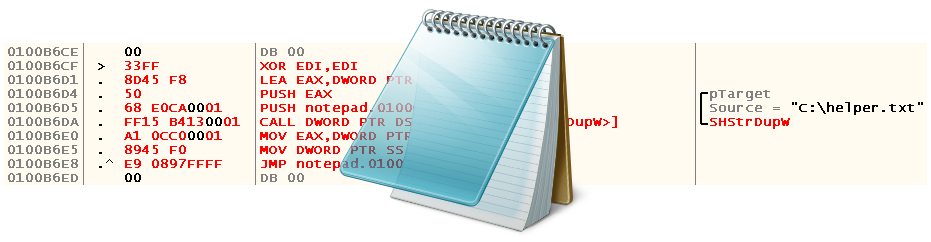
What association do you have with the F5 key? Page refresh in browser? Copying a file from one directory to another? Running an application from Visual Studio? But the authors of notepad.exe approached this question quite originally - by pressing the F5 key, the current date and time are added to the place where the cursor points at this moment. Everything would be cool if in notepad.exe there was such a popular and quite natural feature for most text editors as re-reading the contents of the current file, which, it would seem, should be assigned to F5 / Ctrl-R or some other generally accepted hotkey.
We can wait until Microsoft implements it, choose another text editor (after all, this is not the only restriction on the functionality of the standard notepad.exe) or ... Take the disassembler, debugger and PE-file editor in our hands.
How the process went, and what came of it, read under the cut (carefully, many screenshots ). Before reading this article, I also strongly recommend that you familiarize yourself with the previous ones .
In order not to deal with the same inconveniences that we encountered in a previous article , let's first turn off the use of ASLR. According to the wiki, ASLR (Address space layout randomization) is a technology that when used randomly changes the location of important structures in the process address space, namely: an image of an executable file, loaded libraries, heap and stack. It was because of her that the last time the application restarted led to a change in the addresses we already found earlier. If you use Windows XP or an older OS, you can easily skip what will be discussed in the next few paragraphs, because ASLR was not there at that time.
You can disable ASLR usage both globally (for this you need to add / edit the value of the “MoveImages” option stored in the registry at the address “HKEY_LOCAL_MACHINE \ SYSTEM \ CurrentControlSet \ Control \ Session Manager \ Memory Management” to make it equal to zero), and locally , i.e. for a specific executable file. The latter option looks more attractive, especially if it is not a virtual machine, but a real system, so let's stop on it.
Copy notepad.exe to any directory other than "% WINDIR% \ System32", download, unzip and run PE Tools , press Alt-1 and select notepad.exe that was previously copied:

Click on the "Optional Header" button and look at the DLL Flags field , which in our case is 0x8140:

The value in this field is the result of the bitwise "OR" operation for the constants listed in the official MSDN documentation . It is easy to notice that our binary has the following characteristics:
IMAGE_DLLCHARACTERISTICS_TERMINAL_SERVER_AWARE
0x8000
The image is terminal server aware
IMAGE_DLLCHARACTERISTICS_NX_COMPAT
0x0100
The image is compatible with data execution prevention (DEP)
IMAGE_DLLCHARACTERISTICS_DYNAMIC_BASE
0x0040 at
DLL time rel
Notice the last meaning? Well, this is exactly what interests us. Change 0x8140 to 0x8100, click “Ok” in both windows and proceed with debugging.
What steps can we conditionally divide our notepad.exe patch into?
- Search for the address where the path to the current file is stored
- Finding a procedure to read file contents
- Finding the code responsible for handling the F5 key press
- Actually, writing the patch itself
Open notepad.exe in OllyDbg and proceed to the first step.
You can approach the search for the address where the path to the current file is stored at once from several sides. You can, for example, find a procedure that deals with opening a file (most likely, if successful, it saves the path to the file at some address), or you can look at the implementation of the algorithm for saving the file (obviously, it must know either the handle of the current file, or way to it). I propose to dwell on the second option.
Hoping that the file is re-opened each time it is saved, put the breaks on the calls of the CreateFileW WinAPI function :
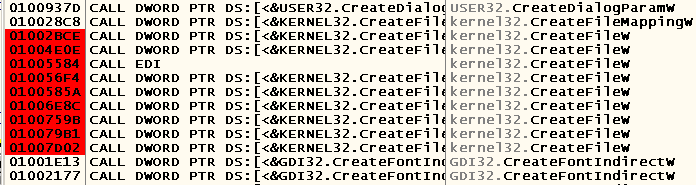
Press Ctrl-S, select the file name (in my case it is “C: \ helper.txt”) and stop at the following place:

Let's see where we came from and with what arguments:
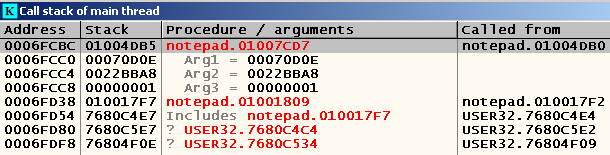
If you look at what the address passed as the second argument points to (right-click on the line with this argument -> Follow address in stack), then we will see our path:
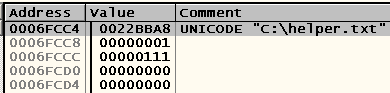
Let's see to the code before calling the procedure we are investigating to understand where and how exactly this address came to us:
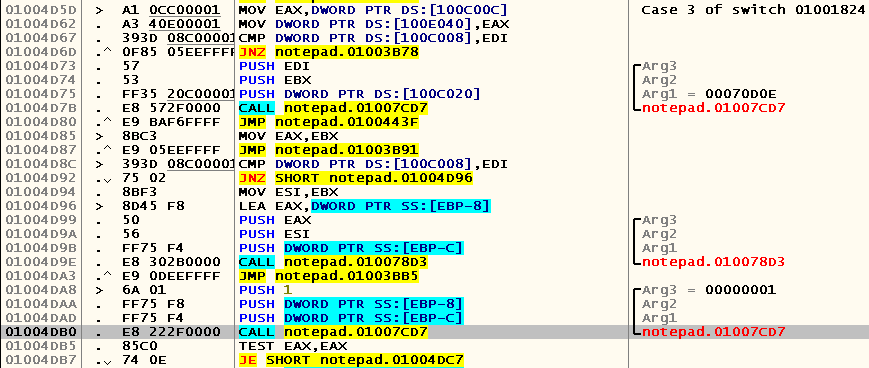
As you can see, the address where the path to the file is stored is contained in EBP-8 . Let's press Ctrl-S again and see where we get this time (because now the program already knows the path to the file, which can change the application’s progress):

So, we ended up on the same break as before, but they called us already from another place:

This time, the address that contains the path to the file is stored in the EBX register . Since the beginning of the current case-block (note the comment with a few instructions before the allocated space), the value of this register does not change, which means that you need to look for the original address somewhere earlier. We look at what instructions refer to the beginning of this case-block (left-click at 0x01004D5D -> Ctrl-R):

Once there is only one such call, we jump to it by pressing the Enter key and immediately see where this address appears in EBX :

So we realized that at 0x0100CAE0The path to the current file is stored. What's next? And then we must find the procedure responsible for reading the contents of the file.
Obviously, it will also call CreateFileW (instead we could intercept the call to the GetOpenFileName function , but it is not in the list of inter-module calls - apparently, the Common Item Dialog API, which is recommended on MSDN, is used instead). Press Ctrl-O, select any file (I selected the same one) and, without having time to double-click the mouse, we find ourselves on the breakpoint at 0x01006E8C :
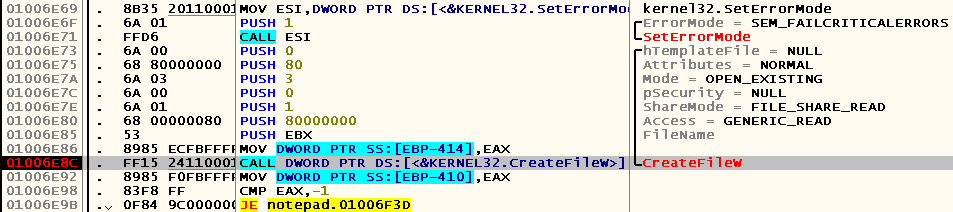
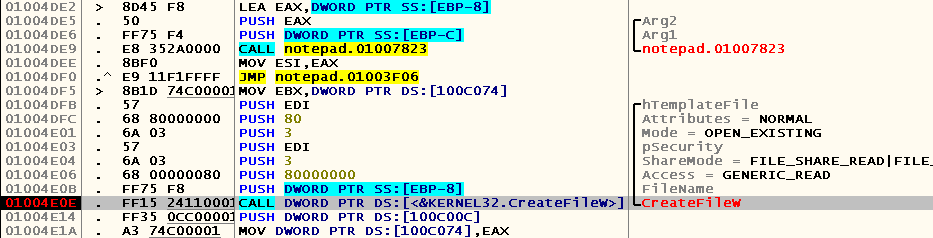
We do the same several times before removing this junk and hoping for the rest. Indeed, after the break was removed at the previously specified address, we were still able to double-click on the file of interest to us, as a result of which the breakpoint worked already in a completely different place:
So, our task is to find out how and which it is the procedure that must be called in order to successfully re-read the file of interest to us. We put the break on the address from which we were called
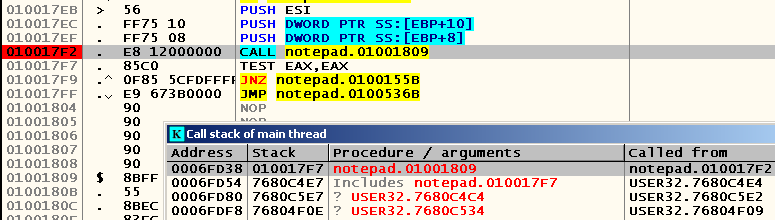
, press F9, and ... It immediately works! Nothing, press F9 again, try to transfer focus to the notepad.exe window and see that the breaker works again. What the hell! Let's look at the beginning of the procedure that this CALL calls:

Pay attention to the only comment - judging by the number of processed values and what we observe in practice, this procedure serves to respond to any action performed by the user, whether it is transferring focus to the notepad.exe window or opening a file. Apparently, after pressing Ctrl-O, the program does not execute any CALL , but only switches to the corresponding case-block using the conditional jump operation. Let's remove this breakdown, once again try to open the file and find the instruction closest to the breakage, which is in place of the CreateFileW call , to which there are calls in the code. It turned out to be an instruction at the address 0x01004DF5 :

We put the breaks on both calls, do the same actions and find ourselves here:
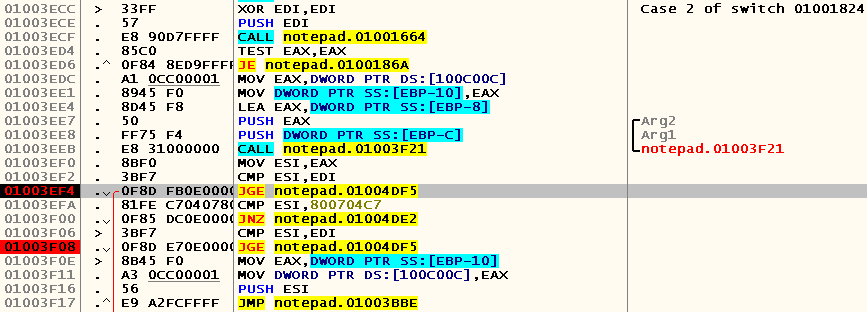
We put the break at the beginning of this case, again open the same file and try to understand what is happening here:
; Зануляем значение в регистре EDI
01003ECC   > \33FF          XOR EDI,EDI                              ;  Case 2 of switch 01001824
; Вызываем процедуру проверки изменений в текущем файле
; Если они были, отобразится диалоговое окно с предложением сохранить изменения в файл
01003ECE   .  57            PUSH EDI
01003ECF   .  E8 90D7FFFF   CALL notepad.01001664
; Проверяем возвращаемое значение
; EAX == 1, если изменений не было / пользователь нажал клавишу Save / Don't Save, EAX == 0, если была нажата кнопка Cancel
01003ED4   .  85C0          TEST EAX,EAX
; Если нажали Cancel, то дальнейшее нас уже не интересует, переходим в другой case
01003ED6   .^ 0F84 8ED9FFFF JE notepad.0100186A
; Перемещаем нечто с адреса 0x100C00C в EAX и затем в EBP-10
01003EDC   .  A1 0CC00001   MOV EAX,DWORD PTR DS:[100C00C]
01003EE1   .  8945 F0       MOV DWORD PTR SS:[EBP-10],EAX
; Вызываем процедуру отображения диалогового окна с просьбой выбрать файл
01003EE4   .  8D45 F8       LEA EAX,DWORD PTR SS:[EBP-8]
01003EE7   .  50            PUSH EAX                                 ; /Arg2
01003EE8   .  FF75 F4       PUSH DWORD PTR SS:[EBP-C]                ; |Arg1
01003EEB   .  E8 31000000   CALL notepad.01003F21                    ; \notepad.01003F21
; В результате вызова данной процедуры в EBP-8 будет храниться путь до открываемого файла
; EAX == 0 в случае успеха и 0x800704C7 в случае нажаия кнопки Cancel
01003EF0   .  8BF0          MOV ESI,EAX
01003EF2   .  3BF7          CMP ESI,EDI
; Один из прыжков на интересующую нас процедуру
01003EF4   .  0F8D FB0E0000 JGE notepad.01004DF5
01003EFA   .  81FE C7040780 CMP ESI,800704C7
01003F00   .  0F85 DC0E0000 JNZ notepad.01004DE2
01003F06   >  3BF7          CMP ESI,EDI
01003F08   .  0F8D E70E0000 JGE notepad.01004DF5
01003F0E   >  8B45 F0       MOV EAX,DWORD PTR SS:[EBP-10]
01003F11   .  A3 0CC00001   MOV DWORD PTR DS:[100C00C],EAX
01003F16   .  56            PUSH ESI
01003F17   .^ E9 A2FCFFFF   JMP notepad.01003BBE
Now let's see what registers and addresses the code at address 0x01004DF5 uses to understand which “environment” is necessary for its correct operation:
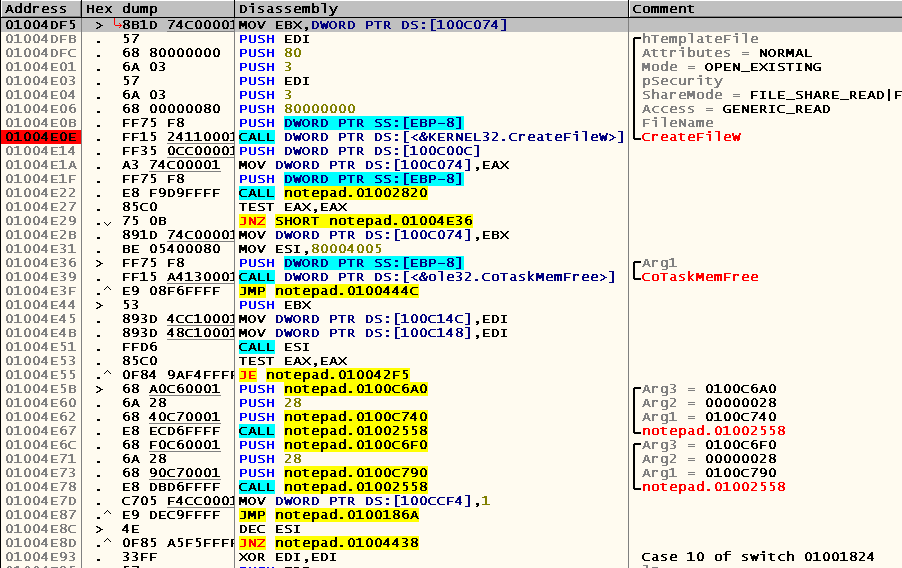
Of course, this code refers to EBP-8 , which, as you remember, stores the path to the file to be opened. In addition, the value of the EDI register , which is used as arguments for the hTemplateFile and pSecurity parameters , is also important to him . We can get the first one from the address 0x0100CAE0 , and you can simply pass zero to the indicated parameters.
Now let's find the code responsible for handling the F5 key press. To do this, I propose to put the break on calls to the functions responsible for obtaining the current time. The most popular ones are GetSystemTime and GetLocalTime . The first is not in the list of intermodular calls, but the second is called from two places at once:

Put the breaks, press F5 and find

ourselves here: We jump to the place of the current procedure call and get almost to the very beginning of another case-block, which, obviously, is responsible for F5 hit handling:

Great. We look for a place for our code cave and write (of course, the addresses may differ):
0100BEB3      33FF          XOR EDI,EDI
0100BEB5      C745 F8 E0CA0>MOV DWORD PTR SS:[EBP-8],notepad.0100CAE0    ;  UNICODE "C:\helper.txt"
0100BEBC      A1 0CC00001   MOV EAX,DWORD PTR DS:[100C00C]
0100BEC1      8945 F0       MOV DWORD PTR SS:[EBP-10],EAX
0100BEC4    ^ E9 2C8FFFFF   JMP notepad.01004DF5
Insert a jump to our code cave at 0x0100447B :

Press F9, press F5 again and observe the following picture:

As you can see, we fell somewhere in the bowels of the CoTaskMemFree function . Pay attention to the argument passed to this function - yes, yes, this is the address of our line with the path to the file. So, the memory for it must be allocated using CoTaskMemAlloc . The SHStrDup function can help us with this , which creates a duplicate of the string passed to it, allocating memory for it using CoTaskMemAlloc .
We restart notepad.exe and look for the address of the SHStrDupW function in IAT. To do this, look at the call of any other WinAPI function in the module:

Therefore, the address of the GetDlgItemTextW function in IAT is 0x010012A4 . We jump on it and look for our SHStrDupW :

It turns out that its call can be issued in the form of the CALL DWORD PTR DS instruction : [010013B4] . Then we write the following code (error checking omitted):
0100BFA5   .  33FF             XOR EDI,EDI
0100BFA7   .  8D45 F8          LEA EAX,DWORD PTR SS:[EBP-8]
0100BFAA   .  50               PUSH EAX                                          ; /pTarget
0100BFAB   .  68 E0CA0001      PUSH notepad.0100CAE0                             ; |Source = "C:\helper.txt"
0100BFB0   .  FF15 B4130001    CALL DWORD PTR DS:[<&SHLWAPI.SHStrDupW>]          ; \SHStrDupW
0100BFB6   .  A1 0CC00001      MOV EAX,DWORD PTR DS:[100C00C]
0100BFBB   .  8945 F0          MOV DWORD PTR SS:[EBP-10],EAX
0100BFBE   .^ E9 328EFFFF      JMP notepad.01004DF5
Open our file “C: \ helper.txt”, make sure that it is empty, edit it and save it in another copy of notepad.exe, press F5 in the version we are debugging, and ... The file is updated!
Let's save our changes to an executable file. We do a right-click on the CPU -> Copy to executable -> All modifications -> Copy all window and see:
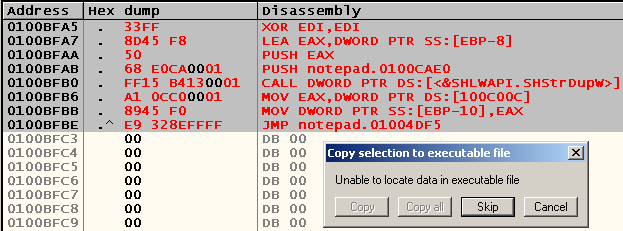
It turns out that we got out of the physical boundaries of the executable file. Let's take a look at the section boundaries in PE Tools (the “Sections” button)

and place our code cave in some other place. To get the upper “border” of the area for the “painless” patch, we need to add the Virtual Offset .text section, where we are going to put our patch, its Raw Size and Image Base, i.e. Virtual Offset ( 0x00001000 ) + Raw Size ( 0x0000A800) + Image Base ( 0x01000000 ) = 0x0100B800 . Place it, for example, at 0x0100B6CF and try to save the changes again (right-click on the CPU window -> Copy to executable -> All modifications -> Copy all -> right-click on the window that appears -> Save file).
We check the resulting executable file for performance and make sure that everything behaves as expected.
Afterword
The purpose of this article is to once again demonstrate the possibility of adding your own functionality to existing programs, while not having source codes on hand. Now return to your vim / emacs / Notepad ++ / etc, but remember - if you encounter a bug or notice the lack of any functionality in a closed-source editor, now you know what to do.
Thank you for your attention, and again I hope that the article was useful to someone.