June 22, 2015 at 01:48
Configuring 3CXPhone for Windows Softphone to Work with Bitrix24
- Tutorial
In a previous article, we looked at the integration of 3CX Phone System with the Bitrix24 enterprise portal. However, we were asked whether it is possible to use IP phones, in particular, the 3CXPhone software SIP client, along with our own Bitrix24 Desktop application.
We answer - of course you can! However, you can only use the regular version of 3CXPhone for Windows v6, and not the new version 3CXPhone 12 / 12.5 / 14, since these versions use advanced monitoring and user statuses that are provided only by the 3CX server.
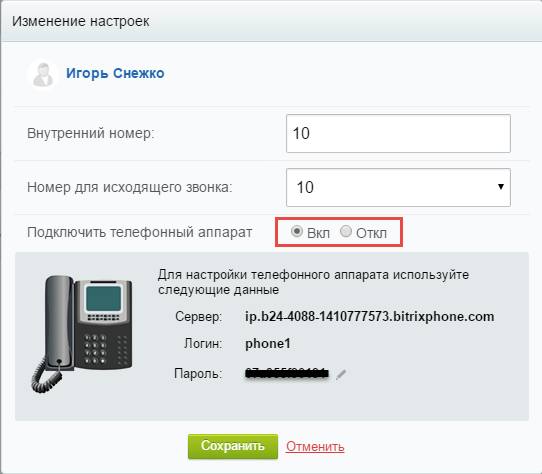
1. In the Telephony - Users section , select the user for whom you want to configure the softphone, and click the Configure link . 2. Select Connect Telephone - On. Make a note of the connection parameters and click Save .

1. Download 3CXPhone for Windows v6 .
2. In the 3CXPhone interface, right-click and select Accounts , and then click New .
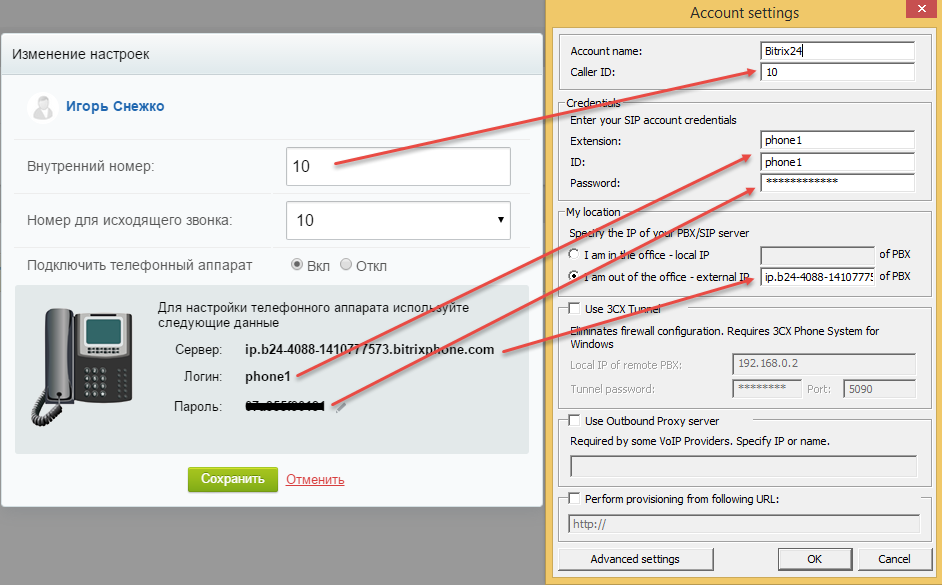
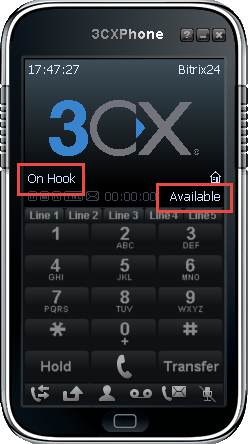
3. Fill in the fields for the new account as shown. 4. Press OK twice and the phone will connect. This completes the connection of the 3CXPhone softphone to Bitrix24.
We answer - of course you can! However, you can only use the regular version of 3CXPhone for Windows v6, and not the new version 3CXPhone 12 / 12.5 / 14, since these versions use advanced monitoring and user statuses that are provided only by the 3CX server.
Configure Bitrix24
1. In the Telephony - Users section , select the user for whom you want to configure the softphone, and click the Configure link . 2. Select Connect Telephone - On. Make a note of the connection parameters and click Save .


Setting up 3CXPhone 6
1. Download 3CXPhone for Windows v6 .
2. In the 3CXPhone interface, right-click and select Accounts , and then click New .
3. Fill in the fields for the new account as shown. 4. Press OK twice and the phone will connect. This completes the connection of the 3CXPhone softphone to Bitrix24.