Fix Alt-Tab in LabView
When you write a program in LabView, at some point it becomes too much to fit in one screen. “Good taste” LabView suggests that in such cases you need to split one vi file into several subvi files. Over time, there are a lot of such subvi. However, the NI guys somehow did not take care of convenient navigation.
Not only does LabView shift all its windows to the top of the Alt-Tab list (no one else does it: en.wikipedia.org/wiki/Alt-Tab ), but despite the widely used ability to redefine icons for vi files, Alt-Tab list instead of them - slender rows of LabView logos:

Some of this behavior pushes to buy a second monitor. For them, the problem is largely solved by this. The Windows Aero interface with its thumbnails in the Alt-Tab menu still helps in part. But the solution that seems to lie on the surface - (a) to make the switch is the same as in all other applications, and (b) to display vi icons in the list - by standard means is unattainable.
Judging by the fact that it almost started from the very first version, and the corresponding “idea for improvement” is gathering dust on the “forum for the exchange of ideas” from 2010 forums.ni.com/t5/LabVIEW-Idea-Exchange/Make-Alt -Tab-behavior-consistent-with-other-applications / idi-p / 1162219 , asking National Instruments for this is useless. However, something can still be done.
Firstly, I wrote this kind of script in python, with which you can switch between, for example, the browser and the current LV window with one click, say Alt-`:
In general, I wrote in c and python at the same time, here I give the python version because the code is a little more readable and it can be run without visual studio (it requires only installed python of any version: 2.x or 3.x).
You can hang a script run on a keyboard shortcut in python, but using autohotkey makes it easier:
(here binding is disabled in a particular putty program)
Secondly, I finalized the corresponding Quickqrop Show Open VIs plugin to give it a divine look and added keyboard navigation.
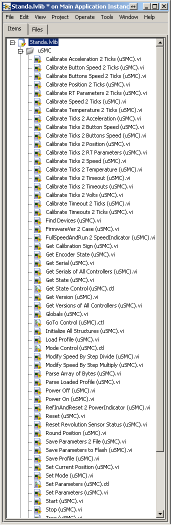
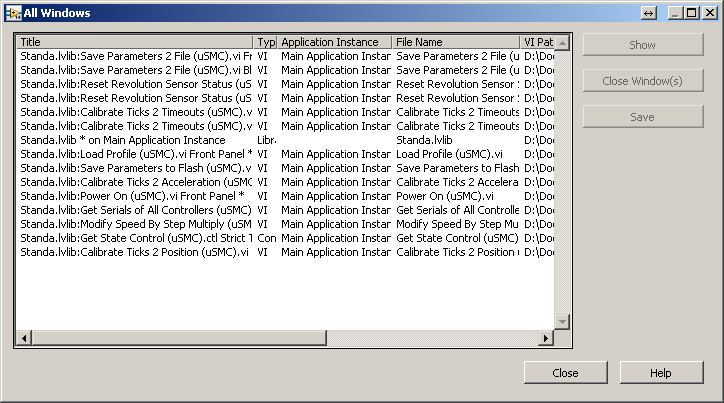
Compared with existing Show Open VIs navigation tools:
- Project Explorer is better in that it shows only open files, and not all files in the project, plus it does not take up unnecessary space on the taskbar and in the Alt-Tab list (fig. On the left);
- better than the built-in window manager in LV (Ctrl-Alt-W) by the presence of icons (fig. On the right);
- Better than the system Alt-Tab in that it is precisely the vi icons and not the multiple NI logo.
By clicking on the right mouse button, you can choose where to switch: to the Front Panel or to Block Diagram.
In the original, this plugin looked very raw and sloppy. Everything fell on each other, and when you reduce the window size to a size comparable to a regular alt-tab window, it generally stops working.
I posted the plugin code on the github . Checked in LV 2011 and 2014, x32 and x64. To install, you need to copy several files to the “correct” subdirectory of My Documents, restarting Labview is not required. Depends on the “OpenG File Library”. Details in readme.
Keyboard control did this: Ctrl-Space Ctrl-4 to start (so that there are certainly no conflicts with other plugins), [Ctrl-] Tab or the right arrow next item, [Ctrl-] Shift-Tab or left arrow the previous one Enter or Space - switch, Esc - exit.
In order not to press this extra Ctrl-Space (entering the quickdrop menu), you can use this script on autohotkey so that it starts, for example, by Ctrl-`:
The time gap between the appearance of the quickdrop window and its closing after receiving the keyboard shortcut was about 0.12 seconds. In principle, this is not bad, but the eye manages to see the "extra" window. For those who, like me, do not use quickdrop except to run plug-ins, such an undocumented option in labview.ini may be useful:
It makes the QuickDrop window invisible (the parameter means 100%) while maintaining all the functionality.
I did not think of how to combine these two improvements (displaying vi icons and the usual behavior of alt-tab) - all LabView windows are in the same group of windows and programmatically move inside the z-order sequence in the same way as through the GUI: only as a single whole, that is, information about what kind of switching it was from — inside LabView or outside LabView — is lost. You can memorize the history when you press alt-tab, but this method is not universal, since it does not catch switching with the mouse.
By installing the described script and plugin, we get the following possibilities: pressing Alt-`it is very convenient to switch between, for example, the browser and a specific window in LabView, and by pressing Ctrl-` you can see the icons of open vi files and switch between them or using mouse or keyboard.
Not only does LabView shift all its windows to the top of the Alt-Tab list (no one else does it: en.wikipedia.org/wiki/Alt-Tab ), but despite the widely used ability to redefine icons for vi files, Alt-Tab list instead of them - slender rows of LabView logos:
Some of this behavior pushes to buy a second monitor. For them, the problem is largely solved by this. The Windows Aero interface with its thumbnails in the Alt-Tab menu still helps in part. But the solution that seems to lie on the surface - (a) to make the switch is the same as in all other applications, and (b) to display vi icons in the list - by standard means is unattainable.
Judging by the fact that it almost started from the very first version, and the corresponding “idea for improvement” is gathering dust on the “forum for the exchange of ideas” from 2010 forums.ni.com/t5/LabVIEW-Idea-Exchange/Make-Alt -Tab-behavior-consistent-with-other-applications / idi-p / 1162219 , asking National Instruments for this is useless. However, something can still be done.
Part 1. Exit Labview in one click
Firstly, I wrote this kind of script in python, with which you can switch between, for example, the browser and the current LV window with one click, say Alt-`:
import ctypes
EnumWindows = ctypes.windll.user32.EnumWindows
EnumWindowsProc = ctypes.WINFUNCTYPE(ctypes.c_bool, ctypes.POINTER(ctypes.c_int), ctypes.POINTER(ctypes.c_int))
GetWindowText = ctypes.windll.user32.GetWindowTextW
GetWindowTextLength = ctypes.windll.user32.GetWindowTextLengthW
IsWindowVisible = ctypes.windll.user32.IsWindowVisible
GetClassName = ctypes.windll.user32.GetClassNameW
SwitchToThisWindow = ctypes.windll.user32.SwitchToThisWindow
we_are_in_labview = None
def get_title(hwnd):
    length = GetWindowTextLength(hwnd)
    buff = ctypes.create_unicode_buffer(length + 1)
    GetWindowText(hwnd, buff, length + 1)
    return buff.value
def get_cls(hwnd):
    buff = ctypes.create_unicode_buffer(100)
    GetClassName(hwnd, buff, 99)
    return buff.value
def foreach_window(hwnd, lParam):
    global we_are_in_labview
    title, cls = get_title(hwnd), get_cls(hwnd)
    if IsWindowVisible(hwnd):
        title, cls = get_title(hwnd), get_cls(hwnd)
        if (title, cls) in (('Start', 'Button'), ('', 'Shell_TrayWnd')) or \
           cls == 'TeamViewer_TitleBarButtonClass':
            return True
        if we_are_in_labview is None:
            we_are_in_labview = cls.startswith('LV')
        else:
            if we_are_in_labview and cls.startswith('LV'):
                return True
            SwitchToThisWindow(hwnd, True)
            return False
    return True
EnumWindows(EnumWindowsProc(foreach_window), 0)
In general, I wrote in c and python at the same time, here I give the python version because the code is a little more readable and it can be run without visual studio (it requires only installed python of any version: 2.x or 3.x).
You can hang a script run on a keyboard shortcut in python, but using autohotkey makes it easier:
#IfWinNotActive ahk_class PuTTY
!`::
Run, C:\alttab\switch.py,,Hide
(here binding is disabled in a particular putty program)
Part 2. Switch to vi by clicking on its icon
Secondly, I finalized the corresponding Quickqrop Show Open VIs plugin to give it a divine look and added keyboard navigation.
Compared with existing Show Open VIs navigation tools:
- Project Explorer is better in that it shows only open files, and not all files in the project, plus it does not take up unnecessary space on the taskbar and in the Alt-Tab list (fig. On the left);
- better than the built-in window manager in LV (Ctrl-Alt-W) by the presence of icons (fig. On the right);
- Better than the system Alt-Tab in that it is precisely the vi icons and not the multiple NI logo.
By clicking on the right mouse button, you can choose where to switch: to the Front Panel or to Block Diagram.
In the original, this plugin looked very raw and sloppy. Everything fell on each other, and when you reduce the window size to a size comparable to a regular alt-tab window, it generally stops working.
I posted the plugin code on the github . Checked in LV 2011 and 2014, x32 and x64. To install, you need to copy several files to the “correct” subdirectory of My Documents, restarting Labview is not required. Depends on the “OpenG File Library”. Details in readme.
Keyboard control did this: Ctrl-Space Ctrl-4 to start (so that there are certainly no conflicts with other plugins), [Ctrl-] Tab or the right arrow next item, [Ctrl-] Shift-Tab or left arrow the previous one Enter or Space - switch, Esc - exit.
In order not to press this extra Ctrl-Space (entering the quickdrop menu), you can use this script on autohotkey so that it starts, for example, by Ctrl-`:
#IfWinActive ahk_class LVDChild
^`b::
Send ^{Space}
WinWait Quick Drop
Send ^4
The time gap between the appearance of the quickdrop window and its closing after receiving the keyboard shortcut was about 0.12 seconds. In principle, this is not bad, but the eye manages to see the "extra" window. For those who, like me, do not use quickdrop except to run plug-ins, such an undocumented option in labview.ini may be useful:
QuickDropTransparency=100
It makes the QuickDrop window invisible (the parameter means 100%) while maintaining all the functionality.
I did not think of how to combine these two improvements (displaying vi icons and the usual behavior of alt-tab) - all LabView windows are in the same group of windows and programmatically move inside the z-order sequence in the same way as through the GUI: only as a single whole, that is, information about what kind of switching it was from — inside LabView or outside LabView — is lost. You can memorize the history when you press alt-tab, but this method is not universal, since it does not catch switching with the mouse.
Eventually
By installing the described script and plugin, we get the following possibilities: pressing Alt-`it is very convenient to switch between, for example, the browser and a specific window in LabView, and by pressing Ctrl-` you can see the icons of open vi files and switch between them or using mouse or keyboard.