June 19, 2015 at 15:42
How to use Canvas to build a clickable map of the world on Unity3d
There was a task to collect a map of the world. Moreover, it is to collect from many countries, countries, regions, because countries should be clickable. Yes, it’s easier nowhere, you say, all you have to do is cut a whole map and hang polygon colliders, pfff across countries ... But no, it means that the country will have to change color to red or black and will be highlighted white when clicked. In addition, over time, red points should appear on the country (yes, yes ... I know what you thought). These points should be quite a lot on the map.
It was decided to build a map using Canvas. Convenient thing, saves a lot of time. But not at this time.
The first problem is a country of different sizes, and a situation arises when one country closes the ocean in a transparent area, or other countries, and the click is not where it is needed, more precisely, not where it would be logically desirable (I whitewashed the sprites so that you would saw the horror of what is happening).

First thought: it’s a problem to hang a Button on an Image object and it’s the hat, but no, it won’t solve the problem, Button is based on Image and it doesn’t skip transparent areas, that is, transparent areas will still be buttons.
The second thought: to get the picture pixel at the click point and if the pixel is not transparent, then we clicked where it should, if transparent, then see what other pixels are at the click point.
And here is a stupor. How to get a picture pixel, this is not a problem, there are a lot of examples, but how to get Canvas objects at the click point? Canvas does not have a collider, so letting Raycast useless, will not return anything. And to shove wildness-collider polygon-collider on each image-country.
Well, after reading the help and viewing the manual video with English-speaking Indians on Youtube, I came to the conclusion that it was time to use the capabilities of EventSystem.
Created a script for CountryMap countries and inherited it from the IPointerClickHandler interface, which is included in the above namespace. The only method of this interface OnPointerClick accepts a variable of type PointerEventData as input. You can get a lot of interesting information from this variable, but I only need the position of the click.
Okay, the country is clickable (thanks to the interface), we know the tap position, it remains to get the pixel of the picture under this position. We write a small method:
If it is interesting, I will describe in more detail. In short, we convert the position from the screen coordinates to the local coordinates of the picture, get the position relative to the center of the picture, calculate the pixel coordinates of the picture, get the pixel, check for alpha channel.
All fire, run!

There is a ban on reading the texture, we find the sprite of the picture and set the following parameters for it:
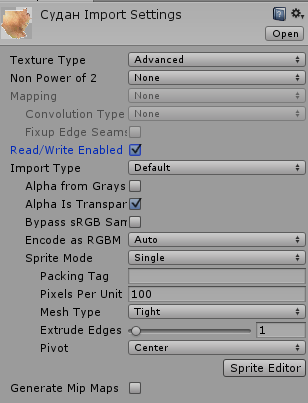
Now everything is fine, however ...
2nd problem. We found a pixel, identified an alpha channel. But under the transparent layer, there is still another country.
Again, EventSystem comes to the rescue, which has its own Raycast with blackjack and gameObjecta.
We got a list of objects, now we can work with it:
Well, that’s all, now even if there are even 100 or more transparent ones over an opaque pattern, we’ll still see an opaque one.
And now the bonus from solving the problem by viewing the pixel. Remember the picture where we set the parameters for the sprite? So, there is such a checkmark Read / Write Enabled, it is thanks to it that we can access the listbox. As is clear from the word Write - not just for reading.
We can change the pixels as we please!
Example, lightening a sprite:
It was:
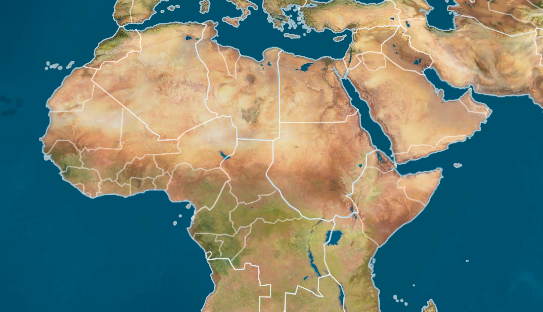
Result:
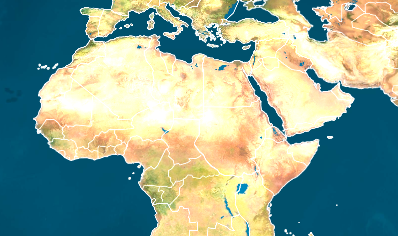
That's all. I really hope that this article helps someone at least somehow. If you have questions or comments, please write comments.
It was decided to build a map using Canvas. Convenient thing, saves a lot of time. But not at this time.
The first problem is a country of different sizes, and a situation arises when one country closes the ocean in a transparent area, or other countries, and the click is not where it is needed, more precisely, not where it would be logically desirable (I whitewashed the sprites so that you would saw the horror of what is happening).
First thought: it’s a problem to hang a Button on an Image object and it’s the hat, but no, it won’t solve the problem, Button is based on Image and it doesn’t skip transparent areas, that is, transparent areas will still be buttons.
The second thought: to get the picture pixel at the click point and if the pixel is not transparent, then we clicked where it should, if transparent, then see what other pixels are at the click point.
And here is a stupor. How to get a picture pixel, this is not a problem, there are a lot of examples, but how to get Canvas objects at the click point? Canvas does not have a collider, so letting Raycast useless, will not return anything. And to shove wildness-collider polygon-collider on each image-country.
Well, after reading the help and viewing the manual video with English-speaking Indians on Youtube, I came to the conclusion that it was time to use the capabilities of EventSystem.
Created a script for CountryMap countries and inherited it from the IPointerClickHandler interface, which is included in the above namespace. The only method of this interface OnPointerClick accepts a variable of type PointerEventData as input. You can get a lot of interesting information from this variable, but I only need the position of the click.
Okay, the country is clickable (thanks to the interface), we know the tap position, it remains to get the pixel of the picture under this position. We write a small method:
private bool IsAlphaPoint(PointerEventData eventData)
{
Vector2 localCursor;
RectTransformUtility.ScreenPointToLocalPointInRectangle(GetComponent(), eventData.position, eventData.pressEventCamera, out localCursor);
Rect r = RectTransformUtility.PixelAdjustRect(GetComponent(), GetComponent If it is interesting, I will describe in more detail. In short, we convert the position from the screen coordinates to the local coordinates of the picture, get the position relative to the center of the picture, calculate the pixel coordinates of the picture, get the pixel, check for alpha channel.
All fire, run!
There is a ban on reading the texture, we find the sprite of the picture and set the following parameters for it:
Now everything is fine, however ...
2nd problem. We found a pixel, identified an alpha channel. But under the transparent layer, there is still another country.
Again, EventSystem comes to the rescue, which has its own Raycast with blackjack and gameObjecta.
 List raycastResults=new List();
  EventSystem.current.RaycastAll(eventData, raycastResults);
We got a list of objects, now we can work with it:
 public void MayBeYouWantClickMe(List ResultsCountryMap, PointerEventData eventData)
    {
        if (!IsAlphaPoint(eventData))
        {
            print(gameObject.name);
            if (TapEvent != null) TapEvent(this);
        }
        else
        {
            ResultsCountryMap.Remove(this);
            if (ResultsCountryMap.Count > 0) ResultsCountryMap[0].MayBeYouWantClickMe(ResultsCountryMap, eventData);
        }
    }
    public void OnPointerClick(PointerEventData eventData)
    {
        if(!IsAlphaPoint(eventData))
        {
            print(gameObject.name);
            if (TapEvent != null) TapEvent(this);
        }
        else
        {
            List raycastResults=new List();
            EventSystem.current.RaycastAll(eventData, raycastResults);
            List ResultsCountryMap = raycastResults.Select(x => x.gameObject.GetComponent()).ToList();
            ResultsCountryMap.RemoveAll(x => x == null || x.gameObject==gameObject);
            if (ResultsCountryMap.Count > 0) ResultsCountryMap[0].MayBeYouWantClickMe(ResultsCountryMap, eventData);
        }
Well, that’s all, now even if there are even 100 or more transparent ones over an opaque pattern, we’ll still see an opaque one.
I will give the full script code:
using UnityEngine;
using System.Collections;
using System.Collections.Generic;
using UnityEngine.UI;
using UnityEngine.EventSystems;
using System.Linq;
public class CountryMap : MonoBehaviour,IPointerClickHandler {
Image CountryImg;
Image SelectCountry;
public event CountryMapEvent TapEvent;
void Awake()
{
CountryImg = GetComponent![]() ();
SelectCountry = transform.GetChild(0).GetComponent
();
SelectCountry = transform.GetChild(0).GetComponent![]() ();
SelectCountry.sprite = Resources.Load
();
SelectCountry.sprite = Resources.Load("Image/Countries/" + CountryImg.sprite.name);
}
private bool IsAlphaPoint(PointerEventData eventData)
{
Vector2 localCursor;
RectTransformUtility.ScreenPointToLocalPointInRectangle(GetComponent(), eventData.position, eventData.pressEventCamera, out localCursor);
Rect r = RectTransformUtility.PixelAdjustRect(GetComponent(), GetComponent And now the bonus from solving the problem by viewing the pixel. Remember the picture where we set the parameters for the sprite? So, there is such a checkmark Read / Write Enabled, it is thanks to it that we can access the listbox. As is clear from the word Write - not just for reading.
We can change the pixels as we please!
Example, lightening a sprite:
Texture2D tex = CountryImg.sprite.texture;
        Texture2D newTex = (Texture2D)GameObject.Instantiate(tex);
        newTex.SetPixels32(tex.GetPixels32());
        for (int i = 0; i < newTex.width; i++)
        {
            for (int j = 0; j < newTex.height; j++)
            {
                if (newTex.GetPixel(i, j).a != 0f) newTex.SetPixel(i, j, newTex.GetPixel(i, j)*1.5f);
            }
        }
        newTex.Apply();
        CountryImg.sprite = Sprite.Create(newTex, CountryImg.sprite.rect, new Vector2(0.5f, 0.5f));
It was:
Result:
That's all. I really hope that this article helps someone at least somehow. If you have questions or comments, please write comments.