Step-by-step: preparing Mac OS installation packages. Part one
Analysts at Gartner say that the percentage of Mac platform in the corporate sector is growing year by year. Therefore, the issue of centralized management of Mac packages in corporate environments is becoming increasingly relevant. What are the benefits of using centralized software management? Among them:
The topic of software management is quite extensive. Above are only the most striking and everyday examples. Therefore, in our company, the preparation of installation packages for Mac OS is provided as a separate service.
The outline of the first part of the article:
(there are a lot of photos under the cat)
1. Formats, types of packages
Consider one of the most famous types of payload package :
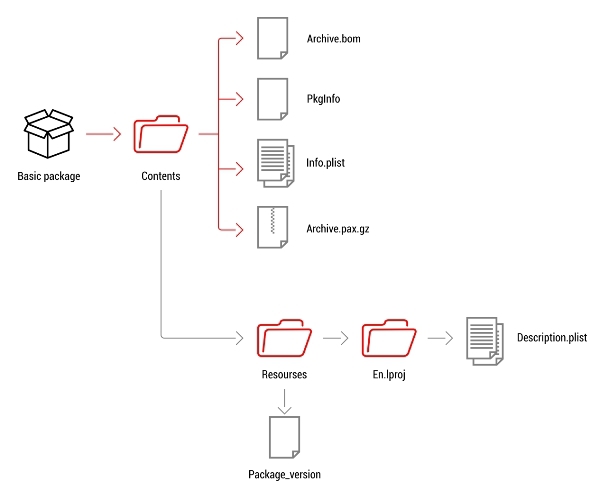
Archive.bom - a binary file that contains a list of files for the entire project. You can use Isbom in terminal to view the data.
Archive.pax.gz - displayed as a pax archive and compressed with the gzip tool.
Info.plist - an xml file containing default settings for the entire package. To view the contents, use the Property list Editor tool, you can also view the file with a text editor.
PkgInfo is a simple text file containing the file and the type of creation of the entire package.
Resources - a language pack folder containing simple localization strings.
Meta-package
Contains several payload packages in one installation package (Contents / Packages). Meta package does not install files on their own. Instead, it contains components in the form of packages. In Meta package, you can install a separate package, which is necessary. Meta package is suitable for large software products, when there is a large number of files that need to be distributed.

Flat-package
Flat-package uses a different structure from previous ones. Firstly, Contents does not contain info.plist and PkgInfo. Secondly, it saves its payload and resource at the root level. And the distribution.dist file is just Distribution.
The flat package also uses a more compact payload format. Each payload has 3 files. The bom file takes the place of Archive.bom. The payload file replaces Archive.pax.gz, and PackageInfo replaces XML, PkgInfo. Flat-package stores installation scripts differently. Pre-install, post-install actions became a payload action. Payload consists of the main name of the package and the type action.

Bom - contains a list of paths and files for the entire project.
Payload - files packed into the cpio.tgz archive.
PackageInfo - contains information about the package.
Distribution - describes which components will be installed on the system.
Resources - a language pack folder containing simple localization strings.
2. Overview of packaging tools
Today, there are many tools for creating a package for Mac OS. We will look at some of the most famous:
Iceberg A
free tool developed by Stéphan Sudre. Very popular among Mac OS X administrators. You can create package and metapackage, does not support the creation of flat packages. It has a friendly interface and easy to use, there is detailed documentation of the use of the tool on the site. There is also support for creating packages from the file system via snapshot. To date, the available version 1.2.9 (not updated since 2010) can be downloaded .
Package Maker
Package Maker can also be downloaded from Apple's official websiteand is considered one of the most reliable and frequently used of all existing tools. Microsoft, among other things, prefers this tool and shows its solutions in the Package Maker environment. The tool is part of the developer tool kit (Xcode). Package Maker allows you to create Single Package, Metapackage and Distribution package. A feature of this tool is the creation of snapshots of the file system at a certain point, which is useful because it allows you to find the difference in the files. On Mac OS Package Maker is located in / Developer / Applications / Utilities.
Composer by JAMF Software
A handy tool that allows you to package the following formats: .pkg, .mpkg, .dmg. It can also be used to take snapshots of the file system to further compare the difference. It has good documentation in English. In turn, JAMF Software provides training and certification for its products, and, importantly, there is a forum where you can find many tips for creating packages in Composer. This tool is paid and currently costs $ 99.95 (Commercial version) and $ 79.95 (Education version). You can also download a trial version by filling out the request trial form.
In the second part of the article, we will demonstrate how to create a package in the Package Maker environment.
Posted by: Eduard123
- the ability to install applications on a large number of clients with common settings;
- minimization of the number of problems and incidents with software through the use of common standards for the preparation of installation packages;
- installation package installation does not require actions from the user and any additional privileges.
The topic of software management is quite extensive. Above are only the most striking and everyday examples. Therefore, in our company, the preparation of installation packages for Mac OS is provided as a separate service.
The outline of the first part of the article:
- Formats, types of packages. In this section, we consider the types of packages and their structure.
- A brief overview of the most popular tools for preparing installation packages.
(there are a lot of photos under the cat)
1. Formats, types of packages
Consider one of the most famous types of payload package :
Archive.bom - a binary file that contains a list of files for the entire project. You can use Isbom in terminal to view the data.
Archive.pax.gz - displayed as a pax archive and compressed with the gzip tool.
Info.plist - an xml file containing default settings for the entire package. To view the contents, use the Property list Editor tool, you can also view the file with a text editor.
PkgInfo is a simple text file containing the file and the type of creation of the entire package.
Resources - a language pack folder containing simple localization strings.
Meta-package
Contains several payload packages in one installation package (Contents / Packages). Meta package does not install files on their own. Instead, it contains components in the form of packages. In Meta package, you can install a separate package, which is necessary. Meta package is suitable for large software products, when there is a large number of files that need to be distributed.
Flat-package
Flat-package uses a different structure from previous ones. Firstly, Contents does not contain info.plist and PkgInfo. Secondly, it saves its payload and resource at the root level. And the distribution.dist file is just Distribution.
The flat package also uses a more compact payload format. Each payload has 3 files. The bom file takes the place of Archive.bom. The payload file replaces Archive.pax.gz, and PackageInfo replaces XML, PkgInfo. Flat-package stores installation scripts differently. Pre-install, post-install actions became a payload action. Payload consists of the main name of the package and the type action.
Bom - contains a list of paths and files for the entire project.
Payload - files packed into the cpio.tgz archive.
PackageInfo - contains information about the package.
Distribution - describes which components will be installed on the system.
Resources - a language pack folder containing simple localization strings.
2. Overview of packaging tools
Today, there are many tools for creating a package for Mac OS. We will look at some of the most famous:
Iceberg A
free tool developed by Stéphan Sudre. Very popular among Mac OS X administrators. You can create package and metapackage, does not support the creation of flat packages. It has a friendly interface and easy to use, there is detailed documentation of the use of the tool on the site. There is also support for creating packages from the file system via snapshot. To date, the available version 1.2.9 (not updated since 2010) can be downloaded .
Package Maker
Package Maker can also be downloaded from Apple's official websiteand is considered one of the most reliable and frequently used of all existing tools. Microsoft, among other things, prefers this tool and shows its solutions in the Package Maker environment. The tool is part of the developer tool kit (Xcode). Package Maker allows you to create Single Package, Metapackage and Distribution package. A feature of this tool is the creation of snapshots of the file system at a certain point, which is useful because it allows you to find the difference in the files. On Mac OS Package Maker is located in / Developer / Applications / Utilities.
Composer by JAMF Software
A handy tool that allows you to package the following formats: .pkg, .mpkg, .dmg. It can also be used to take snapshots of the file system to further compare the difference. It has good documentation in English. In turn, JAMF Software provides training and certification for its products, and, importantly, there is a forum where you can find many tips for creating packages in Composer. This tool is paid and currently costs $ 99.95 (Commercial version) and $ 79.95 (Education version). You can also download a trial version by filling out the request trial form.
In the second part of the article, we will demonstrate how to create a package in the Package Maker environment.
Posted by: Eduard123