Search Articles — Sudonull
Search Results
Trending Now
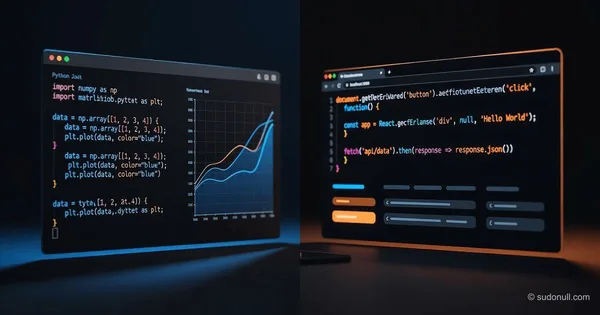
JavaScript vs Python Which Is Better: Full 2026 Guide
JavaScript vs Python which is better for you? Compare ease of learning, salaries, use cases, and career paths to choose the right first language in 2026. Start now.
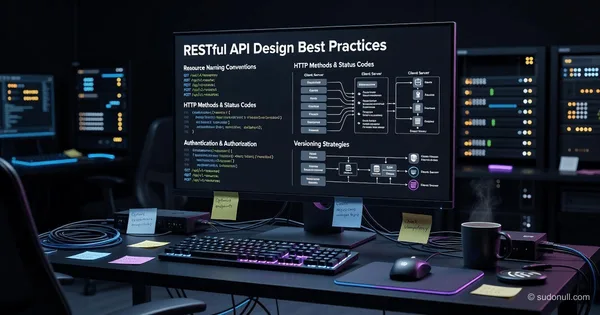
How to Design RESTful APIs for Web Applications: Best Practices
Learn how to design RESTful APIs for web applications with best practices on URIs, HTTP methods, versioning, and documentation. Build scalable, intuitive APIs that developers love.

How to Implement JWT Authentication: Step-by-Step Guide
Learn how to implement JWT authentication securely in your web API. This complete guide covers token issuance, validation, best practices, and production security.

What Are Data Structures and Why They Matter | Basics
Learn what are data structures and why they are important for efficient software. Discover types, real-world impact, and how they shape modern computing.

CERN quantum internet: 50 km test between Geneva and Lausanne
CERN successfully transmitted entangled photons over 50 km in a real urban network. Learn how White Rabbit technology is changing the quantum communications market and who benefits from this breakthrough.

How Netflix Scales Its Streaming Infrastructure: Cloud & CDN
Learn how Netflix scales its streaming infrastructure with AWS, Open Connect CDN, and chaos engineering. Discover the tech behind 270M subscribers and sub-100ms latency.

What Is Microservices Architecture? Benefits & Patterns
Learn what is microservices architecture, its benefits, challenges, and key patterns like Saga and API Gateway. Understand when to use this modern approach.

What Is a Large Language Model? Beginner's Guide
Learn what is a large language model, how AI like ChatGPT works, key capabilities, limitations, and practical uses. Understand LLMs in plain English.

Figure 02: new humanoid robot with AI interface from Figure AI
Figure AI introduced the humanoid robot Figure 02 with physical AI and OpenAI language model. The robot passed tests at BMW factories. Learn how humanoid robots are changing manufacturing.

How to Learn Python for Beginners: Step-by-Step Roadmap
Discover how to learn Python for beginners with this step-by-step roadmap. Master fundamentals, data structures, and build real projects. Start your coding journey today.