November 13, 2014 at 10:11
Development of a program in Multimedia Builder using an example utility for remote work with cash register software
As you all already understood, I am just an ordinary engineer, but I always strive to make my work and my colleagues much more convenient.
I think every IT professional is familiar with such a task as the automation of process execution. So, in the process of my work with cash register software, I had to face many everyday procedures related to remote access and cash desk management, as well as automation of many procedures.
I myself am not a programmer. Despite the fact that he studied VB, VBA, JavaScript and PHP, but all this remained on the student bench.
So, as an engineer, I’m tired of doing the same thing every time and wasting time on it. And I asked myself, is it possible, with minimal programming knowledge, to create some kind of automation tool for cash register support for everyday tasks?
Turned to the search ...
So, what was found?
1. MediaChance Multimedia Builder is a program for creating autorun CD applications. Unfortunately, the release of its new versions stopped already back in 2007, but some enthusiasts continue to make various chips on it. There are a lot of such programs, but what I liked about this environment is that it has its own scripting language, which in my opinion is quite easy to learn and also has a bunch of plugins.
2. Batch-script is a Windows command-line scripting language, in other words, it allows automating actions in a bat-file. I’ll also add from myself, I don’t know how for others, but it turned out to be not difficult for me to master and combine it with MultimediaBuilder either.
3. Well, in addition to PuTTy and PLink. - I think everyone knows that these are utilities for remote access via the SSH protocol to * nix systems.
So, in our company we have server software and cash programs for the store. But as you all understand in the process of work, situations arise when you need to connect remotely to the store.
I decided to simplify my life a little and developed a utility to solve this problem. To my surprise, the utility was liked by my colleagues, and is now quite in demand among the engineers of our company.
Once again, I want to note that I am not a professional programmer, so the following criticism, which will fly to me in terms of correct optimization and code writing, is accepted and encouraged.
Task: very often it is necessary to remotely reboot the cash desk, which runs under Linux.
We create a project in Multimedia Builder and implement the so-called “Embedded” built-in object in it:
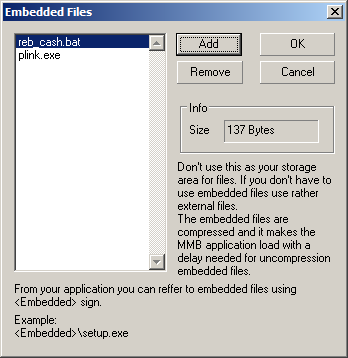
And on the button we just hang up an event that will launch a bat-file that will plink.exe with parameters. It turned out here is such a simple program:

It is worth noting that when you do Embedded Files in Multimedia Builder, when you open the program, all embedded files are automatically unpacked into a temporary directory and will be launched from there.
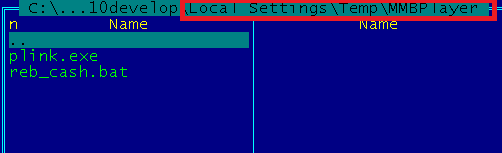
By clicking on the button, a line simply appears that from the bat-file executes the simplest code.
SET /p ipcash=Enter CashIP:
plink.exe tc@%ipcash% -pw "12345" "sudo /sbin/reboot"
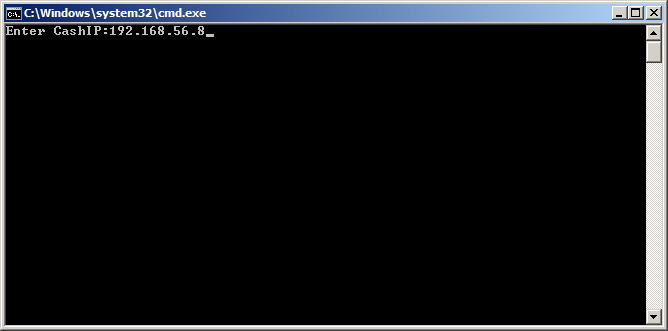
I know that perhaps for many I am telling things rather commonplace, but for me, as a person who has learned the basics of automation, all this has been and remains interesting to this day.
What did you do next? - And it’s very simple, I posted it on a corporate resource and sent a letter to my colleagues saying that there’s such a thing.
And what do you think? - The people began to use, and accordingly Wishlist appeared.
Once again, I note that creating such a thing, I comprehended everything from scratch on how to write batch scripts to bash scripts, etc.
Well, the next version came out already. That is, two buttons have already appeared.
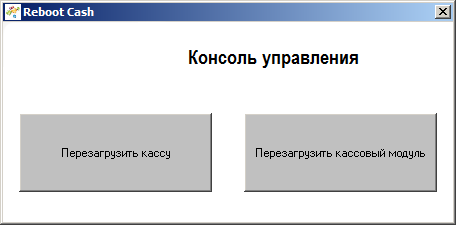
And then it went off. Moreover, it is worth noting that the further I delved into the process of studying automation of processes for working with remote connections, the more I had ideas myself how to do something, it would be better if our support was more convenient.
The next version appeared again:

And the next version:
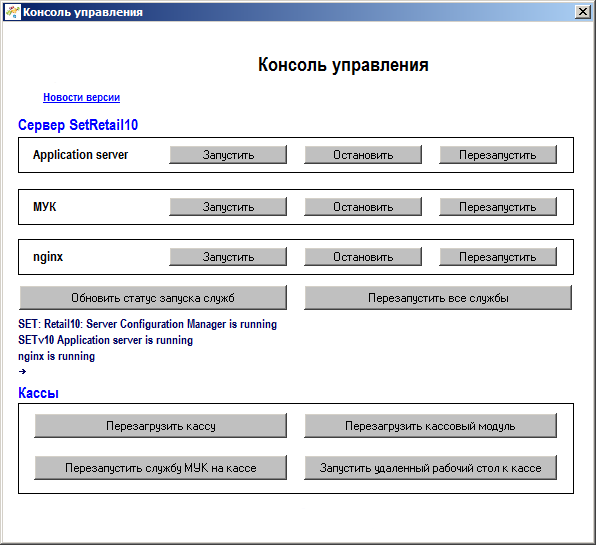
And the next version:
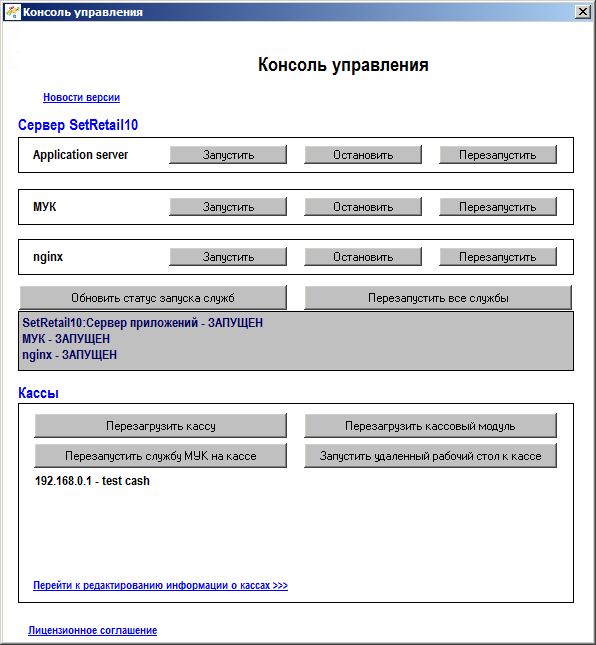
And so version by version, the growth of interest and my knowledge.
Then I learned how to make installation packages and the program got my installer:

Well, the functionality was added:
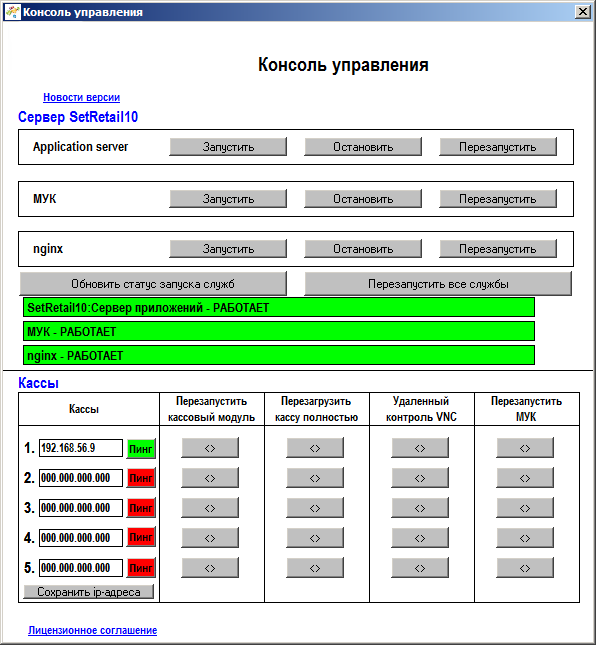
And now, after two years, it looks like this:
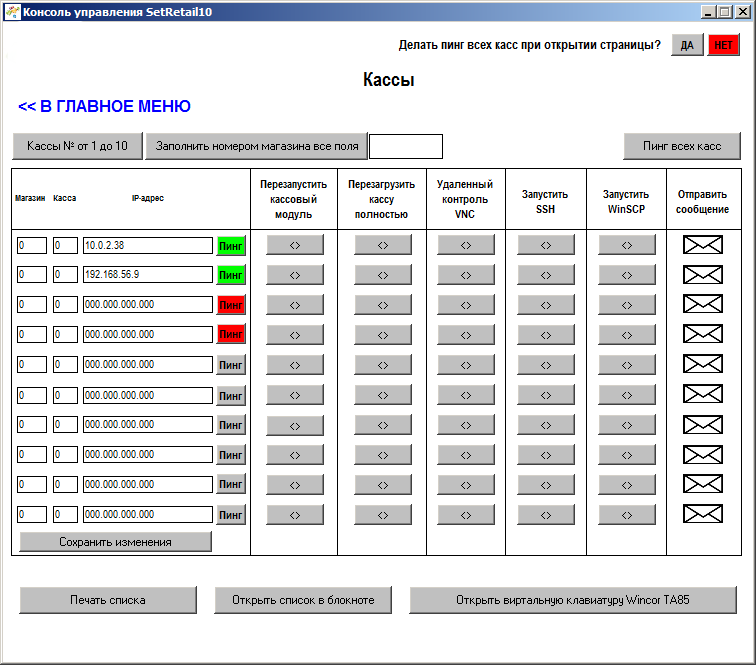
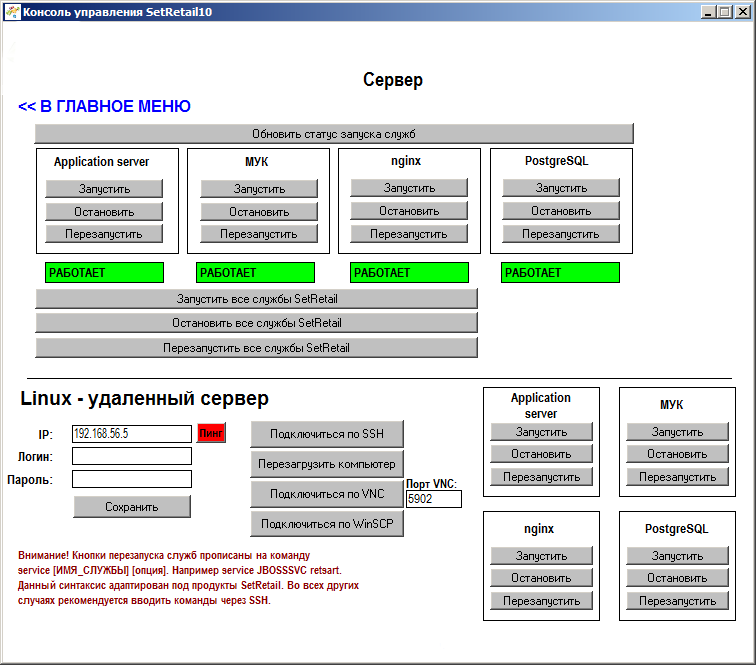

Now we can say that this is a good tool for managing servers and cash registers. I myself would not have thought that I could write such a thing.
To tell about it, unfortunately, my fingers didn’t have enough strength, since it started with just my simple hobby or a question for myself: How can I restart the computer remotely on Linux (we have a cash register on Linux)?
What it turned into in 4 years you saw above.
But let's now share how, for example, I implement everything there.
So, the interface with the list of cash desks you saw, now about the implementation of some functions. I repeat right away that I can say an amateur, and comprehended everything from scratch, so any criticism and comments from the pros are welcome.
1. Ping
I immediately wanted in my fantasies that by clicking on the button, I could ping the cashier and at the same time so that it was highlighted in a certain color.

Accumulated here such a thing:
srok1$=cs1$
File1$='cashes/01c.txt'
Rv1=StrToFile(File1$,srok1$,FALSE,FALSE)
clear$=''
srok1$='For /F "Delims=" %%I In (01c.txt) Do Set c01=%%~I'
srok2$='Ping -n 1 -w 1 %c01% >nul'
srok3$='If %ErrorLevel%==0 ('
srok4$='  c01ping.txt'
srok5$=') Else ('
srok6$='  c01ping.txt'
srok7$=')'
File3$='cashes/c01ping_mmb.bat'
Rv=StrToFile(File3$,clear$,FALSE,FALSE)
Rv=StrToFile(File3$,srok1$,TRUE,TRUE)
Rv=StrToFile(File3$,srok2$,TRUE,TRUE)
Rv=StrToFile(File3$,srok3$,TRUE,TRUE)
Rv=StrToFile(File3$,srok4$,TRUE,TRUE)
Rv=StrToFile(File3$,srok5$,TRUE,TRUE)
Rv=StrToFile(File3$,srok6$,TRUE,TRUE)
Rv=StrToFile(File3$,srok7$,TRUE,TRUE)
Run("\cashes\c01ping_mmb.bat","HIDE")
Pause("1000")
path1$ = 'cashes/c01ping.txt'
col1$='0,255,0'
col2$='255,0,0'
LoadText("r1$","FILE:path1$")
If (r1$='a') Then
  SetObjectParam("bt1","BGCOLOR=col1$")
Else
  If (r1$='n') Then
    SetObjectParam("bt1","BGCOLOR=col2$")
  End
End
The bottom line is that immediately when you click on the "ping" button, the ip-address is written to the file for this field where the address is. Next, we generate the code for the batch file, which will read the ip-address from the text file and run it. Based on the result of the batch file, the response file “n” or “a” is generated, and depending on this, already reading the result, paint the button. Yes, of course, amateur, but it works.
2. Running putty.exe without entering a username and password.
All of you know that if you connect PuTTy in a standard way, you need to enter a username and password. Often in our service you need to quickly connect to the cashier and, in principle, the username and password in most cases by default.
If you run PuTTy, it will look something like this:
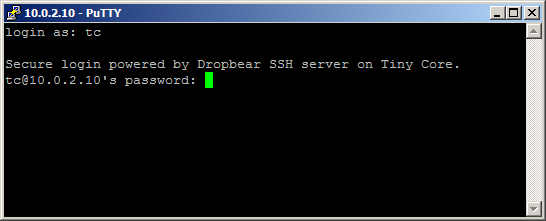
But I thought, why not do it this way: clicked on the button and you immediately opened the SSH command line.
Here is such an amateur code:
srok1$=cs1$
File1$='cashes/01c.txt'
Rv1=StrToFile(File1$,srok1$,FALSE,FALSE)
clear$=''
srok01$='For /F "Delims=" %%I In (cashes/01c.txt) Do Set c01=%%~I'
srok02$='REG ADD HKCU\Software\SimonTatham\PuTTY\Sessions\%c01% /f'
srok03$='REG ADD "HKCU\Software\SimonTatham\PuTTY\Sessions\%c01%" /f /v HostName /t REG_SZ /d %c01%'
srok04$='REG ADD "HKCU\Software\SimonTatham\PuTTY\Sessions\%c01%" /f /v LineCodePage /t REG_SZ /d UTF-8'
srok05$='echo y | plink.exe tc@%c01% -pw "12345" exit'
srok06$='putty.exe -load %c01% tc@%c01% -pw "12345"'
File3$='run_putty.bat'
Rv=StrToFile(File3$,clear$,FALSE,FALSE)
Rv=StrToFile(File3$,srok01$,TRUE,TRUE)
Rv=StrToFile(File3$,srok02$,TRUE,TRUE)
Rv=StrToFile(File3$,srok03$,TRUE,TRUE)
Rv=StrToFile(File3$,srok04$,TRUE,TRUE)
Rv=StrToFile(File3$,srok05$,TRUE,TRUE)
Rv=StrToFile(File3$,srok06$,TRUE,TRUE)
Run("run_putty.bat","HIDE")
RunScript("ssh_log_1")
Logics:
- We write the ip-address in a text file.
- Next, generate a batch file.
- When launched, the ip-address is substituted into the batch file variables.
- The session is added to the registry.
- PuTTy.exe opens a session.
And voila:
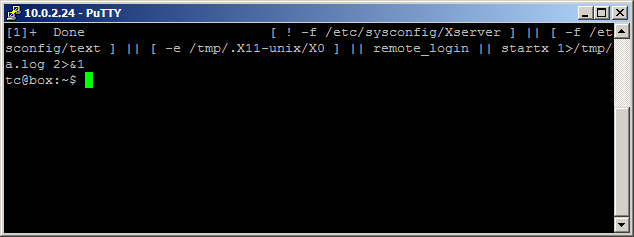
3. Remote VNC server.
Also at our cash desks there is the possibility of remote connection via the VNC server protocol, so that you can watch what the cashiers are doing there.
For this, I took Real VNC Viewer.
Then we got this code:
srok1$=cs1$
File1$='cashes/01c.txt'
Rv1=StrToFile(File1$,srok1$,FALSE,FALSE)
clear$=''
srok01$='For /F "Delims=" %%I In (cashes/01c.txt) Do Set c01=%%~I'
srok02$='rem SET /p ipcash=Enter CashIP for run remote DeskTop:'
srok03$='echo n | plink.exe -v -ssh tc@%c01% -pw "12345" -m rdp_vnc_cmd.txt'
srok04$='vncviewer.exe %c01%'
File3$='rn_vnc_mmb.bat'
Rv=StrToFile(File3$,clear$,FALSE,FALSE)
Rv=StrToFile(File3$,srok01$,TRUE,TRUE)
Rv=StrToFile(File3$,srok02$,TRUE,TRUE)
Rv=StrToFile(File3$,srok03$,TRUE,TRUE)
Rv=StrToFile(File3$,srok04$,TRUE,TRUE)
Message("Сейчас будет запущен сеанс удаленной связи. Нажмите ОК и подождите несколько секунд.","")
Run("rn_vnc_mmb.bat","HIDE")
RunScript("vnc_log_1")
Logics:
- We write the ip-address in a text file.
- We generate a batch file, which reads the ip address from this text file.
- Next, vncviewer.exe starts, which reads the session.
Well, actually the session opens:
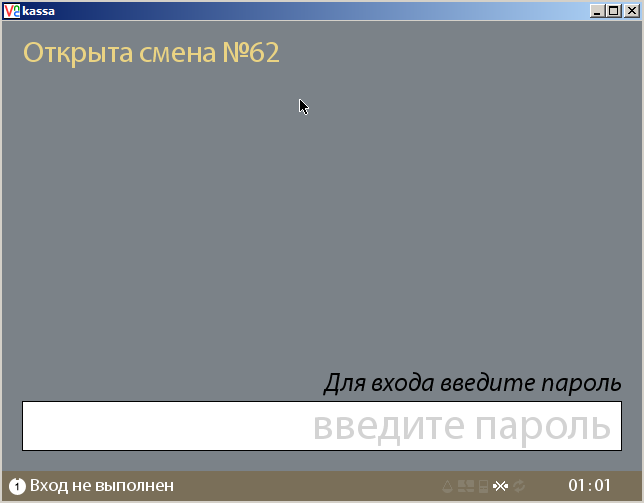
Something like this.
In fact, there is still a lot of all kinds of lotions.
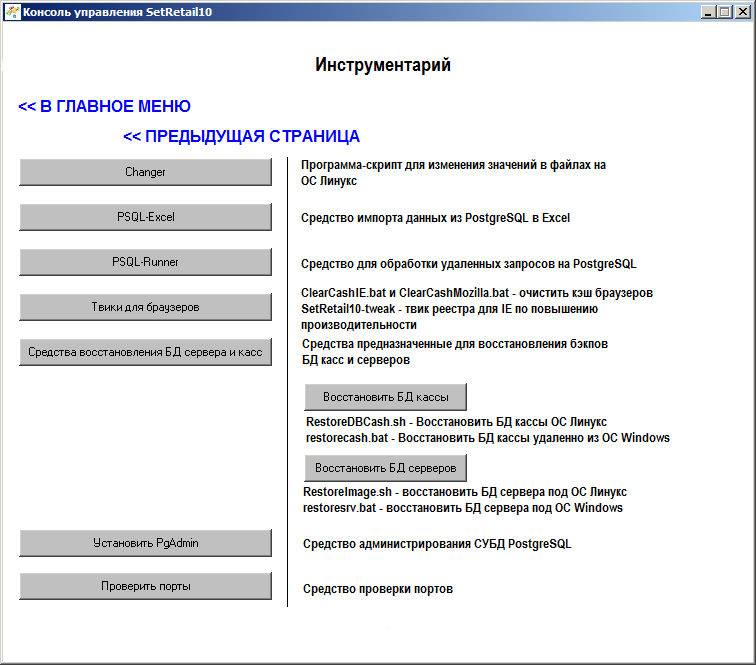
And now it all looks like this already after 2 years, when I started to study everything:
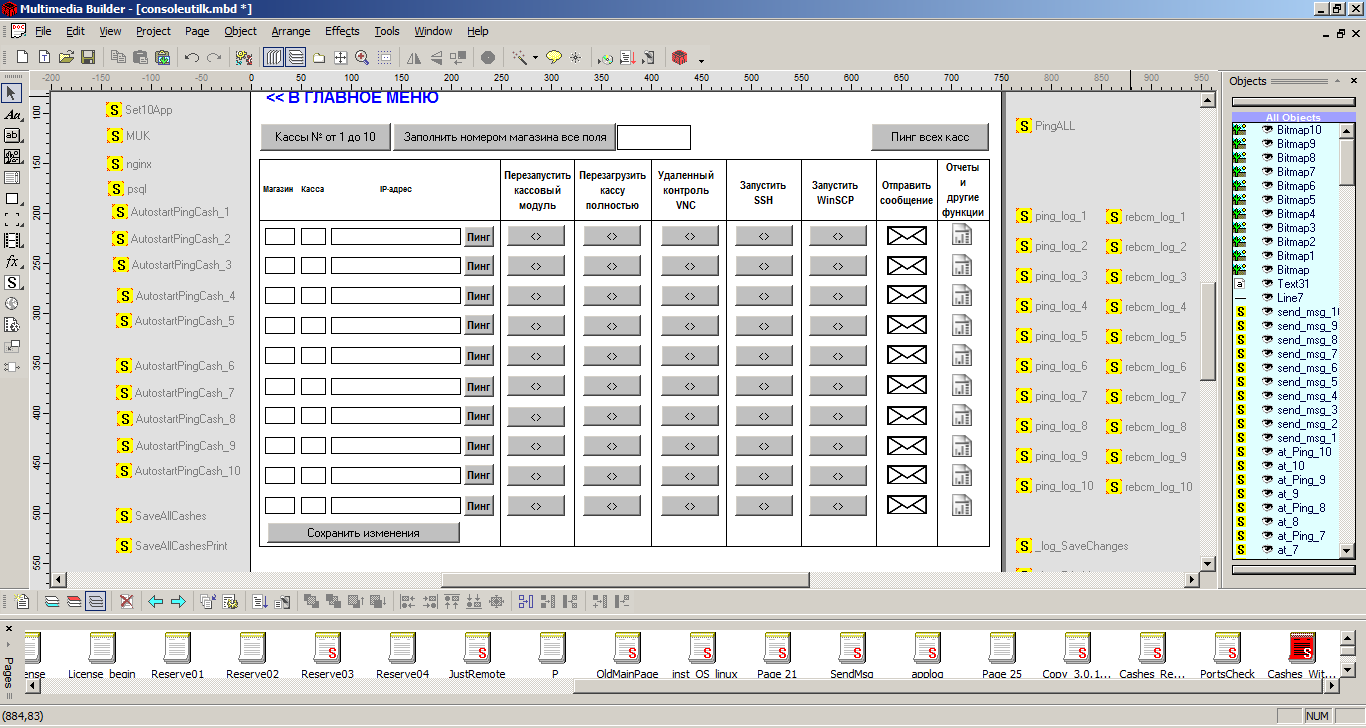
And of course, there were some Easter eggs. I did one recently: if you accidentally click on a mouse somewhere, you find yourself in a secret section, where there are a lot of all kinds of chips, well, so that your colleagues can have some fun!