September 11, 2014 at 16:12
FlexiCapture Is he so flexible, as they say?
 Experience shows that ordinary users outside the company know very little about the FlexiCapture product (“Is it possible to recognize the Unified State Examination by this?”), Despite the fact that it is used in many large organizations. You can put up with this, believing that the product is not for the end user, but a corporate one. And you can periodically tell anything about him that will not only be useful to those who are already familiar with him, but will also hint to people far from the product that Flex is not just 4 letters in the name.
 Our partners from the Novosibirsk company ATAPI Softwareshared their tricks for handling various complex cases. This is a set of specific practical tips that we hope will be of use to you. In addition, each of these stories is similar to a Zen koan - it helps to reveal the true nature of FlexiCapture in all its diversity.
When processing custom tables, be as serene as a lotus flower
The main purpose of ABBYY FlexiCapture is to extract certain data from documents and enter them into the information system. In Russia, most documents are unified, so usually this does not cause difficulties. Unfortunately, this cannot be said about foreign documents - say, about European invoices - and some Russian forms are “annealed” no worse than their foreign counterparts. Often there are cases when the necessary information in the tables is not clearly demarcated, for example, like this:
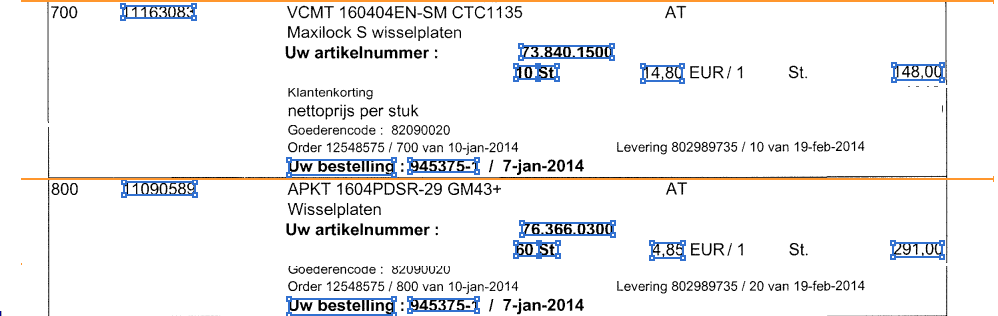
Here in the table there are two lines with the description of the commodity items. If you use the automatic method to recognize such a document, the item number (the leftmost field) will fall into a separate column and will be recognized correctly, but the quantity and article fields (third column) will fall into the same column, although in our table they are different fields. In addition, a lot of unnecessary textual information can get into the columns - this will create problems during verification.
You can divide the desired data into separate fields using the functionality of a repeating group. In Flexilayout Studio, create an element of the type “Repeating Group” (Repeating Group). Each instance of the group will correspond to a row in the table, within the area of which a search is already organized using simple elements (such as Static Text, Character String, Region, etc.). In turn, the area of each line can also be selected using a repeating group that precedes the search for information directly.
This is perhaps the best solution for such cases. However, we must not forget that in addition to the actual recognition, we need to bring the data from such an not-so-standard table to a regular table view:

Why is this needed? Verification operators find it easier to process data when presented in tabular form. In addition, it very often happens that standard and non-standard tables are submitted for verification one after another, and if you make a separate template for each case, it will be difficult for the operator to switch from one way of presenting data to another - therefore, he will inevitably begin to make mistakes.
And one moment. The following example shows that it is not very convenient to present complex non-standard tables as a repeating group in the interface - such a representation takes up a lot of space.
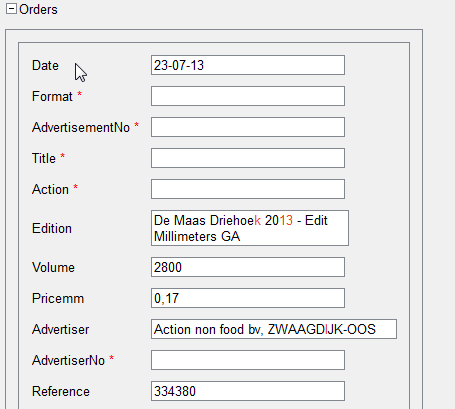
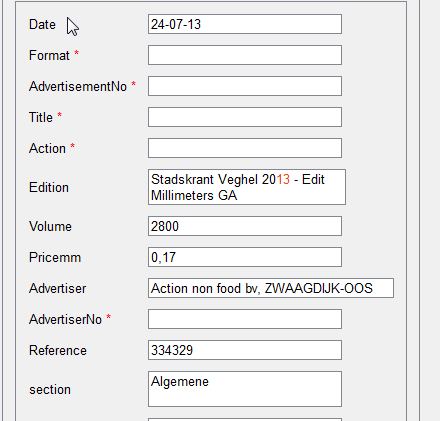
Compare this with the presentation of similar data in the form of a table:

As we can see, in this form (like a table), data takes up much less space, and the operator has the opportunity to check documents faster - without wasting time scrolling.
To speed up the verification process and make it uniform, we use the following approach:
- At the level of a flexible description, we look for the necessary data using a repeating group, thus we find the regions of individual lines. Then, within the region of each row, we extract the necessary fields.
- Next, create a dummy table with the same number of rows as in a repeating group. A dummy table is a table that is superimposed in an arbitrary region, that is, it is present on the data form, but is not tied to a specific image of the document.
- In the FlexiCapture project, in the document definition settings, we write a simple script rule - it will copy the values from the fields that the system finds in the repeating group into the corresponding columns of the table.
- The fields themselves on the data form can be hidden, since all information will now be stored and displayed in the table.
Avoid tiger grazing by improving tabular data recognition
When working with tables, the developer’s karma is a large number of different textual “garbage” in the data cells. For example, we need to extract the numerical value OKVED code and the date the information was entered in the Unified State Register of Legal Entities from the following table:
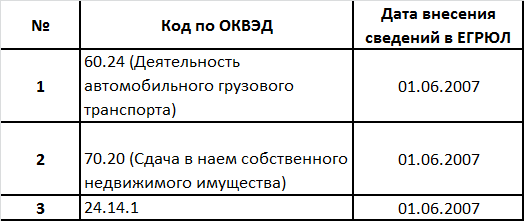
If you make a simple table, the text description of the type of activity (“Letting Your Own Real Estate”) will appear in the cell with the code. either to the developer using the script, or each time manually to the operator. In addition, blots, marks, stamps, signatures, etc. can also fall into the table region.
So that such extra information does not interfere with recognition, we can filter these objects at the level of a flexible description - set rules by which the system will automatically find them and ignore them during recognition. In the case of our example, it will be enough to configure the “ignore” of all text objects with Russian letters and brackets.
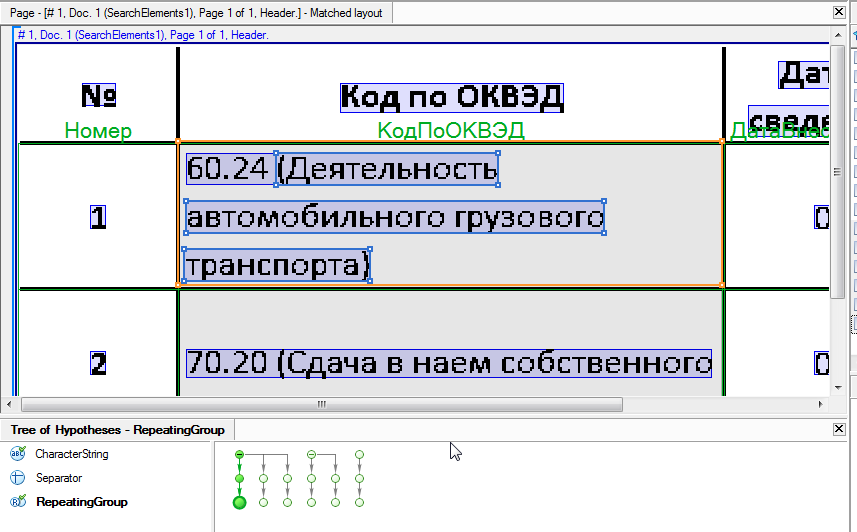
As you can see in the figure below, in FlexiCapture 10 this field will be excluded from the recognition area (rectangles with gray shading).
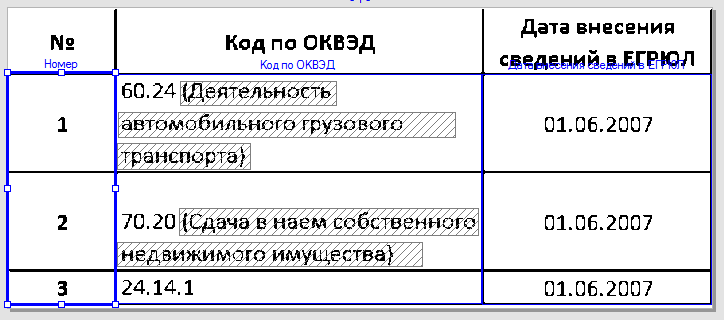
Or you can go the opposite - first, using a repeating group, find only the data we need (digital codes), and then exclude from recognition all text or other image objects from the "OKVED Code" column that are different from the code itself.
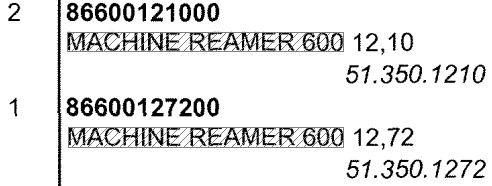
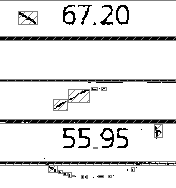
Examples of such approaches are presented in the picture below: on the left, we excluded the fixed text MACHINE REAMER 600 in the first way, and on the right - everything except the numbers, in the second way:
Attitude variational field recognition - let the mirror of the mind separate the beautiful from the not so
It happens that the format of the same field varies greatly in documents of the same type. For example, in foreign invoices, you may see both plain black text on a white background, and white text on a black background. We can see a similar situation in the forms of various questionnaires, questionnaires, etc.


And it sometimes happens that there is only one template, but in reality documents come to recognition mixed up - in some the data is imprinted on the printer, and in others it is entered by the person in the so-called hand-printed method.
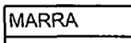
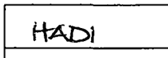
No less than incidents generates a different data format in the same fields. If in one document the date is in the format of February 23-February 2006, and in another - on 11/24/08, the person will understand, and it is desirable for the program to indicate different settings for this field.


All of these cases can cause recognition difficulties. ABBYY FlexiCapture allows you to create two separate fields and set different recognition settings for them: inverted or plain text, printed or handwritten, recognition in a common frame, or drawing a separate frame for each character. Then, when processing each document, the operator manually selects the correct option for the field.
But you can further improve the recognition process. The first option is to process documents in different types of packages. But this is also quite inconvenient, since you need to separate documents at the scanning stage, and operators in the end can just get confused where to send which document. Why load the operator with unnecessary work when the program can cope with this task?
We used the following algorithm. In the place where we should have the text we are looking for, we create three fields:
- the first is a field hidden from the user that recognizes plain text,
- the second is also a hidden field that recognizes the text as inverted,
- the third is a field that is visible to the user, in which the operator receives for verification one of the recognition results that the system evaluates as the best.
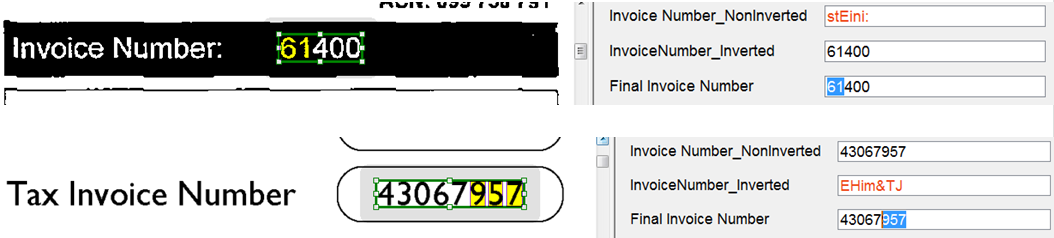
The system can choose the best result, for example, based on the number of so-called “suspicious characters” (Suspicious Symbols) - for this you need to create a script rule that transfers the value of the field with the least number of “suspicious characters” as a result of recognition.
A similar approach with three fields and the choice of the best recognition option can be used for cases of different markup or printed / handwritten text in one field.
How to return everything to a single: highlighting the fractional part of numbers
It would seem, what problem can be with fractions? The same numbers and semicolons. But sometimes the separator characters of the fraction are not recognized or disappear when scanning, which can lead to unpleasant consequences. For example, the total amount in the paper invoice is one, and in the electronic invoice the other (a pair of extra zeros appears in it). This happens, for example, when processing documents transmitted by fax, recognition of old documents or documents with poor print quality.

In FlexiCapture, solving this problem is not very difficult.
Usually the number of characters in the fractional part varies from 0 to 2. To understand whether there is a separator in the recognized text, we need:
- Calculate the distance between the last and penultimate characters in a string. To do this, subtract the x coordinate of the left border of the last character from the x coordinates of the right border of the penultimate symbol. It will be S 1

- If the number of characters in a string is two: compare S 1 with a certain coefficient, if S 1 is greater than this value, then you need to add a separator.
- If the number of characters in a line is more than two, then it is necessary to calculate the distance S 2 between 2 and 3 characters from the end of the line.
- Calculate the relations S 1 / S 2 and S 2 / S 1
If any of the relations is greater than a coefficient, for example, 1.5, then we insert a separator between the corresponding characters.
This solution was used in one of our projects in Australia. Below is an example of the original image and recognition results - with and without our “enhancement”.
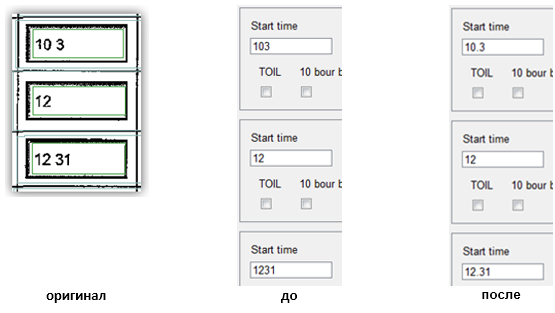
In the invoice, by the way, the recognition result is quite easy to check against the checksum. If the value of the “Total” field in the recognized document is the same as the sum according to the table, it means that you can verify the recognition result without operator intervention. Comparison of the amount in numbers with the amount in words, if any, in the document may also help.
To automate the selection of coefficients, you can analyze the average distance between characters in a string, the ratio between the height and width of characters, etc., but, as a rule, it is easier to select the coefficients experimentally, or by the scientific “poke” method. The time that you spend on selecting these coefficients is calculated in minutes - while the verification operator can save hours of work.
Flowers will bloom under the gaze of Buddha and on an iron tree. What to do if you need a full text layer of a document
We already wrote that ABBYY FlexiCapture is needed to extract and save specific data from the fields: numbers, counterparty names and so on, as a rule, no one is interested in the full text of the document. But it also happens that in one stream it is necessary to extract data from the fields for some documents and recognize the whole text for others.
The ability to extract the entire text of a document as a text file may be needed, for example, to index the contents of a document in various search engines, both for general use and for corporate ones.
Such a need arose at the Novosibirsk City Hall, which processed documents of the authorities - orders, decrees and orders. They needed not only the fields from the “header” of the document by which the document was indexed in the archive, but also the results of full-text recognition, so that they could later find the document by the keyword from the main part.
FlexiCapture has long been able to customize the export of recognized documents to PDF with a text layer. But the reality is that many external information systems do not know how to search for PDF documents. Moreover, as regards the Novosibirsk archive, which has been storing data since the beginning of the 1920s, many of the paper sources we saw were rather shabby, faded pages printed on a typewriter. It can be expected that the results of automatic recognition for such files may not be very high quality. At the same time, it is the textual content of such an archive document, and not its heading, that can be very important. Therefore, it would be nice to have the opportunity in FlexiCapture at the stage of checking important data (in our case, it was the order number, date, etc.
There was a solution. In FlexiLayout Studio (we already wrote about this tool for creating flexible descriptions ), you can create a flexible description of a document, which, in addition to significant structured data, can also extract the entire text layer of a document. This is done very simply - for example, using a repeating group that contains all the lines of the document.
If necessary, this text layer can even be checked at the FlexiCapture verification station. Also, the text can be copied, indexed and exported to text formats. In the final PDF-document, we will get a better result of the recognition of the text layer, as this result will be checked by the operator.
Below is a screenshot from the ABBYY FlexiCapture verification page. As we can see, now you can work not only with fields, but with all the text in the document.

Thank you for your patience, attention, there are only 3 proposals
We brought some engineering life hacks that we hope will help you in working with our product.
If there is something to add - you have solved some other non-standard problem using FlexiCapture - we will be happy to read about it in the comments.
Tatyana Ganzhina, ABBYY Russia
with the active support of ATAPI Software specialists.