April 19, 2014 at 16:56
Review Zalman ZM-VE400
ZM-VE400 is a case for a 2.5 ”hard drive with the ability to encrypt data (256bit) and emulate a CD \ DVD \ Blu-ray drive.
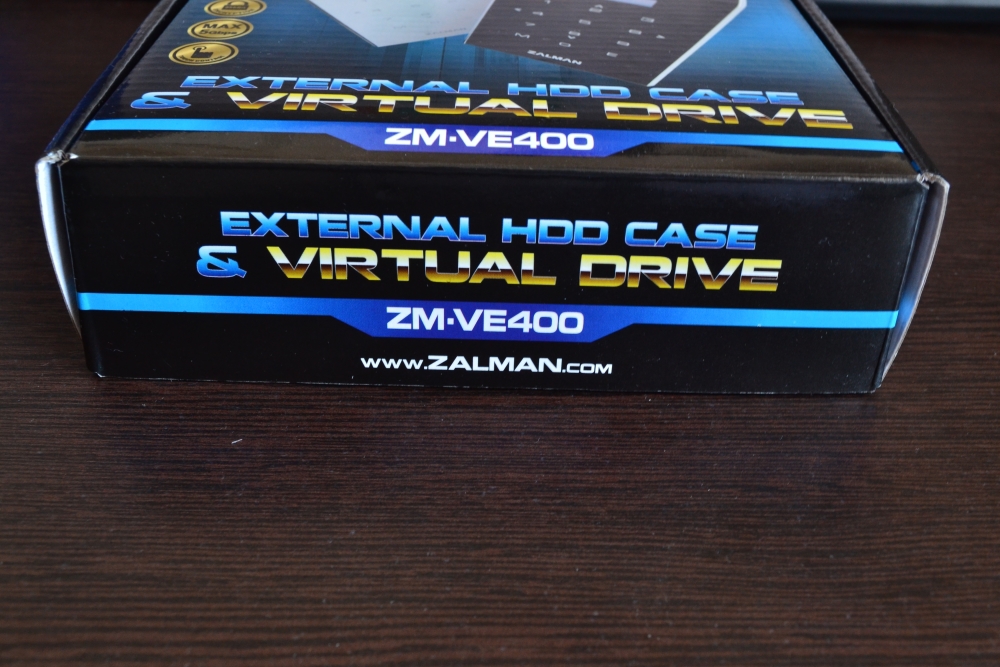
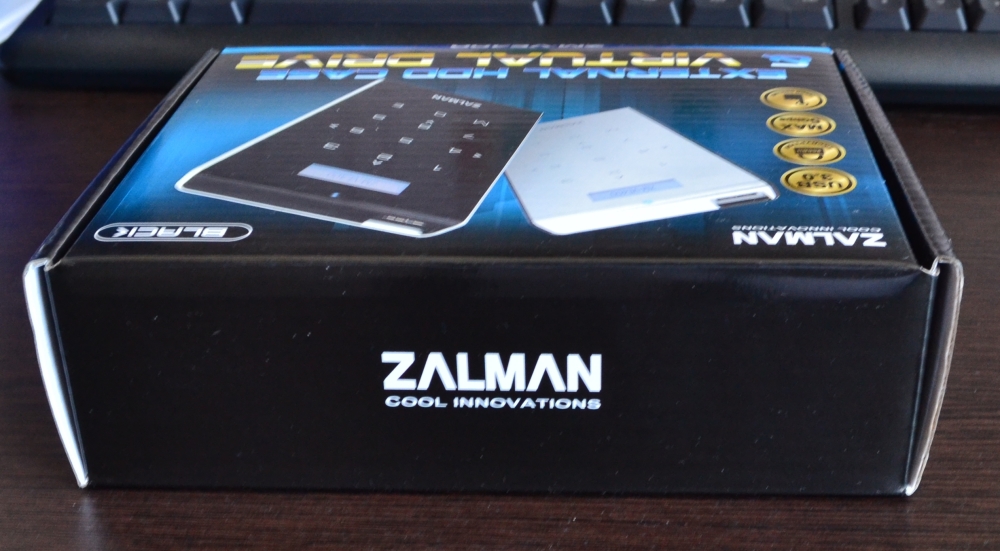
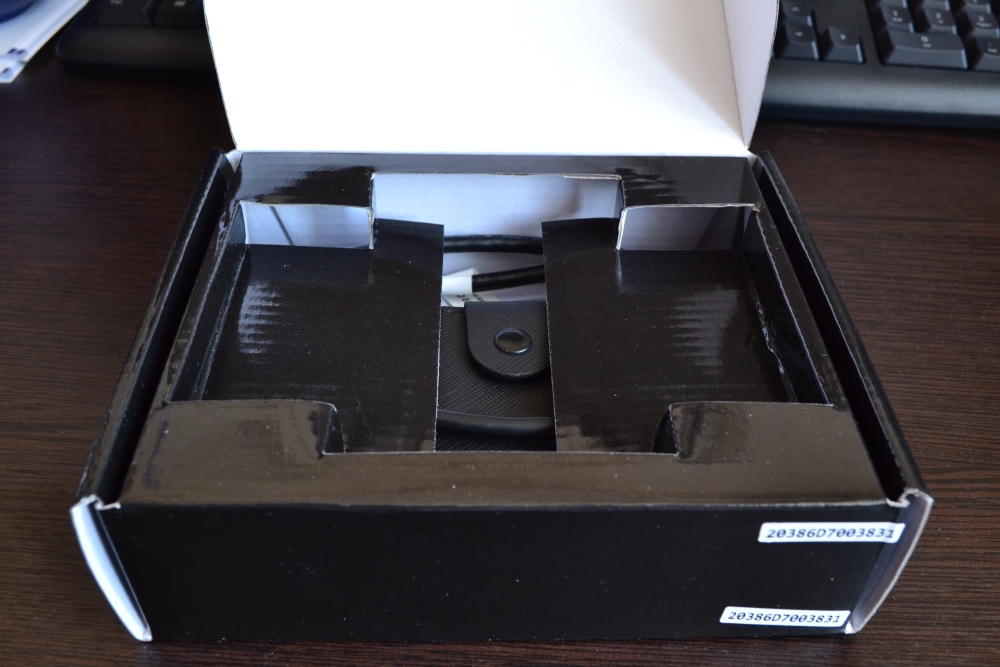
Beautiful carton with color printing.
In the box:
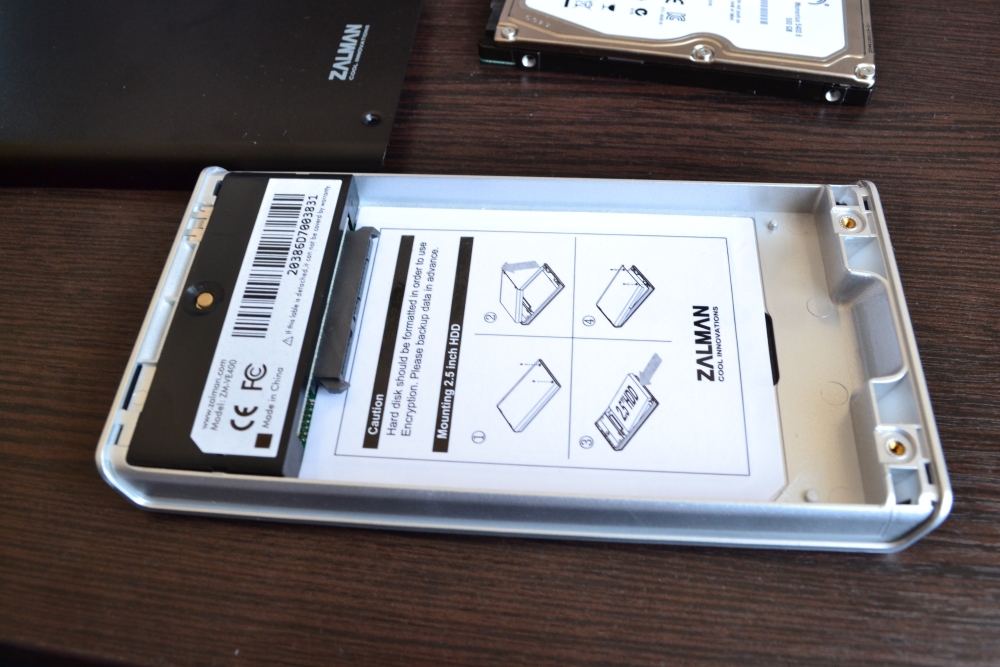
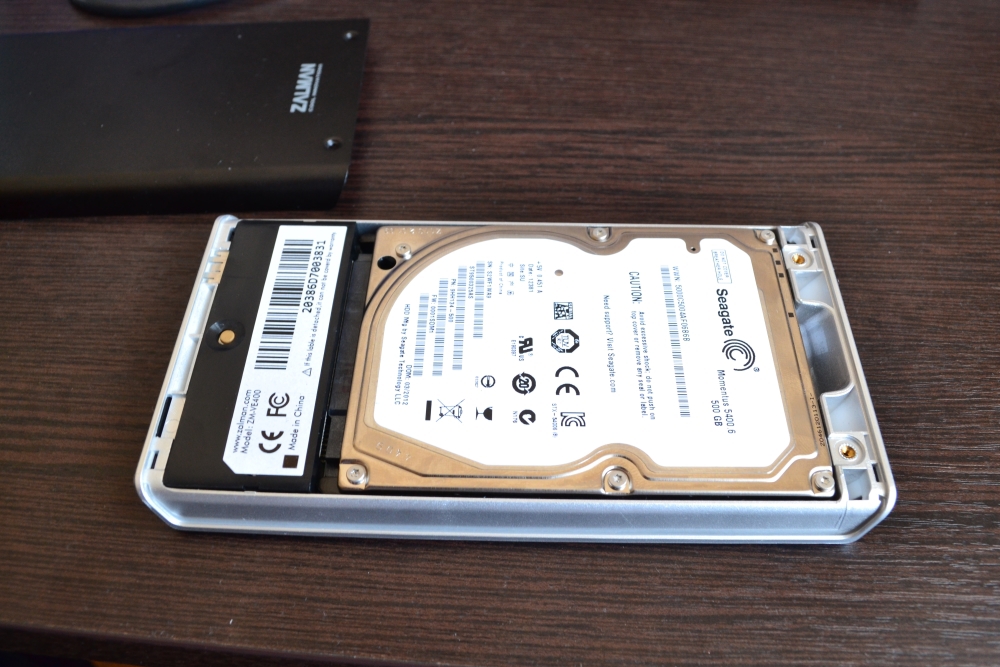
As a carrier, I have a Seagate Momentum 500GB HDD. It is inserted tightly enough, it will not hang out during transfer. The installation is so trivial that there will be absolutely no difficulty. Not any latches. 2 bolts securely fasten the housing cover.
The case is made of aluminum (back cover), acrylic glass (front panel) and plastic (upper and lower part)
Dimensions: 146x80.1x14 mm.
The weight of the case without hdd is 91 grams.
Before this case, I already had a zm-ve200, which burned out when I tried to solder the usb connector. The data and the _ISO folder where the disk images are stored on the hard disk remained.
After turning on, the hard drive was detected immediately and the _ISO folder too, on the previous version of this device there were dances with firmware, because he did not see 500gb disks.
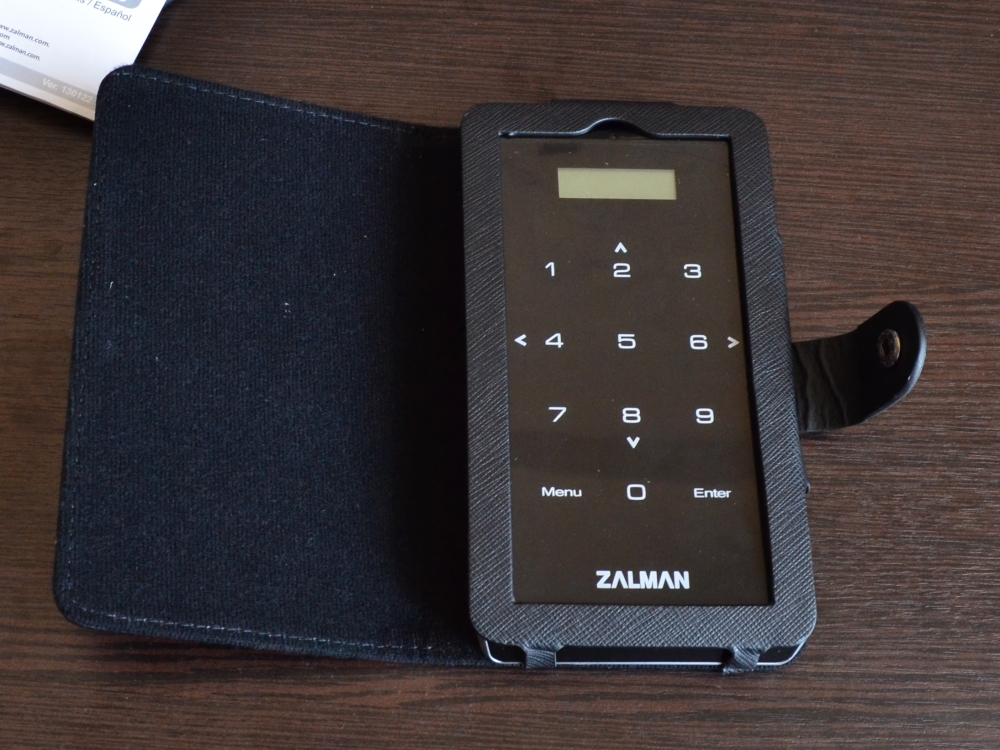
Arrows are marked on the numeric keypad. Selecting the desired iso image and pressing the number 5 we get a usb cd-rom with an inserted disk. You can change the image on the fly. This is a very convenient feature in the era of ultrabooks and servers without a cd drive.
At the very top of the case is a white LED that blinks as data is exchanged with hdd.
Touchscreen Keyboard. A film is applied on the entire front surface.
The device displays:
On keyboard:
The menu has 6 items:
First, select Encryprion from the device’s menu. There we agree with the loss of data and set a password. After a while, the device will reboot and prompt you to enter a password. 10 attempts are given.
Then 1st Partishion: 0 appears on the screen. The disk is not formatted. You need to format the drive and you can transfer files.
After encryption, the data transfer rate decreased from 29 to 25 mb per second over usb2.0.
In connection with the latest news in the field of legislation, I think it will be appropriate to add such a device to the software.
Connected to a computer, booted from livecd, worked with the data on the disk, disconnected. And not any traces.
The cost of the device: 2010 rubles.
1. Unpacking
Beautiful carton with color printing.
4 photos

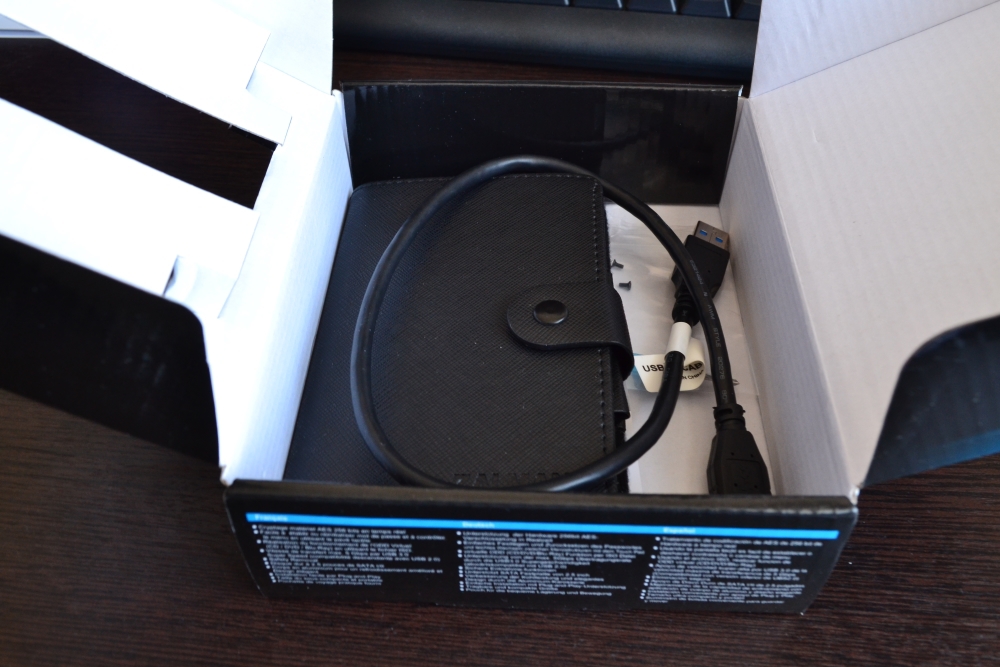
In the box:
- The housing itself for the drive
- Case
- USB 3.0 lace
- 4 screws and a screwdriver
- User Manual (in English, French and Spanish)
Content photo

As a carrier, I have a Seagate Momentum 500GB HDD. It is inserted tightly enough, it will not hang out during transfer. The installation is so trivial that there will be absolutely no difficulty. Not any latches. 2 bolts securely fasten the housing cover.
The case is made of aluminum (back cover), acrylic glass (front panel) and plastic (upper and lower part)
Dimensions: 146x80.1x14 mm.
The weight of the case without hdd is 91 grams.
Installation process photo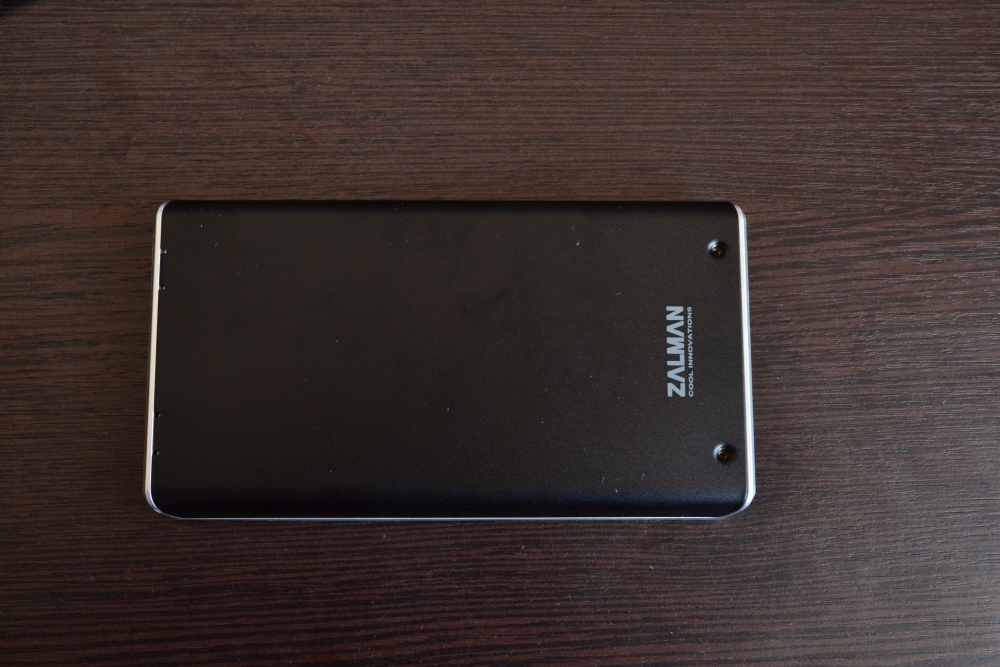
2. First launch
Before this case, I already had a zm-ve200, which burned out when I tried to solder the usb connector. The data and the _ISO folder where the disk images are stored on the hard disk remained.
After turning on, the hard drive was detected immediately and the _ISO folder too, on the previous version of this device there were dances with firmware, because he did not see 500gb disks.
Arrows are marked on the numeric keypad. Selecting the desired iso image and pressing the number 5 we get a usb cd-rom with an inserted disk. You can change the image on the fly. This is a very convenient feature in the era of ultrabooks and servers without a cd drive.
At the very top of the case is a white LED that blinks as data is exchanged with hdd.
Touchscreen Keyboard. A film is applied on the entire front surface.
The device displays:
- Image name
- Lock - you can or cannot write on hdd
- Device operation mode: cd disk (O), hdd (H), cd and hdd (D)
- Iso connection indicator
- Connection Mode: USB2.0 or USB3.0
On keyboard:
- Numbers from 0 to 9.
- Menu and Enter buttons
3. Menu
The menu has 6 items:
- Mode select. In this item, you can select the operating mode of the device (Dual, HDD, ODD)
- Encryprion. Here the password is set when connecting the device to the PC. Be careful, as all data during encryption and its cancellation is erased!
- Settings. Device settings: display brightness in active mode, standby brightness, standby time.
- Information. SMART - temperature and health (I have 34 and good), HDD Model, HDD Serial, Firmware Version, USB Speed, USB Input Voltage.
- USB Connect In this section there is Refresh - to simulate reconnecting the wire and Safe Removal - to safely disconnect the device.
- Advanced Here you can set write protection on hdd, as well as "unmount" iso.
4. Encryption
First, select Encryprion from the device’s menu. There we agree with the loss of data and set a password. After a while, the device will reboot and prompt you to enter a password. 10 attempts are given.
Then 1st Partishion: 0 appears on the screen. The disk is not formatted. You need to format the drive and you can transfer files.
After encryption, the data transfer rate decreased from 29 to 25 mb per second over usb2.0.
Instead of a conclusion:
In connection with the latest news in the field of legislation, I think it will be appropriate to add such a device to the software.
Connected to a computer, booted from livecd, worked with the data on the disk, disconnected. And not any traces.
The cost of the device: 2010 rubles.