
 December 11, 2013 at 09:47
Make the word beautiful!
- Tutorial
Fonts as language graphics in CorelDraw.
In the beginning was the word! Language, colloquial speech plus abstract thinking turned a skilled person into a reasonable person. Writing connected individual groups of people in the Society. And in human society it is customary not only to communicate, but to do it beautifully. Send sincere SMS, hang attractive labels, transfer beautifully designed documents. At the same time, use the font corresponding to the place and time in their messages and works.
Over the centuries of the development of the art of typography, hundreds of thousands of fonts have been created. Many of them have become classics and have been digitized - who does not know the Times headset , so beloved by book publishers (it helps save paper). In newspapers and magazines, the families Pragmatica, Futura and Futuris Extra Bold are especially often used.. All these fonts are good, they are easy to read. But readability and familiarity are far from always positive features. There are times when you need to move away from font-stamps, expressing individuality with the original font . Of course, nothing prevents you from ordering it for a new publication, product, or advertising company in a font design studio. But this is a very expensive way.
What about trying it yourself using one of the many specialized font programs? The development of new fonts is a whole science with its own laws and regulations. Is it possible for a beginner to master them right away - after all, you have to delve into the jungle of kerning and tracking, figure out what aprosh are and by what rules the symbols themselves are built? Fortunately, you can only try your hand, and if there is serious interest - turn to the "classic" of font art. In this case, for those who continue, we recommend the no less classic book, Fonts. Development and use "(Baryshnikov G. M., Bizyaev A. Yu., Efimov V. V., Moiseev A. A., Pochtar E. I., Yarmola Yu. A. M .: Ekom Publishing House, 1997 .). We offer a solution for a quick excursion into the world of individual fonts using the familiar tool - CorelDRAW.
Do it yourself
A designer using CorelDRAW can afford the luxury of creating her own, completely original font - a set of printable characters (glyphs). It includes lowercase and uppercase letters, numbers, punctuation, mathematical and special characters. There are different font formats, but let's take TTF (True Type) first. In it, the vector drawings of the characters that make up the font can be scaled without loss of quality.
What needs to be done to create your own original font? Create a vector set: draw, trace scanned images, convert vector elements, apply vector effects, and export each character in a special format file sequentially.
The technology for creating a font in CorelDRAW is three-step:
1. Creating a template for marking the height, width, protruding superscript and subscript elements of characters.
2. Drawing of vector characters - letters, punctuation marks, special characters.
3. Export each character to a TTF file with the location of each character.
Getting Started with Glyphs
Let's create a decorative font by modifying existing characters, apply some interactive vector effects, and create a font by scanning the finished characters. First we need a set of glyphs. And we will start by creating a multi-page document. Choose the units of measurement - points, the size of the document - 750 × 750 points. In the object manager, create a master layer for the template. Everything that is placed on the master layer will be visible on all pages of the document. Set the guides, retreating 30 points from the left and bottom edges of the document. These guides will serve as a guideline for the character placement baselines. All characters must be placed exactly along the guides. The vertical guide allows you to adjust the distance between the characters.
Open the menu “Text • Insert character”and select the basic font headset, which we will modify. Set the size of the characters to 720 points and put on the master layer two characters containing protruding subscript and superscript elements - the letters "C" and "Y". Select the vector effect "Distortion". We adjust the distortion parameters: type - “zipper”, amplitude - 6, frequency - 5, smooth distortion. The effect with such parameters will be applied to all symbols, therefore it is advisable to save its workpiece. We set the guides that determine the height of the letters, the protruding elements of the characters of the superscript and subscript elements of the letters.
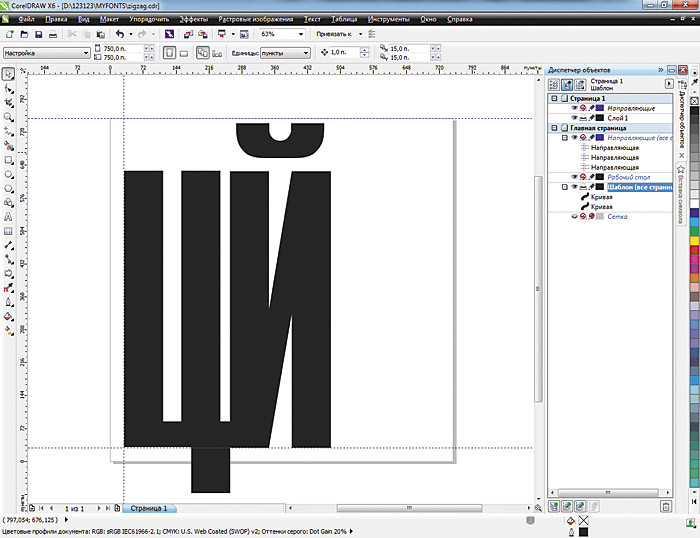
Fig. 1. Creating a master layer for the template
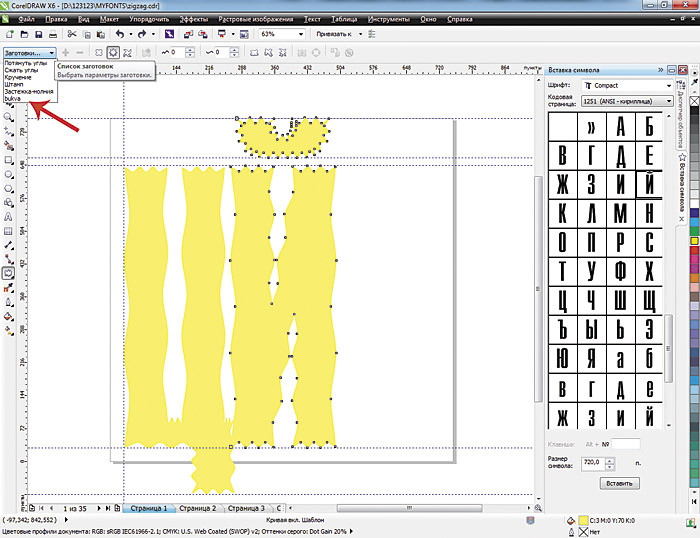
. 2. Letter pattern with protruding superscript and subscript elements after applying the effect of "distortion"
The contents of the master layer will be visible on all pages of the document. We will place each symbol — in this case, a letter — on a separate page, “pulling” it out of the symbol table and applying the “distortion” effect preset. After applying distortion, each character must be converted to curves.

Fig. 3. Insert the letter “A” from the symbol table, apply the “distortion” effect, and translate the symbol into curves. We
repeat these operations until all uppercase letters are created. As a result, a multi-page document appears. For lowercase letters, you can create another template and work in a separate multi-page document.
When creating characters with “oblique” elements, for example, the Russian letter “D”, it is better to move the character to the edge of the sheet behind the vertical guide. So it will be possible to reduce the distance between a pair of characters - the letter D and the letter preceding it. Otherwise, due to the slope, the distance in the “HD” pair will visually appear larger than the distance between the remaining letters. Professional font developers solve this problem by fine-tuning the distances between certain characters by setting kerning pairs.
When exporting characters to a file, we specify any file names and font headsets, but, of course, it is better if the names match. You can create fonts of various styles - bold, oblique. You can collect all the symbols that are often used in certain design layouts into a single character font, or you can create a “different” font by generating individual letters. If you feel like it, we’ll make a font that imitates handwritten, sometimes deliberately careless letters. And we can scan our own terrible handwriting and then modify it in a vector format. In the template, if we want, we will change the distance between the baselines, thereby reducing or increasing the distance between the letters and the width of the letters themselves.
Glyphs to Font
But back to the development of our font. Turn a collection of characters into a font.
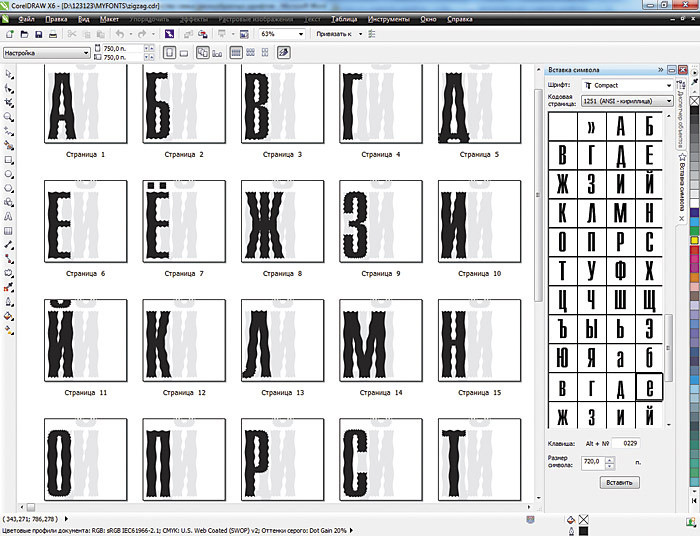
Fig. 4. The final multi-page document with uppercase letters-symbols of the "spiky" font
Select the letter "A" on the first page of the document, open the "File • Export" menu , select the format in which we will export the symbol - TrueType , enter the name of the new file.
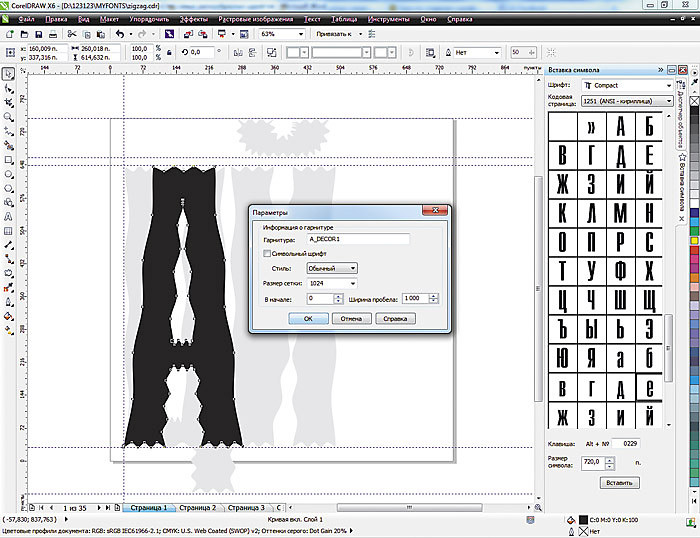
Fig. 5. Font parameters: name of the headset to which it belongs; mark; typesetting or character; the size of the grid in which the characters are represented; character width space

Fig. 6. A window in which the parameters of the symbol and its position in the font are determined
The “Project Size” window shows the initial character size. An example of a symbol with border lines and a baseline is displayed on the left. If the “Auto” option is turned on, the width of the character is determined automatically - in accordance with its original size and the size of the indent on the left. After turning off this parameter, you can change the width of the character in the example window or by entering numerical values. In the right window - determines the position of the character in the font. Already assigned symbols are highlighted in black. If you suddenly need to change the character settings during export, you must do this for all characters in the font. After adding all the characters, install the font in the system and see the result.

Fig. 7. The created decorative font allows you to work with text placed along an arbitrary path

. 8. The same font is selected for text in the Word program.
The font can be used by any applications installed on the computer.
Go ahead: custom template
It is customary to create a template for developing letters by setting the document size to 750 × 750 points. Vertical and horizontal guides should be set at a distance of 30 points from the left and bottom edges of the document sheet. The size of the symbol must be at least 720 points (Y. Yarmola. Computer fonts. St. Petersburg: BHV, 1994).
However, it is sometimes useful to violate accepted rules. You can try to create a font by choosing a document size of 1,500 × 1,500 points or a character size of 1,000 points. Larger size - and you have more room for imagination, tracing the thin lines of objects and smoothing them.
Beginner Tips
For an experienced user, it doesn’t matter if there is a template with images of landmark letters - guides are enough. He has a professional, special look. When a novice user learns how to create a font in CorelDRAW, it’s better to have a template before your eyes as a guide. When there is no template, then after about the 10th character “letters” begin to “jump”, “tremble” - the designer forgets about the upper borders of the letter and the lower extension element. And if in one document uppercase and lowercase, it is easier to put another template for lowercase letters or create a new document.
Creating Vector Symbols
This is the next step. You can "draw from scratch" each letter. You can apply interactive effects to existing pre-font characters. You can first draw letters on paper, scan, convert to vector format using tracing and modify each vector object with CorelDRAW tools. It all depends on the desire, performance and artistic talent of the author of the future decorative font.
The composition of CorelDRAW includes a large number of blanks of art brushes . Plus, each user can easily create their own brushes, diversify the standard set and expand it. To use this effect to create characters, perform the operations described below.
Create a template, drag the “Ts” and “Y” landmark symbols onto the master layer, select the sample you like from the list of art brushes or create your own brush stroke. Next, apply this brush to the characters. The docker "Decoration" shows the last used brushes, which will make it easy to navigate and apply one favorite brush to all the characters of the future font. Do not forget to separate the result of applying the effect and the reference curve. To do this, there is the command “Arrange • Disconnect Decoration Group” . So, leave only the symbol itself.
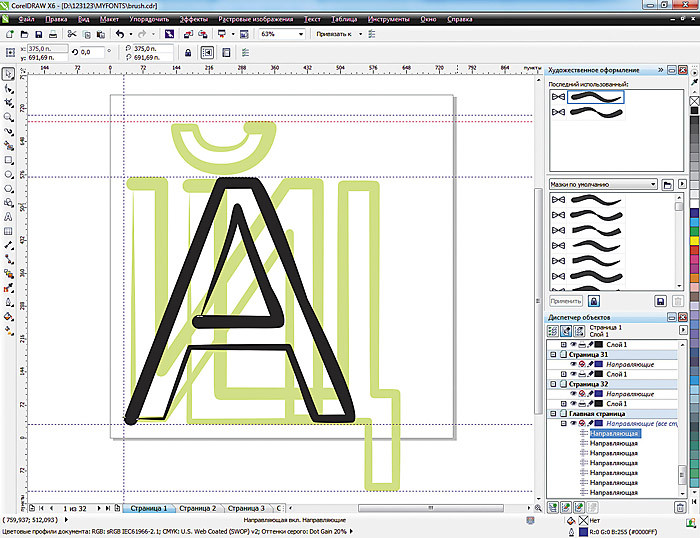
Fig. 9. Template for creating symbols and the result of applying a brush stroke to a symbol
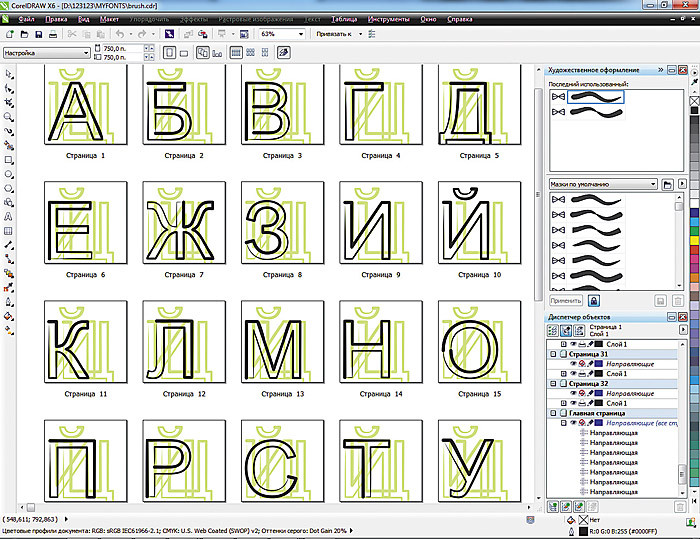
Fig. 10. Letters with the applied effect “Decoration • Brush”
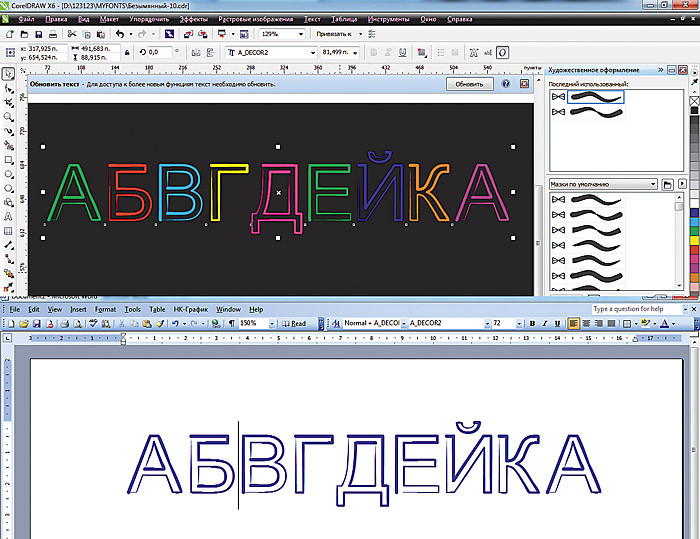
Fig. 11. Text typed in a font with the effect “Decoration • Brush” in CorelDRAW and WORD.
When creating characters “from scratch”, you can use drawing tools, logical operations to combine or cut out fragments from letters (B, O, B). You can enter letters in some simple or complex shapes.
For example, we created letters for the travel agency Tsvetik-Semitsvetik that are inscribed in the outline of the seven-color logo.
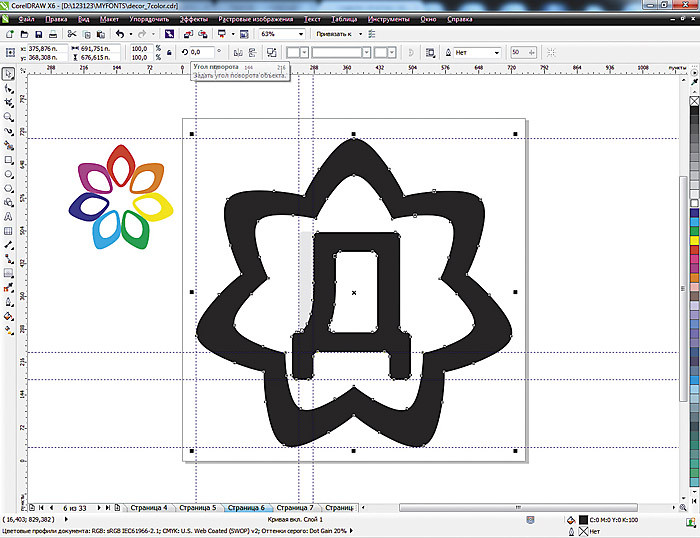
Fig. 12. The company logo and the letter inscribed in its outline

Fig. 13. A multi-page document for the font "Semitsvetik"
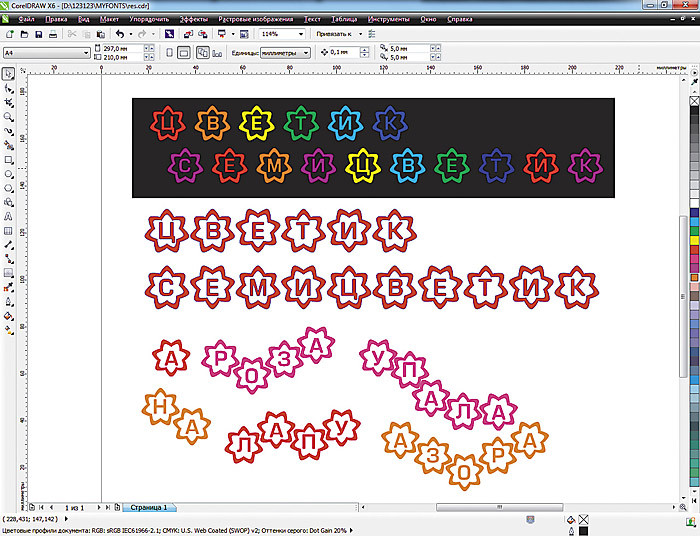
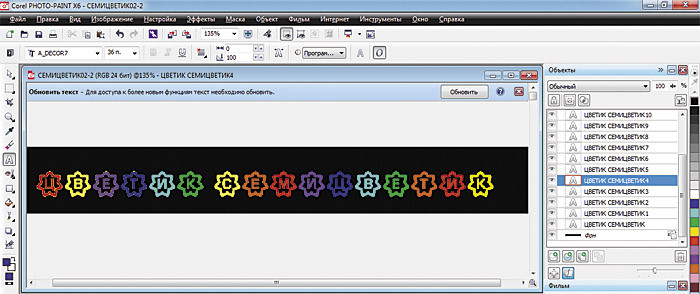
Fig. 14. The text typed in the font "Semitsvetik" in CorelDRAW, it is also used as the basis for the animated banner created in Corel PHOTO-PAINT
We modify the classics
CorelDRAW has the ability to modify classic fonts beyond recognition, applying a wide variety of techniques and effects - from artistic means to interactive distortion, flow or contour. You just need to remember that such a modification and the subsequent use of the resulting font for commercial purposes may be contrary to the agreement that you accepted when buying the font.
Combining Objects- A useful method for creating alphabetic characters. Each vector editor includes tools for combining, combining, cutting, intersecting, etc. You can create a font from combined different characters (Frankenstein). You can combine characters directly in the editor. You can apply the combination immediately to a group of characters, which greatly speeds up the work, for example, to fix the error by indicating one for all the element to replace.
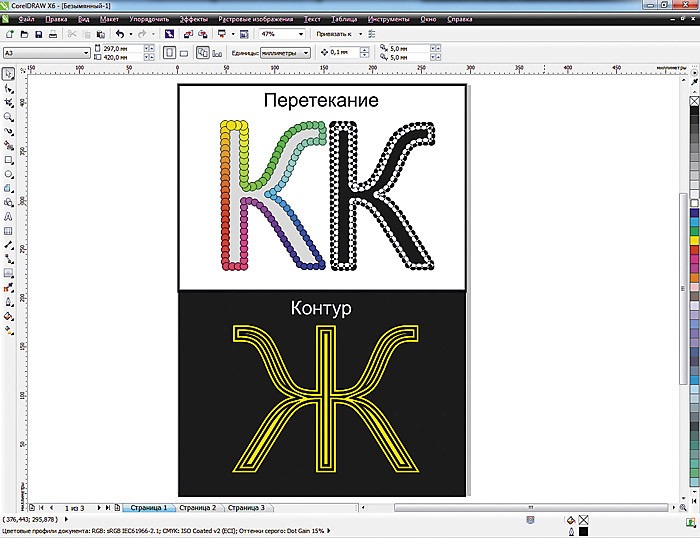
Fig. 15. Blanks for a possible font. Applying the effects of “overflowing” and “contour”
After applying any effect, it is necessary to separate the group of the interactive effect and, having combined all the objects, transform into a single curve.
You can use the translation method in a halftone raster image by selecting the appropriate type of conversion to halftone - lines, rounding, square. Then trace the bitmap images and, translating them into a vector format, convert to a single curve.

Fig. 16. Examples of letters with imitation halftone raster of different types
Down with the routine!
Is it tedious to repeat the same routine operations, applying effects and sequentially creating each character? Save the draft of the applied effect, record a temporary macro, or create your own new macro by recording the entire sequence of your actions using the example of a single letter-symbol. Using the macro, you can quickly and easily modify the rest of the font characters.
"Manual" font
If you don’t shy away from manual work and want to create something completely special or “remove” a rare font from a paper document, then it will be interesting for you to master the technique of drawing characters manually, scanning and finalizing them in a vector editor.
For example, we scanned a page from Arthur Conan Doyle’s short story “Dancing Men”. The image is small, and had to scan with a resolution of 300 dpi. If the blank is the symbols you draw on paper that are large enough, then you can scan them with a lower resolution - 72 dpi and in the Grayscale or Black & White color model . The symbols that we export will be monochrome. In addition, they must contain a minimum number of nodes.

Fig. 17. Scanned image

Fig. 18. Trace with an outline in the “detailed logo” mode.
As a template, only basic guides for the height and width of the letters are used here. Let us take only a few letters necessary for one inscription.
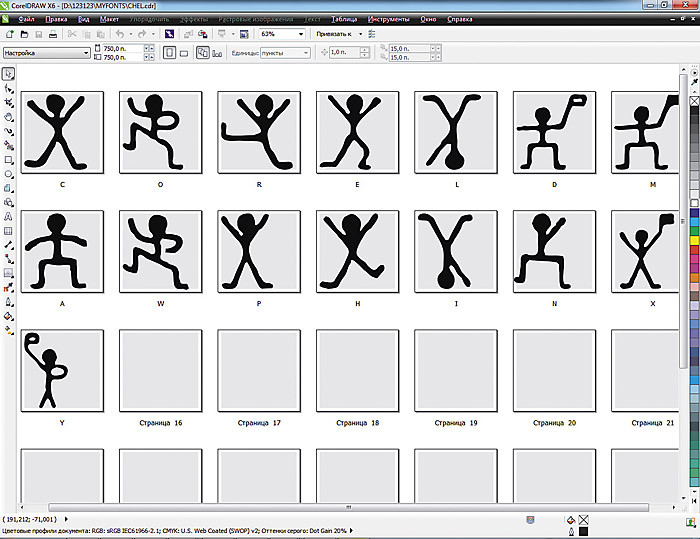
Fig. 19. A multi-page document with letter symbols
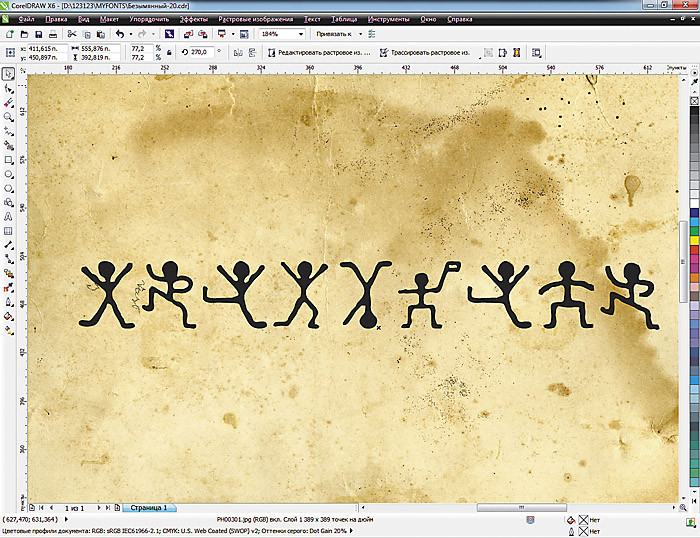
Fig. 20. This is the inscription “CORELDRAW”.
Look at the font created on the screen and print a few lines. It is possible that it will look different on print. Experiment more, look at headsets made by professional developers.
Glyph Rules
Symbol (glyph) - cannot be a group of objects, multi-colored, raster or have a huge number of nodes. And when we intentionally distort it, the
resulting characters in the font after installing it in the system are also distorted or the subsequent fill is distorted. So it is better to translate the workpiece into curves and recheck once again.
Strive for excellence
A font in the arsenal of a designer using CorelDraw software is one of the main tools that will create the necessary impression of the work done. Why do designers use such a huge variety of fonts? Yes, because the visual perception of the font helps the clarity of information. You can send an SMS with emoticons, or you can write a short joke in a funny font. And, of course, business documents presented by deliberately clumsy children's handwriting will cause bewilderment of the partner. Finally, some type of letters may appeal to a particular customer, but some may not. With such a powerful tool for creating new and using classic fonts as CorelDraw, we can almost always and for sure guess the very one and only font that will make our work perfect.
About the authors: Elena Svistunova (elensvs@yandex.ru), teacher of computer graphics; Alexander Svistunov (alexsvs@yandex.ru; alexrash.livejournal.com ), writer, director of the Internet company InterNext.
Based on COREL Magazine