Storage of Team Foundation Server 2013 RC service databases on SQL Server 2014 PAGE 1
The thing that I will talk about, in no case do not use in the work environment. So that the sun, as in the joke about the programmer, each time rises in the east, and sets in the west, it is better to skip this material out of harm's way. In a diverse software world, the author belongs to the category of extremists who, by all means, are eager to look into the future and try on themselves preliminary versions of software products that someday - someone earlier, someone later - will become our very present hereby. Moreover, I would say, to everyone of ours :) So, today we are visiting Windows 8.1 Enterprise Preview , Visual Studio 2013 Ultimate Preview , Team Foundation Server 2013 Release Candidate andSQL Server 2014 Evaluation Edition CTP1 . Now these are all preliminary versions, and, like all preliminary versions, they are free.
Historically, on a laptop with Windows 8 Enterprise, there was a VS2013 Preview. For independent reasons, it was necessary to install TFS 2013 and SQL 2014. Since TFS SQL Server is necessary in any way, the idea arose to use the 14th along the way for this purpose, so as not to multiply the number of entities. The problem was that Visual Studio, no matter 2012, 13th or any other, was carrying a ton of SQL Server components with it.
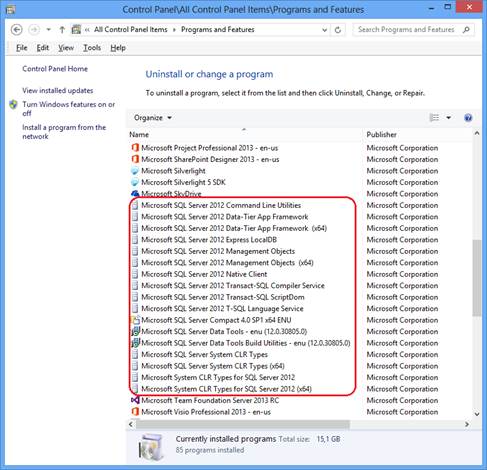
Fig. 1
For example, the T-SQL Language Service is used for IntelliSense in the SQL Server Data Tools, the Data-Tier Application Framework for the alienation and deployment of a database project, System CLR Types are mainly geospatial extensions that can be used in the application independently of SQL Server etc. So there’s nothing to think of putting 2014 STR1 here, which reacts indignantly to everything connected with previous versions of SQL Server:
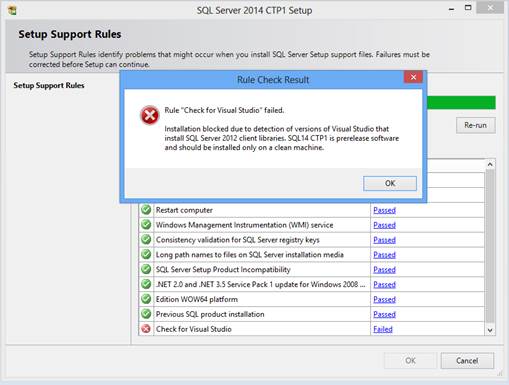
Fig . 2
Moreover, if you suddenly decide to demolish all the Visual Server SQL Server components delivered (Fig. 1), with the calculation the fact that 2014 CTP1 will deliver them anyway during its installation, I can disappoint - it does not affect the appearance of Fig.2. Apparently, the very presence of VS acts on him like a red rag on a bull.
There is nothing to be done - I had to lift the virtual machine and install Windows 8.1 Preview on it while it was still free, and immediately on a clean system - 2014 CTP1. It is necessary to make a reservation. It will not get onto a clean system because it wants the .NET Framework 3.5.
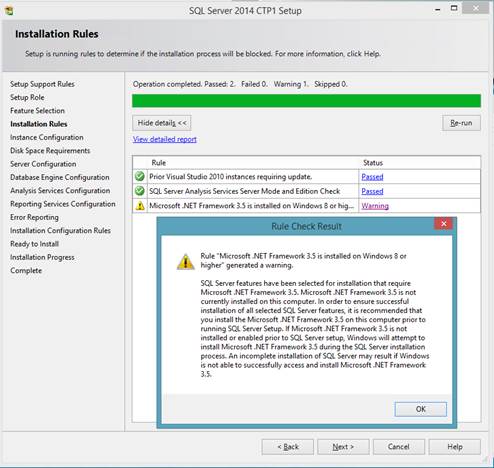
Fig. 3
Well, or get up, but crooked. For example, you ordered him to install the components like these:

Figure 4
and he will not install half of them, because they require the .NET Framework.
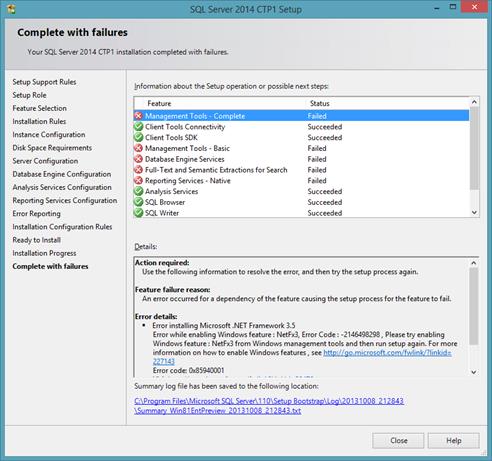
Fig. 5
It is not clear why Analysis Services was installed (multidimensional). There you can also create CLR procedures / functions. Howbeit. Clearly, the .NET Framework needs to be installed before installing SQL Server. And you need to install it. NET Framework 3.5. It’s useless to install version 4.x, because Windows 8.1 already comes with the .NET Framework 4.5.1 (which does not accept 2014 STR1), so the 4.x frameworks simply won’t install there:

Fig . 6
.NET Framework 3.5 is easiest to install with media from where Windows 8.x was installed. Open the elevated command prompt:
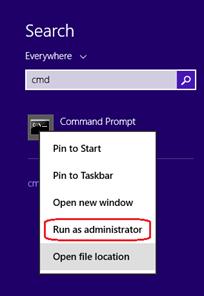
Fig . 7
and write the command:
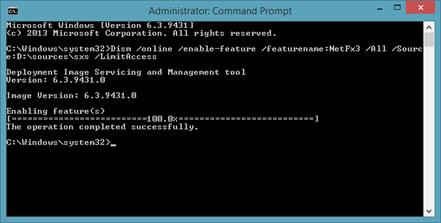
Fig . 8
Now, if you go to Control Panel -> Programs and Features -> Turn Windows Features on or off, you can see that the .NET Framework 3.5 on 8.1 is installed:

Fig. 9
After that, the installation of SQL Server 2014 CTP1 is successful.
If we wanted to use reporting capabilities in TFS, we would need Analysis Services and Reporting Services as part of SQL Server. Here we don’t set such a task, but as soon as the conversation came, it should be noted:
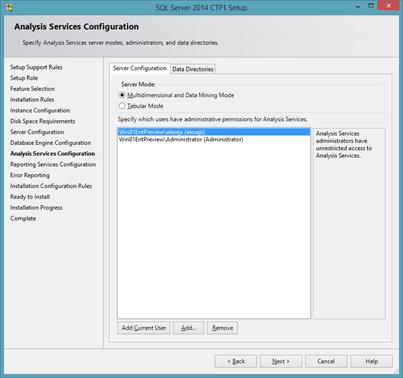
Fig . 10
We install AS for TFS in the Multidimensional and Data Mining mode. It exists since version 7.0 (1998) and historically TFS used to work with it and create its own Code Churn cubes, Current Work Item, Work Item History, Build, Test Result, Code Coverage, etc. in the multidimensional Tfs_Analysis database based on the Tfs_Datawarehouse relational storage. Tabular Mode officially appeared as an alternative view / storage in the current version - 2012 (and in the times of 2008 R2 existed as a personal tool in Excel and as a collective tool in SharePoint PowerPivot), and TFS is not yet able to work with it. Although attempts are being made. To some extent, they were caused by the fact that Power View, an interactive reporting tool in Excel, insanely beautiful and dynamic compared to traditional Reporting Services / ReportViewer Controls , was able to work only with tabular models. However, on May 31, this injustice was corrected, and now he is omnivorous. With the same beauty can build reports on both tabular and multidimensional models. In case of the 12th, you need to remember to install support.microsoft.com/hotfix/KBHotfix.aspx?kbnum=2833645&kbln=en-us > SP1 CU4, more precisely, 2012_SP1_PPExcel_CU4_2833645_11_0_3368_x64.
We put TFS on the host, and not on the virtual machine for the reason

Fig
. 11 On Windows 8 it gets up normally. Select Advanced configuration mode.
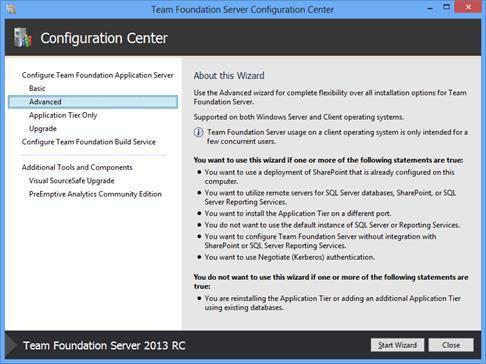
Figure 12
because SQL Server is on a remote machine:
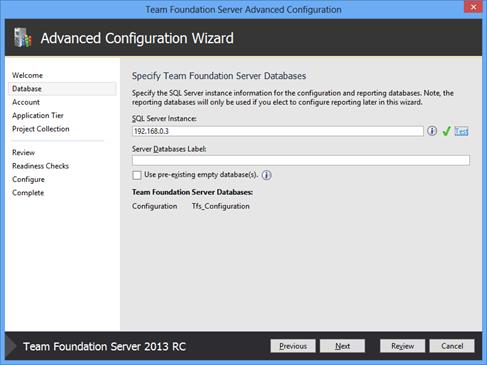
Figure 13.
Pre-make sure that the SQL Server for TFS is attainable with the car, where TFS is installed. To do this, open the ports for incoming connections on the firewall, as described in the documentation , run any application on the host that can work with databases: PowerShell, Excel, anything - and try to connect to it from it. For example, from Excel, in the menu Data -> From Other Sources -> From SQL Server we indicate the machine on which it is installed by default:
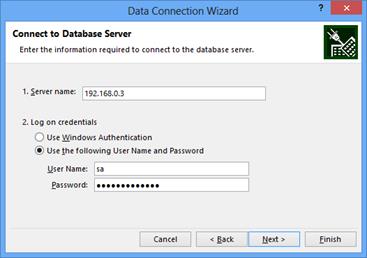
Fig . 14
and make sure that the connection is established normally - a list of databases is displayed : Fig .
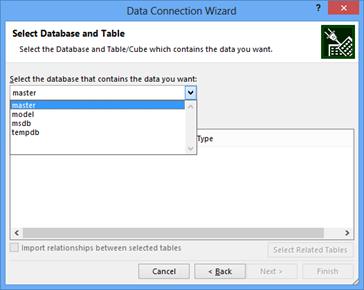
15
In our case, TFS is installed on Windows 8, so reporting features will not be available in it - see the documentation : Additionally, if you installed TFS on a client operating system, such as Windows 7, you can't add reporting as described here, because it isn't supported on client operating systems. If it was a server operating system, and were planning to use the reporting functionality, then along with access to the Database Engine it would be useful to test access from the TFS to AS and RS. Analysis Services installed by default instance listens on TCP port 2383. For a named instance, the port is assigned dynamically. In this case, you will need to open port 2382, which listens to the SQL Browser Service, which manages the dynamic allocation of ports. For reporting services, no ports need to be specifically opened. The only thing, since IIS is not required (see Fig. 9), it is worth making sure that the 80th port is open so that you can reach it from outside via HTTP. Starting with version 2008, reporting services use the Http.sys system driver directly to accept requests addressed to endpoints (URLs and ports). Configured for Reporting Services. Configuration is done using the Reporting Services Configuration Manager utility. We make sure that from TFS you can access the reporting server:

Fig. 16
Further installation of TFS is straightforward. At the Readiness Check stage, a summary of the results is obtained, which either reports that everything is in order and can be finalized completely:
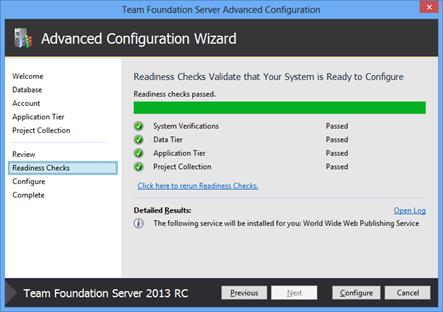
Fig . 17
or a list of comments that need to be corrected to complete the installation. For example
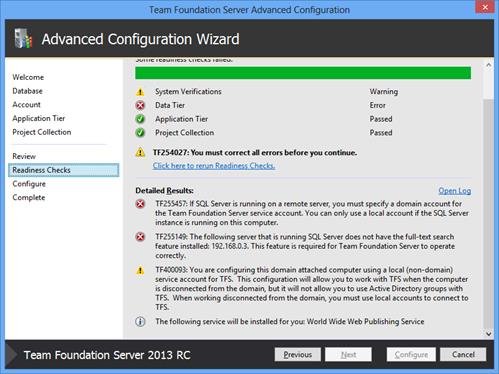
Figure 18
Error TF255457 occurs due to the fact that TFS service account has been specified local user - after Figure 13.
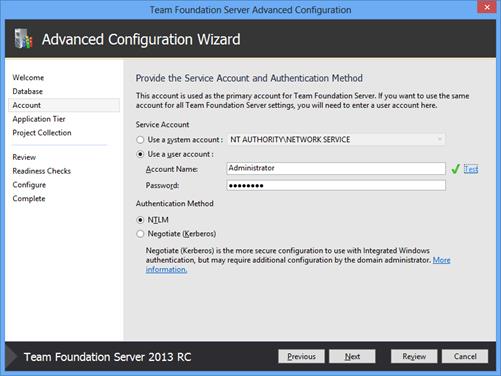
Figure 19
When SQL Server with TFS is hosted on a different machine, a strictly domain account is required. This limitation does not facilitate the deployment of TFS in demo and test environments and has apparently the same philosophical roots as Figure 11 or the inability to create new Windows Store projects if VS13 is not installed on Windows 8.1.
Error TF255149 occurs as if during the installation of SQL Server we forgot to mark any component that is vital to TFS. Say full-text search in Figure 4. In this case, we start the SQL Server installation process again, say New Instance or add features to existing, then we explicitly indicate that Add:
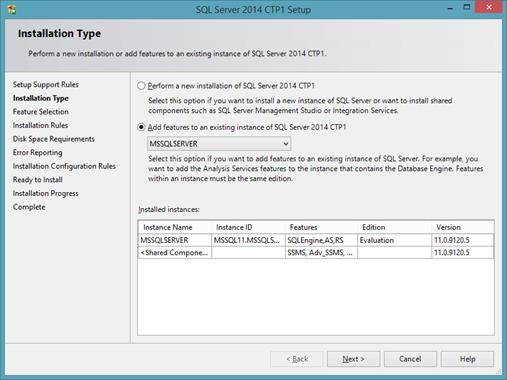
Fig.20
and on the opened screen Fig.4 we deliver the missing functionality.
Historically, on a laptop with Windows 8 Enterprise, there was a VS2013 Preview. For independent reasons, it was necessary to install TFS 2013 and SQL 2014. Since TFS SQL Server is necessary in any way, the idea arose to use the 14th along the way for this purpose, so as not to multiply the number of entities. The problem was that Visual Studio, no matter 2012, 13th or any other, was carrying a ton of SQL Server components with it.
Fig. 1
For example, the T-SQL Language Service is used for IntelliSense in the SQL Server Data Tools, the Data-Tier Application Framework for the alienation and deployment of a database project, System CLR Types are mainly geospatial extensions that can be used in the application independently of SQL Server etc. So there’s nothing to think of putting 2014 STR1 here, which reacts indignantly to everything connected with previous versions of SQL Server:
Fig . 2
Moreover, if you suddenly decide to demolish all the Visual Server SQL Server components delivered (Fig. 1), with the calculation the fact that 2014 CTP1 will deliver them anyway during its installation, I can disappoint - it does not affect the appearance of Fig.2. Apparently, the very presence of VS acts on him like a red rag on a bull.
There is nothing to be done - I had to lift the virtual machine and install Windows 8.1 Preview on it while it was still free, and immediately on a clean system - 2014 CTP1. It is necessary to make a reservation. It will not get onto a clean system because it wants the .NET Framework 3.5.
Fig. 3
Well, or get up, but crooked. For example, you ordered him to install the components like these:
Figure 4
and he will not install half of them, because they require the .NET Framework.
Fig. 5
It is not clear why Analysis Services was installed (multidimensional). There you can also create CLR procedures / functions. Howbeit. Clearly, the .NET Framework needs to be installed before installing SQL Server. And you need to install it. NET Framework 3.5. It’s useless to install version 4.x, because Windows 8.1 already comes with the .NET Framework 4.5.1 (which does not accept 2014 STR1), so the 4.x frameworks simply won’t install there:
Fig . 6
.NET Framework 3.5 is easiest to install with media from where Windows 8.x was installed. Open the elevated command prompt:
Fig . 7
and write the command:
Dism /online /enable-feature /featurename:NetFx3 /All /Source:D:\sources\sxs /LimitAccessFig . 8
Now, if you go to Control Panel -> Programs and Features -> Turn Windows Features on or off, you can see that the .NET Framework 3.5 on 8.1 is installed:
Fig. 9
After that, the installation of SQL Server 2014 CTP1 is successful.
If we wanted to use reporting capabilities in TFS, we would need Analysis Services and Reporting Services as part of SQL Server. Here we don’t set such a task, but as soon as the conversation came, it should be noted:
Fig . 10
We install AS for TFS in the Multidimensional and Data Mining mode. It exists since version 7.0 (1998) and historically TFS used to work with it and create its own Code Churn cubes, Current Work Item, Work Item History, Build, Test Result, Code Coverage, etc. in the multidimensional Tfs_Analysis database based on the Tfs_Datawarehouse relational storage. Tabular Mode officially appeared as an alternative view / storage in the current version - 2012 (and in the times of 2008 R2 existed as a personal tool in Excel and as a collective tool in SharePoint PowerPivot), and TFS is not yet able to work with it. Although attempts are being made. To some extent, they were caused by the fact that Power View, an interactive reporting tool in Excel, insanely beautiful and dynamic compared to traditional Reporting Services / ReportViewer Controls , was able to work only with tabular models. However, on May 31, this injustice was corrected, and now he is omnivorous. With the same beauty can build reports on both tabular and multidimensional models. In case of the 12th, you need to remember to install support.microsoft.com/hotfix/KBHotfix.aspx?kbnum=2833645&kbln=en-us > SP1 CU4, more precisely, 2012_SP1_PPExcel_CU4_2833645_11_0_3368_x64.
We put TFS on the host, and not on the virtual machine for the reason
Fig
. 11 On Windows 8 it gets up normally. Select Advanced configuration mode.
Figure 12
because SQL Server is on a remote machine:
Figure 13.
Pre-make sure that the SQL Server for TFS is attainable with the car, where TFS is installed. To do this, open the ports for incoming connections on the firewall, as described in the documentation , run any application on the host that can work with databases: PowerShell, Excel, anything - and try to connect to it from it. For example, from Excel, in the menu Data -> From Other Sources -> From SQL Server we indicate the machine on which it is installed by default:
Fig . 14
and make sure that the connection is established normally - a list of databases is displayed : Fig .
15
In our case, TFS is installed on Windows 8, so reporting features will not be available in it - see the documentation : Additionally, if you installed TFS on a client operating system, such as Windows 7, you can't add reporting as described here, because it isn't supported on client operating systems. If it was a server operating system, and were planning to use the reporting functionality, then along with access to the Database Engine it would be useful to test access from the TFS to AS and RS. Analysis Services installed by default instance listens on TCP port 2383. For a named instance, the port is assigned dynamically. In this case, you will need to open port 2382, which listens to the SQL Browser Service, which manages the dynamic allocation of ports. For reporting services, no ports need to be specifically opened. The only thing, since IIS is not required (see Fig. 9), it is worth making sure that the 80th port is open so that you can reach it from outside via HTTP. Starting with version 2008, reporting services use the Http.sys system driver directly to accept requests addressed to endpoints (URLs and ports). Configured for Reporting Services. Configuration is done using the Reporting Services Configuration Manager utility. We make sure that from TFS you can access the reporting server:
Fig. 16
Further installation of TFS is straightforward. At the Readiness Check stage, a summary of the results is obtained, which either reports that everything is in order and can be finalized completely:
Fig . 17
or a list of comments that need to be corrected to complete the installation. For example
Figure 18
Error TF255457 occurs due to the fact that TFS service account has been specified local user - after Figure 13.
Figure 19
When SQL Server with TFS is hosted on a different machine, a strictly domain account is required. This limitation does not facilitate the deployment of TFS in demo and test environments and has apparently the same philosophical roots as Figure 11 or the inability to create new Windows Store projects if VS13 is not installed on Windows 8.1.
Error TF255149 occurs as if during the installation of SQL Server we forgot to mark any component that is vital to TFS. Say full-text search in Figure 4. In this case, we start the SQL Server installation process again, say New Instance or add features to existing, then we explicitly indicate that Add:
Fig.20
and on the opened screen Fig.4 we deliver the missing functionality.