Google chromecast
July 24, Google along with the new version of Android 4.3 introduced a new and unusual device Google Chromecast. If the announcement of Android 4.3 was expected for a long time, the appearance of Chromecast was a pleasant surprise. Surprisingly, Google was able to prevent leaks about the new device almost until the announcement. In addition, in complete secrecy, they managed not only to manufacture, but also to ship large quantities of these devices to stores. Chromecast appeared on the Google Play store almost simultaneously with the announcement. I decided to buy it in the Amazon online store. There it appeared in the afternoon (Pacific time) and I was among the first buyers. The next day, July 25, Amazon sent the purchase and a day later, on July 26, I became the owner of Google Chromecast.
What is Google Chromecast? This is a small device (dongle, whistle, etc.), connected to the HDMI input of a TV or receiver and capable of playing content (video, music, photos). Chromecast does not have its own interface or external controls (except for the reset button). For control, you must have on your network with the dongle Android, iOS device or Chrome browser (Windows or Mac), as well as the Chromebook Pixel. Mac or Chromebook is not at home, so all experiments were carried out with Samsung Galaxy SIII, Apple iPod, Chrome for Windows and Panasonic TC-P55GT30 TV.
In continuation under the cut a lot of photos.
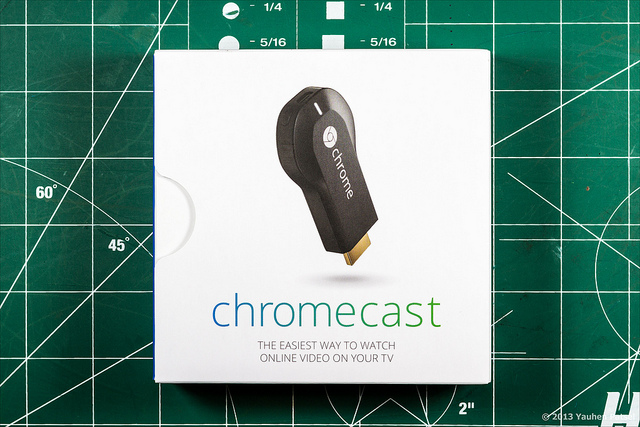
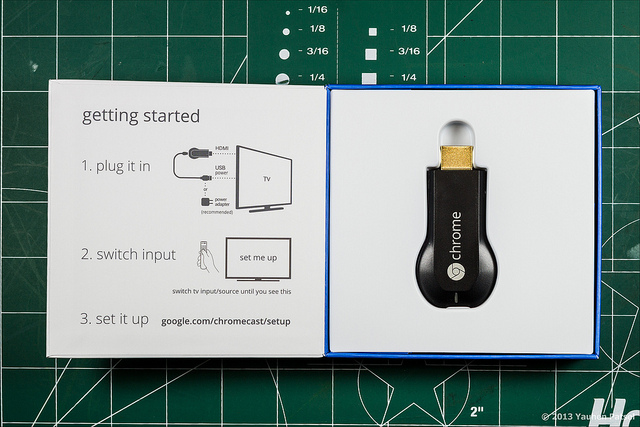
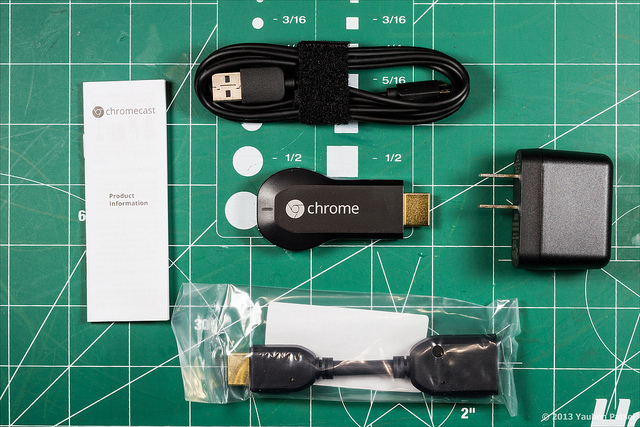
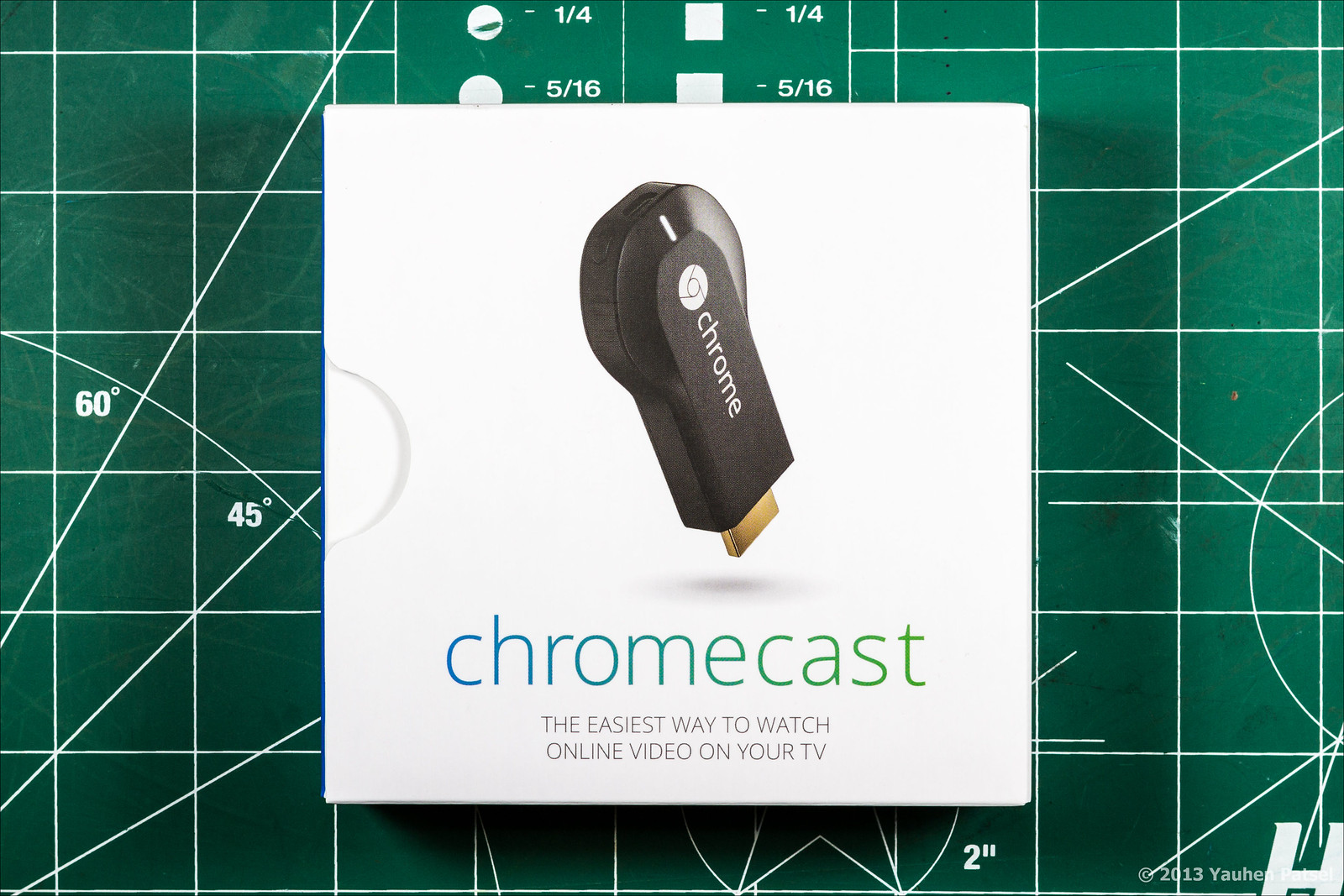
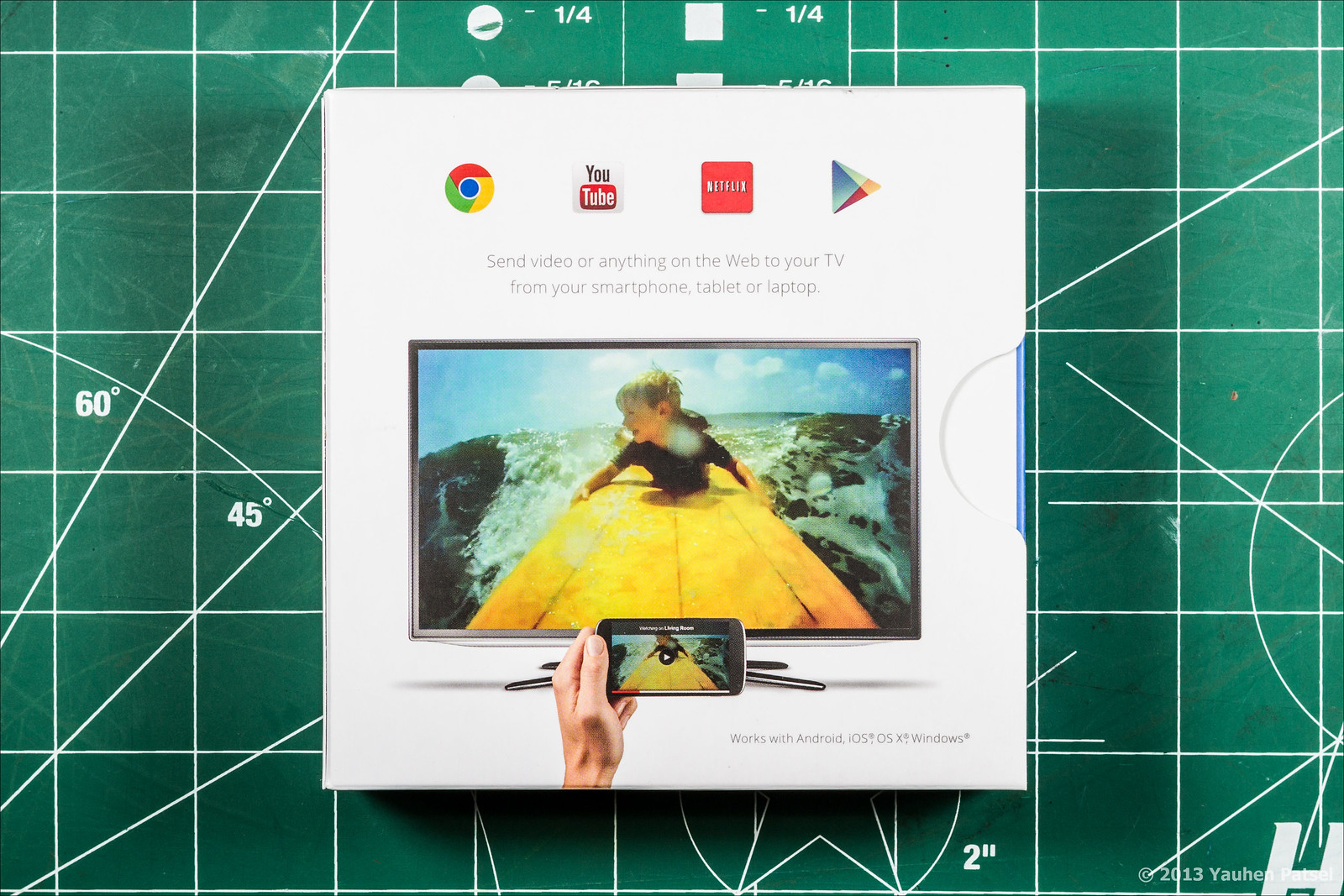
The box with the device is quite small, about 12 x 12 cm. In the box, in addition to the dongle itself, there is an HDMI extension cable, a USB cable, a power supply and a small instruction. Why do I need a power supply, is it really impossible to power a device via HDMI? Unfortunately, impossible. HDMI specifications suggest that 5 V is present on the 18th pin of the connector, but the current is limited to only 50 mA, which is clearly not enough to power more or less serious peripherals.
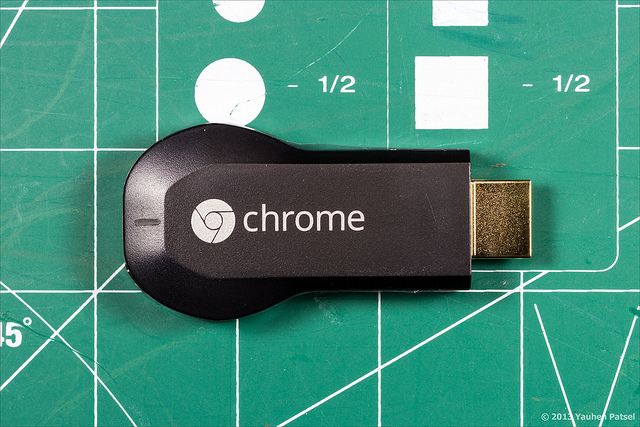
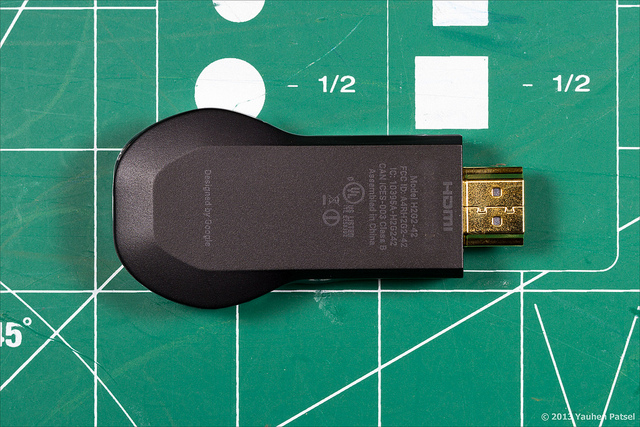
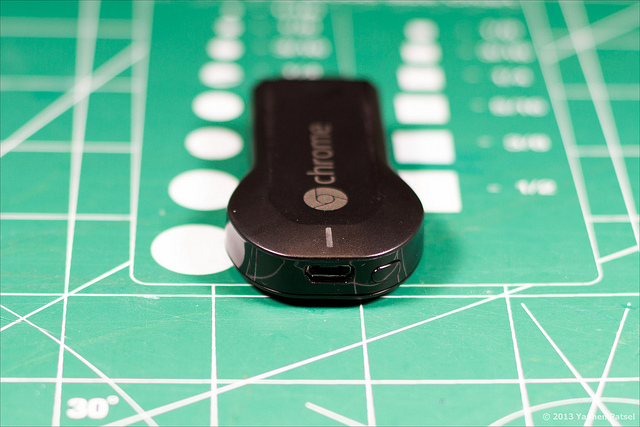
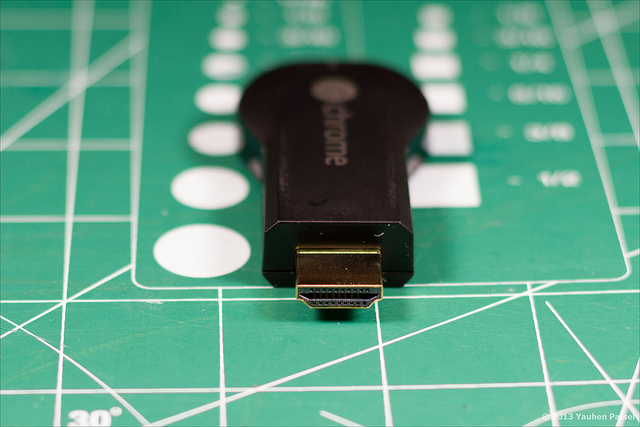
Appearance of the box On the lid there is a brief instruction for connecting and setting up all the components. Appearance of the dongle. Micro USB connector, LED and reset button. HDMI connector
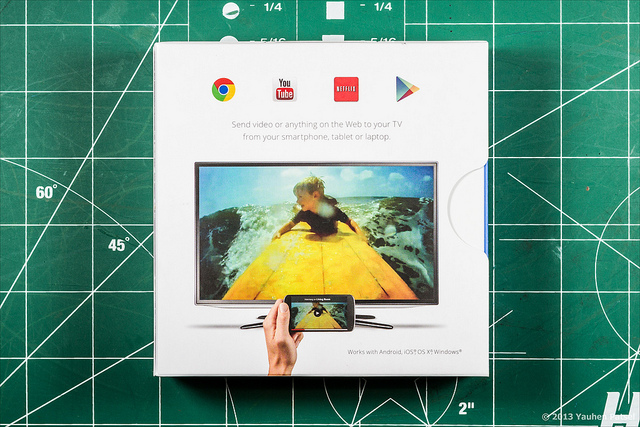

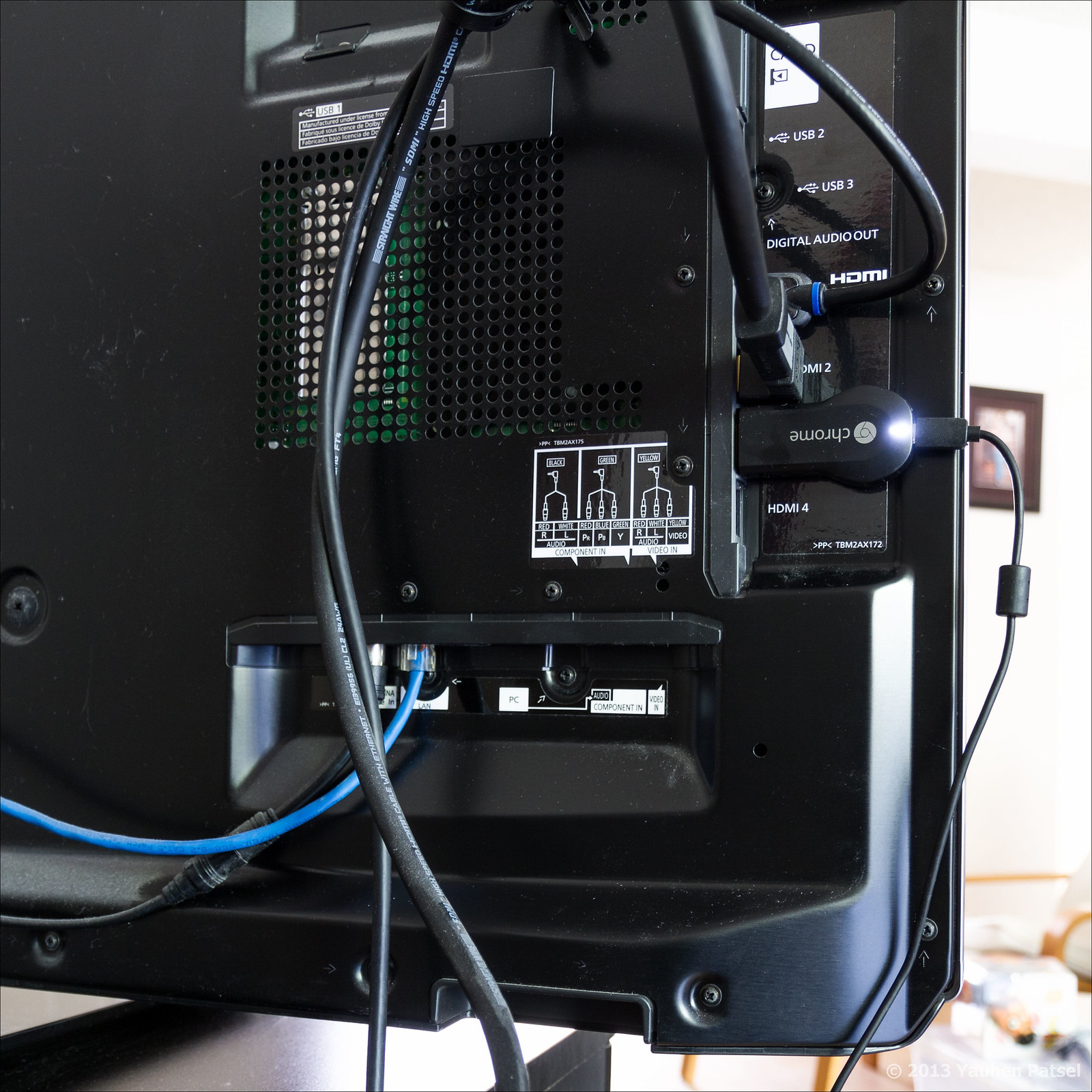
The connection is quite simple - just insert the dongle into the HDMI connector and connect the power. Since the TV has USB connectors, I decided to power up the Chromecast through them. But nothing good came of it - the dongle never started. I had to power it from the complete power supply. To configure, you need to type the address specified by Google on the box in the browser and download the Chromecast application. I used the Chromecast App for Android for the initial setup.
The setup process is quite original. At the initial boot (or after a reset), the dongle turns into a Wi-Fi access point, which is detected by an application running on a laptop or on a phone (tablet). A telephone (tablet, laptop) is also automatically connected to this network. Then, through the application, access data to the home network (SSID, encryption type, password) is transferred to the dongle, which using the received data connects to the home network.
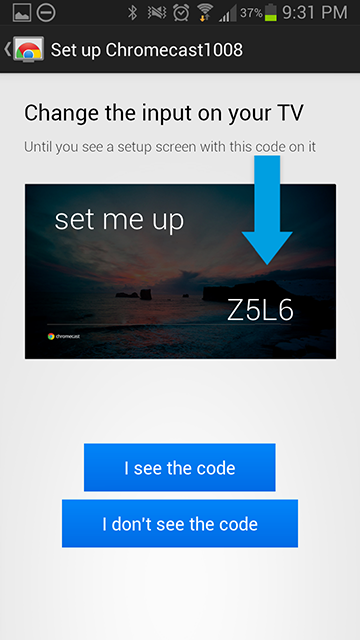
Connected dongle TV screen at initial boot (or after resetting Chromecast) Android application detected a Wi-Fi access point located in the dongle. Wi-Fi connection established between dongle and phone


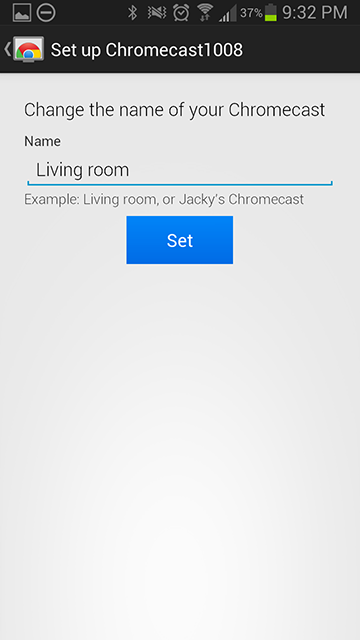
You can set a specific name for Chromecast, and then, if there are several devices on the network, it will be easier to select the right one.
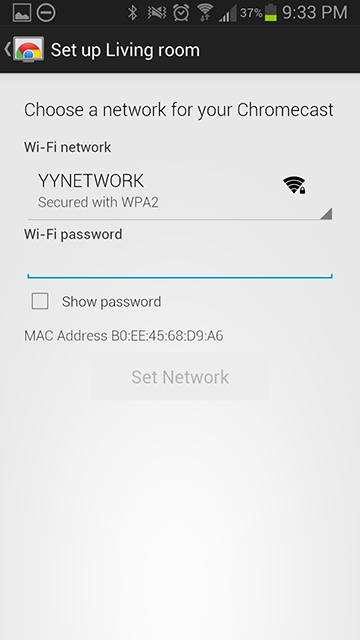
At this stage, we enter the data of our Wi-Fi network so that Chromecast can connect to it.
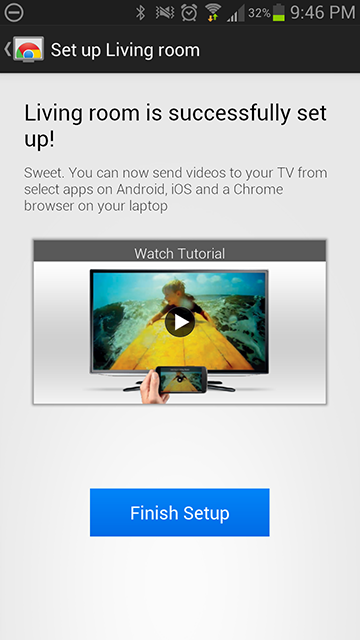
Setup is completed. When setting up, it should be borne in mind that all devices must be in the same Wi-Fi network. The second point is that Chromecast only works in the 2.4 GHz band; it does not see Wi-Fi networks in the 5 GHz band.

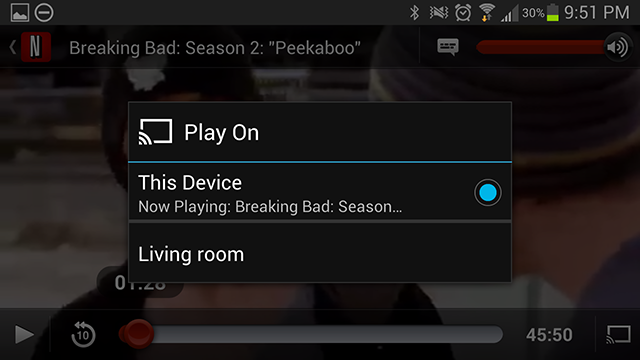
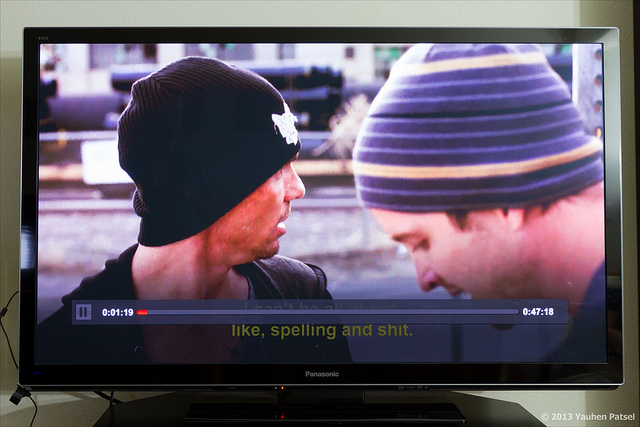
Currently, only 3 Android apps support Chromecast - YouTube, Netflix and Google Play. All applications include broadcast on Chromecast without any problems. The fastest switching music in Play Music. YouTube broadcasting starts after 3-4 seconds, and Netflix switches for the longest time - about 6-7 seconds. This is due to the fact that when switching, the video stream is cached.
The Chromecast icon is visible in the lower right corner, clicking on it turns the broadcast on and off. The YouTube app for iOS works similarly and there are no problems with its use. To use with the Chrome browser, you need to install the Chromecast Extension
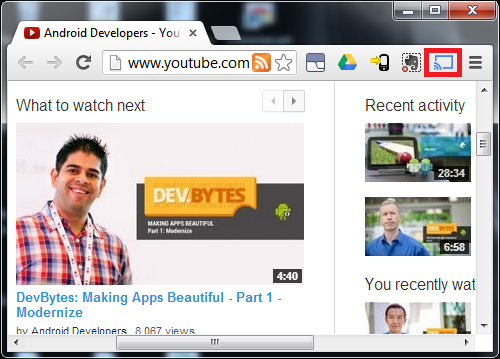
from the Chrome Web Store extension store. This extension provides 2 modes of operation: broadcasting a single bookmark or broadcasting the entire screen. In addition to these modes, you can enable / disable audio broadcasting. My observations on these modes: when broadcasting one bookmark, the frame rate drops significantly, so it’s impossible to watch video in this bookmark in this mode. When broadcasting the entire screen, the frame rate does not sag or slightly sags, but I still could not get the sound broadcast. This mode (full screen) is declared experimental, perhaps in future versions of the Chromecast Extension this defect will be fixed.
The broadcast mode on / off button is circled in red.
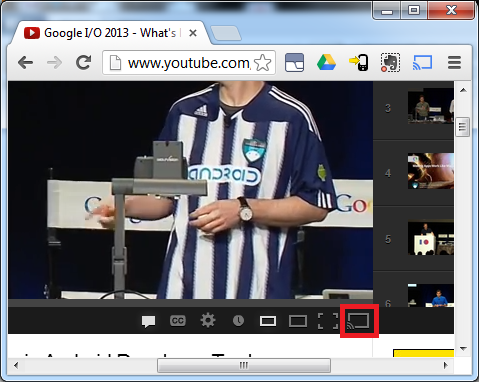
When using YouTube and Netflix and trying to enable the broadcast mode, the Chromecast Extension warns that it is better to use the broadcast button from the player itself. Indeed, a new button has appeared in the YouTube player, which turns on the broadcast mode.
In short, I liked the idea and implementation of Chromecast. There are some minor roughnesses (lack of broadcasting sound from the desktop browser Chrome in full screen mode), but I’m sure that they will be fixed soon.
What is Google Chromecast? This is a small device (dongle, whistle, etc.), connected to the HDMI input of a TV or receiver and capable of playing content (video, music, photos). Chromecast does not have its own interface or external controls (except for the reset button). For control, you must have on your network with the dongle Android, iOS device or Chrome browser (Windows or Mac), as well as the Chromebook Pixel. Mac or Chromebook is not at home, so all experiments were carried out with Samsung Galaxy SIII, Apple iPod, Chrome for Windows and Panasonic TC-P55GT30 TV.
In continuation under the cut a lot of photos.
Packaging and equipment
The box with the device is quite small, about 12 x 12 cm. In the box, in addition to the dongle itself, there is an HDMI extension cable, a USB cable, a power supply and a small instruction. Why do I need a power supply, is it really impossible to power a device via HDMI? Unfortunately, impossible. HDMI specifications suggest that 5 V is present on the 18th pin of the connector, but the current is limited to only 50 mA, which is clearly not enough to power more or less serious peripherals.
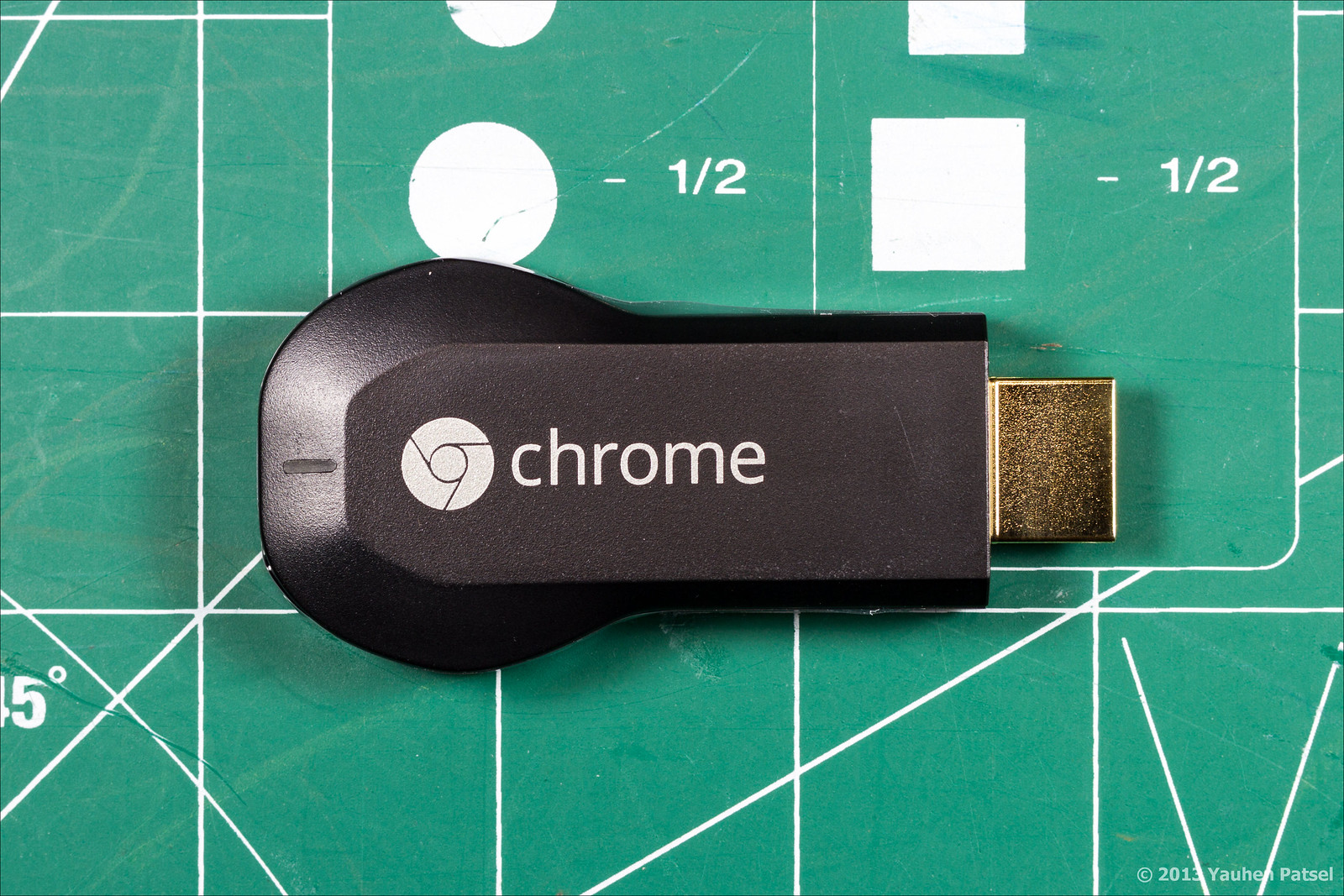
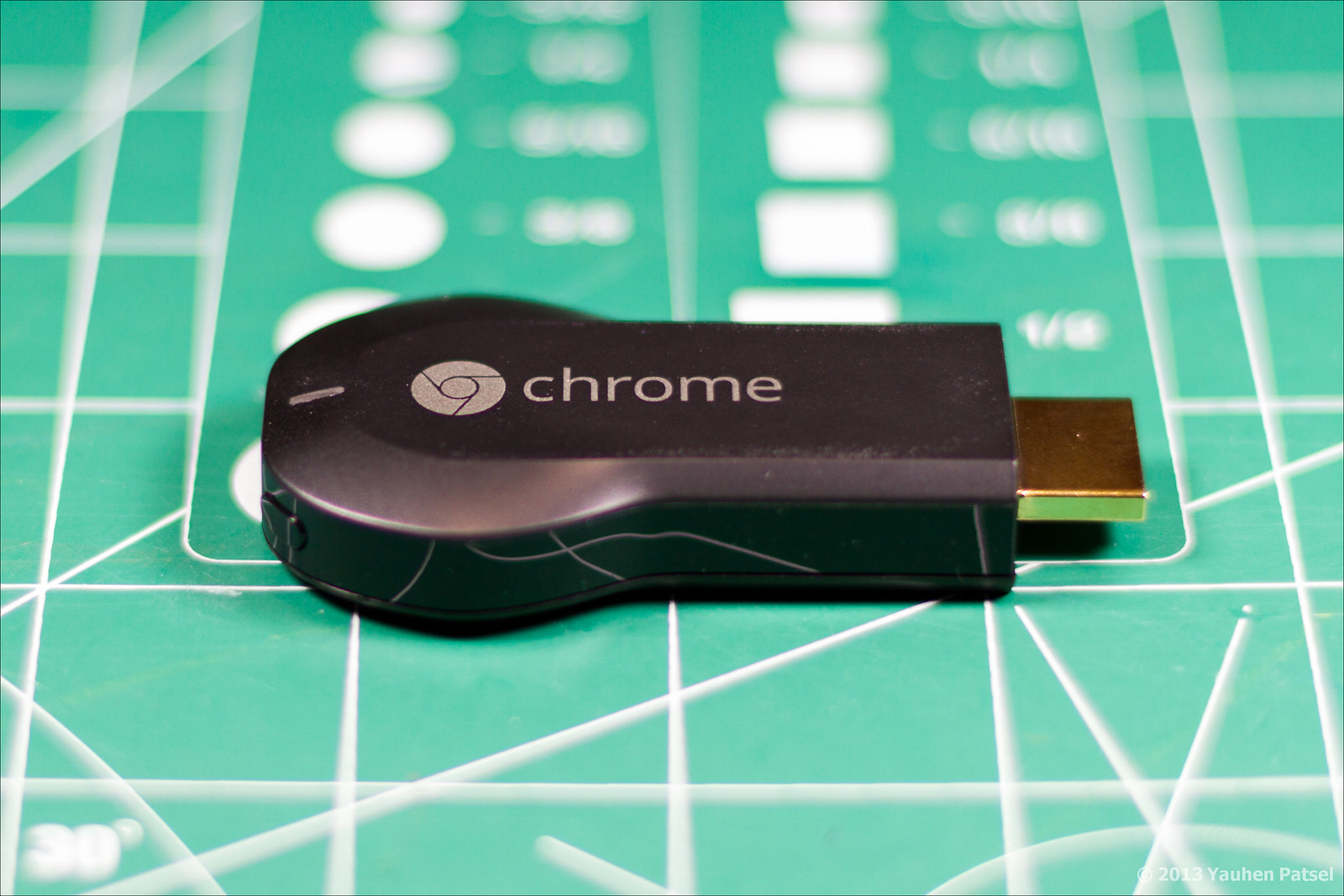
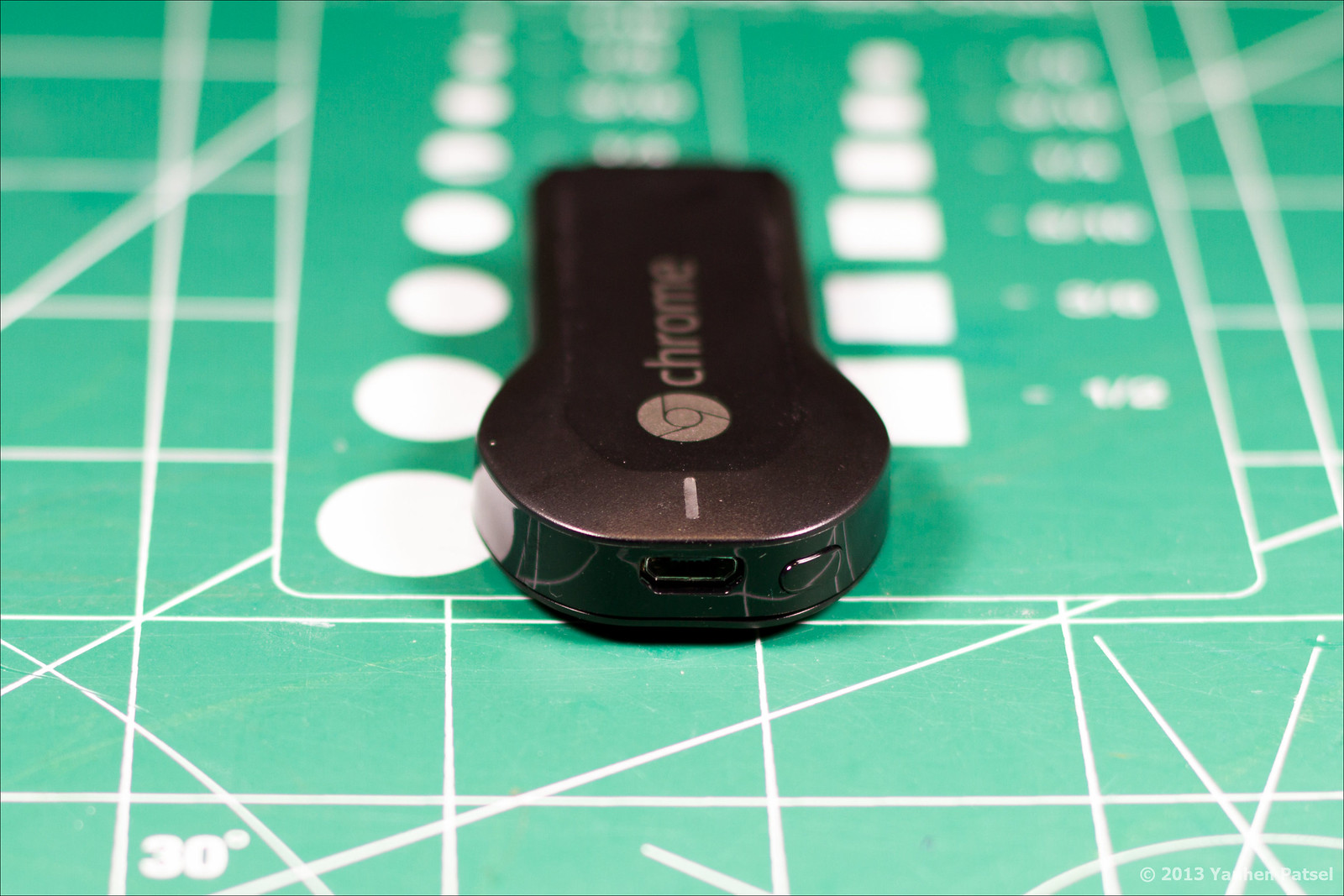
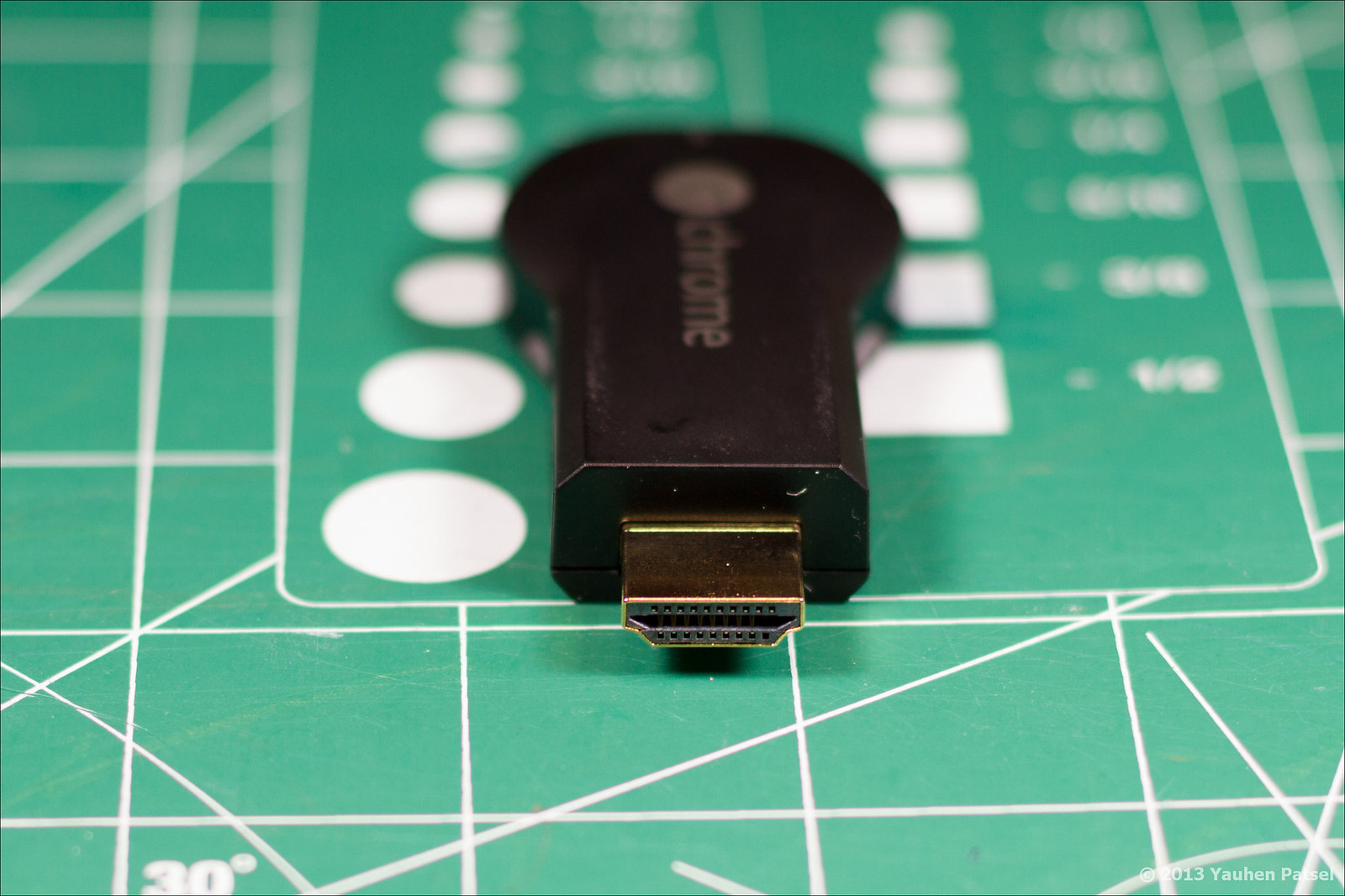
Appearance of the box On the lid there is a brief instruction for connecting and setting up all the components. Appearance of the dongle. Micro USB connector, LED and reset button. HDMI connector



Connection and setup
The connection is quite simple - just insert the dongle into the HDMI connector and connect the power. Since the TV has USB connectors, I decided to power up the Chromecast through them. But nothing good came of it - the dongle never started. I had to power it from the complete power supply. To configure, you need to type the address specified by Google on the box in the browser and download the Chromecast application. I used the Chromecast App for Android for the initial setup.
The setup process is quite original. At the initial boot (or after a reset), the dongle turns into a Wi-Fi access point, which is detected by an application running on a laptop or on a phone (tablet). A telephone (tablet, laptop) is also automatically connected to this network. Then, through the application, access data to the home network (SSID, encryption type, password) is transferred to the dongle, which using the received data connects to the home network.
Connected dongle TV screen at initial boot (or after resetting Chromecast) Android application detected a Wi-Fi access point located in the dongle. Wi-Fi connection established between dongle and phone
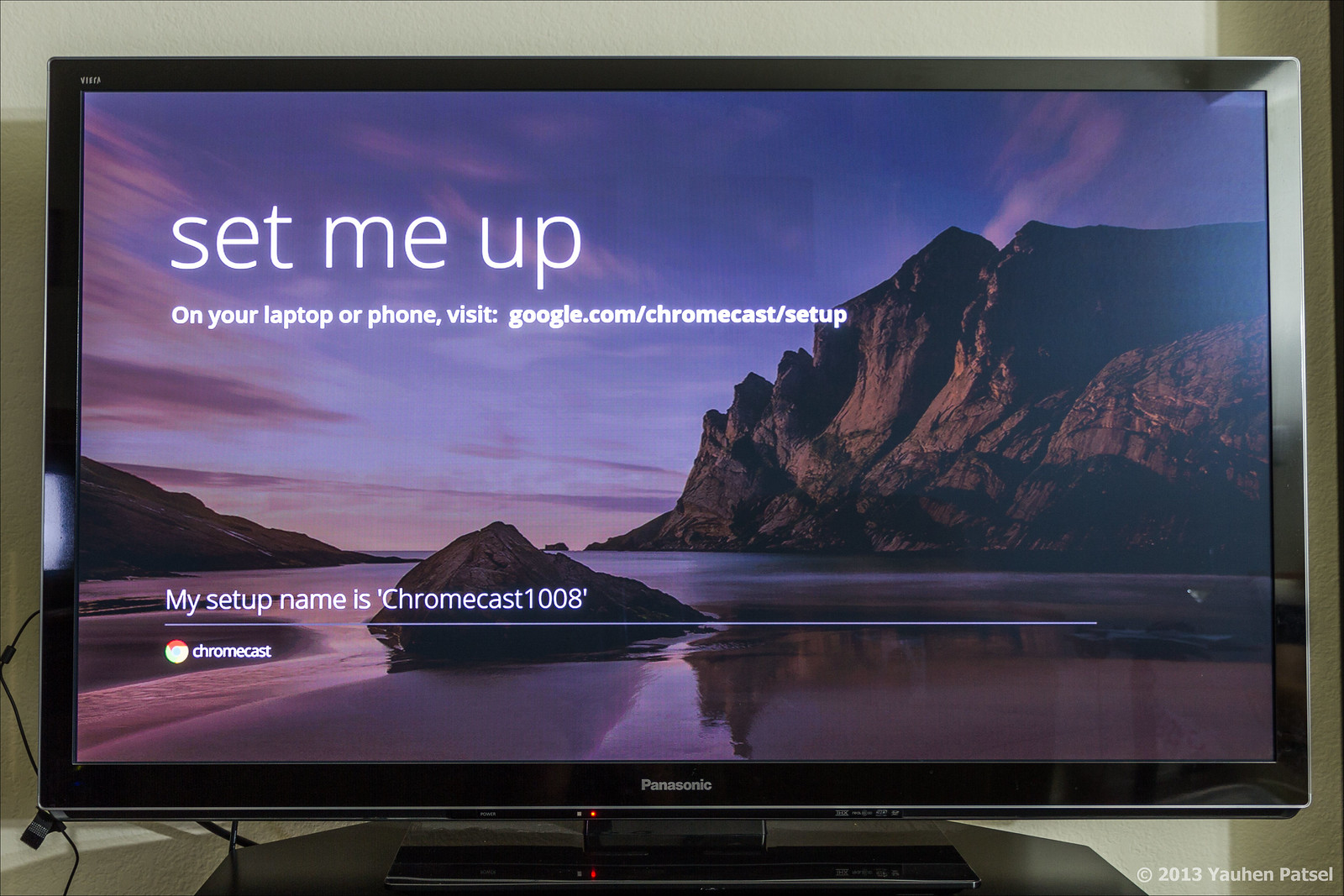

You can set a specific name for Chromecast, and then, if there are several devices on the network, it will be easier to select the right one.
At this stage, we enter the data of our Wi-Fi network so that Chromecast can connect to it.
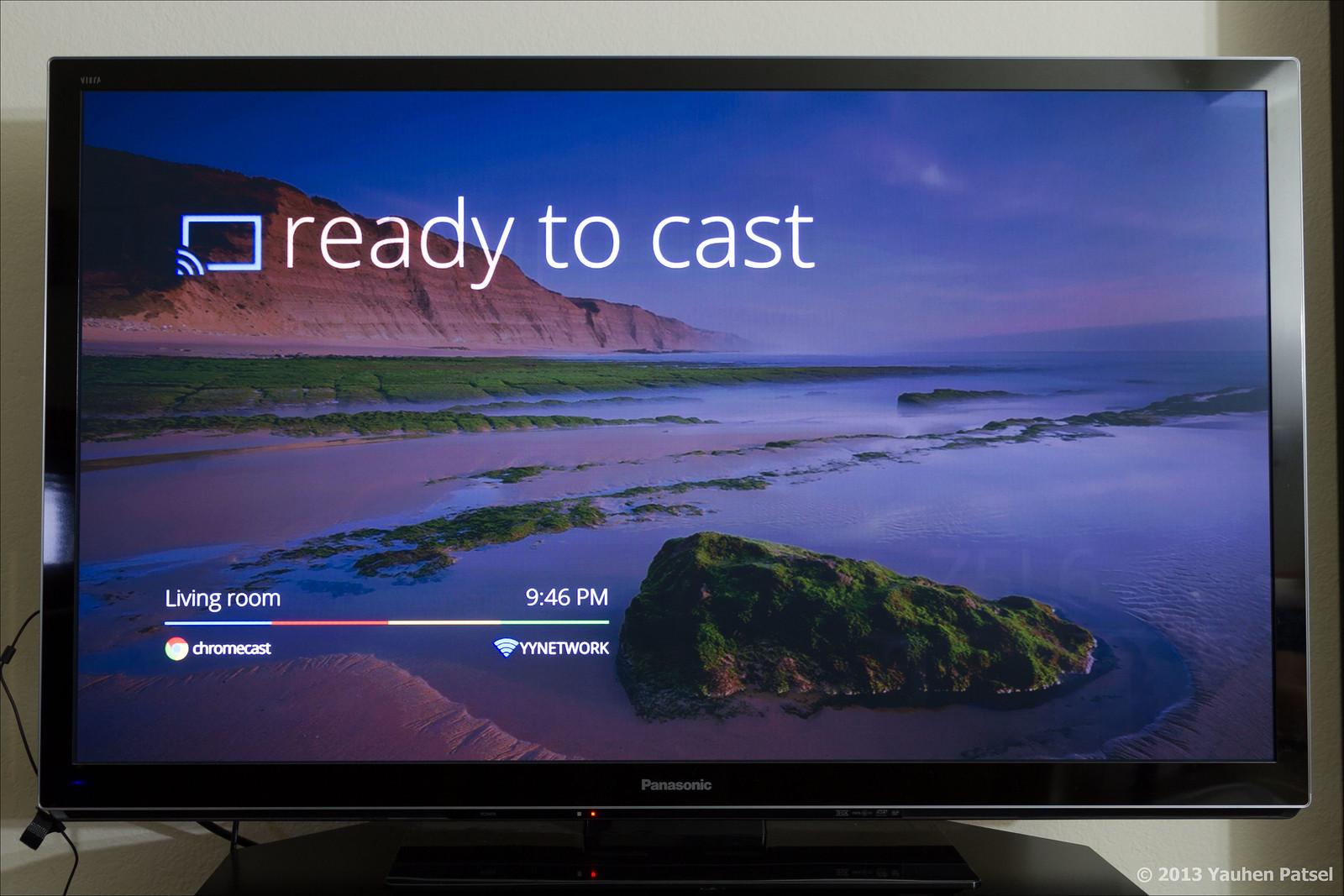
Setup is completed. When setting up, it should be borne in mind that all devices must be in the same Wi-Fi network. The second point is that Chromecast only works in the 2.4 GHz band; it does not see Wi-Fi networks in the 5 GHz band.
Using
Currently, only 3 Android apps support Chromecast - YouTube, Netflix and Google Play. All applications include broadcast on Chromecast without any problems. The fastest switching music in Play Music. YouTube broadcasting starts after 3-4 seconds, and Netflix switches for the longest time - about 6-7 seconds. This is due to the fact that when switching, the video stream is cached.
The Chromecast icon is visible in the lower right corner, clicking on it turns the broadcast on and off. The YouTube app for iOS works similarly and there are no problems with its use. To use with the Chrome browser, you need to install the Chromecast Extension
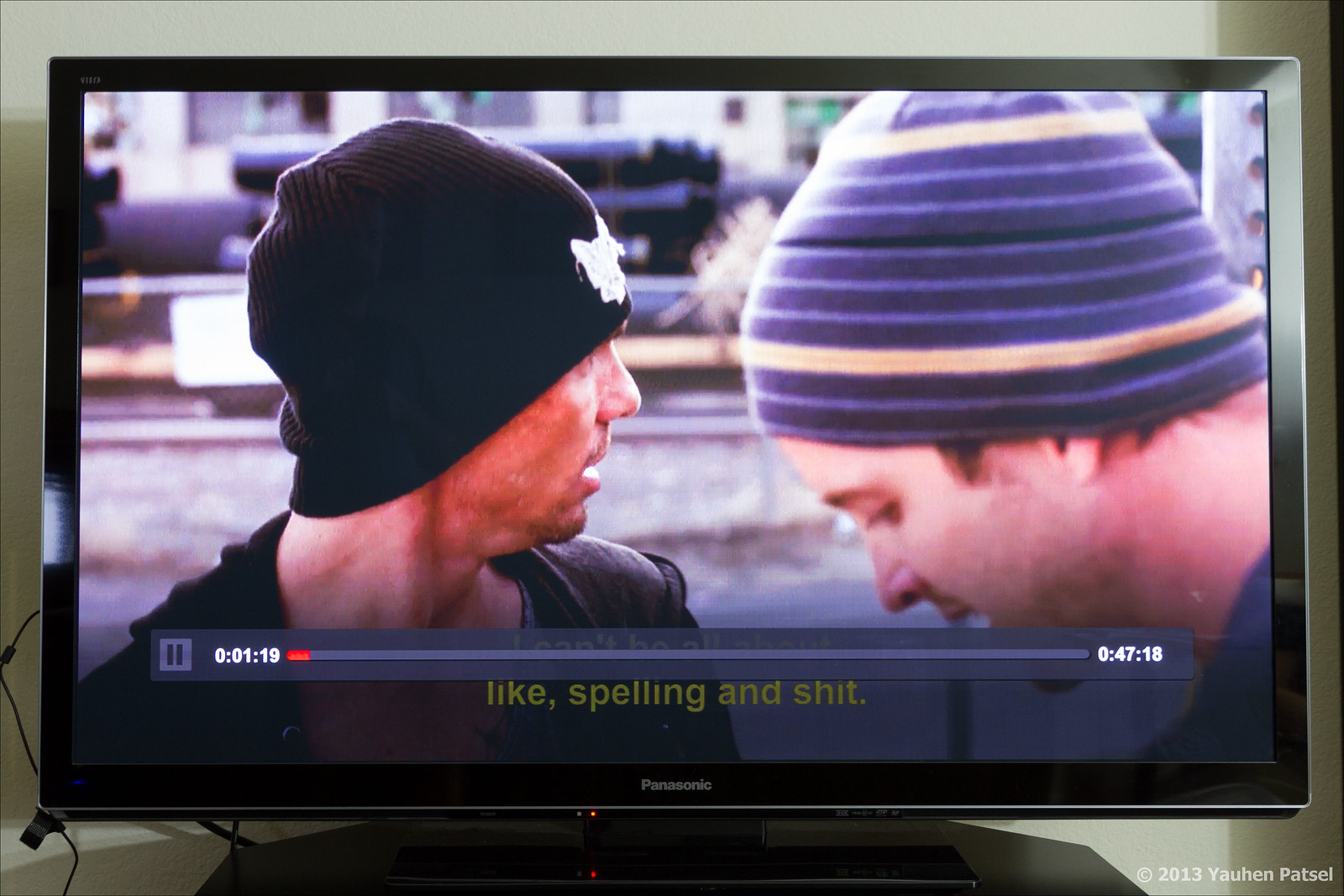
from the Chrome Web Store extension store. This extension provides 2 modes of operation: broadcasting a single bookmark or broadcasting the entire screen. In addition to these modes, you can enable / disable audio broadcasting. My observations on these modes: when broadcasting one bookmark, the frame rate drops significantly, so it’s impossible to watch video in this bookmark in this mode. When broadcasting the entire screen, the frame rate does not sag or slightly sags, but I still could not get the sound broadcast. This mode (full screen) is declared experimental, perhaps in future versions of the Chromecast Extension this defect will be fixed.
The broadcast mode on / off button is circled in red.
When using YouTube and Netflix and trying to enable the broadcast mode, the Chromecast Extension warns that it is better to use the broadcast button from the player itself. Indeed, a new button has appeared in the YouTube player, which turns on the broadcast mode.
Conclusion
In short, I liked the idea and implementation of Chromecast. There are some minor roughnesses (lack of broadcasting sound from the desktop browser Chrome in full screen mode), but I’m sure that they will be fixed soon.