April 9, 2013 at 22:53
ASP.NET MVC Lesson D. Scaffolding
- Tutorial
The purpose of the lesson. Learn how to use Scaffolding to create a prototype project. We define and fix the structure of the repository. Simple and language version of the class. We are testing the use of Scaffolder, we are using “guiding” attributes. Parameters for Scaffolder. Creating control attributes. A full cycle of creating and managing an object in the admin panel.
Scaffolding T4 for Visual Studio 2013 is not applicable.
In this and the next lesson, we will learn what will help you develop applications many times faster. Let's start from afar. When I made the first site, I looked at how one or another functional could be implemented and used it in my application. Then, when I got a second project, I started to improve the functionality. I highlighted the main points and tools that were described in previous lessons. I began to notice that I often do a lot of mechanical work, for example:
And since it was truly boring, I often made a mistake in one of the steps - and it was necessary to correct banal errors. And I created snippets, but they solved only half of the problem, but the data model, controller, index.cshtml, edit.cshtml - this was not solved.
So I read Steven Sanderson’s article “ Scaffold your ASP.NET MVC 3 project with the MvcScaffolding package ” and caught fire. Scaffolding suited me perfectly, but it was not written for my solution. And I began to study. It was based on T4 ( Text Template Transformation Toolkit ), this syntax is used in templates, but Windows PowerShell is used for pre-template logic .. Actually, we are working with PowerShell in the PackageManager Console (wow, how twisted!). I’ll dive into Windows PowerShell and T4 quite a bit, just to create a couple of scaffolders to work with the project.
So, what we initially needed is to install PowerGUI to work with PowerShell. There are many editors for PowerShell in VS2010. But we are working with VS2012 and so far we are not so lucky.
Ok, installed. We proceed to install the editor for t4 - http://t4-editor.tangible-engineering.com . Also, for now, the only editor for VS2012. Well - there’s a backlight.
Next, we will study what we have. Let's start with T4. I used this link: http://www.olegsych.com/2007/12/text-template-transformation-toolkit/
Create a new project, the class library LesssonProject.T4. And add HelloWorld.tt there:
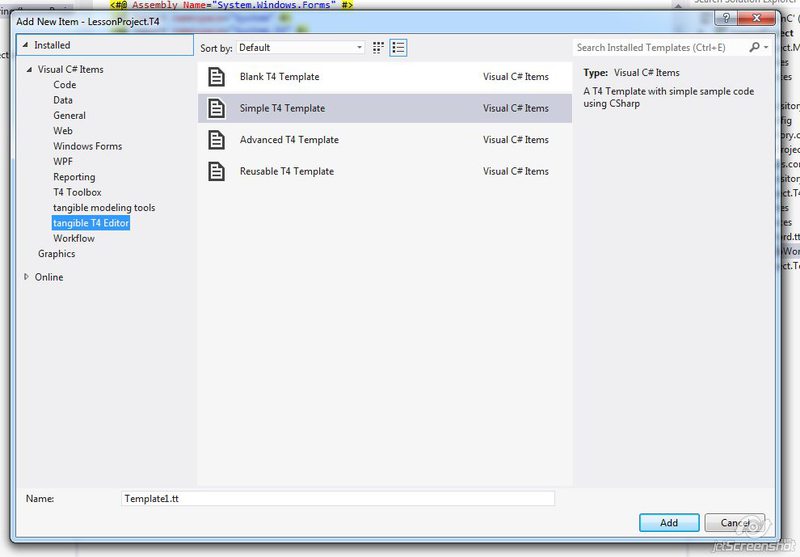
Change a little:
Ok, and the result will be:
In fact, the .tt file is converted to code that creates a specific class that inherits from TextTransformation. This code is run and a result file is generated. It looks something like this:
Converts to:
And the result will be a .cs file:
We will study the blocks and template syntax, which is very similar to aspx, only <# #> is used instead of the brackets <%%>. But, since we did not study aspx, then:
In general, this knowledge and knowledge on Reflection is quite enough to generate the files we need, but let's move on to the MvcScaffolding project.
Install T4Scaffolding:
Create the CodeTemplates / Scaffolders / IRepository folder in LessonProject.Model and add the IRepository.ps1 files (LessonProject.Model / CodeTemplates / Scaffolders / IRepository / IRepository.ps1) in it:
Then IRepositoryItemTemplate.cs.t4:
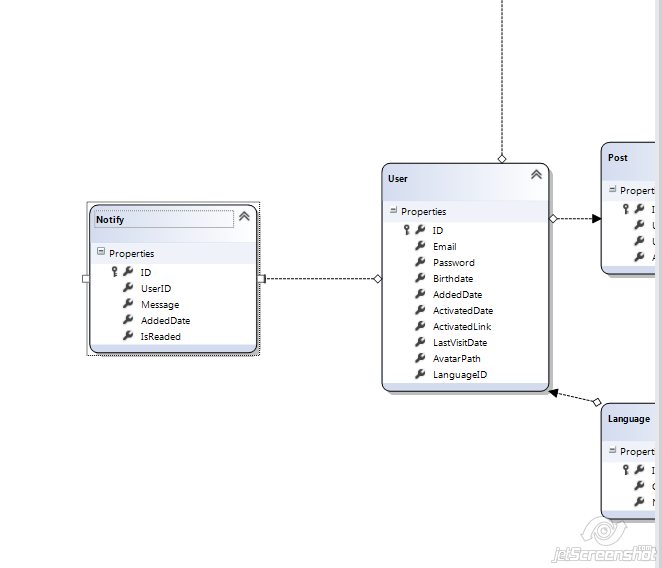
Create a new Notify table:
UserIDint (foreignKey to User)
Messagenvarchar (140)
AddedDatedatetime
IsReadedbit
Transfer to DbContext (LessonProjectDb.dbml) and save (ctrl-S):
In the Package Manager Console, write for the LessonProject.Model project:
Hurrah! Everything works! Simple, right? Is nothing clear? Ok, let's take a look at IRepository.ps1 in order:
This is the scaffolder code declaration structure. Particular attention should be paid to
Next, we look for this class (if we do not save, then the desired class will not be written yet and will not be found):
The class is found and we move on to the next part. Find the file IRepository.cs and if it is not there, then create:
Here, IRepositoryTemplate.cs.t4 is just called if necessary, and there an object is transferred there (as in the View)
And defaultNamespace was obtained from the project property
In the template, we use this (CodeTemplates / Scaffolders / IRepository / IRepositoryTemplate.cs.t4):
Ok, the file is created (or found) and go to the next step. If everything is well-managed (
Parameters:
By the way, pay attention to
Those. normally formed the plural, and not just by adding the character 's', as it would be in the snippet.
Let's explore these T4Scaffolding cmdlet:
Well? Feel the power that will already replace copy-paste in your projects? But (!) Keep in mind that all these commands were also implemented by people. And, for example, the primary key will be received only if the field is called ID, and if it is called PervichniyKlyuch, then most likely this will not work. Also, do not rely heavily on translations. This is scaffolding, i.e. draft project creation, not the finest setting. The essence of scaffolding is to create, start and go drink tea, while the program automatically makes you the most nasty mechanical routine.
Let's go back to the templates and learn what EnvDTE.CodeType is.
CodeType is an interface to which class information obtained through Get-ProjectType can be cast.
What do we know about this interface. For example, about properties:
There are still methods, but we do not use them.
By the way, pay attention to EnvDTEExtensions.cs in T4Scaffolding (you can download the source from here: http://mvcscaffolding.codeplex.com/SourceControl/changeset/view/7cd57d172314 ), which other auxiliary classes are available to you.
Fuh! Well, let's try to sort things out, crush any code programmatically, and then explain to the computer how we write programs and go chasing teas.
Let's create a new project: LessonProject.Scaffolding, and take that pair of classes from the first lessons, with a sword and a warrior.
IWeapon.cs:
Bazuka.cs:
Sword.cs:
Warrior.cs:
Install T4Scaffolding:
Create the simplest PowerShell (/CodeTemplates/Scaffolders/Details/Details.ps1):
The specified data type is passed to Details.t4 (/CodeTemplates/Scaffolders/Details/Details.cs.t4):
Derive for Warrior.cs
We can study classes, use guiding attributes and based on this create intermediate classes, i.e. Automate processes that are too routine for manual work. At the same time, we have an advantage, because the automatically generated code contains fewer errors, as we remove part of the human factor.
So, I will not give the code of all the scaffolders I use here, I will only describe here their parameters for launching. But first, I'll talk about ManageAttribute. These attributes are assigned to those fields that we want to use as markers to generate specific code. For example, the LangColumn attribute is an attribute indicating that the field is “language”. Thus, we can generate ModelView and taking them into account too.
Scaffolding is not a panacea, but it is a good tool with which you can quickly create the necessary code. The written classes allow you to quickly start managing the contents of the database, and eliminate the many manual chores.
The steps for creating a new table (object) will be as follows:
All this is done on several tables at once, if this is the start of a project or a large patch. I sometimes generated up to 20-30 tables, it took about 5 minutes, but without this I would have to spend the whole day.
Look at the implementation of scaffoldings, you can better understand the internal features of the program and its structure.
All sources are located at https://bitbucket.org/chernikov/lessons
Scaffolding T4 for Visual Studio 2013 is not applicable.
Scaffolding. Start.
In this and the next lesson, we will learn what will help you develop applications many times faster. Let's start from afar. When I made the first site, I looked at how one or another functional could be implemented and used it in my application. Then, when I got a second project, I started to improve the functionality. I highlighted the main points and tools that were described in previous lessons. I began to notice that I often do a lot of mechanical work, for example:
- create a new table in the database
- throw it into the DbContext class
- add announcement to repository interface
- add implementation to SqlRepository
- add the partial part of the class in the proxy folder
- add data model
- declare mapping
- create a controller in the admin panel
- make a typical view for viewing and editing
And since it was truly boring, I often made a mistake in one of the steps - and it was necessary to correct banal errors. And I created snippets, but they solved only half of the problem, but the data model, controller, index.cshtml, edit.cshtml - this was not solved.
So I read Steven Sanderson’s article “ Scaffold your ASP.NET MVC 3 project with the MvcScaffolding package ” and caught fire. Scaffolding suited me perfectly, but it was not written for my solution. And I began to study. It was based on T4 ( Text Template Transformation Toolkit ), this syntax is used in templates, but Windows PowerShell is used for pre-template logic .. Actually, we are working with PowerShell in the PackageManager Console (wow, how twisted!). I’ll dive into Windows PowerShell and T4 quite a bit, just to create a couple of scaffolders to work with the project.
So, what we initially needed is to install PowerGUI to work with PowerShell. There are many editors for PowerShell in VS2010. But we are working with VS2012 and so far we are not so lucky.
Ok, installed. We proceed to install the editor for t4 - http://t4-editor.tangible-engineering.com . Also, for now, the only editor for VS2012. Well - there’s a backlight.
T4
Next, we will study what we have. Let's start with T4. I used this link: http://www.olegsych.com/2007/12/text-template-transformation-toolkit/
Create a new project, the class library LesssonProject.T4. And add HelloWorld.tt there:
Change a little:
<#@ template debug="true" hostSpecific="true" #>
<#@ output extension=".cs" #>
<#@ Assembly Name="System.Core" #>
<#@ Assembly Name="System.Windows.Forms" #>
<#@ import namespace="System" #>
<#@ import namespace="System.IO" #>
<#@ import namespace="System.Diagnostics" #>
<#@ import namespace="System.Linq" #>
<#@ import namespace="System.Collections" #>
<#@ import namespace="System.Collections.Generic" #>
<#
   var greeting = "Hello, World!";
#>
// This is the output code from your template
// you only get syntax-highlighting here - not intellisense
namespace MyNameSpace
{
	class MyGeneratedClass
	{
		static void main (string[] args)
		{
			System.Console.WriteLine("<#= greeting #>");
		}
	}
}
<#+
  // Insert any template procedures here
  void foo(){}
#>
Ok, and the result will be:
// This is the output code from your template
// you only get syntax-highlighting here - not intellisense
namespace MyNameSpace
{
	class MyGeneratedClass
	{
		static void main (string[] args)
		{
			System.Console.WriteLine("Hello, World!");
		}
	}
}
In fact, the .tt file is converted to code that creates a specific class that inherits from TextTransformation. This code is run and a result file is generated. It looks something like this:
<#@ template  language="C#" #>
Hello World!
Converts to:
public class GeneratedTextTransform : Microsoft.VisualStudio.TextTemplating.TextTransformation
    {
        public override string TransformText()
        {
            this.Write("Hello, World!");
            return this.GenerationEnvironment.ToString();
        }
    }
And the result will be a .cs file:
Hello World!
We will study the blocks and template syntax, which is very similar to aspx, only <# #> is used instead of the brackets <%%>. But, since we did not study aspx, then:
- A text block is any non-program text in the template text (sorry for taftology):
<#@ template language="C#" #> Hello World! - A statement block is any block enclosed in <# #>. All that is inside is a language construct that defines the logic for building the text:
<# var greeting = "Hello, World!"; #> - An expression block is a block enclosed in <# = #>. Everything inside this block will be cast to a line and added to the template text:
System.Console.WriteLine("<#= greeting #>"); - A function block is a block enclosed in
<#+ #>. All functions declared in this block can be called in the template. In addition, the functions themselves may contain template text. - Directive
<#@ template #>- allows you to specify the characteristics of the transformation class from the template:<#@ template language=”C#”>- sets the class language.<#@ template debug=”true”>- allows you to debug template generation.<#@ template inherits=”MyTextTransformation”>- indicates which class should be used as the base for the generation class in the file generation procedure.
- Directive
<#@ output #>- sets the extension for the generated file:<#@ output extension=".cs" #> - Directive
<#@ import #>- adds the use of the specified namespace in the execution procedure. The same as using add (but not to the result, but when performing text generation):<#@ import namespace="System.Collections" #> - Directive
<#@ assembly #>- Adds an assembly declaration. Same as in VisualStudio add Reference:<#@ Assembly Name="System.Core" #> - Directive
<#@ include #>- adds some other template in the place of declaration. This is like Html .Partial ():<#@ include file="Included.tt" #> - Directive
<#@ parameter #>- adds a parameter when forming a template. But its transfer is so complicated that I will not give an example. Link - For the rest - see the link .
In general, this knowledge and knowledge on Reflection is quite enough to generate the files we need, but let's move on to the MvcScaffolding project.
MVCScaffolding
Install T4Scaffolding:
PM> Install-Package T4Scaffolding
Create the CodeTemplates / Scaffolders / IRepository folder in LessonProject.Model and add the IRepository.ps1 files (LessonProject.Model / CodeTemplates / Scaffolders / IRepository / IRepository.ps1) in it:
[T4Scaffolding.Scaffolder(Description = "Create IRepository interface")][CmdletBinding()]
param(
	[parameter(Mandatory = $true, ValueFromPipelineByPropertyName = $true)][string]$ModelType,
    [string]$Project,
	[string]$CodeLanguage,
	[string[]]$TemplateFolders,
	[switch]$Force = $false
)
$foundModelType = Get-ProjectType $ModelType -Project $Project -BlockUi
if (!$foundModelType) { return }
# Find the IRepository interface, or create it via a template if not already present
$foundIRepositoryType = Get-ProjectType IRepository -Project $Project -AllowMultiple
if(!$foundIRepositoryType)
{
	#Create IRepository
	$outputPath = "IRepository"
	$defaultNamespace = (Get-Project $Project).Properties.Item("DefaultNamespace").Value
Add-ProjectItemViaTemplate $outputPath -Template IRepositoryTemplate `
	-Model @{ Namespace = $defaultNamespace } `
	-SuccessMessage "Added IRepository at {0}" `
	-TemplateFolders $TemplateFolders -Project $Project -CodeLanguage $CodeLanguage -Force:$Force
	$foundIRepositoryType = Get-ProjectType IRepository -Project $Project
}
# Add a new property on the DbContext class
if ($foundIRepositoryType) {
	$propertyName = $foundModelType.Name
	$propertyNames = Get-PluralizedWord $propertyName
	# This *is* a DbContext, so we can freely add a new property if there isn't already one for this model
	Add-ClassMemberViaTemplate -Name $propertyName -CodeClass $foundIRepositoryType -Template IRepositoryItemTemplate -Model @{
		EntityType = $foundModelType;
		EntityTypeNamePluralized = $propertyNames;
	} -SuccessMessage "Added '$propertyName' to interface '$($foundIRepositoryType.FullName)'" -TemplateFolders $TemplateFolders -Project $Project -CodeLanguage $CodeLanguage
}
return @{
	DbContextType = $foundDbContextType
}
Then IRepositoryItemTemplate.cs.t4:
<#@ Template Language="C#" HostSpecific="True" Inherits="DynamicTransform" #>
#region <#= ((EnvDTE.CodeType)Model.EntityType).Name #>
IQueryable<<#= ((EnvDTE.CodeType)Model.EntityType).Name #>> <#= Model.EntityTypeNamePluralized #> { get; }
bool Create<#= ((EnvDTE.CodeType)Model.EntityType).Name #>(<#= ((EnvDTE.CodeType)Model.EntityType).Name #> instance);
bool Update<#= ((EnvDTE.CodeType)Model.EntityType).Name #>(<#= ((EnvDTE.CodeType)Model.EntityType).Name  #> instance);
bool Remove<#=((EnvDTE.CodeType)Model.EntityType).Name #>(int id<#= ((EnvDTE.CodeType)Model.EntityType).Name  #>);
#endregion
И IRepositoryTemplate.cs.t4:
<#@ Template Language="C#" HostSpecific="True" Inherits="DynamicTransform" #>
<#@ Output Extension="cs" #>
using System;
using System.Collections.Generic;
using System.Linq;
using System.Web;
namespace <#= Model.Namespace #>
{
    public interface IRepository
    {
        IQueryable GetTable() where T : class;
    }
}
Create a new Notify table:
| Name | Datatype |
UserIDint (foreignKey to User)
Messagenvarchar (140)
AddedDatedatetime
IsReadedbit
Transfer to DbContext (LessonProjectDb.dbml) and save (ctrl-S):
In the Package Manager Console, write for the LessonProject.Model project:
PM> Scaffold IRepository Notify
Added 'Notify' to interface 'LessonProject.Model.IRepository'
Hurrah! Everything works! Simple, right? Is nothing clear? Ok, let's take a look at IRepository.ps1 in order:
[T4Scaffolding.Scaffolder(Description = "Create IRepository interface")][CmdletBinding()]
param(
	[parameter(Mandatory = $true, ValueFromPipelineByPropertyName = $true)][string]$ModelType,
    [string]$Project,
	[string]$CodeLanguage,
	[string[]]$TemplateFolders,
	[switch]$Force = $false
)
This is the scaffolder code declaration structure. Particular attention should be paid to
$ModelType- this is the name of the class, and that is what we pass on in the team Scaffold IRepository Notify. Other parameters go either by default, as Force, or by default are known, as Project, CodeLanguage. Next, we look for this class (if we do not save, then the desired class will not be written yet and will not be found):
$foundModelType = Get-ProjectType $ModelType -Project $Project -BlockUi
if (!$foundModelType) { return }
The class is found and we move on to the next part. Find the file IRepository.cs and if it is not there, then create:
# Find the IRepository interface, or create it via a template if not already present
$foundIRepositoryType = Get-ProjectType IRepository -Project $Project -AllowMultiple
if(!$foundIRepositoryType)
{
	#Create IRepository
	$outputPath = "IRepository"
	$defaultNamespace = (Get-Project $Project).Properties.Item("DefaultNamespace").Value
Add-ProjectItemViaTemplate $outputPath -Template IRepositoryTemplate `
	-Model @{ Namespace = $defaultNamespace } `
	-SuccessMessage "Added IRepository at {0}" `
	-TemplateFolders $TemplateFolders -Project $Project -CodeLanguage $CodeLanguage -Force:$Force
	$foundIRepositoryType = Get-ProjectType IRepository -Project $Project
}
Here, IRepositoryTemplate.cs.t4 is just called if necessary, and there an object is transferred there (as in the View)
-Model @{ Namespace = $defaultNamespace } `
And defaultNamespace was obtained from the project property
Get-Project $Project).Properties.Item("DefaultNamespace").Value
In the template, we use this (CodeTemplates / Scaffolders / IRepository / IRepositoryTemplate.cs.t4):
namespace <#= Model.Namespace #>
Ok, the file is created (or found) and go to the next step. If everything is well-managed (
$foundIRepositoryType), then we will add several properties to this class according to the template IRepositoryItemTemplatewith parameters:# Add a new property on the DbContext class
if ($foundIRepositoryType) {
$propertyName = $foundModelType.Name
$propertyNames = Get-PluralizedWord $propertyName
# This *is* a DbContext, so we can freely add a new property if there isn't already one for this model
Add-ClassMemberViaTemplate -Name $propertyName -CodeClass $foundIRepositoryType -Template IRepositoryItemTemplate -Model @{
EntityType = $foundModelType;
EntityTypeNamePluralized = $propertyNames;
} -SuccessMessage "Added '$propertyName' to interface '$($foundIRepositoryType.FullName)'" -TemplateFolders $TemplateFolders -Project $Project -CodeLanguage $CodeLanguage
}
Parameters:
-Model @{
		EntityType = $foundModelType;
		EntityTypeNamePluralized = $propertyNames;
	}
By the way, pay attention to
Get-PluralizedWordand what role it played in the created template: IQueryable Notifies { get; }
Those. normally formed the plural, and not just by adding the character 's', as it would be in the snippet.
Let's explore these T4Scaffolding cmdlet:
- Add-ClassMember - Adds a piece of code to an existing class:
$class = Get-ProjectType HomeController Add-ClassMember $class "public string MyNewStringField;" - Add-ClassMemberViaTemplate - add a code block through the T4 template:
$class = Get-ProjectType HomeController Add-ClassMemberViaTemplate -CodeClass $class -Template "YourTemplateName" -Model @{ SomeParam = "SomeValue"; AnotherParam = $false } -TemplateFolders $TemplateFolders - Add-ProjectItemViaTemplate - add the file (project item) through the template:
Add-ProjectItemViaTemplate -OutputPath "Some\Folder\MyFile" -Template "YourTemplateName" -Model @{ SomeParam = "SomeValue"; AnotherParam = $false } -TemplateFolders $TemplateFolders - Get-PluralizedWord / Get-SingularizedWord - get the plural / singular word:
$result = Get-PluralizedWord Person # Sets $result to "People" $result = Get-SingularizedWord People # Sets $result to "Person" - Get-PrimaryKey - get the primary key from the data model:
$pk = Get-PrimaryKey StockItem - Get-ProjectFolder - get the project folder class
$folder = Get-ProjectFolder "Views\Shared" Write-Host "The shared views folder contains $($folder.Count) items" - Get-ProjectItem - get a file
$file = Get-ProjectItem "Controllers\HomeController.cs" $file.Open() $file.Activate() - Get-ProjectLanguage - for C # projects - returns cs, for VB projects returns VB
$defaultProjectLanguage = Get-ProjectLanguage $otherProjectLanguage = Get-ProjectLanguage -Project SomeOtherProjectName - Get-ProjectType - Get the class model (EnvDTE.CodeType)
$class = Get-ProjectType HomeController Add-ClassMember $class "public string MyNewStringField;" - Get-RelatedEntities - Finds all one-to-many class objects
Get-RelatedEntities Product - Set-IsCheckedOut is for working with source-control. Those. if you need some kind of checkOut file, then this can be done with this command.
Set-IsCheckedOut "Controllers\HomeController.cs"
Well? Feel the power that will already replace copy-paste in your projects? But (!) Keep in mind that all these commands were also implemented by people. And, for example, the primary key will be received only if the field is called ID, and if it is called PervichniyKlyuch, then most likely this will not work. Also, do not rely heavily on translations. This is scaffolding, i.e. draft project creation, not the finest setting. The essence of scaffolding is to create, start and go drink tea, while the program automatically makes you the most nasty mechanical routine.
Again templates, EnvDTE.CodeType
Let's go back to the templates and learn what EnvDTE.CodeType is.
CodeType is an interface to which class information obtained through Get-ProjectType can be cast.
What do we know about this interface. For example, about properties:
- Access - what type is it, public, private, etc.
- Attributes are collections of attributes associated with this type.
- Bases are collections of classes from which this element derives.
- Children - Returns a collection of objects contained in this CodeType.
- Comment - a comment related to the class. (You can do automatic documentation).
- DerivedTypes - Inherited types. This property is not supported in Visual C #.
- DocComment – Документальный комментарий или атрибут, который выполняет эту роль.
- DTE – возвращает главный объект расширения
- EndPoint – строка в файле, с которой начинается описание этого класса.
- FullName – полное имя, типа System.Int32
- InfoLocation – возвращает возможности объектной модели.
- IsCodeType – можно ли CodeType получить из этого объекта.
- IsDerivedFrom – возвращает CodeType базового объект.
- Kind – свойства типа объекта.
- Language – на каком языке это написано.
- Members – члены объекта. Вот это очень полезная функция.
- Name – имя объекта.
- Namespace – пространство имен объекта.
- Parent – непосредственный родитель объекта.
- ProjectItem – файл объекта.
- StartPoint – строка, в которой началось описание объекта.
There are still methods, but we do not use them.
By the way, pay attention to EnvDTEExtensions.cs in T4Scaffolding (you can download the source from here: http://mvcscaffolding.codeplex.com/SourceControl/changeset/view/7cd57d172314 ), which other auxiliary classes are available to you.
Fuh! Well, let's try to sort things out, crush any code programmatically, and then explain to the computer how we write programs and go chasing teas.
Let's create a new project: LessonProject.Scaffolding, and take that pair of classes from the first lessons, with a sword and a warrior.
IWeapon.cs:
public interface IWeapon
    {
        void Kill();
    }
Bazuka.cs:
public class Bazuka : IWeapon
    {
        public void Kill()
        {
            Console.WriteLine("BIG BADABUM!");
        }
    }
Sword.cs:
public class Sword : IWeapon
    {
        public void Kill()
        {
            Console.WriteLine("Chuk-chuck");
        }
    }
Warrior.cs:
///
/// This is LEGENDARY WARRIOR!
///
public class Warrior
    {
        readonly IWeapon Weapon;
        public Warrior(IWeapon weapon)
        {
            this.Weapon = weapon;
        }
        public void Kill()
        {
            Weapon.Kill();
        }
    }
Install T4Scaffolding:
Install-Package T4Scaffolding
Create the simplest PowerShell (/CodeTemplates/Scaffolders/Details/Details.ps1):
[T4Scaffolding.Scaffolder(Description = "Print Details for class")][CmdletBinding()]
param(
	[parameter(Mandatory = $true, ValueFromPipelineByPropertyName = $true)][string]$ModelType,
    [string]$Project,
	[string]$CodeLanguage,
	[string[]]$TemplateFolders,
	[switch]$Force = $false
)
$foundModelType = Get-ProjectType $ModelType -Project $Project -BlockUi
if (!$foundModelType) { return }
$outputPath = Join-Path "Details" $ModelType
Add-ProjectItemViaTemplate $outputPath -Template Details `
		-Model @{  ModelType = $foundModelType  } `
		-SuccessMessage "Yippee-ki-yay"`
		-TemplateFolders $TemplateFolders -Project $Project -CodeLanguage $CodeLanguage -Force:$Force
The specified data type is passed to Details.t4 (/CodeTemplates/Scaffolders/Details/Details.cs.t4):
<#@ template language="C#"  HostSpecific="True" Inherits="DynamicTransform" debug="true" #>
<#@ assembly name="System.Data.Entity" #>
<#@ import namespace="System.Linq" #>
<#@ import namespace="EnvDTE" #>
<#@ Output Extension="txt" #>
<#
    var modelType = (EnvDTE.CodeType)Model.ModelType;
#>
FullName : <#= modelType.FullName #>
Name : <#= modelType.Kind #> <#= modelType.Name #>
Access : <#= modelType.Access #>
Attributes :
<# foreach(var codeElement in modelType.Attributes) {
	var attr = (EnvDTE.CodeAttribute)codeElement;
#>
   <#= attr.Name #>
<# } #>
Bases :
<# foreach(var codeElement in modelType.Bases) {
	var @base = (EnvDTE.CodeType)codeElement;
#>
   <#= @base.Name #>
<# } #>
Comment :  <#= modelType.Comment #>
DocComment :  <#= modelType.DocComment #>
StartPoint : Line: <#= ((EnvDTE.TextPoint)modelType.StartPoint).Line #>
EndPoint :  Line : <#= ((EnvDTE.TextPoint)modelType.EndPoint).Line #>
Members :
<# foreach(var codeElement in modelType.Members) {
	var member = (EnvDTE.CodeElement)codeElement;
#>
   <#= member.Kind #> <#= member.Name #>
<# } #>
Derive for Warrior.cs
PM> Scaffold Details Warrior -Force:$true
Yippee-ki-yay
- Name \ full name
- Model type
- Access
- Model attributes
- Base class
- A comment
- Documentation Comment
- The line of the file where the ad started and the line where the ad ended
- Class member names with class type
We can study classes, use guiding attributes and based on this create intermediate classes, i.e. Automate processes that are too routine for manual work. At the same time, we have an advantage, because the automatically generated code contains fewer errors, as we remove part of the human factor.
Description of scaffolders
So, I will not give the code of all the scaffolders I use here, I will only describe here their parameters for launching. But first, I'll talk about ManageAttribute. These attributes are assigned to those fields that we want to use as markers to generate specific code. For example, the LangColumn attribute is an attribute indicating that the field is “language”. Thus, we can generate ModelView and taking them into account too.
- IRepository (Model). We already know him, he creates an IRepository interface and introduces CRUD methods for a given type:
Scaffold IRepository ModelName - Proxy (Model). Creates a Proxy partial class. If the parameter Lang: $ true is specified, the scaffolder searches for the language data model ModelName + ”Lang” and adds the language fields to the partial class.
Scaffold Proxy ModelName -Lang:$true - SqlRepository (Model). Создает реализацию CRUD-методов класса ModelName. Также имеет параметр Lang для создания приватного метода, работающего с языковыми полями
Scaffold SqlRepository ModelName -Lang:$true - ProviderRepository (Model). Запускает три вышеперечисленных скаффолдинга за один раз
Scaffold ProviderRepository ModelName -Lang:$true - Model (Web). Создает модель ModelNameView в Models/ViewModels и создает обработчик Automapper в Mappers/MappersCollection.cs. После этого во View-классе необходимо прописать управляющие атрибуты для создания контроллера и Index/Edit view:
- ShowIndex – это поле будет отображено в таблице Index
- PrimaryField – поле ID
- CheckBox – для этого поля будет создан элемент ввода CheckBox
- DropDownField – для этого поля будет создан элемент ввода DropDownField
- HiddenField – скрытое поле
- HtmlTextField – элемент ввода textarea, помеченный классом htmltext
- RadioField – поле c радио-кнопками (на практике практически не использовалось)
- TextAreaField – элемент ввода textarea
- TextBoxField – обычное текстовое поле ввода
Scaffold Model ModelName - SelectReference (Web). Создает во view-классе зависимость один-ко-многим, т.е. элемент выбора. Например, если создается город (City) с принадлежностью к штату (State), то при создании города указывается выпадающий список штатов, задающий значение StateID. Для этого необходимо использовать SelectReference, который добавит необходимый код к CityView:
Scaffold SelectReference City State - Controller (Web). Создает контроллер для данного ModelName типа. Дополнительно генерирует и Index\Edit View. Параметрами являются:
- Area (по умолчанию – нет), создает контроллер в определенном Area
- Paging (по умолчанию – false), использует или не использует постраничный вывод
- Lang (false by default), generates code using language settings
Scaffold Controller ModelName –Area:Admin –Paging:$true –Lang:$true - IndexView \ EditView (Web). Creates a list view or editing an object. Additional parameters are the same as for the Controller:
- Area (no by default), creates a controller in a specific Area
- Paging (false by default), whether or not to use pagination
- Lang (false by default), generates code using language settings
Scaffold IndexView ModelName –Area:Admin –Paging:$true –Lang:$true
Scaffold EditView ModelName –Area:Admin –Paging:$true –Lang:$true
Total
Scaffolding is not a panacea, but it is a good tool with which you can quickly create the necessary code. The written classes allow you to quickly start managing the contents of the database, and eliminate the many manual chores.
The steps for creating a new table (object) will be as follows:
- Describe table (s) with fields in the database
- Transfer it to DBContext.dbml
- Run ProviderRepository for the necessary tables, remove unnecessary methods
- Run Model for required tables
- Prescribe control attributes in view classes, remove extra fields
- Create controllers in the admin panel
- File complex fields with a file (for example, downloading files)
All this is done on several tables at once, if this is the start of a project or a large patch. I sometimes generated up to 20-30 tables, it took about 5 minutes, but without this I would have to spend the whole day.
Look at the implementation of scaffoldings, you can better understand the internal features of the program and its structure.
All sources are located at https://bitbucket.org/chernikov/lessons