
 January 10, 2013 at 07:53
How we ported an application with Silverlight on Windows 8
- Transfer
Recently, we ported to Windows 8 a relatively voluminous business application - an editor of charts, flow charts and other business graphics . This editor was originally written for the Silverlight platform, but we rewrote it under Windows Runtime and successfully placed it in the Windows 8 Store . Unfortunately, we really didn’t have enough standard controls, so we also had to write our own library of controls . And now we are ready to share our experience. This article has collected a number of nuances of developing applications for Windows 8 - from designing the user interface to the technical details of working with DirectX.
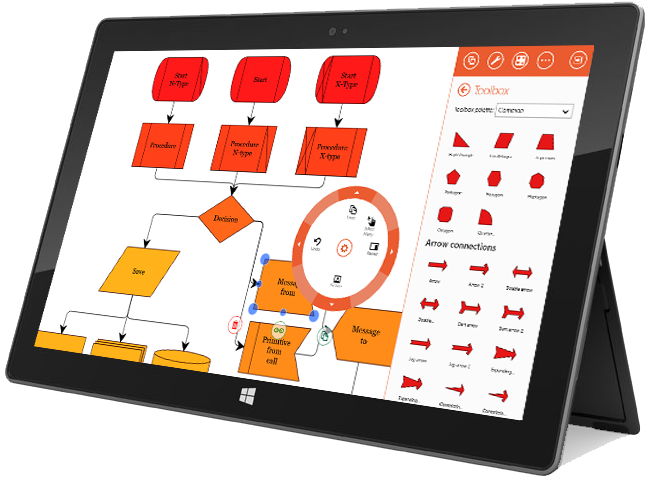
From a technical point of view, porting was surprisingly easy. Although we had to solve some API compatibility issues (which we hope to discuss in future posts), most C # code and XAML markup required only very simple transformations, such as renaming namespaces and some class members.
The main problem for us was the redesign of the user interface in the style of Microsoft Design Language (formerly known as the Windows Store UI, formerly known as Modern UI, formerly also known as Metro UI). Compliance with this style is both a prerequisite for certification when placing the application in the store, and just a rule of good taste, without which the application will look alien and incomprehensible to the user.
If you watched materials and presentations on the principles of building a new UI, you probably noticed that all the examples are quite simple from the point of view of the interface. They focus on applications that are designed exclusively for the consumption of content. Therefore, if you are developing a Line-Of-Business application, you are practically left face to face with raw guidelines proclaiming very beautiful principles such as: “Always put content before chrome” , which are completely incomprehensible how to apply them in real life.
In this article, we will try to illustrate some design decisions that we made when moving to a new platform using the example of our application.
As already mentioned, the basic tenet of Microsoft Design Language is “Always put content before chrome . ” Your application should allow the user to focus on data as much as possible, control elements should not distract him. In our editor, we decided to set aside the entire screen to display the document being edited and show controls only if necessary.

See how the space allocated to the user directly for working with the document has grown. This is especially valuable when working on a tablet, where the physical screen sizes are quite small.
Another of the fundamental principles of the new UI is “Design for a touch-first experience” , which means “design everything so that it is convenient to poke your finger, and then you’ll somehow get the mouse . ” Naturally, this imposes a number of limitations. For us, when developing a graphic editor, the most relevant were the following:
Here's how the set of controls for the selected object changed when switching to the new version:

In Windows 8, navigation between equivalent elements, which undoubtedly are documents open for editing, is supposed to be placed on the top AppBar. AppBars are horizontal controls that appear on the screen when you slide your finger from the top or bottom of the screen on the touch screen, or when you right-click.

Commands for document manipulation are also supposed to be placed on the AppBar, and to the right:

Some commands executed in the context of selected objects can also be placed on the lower AppBar. Please note that contextual commands should be placed on the left, and AppBar should pop up automatically in cases when the command becomes relevant. For example, when selecting an object of the corresponding type.
In our application, such a solution is used to control the selection mode of many objects. In the desktop version of the application, to select several objects, just hold down the Shift key, but in the tablet version the physical keyboard may not be available. Therefore, for the simultaneous selection of several objects had to provide a special mode. To exit this mode, use the contextual AppBar:

The most interesting new element is the radial menu. This is the original replacement for the classic context menu used by Microsoft OneNote. It looks like this:

In addition to the usual commands, you can put quite complex controls on the sublevels of this menu, such as the color picker and sliders:

The obvious advantages of this element are its unusual attractive design and the minimum distance to each command from the place of the initial location of the cursor pointer (or finger when working with the touch screen). In addition, this element looks normal only if no more than 8 teams are located on one level. This forces the interface designer to avoid overloaded menu functions and more carefully design user interaction. And psychologists have long known that consciousness can work effectively with no more than 7-9 elements at a time.
Unfortunately, this great control is not in the standard library. Therefore, we had to write it ourselves. In our program, he completely replaced the classic context menus and took over part of the teams that were located on the ribbon.

We placed all other controls on the pop-up panel located on the right side of the screen:

A number of actions (calling the settings dialog, printing, etc.) in the new interface must be done using the Charms Bar, which is caused by sliding your finger on the right edge of the screen. In fact, this is an analogue of the AppBar described above, on which the system management functions and actions are performed that are performed the same way for all applications.
Here's what the call to the print dialog looks like:

Without a doubt, one of the mandatory features of the chart editor should be the ability to export the result to some kind of graphic format. Under Silverlight, this was done very simply - you could take the entire visual tree and render it into a picture. For some reason, WinRT removed such functionality. In particular, there is no longer the WriteableBitmap .Render () method . There is a XamlUIPresenter class with which you can probably do it somehow , but you won’t get into the Windows Store using it.
There was an idea to implement export via HTML5, but the capabilities of its raster canvas were not enough for our vector needs. Therefore, we only had one way left - to use DirectX. As you know, the only sane way to use DirectX under C # is SharpDX . This wonderful open-source library provides a complete DirectX API for the .NET platform. There are other products for these purposes ( SlimDx , MDX , etc.), but only SharpDx supports the creation of normal applications for Windows 8 . If you have never worked with this library before, then examples and documentationthey will help you. If you just need to create a 2D image and save it as a graphic file, then you will need a template with Stackoverflow .
One thing to keep in mind. Although the authors of SharpDx boast that all of their builds are successfully certified, this is not entirely true. When we first tried to get certified, we received messages of this type:
Therefore, try to avoid using some rare methods. But if you still decide to use some kind of exotic functionality, then it is better to first make sure that it passes certification in the Windows Store.
As you can see, creating a version of the business application for the Windows Store will require significant redesign of the user interface. Fortunately, the style adopted by Microsoft (everything is very, very square and with solid fills) greatly simplifies this task for the programmer.
From a technical point of view, porting was surprisingly easy. Although we had to solve some API compatibility issues (which we hope to discuss in future posts), most C # code and XAML markup required only very simple transformations, such as renaming namespaces and some class members.
The main problem for us was the redesign of the user interface in the style of Microsoft Design Language (formerly known as the Windows Store UI, formerly known as Modern UI, formerly also known as Metro UI). Compliance with this style is both a prerequisite for certification when placing the application in the store, and just a rule of good taste, without which the application will look alien and incomprehensible to the user.
If you watched materials and presentations on the principles of building a new UI, you probably noticed that all the examples are quite simple from the point of view of the interface. They focus on applications that are designed exclusively for the consumption of content. Therefore, if you are developing a Line-Of-Business application, you are practically left face to face with raw guidelines proclaiming very beautiful principles such as: “Always put content before chrome” , which are completely incomprehensible how to apply them in real life.
In this article, we will try to illustrate some design decisions that we made when moving to a new platform using the example of our application.
Content Before Chrome
As already mentioned, the basic tenet of Microsoft Design Language is “Always put content before chrome . ” Your application should allow the user to focus on data as much as possible, control elements should not distract him. In our editor, we decided to set aside the entire screen to display the document being edited and show controls only if necessary.
See how the space allocated to the user directly for working with the document has grown. This is especially valuable when working on a tablet, where the physical screen sizes are quite small.
Editing graphic primitives
Another of the fundamental principles of the new UI is “Design for a touch-first experience” , which means “design everything so that it is convenient to poke your finger, and then you’ll somehow get the mouse . ” Naturally, this imposes a number of limitations. For us, when developing a graphic editor, the most relevant were the following:
- Interactive elements should be trite larger in order to compensate for the lower accuracy of the touch interface compared to the mouse.
- There is no backlight mode. If in classical interfaces it was possible to show controls when you hover over an object, then in the touch interface you need to click on the object. Also, you cannot use cursor shape changes in order to tell the user the type of interaction, since there is no cursor in the touch interface.
- The functionality of mouse actions can be significantly expanded using the mouse in combination with the Ctrl / Shift / Alt keys. In the new paradigm, it is necessary to use a separate control element for each action.
- On the fingers there is not only a wheel, but also a right button. But you can touch the screen with several fingers at once.
Here's how the set of controls for the selected object changed when switching to the new version:
| Item number | Why do i need | Desktop | Windows 8 |
|---|---|---|---|
| 1 | Controls size | Was small | Became big |
| 2 | Controls the angle of rotation | Was small | Became big |
| 3 | Controls various geometric properties. | Was small | Became big |
| 4 | Used to connect elements | Appeared contextually over an object under the cursor | Only applies to the selected item. |
| 5 | Removes selected items. | You could press the Del key | A new item has appeared. |
| 6 | Creates and moves a copy. | You could just drag the item while holding Ctrl | A new item has appeared. |
| 7 | Displays the context menu. | You could right click | A new item has appeared. |
Navigation and work with documents
In Windows 8, navigation between equivalent elements, which undoubtedly are documents open for editing, is supposed to be placed on the top AppBar. AppBars are horizontal controls that appear on the screen when you slide your finger from the top or bottom of the screen on the touch screen, or when you right-click.
Commands for document manipulation are also supposed to be placed on the AppBar, and to the right:
Context Actions
Some commands executed in the context of selected objects can also be placed on the lower AppBar. Please note that contextual commands should be placed on the left, and AppBar should pop up automatically in cases when the command becomes relevant. For example, when selecting an object of the corresponding type.
In our application, such a solution is used to control the selection mode of many objects. In the desktop version of the application, to select several objects, just hold down the Shift key, but in the tablet version the physical keyboard may not be available. Therefore, for the simultaneous selection of several objects had to provide a special mode. To exit this mode, use the contextual AppBar:
Radial Menus
The most interesting new element is the radial menu. This is the original replacement for the classic context menu used by Microsoft OneNote. It looks like this:
In addition to the usual commands, you can put quite complex controls on the sublevels of this menu, such as the color picker and sliders:
The obvious advantages of this element are its unusual attractive design and the minimum distance to each command from the place of the initial location of the cursor pointer (or finger when working with the touch screen). In addition, this element looks normal only if no more than 8 teams are located on one level. This forces the interface designer to avoid overloaded menu functions and more carefully design user interaction. And psychologists have long known that consciousness can work effectively with no more than 7-9 elements at a time.
Unfortunately, this great control is not in the standard library. Therefore, we had to write it ourselves. In our program, he completely replaced the classic context menus and took over part of the teams that were located on the ribbon.
Pop-up panels
We placed all other controls on the pop-up panel located on the right side of the screen:
Charms (charms)
A number of actions (calling the settings dialog, printing, etc.) in the new interface must be done using the Charms Bar, which is caused by sliding your finger on the right edge of the screen. In fact, this is an analogue of the AppBar described above, on which the system management functions and actions are performed that are performed the same way for all applications.
Here's what the call to the print dialog looks like:
Directx
Without a doubt, one of the mandatory features of the chart editor should be the ability to export the result to some kind of graphic format. Under Silverlight, this was done very simply - you could take the entire visual tree and render it into a picture. For some reason, WinRT removed such functionality. In particular, there is no longer the WriteableBitmap .Render () method . There is a XamlUIPresenter class with which you can probably do it somehow , but you won’t get into the Windows Store using it.
There was an idea to implement export via HTML5, but the capabilities of its raster canvas were not enough for our vector needs. Therefore, we only had one way left - to use DirectX. As you know, the only sane way to use DirectX under C # is SharpDX . This wonderful open-source library provides a complete DirectX API for the .NET platform. There are other products for these purposes ( SlimDx , MDX , etc.), but only SharpDx supports the creation of normal applications for Windows 8 . If you have never worked with this library before, then examples and documentationthey will help you. If you just need to create a 2D image and save it as a graphic file, then you will need a template with Stackoverflow .
One thing to keep in mind. Although the authors of SharpDx boast that all of their builds are successfully certified, this is not entirely true. When we first tried to get certified, we received messages of this type:
API D3DCompile in d3dcompiler_45.dll is not supported for this application type. SharpDX.D3DCompiler.dll calls this API.
API D3DCompile2 in d3dcompiler_45.dll is not supported for this application type. SharpDX.D3DCompiler.dll calls this API.
API D3DCompileFromFile in d3dcompiler_45.dll is not supported for this application type. SharpDX.D3DCompiler.dll calls this API.
...
Therefore, try to avoid using some rare methods. But if you still decide to use some kind of exotic functionality, then it is better to first make sure that it passes certification in the Windows Store.
Conclusion
As you can see, creating a version of the business application for the Windows Store will require significant redesign of the user interface. Fortunately, the style adopted by Microsoft (everything is very, very square and with solid fills) greatly simplifies this task for the programmer.