July 18, 2012 at 15:46
Sublime text 2
 A couple of months ago, I accidentally stumbled upon a lot of positive reviews about the Sublime Text 2 text editor . Having tried it in business, I was not disappointed. Now this is my main work tool.
 Sublime Text 2 is a paid text editor written in C ++, which:
- Works on Linux, OS X and Windows
- It has a decent speed
- Pleasant interface (including all kinds of animations)
- It is flexibly customizable (though not in the GUI, but in json-configs)
- It has many plugins, the number of which is growing by leaps and bounds
- Supports VIM mode
- Uses fuzzy search
Price issue
The editor is shareware or “shareware” :) It costs $ 59 per license (if you take a lot at once, there is a discount), but you can use it for free. In the free mode, a dialog box pops up every couple of hours with a suggestion to the editor to purchase, and also in the window title is written in a caps UNRector. As far as I know, there are no other differences.
Interface
One of the first impressions of the program is that it is beautiful out of the box. Properly selected fonts, color scheme, smooth animations (there are more of them here than in most text editors and IDEs). All this makes sense, because As a result, it pleases the eye and does not distract attention. Until the editor is overloaded with plugins, it has a very quick response, which I managed to break the habit of using NetBeans.
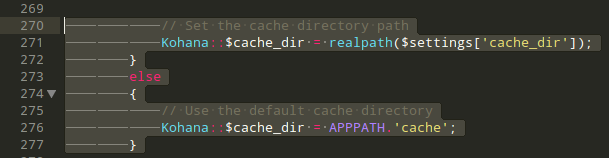
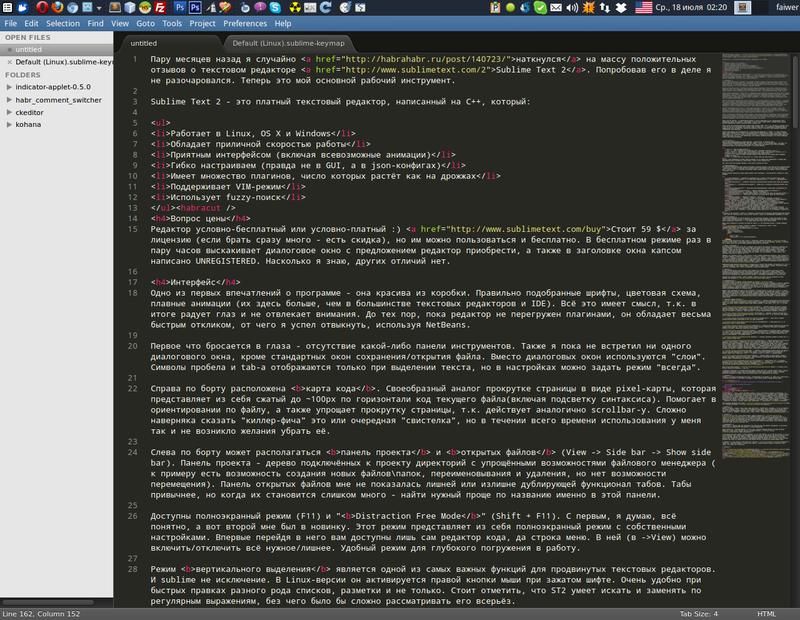
The first thing that catches your eye is the absence of any toolbar. Also, I have not yet met a single dialog box, except for standard file save / open windows. Instead of dialog boxes, “layers” are used. Space and tab characters are displayed only when text is selected, but in the settings you can set the mode to "always".
On the right side is a code card. A kind of analogue to scrolling a page in the form of a pixel map, which is the code of the current file compressed to ~ 100px horizontally (including syntax highlighting). It helps in file orientation, and also simplifies page scrolling, as acts similar to scrollbar. It is difficult to say for sure the “killer feature” or another “whistle”, but during the whole time of use I never had the desire to remove it.
On the left side of the board there can be a panel of the project and open files (View -> Side bar -> Show side bar). Project panel - a tree of directories connected to the project with simplified file manager capabilities (for example, it is possible to create new files / folders, rename and delete,
Full screen mode (F11) and " Distraction Free Mode " (Shift + F11) are available. With the first, I think, everything is clear, but the second was new to me. This mode is a full-screen mode with its own settings. For the first time going to it, only the code editor itself and the menu bar are available to you. In it (in -> View) you can enable / disable all the necessary / superfluous. Convenient mode for deep immersion in work. Vertical selection
 modeis one of the most important features for advanced text editors. And sublime is no exception. In the Linux version, it is activated with the right mouse button while holding the shift. It is very convenient when quickly editing various kinds of lists, markup and more. It is worth noting that ST2 can search and replace by regular expressions, without which it would be difficult to consider it seriously.
 Also worth noting is the horizontal scroll . If it is not on your mouse, use shift + vertical scroll. It turned out to be very convenient. In the panel status, in addition to errors and the current cursor position, switches are available for the current file syntax and tab size.
Button icons for expanding / collapsing regions of a code (functions, blocks, tags, etc.) are somewhat not obvious. The fact is that although they are located, as they should, to the left of the line of code, they, by default, are displayed only on hover (this is customizable). Available for many structures, in particular, I was very pleased with the possibility of "folding" SCSS-selectors.
Sublime provides tons of multiple highlighting options.and edits. Those. you can set the cursor at once in several places and edit the code synchronously (in this case macros, autocomplete, snippets, clipboard, etc. will work). I really missed this in Netbeans. You can set a new cursor position via ctrl + left_mouse_click. Or ctrl + left_double / _triple click (selects the whole word / paragraph). These and other keyboard and mouse combinations are highly customizable.
Fuzzy Search

One of the most publicized editor features is fuzzy search. It allows you to find “modules / gallery / view / gallery / page.jade” by driving in only “gapaja”. Saying that this saves time is like saying nothing. In 99% of cases, I open files or find the function I need by such fragments like this, reminiscent of some kind of East Asian dialect :) Out of the box are available:
- Ctrl + P - search project files
- Ctrl + R - search by function (by template in XSLT, selectors in CSS / SCSS, etc.)
- Ctrl + Shift + P - search through the menu (and new functions from plugins also get there, i.e. it is not necessary to remember hot keys for rarely used features)
- Ctrl +; - search by words. For example, driving dbr, you can find where you forgot to remove the service debugger in the js file
- Ctrl + G - line number (not a fuzzy search, but, I think, this is the place for him)
After playing with these combinations, you can pay attention to the fact that these modes can be combined. For example, driving gapaja @ gallery_list, we will not get to the beginning of the file, but immediately to the mixin gallery_list.
This list can be expanded by plugins. I’ll talk about a couple of these below.
Configuration
All settings are carried out through editing json-configs. Changes take effect immediately after saving the file. Most of the settings that you might come across (whether the editor itself or its plugins) are divided into 2 parts - default and user. Those. the end user should modify user-configs, which, by default, are usually empty.
You can see the basic settings of the editor by choosing Preferences -> Settings-Default in the menu. I will go over the most key:
- word_separators - an expression to separate words. For example, if you double-click on a PHP variable it stands out along with $, this option can be corrected like this - "./ \\ () \" '-:,.; <> ~! @ #% ^ & * | + = [] {} `~?"
- fade_fold_buttons - show fold-icons (show / hide code regions) only when hovering
- tab_size , translate_tabs_to_spaces - tab size and the ability to use spaces instead of tabs
- folder_exclude_patterns - an array of masks for files / directories that will be ignored when working on projects
- trim_trailing_white_space_on_save - trim leading spaces when saving
- show_tab_close_buttons - show tabs on tabs
- draw_white_space - show space and tab characters always or only when selecting text
- save_on_focus_lost - automatically save when you select another file or lose focus in the editor
- default_encoding - the default encoding is “UTF-8”
- fallback_encoding - encoding in case automatic detection failed
- auto_complete - on / off "autocomplete". Because ST2 is not an IDE, then autocomplete out of the box works according to the principle - "here you have all the words on the page, choose what you want." Many do not like it.
- hot_exit - by default, the editor closes without confirmation of saving / not saving the changed files. He simply remembers their condition and opens as if he did not close at all. The same behavior when switching projects. This option allows you to set the standard mode.
- close_windows_when_empty - close the program when closing all files
- preview_on_click - by default, when you select a file in the project tree, it does not create a separate tab for it, but simply displays it on top of the current file. You can make a couple of changes and save. If you want to open the file "fully", then you need to do double-click. This behavior is responsible for this option.
This is not all the settings, but only those that I encountered or seemed to me the most important for beginners. Options like preview_on_click, hot_exit can be scary, but I would recommend trying them out.
Hotkeys
 Hotkeys are changed in the same way as all other settings, and in the same way take effect immediately after saving the config. In case of any error, such as an incorrect key combination, you can find out the details in the console (Ctrl + `). There you can find a lot of useful data. Pay attention to the picture on the right - this is a link to a detailed map of hot keys (accidentally found on the network ).
 I think to delve deeply into the settings of the hot keys does not make sense, because they are intuitive. For example, the following "bind":
{ "keys": ["ctrl+e"], "command": "run_macro_file", "args": {"file": "Packages/Default/Delete Line.sublime-macro"} }Runs the Delete Line macro when you press Control + E. And this one:
{
		"keys": ["ctrl+shift+o"],
		"command": "fuzzy_file_nav",
		"args":
		{
			"start": "/www",
			"regex_exclude": [".*\\.(DS_Store|svn|git)$"]
		}
	}
Executes the fuzzy_file_nav (add-on plugin) command, with arguments. Perhaps my gor.klavish config will help you . The mouse can also be customized - .mousemap exist for this. Unfortunately, I could not find at least any detailed documentation about these files.
Work with projects
If you use the editor instead of the IDE, it is quite difficult to do without projects. Initially, you are working on the “default” project, and in order to create a new one, select “Project -> Save project as” in the menu. You will be prompted to specify the path for the project config file. After creating the project, you should attach working directories to it (most often it is one, but you can specify several). To do this, select "Project -> Add folder to project", after which it will appear in the panel on the left (provided that you enable it). From this moment, you will earn a fuzzy project search (Ctrl + P).
Let's move on to its configuration (Project -> Edit project). In it you will find the linked directories. To exclude unnecessary ones, add folder_exclude_patterns : ["path_1", "path_2", ...] andfile_exclude_patterns : ["* .md", ...]. Changes, as usual, will take effect immediately after saving. Now searching in files and fuzzy-searching by file names will ignore unnecessary, and the file tree on the left will become somewhat thinner. In the same config file, settings for some plugins can be set. For example - xdebug. You can get more information here .
Switching between projects is very fast, which enthralled me after NetBeans. By default - Ctrl + Alt + P. The editor remembers the list of open files, the active tab, the position of the cursor and scroll. You can also open a new window (not a tab, Ctrl + Shift + N) of the editor and set another project there.
Plugins
No text editor of this level can do without plugins. You can install the plugin simply by copying it to the User subdirectory. The easiest way to find it is Preferences -> Browse packages. You will open the file manager in the directory of installed plugins. As you can see, there are a lot of them :) However, there is a simpler and more correct way (for most situations) - using PackageControl. About him a little lower.
The main language for writing plugins is python. Perhaps that is why there are so many of them. If you are interested in this topic, you may find this article useful .
PackageControl
Its installation is not very obvious. First, go to the plugin page . We press the green install button and we get to the page with detailed installation instructions. At the time of this writing, it consists of copying a piece of python code into the editor console (Ctrl + `) and pressing the enter key. You ask - what a terrible shamanism? Don’t worry, the surprises are over. Then everything will go like clockwork (provided that the PackageControl is installed normally). I hope the developers add it to the base build.

You can call the “layer” PackageControl from the menu Preferences -> Package Control. But it’s easier to ctrl + shift + p, and then type the necessary command. For example, to access the “Install Package” I had three characters - “ins” in the fuzzy search. How did I live without him before? :) The module itself is extremely obvious, therefore, I believe, it makes no sense to paint it in detail. I will only note that some plugins have their own configs or hot keys. In this case, quick access to these settings can be obtained using the menu Preferences -> Packages settings ->% plugin_name%.
A small selection of plugins
Aligment - allows you to format configs / arrays / anything so that the values are located at the same level horizontally. Not very convenient thing, but better than nothing. First you need to set the cursors in front of each value, and then press "Ctrl + Alt + A" (in the Linux version).
FileDiffs - allows you to compare two files for differences. Adds the options “FileDiffs Menu” and “Diffs with tab” to the tab menu, as well as a couple of items in the context menu of the editor itself. The result is opened in a separate tab and, as expected, highlights the lines in green and red. If nothing opens, the files are identical, which will be indicated by a message in the statusbar.
FuzzyFileNav- Allows using a fuzzy search to open a file outside the project, running through the file structure. Not as cool as in Ctrl + P, but, to me personally, it’s much more convenient than in the standard OS dialog box.
FileHistory - fuzzy search on recently opened / closed files. Used before found GotoOpenFile.
GotoOpenFile is a copy of Ctrl + P mode, but applies only to open files.
JsMinifier - allows you to pack selected (or all code of the current file) javascript. The plugin uses the Google Closure Compiler and UglifyJS. If nothing happened - look in the statusbar, most likely the javascript code is not valid.
Phpdoc- A simple helper for filling PhpDoc. To use this: write / ** [tab]. Already inside - [dog] var [tab], [dog] return [tab], etc. He does not know how to automatically determine the types and names of variables and other useful things, but he inserts * when
moving the carriage :) GotoTab - allows you to switch tabs by pressing Ctrl + [numbers]. Pretty handy thing.
Sublimelinter- syntax checking on the fly (or how to configure). Can cook - CoffeeScript, CSS, Java, JavaScript, Objective-J, Perl, PHP, Python, Ruby. Uses ready-made tools. For example, for JavaScript it offers a choice between JsLint, jsHint and gjslint. jsHint, which stands by default, does not just check the syntax, I impose my true-coding-style on you, which can be partially configured in the config. This was not enough for me, because the library was not as flexible as we would like, therefore we had to use surgical methods :) It is also worth noting that SublimeLinter is able to make your editor freeze. In this case - delve into the settings, it is flexible enough to configure.
Tag- A library that provides convenient tools for working with XML. I use to cast XML to readable form. Of course, his possibilities are not limited to this. For example, typing "div" and pressing ctrl + shift + "," I getwith cursor inside.
XDebug is an xdebug debugger. Not very comfortable. Debugging in NetBeans is much more convenient. However, for simple tasks - it may come in handy. * Buntu users should definitely read the "Troubleshooting" section on the plugin page.
LastEdit is a buggy analog of ctrl + q in Netbeans. Moves the cursor to places of recent changes. Very convenient thing, but, unfortunately, often does not work. If you are interested in this feature, perhaps you should try this plugin .
A more complete list is available here . But not all the plugins that I have come across are in it.
Syntax highlightingout of the box is quite extensive. However, for nginx and apache2 configs, SCSS and Jade, I needed to install plugins. If such a plug-in was not found for the language you are using, try porting the highlight from TextMate, since many things from it are supported as native ones.
Snippets
Snippets are pre-prepared pieces of code with anchors in them. Those. instead of writing
forin source.js for( var name in source tabTrigger - the line that you need to type and press tab (full typing is not necessary, because Snippets get into autocomplete). After activation, the cursor moves to $ 1 and selects "name", the next press of the tab will highlight source, which will change immediately in 3 places. At the end of snippet, you will be paid $ 0. To stop its work ahead of schedule - you need to press Esc . Unlike Netbeans, I was able to set all the Snippets I needed without problems with “jumping” the cursor to the beginning of the file, a mishmash of indentation and other incomprehensible behavior (if the reader wants to call me “crooked”, I can give an example of this behavior :)) . Scope - determines the type of files in which snippet will be involved, and the description you will see in autocomplete.
More information can be found here . Perhaps my selection will help you .
Macros
Macros in Africa are macros. You can start recording via Tools -> Record macro, stop - there. At the end, it should be saved (Tools -> Save macro) in the Packages / User directory. Opening the resulting file, you will see a json array with a list of actions performed. You can set a hotkey for a macro using the following syntax: {"keys": ["alt + 1"], "command": "run_macro_file", "args": {"file": "Packages / User /% your_macros% .sublime- macro "}}.
Layouts
The fact that there are layers in ST2, I found out recently when I saw a screenshot on lor . Layers allow you to divide the editor window into several parts (2, 3, grid, etc.). This is very convenient when you write something in one file, relying on the contents of the second. But with my 19 "square" monitor this feature doesn’t look very attractive. Unfortunately, you cannot open different projects in different layers. It is also worth noting that the open file panel (which is on the left), after switching on the multi-layer mode, is divided into several groups .
Conclusion
 Sublime Text 2 is a great choice for a programmer or administrator. For an ordinary user, in my opinion, an editor would be more suitable without json-configs and with a more obvious GUI.
 It is important to understand ST2 - a text editor, not an IDE, although using third-party plug-ins can bring it somewhat closer to this status. True, I was not able to get a smart autocomplete .
This review was criticized by NetBeans a lot, but I would like to note that I like this IDE and still use it, although it is extremely rare (for example, for debugging nodeJS or PHP-xDebug). I really lack in ST2 an equally convenient tool for “patching” files, viewing previous versions, documentation and all sorts of tasty things inherent in the IDE, such as switching to defining a function by pressing ctrl + left_click, even if the file is located, damn it knows where. However, ST2 gave me much greater ease and convenience in solving ordinary problems.
Unfortunately, I could not describe in this article everything that I was asked about . The reason for this is the lack of time, and in some places experience. However, I have high hopes for the comments below. I am sure there will be a lot of interesting things in them.
References
- Official site , forum , documentation
- List of plugins for PackageControl
- Editor review on tutsplus , jkeks.ru , it-obzor.com , itechblog.org
- Comparison with VIM