February 16, 2012 at 13:42
Ulteo is a free desktop delivery solution
 Today in the information technology market there are a large number of different solutions that allow the user to work with the remote desktop - terminal access from Microsoft, XenApp from Citrix, Leostream, Quest Software, etc., or solutions using virtualization tools - VMware View, XenDesktop other.
 For the most part, system administrators, like their leaders, consider only commercial solutions, and few pay attention to free products. It's all about our psychology - we are always suspicious of the free! This becomes the main argument when choosing a product, everyone is looking for some kind of catch.
We deploy many different products at the DEPO Computers test site., and among them there was one free desktop delivery solution that we really liked.
Description
This solution is called Ulteo Open Virtual Desktop (OVD) and it makes it possible to work both with the OS desktop and with individual applications through the browser of the client device. Moreover, all the software used is located centrally on the servers in the data center. Applications on Linux and Windows-systems are supported, the client can be located both in the local and external network. Access requires only a browser with Java support (Firefox 2+, Internet Explorer 7+, Safari on MacOS).
The key components of the solution are session manager, application servers and java client. Having your own connection broker allows you to use OVD to create VDI (Virtual Desktop Infrastructure) solutions, while any technology can be used as a virtualization environment: VMware, XenServer, etc.
The system also has centralized management, reporting and monitoring tools, integration into AD is supported.
Compared with the previous ones, the current version of Ulteo reduced the requirements for the bandwidth of the communication channel to the client: it is stated that delivery will be carried out already at 40 kB / s. SSH tunnels are used for data transfer.
Common catalogs, sound are available for clients, copy-paste, single sign-on, print redirection are supported.
In fact, this product is a competitor of such solutions as VMware View, Citrix XenApp / XenDesktop, Microsoft terminal servers, Leostream, Quest Software, etc. But, unlike the above partners, OVD is free. For commercial customers, there are various subscription levels, including enhanced support.
Installation and setup
The RC8 distribution can be downloaded at www.ulteo.com/home/en/ovdi/openvirtualdesktop/3.0_rc , 1.5 GB in size. We write on a blank or a flash drive. Installation is possible either on a physical server or on a virtual machine, I chose the second option.
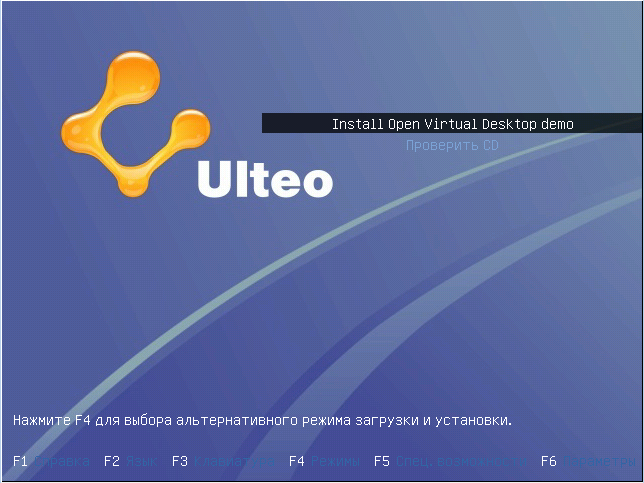
So, we are loading. The installation is standard and is no different from the usual installation of a Linux system (for those interested, the distribution is based on Ubuntu).
Choose the language ...
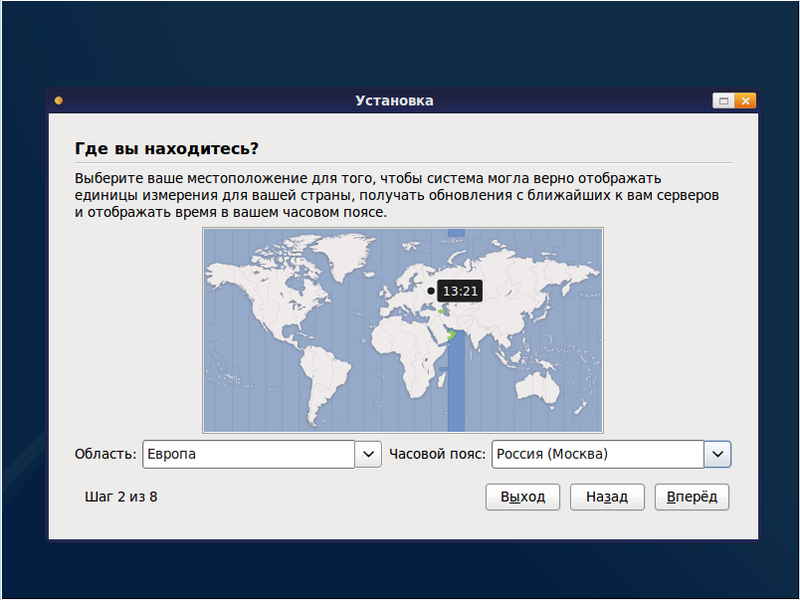
... time zone ...
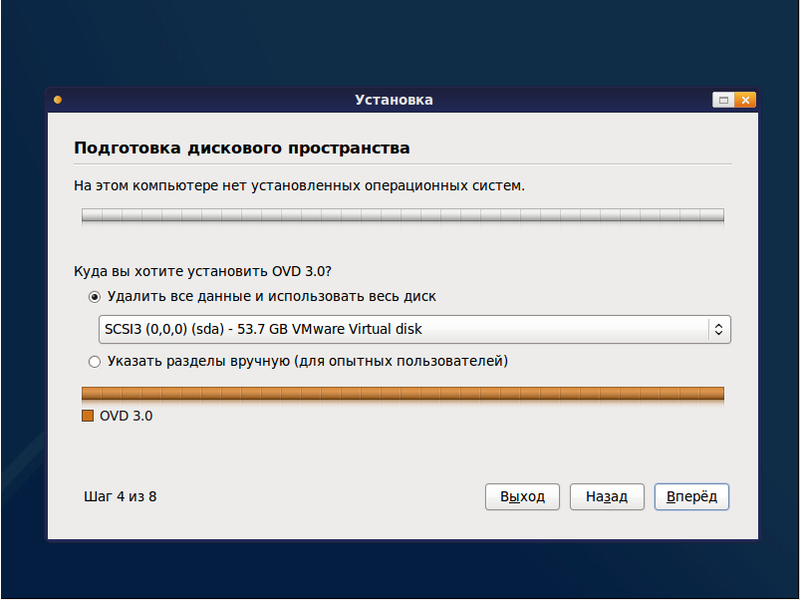
... mark the disks ...
... enter the login and password ...
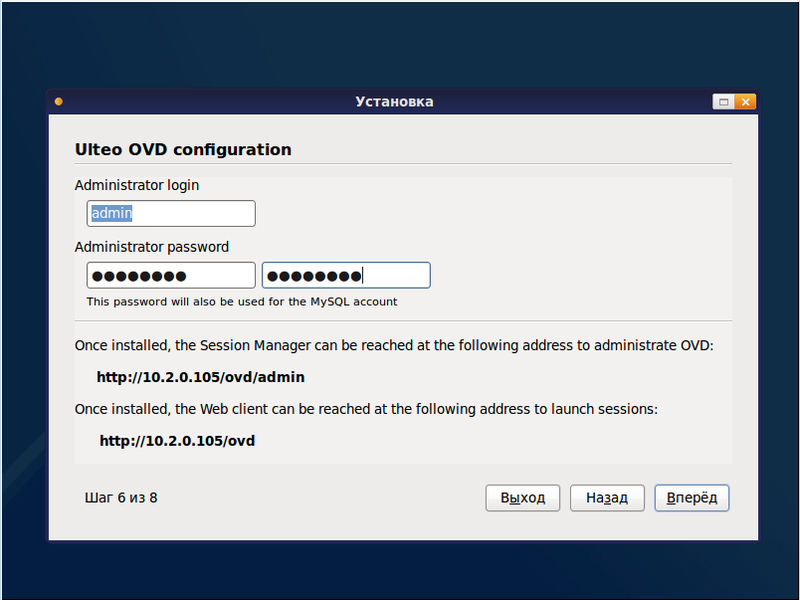
... wait ...

... wait ...
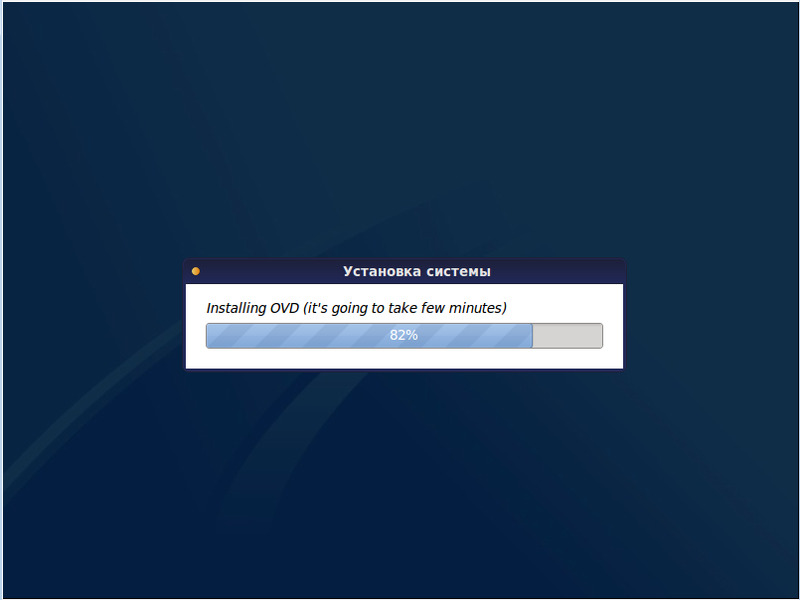
... do not wait.
After rebooting, we see an empty console (in previous versions, KDE was loaded by default):

So, at this stage we have the installed system, open the administration console. Logging in with a user account still fails, since the server is not registered in the system and the applications that we wanted to provide to these users were not published.
We open the browser, knock on the address offered to us:

Immediately after entering the system, we offer to configure the database:
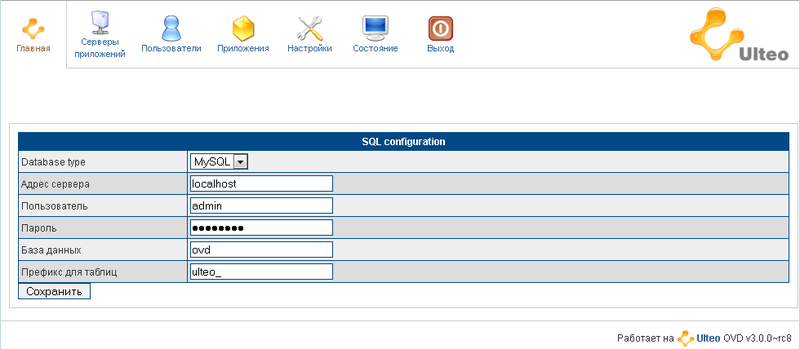
Click the "Save" button and get to the main window:
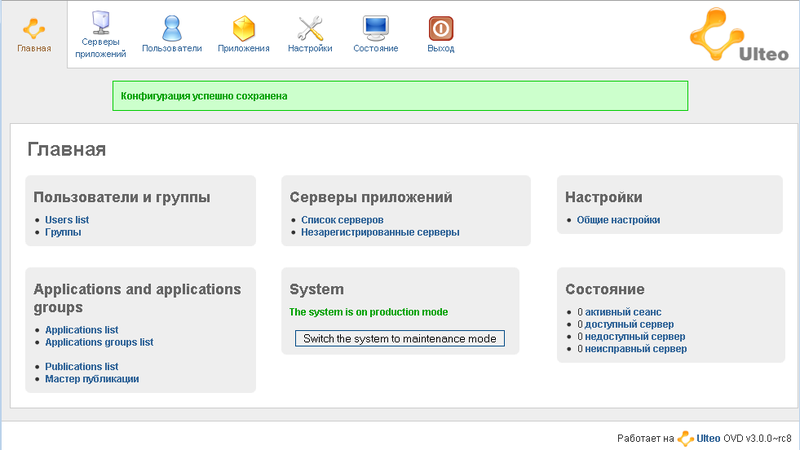
Everything is intuitive in Ulteo, and in case of difficulty you can refer to quite detailed documentation (you can take it on that same page where the distribution is ).
The first step is to register the server. After installation, the server goes into the “service” state and remains in it until it is put into operational mode. We go to the section "Application Servers" - "Unregistered Servers" and click the "Register" button.
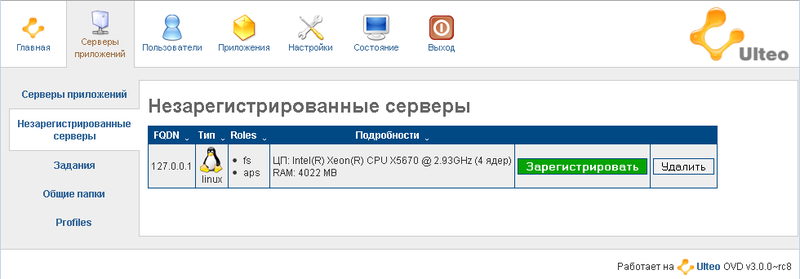
The server has switched to working mode and is ready for further configuration, establishment of users and publication of applications.

Go to the "Settings" section and add the server to the second line from the top. For convenience, we set automatic registration of new servers, this eliminates the need to go into the admin panel and add servers manually. But switching to production is better after all with your hands.

A few words about adding servers: the first server installed in the farm automatically becomes a load balancer. It can not be used as a desktop and application delivery server. In this case, it will work as a connection broker and balance the load. After installing the server on the Application Servers page, you can change the number of simultaneous user sessions, increasing or decreasing the load on each server.
With integration into MS AD everything is again quite simple and transparent: we drive in the domain name, server name, administrator data and click "Test". If everything went well, a message about the passed test will appear in the upper right corner of the window.

The initial configuration of the server itself is completed, and now we can move on to the applications. And there are really LOTS of them!
All applications are divided into categories, select one of them ...
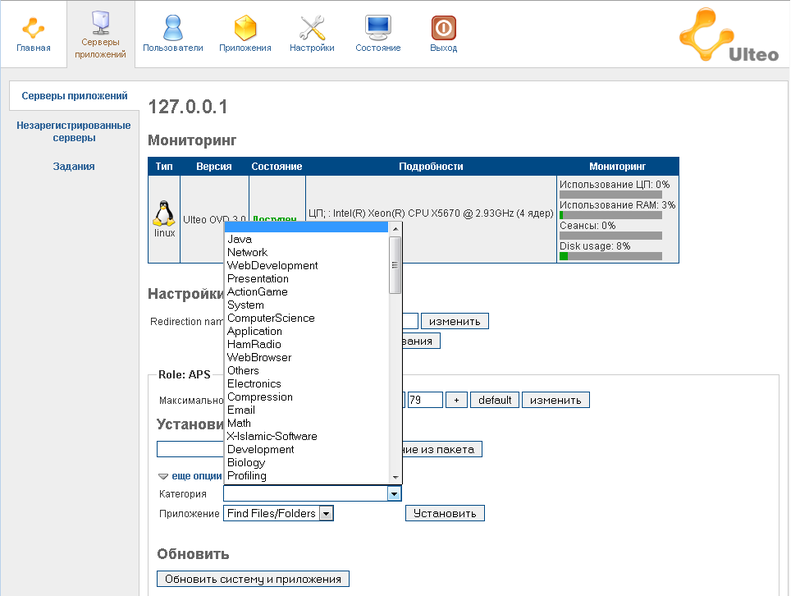
... then select the desired application and click the "Install" button.
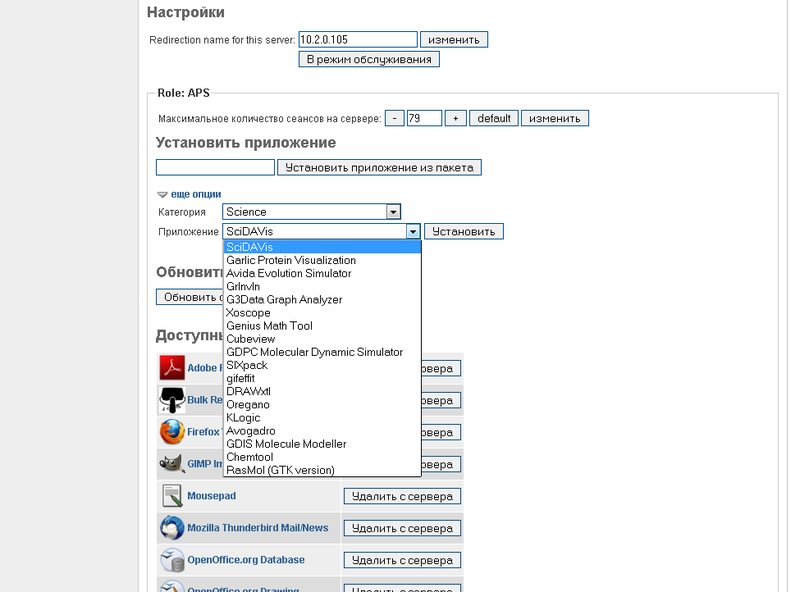
All applications are stored on the server and are not available until publication.
In addition, you can install applications that are not in the list, for which it is enough to simply specify the path to the distribution.
To give users access to applications, we launch the "Publishing Wizard". There is nothing complicated there - we select a user or a group of users, select the applications available for them, call names as you wish, that's all.
Ulteo by users
The server is ready to use! Let's try to knock under the user account on the authorization page.
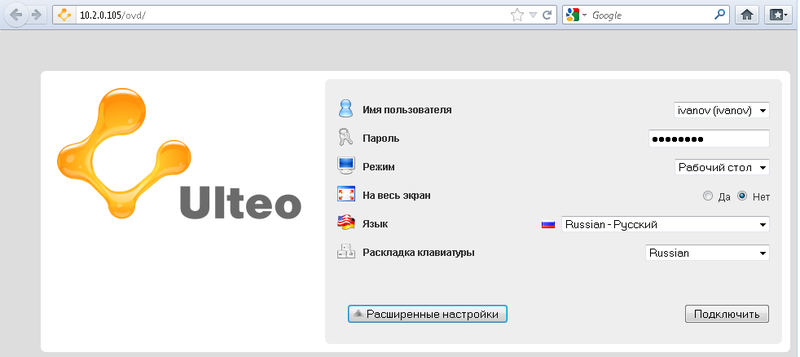
Here you can change the language, select the mode for providing the working environment and the keyboard layout. By the way, instead of the drop-down list, you can select the mode for entering the user name manually in the server settings.
If we talk about the modes of providing the working environment, there are two of them: the first is a regular desktop in a browser window, the second is a portal mode in which the selected application opens in a seamless window (something similar to Citrix XenApp).
So, log in and wait a bit while Java starts.
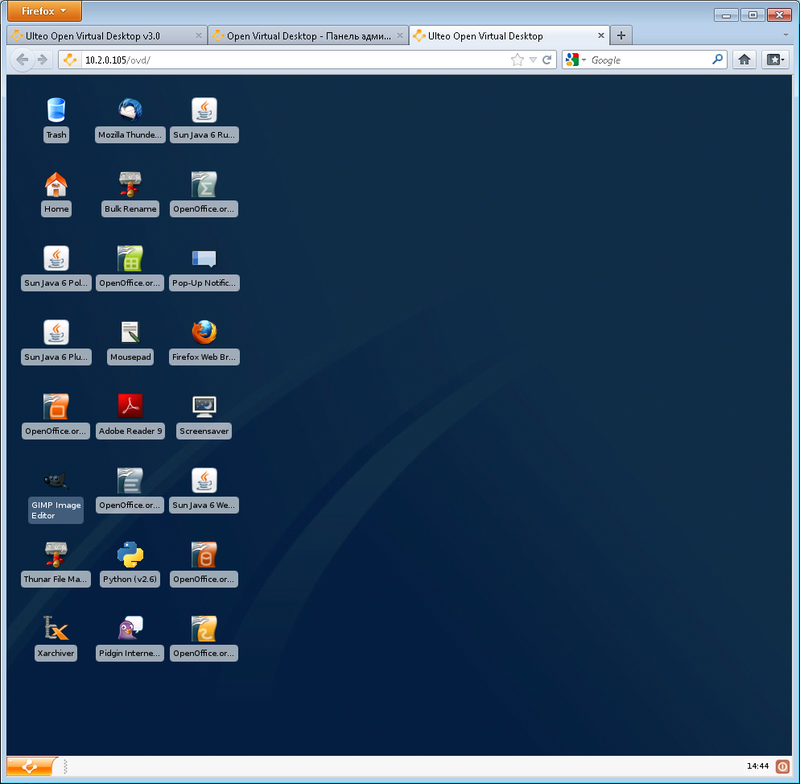
And here is the Linux desktop in the browser!
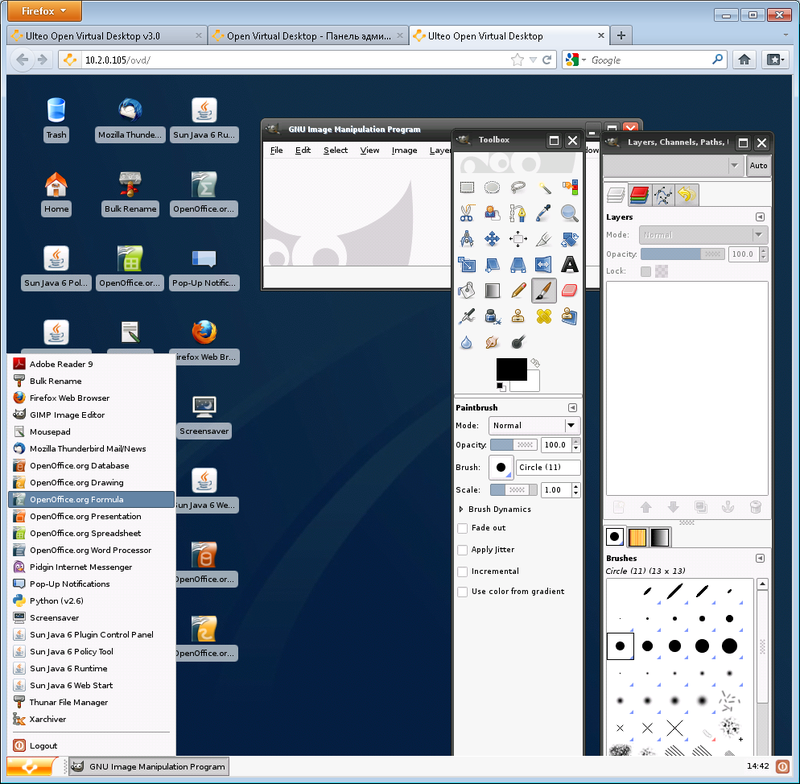
It is practically no different from a regular desktop, if you do not pay attention to the fact that we are sitting in Firefox. Here is Gimp for an example:
Impression
What can you say about working with Ulteo? It is working! It works very well, does not fall, does not freeze. If we go further, besides the standard work exclusively with Linux applications, there is the possibility of working with applications from under Windows. To do this, a server running MS Windows is installed, an agent from Ulteo and the necessary software that the user would like to see in the terminal session are installed on it. Then the server is added to the farm and it becomes possible to assign applications to users on the Ulteo server. For example, MS Office:

Brief conclusions
Very interesting software. Maybe there is a need to build a terminal access farm, but there is no money for a license, then this is for you! You can work remotely with documents in OpenOffice, which is present here. The software necessary for Windows can be redirected to the session, as already mentioned. Print a document? No problem - there is support for print redirection. With sound, there are also no difficulties, as well as with the connection of various flash drives.
I think that some training class can be perfectly built on this software - this will avoid the need to configure many Linux systems.
In general, look, try, decide whether you need it or not. We hope you find this material useful.
madbug ,
senior systems engineerDEPO Computers