10 Tips for Productivity in CLion, Cross-Platform C / C ++ IDE
- Transfer
Hello! Just a few days left
before the release of our first group of the “Developer C ++” course . Following the results, we did a good job with the file and the file with the course: they reposted the homework, updated the language version and even a few other things. Well, for now we continue our tradition on interesting and useful materials.
Go.
Judging by their own development experience, many C / C ++ developers neglect the idea that the IDE can make their work more productive. After all, what could be better than simple and fast Vim or Emac. Well, let me demonstrate. These 10 CLion tips will take you to a new level of productivity, help you focus on important and complex tasks, while the IDE will solve routine tasks for you.
Before we get started, let's get acquainted with CLion, a new cross-platform IDE for C and C ++ development, created by JetBrains. It initially supports C and C ++, including the C ++ 11 standard (with some minor limitations), libc ++, and Boost. It correctly processes macros and templates, and also works with GCC or Clang (when working with Windows, you will need either MinGW / MinGW-w64, or Cygwin), GDB, as the built-in debugger, and CMake, as an assembly system and design model. In addition to C / C ++, you can also use JavaScript, XML, HTML, and CSS at the same level of code editing, for example, using syntax highlighting, analysis, autocompletion, navigation, and refactoring.

1. Smart auto completion knows what you need
. First of all, we all need an editor. Autocompletion of the code is extremely important: we simply begin to enter a character (variable, function, type, class name) and the editor shows us a list of suitable sentences. It's simple, but do we really need all the options described in the example below?
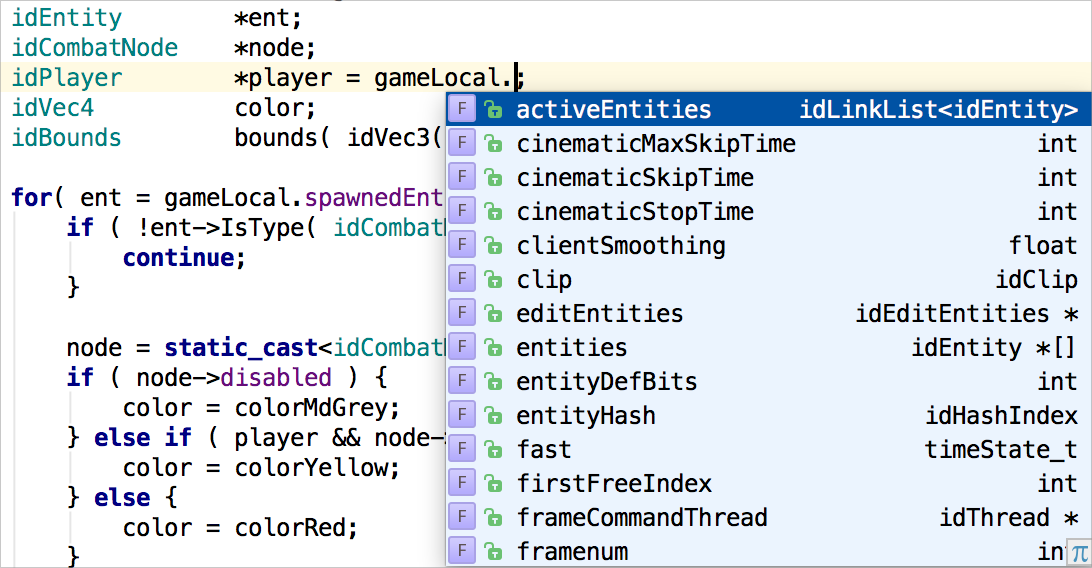
Often we only need something with a type
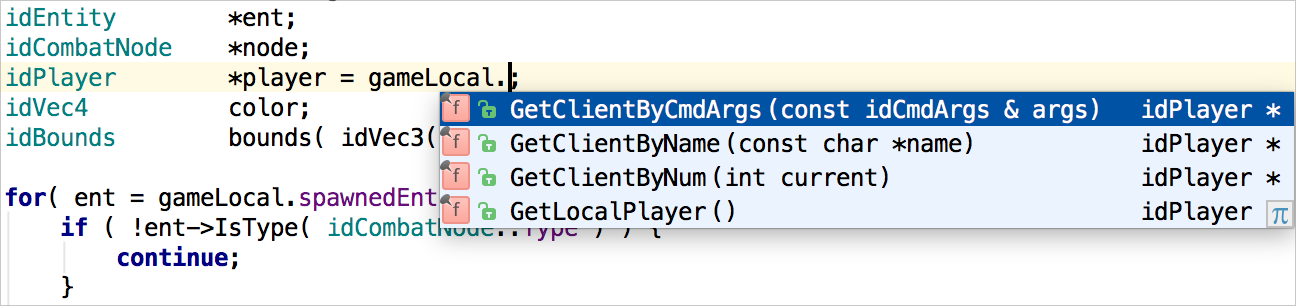
Oh yes, and if only one possible option is found, it will be instantly used!
2. Use immediately, determine later
When a brilliant idea comes up, you don’t want to waste time on boring routine tasks. Suppose you used a function that has not yet been implemented or even defined. CLion makes it red. Do I need to immediately linger for the implementation of the function? Not at all! Ask the CLion to generate a stub and return to this point later. Just press Alt + Enter: The
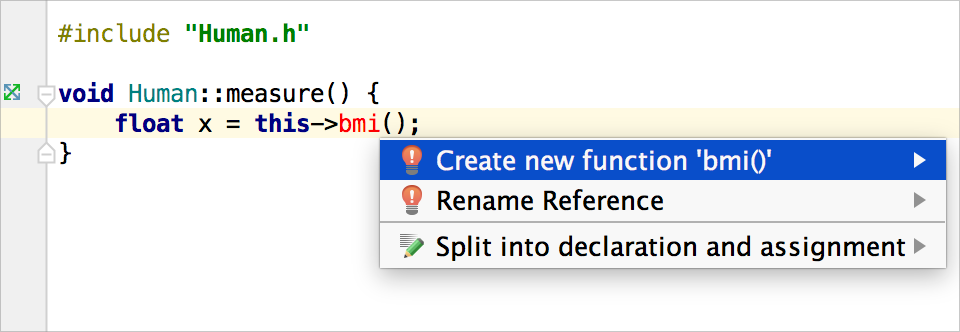
declaration and definition will instantly appear in your code:
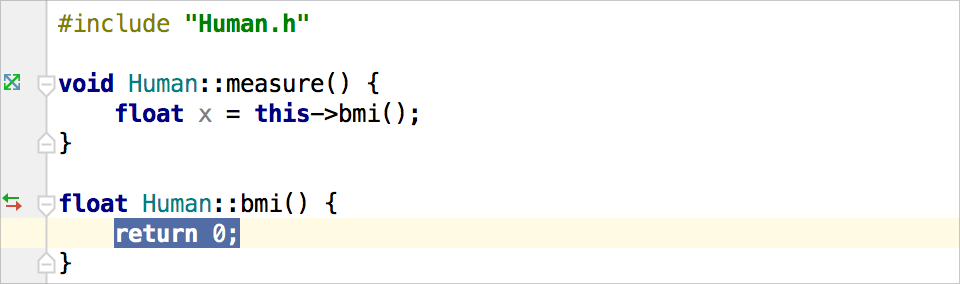
It works in the same way for variables and class names:

3. Live templates for your favorite or most used code fragments
How to get a loop or iteration over a range (in C + style 11) just typing a few characters? Type for and press Tab to get a loop; or type iter or itit and then press Tab:
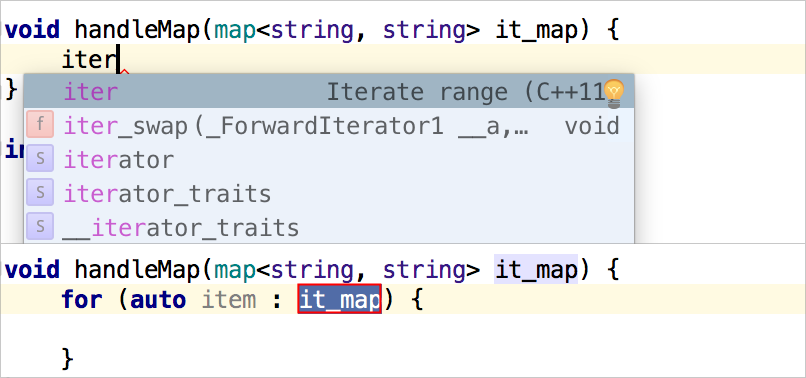
On closer inspection, it turns out that in Clion, you can create custom Live Templates or “Surround With” templates (which quickly wrap the selected code into a construct). Let us show an example of how to quickly get a class, with inheritance from another existing class:

After adding a new “cp” template, you can enter cp in the editor:

The template description can be immediately seen in the drop-down list of auto-completion. The template expands when you press Tab. Now you can add a new class name, then select a parent class and a modifier for it from the autocompletion list:
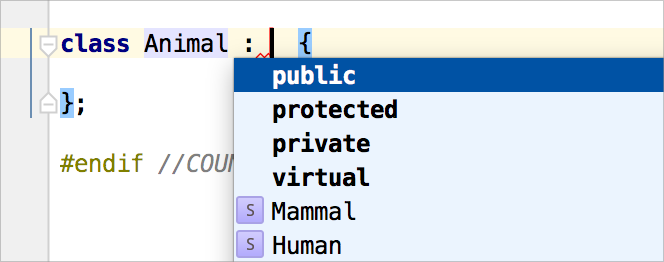
Voila! New class is ready.

Of course, more complex patterns can be generated, including the $ SELECTION $ variable to get the “Surround With” pattern.
4. Follow the hierarchical view.
Developers read the code much more often than they write it. Before you add a new code or update an existing one, a deep and detailed study of the existing code base is carried out. (Only if you do not start a project from scratch, which is rare.) In many cases, productivity depends on how quickly you can get through the code base.
For such cases, CLion provides a wide range of code navigation options:
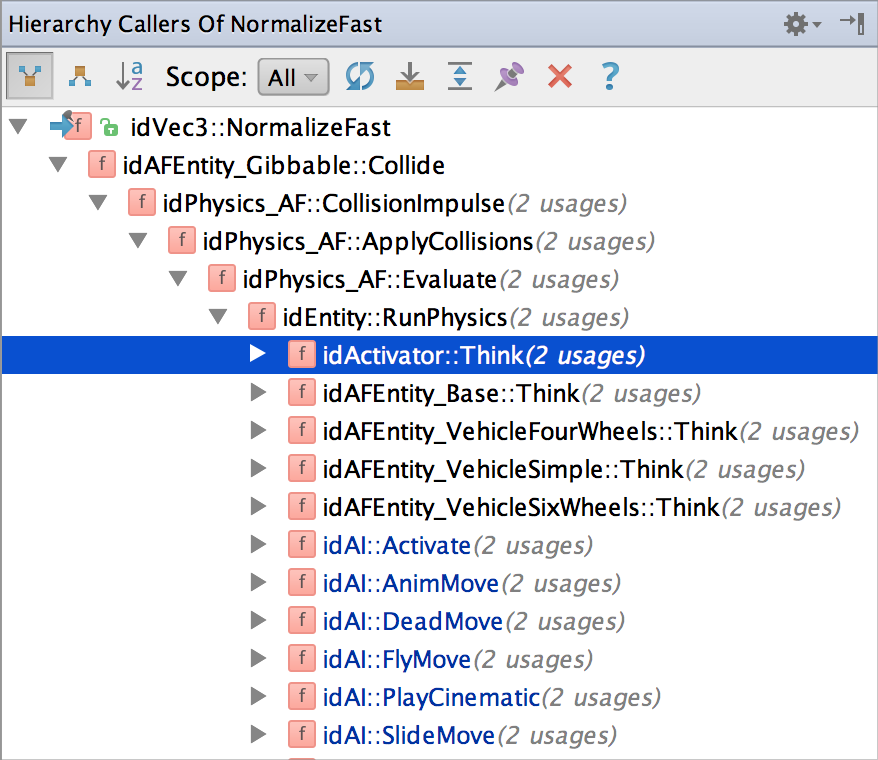
Call Hierarchy is my favorite. It allows you to see in detail the entire call stack with branches. Looks very simple, is not it? With one click, you can move to the right place in the editor, and using autoscrolling in the Source, make the process even faster:
5. Change the order and add parameters - the IDE takes care of using
Refactoring - a powerful process that helps improve the code, make it cleaner and more convenient. Some IDEs offer a limited number of ways to automate it. There are a lot of them in CLion - from simple and popular Rename to complex Change Signature, Extract Function or Class, Inline and many others. You can rely on CLion, the correctness of the code will be preserved when making changes to refactoring.
Let me illustrate the reliability of CLion. Suppose there is a function:

To add a new parameter to this function, I will use the refactoring Change Signature:

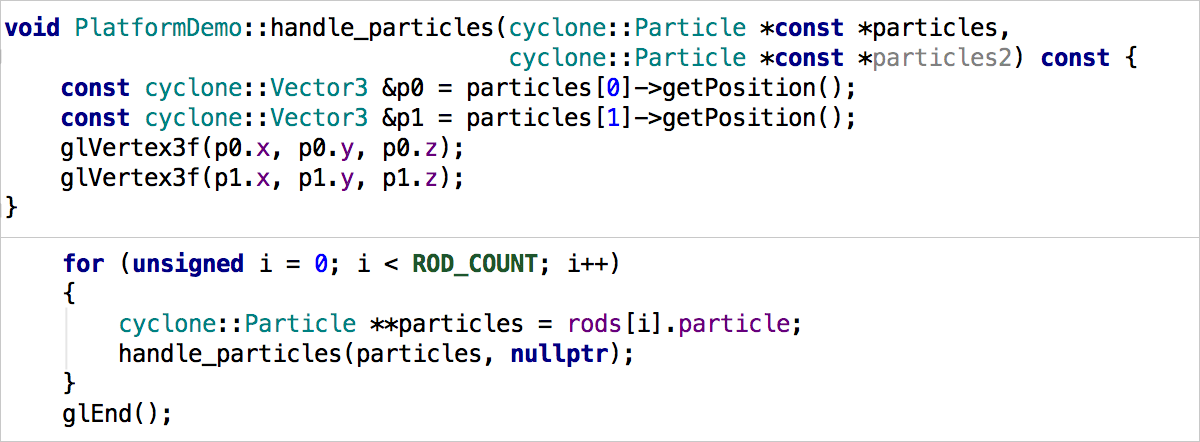
By the way, adding a new type of parameter in this window is very simple due to code completion. After I click “Refactor”, Clion updates the signature and all uses, replacing the default value for this type, which in this case is nullptr:
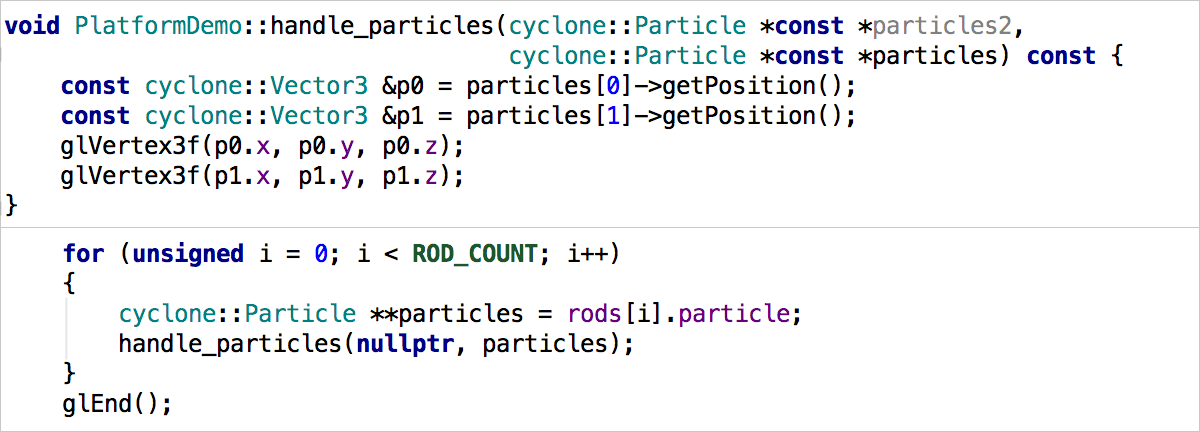
And what if I decide to arrange the parameters during Change Signature? Of course, their order will be updated in accordance with all uses:
6. Extract everything, with more options
Extracting a piece of code into a separate function is a popular method of refactoring, but what about the others? For example Extract Typedef, Define, Variable, Parameter or even Subclass? The experience of using them in CLion is improved by small but useful details. For example, you can change all occurrences (if there are more than one) when retrieving a constant or variable; declare a constant or parameter static; use auto type when retrieving a variable; and so on and so forth:

7. Unused code? “=” In condition? No problem!
Following the Murphy law for computers, every non-trivial program has at least one bug. But let's do our best and fix as many of them as possible. While we are trying to locate and, I hope, fix bugs, CLion constantly monitors your code for potential errors. Any suspicious part of the code is underlined in the editor, and options for possible quick fixes are offered. To view them, just press Alt + Enter. The IDE also conducts full Data Flow Analysis to identify unused and inaccessible code:

CLion will not miss the omnipresent C / C ++ errors, for example, “=” in the condition:
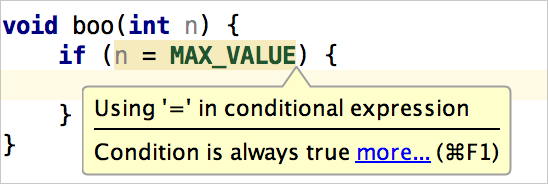
This assistance works while you type, eliminating the need to run additional code analysis tool.
8. Simple debugging with the ability to view the values of variables directly in the editor!
The key advantage of the IDE over a simple text editor is the debugging experience. Of course, you can run a separate debugging process, but debugging inside the IDE saves a lot of time and provides additional useful functionality.
CLion integrates the GDB backend, providing everything you need in the interface and
improving the debugging experience with some extremely useful tools. For example, each time you enter a variable name to view or an expression to evaluate, you can take advantage of code autocompletion. In a separate window of the tool, all the details of the current state of the program are shown. And here is the cherry on the cake: while debugging, the IDE shows the values of the variables next to their declaration:

9. Change your mind while debugging? Do not restart - immediately change the values of variables!
The value of debugging is to understand the data and control their movement in the program. Sometimes you need to check several values of a variable, for example, to trace a separate branch of execution. No need to waste precious time on restarting - immediately change the values in the current debugging session:
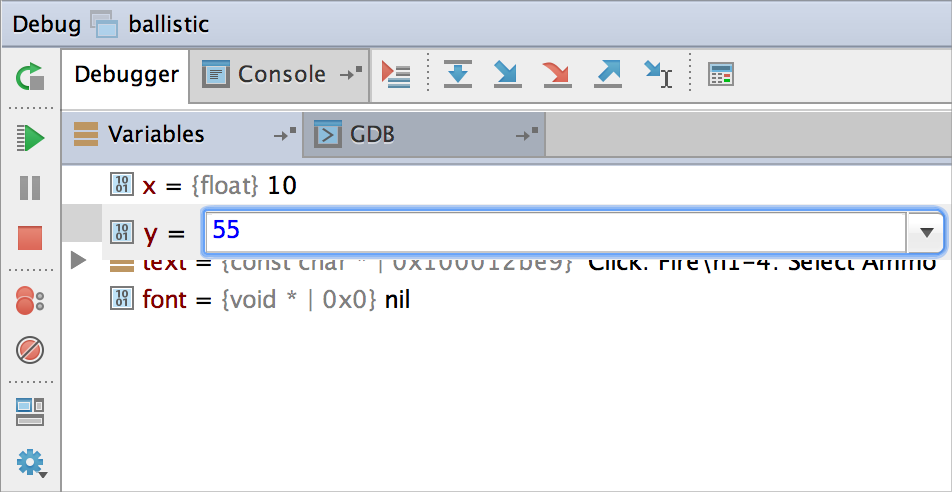
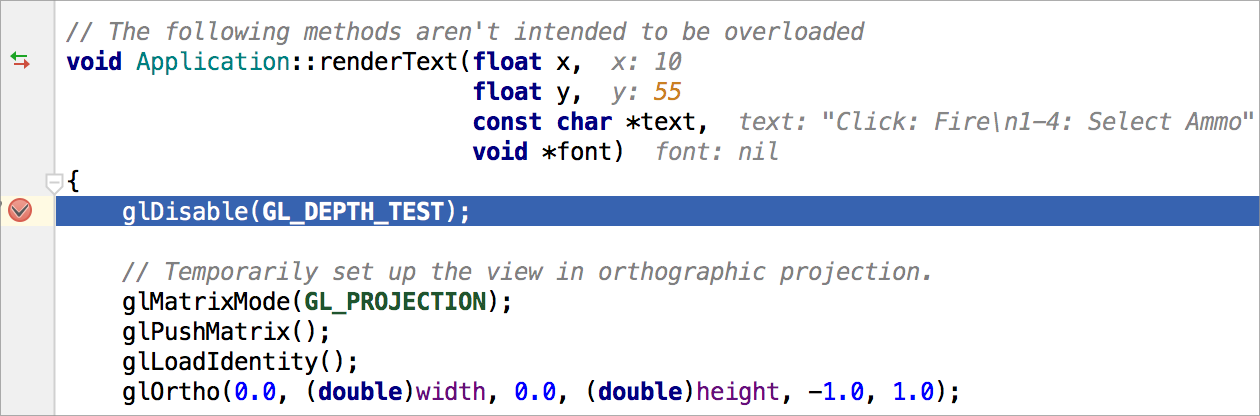
Now we can continue the same session, but with a new assigned value of y, equal to 55. As noted earlier, the IDE shows the variable values next to their declaration in the editor emphasizing the changes applied:
10. All the necessary tools on board - No need to switch!
The IDE stands for Integrated Development Environment, and using it means that in work you no longer need to switch between several tools, for example, a separate vcs application, a bug tracker in a browser, or even a terminal. All of these tools are already built into CLion IDE so you can focus on code with a minimum of distractions.
Try these CLion tips and make sure they help you become more efficient and productive!
THE END
As always we are waiting for questions, comments here or go to the open day .
before the release of our first group of the “Developer C ++” course . Following the results, we did a good job with the file and the file with the course: they reposted the homework, updated the language version and even a few other things. Well, for now we continue our tradition on interesting and useful materials.
Go.
Judging by their own development experience, many C / C ++ developers neglect the idea that the IDE can make their work more productive. After all, what could be better than simple and fast Vim or Emac. Well, let me demonstrate. These 10 CLion tips will take you to a new level of productivity, help you focus on important and complex tasks, while the IDE will solve routine tasks for you.
Before we get started, let's get acquainted with CLion, a new cross-platform IDE for C and C ++ development, created by JetBrains. It initially supports C and C ++, including the C ++ 11 standard (with some minor limitations), libc ++, and Boost. It correctly processes macros and templates, and also works with GCC or Clang (when working with Windows, you will need either MinGW / MinGW-w64, or Cygwin), GDB, as the built-in debugger, and CMake, as an assembly system and design model. In addition to C / C ++, you can also use JavaScript, XML, HTML, and CSS at the same level of code editing, for example, using syntax highlighting, analysis, autocompletion, navigation, and refactoring.
1. Smart auto completion knows what you need
. First of all, we all need an editor. Autocompletion of the code is extremely important: we simply begin to enter a character (variable, function, type, class name) and the editor shows us a list of suitable sentences. It's simple, but do we really need all the options described in the example below?
Often we only need something with a type
idPlayer *. And that is exactly what the clever CLion auto completion shows! It automatically filters sentences based on code context: Oh yes, and if only one possible option is found, it will be instantly used!
2. Use immediately, determine later
When a brilliant idea comes up, you don’t want to waste time on boring routine tasks. Suppose you used a function that has not yet been implemented or even defined. CLion makes it red. Do I need to immediately linger for the implementation of the function? Not at all! Ask the CLion to generate a stub and return to this point later. Just press Alt + Enter: The
declaration and definition will instantly appear in your code:
It works in the same way for variables and class names:
3. Live templates for your favorite or most used code fragments
How to get a loop or iteration over a range (in C + style 11) just typing a few characters? Type for and press Tab to get a loop; or type iter or itit and then press Tab:
On closer inspection, it turns out that in Clion, you can create custom Live Templates or “Surround With” templates (which quickly wrap the selected code into a construct). Let us show an example of how to quickly get a class, with inheritance from another existing class:
After adding a new “cp” template, you can enter cp in the editor:
The template description can be immediately seen in the drop-down list of auto-completion. The template expands when you press Tab. Now you can add a new class name, then select a parent class and a modifier for it from the autocompletion list:
Voila! New class is ready.
Of course, more complex patterns can be generated, including the $ SELECTION $ variable to get the “Surround With” pattern.
4. Follow the hierarchical view.
Developers read the code much more often than they write it. Before you add a new code or update an existing one, a deep and detailed study of the existing code base is carried out. (Only if you do not start a project from scratch, which is rare.) In many cases, productivity depends on how quickly you can get through the code base.
For such cases, CLion provides a wide range of code navigation options:
- use standard goto ad / definition tools;
- quickly jump to the corresponding symbol, recent files or location that you last ruled;
- look for any class, file or symbol by name;
- use contextual search with Find Usage;
- navigate through the current file using the File Structure view;
- Benefit from several hierarchical views, including Call Hierarchy, Type Hierarchy and Imports Hierarchy.
Call Hierarchy is my favorite. It allows you to see in detail the entire call stack with branches. Looks very simple, is not it? With one click, you can move to the right place in the editor, and using autoscrolling in the Source, make the process even faster:
5. Change the order and add parameters - the IDE takes care of using
Refactoring - a powerful process that helps improve the code, make it cleaner and more convenient. Some IDEs offer a limited number of ways to automate it. There are a lot of them in CLion - from simple and popular Rename to complex Change Signature, Extract Function or Class, Inline and many others. You can rely on CLion, the correctness of the code will be preserved when making changes to refactoring.
Let me illustrate the reliability of CLion. Suppose there is a function:
To add a new parameter to this function, I will use the refactoring Change Signature:
By the way, adding a new type of parameter in this window is very simple due to code completion. After I click “Refactor”, Clion updates the signature and all uses, replacing the default value for this type, which in this case is nullptr:
And what if I decide to arrange the parameters during Change Signature? Of course, their order will be updated in accordance with all uses:
6. Extract everything, with more options
Extracting a piece of code into a separate function is a popular method of refactoring, but what about the others? For example Extract Typedef, Define, Variable, Parameter or even Subclass? The experience of using them in CLion is improved by small but useful details. For example, you can change all occurrences (if there are more than one) when retrieving a constant or variable; declare a constant or parameter static; use auto type when retrieving a variable; and so on and so forth:
7. Unused code? “=” In condition? No problem!
Following the Murphy law for computers, every non-trivial program has at least one bug. But let's do our best and fix as many of them as possible. While we are trying to locate and, I hope, fix bugs, CLion constantly monitors your code for potential errors. Any suspicious part of the code is underlined in the editor, and options for possible quick fixes are offered. To view them, just press Alt + Enter. The IDE also conducts full Data Flow Analysis to identify unused and inaccessible code:
CLion will not miss the omnipresent C / C ++ errors, for example, “=” in the condition:
This assistance works while you type, eliminating the need to run additional code analysis tool.
8. Simple debugging with the ability to view the values of variables directly in the editor!
The key advantage of the IDE over a simple text editor is the debugging experience. Of course, you can run a separate debugging process, but debugging inside the IDE saves a lot of time and provides additional useful functionality.
CLion integrates the GDB backend, providing everything you need in the interface and
improving the debugging experience with some extremely useful tools. For example, each time you enter a variable name to view or an expression to evaluate, you can take advantage of code autocompletion. In a separate window of the tool, all the details of the current state of the program are shown. And here is the cherry on the cake: while debugging, the IDE shows the values of the variables next to their declaration:
9. Change your mind while debugging? Do not restart - immediately change the values of variables!
The value of debugging is to understand the data and control their movement in the program. Sometimes you need to check several values of a variable, for example, to trace a separate branch of execution. No need to waste precious time on restarting - immediately change the values in the current debugging session:
Now we can continue the same session, but with a new assigned value of y, equal to 55. As noted earlier, the IDE shows the variable values next to their declaration in the editor emphasizing the changes applied:
10. All the necessary tools on board - No need to switch!
The IDE stands for Integrated Development Environment, and using it means that in work you no longer need to switch between several tools, for example, a separate vcs application, a bug tracker in a browser, or even a terminal. All of these tools are already built into CLion IDE so you can focus on code with a minimum of distractions.
Try these CLion tips and make sure they help you become more efficient and productive!
THE END
As always we are waiting for questions, comments here or go to the open day .