January 15, 2011 at 21:09
Launching Return to Castle Wolfenstein on Linux
Not so long ago, the code of the glorious game Return to Castle Wolfenstein from the legendary idsoftware was opened under the GPL license . This is so, by the way.
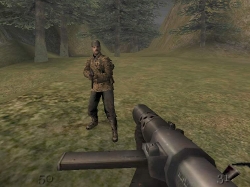
And after the passed exam in physics I wanted to relax a bit. I decided to play RTCW. As it turned out, running the game under Linux is more than realistic.
(Under the heading "Express Installation" there is a sequence of commands (for the Debian OS family) without explanation - for those who do not want to read a lot of text. The complete success of this method is not guaranteed).
Attention! This article assumes basic Linux terminal skills.
Someone idsoftware’s TTimo posted a FAQ on running RTCW 1.41 on Linux.
For a successful launch, we need:
It is assumed that you have a disc with the game Return to Castle Wolfenstein. From it we need only files with resources: mp_pak0.pk3, mp_pak1.pk3, mp_pak2.pk3, pak0.pk3, sp_pak1.pk3, sp_pak2.pk3.
The file is on the idsoftware ftp server . But my rocking from there was unstable: the speed was either growing or falling. Therefore, just in case, I uploaded it to dropbox . It would be nice if someone mirrored to their public store.
Version 2.10 of the library is considered obsolete, therefore it is removed from the repositories. (At the time of this writing, in the libstdc ++ repositories version 6-4.3). But the old version is perfectly google:
For other cases, there is a sure alternative .
If the necessary ingredients are already on hand, we proceed directly to the installation of the game.
Create the necessary folder for the game:
Installation of resources:
Install libstdc ++ 2.10-glibc2.2 library
Game Installation:
ATTENTION! If the installation stops with the text "Extraction failed" - do not panic - the solution to the problem is below under the heading "Solving some problems."
In case of successful unpacking, a pseudographic installer will start. We go through the standard steps.
The game is launched by the commands:
and
for single player and multiplayer, respectively.
ATTENTION! If there is no sound in the game - do not panic - the solution to the problem is below under the heading "Solving some problems."
They say the reason is that / tmp, where the unpacking is performed, is not rubber. (And indeed). To solve the problem, run the installer with the key --target / custom / temp / folder , where / custom / temp / folder is any folder that will be used to unpack temporary files. For instance:
Add the line to the executable / usr / local / games / wolfenstein / wolfsp:
before
Please note that when starting the game you will need to enter a password (so the question is partially open). If you want to start the game not from the terminal, but from the menu, for example, use gksudo instead of sudo:
If there is still no sound, try installing the oss-compact package:
(go to the folder where you copied the following resource files from the disk:
mp_pak0.pk3, mp_pak1.pk3, mp_pak2.pk3, pak0.pk3, sp_pak1.pk3, sp_pak2.pk3)
If you need more information, refer to the "official" FAQ and installation instructions .
By the way, on my Asus EeePC 901 netbook, the game works great with maximum parameters.
And after the passed exam in physics I wanted to relax a bit. I decided to play RTCW. As it turned out, running the game under Linux is more than realistic.
(Under the heading "Express Installation" there is a sequence of commands (for the Debian OS family) without explanation - for those who do not want to read a lot of text. The complete success of this method is not guaranteed).
Attention! This article assumes basic Linux terminal skills.
Someone idsoftware’s TTimo posted a FAQ on running RTCW 1.41 on Linux.
For a successful launch, we need:
- Game disc
- Installation file for Linux
- Installed libstdc ++ 2.10-glibc2.2
Now in order
Game disc
It is assumed that you have a disc with the game Return to Castle Wolfenstein. From it we need only files with resources: mp_pak0.pk3, mp_pak1.pk3, mp_pak2.pk3, pak0.pk3, sp_pak1.pk3, sp_pak2.pk3.
Linux installation file
The file is on the idsoftware ftp server . But my rocking from there was unstable: the speed was either growing or falling. Therefore, just in case, I uploaded it to dropbox . It would be nice if someone mirrored to their public store.
Libstdc ++ 2.10-glibc2.2 library
Version 2.10 of the library is considered obsolete, therefore it is removed from the repositories. (At the time of this writing, in the libstdc ++ repositories version 6-4.3). But the old version is perfectly google:
For other cases, there is a sure alternative .
Installation
If the necessary ingredients are already on hand, we proceed directly to the installation of the game.
Create the necessary folder for the game:
Copy Source | Copy HTML- sudo mkdir /usr/local/games/wolfenstein/
- sudo mkdir /usr/local/games/wolfenstein/main
Installation of resources:
Copy Source | Copy HTML- sudo cp mp_pak0.pk3 mp_pak1.pk3 mp_pak2.pk3 pak0.pk3 sp_pak1.pk3 sp_pak2.pk3 /usr/local/games/wolfenstein/main/
Install libstdc ++ 2.10-glibc2.2 library
Copy Source | Copy HTML- sudo dpkg -i libstdc++2.10-glibc2.2_2.95.4-24_i386.deb
Game Installation:
Copy Source | Copy HTML- sudo chmod +x wolf-linux-1.41b.x86.run
- sudo ./wolf-linux-1.41b.x86.run
ATTENTION! If the installation stops with the text "Extraction failed" - do not panic - the solution to the problem is below under the heading "Solving some problems."
In case of successful unpacking, a pseudographic installer will start. We go through the standard steps.
The game is launched by the commands:
Copy Source | Copy HTML- wolfsp
and
Copy Source | Copy HTML- wolfmp
for single player and multiplayer, respectively.
ATTENTION! If there is no sound in the game - do not panic - the solution to the problem is below under the heading "Solving some problems."
Some problems
Extraction failed
They say the reason is that / tmp, where the unpacking is performed, is not rubber. (And indeed). To solve the problem, run the installer with the key --target / custom / temp / folder , where / custom / temp / folder is any folder that will be used to unpack temporary files. For instance:
Copy Source | Copy HTML- sudo ./wolf-linux-1.41b.x86.run --target /media/mydisk
No sound
Add the line to the executable / usr / local / games / wolfenstein / wolfsp:
Copy Source | Copy HTML- echo "wolfsp.x86 0 0 direct" | sudo tee /proc/asound/card0/pcm0p/oss
before
Copy Source | Copy HTML- exec ./wolfsp.x86 "$@"
Please note that when starting the game you will need to enter a password (so the question is partially open). If you want to start the game not from the terminal, but from the menu, for example, use gksudo instead of sudo:
Copy Source | Copy HTML- echo "wolfsp.x86 0 0 direct" | gksudo tee /proc/asound/card0/pcm0p/oss
If there is still no sound, try installing the oss-compact package:
Copy Source | Copy HTML- sudo apt-get install oss-compact
Express installation
(go to the folder where you copied the following resource files from the disk:
mp_pak0.pk3, mp_pak1.pk3, mp_pak2.pk3, pak0.pk3, sp_pak1.pk3, sp_pak2.pk3)
Copy Source | Copy HTML- wget http://au.archive.ubuntu.com/ubuntu/pool/universe/g/gcc-2.95/libstdc++2.10-glibc2.2_2.95.4-24_i386.deb
- wget ftp://ftp.idsoftware.com/idstuff/wolf/linux/wolf-linux-1.41b.x86.run
- sudo su
- mkdir /usr/local/games/wolfenstein/
- mkdir /usr/local/games/wolfenstein/main
- cp mp_pak0.pk3 mp_pak1.pk3 mp_pak2.pk3 pak0.pk3 sp_pak1.pk3 sp_pak2.pk3 /usr/local/games/wolfenstein/main/
- dpkg -i libstdc++2.10-glibc2.2_2.95.4-24_i386.deb
- chmod +x wolf-linux-1.41b.x86.run
- ./wolf-linux-1.41b.x86.run
- exit
-
- wolfsp
Finally
If you need more information, refer to the "official" FAQ and installation instructions .
By the way, on my Asus EeePC 901 netbook, the game works great with maximum parameters.