August 26, 2012 at 05:13
Button to rotate the screen on the X220 tablet
Instead of almost dead, the X220i bought an X220 tablet. A wonderful piece of hardware is a laptop with a rotating screen, a touchscreen and a pen (which understands the "force of pressing"). However, alas, part of the hardkey buttons (including on the rotating screen) did not work.
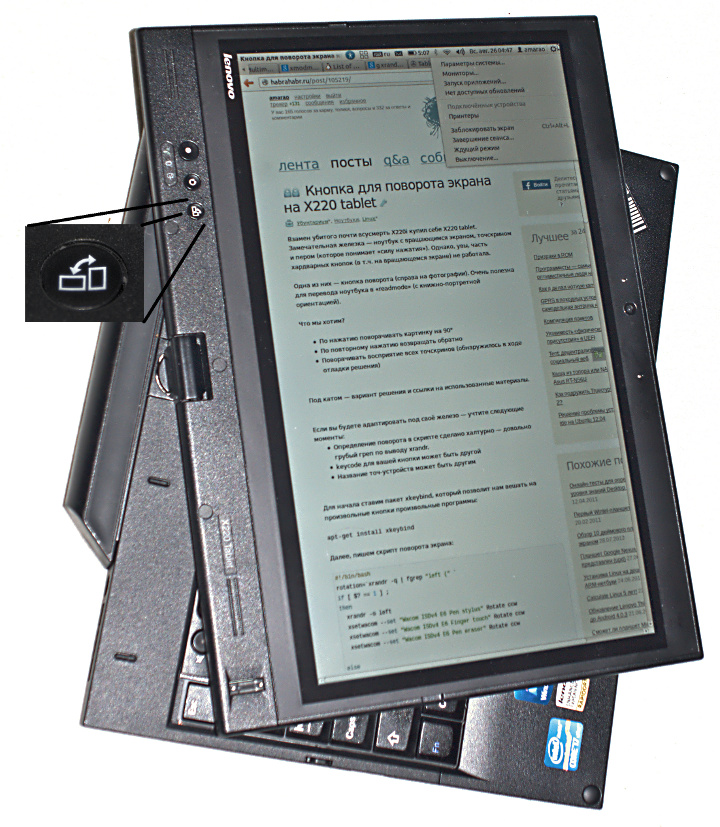
One of them is the rotation button (in the photo). Very useful for translating a laptop into readmode (portrait portrait).
What do we want?
Under the cut - a solution and links to the materials used.
If you will adapt to your hardware - consider the following points:
First, put the xkeybind package, which will allow us to hang arbitrary programs on arbitrary buttons:
Next, we write a screen rotation script, it does three things after determining the current position of the screen: it rotates the screen, rotates the touchscreen orientation, turns off or on the touchpad (by number).
Notes:
I called this script / usr / local / bin / rotate.
Do not forget about chmod + x on it.
Next - we write the config for xbindkeys:
One of them is the rotation button (in the photo). Very useful for translating a laptop into readmode (portrait portrait).
What do we want?
- By clicking rotate the picture 90 °
- Press again to return back
- Rotate the perception of all touchscreens (found during debugging of the solution)
- (upd) turn off the touchpad - it sometimes works on an inverted cover
Under the cut - a solution and links to the materials used.
If you will adapt to your hardware - consider the following points:
- The definition of rotation in the script was done carelessly - a rather crude grep according to xrandr.
- The keycode for your button may be different
- The name of touch devices may be different.
First, put the xkeybind package, which will allow us to hang arbitrary programs on arbitrary buttons:
apt-get install xkeybindNext, we write a screen rotation script, it does three things after determining the current position of the screen: it rotates the screen, rotates the touchscreen orientation, turns off or on the touchpad (by number).
#!/bin/bash
rotation=`xrandr -q | fgrep "left (" `
if [ $? == 1 ] ;
then
  xrandr -o left
  xsetwacom --set "Wacom ISDv4 E6 Pen stylus" Rotate ccw
  xsetwacom --set "Wacom ISDv4 E6 Finger touch" Rotate ccw
  xsetwacom --set "Wacom ISDv4 E6 Pen eraser" Rotate ccw
  xinput set-prop 13 "Device Enabled" 0
else
  xrandr -o normal
  xsetwacom --set "Wacom ISDv4 E6 Pen stylus" Rotate normal
  xsetwacom --set "Wacom ISDv4 E6 Finger touch" Rotate normal
  xsetwacom --set "Wacom ISDv4 E6 Pen eraser" Rotate normal
   xinput set-prop 13 "Device Enabled" 1
fi
Notes:
- as I warned, grep is very hacky
- The list of devices can be viewed using xsetwacom --list
- left = ccw, if you want to turn to right, then cw
- The list of devices can be found in xinput --list
I called this script / usr / local / bin / rotate.
Do not forget about chmod + x on it.
Next - we write the config for xbindkeys:
- We make touch ~ / .xbindkeysrc (xbindkeys has a minor bug - in the absence of a config, -k does not work).
- Run xbindkey -k. We get a window in which we need to press the button we need - the output will be the line that you need to give xbindkeys to start the program at the click of a button. This path turned out to be the most effective for me, even though I started with magic setkeys, scancodes, keycodes, etc.
- We enter in the config (~ / .xbindkeys):
"rotate"
m:0x0 + c:161
(it is clear that for different devices the second line will be different) - We start xkbindkeys, we check that it works.
- We register the launch of xbindkeys in ~ / .xsession
- PROFIT ??? (see the picture at the beginning of the post)