Show Excel reports in SharePoint 2010
Charts are what the client most willingly pays for and the boss gives a bonus. Why? Because they allow you to quickly understand the situation and just as quickly make a decision. A whole army of analysts is working today in the field of Business Intelligence and is engaged in the development and construction of reports, most of which (based on personal experience) are made using various versions of Microsoft Excel. In the past few years, displaying reports on the Web (both on internal sites and accessible to everyone) has been very relevant. Since the purchase of specialized solutions is not always advisable for cost reasons, the use of off-the-shelf content management solutions (CMS) allows you to achieve the result at the lowest cost. In this article I will tell you how to show reports to the CMS system developed by Microsoft, Microsoft SharePoint 2010 Server.
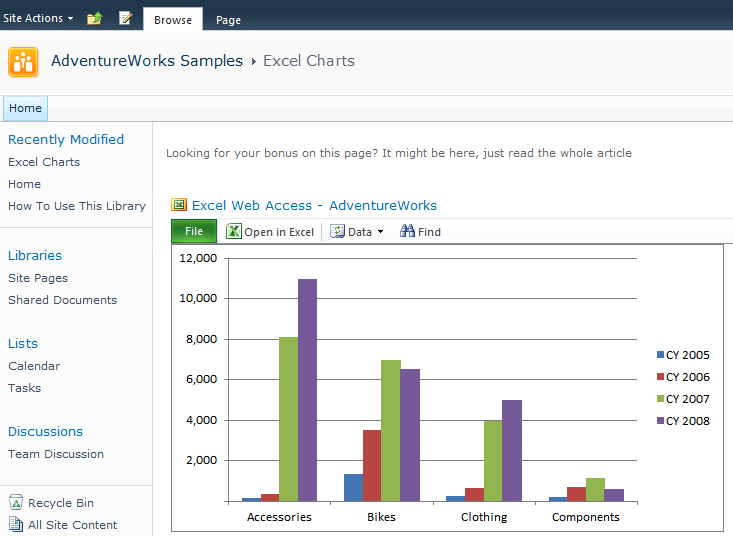
As a result of going through all the steps, we will get a page on which we will see graphs that dynamically (for this we need additional steps, which I will describe) the data from the AdventureWorks 2008R2 examples and learn how to create such pages.
The article consists of the following parts
1. Install SharePoint Server 2010
2. Configure SharePoint Server 2010
3. Publish graphs for Excel Services 2010
4. Display graphs on the page. Conclusion
Under the cut, the first part
For work, we need:
1) The server on which the 64-bit operating system (this is a requirement for SharePoint 2010) is installed, Windows Server 2008 SP2 or Windows Server R2. The server must have a minimum of 4GB of RAM and a hard drive of at least 40 GB. For a successful installation, you must have local administrator privileges.
2) It is desirable that the server is included in the AD domain and it is possible to add domain users under which various services will be launched. Either you must have domain administrator rights or someone with these rights must create users for you.
3) The client machine on which IE 8 or Firefox 3 is
installed During installation, you will need the following programs:
1. SQL Server 2008 R2
2. Examples of AdventureWorks 2008R2
3. SharePoint Server 2010.
4. Microsoft Office 2010.
- During installation, I will describe only the important steps that you need to pay attention to. All programs require local administrator privileges, so before you start the installation, make sure that you have them
1) First you need to install SQL Server 2008 R2 as Standalone Server. When asked for the type of license, choose Enterprise Evaluation (in this case we can use one instance of SQL Server instead of creating several). If you plan to use an existing instance of SQL Server, then at this stage you can choose an Express installation, it should be enough to store content in SharePoint.
If you plan to display reports made in MS Reporting Services on SharePoint, then in the Reporting Services configuration step, select SharePoint Integrated Mode.
When asking which user privileges to run SQL Server with, it is best to install a domain user created specifically for this purpose (sqlservice). Because the examples are not shipped with SQL Server 2008 R2, they must be downloaded and installed. If you have questions, I recommend reading the documentation
2) After the installation of SQL Server is complete (the easiest step if you are using 2008 R2), you can proceed with the installation of SharePoint 2010 Server. At this step, it is advisable to connect the server to the Internet - this will allow the installation wizard to download the necessary updates. We launch the installation wizard, select Install prerequisites and install everything that the Wizard deems necessary. Installation, as a rule, does not cause problems, unlike the stage of configuration, which I will describe in the next article on Habr and my blog in English
As a result of going through all the steps, we will get a page on which we will see graphs that dynamically (for this we need additional steps, which I will describe) the data from the AdventureWorks 2008R2 examples and learn how to create such pages.
The article consists of the following parts
1. Install SharePoint Server 2010
2. Configure SharePoint Server 2010
3. Publish graphs for Excel Services 2010
4. Display graphs on the page. Conclusion
Under the cut, the first part
For work, we need:
1) The server on which the 64-bit operating system (this is a requirement for SharePoint 2010) is installed, Windows Server 2008 SP2 or Windows Server R2. The server must have a minimum of 4GB of RAM and a hard drive of at least 40 GB. For a successful installation, you must have local administrator privileges.
2) It is desirable that the server is included in the AD domain and it is possible to add domain users under which various services will be launched. Either you must have domain administrator rights or someone with these rights must create users for you.
3) The client machine on which IE 8 or Firefox 3 is
installed During installation, you will need the following programs:
1. SQL Server 2008 R2
2. Examples of AdventureWorks 2008R2
3. SharePoint Server 2010.
4. Microsoft Office 2010.
- During installation, I will describe only the important steps that you need to pay attention to. All programs require local administrator privileges, so before you start the installation, make sure that you have them
1) First you need to install SQL Server 2008 R2 as Standalone Server. When asked for the type of license, choose Enterprise Evaluation (in this case we can use one instance of SQL Server instead of creating several). If you plan to use an existing instance of SQL Server, then at this stage you can choose an Express installation, it should be enough to store content in SharePoint.
If you plan to display reports made in MS Reporting Services on SharePoint, then in the Reporting Services configuration step, select SharePoint Integrated Mode.
When asking which user privileges to run SQL Server with, it is best to install a domain user created specifically for this purpose (sqlservice). Because the examples are not shipped with SQL Server 2008 R2, they must be downloaded and installed. If you have questions, I recommend reading the documentation
2) After the installation of SQL Server is complete (the easiest step if you are using 2008 R2), you can proceed with the installation of SharePoint 2010 Server. At this step, it is advisable to connect the server to the Internet - this will allow the installation wizard to download the necessary updates. We launch the installation wizard, select Install prerequisites and install everything that the Wizard deems necessary. Installation, as a rule, does not cause problems, unlike the stage of configuration, which I will describe in the next article on Habr and my blog in English