March 22, 2010 at 12:38
ReSharper: code search by pattern
There are two types of searches that you often use: Find Text and Find Usages. But none of them allows you to search for complex language constructs, for example, all places in your code where the expression "
ReSharper 5.0 introduced a new type of search, “Search With Pattern,” which allows you to search for pieces of code by template, and you can impose restrictions on parts of this template. For example, for expressions, you can specify the type, and for arguments, their estimated number.
Let's look at a specific example. We will look in your code for all expressions "
Open the “Search With Pattern” window (Resharper -> Find -> Search With Pattern) and enter the following pattern in the text box:
String
In just a few seconds, without knowledge of regular expressions, we created a template for search. But there is one more pleasant and very powerful thing: note that under the template edit box there is a checkmark “Match similar constructs”. If this checkbox is checked, then not only exact matches with the sample are searched, but also sematically identical structures. For example, the constructions "
All is ready! Now you can click the “Find” button and look at the results.
Such a powerful search without a replacement function would not be complete, because it is interesting not only to find all the bad places in the program, but also replace them with the correct code. To do this, in the “Search With Pattern” window, click the “Replace” button. A box appears for entering a replacement pattern. In this field you can write any text that is correct from the point of view of the language, you can also use placeholders. Enter in this field:
Now click the Replace button!
You now have a search template and a replacement template. It is logical to make this backlight and QuickFix. To do this, simply click on the “Save” button in the pattern editing window. Your pattern will be saved in the “Patterns Catalog”. This directory can simply be used to store frequently used templates, or you can make it a powerful tool for creating your own analyzes.
If you open the catalog (ReSharper -> Tools -> Patterns Catalog), you can customize the tooltip text, the text that will be displayed in QuickFix and the highlight type for your pattern. Set all these parameters for your pattern.
All! The backlight works! Now all the code that matches your template will be highlighted on the fly! And the corresponding QuickFix will appear on the backlight!
A search pattern that simplifies expressions:
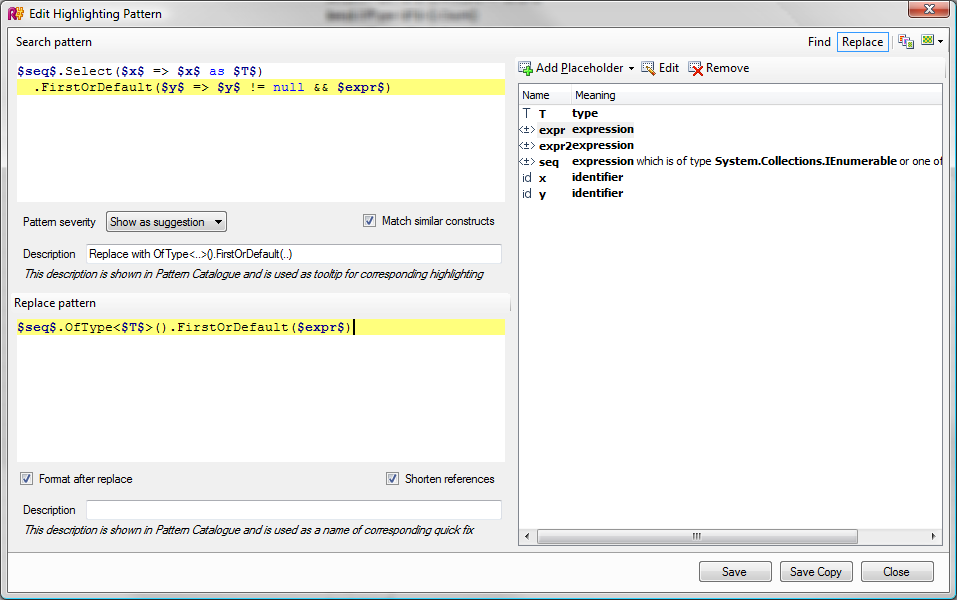
In this example, we used placeholders for type, expression, and identifier. At the same time, they did not set any restrictions on them, but they used them in the replacement template. The only placeholder with a restriction is that
And here is a pattern that implements highlighting and QuickFix “Replace 'if' with '?:'”:
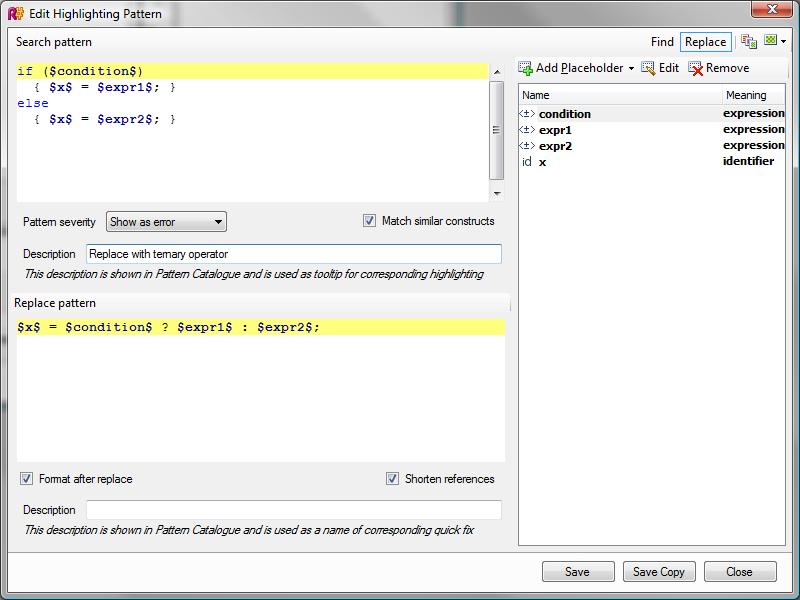
If you have ideas for useful patterns, then tell us about them in the comments. This will be useful for the community, and perhaps the most interesting patterns will be included in the next ReSharper package.
But that is not all. In fact, the mechanism that performs pattern matching is much more powerful than the end user can see. The current limitations are due to the fact that the ReSharper team does not yet understand how to correctly express certain aspects in the UI. For example, in the current implementation it is impossible to find a construction in which something is missing (for example, calling a method without any verification, or a method of a certain kind, but without an attribute). But this can be done through the API.
Moreover, if you write backlight or QuickFix using this API, then you save a lot of time, i.e. You don’t have to seriously understand the source code model and other subtleties. You describe the sample in terms of C # syntax, set the parameters and get the result, for example, for “Replace 'if' with '?:'”, Just write this code:
It is very simple, and most importantly clear without explanation, and does not require knowledge of the internals of ReSharper. If you started writing this code without using the Search With Pattern API, then you would need to know how the syntax tree works, the interface
You search for the code according to the model, do additional checks (for example, inexpressible through the Search With Pattern API) and you can hang out the highlights!
Search With Pattern API is available through the interface.
s == null || s == String.Empty" is used. You can use regular expressions and try to find Find Text, but such regular expressions will look monstrous and probably contain a lot of errors (for example, they will not take into account the possibility of comments at almost every point in the program). Obviously, to solve this problem, some other kind of search is needed that would know about the language syntax, type system and would not force the developer to learn some new query language syntax.Smart search
ReSharper 5.0 introduced a new type of search, “Search With Pattern,” which allows you to search for pieces of code by template, and you can impose restrictions on parts of this template. For example, for expressions, you can specify the type, and for arguments, their estimated number.
Let's look at a specific example. We will look in your code for all expressions "
enumerable.Count() > 0", where enumerable is any expression of the type IEnumerable.If you would solve this problem through Find Usages, then you would make method callsCount(), and accordingly you would have to look through tens or hundreds of calls with your eyes - this is tiring and fraught with errors. Find Text looks a little better, but if you think about the fact that the desired expression can be written with line feeds, comments, and the methodCount()in your project implements objects of different types, it becomes clear that it does not work either.
Open the “Search With Pattern” window (Resharper -> Find -> Search With Pattern) and enter the following pattern in the text box:
$enumerable$.Count() > 0String
$enumerable$- will be highlighted in red. The fact is that the “$” signs enclose the names of placeholders, while searching for the place of such a placeholder, any text that matches the specified restrictions will be expected: the type of placeholder and its parameters. In our case, there $enumerable$can be any type expression in place IEnumerable. But first, we need to define this placeholder. To do this, click "Add Placeholder", select "Expression", in the "Name" field, enter " enumerable" (name of the placeholder without dollar signs). In the "Expression Type", enter " IEnumerable" (start typing the type name, and the resolver will tell you the options).In just a few seconds, without knowledge of regular expressions, we created a template for search. But there is one more pleasant and very powerful thing: note that under the template edit box there is a checkmark “Match similar constructs”. If this checkbox is checked, then not only exact matches with the sample are searched, but also sematically identical structures. For example, the constructions "
a > 0" and " 0 < a" are semantically identical. In our case, it is reasonable to leave this checkbox set, because you do not care how the result of the method is Count()compared with zero. All is ready! Now you can click the “Find” button and look at the results.
Smart Replacement
Such a powerful search without a replacement function would not be complete, because it is interesting not only to find all the bad places in the program, but also replace them with the correct code. To do this, in the “Search With Pattern” window, click the “Replace” button. A box appears for entering a replacement pattern. In this field you can write any text that is correct from the point of view of the language, you can also use placeholders. Enter in this field:
$enumerable$.Any()Now click the Replace button!
Making Highlight and QuickFix from a Search Pattern
You now have a search template and a replacement template. It is logical to make this backlight and QuickFix. To do this, simply click on the “Save” button in the pattern editing window. Your pattern will be saved in the “Patterns Catalog”. This directory can simply be used to store frequently used templates, or you can make it a powerful tool for creating your own analyzes.
If you open the catalog (ReSharper -> Tools -> Patterns Catalog), you can customize the tooltip text, the text that will be displayed in QuickFix and the highlight type for your pattern. Set all these parameters for your pattern.
All! The backlight works! Now all the code that matches your template will be highlighted on the fly! And the corresponding QuickFix will appear on the backlight!
Search Pattern Examples
A search pattern that simplifies expressions:
In this example, we used placeholders for type, expression, and identifier. At the same time, they did not set any restrictions on them, but they used them in the replacement template. The only placeholder with a restriction is that
$seq$it is limited by type IEnumrable. And here is a pattern that implements highlighting and QuickFix “Replace 'if' with '?:'”:
If you have ideas for useful patterns, then tell us about them in the comments. This will be useful for the community, and perhaps the most interesting patterns will be included in the next ReSharper package.
We write extensions to ReSharper easily and quickly
But that is not all. In fact, the mechanism that performs pattern matching is much more powerful than the end user can see. The current limitations are due to the fact that the ReSharper team does not yet understand how to correctly express certain aspects in the UI. For example, in the current implementation it is impossible to find a construction in which something is missing (for example, calling a method without any verification, or a method of a certain kind, but without an attribute). But this can be done through the API.
Moreover, if you write backlight or QuickFix using this API, then you save a lot of time, i.e. You don’t have to seriously understand the source code model and other subtleties. You describe the sample in terms of C # syntax, set the parameters and get the result, for example, for “Replace 'if' with '?:'”, Just write this code:
var myMatcher = searcherFactory

     .CreatePattern("if ($condition$) { $x$ = $expr1$; } else { $x$ = $expr2$; }")

     .AddExpressionPlaceholder("condition")

     .AddIdentifierPlaceholder("x")

     .AddExpressionPlaceholder("expr1")

     .AddExpressionPlaceholder("expr2")

     .CreateStatementMatcher();


* This source code was highlighted with Source Code Highlighter.
It is very simple, and most importantly clear without explanation, and does not require knowledge of the internals of ReSharper. If you started writing this code without using the Search With Pattern API, then you would need to know how the syntax tree works, the interface
IIfStatement, how it IExpressiondiffers from IReferenceExpression, how to compare expressions for equivalence (you need to compare two occurrences of the expression $x$), and many other complicated things. You search for the code according to the model, do additional checks (for example, inexpressible through the Search With Pattern API) and you can hang out the highlights!
Search With Pattern API is available through the interface.
StructuralSearchEngine. If there are a sufficient number of interested people, then in the next article I can give a small example of how you can easily create your own highlights and QuickFix with it.