10 "chips" Lenovo Vibe UI 2.0 and a little insider
The statement about “how many people, so many opinions” can be fully applied to the system shells that are now released by all major smartphone manufacturers for the Android operating system. We are absolutely sure that each of them has both strengths and weaknesses, including our Lenovo Vibe UI 2.0. It is about her that we offer to talk today. We will talk about the advantages of the shell and share a couple of exclusives, and you will be asked to point out the shortcomings or advise us on how to improve Vibe UI. We solemnly promise that reviews will not remain without attention.
So, Vibe UI. The main feature of our shell is that it is a kind of designer, skillfully assembled by developers from details - i.e. system programs. As a result, we have a common concept and a set of elements, each of which we can modify based on the characteristics of individual devices. This makes it possible to respond very quickly to user requests, since you do not need to redo the entire shell at once, but rather rework its individual element and send it with an OTA update for all gadgets or certain models.
For those who are not yet familiar with Lenovo smartphones, we have prepared a selection of 10 important, in our opinion, features of Vibe UI. We hope that they will be able to interest you. If you are already familiar with all of them, we suggest immediately proceeding to the next section.
Ten “chips” of Lenovo Vibe UI
For the convenience of users, we divided the main menu in smartphones into two sections: “System” and “Special” settings. Most of our innovations are located in the second section, although we still added something to the submenu of the first. For example, the color balance settings, which are logical to find in the “Screen” submenu, and not somewhere else.
1. Smart menu

Smart-menu is a virtual button that helps to quickly access a number of applications and functions: calculator, camera, list of open programs, audio player, alarm clock, video player, etc. There is also a separate item where the user can add 8 any applications installed in the memory for operational launch. The Smart-menu button can be positioned anywhere on the screen and then manually moved if it suddenly interferes. And you can program the appearance of the Smart-menu with a long strong press on the screen. Well, of course, you can completely disable it.
2. WLAN binding and speed display
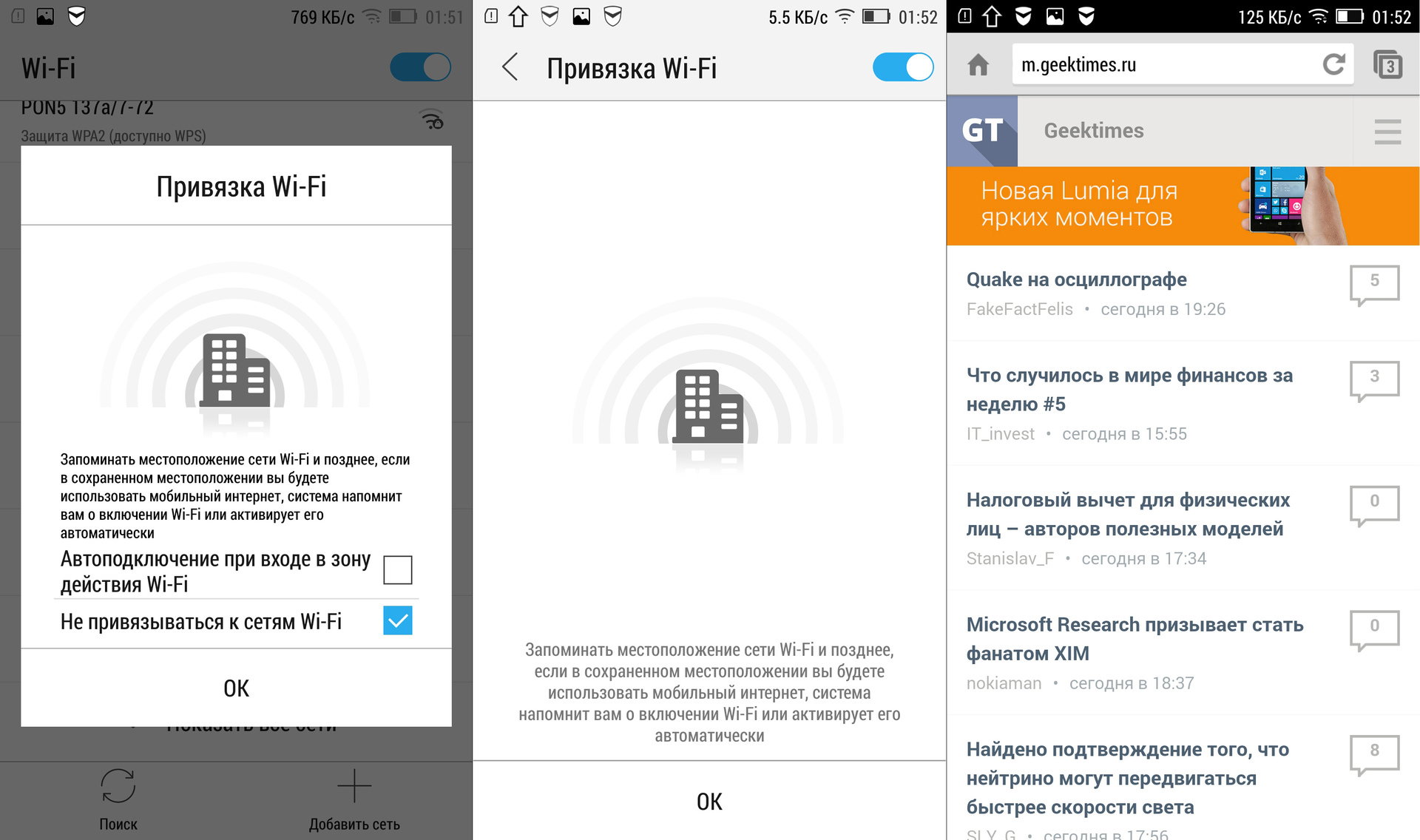
It is no secret that the constantly activated Wi-Fi module is an additional devourer of the precious resource of the smartphone’s battery. We tried to automate the process of connecting to wireless networks. Thus, you only need to connect once, say, to your home and work routers, and subsequently the Wi-Fi module will turn on and off by itself when you get into the reception area, and the rest of the time, only the mobile Internet will be used. By the way, both Wi-Fi speed and mobile connection speed can be displayed in the status bar. Of course, everything from this page in the browser will not load faster, but at least you know what's what.
3. The priority of notifications and their prohibitions
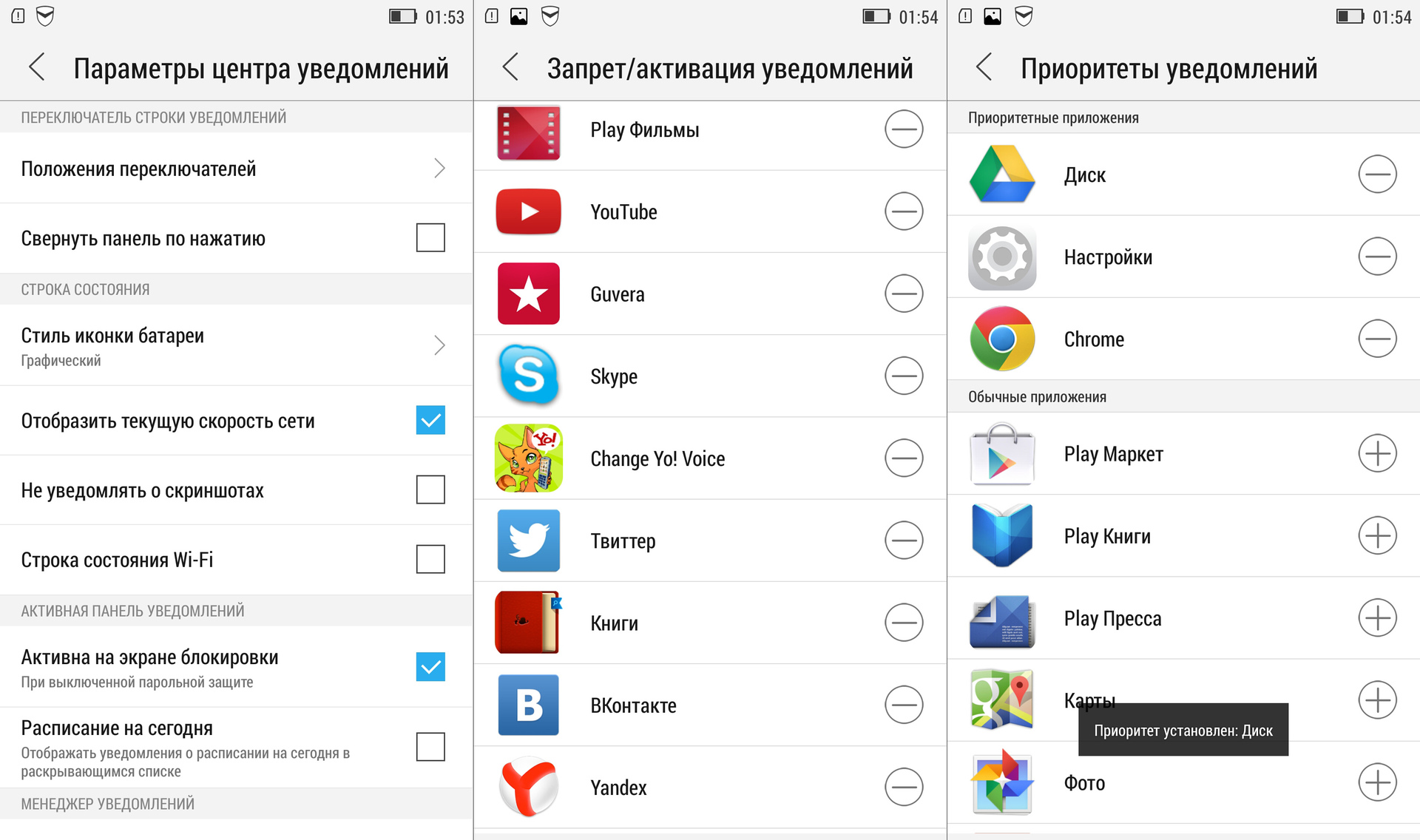
Sometimes it’s very annoying when some application constantly sends notifications. Especially mobile games sin and, of course, developers sometimes intentionally do not provide for the possibility of disabling notifications. Lenovo Vibe UI solves this problem simply and radically: in a special menu, you independently prohibit or allow each program to send you “letters of happiness”. You can also set notification priorities if any of them, on the contrary, are very important to you.
4. Safe mode
Children simply love smartphones and the insistent "paaap, let me play!" It is often simply impossible to refuse. But hardly dad wants the child at the same time to call the boss and remove half of the contacts. The best way to avoid such unpleasant incidents is to activate the "Safe Mode", in which any actions, except launching several games, are previously prohibited. And it also happens that among friends there are at least a few who are constantly suffering to see other people's smartphones. When communicating with them, "Safe Mode" will also greatly help out.
5. Switching shells

Of course, we really love our Vibe UI, but we do not adhere to the policy of creating the maximum number of problems for the user if he wants to work with another shell. Everything is exactly the opposite: if you need to switch to an alternative launcher, then simply download the necessary files and switch: “System Settings” -> “Screen” -> “Select System Interface”.
6. Smart scenarios and on / off schedules
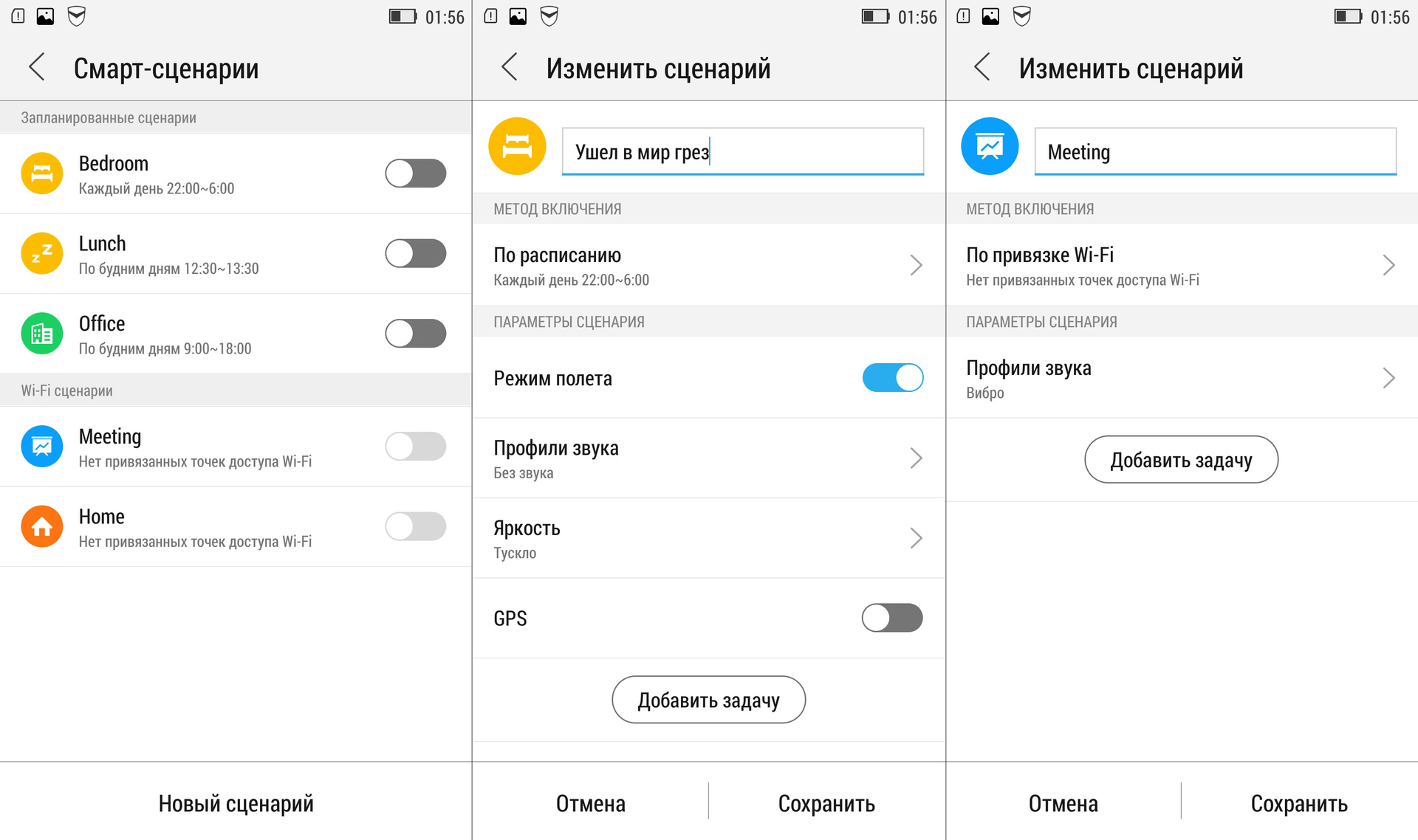
A person can look for work, but when a job finds a person on the weekend or closer to the night, when he feeds the cat and makes tea, this is not good. If you are a supporter of such a tough, but fair distinction, you can set the time to turn the smartphone on and off automatically.
It is even finer to synchronize everything that is done using a smartphone with Smart modes to help with your personal schedule. For three of them, you can set the necessary time intervals and behavior scenarios for six points, and two more - activate if necessary and configure five scenarios.
7. SHAREit and CLONEit
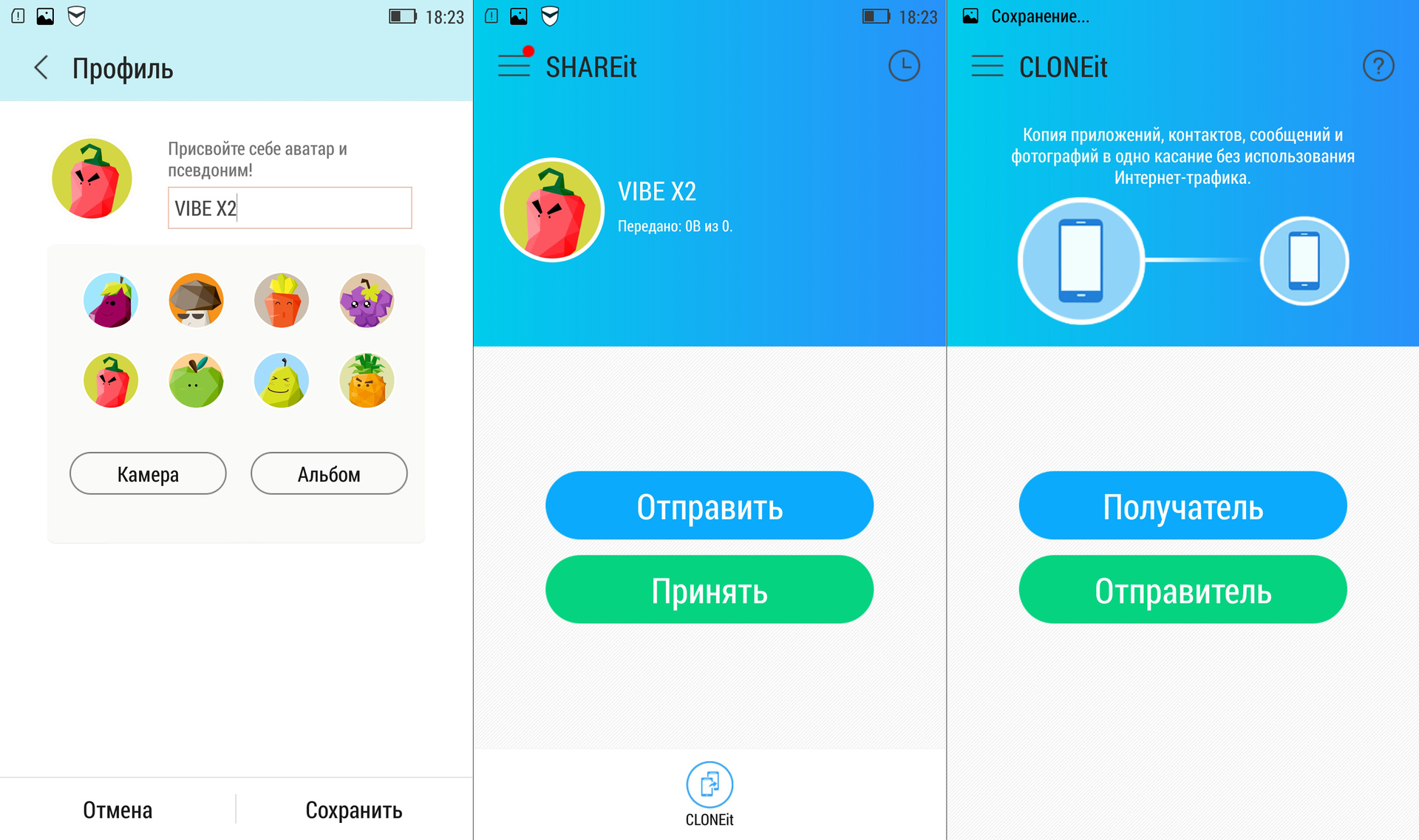
Lenovo Vibe UI has a preinstalled program for quick file sharing with users of other Android devices. It is called SHAREit and allows you to quickly transfer files via Wi-Fi (about 3 MB / s) to mobile devices that have the same program (you can download it on Google Play play.google.com/store/apps/details?id=com .lenovo.anyshare.gps & hl = en), or do it using Bluetooth, if the recipient does not have the necessary software. The program also has a built-in CLONEit function, which allows you to quickly copy all important data from one gadget to another. It is very useful in cases where you bought a new smartphone and want to do everything in it the same way as in the old one.
8. Setting up the workspace
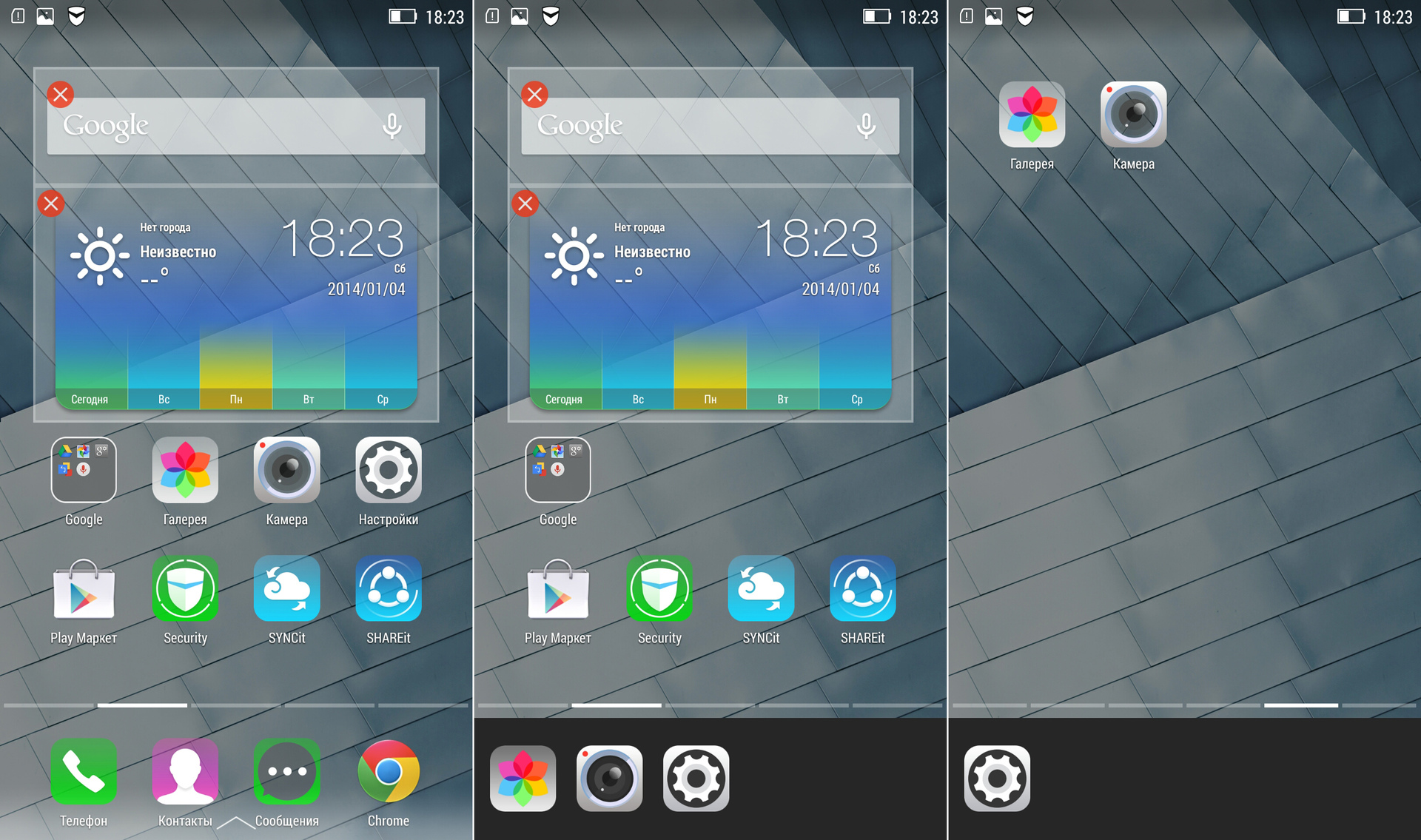
The Android operating system is loved by all of us for the free arrangement of application icons on desktops. But when a lot of elements accumulate, then dragging these icons one by one back and forth is a real torment. We tried to simplify the process: you no longer need to manually move the shortcuts, since you can hold your finger on any icon once, and then collect everything you need into the clipboard on the bottom of the screen. Then we move to the desired desktop and, tapping on the icons in the clipboard, put them in the desired order.
We also implemented the ability to quickly change the wallpaper on your desktop. No need to go to the gallery, because background pictures can simply be scrolled - from left to right, and vice versa.

In addition, we have a center for those in which a small Easter egg lives. If you put a picture of a girl and balloons on the lock screen and then tap on the clock in the soap bubble, you will get quick access to the most frequently launched programs. In fact, this is not just a picture, but a theme. Access to the Chinese theme store is possible only with root-rights, but you can also download themes, say, from lenovo-forums.ru into the memory of smartphones in the form of a ZIP archive in the directory .LenovoTheme / Download / themesuite.
9. Hide unused applications
Unfortunately, with preinstalled software it is absolutely impossible to please everyone at once, but we are trying very hard. What Lenovo smartphones have now should help novice users, while experienced users, on the contrary, can remove and replace most of these programs with no difficulties with those that they have long been accustomed to. Moreover, in our flagship devices, when setting up the safe mode described earlier in Section 4, you can also configure the general mode by disabling the display on the desktops of those applications that the user does not use at all.
10. One-handed optimization
Many people love large smartphones and now they can not imagine their life without them. But everyone understands that working with large screens with one hand is still sometimes difficult. If you use Vibe Z2 or Z2 Pro, you are sure to actively use the "chip", which slightly reduces and shifts the keyboard to the edge of the screen with a slight deviation of the device to the right or left - this is much more convenient to type.
Vibe UI 2.0 in Russia
And finally, a little talk about how the work with Vibe UI for Russia is going. It is easy to guess that our head office in China is directly involved in the development of the shell, but, for example, few people know that specialists from there specially come to Russia to test the operation of smartphones and software in our cellular networks. Knowledge of the language in this difficult task is not as important as the experience of development and optimization.
Well, with localization we are helped by a group of experienced enthusiasts who love Lenovo gadgets. We can say that this is such a special focus group, the opinion of which is always taken into account and taken into account - after all, Russia for Lenovo is the second most important market after its native China. Well, the guys are so meticulous that sometimes until the release of updates they find bugs that were not even suspected of at headquarters, for which we take this opportunity to say thanks again.
Technical translations and descriptions are usually sent from China, and then we, together with our local specialists and focus group, bring them to the final version, of course, copying a lot of things along the way.
But this is not all: the opinion of the focus group is always supplemented by reviews and opinions from the largest forums and the thematic forum on Lenovo. And this post on Geektimes also appeared for a reason, namely in order to appeal to experienced users and specialists. If you have questions about Vibe UI - welcome to comment, we will be happy to answer. And we will certainly consider the comments and suggestions.
So, Vibe UI. The main feature of our shell is that it is a kind of designer, skillfully assembled by developers from details - i.e. system programs. As a result, we have a common concept and a set of elements, each of which we can modify based on the characteristics of individual devices. This makes it possible to respond very quickly to user requests, since you do not need to redo the entire shell at once, but rather rework its individual element and send it with an OTA update for all gadgets or certain models.
For those who are not yet familiar with Lenovo smartphones, we have prepared a selection of 10 important, in our opinion, features of Vibe UI. We hope that they will be able to interest you. If you are already familiar with all of them, we suggest immediately proceeding to the next section.
Ten “chips” of Lenovo Vibe UI
For the convenience of users, we divided the main menu in smartphones into two sections: “System” and “Special” settings. Most of our innovations are located in the second section, although we still added something to the submenu of the first. For example, the color balance settings, which are logical to find in the “Screen” submenu, and not somewhere else.
1. Smart menu
Smart-menu is a virtual button that helps to quickly access a number of applications and functions: calculator, camera, list of open programs, audio player, alarm clock, video player, etc. There is also a separate item where the user can add 8 any applications installed in the memory for operational launch. The Smart-menu button can be positioned anywhere on the screen and then manually moved if it suddenly interferes. And you can program the appearance of the Smart-menu with a long strong press on the screen. Well, of course, you can completely disable it.
2. WLAN binding and speed display
It is no secret that the constantly activated Wi-Fi module is an additional devourer of the precious resource of the smartphone’s battery. We tried to automate the process of connecting to wireless networks. Thus, you only need to connect once, say, to your home and work routers, and subsequently the Wi-Fi module will turn on and off by itself when you get into the reception area, and the rest of the time, only the mobile Internet will be used. By the way, both Wi-Fi speed and mobile connection speed can be displayed in the status bar. Of course, everything from this page in the browser will not load faster, but at least you know what's what.
3. The priority of notifications and their prohibitions
Sometimes it’s very annoying when some application constantly sends notifications. Especially mobile games sin and, of course, developers sometimes intentionally do not provide for the possibility of disabling notifications. Lenovo Vibe UI solves this problem simply and radically: in a special menu, you independently prohibit or allow each program to send you “letters of happiness”. You can also set notification priorities if any of them, on the contrary, are very important to you.
4. Safe mode
Children simply love smartphones and the insistent "paaap, let me play!" It is often simply impossible to refuse. But hardly dad wants the child at the same time to call the boss and remove half of the contacts. The best way to avoid such unpleasant incidents is to activate the "Safe Mode", in which any actions, except launching several games, are previously prohibited. And it also happens that among friends there are at least a few who are constantly suffering to see other people's smartphones. When communicating with them, "Safe Mode" will also greatly help out.
5. Switching shells
Of course, we really love our Vibe UI, but we do not adhere to the policy of creating the maximum number of problems for the user if he wants to work with another shell. Everything is exactly the opposite: if you need to switch to an alternative launcher, then simply download the necessary files and switch: “System Settings” -> “Screen” -> “Select System Interface”.
6. Smart scenarios and on / off schedules
A person can look for work, but when a job finds a person on the weekend or closer to the night, when he feeds the cat and makes tea, this is not good. If you are a supporter of such a tough, but fair distinction, you can set the time to turn the smartphone on and off automatically.
It is even finer to synchronize everything that is done using a smartphone with Smart modes to help with your personal schedule. For three of them, you can set the necessary time intervals and behavior scenarios for six points, and two more - activate if necessary and configure five scenarios.
7. SHAREit and CLONEit
Lenovo Vibe UI has a preinstalled program for quick file sharing with users of other Android devices. It is called SHAREit and allows you to quickly transfer files via Wi-Fi (about 3 MB / s) to mobile devices that have the same program (you can download it on Google Play play.google.com/store/apps/details?id=com .lenovo.anyshare.gps & hl = en), or do it using Bluetooth, if the recipient does not have the necessary software. The program also has a built-in CLONEit function, which allows you to quickly copy all important data from one gadget to another. It is very useful in cases where you bought a new smartphone and want to do everything in it the same way as in the old one.
8. Setting up the workspace
The Android operating system is loved by all of us for the free arrangement of application icons on desktops. But when a lot of elements accumulate, then dragging these icons one by one back and forth is a real torment. We tried to simplify the process: you no longer need to manually move the shortcuts, since you can hold your finger on any icon once, and then collect everything you need into the clipboard on the bottom of the screen. Then we move to the desired desktop and, tapping on the icons in the clipboard, put them in the desired order.
We also implemented the ability to quickly change the wallpaper on your desktop. No need to go to the gallery, because background pictures can simply be scrolled - from left to right, and vice versa.
In addition, we have a center for those in which a small Easter egg lives. If you put a picture of a girl and balloons on the lock screen and then tap on the clock in the soap bubble, you will get quick access to the most frequently launched programs. In fact, this is not just a picture, but a theme. Access to the Chinese theme store is possible only with root-rights, but you can also download themes, say, from lenovo-forums.ru into the memory of smartphones in the form of a ZIP archive in the directory .LenovoTheme / Download / themesuite.
9. Hide unused applications
Unfortunately, with preinstalled software it is absolutely impossible to please everyone at once, but we are trying very hard. What Lenovo smartphones have now should help novice users, while experienced users, on the contrary, can remove and replace most of these programs with no difficulties with those that they have long been accustomed to. Moreover, in our flagship devices, when setting up the safe mode described earlier in Section 4, you can also configure the general mode by disabling the display on the desktops of those applications that the user does not use at all.
10. One-handed optimization
Many people love large smartphones and now they can not imagine their life without them. But everyone understands that working with large screens with one hand is still sometimes difficult. If you use Vibe Z2 or Z2 Pro, you are sure to actively use the "chip", which slightly reduces and shifts the keyboard to the edge of the screen with a slight deviation of the device to the right or left - this is much more convenient to type.
Vibe UI 2.0 in Russia
And finally, a little talk about how the work with Vibe UI for Russia is going. It is easy to guess that our head office in China is directly involved in the development of the shell, but, for example, few people know that specialists from there specially come to Russia to test the operation of smartphones and software in our cellular networks. Knowledge of the language in this difficult task is not as important as the experience of development and optimization.
Well, with localization we are helped by a group of experienced enthusiasts who love Lenovo gadgets. We can say that this is such a special focus group, the opinion of which is always taken into account and taken into account - after all, Russia for Lenovo is the second most important market after its native China. Well, the guys are so meticulous that sometimes until the release of updates they find bugs that were not even suspected of at headquarters, for which we take this opportunity to say thanks again.
Technical translations and descriptions are usually sent from China, and then we, together with our local specialists and focus group, bring them to the final version, of course, copying a lot of things along the way.
But this is not all: the opinion of the focus group is always supplemented by reviews and opinions from the largest forums and the thematic forum on Lenovo. And this post on Geektimes also appeared for a reason, namely in order to appeal to experienced users and specialists. If you have questions about Vibe UI - welcome to comment, we will be happy to answer. And we will certainly consider the comments and suggestions.