May 10, 2018 at 09:27
Understanding how disk space is used in Linux
- Transfer
Comment transl. : The author of the original article, the Spanish Open Source enthusiast nachoparker , developing the NextCloudPlus project (formerly known as NextCloudPi), shares his knowledge about the disk subsystem design in Linux, making important clarifications in answers to seemingly simple questions ...
How much space does this file on your hard drive? How much free space do I have? How many more files can I fit into the remaining space?
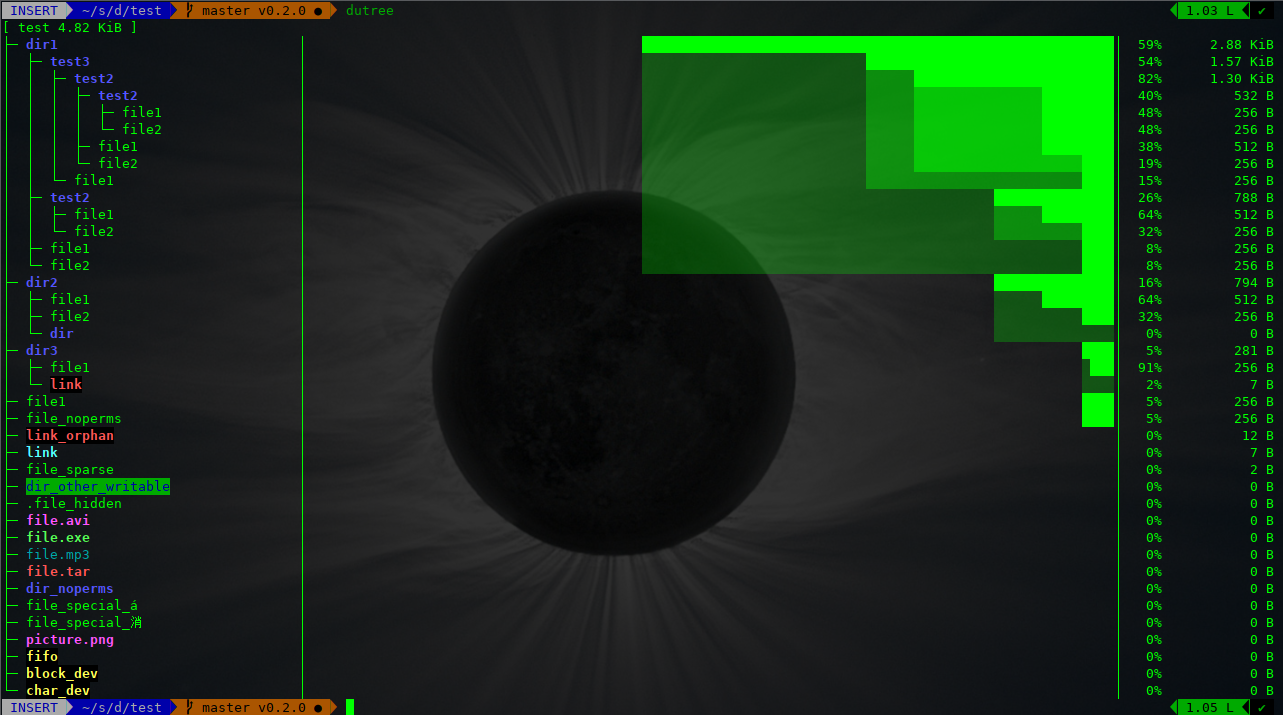
The answers to these questions seem obvious. We all have an instinctive understanding of the operation of file systems, and often we imagine storing files on disk as if filling a basket with apples.
However, in modern Linux systems, this intuition can be misleading. Let's see why.
What is the file size? The answer seems to be simple: the collection of all bytes of its contents, from the beginning to the end of the file.
Often, the entire contents of a file is represented as byte by byte:

We also perceive the concept of file size . To find out, we execute
In the Linux kernel, the memory structure representing the file is inode . And the metadata that we access using the command
Fragment
Here you can see familiar attributes, such as access time and modifications, and also
Thinking in terms of file size is intuitive, but we are more interested in how space is actually used.
For internal file storage, the file system breaks the storage into blocks . The traditional block size was 512 bytes, but the more relevant value is 4 kilobytes. In general, when choosing this value, they are guided by the supported page size on standard MMU equipment (memory management unit, “memory management device ” - approx. Transl. ) .
The file system inserts a chunks file into these blocks and monitors them in the metadata. Ideally, everything looks like this:

... but in reality files are constantly being created, resized, deleted, so the real picture is this:
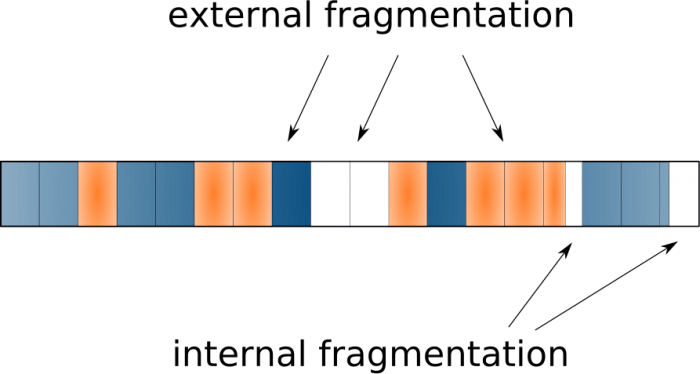
This is called external fragmentation (external fragmentation ) and usually leads to a drop in performance. The reason is that the rotating head of the hard disk has to move from place to place to collect all the fragments, and this is a slow operation. The classic defragmentation tools deal with this problem.
What happens to files smaller than 4 KB? What happens to the contents of the last block after the file has been cut into pieces? Naturally there will be a wasted space - this is called internal fragmentation ( internal Fragmentation ' ) . Obviously, this side effect is undesirable and can lead to the fact that a lot of free space will not be used, especially if we have a large number of very small files.
So, the actual use of the disk file can be seen with
Thus, we look at two values: file size and used blocks. We are used to thinking in terms of the former, but we must in terms of the latter.
In addition to the actual contents of the file, the kernel also needs to store all kinds of metadata. We have already seen the inode metadata, but there is other data that every UNIX user is familiar with: access rights , owner , uid , gid , flags, ACLs .
Finally, there are other structures - like a superblock with a representation of the file system itself, vfsmount with a representation of the mount point, as well as information about redundancy, namespaces, etc. As we will see later, some of this metadata can also occupy a significant place.
This data is highly dependent on the file system used - each of them has its own way to map blocks to files. The traditional approach ext2 - table
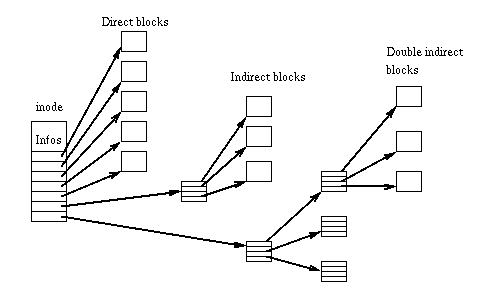
The same table can be seen in the memory structure (fragment from
For large files, such a scheme leads to a large overhead, since a single (large) file requires matching thousands of blocks. In addition, there is a limitation on file size: using this method, the 32-bit ext3 file system supports files no more than 8 TB. Ext3 developers saved the situation by supporting 48 bits and adding extents :
The idea is really simple: occupy adjacent blocks on the disk and simply declare where extent begins and what its size is. Thus, we can allocate large groups of blocks to the file, minimizing the amount of metadata and at the same time using faster sequential access.
Note for the curious: ext4 has backward compatibility, that is, it supports both methods: indirect and extents . You can see how the space is distributed by the example of a write operation. Recording does not go directly to the storage - for performance reasons, the data first goes to the file cache. After that, at some point, the cache writes information to the persistent storage.
The file system cache is represented by the structure
... where it
The latest generation file systems also store checksums for data blocks to prevent discreet data corruption . This feature allows you to detect and correct random errors and, of course, leads to additional overhead in the use of the disk in proportion to the size of the files.
More modern systems like BTRFS and ZFS support checksums for data, while older ones, such as ext4, have checksums for metadata.
Logging capabilities for ext2 appeared in ext3. Log - a circular log that records processed transactions in order to improve the resistance to power failures. By default, it applies only to metadata , but you can activate it for data using the option
This is a special hidden file, usually with an inode number of 8 and a size of 128 MB, an explanation of which can be found in the official documentation:
Возможность tail packing, ещё называемая блочным перераспределением(block suballocation), позволяет файловым системам использовать пустое пространство в конце последнего блока («хвосты») и распределять его среди различных файлов, эффективно упаковывая «хвосты» в единый блок.
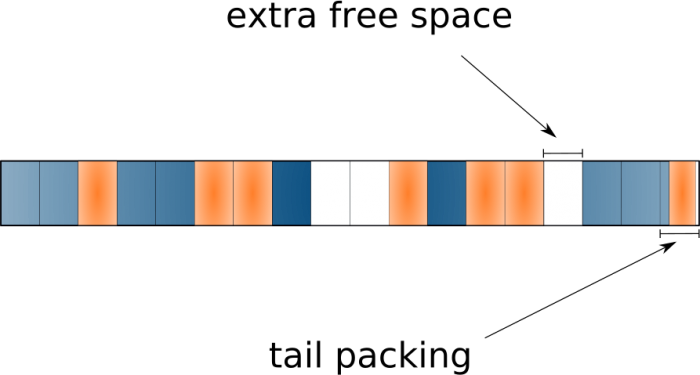
Замечательно иметь такую возможность, что позволяет сохранить много пространства, особенно если у вас большое количество маленьких файлов… Однако она приводит к тому, что существующие инструменты неточно сообщают об используемом пространстве. Потому что с ней мы не можем просто добавить все занятые блоки всех файлов для получения реальных данных по использованию диска. Эту фичу поддерживают файловые системы BTRFS и ReiserFS.
Most modern file systems support sparse files (files is sparse) . Such files may have holes that are not actually written to disk (do not occupy disk space). This time, the actual file size will be larger than the blocks used.
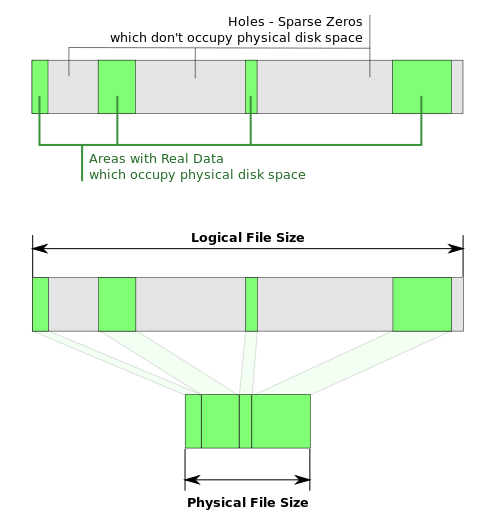
This feature can be very useful, for example, to quickly generate large files or to provide free space to the virtual hard disk of a virtual machine on demand.
To slowly create a 10 gigabyte file that takes up about 10 GB of disk space, you can run:
To create the same large file instantly, just write the last byte ... or even do:
Or use the command
The disk space allocated to a file can be changed with the command
For example, to create holes in a file, turning it into a sparse one, you can do this:
The team
... and the reverse action (to make a “dense” copy of the sparse file) looks like this:
Thus, if you like working with sparse files, you can add the following alias to your terminal environment (
When processes read bytes in sections of holes, the file system provides them with pages with zeros. For example, you can see what happens when the file cache is read from the file system in the hole area in ext4. In this case, the sequence in
After that, the memory segment that the process is trying to access using a system call
Следующее (после семейства ext) поколение файловых систем принесло очень интересные возможности. Пожалуй, наибольшего внимания среди фич файловых систем вроде ZFS и BTRFS заслуживает их COW (copy-on-write, «копирование при записи»).
Когда мы выполняем операцию copy-on-write или клонирования, или копии reflink, или поверхностной (shallow) копии, на самом деле никакого дублирования extent'ов не происходит. Просто создаётся аннотация в метаданных для нового файла, которая отсылает к тем же самым extents оригинального файла, а сам extent помечается как разделяемый (shared). At the same time, an illusion is created in the user space that there are two separate files that can be separately modified. When a process wants to write to a shared extent, the kernel will first create a copy of it and annotation that this extent belongs to a single file (at least for now). After that, the two files have more differences, but they can still be shared by many extents. In other words, extents in COW-enabled file systems can be divided between files, and the FS will ensure the creation of new extents only if necessary.
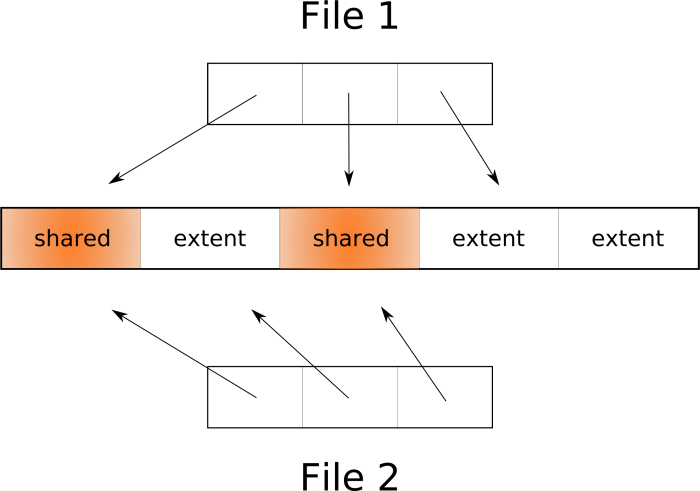
As you can see, cloning is a very fast operation that does not require doubling the space that is used in the case of a regular copy. It is this technology that is behind the possibility of creating instant snapshots in BTRFS and ZFS. You can literally clone (or snapshot ) the entire root file system in less than a second. Very useful, for example, before updating packages in case something breaks.
BTRFS supports two methods for creating shallow copies. The first refers to subvolumes and uses the command
The next step is if there are non-shallow copies or a file, or even files with duplicate extents, you can deduplicate them so that they use (via reflink) common extents and free up space. One of the tools for this is duperemove , however, keep in mind that this naturally leads to higher file fragmentation.
If we now try to figure out how disk space is used by files, things will not be so simple. Utilities like
Similarly, in the case of BTRFS, you should avoid the command
Unfortunately, I do not know simple ways to track the occupied space of individual files in COW file systems. At the sub-volume level, with utilities like btrfs-du we can get an approximate idea of the amount of data that is unique to the snapshot and that is shared between snapshots.
Read also in our blog:
How much space does this file on your hard drive? How much free space do I have? How many more files can I fit into the remaining space?
The answers to these questions seem obvious. We all have an instinctive understanding of the operation of file systems, and often we imagine storing files on disk as if filling a basket with apples.
However, in modern Linux systems, this intuition can be misleading. Let's see why.
file size
What is the file size? The answer seems to be simple: the collection of all bytes of its contents, from the beginning to the end of the file.
Often, the entire contents of a file is represented as byte by byte:
We also perceive the concept of file size . To find out, we execute
ls -l file.ceither a command stat(i.e. stat file.c) that makes a system call stat(). In the Linux kernel, the memory structure representing the file is inode . And the metadata that we access using the command
statis located in the inode. Fragment
include/linux/fs.h:struct inode {
/* excluded content */
loff_t i_size; /* file size */
struct timespec i_atime; /* access time */
struct timespec i_mtime; /* modification time */
struct timespec i_ctime; /* change time */
unsigned short i_bytes; /* bytes used (for quota) */
unsigned int i_blkbits; /* block size = 1 << i_blkbits */
blkcnt_t i_blocks; /* number of blocks used */
/* excluded content */
}Here you can see familiar attributes, such as access time and modifications, and also
i_size- this is the file size , as it was defined above. Thinking in terms of file size is intuitive, but we are more interested in how space is actually used.
Blocks and Block Size
For internal file storage, the file system breaks the storage into blocks . The traditional block size was 512 bytes, but the more relevant value is 4 kilobytes. In general, when choosing this value, they are guided by the supported page size on standard MMU equipment (memory management unit, “memory management device ” - approx. Transl. ) .
The file system inserts a chunks file into these blocks and monitors them in the metadata. Ideally, everything looks like this:
... but in reality files are constantly being created, resized, deleted, so the real picture is this:
This is called external fragmentation (external fragmentation ) and usually leads to a drop in performance. The reason is that the rotating head of the hard disk has to move from place to place to collect all the fragments, and this is a slow operation. The classic defragmentation tools deal with this problem.
What happens to files smaller than 4 KB? What happens to the contents of the last block after the file has been cut into pieces? Naturally there will be a wasted space - this is called internal fragmentation ( internal Fragmentation ' ) . Obviously, this side effect is undesirable and can lead to the fact that a lot of free space will not be used, especially if we have a large number of very small files.
So, the actual use of the disk file can be seen with
stat, ls -ls file.cor du file.c. For example, the contents of a 1-byte file still takes up 4 KB of disk space:$ echo "" > file.c
$ ls -l file.c
-rw-r--r-- 1 nacho nacho 1 Apr 30 20:42 file.c
$ ls -ls file.c
4 -rw-r--r-- 1 nacho nacho 1 Apr 30 20:42 file.c
$ du file.c
4 file.c
$ dutree file.c
[ file.c 1 B ]
$ dutree -u file.c
[ file.c 4.00 KiB ]
$ stat file.c
File: file.c
Size: 1 Blocks: 8 IO Block: 4096 regular file
Device: 2fh/47d Inode: 2185244 Links: 1
Access: (0644/-rw-r--r--) Uid: ( 1000/ nacho) Gid: ( 1000/ nacho)
Access: 2018-04-30 20:41:58.002124411 +0200
Modify: 2018-04-30 20:42:24.835458383 +0200
Change: 2018-04-30 20:42:24.835458383 +0200
Birth: -Thus, we look at two values: file size and used blocks. We are used to thinking in terms of the former, but we must in terms of the latter.
File System Specific Features
In addition to the actual contents of the file, the kernel also needs to store all kinds of metadata. We have already seen the inode metadata, but there is other data that every UNIX user is familiar with: access rights , owner , uid , gid , flags, ACLs .
struct inode {
    /* excluded content */
    struct fown_struct	f_owner;
    umode_t i_mode;
    unsigned short i_opflags;
    kuid_t i_uid;
    kgid_t i_gid;
    unsigned int i_flags;
    /* excluded content */
}
Finally, there are other structures - like a superblock with a representation of the file system itself, vfsmount with a representation of the mount point, as well as information about redundancy, namespaces, etc. As we will see later, some of this metadata can also occupy a significant place.
Block Placement Metadata
This data is highly dependent on the file system used - each of them has its own way to map blocks to files. The traditional approach ext2 - table
i_blockwith direct and indirect blocks ( direct / indirect blocks ) . The same table can be seen in the memory structure (fragment from
fs/ext2/ext2.h):/*
* Structure of an inode on the disk
*/
struct ext2_inode {
__le16 i_mode; /* File mode */
__le16 i_uid; /* Low 16 bits of Owner Uid */
__le32 i_size; /* Size in bytes */
__le32 i_atime; /* Access time */
__le32 i_ctime; /* Creation time */
__le32 i_mtime; /* Modification time */
__le32 i_dtime; /* Deletion Time */
__le16 i_gid; /* Low 16 bits of Group Id */
__le16 i_links_count; /* Links count */
__le32 i_blocks; /* Blocks count */
__le32 i_flags; /* File flags */
/* excluded content */
__le32 i_block[EXT2_N_BLOCKS];/* Pointers to blocks */
/* excluded content */
}For large files, such a scheme leads to a large overhead, since a single (large) file requires matching thousands of blocks. In addition, there is a limitation on file size: using this method, the 32-bit ext3 file system supports files no more than 8 TB. Ext3 developers saved the situation by supporting 48 bits and adding extents :
struct ext3_extent {
    __le32	ee_block;	/* first logical block extent covers */
    __le16	ee_len;		/* number of blocks covered by extent */
    __le16	ee_start_hi;	/* high 16 bits of physical block */
   __le32	ee_start;	/* low 32 bits of physical block */
};
The idea is really simple: occupy adjacent blocks on the disk and simply declare where extent begins and what its size is. Thus, we can allocate large groups of blocks to the file, minimizing the amount of metadata and at the same time using faster sequential access.
Note for the curious: ext4 has backward compatibility, that is, it supports both methods: indirect and extents . You can see how the space is distributed by the example of a write operation. Recording does not go directly to the storage - for performance reasons, the data first goes to the file cache. After that, at some point, the cache writes information to the persistent storage.
The file system cache is represented by the structure
address_spacein which the writepages operation is called . The whole sequence looks like this:(cache writeback) ext4_aops-> ext4_writepages() -> ... -> ext4_map_blocks()... where it
ext4_map_blocks()will call the function ext4_ext_map_blocks()or ext4_ind_map_blocks()depending on whether extents are used. If you look at the first one extents.c, you can see references to holes , which will be discussed below.Checksums
The latest generation file systems also store checksums for data blocks to prevent discreet data corruption . This feature allows you to detect and correct random errors and, of course, leads to additional overhead in the use of the disk in proportion to the size of the files.
More modern systems like BTRFS and ZFS support checksums for data, while older ones, such as ext4, have checksums for metadata.
Logging
Logging capabilities for ext2 appeared in ext3. Log - a circular log that records processed transactions in order to improve the resistance to power failures. By default, it applies only to metadata , but you can activate it for data using the option
data=journal, which will affect performance. This is a special hidden file, usually with an inode number of 8 and a size of 128 MB, an explanation of which can be found in the official documentation:
The log presented in the ext3 file system is used in ext4 to protect the FS from damage in case of system failures. A small sequential disk fragment (128 MB by default) is reserved inside the FS as a place to drop “important” disk write operations as quickly as possible. When a transaction with important data is completely written to disk and flushed from the cache (disk write cache), a data record is also written to the log. Later, the log code will write the transactions to their final positions on the disk (the operation can lead to a long search or a large number of read-delete-delete operations) before writing about this data will be erased. In the event of a system failure during the second slow write operation, the journal allows you to play all operations up to the last recording, guaranteeing the atomicity of everything that is written to disk through the journal. The result is a guarantee that the file system does not get stuck halfway in updating metadata.
Tail Packaging
Возможность tail packing, ещё называемая блочным перераспределением(block suballocation), позволяет файловым системам использовать пустое пространство в конце последнего блока («хвосты») и распределять его среди различных файлов, эффективно упаковывая «хвосты» в единый блок.
Замечательно иметь такую возможность, что позволяет сохранить много пространства, особенно если у вас большое количество маленьких файлов… Однако она приводит к тому, что существующие инструменты неточно сообщают об используемом пространстве. Потому что с ней мы не можем просто добавить все занятые блоки всех файлов для получения реальных данных по использованию диска. Эту фичу поддерживают файловые системы BTRFS и ReiserFS.
Разрежённые файлы
Most modern file systems support sparse files (files is sparse) . Such files may have holes that are not actually written to disk (do not occupy disk space). This time, the actual file size will be larger than the blocks used.
This feature can be very useful, for example, to quickly generate large files or to provide free space to the virtual hard disk of a virtual machine on demand.
To slowly create a 10 gigabyte file that takes up about 10 GB of disk space, you can run:
$ dd if=/dev/zero of=file bs=2M count=5120To create the same large file instantly, just write the last byte ... or even do:
$ dd of=file-sparse bs=2M seek=5120 count=0Or use the command
truncate:$ truncate -s 10GThe disk space allocated to a file can be changed with the command
fallocatethat makes the system call fallocate(). More advanced operations are available with this call, for example:- Preallocate space for the file by inserting zeros. This operation increases both the use of disk space and file size.
- Free up space. The operation will create a hole in the file, making it sparse and reducing the use of space without affecting the file size.
- Optimize space by reducing file size and disk usage.
- Increase file space by inserting a hole at its end. The file size increases, and disk usage does not change.
- Reset holes. Holes will become extents not written to disk, which will be read as zeros without affecting disk space and its use.
For example, to create holes in a file, turning it into a sparse one, you can do this:
$ fallocate -d fileThe team
cpsupports working with sparse files. Using a simple heuristic, she tries to determine if the source file is sparse: if so, then the resulting file will also be sparse. You can copy a non-sparse file to a sparse file like this:$ cp --sparse=always file file_sparse... and the reverse action (to make a “dense” copy of the sparse file) looks like this:
$ cp --sparse=never file_sparse fileThus, if you like working with sparse files, you can add the following alias to your terminal environment (
~/.zshrcor ~/.bashrc):alias cp='cp --sparse=always'When processes read bytes in sections of holes, the file system provides them with pages with zeros. For example, you can see what happens when the file cache is read from the file system in the hole area in ext4. In this case, the sequence in
readpage.cwill look something like this: (cache read miss) ext4_aops-> ext4_readpages() -> ... -> zero_user_segment()After that, the memory segment that the process is trying to access using a system call
read()will get zeros directly from the fast memory.COW file systems (copy-on-write)
Следующее (после семейства ext) поколение файловых систем принесло очень интересные возможности. Пожалуй, наибольшего внимания среди фич файловых систем вроде ZFS и BTRFS заслуживает их COW (copy-on-write, «копирование при записи»).
Когда мы выполняем операцию copy-on-write или клонирования, или копии reflink, или поверхностной (shallow) копии, на самом деле никакого дублирования extent'ов не происходит. Просто создаётся аннотация в метаданных для нового файла, которая отсылает к тем же самым extents оригинального файла, а сам extent помечается как разделяемый (shared). At the same time, an illusion is created in the user space that there are two separate files that can be separately modified. When a process wants to write to a shared extent, the kernel will first create a copy of it and annotation that this extent belongs to a single file (at least for now). After that, the two files have more differences, but they can still be shared by many extents. In other words, extents in COW-enabled file systems can be divided between files, and the FS will ensure the creation of new extents only if necessary.
As you can see, cloning is a very fast operation that does not require doubling the space that is used in the case of a regular copy. It is this technology that is behind the possibility of creating instant snapshots in BTRFS and ZFS. You can literally clone (or snapshot ) the entire root file system in less than a second. Very useful, for example, before updating packages in case something breaks.
BTRFS supports two methods for creating shallow copies. The first refers to subvolumes and uses the command
btrfs subvolume snapshot. The second is to separate files and uses cp --reflink. Such an alias (again, for ~/.zshrcor ~/.bashrc) may come in handy if you want to make fast shallow copies by default:cp='cp --reflink=auto --sparse=always'The next step is if there are non-shallow copies or a file, or even files with duplicate extents, you can deduplicate them so that they use (via reflink) common extents and free up space. One of the tools for this is duperemove , however, keep in mind that this naturally leads to higher file fragmentation.
If we now try to figure out how disk space is used by files, things will not be so simple. Utilities like
duor dutree just consider the blocks used, not taking into account that some of them can be shared, so they will show more occupied space than actually used. Similarly, in the case of BTRFS, you should avoid the command
df, since the space occupied by the BTRFS file system, it will show as free. Better to use btrfs filesystem usage:$ sudo btrfs filesystem usage /media/disk1
Overall:
Device size: 2.64TiB
Device allocated: 1.34TiB
Device unallocated: 1.29TiB
Device missing: 0.00B
Used: 1.27TiB
Free (estimated): 1.36TiB (min: 731.10GiB)
Data ratio: 1.00
Metadata ratio: 2.00
Global reserve: 512.00MiB (used: 0.00B)
Data,single: Size:1.33TiB, Used:1.26TiB
/dev/sdb2 1.33TiB
Metadata,DUP: Size:6.00GiB, Used:3.48GiB
/dev/sdb2 12.00GiB
System,DUP: Size:8.00MiB, Used:192.00KiB
/dev/sdb2 16.00MiB
Unallocated:
/dev/sdb2 1.29TiB
$ sudo btrfs filesystem usage /media/disk1
Overall:
Device size: 2.64TiB
Device allocated: 1.34TiB
Device unallocated: 1.29TiB
Device missing: 0.00B
Used: 1.27TiB
Free (estimated): 1.36TiB (min: 731.10GiB)
Data ratio: 1.00
Metadata ratio: 2.00
Global reserve: 512.00MiB (used: 0.00B)
Data,single: Size:1.33TiB, Used:1.26TiB
/dev/sdb2 1.33TiB
Metadata,DUP: Size:6.00GiB, Used:3.48GiB
/dev/sdb2 12.00GiB
System,DUP: Size:8.00MiB, Used:192.00KiB
/dev/sdb2 16.00MiB
Unallocated:
/dev/sdb2 1.29TiBUnfortunately, I do not know simple ways to track the occupied space of individual files in COW file systems. At the sub-volume level, with utilities like btrfs-du we can get an approximate idea of the amount of data that is unique to the snapshot and that is shared between snapshots.
References
- Comparison oa file systems, Wikipedia ;
- Ext3 for large filesystems, LWN ;
- Ext4 (and Ext2 / Ext3) Wiki .
PS from the translator
Read also in our blog: