December 27, 2017 at 13:24
New Year's Eve: Veeam Backup & Replication 9.5 Update 3 Review
It seems that just recently we published the announcement of the new Veeam Backup & Replication functionality - and now Update 3 for version 9.5 is available for use. It implements, in particular:
About how Veeam Agents agent management works, it was described in sufficient detail in the announcement , and a complete guide was written for the release (although so far only in English). Today, I will add a few more touches to the review of new products. So welcome to cat.

Of course, the main feature, as announced - is the ability to use a single console to manage backup and recovery of both virtual and physical machines.
To do this, the infrastructure must have:
We add physical machines to logical containers — Protection groups — and then configure backups for these groups. All this we examined in detail in a previous post on this topic. Let me remind you that when setting up a backup task, you can choose the type of machine (workstation or server, and for Windows also a cluster), after which Veeam will ask you to specify the operation mode of the task, that is, who will start and control the backup - Veeam Backup server or yourself agent. Two options are possible:
Managed by backup server - centralized control from the server side. In the documentation, a job with this mode of operation appears as job .
The settings for this task will be stored in the Veeam Backup & Replication database. The Veeam backup server will be responsible for starting the task, allocating resources and other operations, and the task will be managed only through the Veeam Backup & Replication console.
Actually, the agent will perform all the "mechanical work": create a snapshot of the volume, read and transmit data, and it does not need control functions, therefore, you will not see the Veeam Agent UI interface on the protected machine.
Note: This mode of operation is available only if you are going to backup physical servers or clusters.

Managed by agent - task control is performed by the agent itself. That is, there is actually autonomous work under the control of a local agent.
Selecting this option leads to the creation of the so-called backup policy - this is what it is called in the documentation. The policy is a saved set of backup job settings and works as a template. And instead of manually setting the task on each machine individually, you can simply apply the template to several machines at once - for this you need to include them in the protection group, for backup of which this mode is selected.
As a result, the backup will work even when disconnected from the central Veeam backup server. Therefore, the Managed by agent option is used for workstations \ laptops and servers that do not have a permanent connection to the Veeam backup server.
At the same time, his control panel (UI) will be available on the machine with the agent, so that in addition to the ability to change the backup settings on the server, it will be possible to start the backup task manually on the agent and see its statistics. Of course, statistics and reports on the work of agents are also available in the Veeam Backup & Replication console.
From the Veeam Backup & Replication console, you can also launch the Veeam Recovery Media Recovery Media Builder.
In addition, from the backups created by agents managed from a single console, you can do the following:

A detailed guide to working with Veeam Agent for Windows and Veeam Agent for Linux from the Veeam Backup & Replication console can be found here (for now in English).
In addition, the updated Veeam ONE can monitor the performance of agents running Veeam Backup & Replication and provides built-in reports for them.
In addition, we have pleased users of the VMware Cloud on AWS cloud infrastructures. Now you can back up and replicate for virtual machines deployed in the VMware cloud on Amazon Web Services. More details can be read here (in English).
Now in the properties of repositories and other objects included in the backup infrastructure, you can specify where they are located (in which country or region).
This will help administrators quickly navigate the infrastructure, as well as ensure compliance with data storage laws, such as the General Data Protection Regulation (GDPR).
Location can be set for:
To indicate the location of objects, you need to perform several steps:
Information about the location of objects is stored in the Veeam Backup & Replication configuration database.
Useful: If you have several Veeam Backup & Replication servers and you need to store a single list of locations on all servers, it is convenient to use the list export to an XML file and subsequent import.
When a VM moves from one location to another, Veeam displays a warning and writes the corresponding message to the task session, as well as to the Windows Event log. For example, if you backup VMs running on a host in Germany to a repository located in Australia, you will see a message about a possible violation of data sovereignty.

You can read more about location information in the user documentation for VMware or Hyper-V (for now, in English).
The latest version supports backup using hardware snapshots and recovery using Veeam Explorer for Storage Snapshots for IBM Storwize, IBM SAN Volume Controller (SVC) and others based on IBM Spectrum Virtualize, including, for example, Lenovo Storage V series and IBM / Cisco VersaStack.
Implemented the full range of features:
And for manufacturers of storage systems now there is a Universal Storage Integration API, so now almost any of them will be able to integrate their system with Veeam Backup & Replication, creating their own plug-in.
Download the latest version of Veeam Backup & Replication here . And next time I’ll talk about new versions of Veeam Agents that came out simultaneously with Veeam Backup & Replication, as well as about what was updated in Veeam ONE.
- integration with Veeam Agents to protect virtual and physical machines from a single console
- VMware Cloud on AWS support
- integration with IBM Spectrum Virtualize storage and Lenovo Storage V Series
About how Veeam Agents agent management works, it was described in sufficient detail in the announcement , and a complete guide was written for the release (although so far only in English). Today, I will add a few more touches to the review of new products. So welcome to cat.
Physical machines backup from Veeam Backup & Replication console
Of course, the main feature, as announced - is the ability to use a single console to manage backup and recovery of both virtual and physical machines.
To do this, the infrastructure must have:
- A server with Veeam Backup & Replication 9.5 Update 3, on which, in addition to the Veeam Backup & Replication license, licenses for the corresponding agents (Veeam Agent for Windows and / or Veeam Agent for Linux) must be installed.
Note: In order to simply go through the wizard for creating a protective group (that is, see how to add physical machines to the infrastructure), the free version of the agent is enough, but the free functionality does not extend beyond this. - Physical machines that meet the requirements for automatically installing Veeam Agents components on them - these requirements are listed here .
- Open ports as indicated here .
We add physical machines to logical containers — Protection groups — and then configure backups for these groups. All this we examined in detail in a previous post on this topic. Let me remind you that when setting up a backup task, you can choose the type of machine (workstation or server, and for Windows also a cluster), after which Veeam will ask you to specify the operation mode of the task, that is, who will start and control the backup - Veeam Backup server or yourself agent. Two options are possible:
Managed by backup server - centralized control from the server side. In the documentation, a job with this mode of operation appears as job .
The settings for this task will be stored in the Veeam Backup & Replication database. The Veeam backup server will be responsible for starting the task, allocating resources and other operations, and the task will be managed only through the Veeam Backup & Replication console.
Actually, the agent will perform all the "mechanical work": create a snapshot of the volume, read and transmit data, and it does not need control functions, therefore, you will not see the Veeam Agent UI interface on the protected machine.
Note: This mode of operation is available only if you are going to backup physical servers or clusters.
Managed by agent - task control is performed by the agent itself. That is, there is actually autonomous work under the control of a local agent.
Selecting this option leads to the creation of the so-called backup policy - this is what it is called in the documentation. The policy is a saved set of backup job settings and works as a template. And instead of manually setting the task on each machine individually, you can simply apply the template to several machines at once - for this you need to include them in the protection group, for backup of which this mode is selected.
- In the case of Veeam Agent for Windows, the settings are saved as a configuration file on the Veeam backup server and then applied to the necessary machines.
- In the case of Veeam Agent for Linux, the settings are saved in the database of this agent itself.
As a result, the backup will work even when disconnected from the central Veeam backup server. Therefore, the Managed by agent option is used for workstations \ laptops and servers that do not have a permanent connection to the Veeam backup server.
At the same time, his control panel (UI) will be available on the machine with the agent, so that in addition to the ability to change the backup settings on the server, it will be possible to start the backup task manually on the agent and see its statistics. Of course, statistics and reports on the work of agents are also available in the Veeam Backup & Replication console.
Recovery Options
From the Veeam Backup & Replication console, you can also launch the Veeam Recovery Media Recovery Media Builder.
In addition, from the backups created by agents managed from a single console, you can do the following:
- recover using Instant Recovery to a virtual machine running Hyper-V
- recover to Microsoft Azure cloud
- restore guest OS files
- restore application objects using Veeam Explorers tools
- export discs to VMDK, VHD, VHDX format
A detailed guide to working with Veeam Agent for Windows and Veeam Agent for Linux from the Veeam Backup & Replication console can be found here (for now in English).
In addition, the updated Veeam ONE can monitor the performance of agents running Veeam Backup & Replication and provides built-in reports for them.
Support for new platforms and systems
- Starting with Veeam Backup & Replication 9.5 Update 3, the following are supported:
- Microsoft Windows Server 2016 version 1709
- VMware vCloud Director 9
- Microsoft SQL Server 2017
- Implemented support for 4TB disks in Microsoft Azure, supported regions Microsoft Azure Germany and Microsoft Azure China.
- The list of supported tape devices has also been updated - it now includes LTO-8 devices.
In addition, we have pleased users of the VMware Cloud on AWS cloud infrastructures. Now you can back up and replicate for virtual machines deployed in the VMware cloud on Amazon Web Services. More details can be read here (in English).
Indication of the location of infrastructure facilities
Now in the properties of repositories and other objects included in the backup infrastructure, you can specify where they are located (in which country or region).
This will help administrators quickly navigate the infrastructure, as well as ensure compliance with data storage laws, such as the General Data Protection Regulation (GDPR).
Location can be set for:
- Virtual infrastructure objects, including vCenter Servers, data centers, clusters, hosts, SCVMM servers.
- Veeam infrastructure facilities, including native and scalable repositories, tape libraries, and offline storage.
- Protecting groups (if you use agent management from a single console).
To indicate the location of objects, you need to perform several steps:
- In the Backup Infrastructure or Inventory view, select an object (for example, a repository), right-click and select Location> Manage locations .
- In the window that opens with a list of locations (locations), click Add to add the desired one, then enter its name, for example, UK .
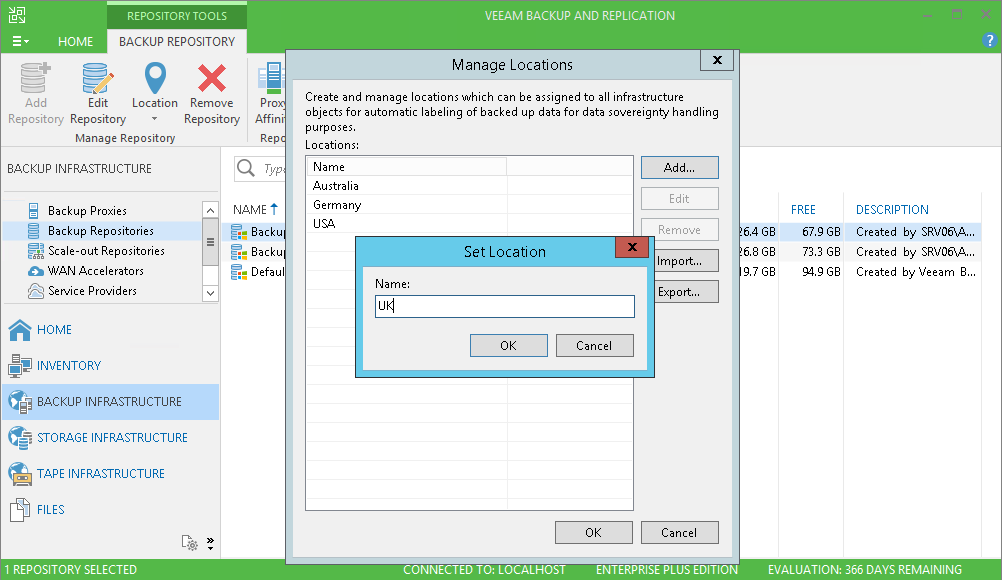
- Click OK to save our list and close the dialog.
- Then again, select the object, right-click and now select Location> <desired location>
Information about the location of objects is stored in the Veeam Backup & Replication configuration database.
Useful: If you have several Veeam Backup & Replication servers and you need to store a single list of locations on all servers, it is convenient to use the list export to an XML file and subsequent import.
When a VM moves from one location to another, Veeam displays a warning and writes the corresponding message to the task session, as well as to the Windows Event log. For example, if you backup VMs running on a host in Germany to a repository located in Australia, you will see a message about a possible violation of data sovereignty.
You can read more about location information in the user documentation for VMware or Hyper-V (for now, in English).
Integration with IBM Spectrum Virtualize and Lenovo Storage V Series storage systems
The latest version supports backup using hardware snapshots and recovery using Veeam Explorer for Storage Snapshots for IBM Storwize, IBM SAN Volume Controller (SVC) and others based on IBM Spectrum Virtualize, including, for example, Lenovo Storage V series and IBM / Cisco VersaStack.
Implemented the full range of features:
- Efficient (and “minimally invasive” for virtual infrastructure) backup using hardware snapshots.
- Quickly recover an entire VM or individual files using the Veeam Explorer for Storage Snapshots tool.
- You can use hardware snapshots to configure the “sandbox” On-Demand Sandbox
- In the Veeam console, you can configure both regular backup tasks and tasks for creating hardware snapshots (only snapshots) on the main and auxiliary storage.
And for manufacturers of storage systems now there is a Universal Storage Integration API, so now almost any of them will be able to integrate their system with Veeam Backup & Replication, creating their own plug-in.
Download the latest version of Veeam Backup & Replication here . And next time I’ll talk about new versions of Veeam Agents that came out simultaneously with Veeam Backup & Replication, as well as about what was updated in Veeam ONE.