December 8, 2017 at 19:13
3CX Deep Learning-Based Natural Speech Generation
- Tutorial
- Recovery mode
Introduction
Often we need to play back audio information that was not recorded in advance and is dynamically extracted from the data source: person’s name, city name, order status, etc. This feature is especially demanded in call centers and self-service portals.
To do this, it is best to use TTS (text-to-speech) technology, because it dynamically creates the necessary audio files, and the voice application running on the 3CX server loses them to the subscriber. A specific web service is used to generate audio files, after which a local WAV file is created. When the conversation with the subscriber is completed, the file is deleted to free up disk space.
For this feature, you must register an account with Amazon Web Services in 3CX. 3CX uses the Amazon Polly TTS web service. After studying various TTS services, we found out that Amazon Polly has excellent generation quality, good language coverage , many different voices and a very affordable price. It is also free for the first year of use! On the other hand, in the future we plan to add support for TTS from other world manufacturers.
Please note - for the operation of TTS generation, you must use 3CX v15.5 SP2 and higher. 3CX Call Flow Designer
Development Environmentreceived a new type of audio message Text to Speech Audio Prompt. You can select it in any place where you want to play the message, for example, in the components Prompt Playback, Menu, User Input and others.
In this article, we’ll show you how to create an Amazon Web Services account, enable Amazon Polly, and start using the Text to Speech Audio Prompt component to generate natural speech in your call center.
Please note that the 3CX CFD development environment is free. But voice applications will only run on the 3CX edition of Pro and Enterprise . You can download CFDs from here .
For your convenience, a demo project of this voice application is supplied with the 3CX CFD distribution kit and is located in the Documents \ 3CX Call Flow Designer Demos folder.
Create an Amazon Web Services Account (AWS)
Before you start using a CFD application, create an Amazon Web Services account. To do this, check out the Amazon tutorial .
Creating an Identity and Access Management (IAM) service user
After creating your AWS account, create a user whose credentials our voice application uses to access AWS. Follow the tutorial from Amazon. Specify the type of access Programmatic access. When setting permissions, select Attach existing policies directly, then find and check AmazonPollyFullAccess.
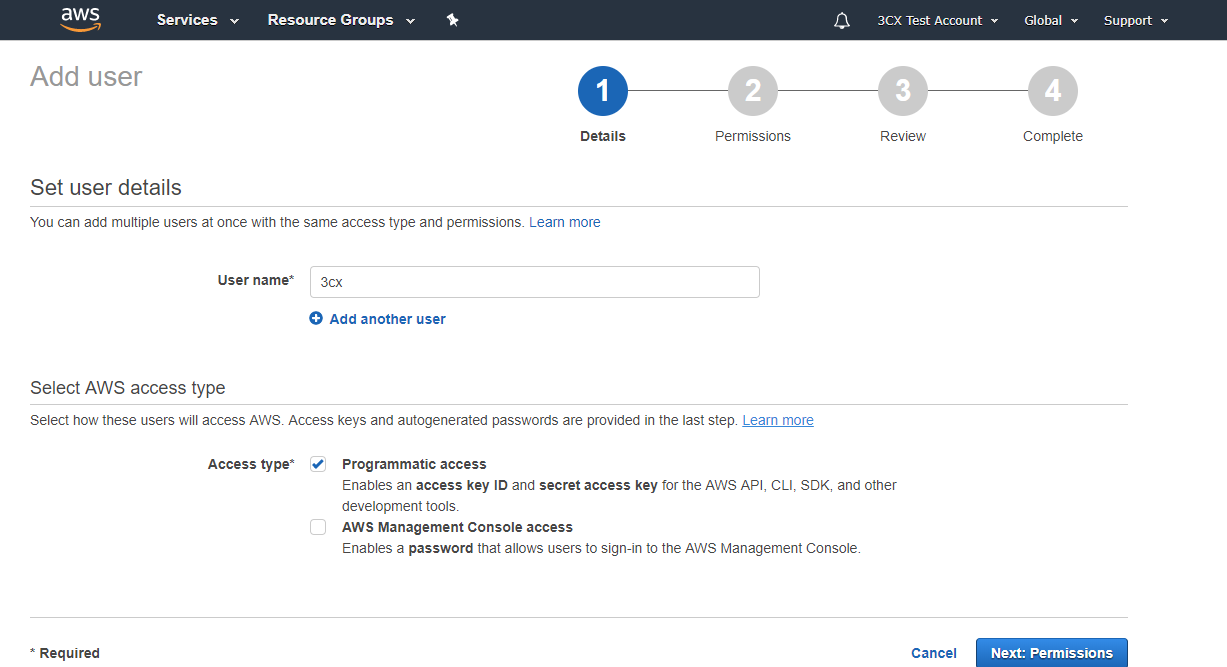
Then go to the user settings in the Security credentials section and click Create access key. Fix the Access key ID and Secret access key - this data will be required when setting up the TTS service in the voice application.

Attention! Check out TTS Amazon Polly's limitations . These restrictions should not be a problem in most CFD applications, but keep them in mind.
Project creation
To create a CFD project, go to File → New → Project, specify the project location folder and its name, for example, TextToSpeechDemo.
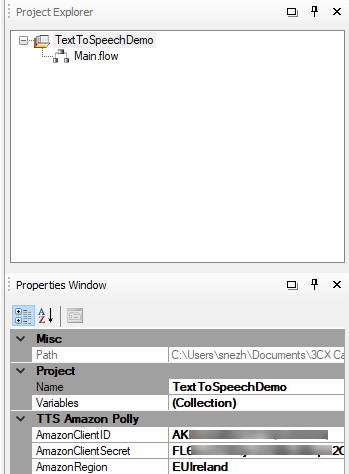
Highlight the project in the Project Explorer section. Consider the project parameters (Properties section) that must be specified for TTS to work:
- AmazonClientID - Access key ID generated above.
- AmazonClientSecret - Secret access key generated above.
- AmazonRegion - Select the AWS geographic region closest to the 3CX server location.
These parameters will be used in any message of type Text To Speech Audio Prompt in this project.
Adding a Prompt Playback Component
As mentioned earlier, TTS is usually used to generate speech from text received from a database or web service. But to simplify our example, we will prepare a short phrase, add a variable from our voice application to it, and translate all this into speech. We will define the AccountBalance variable and set its value to 100. Then we will prepare the phrase: “Your account balance is $ 100”.
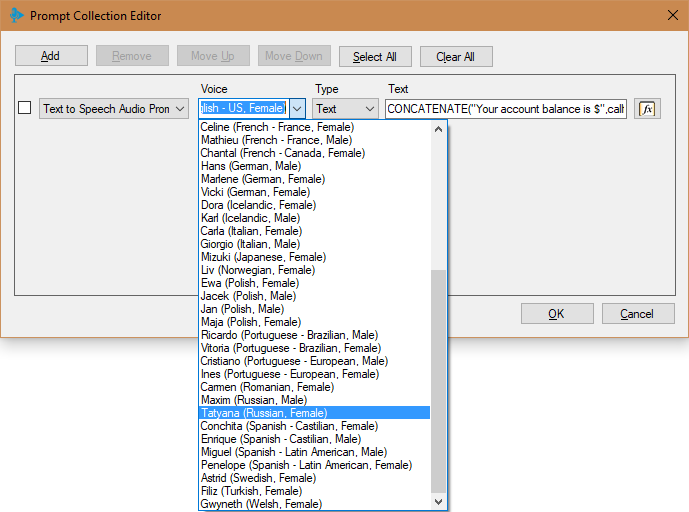
To add a Prompt Playback component:
- Move the Prompt Playback component to the application development window (Main callflow). Select the component and in the properties section rename it to playPrompt.
- There, open the Prompt Collection Editor by clicking the button next to the Prompts property.
- Click Add to add a new message to the collection and change the message type to Text to Speech Audio Prompt.
- Select the voice you want to use. The list of votes is sorted by language. The voices available for Amazon Polly are listed here . If Amazon releases a new voice that is not on the list, you can start using it by specifying an identifier from the Name / ID column. If you want a specific voice to always be installed in the application by default, select it in the menu 3CX CFD Tools> Options> Component Templates> Text To Speech. For our example, we will use the voice of Joanna (English - US, Female).
- Select your text type: Text and SSML (Speech Synthesis Markup Language). Typically, you will use Text. At the same time, the value of the Text property is an ordinary character set (plain text), and the TTS service will synthesize it as it is. If you specify an SSML type, the value of the Text property is an XML file according to the SSML specification. SSML allows you to set various speech parameters: pronunciation, volume, speed. For more information, see Using SSML . In our example, the type Text is used.
- Specify an expression for the Text option. Depending on the type of text selected in the previous step, the expression should return plain text for synthesis or XML data, in accordance with the SSML specification. For our example, we use the following expression:
CONCATENATE("Your account balance is $",callflow$.AccountBalance)
Compiling and installing the application on the 3CX server
The voice application is ready! Now it should be compiled and downloaded to the 3CX server. For this:
- Go to Build> Build All, and CFD will create the PredictiveDialerDemo.tcxvoiceapp file.
- Go to the 3CX management interface, under Call Queues. Create a new Call Queue, specify the name and extension of the Queue, and then set the Voice applications option and download the compiled file.
- Save the changes to the queue. Make a call to the Queue extension number to test the application. Please note - at the very first call to the application, TTS generation can be performed with a delay of several seconds. This is due to the authentication process and occurs only once.
Conclusion
Typically, synthesized speech uses several static messages, for example, a greeting for users or a menu option, and several dynamic ones, for example, account balance. It is advisable to use the Polly TTS service only for mutable data - this will avoid additional costs for the synthesis of repeated phrases. On the other hand, it is necessary that all phrases be pronounced in the same voice. To do this, it is best to create ready-made voice files for static phrases through the Amazon Polly console and load them as WAV files into a voice application. Use these files in regular Audio File Prompt messages instead of repeating dynamic generation.
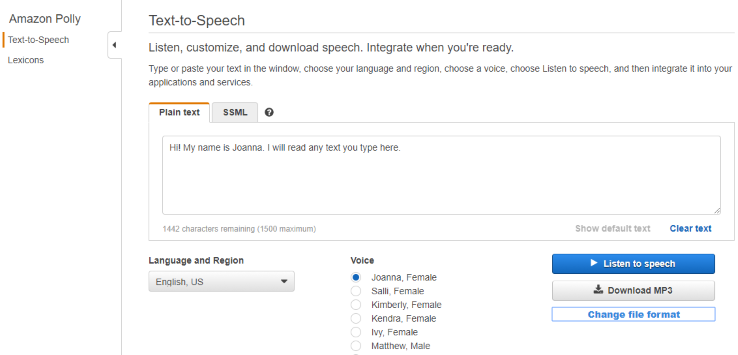
In the Amazon Polly console, select your language, region, desired voice, enter the desired text and click Download MP3. Please note that 3CX uses the sound format WAV, Mono, 8.000 Hz, 16 bits. Therefore, after downloading the file, convert it to a supported format, as indicated here .