How to create multiple VMFS datastores on a single disk device
In some specific situations, you may need to create several data stores on one disk device. As, for example, happened in our case.
On one of our Vsphere ESxi servers version 5.5, the Adaptec ASR72405 RAID adapter is installed with 24 connected 5 TB hard drives of the ST5000NM0024 brand. We decided to build RAID 60 on 22 disks and configure 2 more disks in hot-spare. This provided us with the necessary disk space at the maximum obtained access speed for streaming reading / writing - in the region of 3.5 gigabytes per second for writing and 3.3 gigabytes per second for reading. I draw attention once again that, according to the specifics of our task, we were interested in precisely the maximum speed during stream reading / writing.
However, the total capacity of the resulting volume (and the one we need for our task) is 81.826 terabytes, which exceeds the maximum supported ESXi 64TB. (This restriction is valid up to the latest version 6.5 at the moment) Creating two logical devices / RAID arrays of 10 disks each did not fit, since it reduced the maximum access speed by almost half and significantly reduced the total total storage size due to the increase in the number of disks allocated for parity (in two arrays of them, respectively, there will be 2 times more than in one) and hot-spare disks, since each RAID-60 array requires an even number of disks - i.e. 4 discs were forced to go to hot-spare. Initially, we tried to create two logical drives (volumes) using ½ of each hard drive for each volume, respectively, however, fault tolerance tests revealed an unpleasant feature (I would even call it a bug) of the logic of the Adaptec internal firmware in our configuration: when the hard disk crashed and the RAID array was rebuilt, the controller connected half of one hot-spare disk to one logical disk, and to the other - half of another hot-spare disk. And when replacing the disk with a working one - it was not able to finish the copying-back process and hung in the state of 99% for more than a week - we did not wait longer. At the same time, Adaptec does not provide any tools to find out the cause of this freeze and / or somehow manually restore logical drives. (Naturally, we used the latest available versions of firmware and raid management.) when the hard disk fails and the RAID array is rebuilt, the controller connected half of one hot-spare disk to one logical disk and half of another hot-spare disk to the other logical disk. And when replacing the disk with a working one - it was not able to finish the copying-back process and hung in the state of 99% for more than a week - we did not wait longer. At the same time, Adaptec does not provide any tools to find out the cause of this freeze and / or somehow manually restore logical drives. (Naturally, we used the latest available versions of firmware and raid management.) when the hard disk fails and the RAID array is rebuilt, the controller connected half of one hot-spare disk to one logical disk and half of another hot-spare disk to the other logical disk. And when replacing the disk with a working one - it was not able to finish the copying-back process and hung in the state of 99% for more than a week - we did not wait longer. At the same time, Adaptec does not provide any tools to find out the cause of this freeze and / or somehow manually restore logical drives. (Naturally, we used the latest available versions of firmware and raid management.) At the same time, Adaptec does not provide any tools to find out the cause of this freeze and / or somehow manually restore logical drives. (Naturally, we used the latest available versions of firmware and raid management.) At the same time, Adaptec does not provide any tools to find out the cause of this freeze and / or somehow manually restore logical drives. (Naturally, we used the latest available versions of firmware and raid management.)
Upon our appeal to Adaptec technical support, we received a recommendation to use hard disks in logical disks in whole, and not in part. Literally - "If all arrays do not complete the rebuild correctly, I would recommend you reconfigure the system to have several separate RAID arrays rather than the arrays spread across all the drives." For the reasons described above, this solution did not suit us.
Thus, we had a need to split a single RAID disk of almost 82 terabytes in size into two volumes of about 41 terabytes at the partition level on the disk using the operating system. Vsphere ESXi in our case. However, this feature is not supported through the GUI standard. ESXi allows you to create only one data store via the GUI on each connected drive, and although there is still free space on the disk, the GUI does not allow you to create another data store. Below you will find instructions on how to do this using the CLI.
First of all, you need to allow SSH access to your ESXi host. After that, find out exactly what your RAID array is called. This, for example, can be viewed through the GUI:

i.e., for all further operations, our disk will be called
Before starting disk partitioning, check the current state of the partition table and make sure that you do not have any existing partitions on this disk:
Next, check the maximum disk sector available for use:
Now you can create the necessary sections:
The first section is created from sector 2048 to sector 87031810047, the second from sector 87031810048 to sector 175720329182. In your case, these values will most likely be different. The identifier AA31E02A400F11DB9590000C2911D1B8 should be copied without changes, it means that a VMFS partition is being created. 0 after this identifier means that the partition will not be bootable.
If all values are correct, then you will get an answer
You can also check the resulting partition table:
This means that we have successfully created two partitions, and they have the names eui.3167ece000d00000: 1 and eui.3167ece000d00000: 2
Now it remains only to create data stores.
This is done by teams
and
If everything is done correctly, then after each run of the command you will see something like:
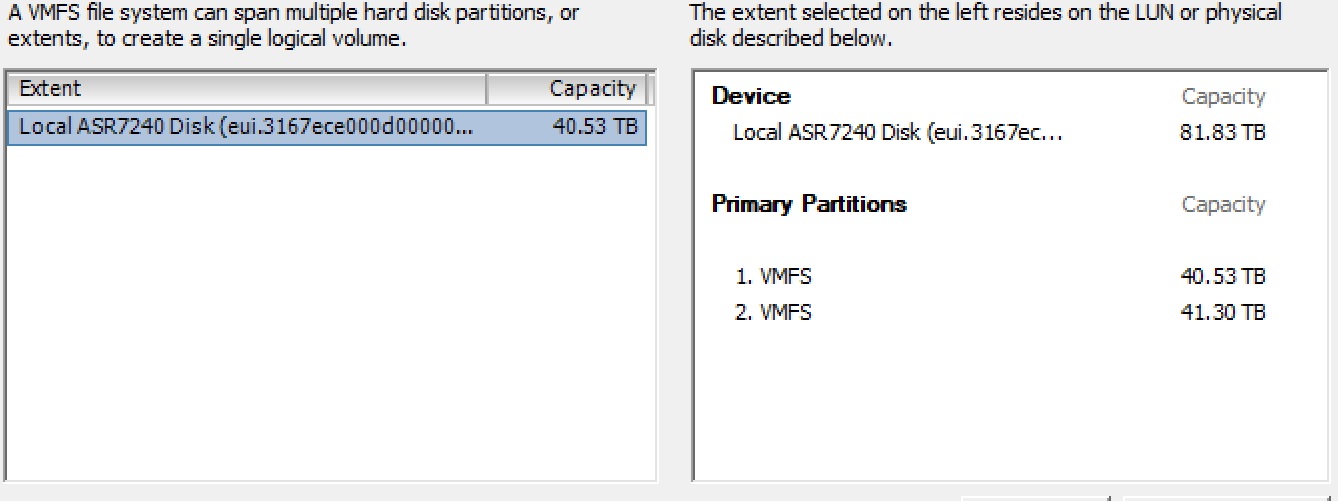
In a few seconds, both of your data stores will be available in the GUI:
More information on using these commands can be found here and here .
I would be glad if I saved someone a few hours. I will answer any questions.
Thank you for reading to the end.
On one of our Vsphere ESxi servers version 5.5, the Adaptec ASR72405 RAID adapter is installed with 24 connected 5 TB hard drives of the ST5000NM0024 brand. We decided to build RAID 60 on 22 disks and configure 2 more disks in hot-spare. This provided us with the necessary disk space at the maximum obtained access speed for streaming reading / writing - in the region of 3.5 gigabytes per second for writing and 3.3 gigabytes per second for reading. I draw attention once again that, according to the specifics of our task, we were interested in precisely the maximum speed during stream reading / writing.
However, the total capacity of the resulting volume (and the one we need for our task) is 81.826 terabytes, which exceeds the maximum supported ESXi 64TB. (This restriction is valid up to the latest version 6.5 at the moment) Creating two logical devices / RAID arrays of 10 disks each did not fit, since it reduced the maximum access speed by almost half and significantly reduced the total total storage size due to the increase in the number of disks allocated for parity (in two arrays of them, respectively, there will be 2 times more than in one) and hot-spare disks, since each RAID-60 array requires an even number of disks - i.e. 4 discs were forced to go to hot-spare. Initially, we tried to create two logical drives (volumes) using ½ of each hard drive for each volume, respectively, however, fault tolerance tests revealed an unpleasant feature (I would even call it a bug) of the logic of the Adaptec internal firmware in our configuration: when the hard disk crashed and the RAID array was rebuilt, the controller connected half of one hot-spare disk to one logical disk, and to the other - half of another hot-spare disk. And when replacing the disk with a working one - it was not able to finish the copying-back process and hung in the state of 99% for more than a week - we did not wait longer. At the same time, Adaptec does not provide any tools to find out the cause of this freeze and / or somehow manually restore logical drives. (Naturally, we used the latest available versions of firmware and raid management.) when the hard disk fails and the RAID array is rebuilt, the controller connected half of one hot-spare disk to one logical disk and half of another hot-spare disk to the other logical disk. And when replacing the disk with a working one - it was not able to finish the copying-back process and hung in the state of 99% for more than a week - we did not wait longer. At the same time, Adaptec does not provide any tools to find out the cause of this freeze and / or somehow manually restore logical drives. (Naturally, we used the latest available versions of firmware and raid management.) when the hard disk fails and the RAID array is rebuilt, the controller connected half of one hot-spare disk to one logical disk and half of another hot-spare disk to the other logical disk. And when replacing the disk with a working one - it was not able to finish the copying-back process and hung in the state of 99% for more than a week - we did not wait longer. At the same time, Adaptec does not provide any tools to find out the cause of this freeze and / or somehow manually restore logical drives. (Naturally, we used the latest available versions of firmware and raid management.) At the same time, Adaptec does not provide any tools to find out the cause of this freeze and / or somehow manually restore logical drives. (Naturally, we used the latest available versions of firmware and raid management.) At the same time, Adaptec does not provide any tools to find out the cause of this freeze and / or somehow manually restore logical drives. (Naturally, we used the latest available versions of firmware and raid management.)
Upon our appeal to Adaptec technical support, we received a recommendation to use hard disks in logical disks in whole, and not in part. Literally - "If all arrays do not complete the rebuild correctly, I would recommend you reconfigure the system to have several separate RAID arrays rather than the arrays spread across all the drives." For the reasons described above, this solution did not suit us.
Thus, we had a need to split a single RAID disk of almost 82 terabytes in size into two volumes of about 41 terabytes at the partition level on the disk using the operating system. Vsphere ESXi in our case. However, this feature is not supported through the GUI standard. ESXi allows you to create only one data store via the GUI on each connected drive, and although there is still free space on the disk, the GUI does not allow you to create another data store. Below you will find instructions on how to do this using the CLI.
First of all, you need to allow SSH access to your ESXi host. After that, find out exactly what your RAID array is called. This, for example, can be viewed through the GUI:
i.e., for all further operations, our disk will be called
/vmfs/devices/disks/eui.3167ece000d00000Before starting disk partitioning, check the current state of the partition table and make sure that you do not have any existing partitions on this disk:
~ # partedUtil getptbl /vmfs/devices/disks/eui.3167ece000d00000
gpt
10938084 255 63 175720329216
Next, check the maximum disk sector available for use:
~ # partedUtil getUsableSectors  /vmfs/devices/disks/eui.3167ece000d00000
34 175720329182
Now you can create the necessary sections:
~ # partedUtil setptbl "/vmfs/devices/disks/eui.3167ece000d00000" gpt "1 2048 87031810047 AA31E02A400F11DB9590000C2911D1B8 0" "2 87031810048 175720329182 AA31E02A400F11DB9590000C2911D1B8 0"The first section is created from sector 2048 to sector 87031810047, the second from sector 87031810048 to sector 175720329182. In your case, these values will most likely be different. The identifier AA31E02A400F11DB9590000C2911D1B8 should be copied without changes, it means that a VMFS partition is being created. 0 after this identifier means that the partition will not be bootable.
If all values are correct, then you will get an answer
gpt
0 0 0 0
1 2048 87031810047 AA31E02A400F11DB9590000C2911D1B8 0
2 87031810048 175720329182 AA31E02A400F11DB9590000C2911D1B8 0
You can also check the resulting partition table:
~ # partedUtil getptbl /vmfs/devices/disks/eui.3167ece000d00000
gpt
10938084 255 63 175720329216
1 2048 87031810047 AA31E02A400F11DB9590000C2911D1B8 vmfs 0
2 87031810048 175720329182 AA31E02A400F11DB9590000C2911D1B8 vmfs 0
This means that we have successfully created two partitions, and they have the names eui.3167ece000d00000: 1 and eui.3167ece000d00000: 2
Now it remains only to create data stores.
This is done by teams
~ # /sbin/vmkfstools -C vmfs5 -b 1m -S Data1 /vmfs/devices/disks/eui.3167ece000d00000:1 and
~ # /sbin/vmkfstools -C vmfs5 -b 1m -S Data2 /vmfs/devices/disks/eui.3167ece000d00000:2If everything is done correctly, then after each run of the command you will see something like:
create fs deviceName:'/vmfs/devices/disks/eui.3167ece000d00000:1', fsShortName:'vmfs5', fsName:'Data1'
deviceFullPath:/dev/disks/eui.3167ece000d00000:1 deviceFile:eui.3167ece000d00000:1
Checking if remote hosts are using this device as a valid file system. This may take a few seconds...
Creating vmfs5 file system on "eui.3167ece000d00000:1" with blockSize 1048576 and volume label "Data1".
Successfully created new volume: 59e14137-1e03a524-12db-002590826ec4
In a few seconds, both of your data stores will be available in the GUI:
More information on using these commands can be found here and here .
I would be glad if I saved someone a few hours. I will answer any questions.
Thank you for reading to the end.