October 11, 2017 at 12:07
20 Linux command line tricks to save you a ton of time
- Transfer
The topic of useful Linux terminal tricks is inexhaustible. It would seem - everything is arranged very simply: a shell prompt, and commands entered from the keyboard. However, in this simplicity lies the abyss of unobvious, but useful features. That is why we regularly publish materials on Linux command line features. In particular, today it will be a translation of an article whose author is passionate about saving time through increasing labor productivity.
If you are interested in working on the Linux command line, here are some of our material on this topic:

Have you ever seen a colleague use some simple Linux commands to solve problems that take you a few lines? It must have been when this happened, you could only say to yourself: “Well, nothing to yourself! I didn’t know that it could be done so simply. ”
In this article, I will show you some professional Linux command-line tricks that will save you a lot of time and in some cases relieve you from a bad mood. Not only will your friends or colleagues say, “Well, you must!” Looking at you. These techniques will also help you increase your personal productivity, as you will need to enter fewer commands and even make fewer clicks.
This is not to say that these Linux tips are for beginners only. It is possible that even experienced users will find something useful here, something that they did not know about despite using Linux for many years. Linux learn from experience. Here will fit both your own experience and the experience of other people.
Before we begin, I want to note that some of the methods given here depend on the configuration of the shell.
I'll start with something quite obvious, but very important: with command completion using the key
When you start typing something in the Linux terminal, you can press a key
For example, when you are going to copy a file with a name

Using the Tab key to auto-complete input
Key
Imagine that you worked in a directory that is not so easy to get to, and then moved to another directory located in a completely different place. Then you realized that you need to return to the previous directory. In this case, just use the following command:
It will allow you to be in the last working directory. Now in such situations, you will no longer need to enter long paths, or use copy and paste.
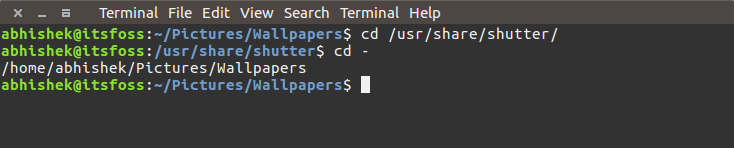
Easy switching between directories
This technique is also very obvious. You can use the command below to return to your home directory from anywhere:
However, you can return to your home directory even faster - using the command
On most modern Linux distributions, the shell is preconfigured for just that kind of perception of the command

The fastest way to go to your home directory
You might be wondering what the subtlety of using a command is to display the contents of a directory. Everyone knows that a team serves for this purpose
But that’s the whole point. Almost everyone uses a command
The performance of this command depends on the Linux distribution and on the configuration of the shell, but it is very likely that you can use it in most distributions.
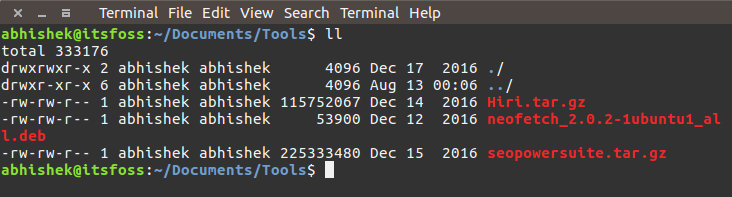
Using ll instead of ls -l
Imagine you need to execute several commands in sequence. Perhaps you enter one command, then wait for it to finish, then enter the next?
In such a situation, the command separator
We just looked at a way to invoke multiple commands on the same line. It saves time. But what if you need, say, when calling two commands, so that the next command is executed only if the previous one ends without errors?
Imagine that you want to assemble the code, and then, if the assembly was successful, call
In this situation, you can use a delimiter
Here is a good usage example
Imagine that you, a couple of minutes or a couple of hours ago, entered a long command, and again you need this command. Moreover, the problem is that you cannot remember exactly this command.
In a similar situation, the reverse search will save you. This technique allows you to search in the history of teams by keyword. It’s enough to use a key combination
By default, only one result will be shown. In order to see more results that match your query, you will need to use the key combination
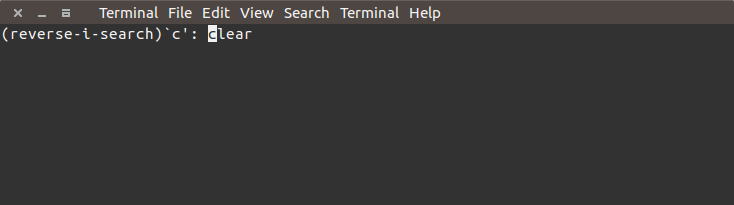
Reverse search for command history
Note that in some Bash shells you can use the
You may be used to using a key combination
If earlier, in order to correct the situation, you had to close and restart the terminal - now you can breathe calmly, you will not have to do this again. In order to bring the terminal to working condition, just use the key combination
Imagine that you enter a long command and somewhere in the middle you understand that you must change something at the beginning. You are probably using the arrow keys to move to the beginning of the line first and then back to the end.
Of course, in a similar situation, you can use the
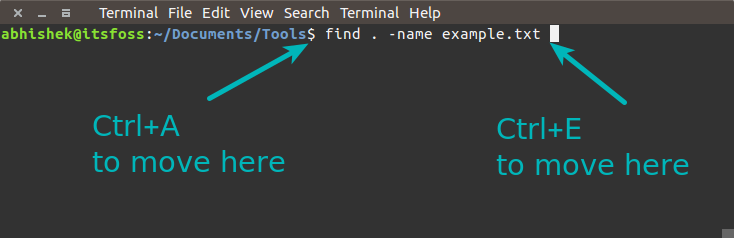
Moving to the beginning or the end of a line
seems to me more convenient than using keys
When you need to analyze log files into which, during analysis, some running application writes data, you can use the command
In addition, you can use the command
You can also use the option here
Server logs are typically compressed with help
Here, a group of teams comes to help us, whose name begins with the letter "z". These commands are an alternative to the usual commands that are used to work with log files. Among them - the
So, using commands
By the way, when I told my colleague about these "secret" teams, I got a cup of coffee.
If you need to view a file, especially a large one, you can try the command
To view files, you can use editors like Vi or Vim that work in the terminal, but if you just need to read the file, the command will be very helpful
During a session with,
In many situations, it’s very useful to use the argument of the previous command.
Suppose you need to create a directory, and then go into it. Here you can use the option
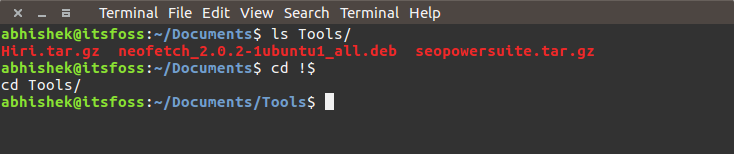
Using! $ To use the argument of the last command.
Even better, the same thing is done using the keyboard shortcut
With the help,
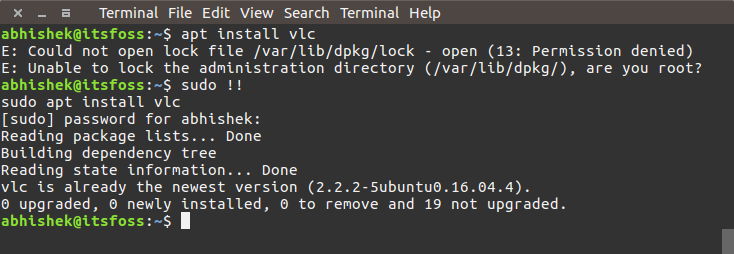
Take advantage !!! to substitute the last command as an argument
You may already be familiar with the team
For example, it may happen that you often type in
Now you do not have to retype this command if you enter its name incorrectly.
This tip is somewhat ambiguous, as it depends on the Linux distribution and on the terminal.
But usually copy and paste commands can be invoked as follows:
Perhaps what I want to advise here is quite obvious, however, I’ll tell you about it anyway. If the command is executed in the foreground and you want to exit it, you can press the keys
If you have to work with some commands or scripts that involve user interaction, and you know that you will enter
If you want to clear the contents of a text file without deleting the file itself, you can use the following command:
The Linux command line supports many ways to find information. However, if you just need to find out if there are files in a certain directory that contain certain text, you can use this command:
However, I advise everyone who needs a Linux search to figure out what the team should do
I want to complete this material with one very obvious, but, nevertheless, very important "trick", which is to call help for a command or command line tool.
Almost all command line tools contain help information that reveals the features of their use. Typically, reading the help helps you understand the basics of the team. Help can be called up like this:
I intentionally did not include commands like fuck in this material , since they are not from the standard tools that can be found literally everywhere. What I talked about here can be beneficial when working with almost all Linux distributions and command line shells without the need to install new programs.
Dear readers! You may already be familiar with some of the Linux command usage methods listed here, or you may know all of them. In any case, we invite you to share your favorite tricks in the comments.
- [ +114 ] The most useful Linux command line tricks
- [ +70 ] 10 work methods in the Linux terminal, which few people know about
- [ +65 ] Surprisingly useful tool: lsof
- [ +32 ] Linux: redirection
- [ +29 ] PDF version of articles about bash scripts
Linux Command Line Tricks and Time Saving
Have you ever seen a colleague use some simple Linux commands to solve problems that take you a few lines? It must have been when this happened, you could only say to yourself: “Well, nothing to yourself! I didn’t know that it could be done so simply. ”
In this article, I will show you some professional Linux command-line tricks that will save you a lot of time and in some cases relieve you from a bad mood. Not only will your friends or colleagues say, “Well, you must!” Looking at you. These techniques will also help you increase your personal productivity, as you will need to enter fewer commands and even make fewer clicks.
This is not to say that these Linux tips are for beginners only. It is possible that even experienced users will find something useful here, something that they did not know about despite using Linux for many years. Linux learn from experience. Here will fit both your own experience and the experience of other people.
Before we begin, I want to note that some of the methods given here depend on the configuration of the shell.
0. Command completion using the Tab key
I'll start with something quite obvious, but very important: with command completion using the key
Tab. When you start typing something in the Linux terminal, you can press a key
Tab, after which a prompt will be displayed containing a set of options for continuing input, starting with the characters you just entered. For example, when you are going to copy a file with a name
my_best_file_1.txt, you can simply enter cp mand click Tabin order to see possible options for continuing the command.Using the Tab key to auto-complete input
Key
Tabcan be used for auto-completion of commands.1. Go to the last working directory
Imagine that you worked in a directory that is not so easy to get to, and then moved to another directory located in a completely different place. Then you realized that you need to return to the previous directory. In this case, just use the following command:
cd -It will allow you to be in the last working directory. Now in such situations, you will no longer need to enter long paths, or use copy and paste.
Easy switching between directories
2. Return to the home directory
This technique is also very obvious. You can use the command below to return to your home directory from anywhere:
cd ~However, you can return to your home directory even faster - using the command
cd. On most modern Linux distributions, the shell is preconfigured for just that kind of perception of the command
cd. This will save you a couple of keystrokes on your keyboard.The fastest way to go to your home directory
3. Displaying the contents of the directory
You might be wondering what the subtlety of using a command is to display the contents of a directory. Everyone knows that a team serves for this purpose
ls -l. But that’s the whole point. Almost everyone uses a command
ls -lto display the contents of directories, while the same thing can be done with the following command:llThe performance of this command depends on the Linux distribution and on the configuration of the shell, but it is very likely that you can use it in most distributions.
Using ll instead of ls -l
4. Call of several teams in one line
Imagine you need to execute several commands in sequence. Perhaps you enter one command, then wait for it to finish, then enter the next?
In such a situation, the command separator
;(semicolon) will be useful . With this approach, you can enter several commands on one line. At the same time, in contrast to the usual input of commands, you do not have to wait for the previous command to complete the next command.command_1; command_2; command_35. The execution of several commands on one line and the condition for the successful completion of the previous command
We just looked at a way to invoke multiple commands on the same line. It saves time. But what if you need, say, when calling two commands, so that the next command is executed only if the previous one ends without errors?
Imagine that you want to assemble the code, and then, if the assembly was successful, call
make? In this situation, you can use a delimiter
&&. This separator ensures that the next command will be executed only if the previous one succeeds.command_1 && command_2Here is a good usage example
&&:sudo apt update && sudo apt upgrade6. Simple search and use of previously entered commands
Imagine that you, a couple of minutes or a couple of hours ago, entered a long command, and again you need this command. Moreover, the problem is that you cannot remember exactly this command.
In a similar situation, the reverse search will save you. This technique allows you to search in the history of teams by keyword. It’s enough to use a key combination
Ctrl + Rto start a reverse search and enter something related to the command. The system will review the history of the commands and show the commands corresponding to the entered query.Ctrl + R search_termBy default, only one result will be shown. In order to see more results that match your query, you will need to use the key combination
Ctrl + Ragain and again. To exit reverse search mode, press Ctrl + C.Reverse search for command history
Note that in some Bash shells you can use the
Page Upand keys to iterate over search results Page Down.7. Unlocking the terminal after accidentally pressing Ctrl + S
You may be used to using a key combination
Ctrl + Sto save files. But if you press these keys in a Linux terminal, you will block it. If earlier, in order to correct the situation, you had to close and restart the terminal - now you can breathe calmly, you will not have to do this again. In order to bring the terminal to working condition, just use the key combination
Ctrl + Q.8. Move to beginning or end of line
Imagine that you enter a long command and somewhere in the middle you understand that you must change something at the beginning. You are probably using the arrow keys to move to the beginning of the line first and then back to the end.
Of course, in a similar situation, you can use the
Homeand keys End, but, as an option, using the key combination Ctrl + Ayou can go to the beginning of the line, and using the combination Ctrl + E — to the end.Moving to the beginning or the end of a line
seems to me more convenient than using keys
Homeand End, especially, when I work on a laptop.9. Reading log files in real time
When you need to analyze log files into which, during analysis, some running application writes data, you can use the command
tailwith the option -f.tail -f path_to_LogIn addition, you can use the command
grepin its usual form to display only those lines that interest you:tail -f path_to_log | grep search_termYou can also use the option here
F. This will lead to the fact that the utility tailcontinues to work even if the log file being viewed is deleted. With this approach, if this file is created again, it will tailcontinue to display data from it on the screen.10. Reading compressed log files without unpacking them
Server logs are typically compressed with help
gzipto save disk space. This can lead to some inconvenience when analyzing logs by developers or system administrators. You may need to use the scp command to copy the file to your local directory, and then extract the file from the archive in order to view it, as you may not have write permissions to where the file of interest is stored. Here, a group of teams comes to help us, whose name begins with the letter "z". These commands are an alternative to the usual commands that are used to work with log files. Among them - the
less, cat, grep, and others. So, using commands
zless, zcat,zgrepand the like, you don’t have to explicitly decompress the compressed files. Details about these commands can be found here . By the way, when I told my colleague about these "secret" teams, I got a cup of coffee.
11. Using the less command to read files
If you need to view a file, especially a large one, you can try the command
cat, but it is much better to look for something else. The fact is that it catwill display the entire file, which is not so convenient. To view files, you can use editors like Vi or Vim that work in the terminal, but if you just need to read the file, the command will be very helpful
less.less path_to_fileDuring a session with,
lessyou can search for the necessary text fragments by keywords, navigate through the pages, display data with line numbers, and so on.12. Reusing the last item from a previous command with! $
In many situations, it’s very useful to use the argument of the previous command.
Suppose you need to create a directory, and then go into it. Here you can use the option
!$by entering the jump command after the directory creation command.Using! $ To use the argument of the last command.
Even better, the same thing is done using the keyboard shortcut
Alt +.(dot). A point can be used several times to iterate over the options of the last command.13. Using the previous command in the current command with !!
With the help,
!!you can call the entire previous command. This technique is especially useful when you need to execute a command and it turns out that you need superuser privileges to execute it. For example, the figure below shows a situation in which a command sudo !!saves a lot of time.Take advantage !!! to substitute the last command as an argument
14. Using aliases to correct input errors
You may already be familiar with the team
alias. It can be used to correct errors in the entered commands. For example, it may happen that you often type in
gerpinstead grep. If you can’t cope with a bad habit, write the alias to your file bashrcas follows:alias gerp=grepNow you do not have to retype this command if you enter its name incorrectly.
15. Copy and paste in a Linux terminal
This tip is somewhat ambiguous, as it depends on the Linux distribution and on the terminal.
But usually copy and paste commands can be invoked as follows:
- Select the text you want to copy and right-click to paste it (works in Putty and other SSH clients for Windows).
- Select the text you want to copy, then click the central mouse button (scroll wheel) to paste it.
- Use keyboard shortcuts
Ctrl + Shift + Cto copy andCtrl + Shift + Vpaste.
16. Completion of a team or process
Perhaps what I want to advise here is quite obvious, however, I’ll tell you about it anyway. If the command is executed in the foreground and you want to exit it, you can press the keys
Ctrl + Cin order to stop it.17. Using yes to automate interactive commands or scripts
If you have to work with some commands or scripts that involve user interaction, and you know that you will enter
Yprograms in response to each question, you can automate this process using the command yes. It is done like this:yes | command_or_script18. Clearing the contents of a file without deleting the file itself
If you want to clear the contents of a text file without deleting the file itself, you can use the following command:
> filename19. Finding out the presence in the directory of files containing certain text
The Linux command line supports many ways to find information. However, if you just need to find out if there are files in a certain directory that contain certain text, you can use this command:
grep -Pri Search_Term path_to_directoryHowever, I advise everyone who needs a Linux search to figure out what the team should do
find.20. Call help for any team
I want to complete this material with one very obvious, but, nevertheless, very important "trick", which is to call help for a command or command line tool.
Almost all command line tools contain help information that reveals the features of their use. Typically, reading the help helps you understand the basics of the team. Help can be called up like this:
command_tool --helpSummary: share useful tips!
I intentionally did not include commands like fuck in this material , since they are not from the standard tools that can be found literally everywhere. What I talked about here can be beneficial when working with almost all Linux distributions and command line shells without the need to install new programs.
Dear readers! You may already be familiar with some of the Linux command usage methods listed here, or you may know all of them. In any case, we invite you to share your favorite tricks in the comments.