Design for iPhone X
- Transfer
- Tutorial
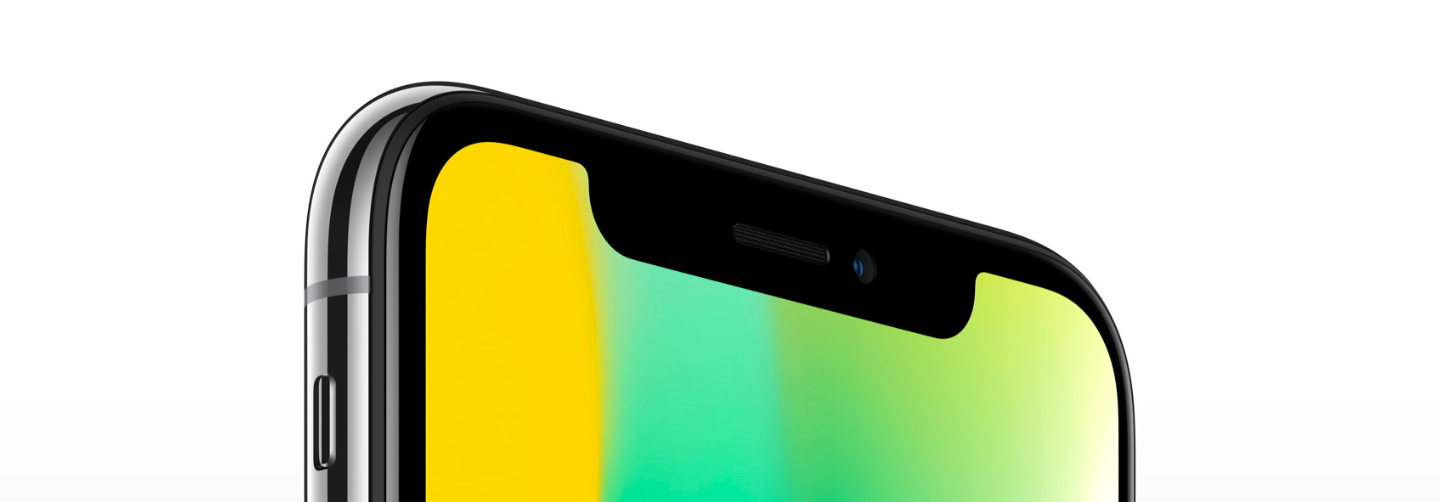
iPhone X (or iPhone 10) is already officially unveiled, and its release is scheduled for November 3 this year. This device can safely boast of one of its characteristics: Super Retina Display (liquid crystal display) with a resolution of 1125 × 2436 pixels. In addition, a special notch will be provided at the top of the screen - another futuristic feature of unlocking the new iPhone, thanks to which the device identifies you by your facial features.
Designing applications for the iPhone X may seem like a daunting task for developers, however, on the other hand, the new iPhone gives them the opportunity to bring their wildest ideas to life. The screen width of the device in vertical mode is the same as that of the iPhone 6, 7 and 8, but the screen height has been increased by 145pt, resulting in a visual increase of 20%. To create @ 1x-layouts you need an artboard with the following parameters: 375 × 812px. As a result of using the new Retina-display in iPhone X, you will not be able to export @ 2x-images (for example, as it was in iPhone 8), however, as for @ 3x, then, as in the case of iPhone 7-8 Plus, here everything remains as before.
When designing apps for your new iPhone, try keeping UI in mind., as well as new unique features of the device: rounded corners, a notch provided at the top of the screen, a home indicator. By the way, in the new version of the iPhone, the home indicator will be a small line located at the bottom of the screen. As you may have guessed, the physical “home” button on the iPhone X will be gone. Thus, the transition to the main screen or to multitasking mode, or from one application to another will be carried out by touching the screen.
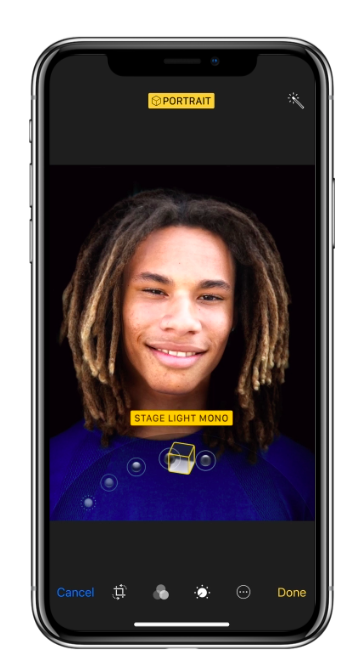
^ The white line at the bottom of the screen is a new kind of home indicator.
If you created an application using the built-in iOS components, then you can not worry - your application has already been successfully adapted for the new iPhone. These components include: navigation panels, tables, tab panels. In iPhone X, such components will be automatically integrated and positioned.
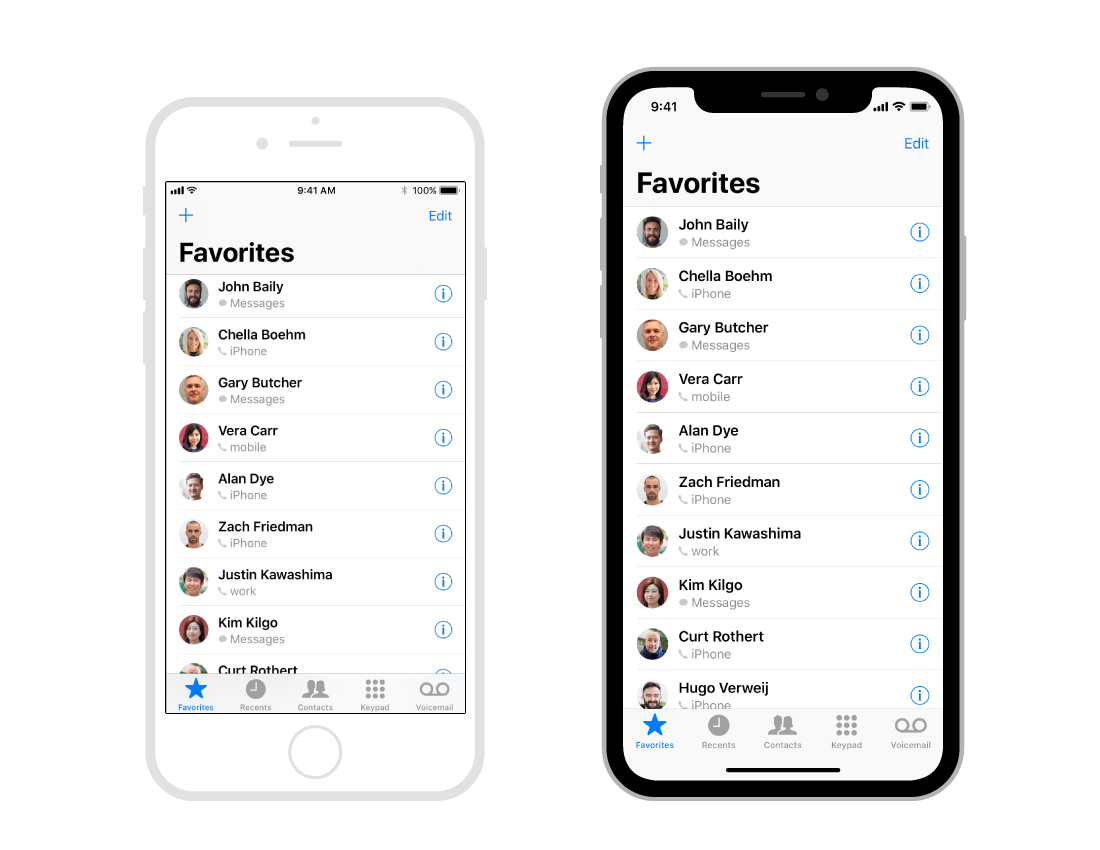
^ Design application for iPhone 8, located on the left, automatically adapts to iPhone X (the one on the right)
If you use a custom grid in your application, you will have to adapt it to the new screen configuration. Nevertheless, if you applied Auto Layout in your application, then the adaptation should not cause you any difficulties.
Let's get started
First of all, evaluate the design of the new device, because Apple developers did not work so hard to ignore the extraordinary characteristics of this expensive device.
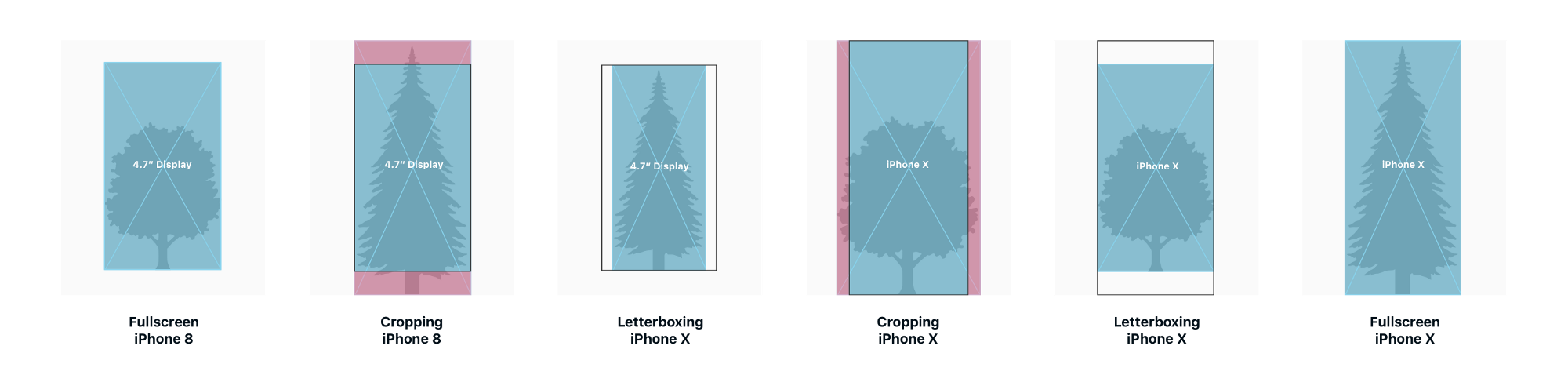
Focus on developing full-screen applications. Let all the elements of your application scroll to the end of the screen and go beyond the rounded edges of the display. Apple recommends that you do not block the upper recess and lower rounded edges with other elements. Thus, try not to place black frames at the edges of the screen: this solution was used for the iPhone 8 and has long been outdated.
Place important content in the center and indent on both sides.Make sure that important content is centered and there are symmetrical indents on both sides, so that the interface will not be cut off by the sensors or corners of the device. In the event that you used Auto Layout to create the application, the content will be placed automatically, as a result of which the corners of the screen, as well as the sensors and home indicator will not obscure the design of your application.
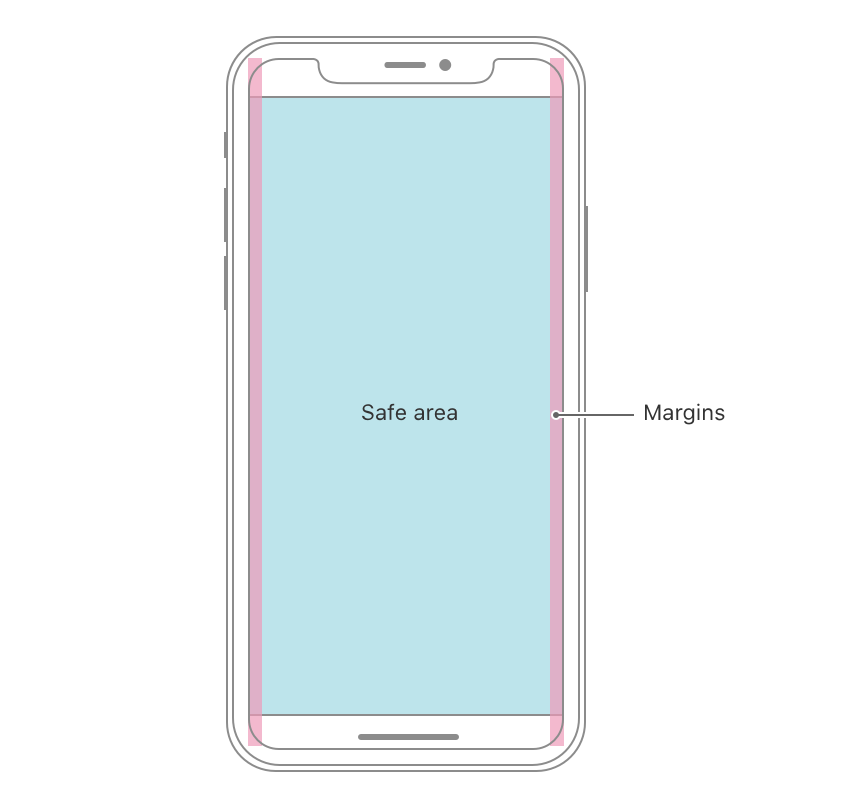
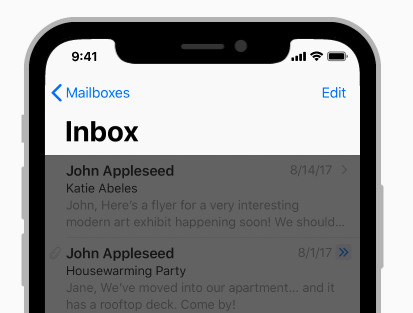
Consider updates made to the status bar. As a result of the fact that in the new iPhone the sensors are located at the top of the display, the status bar has also undergone changes: now it is divided into two parts. If the interface of your application in any way uses this space - which until recently was 20pt, and now - 44pt - then you will have to update the interface, since it will be longer on iPhone X. Also make sure that the interface will not change during a phone call or when using other applications (such as a navigation application), which is a common problem for previous versions of the iPhone.

^ split and higher status bar
Do not hide the new status bar. Apple advises against using solutions in which the status bar is hidden. Since the screen of the new iPhone is longer than the previous devices, you can use more space to place your content and, without hiding the status bar, you can achieve greater efficiency. For example, information that interests users can be placed in the status bar, especially since most of the time this space is not used by other interface elements.
Update full screen images. If your application currently uses full-screen images, they will need to be updated for iPhone X, as they may be cropped, as a result of which some important content will be hidden.
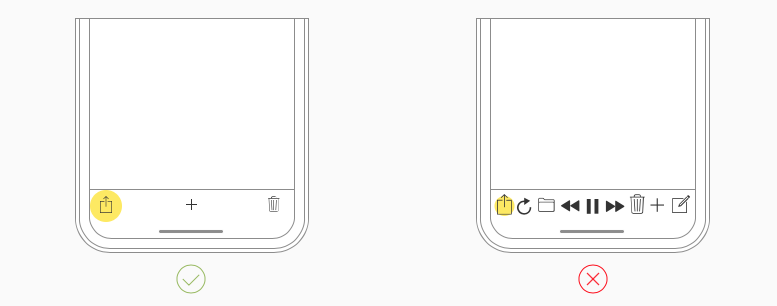
Do not place controls at the bottom of the screen. The empty space around the home indicator was specially provided so that the user could easily return to the main menu with a single touch. Placing function buttons next to this indicator or at the bottom, in the corners of the display is far from the best idea. In this case, there is a high probability that users will accidentally touch the home indicator, as a result of which your interface will be considered uncomfortable. Of course, you can place a tab bar or other function buttons next to the home indicator, however, do it in such a way that they do not interfere with each other.
The home indicator should be constantly visible to users. IOS provides a function to hide the home indicator for your application: if the user does not touch the screen for several seconds, the home indicator automatically hides, and when you press the screen again, it reappears. Often, this solution is used to view videos and images. It is also worth noting that in the new iPhone, the color of the home indicator automatically changes depending on the background color of your application.

More colors. The new Super Retina Display provides even more colors: the P3 color model has replaced sRGB, which means that the colors have become even brighter and more saturated. Such an innovation will be especially noticeable when watching videos or photos.
(For the first time, the P3 color model was used in the iPhone 7; this idea belongs to Marcelo Ávalos )
Be careful when setting up custom gestures.Since the iPhone X will no longer have a home button, users will have to interact with this device (more than ever) with just gestures. When fingers touch the screen, the user enters the main menu or multifunction mode. In addition, when moving the home indicator left or right, the user can switch between open applications in multifunctional mode. In order to go to the “Notification” section or to the Control Center, simply drag the screen down. Games may have their own special gestures that cancel standard iOS gestures. You can also set your own gestures in “edge protect” - features of the new iPhone, thanks to which you can set your own unique gestures on top of gestures standard for iOS (however, only once).
Face id. In previous versions of the iPhone, an excellent feature was provided - Touch ID - thanks to which users could unlock their devices, as well as set a password for some applications, which was unlocked using their fingerprints. This sensor was placed in the "home" button. Since this feature is no longer in the iPhone X, Apple developers decided to present their fans a safer and more effective replacement - Face ID. To create such a feature, the developers used truly breathtaking algorithms with which the device determines the facial features of its owner. Undoubtedly, this feature will bring a lot of new things to the application interface. Try to use this innovation when working with your (not distressed) customers - the happy owners of iPhone X.
User keyboard . When developing a custom keyboard, you no longer need to specifically add Emoji buttons, as well as dictation buttons: they are already automatically added at the bottom of the keyboard, next to the home indicator.
Enlarged navigation bar . With the release of iOS 11, the design of the original navigation bar has undergone some changes, for example, the latter has become longer. Such an innovation will go well with a longer iPhone X and a new status bar compared to its predecessors. So consider all this during the development of the next application and its design. In addition, a feature has been added for the new navigation panel that displays images while scrolling.
TL; DR
- Phone X will be 145pt longer, so use 375 × 812pt instead of 375x667pt for design.
- IPhone X uses @ 3x.
- Develop full-screen applications - do not hide the unique characteristics of the new device.
- Place important content in the middle so that the sensors and corners of the device do not obscure it.
- The new status bar has now become longer, it is divided into two parts, and its length is 44pt instead of 22pt.
- Refresh full-screen images to display them on your new device accordingly.
- Do not place the buttons at the bottom of the device screen, next to the home indicator.
- Do not hide the home indicator: this solution should be used only in case of emergency.
- Now you can enjoy brighter and more saturated colors thanks to P3.
- Set custom gestures for buttons next to the status bar or home indicator so that users don’t confuse them with their usual native gestures.
- Since Face ID has replaced Touch ID, you need to update your UI : remove all references to Touch ID.
- When developing a custom keyboard, do not add Emoji- and dictation buttons.
- The longer navigation bar is particularly well suited to the iPhone X's extended display.
How to check your application in advance?
For this purpose, you can use the Xcode 9 simulator, thanks to which you can determine in advance whether the UI of your application needs to be updated or not.