August 26, 2017 at 15:22
Aliases (bash aliases) for Laravel
- Transfer

Bash aliases (“aliases”) are shortcuts to files that allow you to link to another command through more memorable words, abbreviations or characters. For example, if you use Git, you can run the git status many times during the day, therefore, to save time and the number of keystrokes, you can assign it an alias that will invoke the correct command.
I have seen many unusual pseudonyms over the years, and many of them are unique to humans. Shortcuts that make sense for one can completely confuse the other. That's what makes them so funny.
To have an idea of what others are doing, I asked the community to share their aliases with me, and many answered me. I was surprised at how many people do aliases for the Artisan team. However, each has its own label template, for example, "
a"," pa"or" art"for the team php artisan. There is another unique team -" nah":nah='git reset --hard;git clean -df'This can be really demonstrated: imagine that you started working on a new function and, possibly, added some new files, and after lunch decided that everything was done incorrectly. By running the "
nah" command , you will return the code to its previous state, deleting all the changes made. It is very convenient and useful!How to create your own aliases
For those who don't create bash aliases, the process is pretty simple. First, open the file
~/.bashrcin your home directory with a text editor . Then uncomment or add the following lines:if [ -f ~/.bash_aliases ]; then
. ~/.bash_aliases
fiThe command seems to be talking about the need to download the file
~/.bash_aliases, if it exists, so you can put all your aliases (aliases) into it and facilitate their sharing. Finally, create a file ~/.bash_aliasesand add the following as your first alias:alias art="php artisan"Save the changes and execute the command in the terminal:
source ~/.bashrcYou now have the option to use alias "
art". Just remember that every time after changing the file
~/.bash_aliasesyou need to run this command, or restart the terminal to apply the changes.Community Laravel Aliases
The following is a list of aliases used by the Laravel community:
Wavehack
# Laravel
artisan() {
  if [ -f bin/artisan ]; then
    php bin/artisan "$@"
  else
    php artisan "$@"
  fi
}
alias serve='artisan serve'
alias tinker='artisan tinker'
# Misc PHP
t() {
  if [ -f vendor/bin/phpunit ]; then
    vendor/bin/phpunit "$@"
  else
    phpunit "$@"
  fi
}
bmadigan
nah='git reset --hard;git clean -df'
vm='ssh [email protected] -p 2222'
Tainmar
pa='php artisan'Mohamed said
alias dracarys="git reset --hard && git clean -df"
alias copyssh="pbcopy < $HOME/.ssh/id_rsa.pub"
alias reloadcli="source $HOME/.zshrc"
alias zshrc="/Applications/Sublime\ Text.app/Contents/SharedSupport/bin/subl ~/.zshrc "
alias shrug="echo '¯\_(ツ)_/¯' | pbcopy";
alias fight="echo '(ง'̀-'́)ง' | pbcopy";
*** This one opens a PR from the current branch
function openpr() {
  br=`git branch | grep "*"`
  repo=$1
  parentBranch=$2
  open -a /Applications/Google\ Chrome.app  https://github.com/${repo/* /}/compare/${parentBranch/* /}...themsaid:${br/* /}\?expand\=1
}
Jeffrey way
alias gl="git log --graph --pretty=format:'%Cred%h%Creset -%C(yellow)%d%Creset %s %Cgreen(%cr) %C(bold blue)<%an>%Creset' --abbrev-commit"
alias wip="git add . && git commit -m 'wip'"
alias nah="git reset --hard && git clean -df"
alias p="phpunit"
alias pf="phpunit --filter "
alias art="php artisan"
alias migrate="php artisan migrate"
Bill mitchell
alias a="php artisan"
alias pu="vendor/bin/phpunit"
alias puf="vendor/bin/phpunit --filter "
alias pug="vendor/bin/phpunit --group "
alias cdo="composer dump-autoload -o"
alias serve="php artisan serve"
Jesús amieiro
alias pa='php artisan'
alias par:l='php artisan route:list'
alias pam='php artisan migrate'
alias pam:r='php artisan migrate:refresh'
alias pam:rs='php artisan migrate:refresh --seed'
alias cu='composer update'
alias ci='composer install'
alias cda='composer dump-autoload -o'
alias vu='cd ~/Homestead && vagrant up'
alias vs='vagrant suspend'
alias vssh='vagrant ssh'
Piotr
alias artisan = "php artisan"
alias db-reset="php artisan migrate:reset && php artisan migrate --seed"
freekmurze
alias a="php artisan"paulredmond
alias _='sudo'
alias art='php artisan'
alias tinker='php artisan tinker'
alias ll="ls -lh"
alias la='ls -lAh'
alias c='composer'
alias iphp='psysh' # repl
alias g='git'
alias gs='git status'
alias d='docker'
alias dc='docker-compose'
alias dm='docker-machine'
alias k='kubectl'
alias publicip='dig +short myip.opendns.com @resolver1.opendns.com'
alias chrome="/Applications/Google\ Chrome.app/Contents/MacOS/Google\ Chrome"
# Show file and folder permissions as octal
# Usage: `octal file.txt` or `octal my/path`
alias octal="stat -f '%A %a %N'"
# Mac conveniences for Linux
alias pbcopy='xclip -selection clipboard'
alias pbpaste='xclip -selection clipboard -o'
if type "xdg-open" &> /dev/null; then
    alias open="xdg-open"
fi
Tj miller
nah: aliased to git reset --hard && git clean -fd
aa: aliased to php artisan
sebastiaanluca
# Hub (extend git commands)
alias git=hub
# Directories
alias ll='ls -FGlAhp'
alias ..="cd ../"
alias ...="cd ../../"
alias ....="cd ../../../"
alias .....="cd ../../../../"
alias df="df -h"
alias diskusage="df"
alias fu="du -ch"
alias folderusage="fu"
alias tfu="du -sh"
alias totalfolderusage="tfu"
alias finder='open -a 'Finder' .'
# Vagrant
alias vagrantgo="vagrant up && vagrant ssh"
alias vgo="vagrantgo"
alias vhalt="vagrant halt"
alias vreload="vagrant reload && vgo"
# PHP
alias c='composer'
alias cr='composer require'
alias cda='composer dumpautoload'
alias co='composer outdated --direct'
alias update-global-composer='cd ~/.composer && composer update'
alias composer-update-global='update-global-composer'
alias a='php artisan'
alias pa='php artisan'
alias phpa='php artisan'
alias art='php artisan'
alias arti='php artisan'
alias test='vendor/bin/phpunit'
alias y='yarn'
alias yr='yarn run'
# Homestead
alias edithomestead='open -a "Visual Studio Code" ~/Homestead/Homestead.yaml'
alias homesteadedit='edithomestead'
alias dev-homestead='cd ~/Homestead && vgo'
alias homestead-update='cd ~/Homestead && vagrant box update && git pull origin master'
alias update-homestead='homestead-update'
# Various
alias editaliases='open -a "Visual Studio Code" ~/.bash_aliases'
alias showpublickey='cat ~/.ssh/id_ed25519.pub'
alias ip="curl icanhazip.com"
alias localip="ifconfig | grep -Eo 'inet (addr:)?([0-9]*\.){3}[0-9]*' | grep -Eo '([0-9]*\.){3}[0-9]*' | grep -v '127.0.0.1'"
alias copy='rsync -avv --stats --human-readable --itemize-changes --progress --partial'
# Functions
mkcdir ()
{
    mkdir -p -- "$1" &&
    cd -P -- "$1"
}
function homestead() {
    ( cd ~/Homestead && vagrant $* )
}
Alexander Melihov
alias ars="php artisan serve"
alias art="php artisan tinker"
jordonbaade
alias l="php artisan"Deleu
alias unit='php vendor/phpunit/phpunit/phpunit'
alias unitreport='php -d xdebug.profiler_enable=On vendor/phpunit/phpunit/phpunit --coverage-html=./public/report'
alias laravel-installer='composer create-project --prefer-dist laravel/laravel'
curieuxmurray
alias artisan="php artisan"
alias cclear='php artisan cache:clear'
# now with 5.5
alias fresh="artisan migrate:fresh --seed"
wilburpowery
alias pf="phpunit --filter"
alias artisan="php artisan"
alias tinker="php artisan tinker"
waunakeesoccer1
alias mfs="php artisan migrate:fresh --seed'From translator
I myself use the following aliases:
alias art="php artisan"
alias da="composer dumpauto"
alias migrate="php artisan migrate"
Windows aliases
On the Windows operating system, aliases are specified using the command
doskey. For instance:doskey art=php artisan $*But there is one “BUT": the next time you open the Windows command prompt, it will "forget" them. Fixing this problem is very easy.
For convenience, go to the folder with your account
%USERPROFILE%and create a file in it dos_aliases.bat. Inside the file, we write the commands we need, for example:
doskey art=php artisan $*A “dollar with an asterisk” gives the alias the understanding that any arguments and / or parameters can be passed to him, for example,
art -Vto display the version of the engine core. Next, in the start menu we find the command line (cmd.exe), right-click on it and create a shortcut, saving it to the desktop. Next, right-click on this shortcut, choosing “Properties” in the drop-down menu (in English “Properties” or “Eigenschaften” in German), then in the field “Target” (“Target” in English, or “Ziel” in German, depending on the OS localization used), where we see the line
%windir%\system32\cmd.exe, add it /k %USERPROFILE%\dos_aliases.bat. Thus, we force to load our file every time the command line is started, opening it using this shortcut. 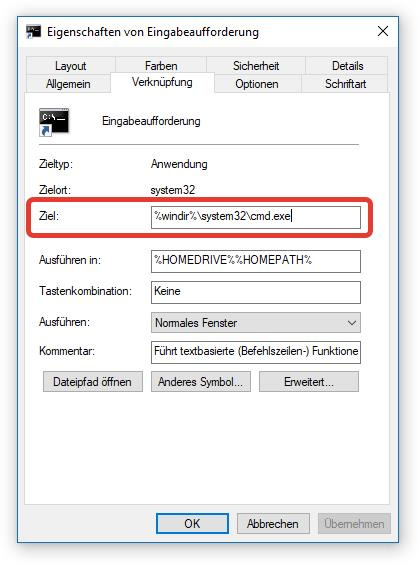
The entire line will look like this:
%windir%\system32\cmd.exe /k %USERPROFILE%\dos_aliases.batAfter that, save and run the command line using the shortcut we edited. Voila!
Openserver
For those using an OpenServer console, things are even simpler: the console configuration is stored in a file
%ConEmuBaseDir%\CmdInit.cmd. Of course, if you enter the path, the operating system will swear. This is because she does not know about the existence of this path - it is used inside the OpenServer environment in order not to clutter up the system.
So, you want us to we will find a file in the folder installed OpenServer:
\modules\conemu\ConEmu\CmdInit.bat. We open it with a text editor and at the bottom of the file we add our command:
doskey art=php artisan $*Save and run the console. Profit!
By analogy, you can add absolutely any team that will simplify your life by reducing the time for their input.
Windows PowerShell
We start the Windows PowerShell shell as an administrator and check the rights to run individual scripts with the extension `ps1` by executing the command:
Get-ExecutionPolicyThe default policy is `Restricted`, which prohibits the execution of any scripts. We will replace it with `RemoteSigned`, which allows to run all scripts except those downloaded from the network:
Set-ExecutionPolicy RemoteSignedNext, create a script that will automatically run along with PowerShell:
New-Item -type file $PROFILEAt this moment, an error may occur, because the " WindowsPowerShell " directory was not found in the "My Documents" folder - we will create it ... yes, manually. After we repeat the command.
Go to the folder `% USERPROFILE% \ Documents \ WindowsPowerShell` and open the file` Microsoft.PowerShell_profile.ps1` with a text editor. We will enter our teams into it.
Firstly, I immediately registered the transition to the desired directory:
cd "f:\dev\domains\"And below are such aliases as:
art = php artisan
migrate = php artisan migrate
down = php artisan down
up = php artisan up
cclear = php artisan cache:clear
da = composer dumpauto
docup = docker-compose up -d nginx mysql redis beanstalkd
docdown = docker-compose kill
doc = docker-compose exec workspace bash
In order to set a command with a parameter in PowerShell, you need to use a function, inside which the received arguments will be passed on. Thus, the alias of the ʻart` command in PowerShell takes the form:
function Call-Art
{
    php artisan $args
}
New-Alias -Name art -Value Call-Art
And I end the article with a full list of my aliases in Windows PowerShell:
# Set Main Directory
cd "f:\dev\domains\"
# Artisan Commands.
function Call-Art
{
    php artisan $args
}
New-Alias -Name art -Value Call-Art
# Run the database migrations.
function Call-Art-Migrate
{
    php artisan migrate
}
New-Alias -Name migrate -Value Call-Art-Migrate
# Put the application into maintenance mode.
function Call-Art-Down
{
    php artisan down
}
New-Alias -Name down -Value Call-Art-Down
# Bring the application out of maintenance mode.
function Call-Art-Up
{
    php artisan up
}
New-Alias -Name up -Value Call-Art-Up
# Flush the application cache
function Call-Art-Cache-Clear
{
    php artisan cache:clear
}
New-Alias -Name cclear -Value Call-Art-Cache-Clear
# Composer Dump-Autoload.
function Call-Composer-Dump-Autoload
{
    composer dumpauto
}
New-Alias -Name da -Value Call-Composer-Dump-Autoload
# Start the Docker
function Call-Start-Docker
{
	docker-compose up -d nginx mysql redis beanstalkd
}
New-Alias -Name docup -Value Call-Start-Docker
# Kill the Docker
function Call-Kill-Docker
{
	docker-compose kill
}
New-Alias -Name docdown -Value Call-Kill-Docker
# Enter the Docker
function Call-Enter-Docker
{
	docker-compose exec workspace bash
}
New-Alias -Name doc -Value Call-Enter-Docker
From now on, every time you start the program shell, our file will be automatically loaded, providing the opportunity to use your favorite commands.