
Search InterSystems documentation using iKnow and iFind technologies

The InterSystems Caché DBMS has built-in iKnow unstructured data technology, as well as iFind full-text search technology. We decided to deal with technology and at the same time do something useful. The result is DocSearch, a Web application for searching the InterSystems documentation using iKnow and iFind technologies.
How the documentation works in Caché
The documentation at Caché is based on Docbook technology . A web interface is provided for accessing the documentation (including a search that does not use either iFind or iKnow). Actually, the data in the documentation articles are in the Caché classes, which makes it possible to independently query these data, and, accordingly, the ability to write your own search utility.
What is iKnow and iFind:
Intersystems iKnow is a tool for analyzing unstructured data that provides access to data by indexing the sentences and entities contained in the text. To start the analysis, you need to create a domain - a repository of unstructured data, and load the text into it. The process of creating a domain is well described here and here . The basic ways to use iKnow are written here , I would also recommend this article to you .
IFind technology is a Caché DBMS module for performing full-text searches based on Caché classes. iFind uses many of the features of iKnow to provide intelligent text search. To use iFind in queries, you need to describe a special iFind index in the Caché class.
There are three types of iFind indexes, each type of index provides all the functions of the previous type, plus additional functions:
- Main index (% iFind.Index.Basic): supports searching for words and phrases.
- Semantic index (% iFind.Index.Semantic): supports the search for iKnow objects.
- Analytical index (% iFind.Index.Analytic): supports all iKnow functions in the semantic index, as well as information about the path and proximity of words.
Since documentation classes are stored in a separate area, in order to make classes available in our area, the installer maps packages and globals.
XData Install [ XMLNamespace = INSTALLER ]
{
// Указываем название области
// Создаем базу данных
// Маппируем указанные классы и глобалы в новую область
}
The domain that we need for iKnow is built on a table containing documentation. Since the data source is a table, we will use SQL.Lister. The content field contains the text of the documentation, so we will indicate it as a data field. The remaining fields will be indicated in the metadata.
ClassMethod Domain(ByRef pVars, pLogLevel As %String, tInstaller As %Installer.Installer) As %Status
{
	#Include %IKInclude
	#Include %IKPublic
	set ns = $Namespace
	znspace "DOCSEARCH"
	// Создание домена или открытие если он существует
	set dname="DocSearch"
   	if (##class(%iKnow.Domain).Exists(dname)=1){
	   	write "The ",dname," domain already exists",!
		zn ns
		quit
        }
  	else {
  		write "The ",dname," domain does not exist",!
       	set domoref=##class(%iKnow.Domain).%New(dname)
       	do domoref.%Save()
        }
   	set domId=domoref.Id
   	// Lister используется для поиска источников, соответствующих записям в результатах запроса
  	set flister=##class(%iKnow.Source.SQL.Lister).%New(domId)
  	set myloader=##class(%iKnow.Source.Loader).%New(domId)
  	// Построение запроса
	set myquery="SELECT id, docKey, title, bookKey, bookTitle, content, textKey FROM SQLUser.DocBook"
 	set idfld="id"
 	set grpfld="id"
 	// Указываем поля данных и метаданных
  	set dataflds=$LB("content")
  	set metaflds=$LB("docKey", "title", "bookKey", "bookTitle", "textKey")
        //Занесем все данные в Lister
  	set stat=flister.AddListToBatch(myquery,idfld,grpfld,dataflds,metaflds)
        if stat '= 1 {write "The lister failed: ",$System.Status.DisplayError(stat) quit }
        //Запускаем процесс анализа
        set stat=myloader.ProcessBatch()
        if stat '= 1 {
	      quit
	       }
        set numSrcD=##class(%iKnow.Queries.SourceQAPI).GetCountByDomain(domId)
        write "Done",!
        write "Domain cointains ",numSrcD," source(s)",!
        zn ns
        quit
}
To search the documentation, we use the% iFind.Index.Analytic index:
Index contentInd On (content) As %iFind.Index.Analytic(LANGUAGE = "en", LOWER = 1, RANKERCLASS = "%iFind.Rank.Analytic");Where contentInd is the name of the index, content is the name of the field for which we are creating the index.
The LANGUAGE = “en” parameter, which indicates the language in which the text is written by the
LOWER = 1 parameter, sets the case insensitivity.
The RANKERCLASS = "% iFind.Rank.Analytic" parameter allows the TF-IDF ranking algorithm to be used.
After adding and building such an index, it can be used, for example, in SQL queries. The general syntax for using iFind in SQL is:
SELECT * FROM TABLE WHERE %ID %FIND search_index(indexname,'search_items',search_option)After creating the% iFind.Index.Analytic index with these parameters, several SQL procedures of the form - [Table Name] _ [Index Name] Procedure Name are generated
In our project we use two of them:
- DocBook_contentIndRank - Returns the result of the TF-IDF ranking algorithm for the query.
The syntax is:SELECT DocBook_contentIndRank(%ID, ‘SearchString’, ‘SearchOption’) Rank FROM DocBook WHERE %ID %FIND search_index(contentInd,‘SearchString’, ‘SearchOption’) - DocBook_contentIndHighlight - Returns the search results where the search words are framed in the specified tag:
SELECT DocBook_contentIndHighlight(%ID, ‘SearchString’, ‘SearchOption’,’Tags’) Text FROM DocBook WHERE %ID %FIND search_index(contentInd,‘SearchString’, ‘SearchOption’)
I’ll talk about the use of these procedures below.
What ultimately happened:
Autocomplete in the search bar
When you enter text in the search bar, possible query options are offered to help you quickly find the information you need. These prompts are created based on the word (or the initial part of the word, if the word is not completed) that you entered and the user is shown the ten most similar words or phrases.
This process happens with iKnow, the% iKnow.Queries.Entity.GetSimilar method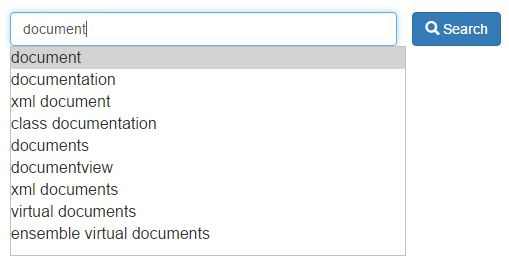
Fuzzy search
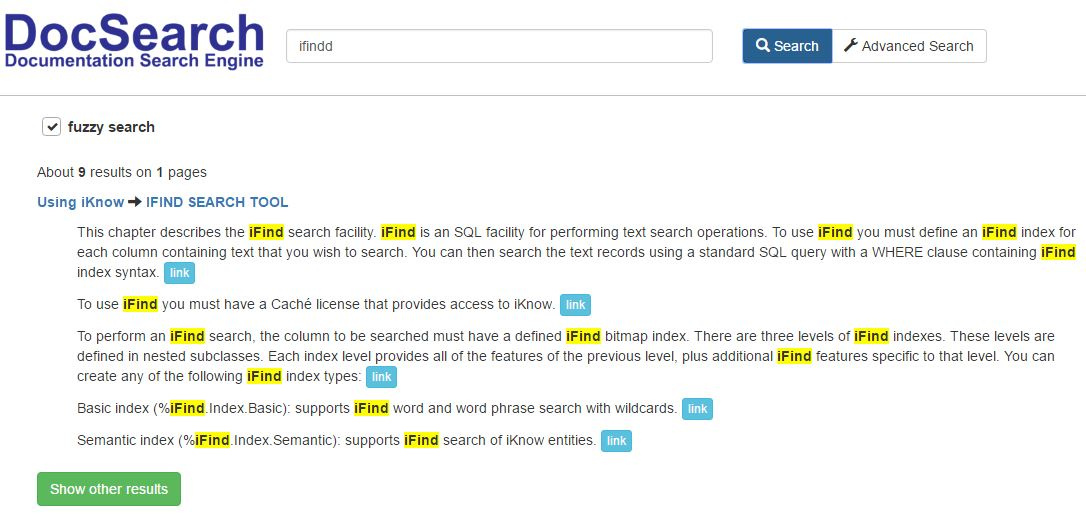
IFind technology supports fuzzy search to find words that almost match the search string. It is realized by comparing the Levenshtein distance between two words. Levenshtein distance is the minimum number of one-character changes (insertion, deletion or replacement) required to change one word into another. It can be used to correct typos, small variations in writing, various grammatical forms (singular and plural).
In iFind SQL queries, the search_option parameter is responsible for using fuzzy search.
The value of search_option = 3, means the Levenshtein distance equal to two.
To set the Levenshtein distance to n, specify the value search_option = '3: n'
In the search for documentation, use the Levenshtein distance equal to unity, we will demonstrate how it works:
Let's type in the search the word ifind: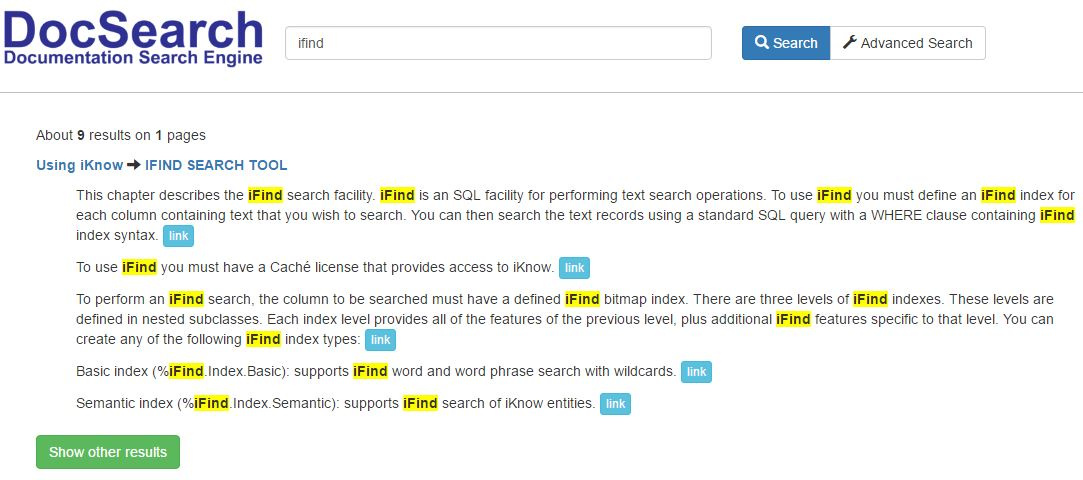
Let's try to make a fuzzy search, for example, a misspelled word - ifindd. As we can see, the search corrected a typo and found the necessary articles.
Complicated Queries
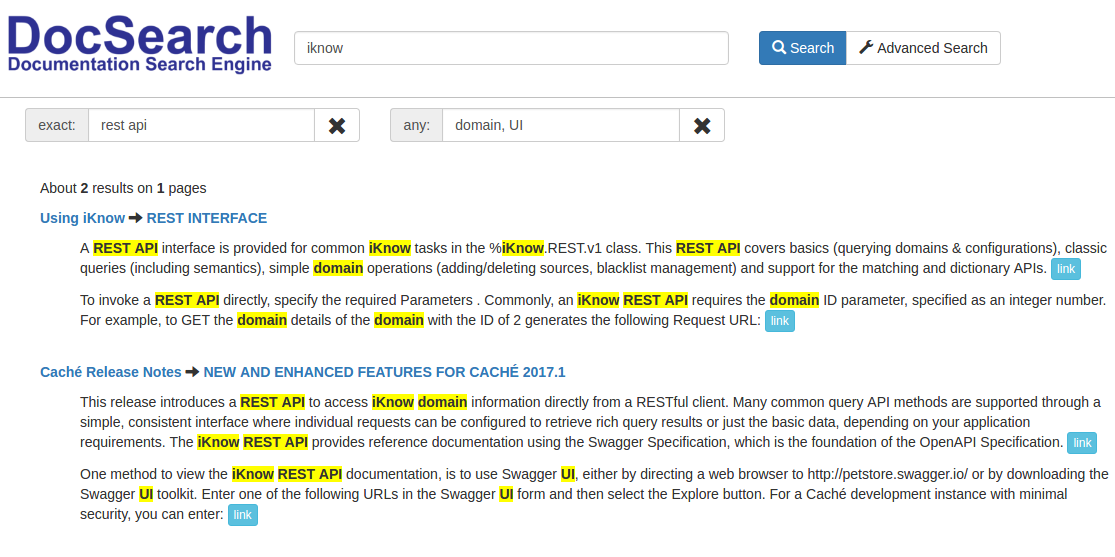
Due to the fact that iFind supports complex queries using brackets and AND OR NOT operators, we implemented an advanced search. In the search you can specify: a word, phrases, any of several words, or not containing some words. Fields can be filled in as one or more, or all at once.
For example, we find articles containing the word iknow, the phrase rest api, and containing any of the words domain or UI.
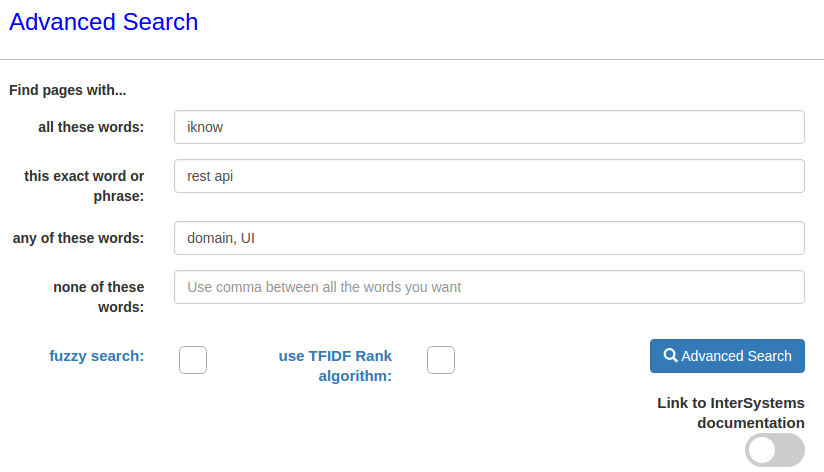
We see that there are two such articles:
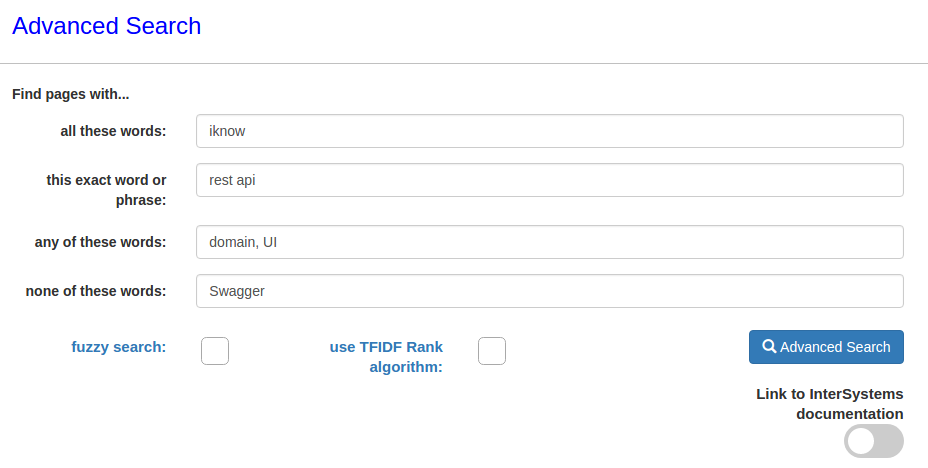
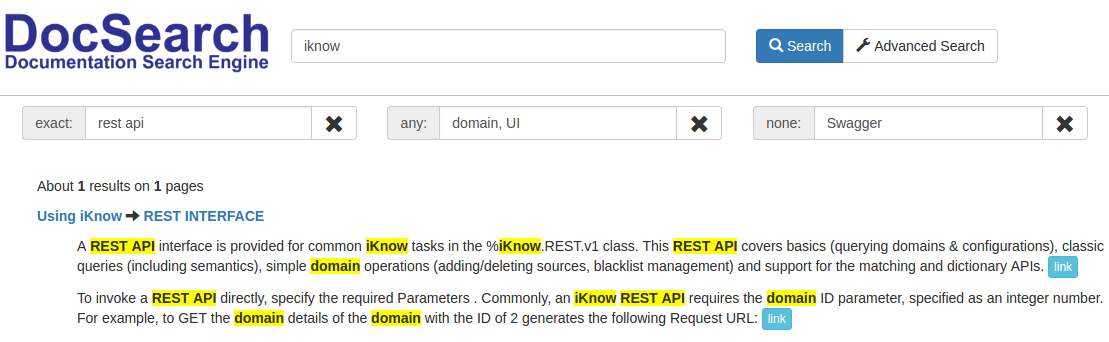
Note that the second article mentions Swagger UI, you can add to the query, search for articles that do not contain the word Swagger
As a result, only one article was found:
Search Results Highlighting
As mentioned above, using the iFind index creates the DocBook_contentIndHighlight procedure. Using:
SELECT DocBook_contentIndHighlight(%ID, 'search_items', '0', '', 0) Text FROM DocBookWe get the desired text framed in the tag
This allows you to visually highlight the search results on the front end.

Алгоритм ранжирования результатов
iFind поддерживает возможность ранжирования результатов по алгоритму TF-IDF. Мера TF-IDF часто используется в задачах анализа текстов и информационного поиска, например, как один из критериев релевантности документа поисковому запросу.
В результате SQL запроса, поле Rank будет содержать вес слова, который пропорционален количеству употребления этого слова в статье, и обратно пропорционален частоте употребления слова в других статьях.
SELECT DocBook_contentIndRank(%ID, ‘SearchString’, ‘SearchOption’) Rank FROM DocBook WHERE %ID %FIND search_index(contentInd,‘SearchString’, ‘SearchOption’)Интеграция с официальным поиском по документации
После установки, в официальный поиск по документации добавляется кнопка “Search using iFind”.

Если заполнено поле Search words, то после нажатия на “Search using iFind”, будет выполнен переход на страницу с результатами поиска для введенного запроса.
If the field is not filled, then the system will go to the start page of a new search.
Installation
- Download from the latest release from the release page, Installer.xml file
- Import the downloaded Installer.xml file into the% SYS area, compile.
- In a terminal in the% SYS area, enter the following command:
do ##class(Docsearch.Installer).setup(.pVars)
The process takes about 15-30 minutes due to the process of building a domain.
After that, the search is available at localhost : [port] /csp/docsearch/index.html
Demo
An online search demo is available here .
Conclusion
This project demonstrates interesting and useful features of iFind and iKnow technologies, thanks to which the search becomes more relevant.
Criticism, comments, suggestions are welcome.
All source code with installer and installation instructions is uploaded to github