June 29, 2017 at 12:21
JaCarta Authentication Server and JaCarta WebPass for OTP authentication in Linux SSH
In this article, we will talk about the basic steps for configuring authentication in Linux SSH to replace password authentication with one-time passwords - the article describes a script for authenticating to a session of SSH connection to Linux OS using one-time passwords using the JaCarta WebPass device .

JaCarta WebPass developed by Aladdin R.D. is a USB token with OTP on board for two-factor authentication of users when accessing secure information resources using a one-time password or a reusable password stored in memory.
The scenario proposed in the article implies the use of a RADIUS server to verify the authenticity of the entered one-time code, as well as the OTP value verification system. As the OTP key management system, we will use the JaCarta Authentication Server (JAS), also developed by Aladdin R.D.
The user, when the SSH connection is established, will enter the OTP value instead of the password at the authentication stage. The PAM module will send the passed value to the RADIUS Server, which will verify it and enable or disable authentication.
This manual configures for the following operating systems:
For Windows Server, you need to create a domain, add the NPS role. To do this, follow the tips below.
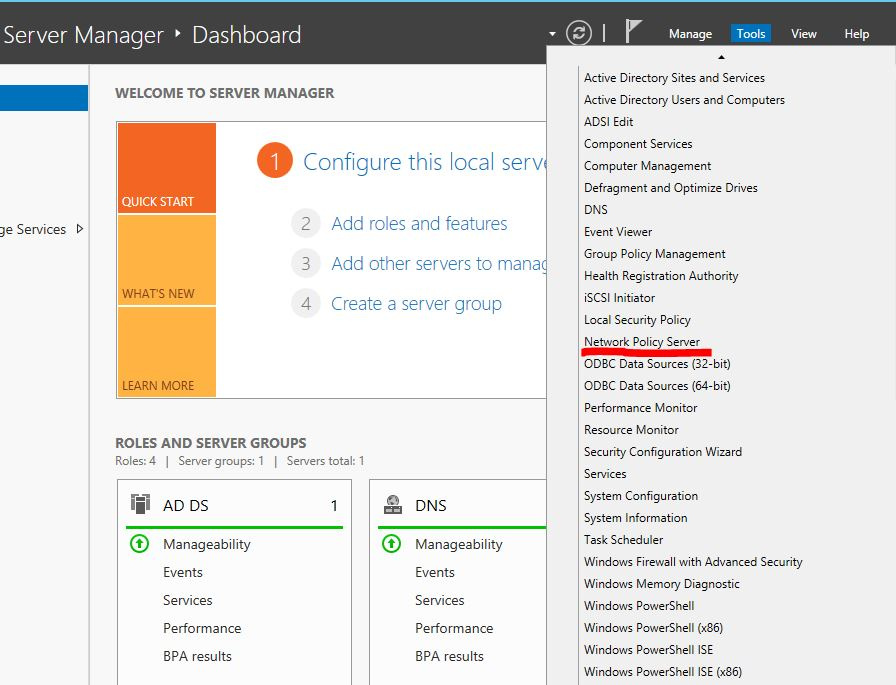
Open the snap-in to add the NPS role.
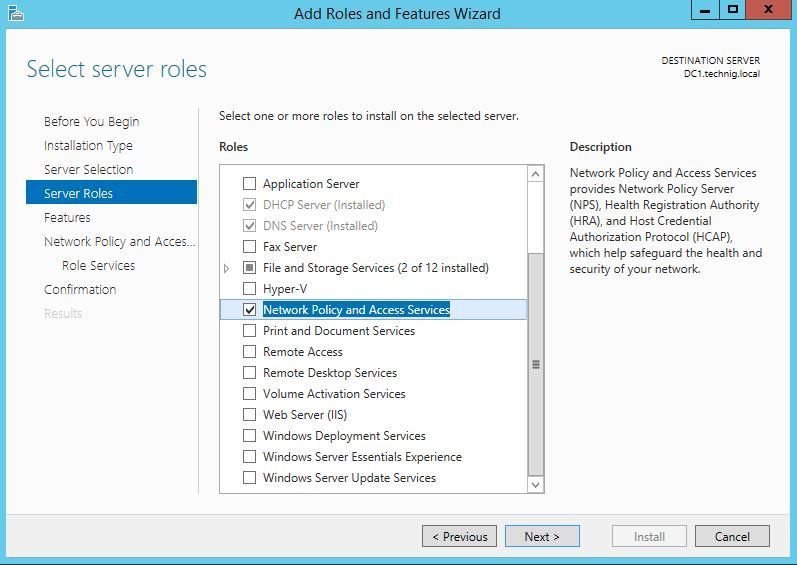
When choosing services and features, select Network Policy Server.
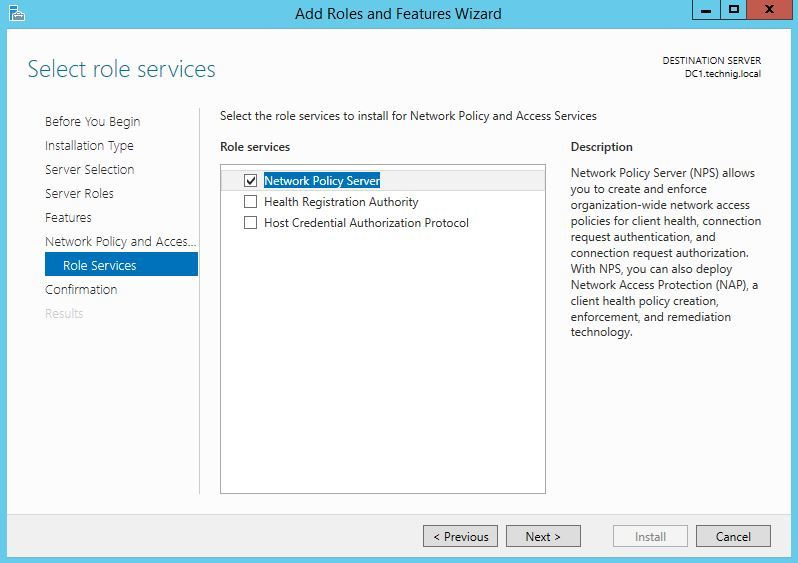
After that, the NPS snap-in will become available to you.

On the server side, you must complete the following steps:
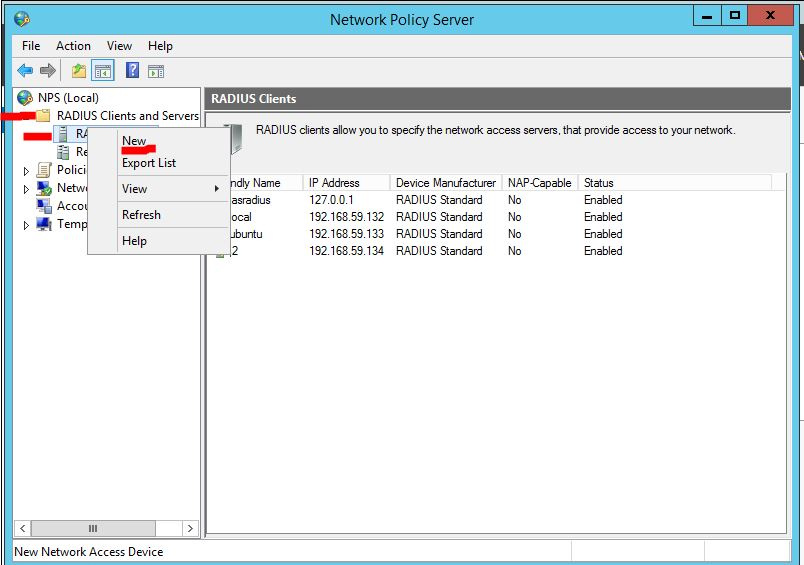
In the snap-in menu, select NPS - RADIUS Clients and Servers - RADIUS Clients, then right-click the context menu and click New.
Enter the client settings for connecting to the RADIUS server: the name displayed in the snap-in, the address or the name of the client, a common secret for the client and server (you need to think of it).

Create a domain user whose name will be used for authentication on the Linux server.
To initialize JaCarta WebPass, you must open the Web Pass Tool application, which is part of the JaCarta Single Client software. You can download the software at https://www.aladdin-rd.ru/support/downloads/jacarta/ .
Open the JaCarta WebPass Tool application, select the OTP tab.
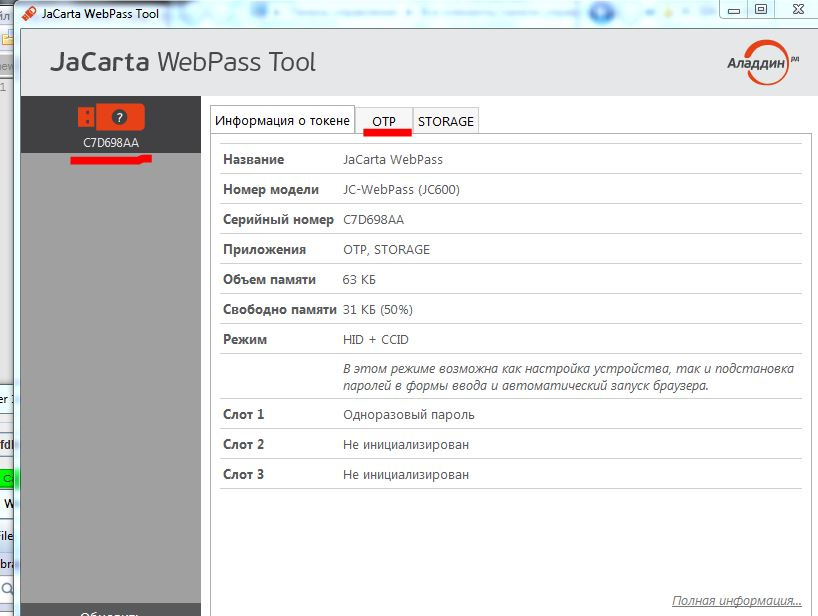
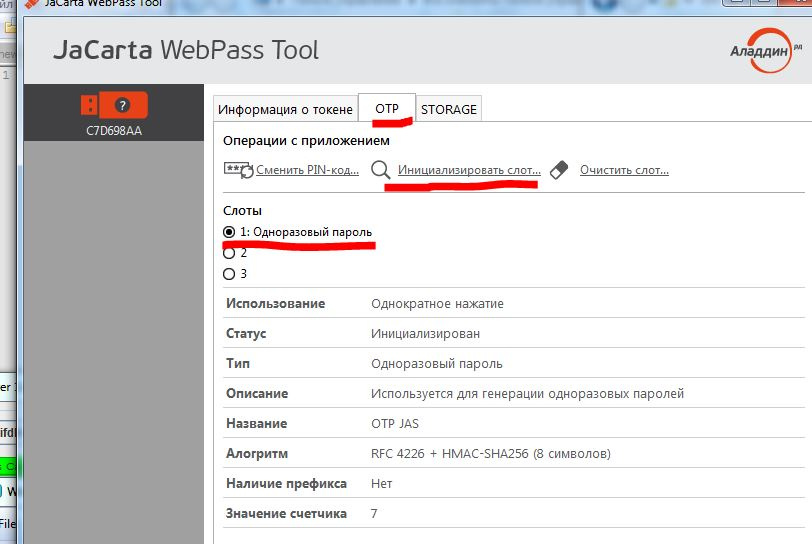
Select the slot to initialize, then click the Initialize item on the menu.
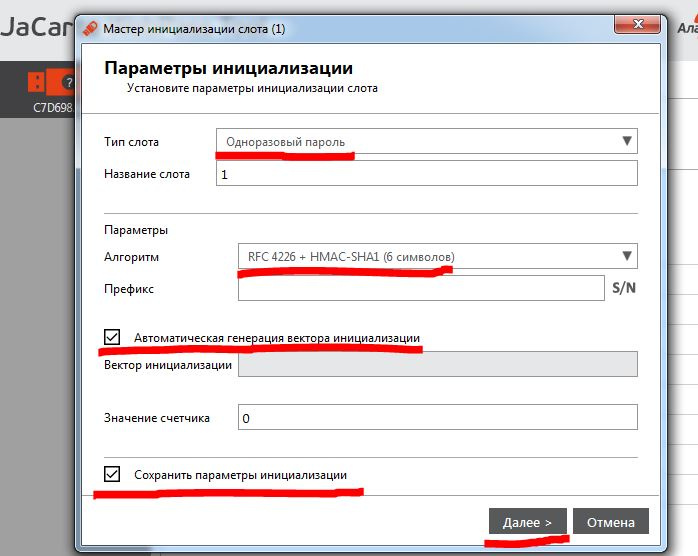
In the settings, specify the One-time password, the first mechanism from the drop-down list, check the Save initialization settings box and click Next.
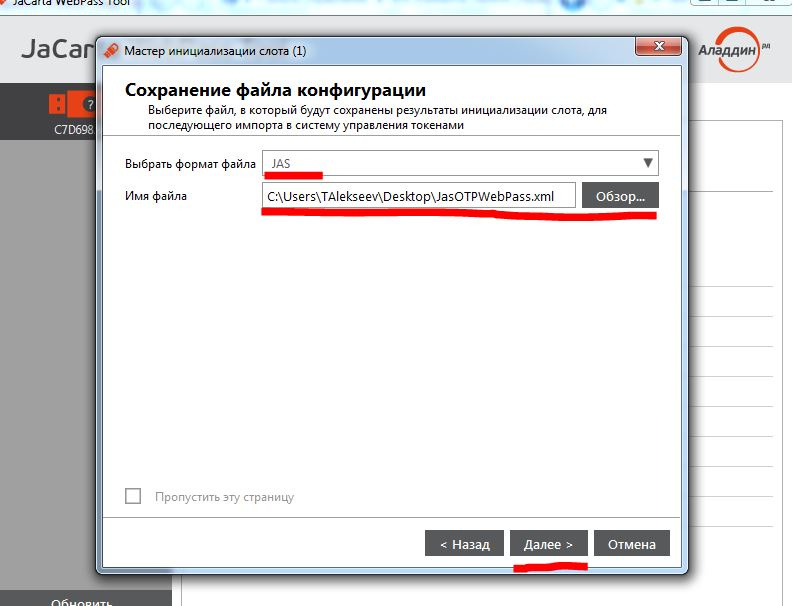
Select the JAS file format, as well as the path to the folder where the initialization file will be saved. This file is required to connect the key to JAS.
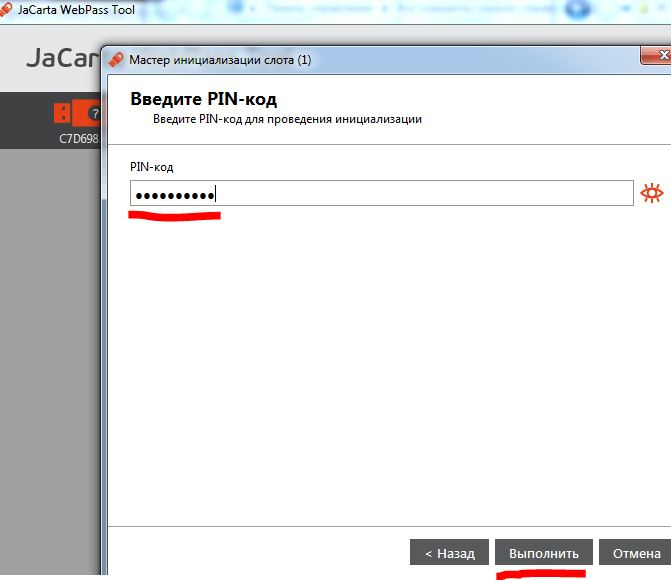
Enter the PIN for the key and click Next.
On the JAS side, you must complete the following steps.
Add the OTP device to the system, bind the user to the device. To do this, open the JAS snap-in.
In the snap-in, select Import Key Media.
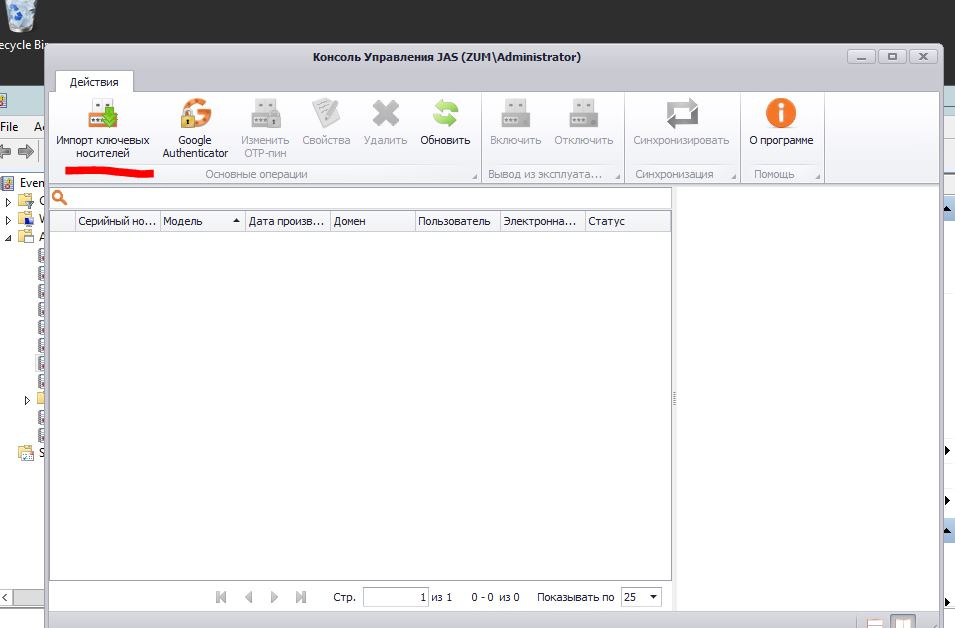
Indicate the path to the JaCarta WebPass initialization data file (the file can be obtained by initializing the slot in the Web Pass Tool application, which is part of the JaCarta Single Client software. You can download the software at https://www.aladdin-rd.ru / support / downloads / jacarta / ).

If successful, click Next.

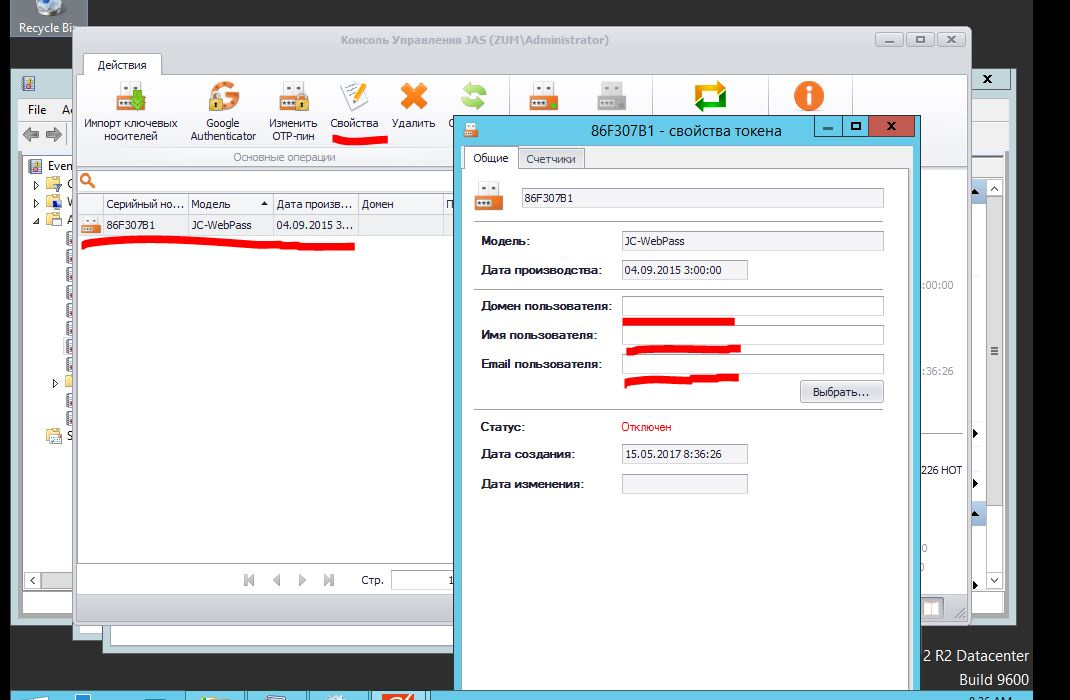
Select the added key, click Properties on the menu. To bind to the user, you must specify the name and email address for the domain user.
Before activation, you should synchronize the device, for this, click Synchronization in the menu, point to the OTP 1 window and click on the JaCarta WebPass device button, then repeat with the OTP 2 window.
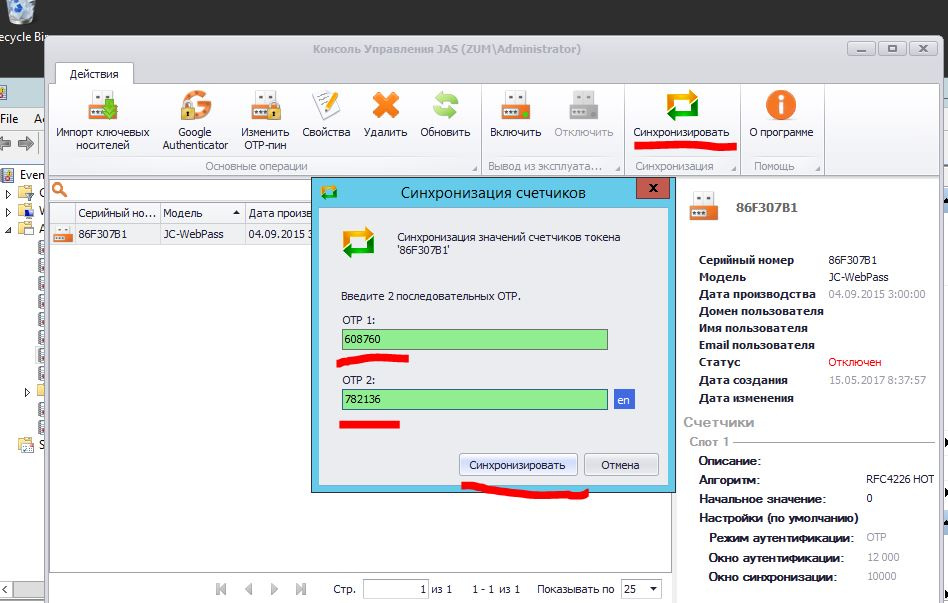
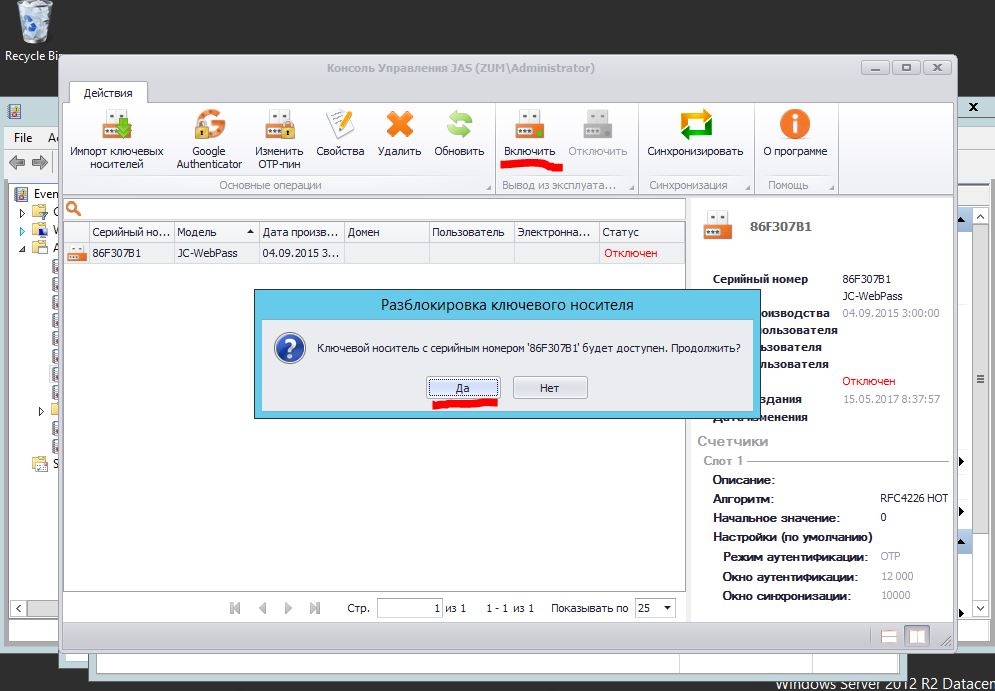
To activate, select the Enable item.
On the Linux server side, all operations must be performed as root.
Add the values for your RADIUS server, IP address, or server name, shared secret to the /etc/pam_radius_auth.conf file.
In the /etc/pam.d/sshd file, add the line auth sufficient pam_radius_auth.so above include common-auth, as shown below.
Create a local user with a name that matches the user in AD.
For verification, we will use the Microsoft Windows 7 operating system with the installed PUTTY SSH client.
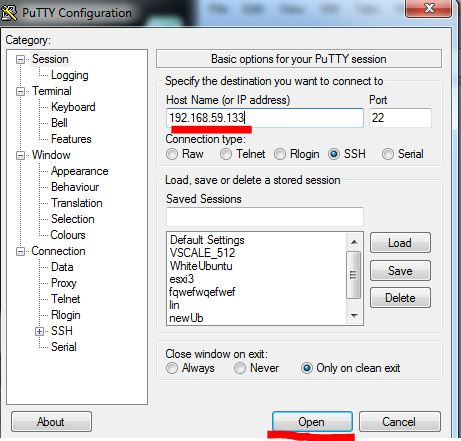
Open Putty and indicate the address of the machine we are interested in on Linux.
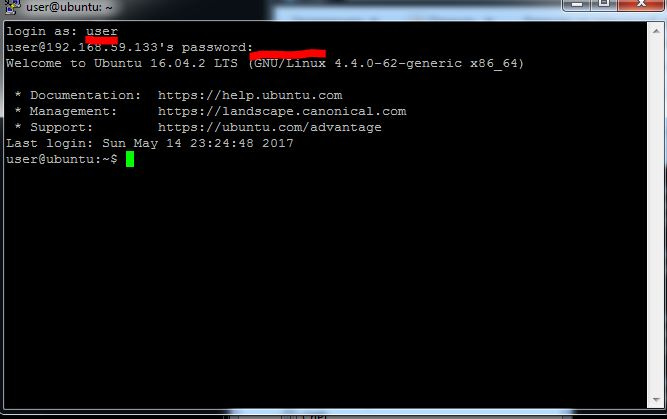
Enter the username, Enter, then click on the JaCarta WebPass device button, Enter.
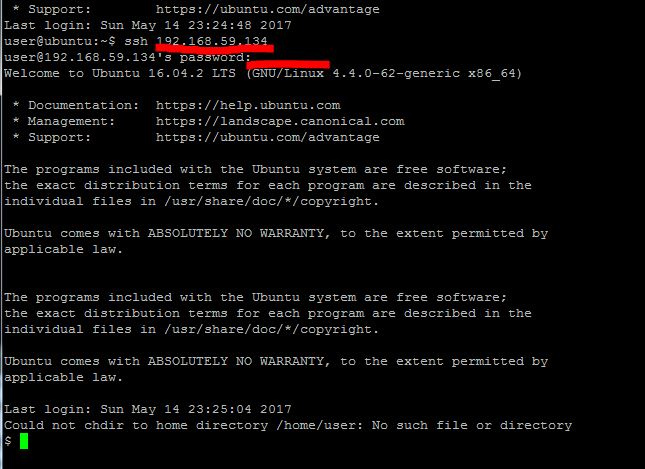
Next, enter the command SSH [Servername2], Enter, press the button on the device, Enter.
JaCarta WebPass developed by Aladdin R.D. is a USB token with OTP on board for two-factor authentication of users when accessing secure information resources using a one-time password or a reusable password stored in memory.
The scenario proposed in the article implies the use of a RADIUS server to verify the authenticity of the entered one-time code, as well as the OTP value verification system. As the OTP key management system, we will use the JaCarta Authentication Server (JAS), also developed by Aladdin R.D.
The user, when the SSH connection is established, will enter the OTP value instead of the password at the authentication stage. The PAM module will send the passed value to the RADIUS Server, which will verify it and enable or disable authentication.
Demonstration environment
This manual configures for the following operating systems:
- Microsoft Windows Server 2012
- Ubuntu Server 16
- Microsoft Windows 7.
Environmental requirements
For Windows Server, you need to create a domain, add the NPS role. To do this, follow the tips below.
Open the snap-in to add the NPS role.
When choosing services and features, select Network Policy Server.
After that, the NPS snap-in will become available to you.
RADIUS server side configuration
On the server side, you must complete the following steps:
- add the radius of the client with the IP address or the name of the Linux server;
- Select the NPS snap-in on the server.
In the snap-in menu, select NPS - RADIUS Clients and Servers - RADIUS Clients, then right-click the context menu and click New.
Enter the client settings for connecting to the RADIUS server: the name displayed in the snap-in, the address or the name of the client, a common secret for the client and server (you need to think of it).
Create a domain user whose name will be used for authentication on the Linux server.
Preparing JaCarta WebPass
To initialize JaCarta WebPass, you must open the Web Pass Tool application, which is part of the JaCarta Single Client software. You can download the software at https://www.aladdin-rd.ru/support/downloads/jacarta/ .
Open the JaCarta WebPass Tool application, select the OTP tab.
Select the slot to initialize, then click the Initialize item on the menu.
In the settings, specify the One-time password, the first mechanism from the drop-down list, check the Save initialization settings box and click Next.
Select the JAS file format, as well as the path to the folder where the initialization file will be saved. This file is required to connect the key to JAS.
Enter the PIN for the key and click Next.
JAS side configuration
On the JAS side, you must complete the following steps.
Add the OTP device to the system, bind the user to the device. To do this, open the JAS snap-in.
In the snap-in, select Import Key Media.
Indicate the path to the JaCarta WebPass initialization data file (the file can be obtained by initializing the slot in the Web Pass Tool application, which is part of the JaCarta Single Client software. You can download the software at https://www.aladdin-rd.ru / support / downloads / jacarta / ).
If successful, click Next.
Select the added key, click Properties on the menu. To bind to the user, you must specify the name and email address for the domain user.
Before activation, you should synchronize the device, for this, click Synchronization in the menu, point to the OTP 1 window and click on the JaCarta WebPass device button, then repeat with the OTP 2 window.
To activate, select the Enable item.
Linux Server Configuration
On the Linux server side, all operations must be performed as root.
# sudo -i
# apt-get install libpam-radius-auth
Add the values for your RADIUS server, IP address, or server name, shared secret to the /etc/pam_radius_auth.conf file.
# nano /etc/pam_radius_auth.conf
#  The timeout field controls how many seconds the module waits before
#  deciding that the server has failed to respond.
#
# server[:port] shared_secret      timeout (s)
[SERVER IP] [Общий секрет]           3
In the /etc/pam.d/sshd file, add the line auth sufficient pam_radius_auth.so above include common-auth, as shown below.
# nano /etc/pam.d/sshd
# PAM configuration for the Secure Shell service
# Standard Un*x authentication.
auth sufficient pam_radius_auth.so
@include common-auth
# Disallow non-root logins when /etc/nologin exists.
Create a local user with a name that matches the user in AD.
Solution Verification
For verification, we will use the Microsoft Windows 7 operating system with the installed PUTTY SSH client.
Open Putty and indicate the address of the machine we are interested in on Linux.
Enter the username, Enter, then click on the JaCarta WebPass device button, Enter.
Next, enter the command SSH [Servername2], Enter, press the button on the device, Enter.