May 19, 2017 at 09:16
Creating Match-3 in Unity
- Transfer
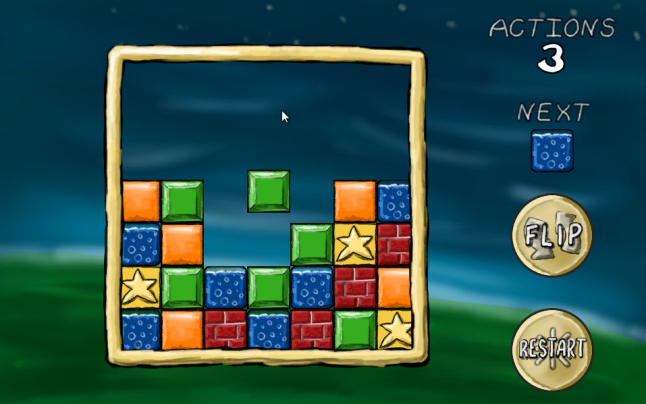
A few years ago at SeishunCon I rediscovered match-3 games. I played Dr. Mario's childhood, but more competitive games like Magical Drop , Bust-A-Move, and Tokimeki Memorial Taisen Puzzle-Dama are very different from her.
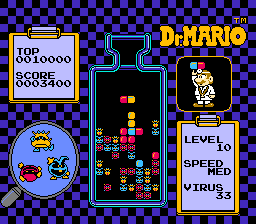
Dr. Mario
As a result, I realized how many neutral decisions are associated with the creation of the match-3 game.
I decided to experiment on the next Ludum Dare jam, but first, a week before, I tried to develop the Tetris algorithm to detect and remove lines to warm up. This Unity Plus tutorial really helped me .[Note Per .: my link does not open. If you know how to solve the problem, write to me, I will supplement the article.] Of course, the Tetris algorithm for finding filled rows is much simpler than an algorithm that searches for various combinations of matching tiles.
If you want to learn these code examples in context, then check out my Ludum Dare 30 repository . (For shameless self-promotion, I again used this logic for Shifty Shapes .)
Two worlds
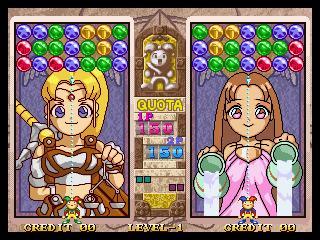
Magical Drop 3 (source: Kazuya_UK )
The trickiest part of creating a puzzle game in Unity is that the game does not live in the space of the world. In any case, it does not fully live.
This is its difference from other genres. Platformers, for example, live almost entirely in the Unity gaming world. The player’s transform is reporting his position. Colliders (or, in some cases, raycast) say whether the player is on the ground, hitting the ceiling or colliding with an enemy. Even if you don’t use in-game physics, you’ll still most likely add strength or specify the Rigidbody speed to ensure collision detection is cost-free.
Puzzle games are completely different. If you need to click the mouse in your game, then it probably gets some coordinates in the space of the world, but they are usually converted into a grid cell, which completely lives in the code. There is a clear reason for this: it is much easier to create logic for a game like Tetris or Dr. Mario, when you work not with individual pixels, but with blocks or tiles.
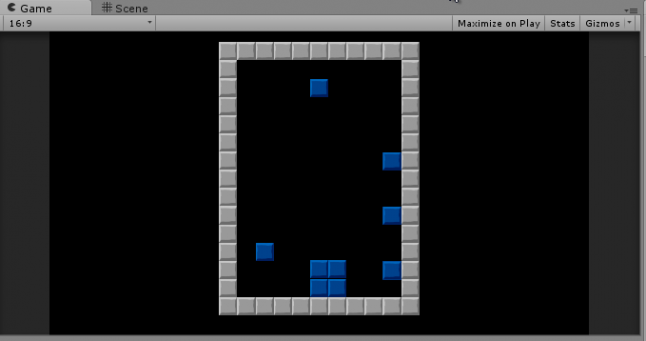
Tetris blocks should definitely not stick to the walls of the glass.
In fact, in my experiments I tried to stick to the space of the world as much as possible. I used physics to determine the “landing” of tiles and passed the data to a two-dimensional array only to determine the filling of the string. It seemed safer: after all, what happens in the game world is real. This is what the player sees, so if you store the data here, then there is no risk of out of sync, right?
I was wrong. No matter how I try to configure the system, it just did not work correctly.
The Unity Plus tutorial, the link to which I gave above, has helped me a lot. At a minimum, he showed that the correct approach was to completely transfer logic from the game world to an abstract data structure. If you haven’t done it yet, then at least briefly review it, because in this article I will expand the Tetris logic to match-3 logic.
Transformation from the field to the space of the world
As soon as I realized that this transition was convenient, the rest was simple. I created a GameTile class that tracks the color, row and column of a tile, and based on it updated the position of the tile. Here is an abridged version of it:
public class GameTile : MonoBehaviour {
 private Transform _t;
 private SpriteRenderer _s;
 [System.NonSerialized]
 public int TileColor;
 [System.NonSerialized]
 public int Row;
 [System.NonSerialized]
 public int Column;
 void Awake () {
   _t = GetComponent();
   _s = GetComponent();
 }
 Vector3 tmpPos;
 public void UpdatePosition()
 {
   tmpPos = _t.position;
   tmpPos.x = (Column * Board.TileSize) - Board.WorldOffset;
   tmpPos.y = (Row * Board.TileSize) - Board.WorldOffset;
   _t.position = tmpPos;
   _s.sprite = Board.Current.Textures[TileColor];
} 
Tiles in a grid
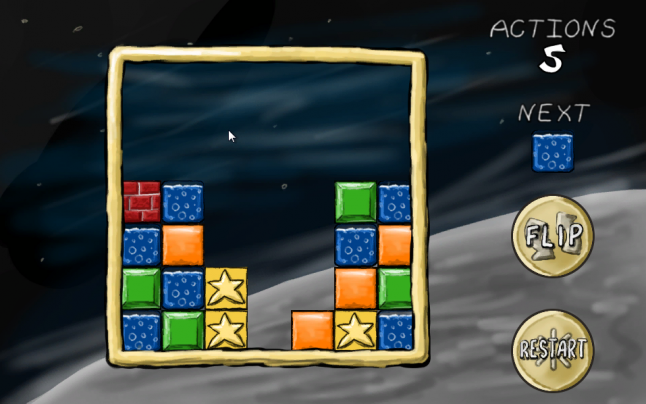
Note that in this case TileSize is a constant that determines the size of a tile in Unity units. I use tiles of 64 × 64 pixels, and the sprite in Unity has a resolution of 100 pixels per unit, so TileSize turns out to be 0.64. I also use a constant offset so that the middle of the 7 × 7 field is at coordinates 0,0 of the world’s space, and the lower left corner is the 0, 0 tile in the game space.
I also created an array that defines the playing field as a static field in the Board class. (Board was initially a static class, and then turned into a singleton because I needed to change the values in the editor, so it awkwardly combines the features of a game object and a static class.)
 public const float TileSize = 0.64f;
 public const float WorldOffset = 1.92f;
 public const int BoardSize = 7;
 public static GameTile[,] Tiles = new GameTile[BoardSize, BoardSize];
In the Unity Plus tutorial, a two-dimensional array was used to store integers, but I decided to store links to my GameTile objects in this array. This allowed me to transfer data from and to tiles directly (as you will see later), which simplified the removal of tiles and the creation of animations.
When making changes to the state of the playing field, I just had to cycle through the entire array of the field and tell each tile where it should be:
 public static void UpdateIndexes(bool updatePositions)
 {
   for (int y = 0; y < BoardSize; y++)
   {
     for (int x = 0; x < BoardSize; x++)
     {
       if (Tiles[x,y] != null)
       {
         Tiles[x, y].Row = y;
         Tiles[x, y].Column = x;
         if (updatePositions)
           Tiles[x, y].UpdatePosition();
       }
     }
   }
 }
Note that in each case we are transforming from an abstract game space into a world space. Unity game objects themselves do not store important information about the state of the game, they are always only a reflection of this state.
… and back
In my game there was the only case when it was necessary to perform the conversion from the world to the game space: when a player clicked on an empty space to throw a tile on the field. For this task, I created a large collider under the entire playing field and attached the following script to it:
 void OnMouseDown()
 {
   if (GameState.Mode == GameState.GameMode.Playing)
   {
     mouseClick = Camera.main.ScreenToWorldPoint(Input.mousePosition);
     mouseX = (int)Mathf.Round ((mouseClick.x + WorldOffset) / TileSize);
     mouseY = (int)Mathf.Round ((mouseClick.y + WorldOffset) / TileSize);
     PutNextTile(mouseX, mouseY);
     Soundboard.PlayDrop();
     GameState.ActionsTaken++;
   }
 }
That, in fact, is all. Notice that, in essence, it performs the opposite of UpdatePosition (), where the game space is converted to world space.
Recognize and delete matching tiles
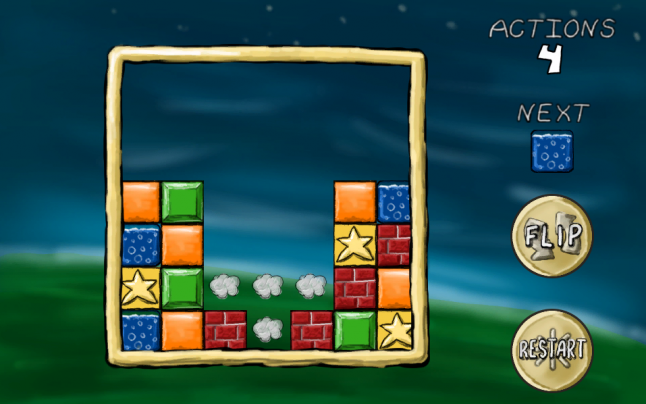
Removing matching tiles
This is the trickiest part. Probably for the sake of this you read the article.
Horizontal matching (as in Tetris) is quite simple to implement: you just need to look for adjacent tiles in one line. Even adding horizontal or vertical matches (as in Dr. Mario) is just a variation of this theme. However, tracking a set of adjacent tiles in both the horizontal and vertical directions will require recursion.
With every action that changes the playing field, we run a check. The first thing we do is copy the entire field array to another array:
 static void CopyBoard(GameTile[,] source, GameTile[,] destination)
 {
   for (int y = 0; y < BoardSize; y++)
   {
     for (int x = 0; x < BoardSize; x++)
     {
       destination[x, y] = source[x, y];
     }
   }
 }
 static bool clearedTiles = false;
 public static void MatchAndClear(GameTile[,] board)
 {
   clearedTiles = false;
   // Создаём копию поля для проверки
   CopyBoard(board, toTest);
// Продолжение ниже...
What for? We will see later that it will be much easier to determine which tiles we checked.
We begin the process with brute force. Let's go from cell to cell (first rows, then columns), checking each cell. For each check, we reset some variables used to track the check, and then call a separate function (which is later used for recursion):
// Продолжение MatchAndClear()...
   currentTile = null;
   collector.Clear ();
   for (int y = 0; y < BoardSize; y++)
   {
     for (int x = 0; x < BoardSize; x++)
     {
        TestTile (x, y);
// Продолжение ниже...
Let's look at this TestTile function:
 static void TestTile(int x, int y)
 {
   // Тайл уже проверен, пропускаем
   if (toTest[x,y] == null)
   {
     return;
   }
   // Начинаем проверять блок
   if (currentTile == null)
   {
     currentTile = toTest[x, y];
     toTest[x, y] = null;
     collector.Add(currentTile);
   }
// ** Пропущенные строки - мы вернёмся к ним позже **
 // Если мы обрабатываем этот тайл, то проверяем все тайлы вокруг него
   if (x > 0)
     TestTile(x - 1, y);
   if (y > 0)
     TestTile(x, y - 1);
   if (x < Board.BoardSize - 1)
     TestTile(x + 1, y);
   if (y < Board.BoardSize - 1)
     TestTile(x, y + 1);
 }
If the function detects that the cell is null, then skips it. A cell with null means that it is either empty, or we have already tested it. (That is why we copied it into a separate array - it is easier to arbitrarily manipulate the new array.)
If the cell matters, then we do the following. First, we remember it as the “current” cell, the one that is at the top of the recursive chain. Then we remove it from the copy of the playing field so as not to double-check. We also add it to the List to remember how many adjacent tiles of the same color we found.
There are two states that may occur later in recursion, but we will talk about them later. After checking the cell, we take four cells around it and perform the same check for them.
The "current" cell is already set, and this means that we are not at the first level of recursion. In these function calls, we have three options for each cell.
Firstly, the cell may be null, and this again means that we have already checked it, or it is empty. And in this case, we again do nothing.
Secondly, the cell may not coincide with the "current" cell. In this case, we do not consider it "verified." Our recursion checks for one set of adjacent tiles of the same color. Just because this tile is not part of the current set does not mean that it is not part of any other.
// Из TestTile() выше...
 // Тайл не совпадает, пропускаем
 else if (currentTile.TileColor != toTest[x, y].TileColor)
 {
   return;
 }
Thirdly, the cell can be the same color as the “current” cell. In this case, it is “verified”, so we set it to null in the copy of the playing field. We also add it to the List, which we use as a drive. This is one of the states that we missed in the example above:
// Из TestTile() выше...
 // Тайл совпадает
 else
 {
   collector.Add(toTest[x, y]);
   toTest[x, y] = null;
 }
The function will continue to perform recursion until all options have ended, reaching either the empty cell or the end of the field. At this point, we return to the main brute force cycle to process the results.
If there are more than three tiles in the drive, then we have found a match. If not, then we checked one or two tiles, but we do not need to perform any actions:
// Продолжение из MatchAndClear() выше...
       if (collector.Count >= 3)
       {
         foreach (GameTile tile in collector)
         {
           ClearTile(tile.Column, tile.Row);
           clearedTiles = true;
           Soundboard.PlayClear();
         }
       }
       currentTile = null;
       collector.Clear ();
     }
   }
   if (clearedTiles)
   {
     SettleBlocks(board)
   }
 }
Here, as we will discuss later, I just turn on the animation. The simplest approach, however, is to loop through our drive and call DestroyObject on the game object of each matching tile. So we will kill two birds with one stone: get rid of in-game objects and set the cells in the state of the playing field to null.
Tile Drop
Drop tile
Certain changes - for example, drop of a tile or removal of tiles, in this case - leave the tiles without support, and this case needs to be resolved (of course, if it is required by the rules of your game). And actually this is a pretty simple algorithm.
Now we go through column by column, and then line by line. The order is important here.
In each column, we go from bottom to top until we find an empty cell. Then we mark it. We simply shift the next found tile down to this position, and add one to the empty cell index:
 static int? firstEmpty;
 public static void SettleBlocks(GameTile[,] board)
 {
   for (int x = 0; x < BoardSize; x++)
   {
     firstEmpty = null;
     for (int y = 0; y < BoardSize; y++)
     {
       if (board[x, y] == null && !firstEmpty.HasValue)
       {
         firstEmpty = y;
       }
       else if (firstEmpty.HasValue && board[x, y] != null)
       {
         board[x, firstEmpty.Value] = board[x, y];
         board[x, y] = null;
         firstEmpty++;
       }
     }
   }
   UpdateIndexes(false);
 }
After completion, you must remember to call the match checking function again. It is very likely that falling tiles created empty lines.
In fact, if an account is kept in the game, it will make it easier to track combos or score multipliers. All of these repetitions of crashes and block deletions are recursions of that first call launched by the player’s action. We can understand how many total matches arose after the player’s action and how many levels of “chains” were required for each action.
Animations
The game is already working, but so far it is not intuitive, mainly due to the lack of animations. Tiles disappear and then appear on the bottom lines. It is difficult to understand what happens if you do not follow carefully.
This is also a difficult moment. Game objects are always a reflection of the state of the game, so the tiles are constantly located in the grid. Tiles always take up one place or another: a tile can be on line 1 or 2, but never on line 1.5.
What is the difficulty? We cannot simultaneously manipulate the playing field and animation . Remember how Tetris or Dr. Mario - the next tile does not fall until all the tiles on the field “settle down”. This gives the player a short respite, and also guarantees the absence of unforeseen conditions and interactions.
By the way, at the beginning of a new project, I recommend creating an enumeration of “game states”. I never had to write a game in which I did not need to know the state of the game: the game process itself, pause, menu display, dialog box, and so on. It’s best to plan the states in the early stages of development, so that you can make each line of code you write check whether it should be executed in the current state.
I admit that my implementation is awkward, but in general the idea is this: when a tile is deleted or dropped, we use a state change. Each GameTile object knows how to handle this state change, and, more importantly, knows when to tell the game field that it has completed its animation:
 void Update () {
   if (GameState.Mode == GameState.GameMode.Falling && Row != LastRow)
   {
     targetY = (Row * Board.TileSize) - Board.WorldOffset;
     tmpPos = _t.position;
     tmpPos.y -= FallSpeed * Time.deltaTime;
     if (tmpPos.y <= targetY)
     {
       Board.fallingBlocks.Remove(this);
       UpdatePosition();
       Soundboard.PlayDrop();
     }
   }
 }
After the removal animation is completed, the game should check for falling tiles:
 private static float timer;
 private const float DisappearTimer = 0.667f;
 void Update()
 {
   if (GameState.Mode == GameState.GameMode.Disappearing)
   {
     timer -= Time.deltaTime;
     if (timer <= 0)
     {
       GameState.Mode = GameState.GameMode.Playing;
       SettleBlocks(Tiles);
     }
   }
After the fall animation is complete, check for matches:
   if (GameState.Mode == GameState.GameMode.Falling && fallingBlocks.Count == 0)
   {
     GameState.Mode = GameState.GameMode.Playing;
     MatchAndClear(Tiles);
   }
 }
This cycle repeats until we have more matches left, after which the game can return to its work.