
Structure and execution model of .NET Core applications
In this article, I will look at the components of the .NET Core 2.0 platform needed to download and run .NET Core applications, as well as artifacts for two possible deployment types.
The text is voluminous and is designed for:
The article does not mention the process of creating applications using the SDK (dotnet CLI), however, this information will be useful for understanding how the SDK works, namely its main component (kernel) is the “driver” dotnet.dll, since this library is a managed assembly and runs on .NET Core.
Examples of execution processes are described for Windows, but work on the same principle on other OSs (taking into account various extensions of executable files and native libraries).
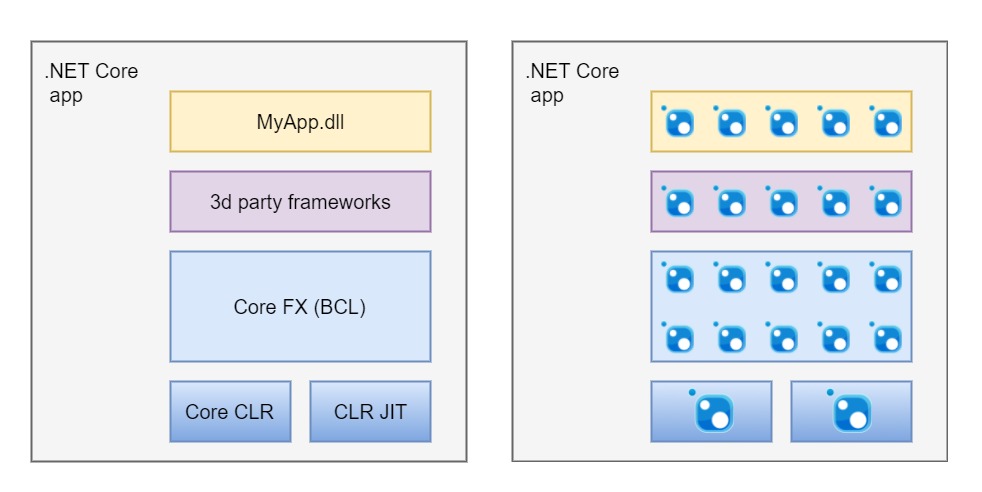
Every .NET developer knows from the cradle: in order to run any .NET application, the .NET Framework, namely CLR + BCL, must be installed on the target computer.
BCL is located in the GAC, from where applications download the necessary dependencies.
The architecture of .NET Core in general looks the same: .NET Core = Core CLR + Core FX (new name for BCL), but differs in the way these components are resolved, as well as in the way the runtime (CLR) is loaded. Instead of a header in the managed assembly MyApp.exe in the .NET Framework, in .NET Core, MyApp.exe is itself a native Core CLR boot program.
In .NET Core, all the components of the program that we define at the compilation stage are application dependencies (including Core CLR, JIT), which the .NET Core infrastructure treats as packages. Such a package is called asset , and it can be either a NuGet package or a regular file.
Examples of components that ship via NuGet:
These dependencies in the unpacked form when starting the application should be in one of the specific directories (the .NET Core framework folder - Core FX, the application folder or any NuGet cache).
Thanks to this model, .NET Core-application consists of a frighteningly large number of small modules, but this is done to reduce the amount of unnecessary dependencies.
This approach is called pay-for-play; in other words, applications load only the functionality that they need, but each such functionality is contained in a separate assembly.
There are two types of deployments for .NET Core applications :
Portable (FDD) application is similar to the traditional .NET Framework application. In this case, a certain version of the .NET Core framework (the terms shared framework, .NET Core Runtime, redist are also used) must be located on the target computer, and when it starts, the host process will load Core CLR, Core FX from the framework folder.
In the Standalone (SCD) application, all the components for execution (CoreCLR, CoreFX), as well as third-party libraries, that is, absolutely all the dependencies, are delivered with the application itself (most often in one folder).
It is important to understand that the Standalone application is tied to a specific OS and architecture (for example, Windows 7 x64 or OSX 10.12 x64). This identifier is called a Runtime identifier (RID).. Each OS / architecture has its own version of the Core CLR library (and other native components), so for Standalone applications, at the compilation stage, you need to specify the parameters of the target system (RID) in the RuntimeIdentifier property.
Such an application will work on any computer with a specific OS / architecture, regardless of whether .NET Core is installed or not.
To run Portable applications, at least one .NET Core Runtime (shared framework) must be installed on the target machine .
.NET Core Runtime is installed in the folder C: \ Program Files \ dotnet :
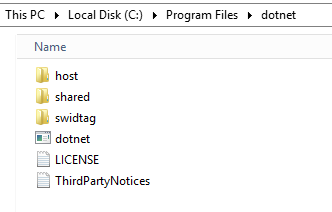
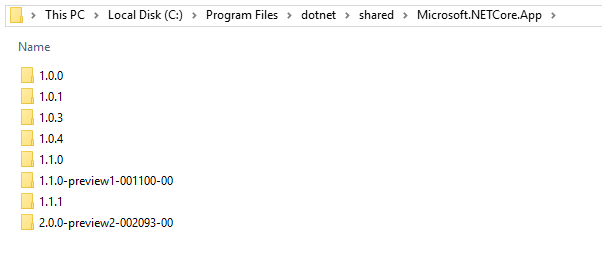
Files of the framework (s) are stored in the folder C: \ Program Files \ dotnet \ shared .
The main components of the .NET Core Runtime:
File structure when installing .NET Core Runtime .
You can install several versions of the framework:
To run the Portable application, you must start the dotnet.exe host process and pass the path to the managed assembly as an argument to it.
“C: \ Program Files \ dotnet” is added to the value of the PATH environment variable, so Portable applications can now be launched from the command line:
In the application folder (where [AppName] .dll is located), the [AppName] .runtimeconfig file should be .json It indicates the name and version of the framework that should be used to run the Portable application. For example:
MyApp.runtimeconfig.json
This file is required for Portable applications.
Having the above configuration, the runtime components will be loaded from the C: \ Program Files \ dotnet \ shared \ Microsoft.NETCore.App \ 2.0.0 folder .
Any Portable .NET Core application consists of the following required files:
Documentation .
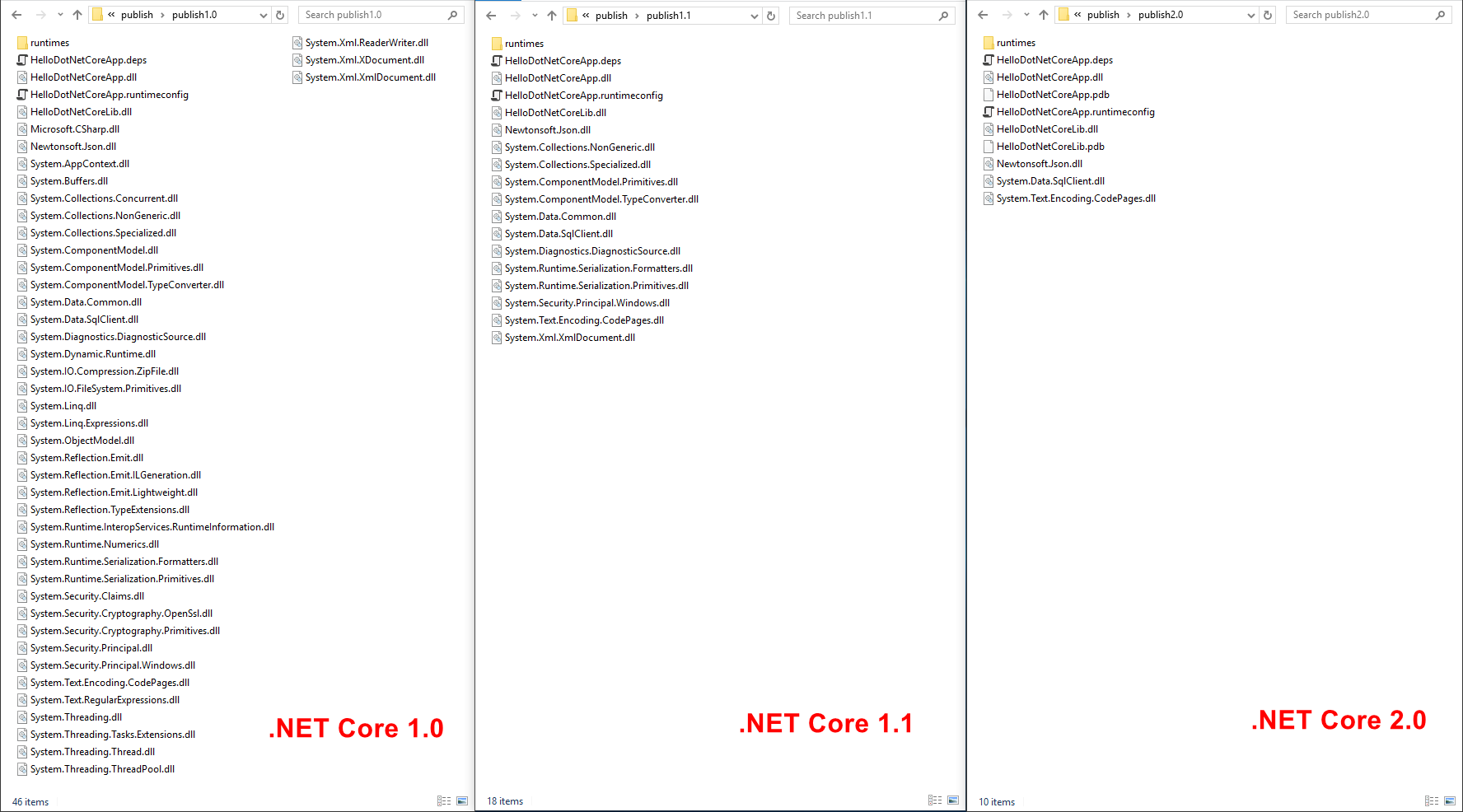
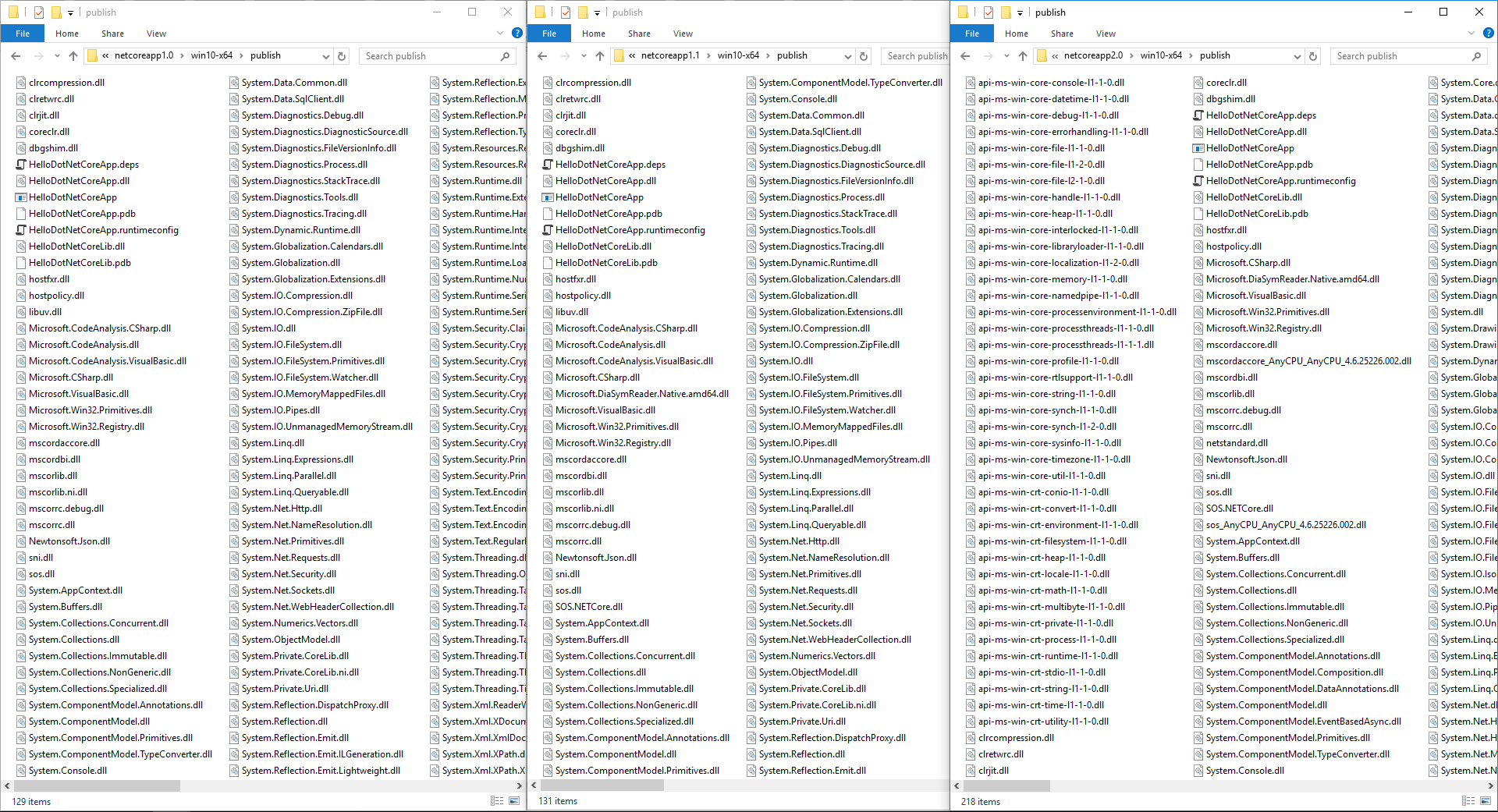
Artifacts of the same Portable application for different versions of the .NET Core platform: The decrease in the number of files is explained by the fact that many libraries were missing in Core FX 1.0, so they went as part of the application like regular dependencies. In Core FX 2.0, these assemblies were added, so they no longer come with the application, but are taken from the framework folder.
Same as for Portable (FDD) application, but additionally contains all runtime components (CoreCLR, CoreFX) and its own dotnet.exe multiplexer , renamed to [AppName] .exe. For .NET Core up to version 2.0, the multiplexer for launching the Standalone application is identical to C: \ Program Files \ dotnet.exe (the same file, only renamed). For .NET Core 2.0, the multiplexer from the Microsoft.NETCore.DotNetAppHost NuGet package is used. The package contains one apphost.exe file, into which it is “sewn” into the assembly name (MyApp.dll) during compilation, and the file itself is renamed to MyApp.exe. When the Standalone application starts, the “binding” of the executable file (MyApp.exe) to the name of the assembly that it can run (MyApp.dll) is checked.
The contents of the same Standalone application for different versions of the .NET Core platform: There is a picture opposite to Portable applications - the more Core FX becomes, the more files are delivered with the application. Deployment Type Considerations
The files [AppName] .runtimeconfig.json and [AppName] .deps.json are called Runtime Configuration Files (* .deps.json are called dependency manifest file). They are created during the compilation process and contain all the information necessary to run dotnet.exe and run the application.
In [AppName] .runtimeconfig.json, the name and version of the .NET Core runtime are set (it also indicates whether the patch version ( SemVer ) will be taken into account when searching for the framework), as well as the operation parameters of the Core CLR (the mode of operation of the garbage collector) are set. This file is required for the Portable and not required for the Standalone application.
dotnet.exe ([AppName] .exe) uses the [AppName] .deps.json fileto determine the absolute paths of all application dependencies when it starts.
Structure [AppName] .deps.json :
The target computer must have .NET Core Runtime installed that matches the configuration of the application being launched.
6.1. The application
is launched using the multiplexer (muxer) from the command line (the same on any OS).
dotnet.exe - renamed corehost.exe , this program is the host process of any .NET Core application, the start process starts from it.
6.2. [corehost] Search and download Framework Resolver (hostfxr.dll)
At this point, dotnet.exe goes to the [own directory] / host / fxr / folder . For portable applications, this library is located in the shared folder C: \ Program Files \ dotnet \ host \ fxr \ [FXR version] \ hostfxr.dll. If there are multiple versions, dotnet.exe will always use the latter.
After loading hostfxr.dll (Framework Resolver), the startup process goes into the scope of this library.
6.3. [hostfxr] Determining the execution mode (standalone, muxer, split / FX)
The first task of hostfxr is to determine the mode in which the host process will work and thus the application type is Portable (FDD) or Standalone (SCD). In Portable (FDD) mode, it also determines whether it is a running application or an SDK command.
Also for a Portable (FDD) application, hostfxr defines the framework (.NET Core Runtime) from where the components will be loaded for execution.
The verification algorithm is very simple - if in the folder where the [AppName] .exe multiplexer (in our case dotnet.exe) was run, there is no coreclr.dll or [AppName] .dll, then the Portable application. If one of these two files exists, then the verification is next - the Portable (split / FX) application or Standalone. If [AppName] .dll exists, then Standalone, otherwise Portable (split / FX).
Portable applications can also be launched in the so-called Exec mode .
To do this, the start command should contain exec C: \> dotnet exec ... as the first argument .
When launched in this mode, you can explicitly specify the paths to the configuration files:
--depsfile
--runtimeconfig
which will be used instead of the files in the application folder.
6.4. [hostfxr] Defining .NET Core Runtime
First, hostfxr defines and downloads the deps and runtimeconfig configuration files. If nothing is overridden in the arguments, these files are taken from the application folder.
At the current stage, hostfxr determines ( according to the configuration file ) whether the application is Portable or Standalone.
After loading the configuration files and determining the mode, hostfxr defines the framework folder (.NET Core Runtime).
To do this, hostfxr will first determine which versions are installed in the shared folder, and then select the release version from this list, taking into account the values in [AppName] .runtimeconfig.json .
When choosing a version, the Roll Forward On No Candidate Fx parameter is taken into account , which indicates the strict compliance of the specified version with the ones available on the machine.
6.5. [hostfxr] Search and download hostpolicy.dll
At the current stage, everything is ready to determine the paths of runtime components. The hostpolicy.dll library , called the Host library, is involved in this task .
The search process for hostpolicy.dll consists of sequential checks of various locations. But first, the hostpolicy version is determined from the framework deps file (e.g. C: \ Program Files \ dotnet \ shared \ Microsoft.NETCore.App \ 2.0.0 \ Microsoft.NETCore.App.deps ). A package named Microsoft.NETCore.DotNetHostPolicy will be found in this file .and its version is taken.
Then it searches for the patch (replacement) hostpolicy.dll (including the version, if it was defined in the previous step, and RID) in the .NET Core Servicing folder (for Windows - in the folder C: \ Program Files [(x86)] \ coreservicing \ pkgs ). If such a file is found, it is downloaded for future use.
If the file was not found in the previous step, hostpolicy.dll will be found in the framework folder.
Once hostpolicy.dll is defined, hostfxr loads this library and transfers control to it .
6.6. [hostpolicy] Defining the dependency list
The hostpolicy.dll library is responsible for determining the absolute paths of all application dependencies.
First of all, hostpolicywill create a component called Dependencies Resolver, which in turn will download two deps files - a framework file and an application file.
First, a list is loaded from the deps file of the framework, where dependencies such as CoreCLR and CoreFX libraries will be defined. Then a list from the deps file of the application, which indicates the assembly of our application and their dependencies.
For each deps file, the Dependency Resolver lists all the dependencies for the specified runtimeTarget .
For each package, a list of files from all sections of runtimeTargets (RID specific dependencies) is compiled first, followed by a list of all files from sections of native and runtime. Such a combined list of relative paths of all dependencies in the conditional
package ID format - RID - asset type (runtime, native) - file paths are called Target assets.
After these two lists of dependency files (RID and non-RID) have been compiled, a process called Reconciling libraries with targets is executed . It consists in the fact that for each package from the libraries section it is checked whether there are RID specific files that should be overridden by regular ones.
6.7. [hostpolicy] Defining TPA, Core CLR, and CLR Jit Paths
Next, the Dependency resolver lists the absolute paths of the managed assembly files — application dependencies. This list is called TPA (Trusted Platform Assemblies) and is passed to the Core CLR to configure AppDomain. A list of absolute paths of directories in which the rest of the dependency files are located (except coreclr, corejit) is also compiled.
The absolute paths of managed assemblies are determined by searching for files in Probe paths. By default, there are two of them - the framework folder and the application folder, and they are based on the location of the deps files. You can also add additional paths:
1) passing the --additionalprobingpath argument , for example
2) specifying .runtimeconfig.json in the [AppName] file (priority is lower than that of the argument), for example
The file’s presence is checked in the framework and application folder (provided that it was specified in the corresponding deps file) without regard to the relative path, in other directories with regard to the path, because these directories are considered as a cache of the NuGet package.
Search order:
If the application deps file is missing, then all files with the extension .ni.dll, .dll, .ni.exe, .exe from the application folder get into the TPA.
After compiling the TPA list, the CoreCLR and CLRJit paths are determined.
If there is no application deps file, dotnet.exe will first try to find these libraries in [app directory] \ lib \. In normal execution, paths are taken from the framework folder (discarding the relative path and taking only the file name).
The following CoreCLR settings are set:
Next, control passes to coreclr.dll.
The process of launching a Standalone application differs from Portable only in the initial stage, as well as in the location of components, which should be located in the application folder by default.
7.1. The application
is launched by launching its own multiplexer MyApp.exe. In .NET Core <2.0, this multiplexer is a renamed common dotnet.exe multiplexer. Starting with .NET Core 2.0, a separate apphost.exe multiplexer (a slightly modified version of dotnet.exe) is used.
This file (apphost.exe) is delivered via NuGet in the Microsoft.NETCore.DotNetAppHost package.
The file contains a text placeholder (its value is the SHA-256 hash of the foobar string).
When running the dotnet build SDK commandthe placeholder value changes to the name of the assembly being launched (e.g. MyApp.dll), and apphost.exe is renamed to MyApp.exe. Thus, the executable is linked to the assembly. When you run the .NET Core> = 2.0 application, this “binding” is checked first.
7.2. The startup process
is the same as that of the Portable application, except that there is only one deps file and all dependencies are searched in the application folder or by the specified --additionalprobepaths.
The text is voluminous and is designed for:
- novice developers who are just getting acquainted with the .NET Core platform;
- Experienced developers acting as DevOps engineers in production environments.
The article does not mention the process of creating applications using the SDK (dotnet CLI), however, this information will be useful for understanding how the SDK works, namely its main component (kernel) is the “driver” dotnet.dll, since this library is a managed assembly and runs on .NET Core.
Examples of execution processes are described for Windows, but work on the same principle on other OSs (taking into account various extensions of executable files and native libraries).
0. Pay-for-Play
Every .NET developer knows from the cradle: in order to run any .NET application, the .NET Framework, namely CLR + BCL, must be installed on the target computer.
BCL is located in the GAC, from where applications download the necessary dependencies.
The architecture of .NET Core in general looks the same: .NET Core = Core CLR + Core FX (new name for BCL), but differs in the way these components are resolved, as well as in the way the runtime (CLR) is loaded. Instead of a header in the managed assembly MyApp.exe in the .NET Framework, in .NET Core, MyApp.exe is itself a native Core CLR boot program.
In .NET Core, all the components of the program that we define at the compilation stage are application dependencies (including Core CLR, JIT), which the .NET Core infrastructure treats as packages. Such a package is called asset , and it can be either a NuGet package or a regular file.
Examples of components that ship via NuGet:
- Microsoft.NETCore.Runtime.CoreCLR - Core CLR.
- Microsoft.NETCore.Jit is a JIT compiler.
- System.Private.CoreLib - the basic types System.Object, System.Int32, System.String (analogous to mscorlib.dll).
- System.Console - access to the console.
These dependencies in the unpacked form when starting the application should be in one of the specific directories (the .NET Core framework folder - Core FX, the application folder or any NuGet cache).
Thanks to this model, .NET Core-application consists of a frighteningly large number of small modules, but this is done to reduce the amount of unnecessary dependencies.
This approach is called pay-for-play; in other words, applications load only the functionality that they need, but each such functionality is contained in a separate assembly.
1. FDD vs SCD
There are two types of deployments for .NET Core applications :
- Portable (Framework-dependent deployment - FDD)
- Standalone (Self-contained deployment - SCD)
Portable (FDD) application is similar to the traditional .NET Framework application. In this case, a certain version of the .NET Core framework (the terms shared framework, .NET Core Runtime, redist are also used) must be located on the target computer, and when it starts, the host process will load Core CLR, Core FX from the framework folder.
In the Standalone (SCD) application, all the components for execution (CoreCLR, CoreFX), as well as third-party libraries, that is, absolutely all the dependencies, are delivered with the application itself (most often in one folder).
It is important to understand that the Standalone application is tied to a specific OS and architecture (for example, Windows 7 x64 or OSX 10.12 x64). This identifier is called a Runtime identifier (RID).. Each OS / architecture has its own version of the Core CLR library (and other native components), so for Standalone applications, at the compilation stage, you need to specify the parameters of the target system (RID) in the RuntimeIdentifier property.
Such an application will work on any computer with a specific OS / architecture, regardless of whether .NET Core is installed or not.
2. .NET Core Runtimes (shared frameworks)
To run Portable applications, at least one .NET Core Runtime (shared framework) must be installed on the target machine .
.NET Core Runtime is installed in the folder C: \ Program Files \ dotnet :
Files of the framework (s) are stored in the folder C: \ Program Files \ dotnet \ shared .
The main components of the .NET Core Runtime:
- The "utility" dotnet.exe to run the .NET Core application. It is called a muxer , and is the main driver for the .NET Core infrastructure. This program serves as an “entry point” for launching any applications and executing development commands. if the .NET Core SDK is installed, that is, it is the host process of any application - corehost .
- Runtime components (CoreCLR, CoreFX, etc.) are installed in a separate folder of the C: \ Program Files \ dotnet \ shared \ [Framework name] \ [Framework version] framework.
- Host framework resolver is a native library located in the
C: \ Program Files \ dotnet \ host \ [version] \ hostfxr.dll folder. When the application is launched, the maximum version of this library resolves the framework version for subsequent execution of the application.
File structure when installing .NET Core Runtime .
You can install several versions of the framework:
To run the Portable application, you must start the dotnet.exe host process and pass the path to the managed assembly as an argument to it.
“C: \ Program Files \ dotnet” is added to the value of the PATH environment variable, so Portable applications can now be launched from the command line:
> dotnet path/to/App.dllIn the application folder (where [AppName] .dll is located), the [AppName] .runtimeconfig file should be .json It indicates the name and version of the framework that should be used to run the Portable application. For example:
MyApp.runtimeconfig.json
{
  "runtimeOptions": {
    "framework": {
      "name": "Microsoft.NETCore.App",
      "version": "2.0.0"
    }
  }
}
This file is required for Portable applications.
Having the above configuration, the runtime components will be loaded from the C: \ Program Files \ dotnet \ shared \ Microsoft.NETCore.App \ 2.0.0 folder .
3. Portable (FDD) .NET Core Application Structure
Any Portable .NET Core application consists of the following required files:
- [AppName] .dll - application IL-code, entry point.
- [App dependencies] *. Dll - all application dependencies not included in CoreFX (project builds, third-party libraries, FCL).
- [AppName] .runtimeconfig.json - runtime configuration , here are the name and version of the .NET Core framework (runtime components). The file is something like MyApp.exe.config in .NET Frameowork. You can change this configuration if you need to explicitly specify a specific framework.
- [AppName] .deps.json - a list of all the application dependencies. Modifying this file is not recommended because it is generated during compilation. The file is optional, but if you delete it, the host process at startup will not be able to check the paths of all the dependency files, and execution will begin at your own risk.
Documentation .
Artifacts of the same Portable application for different versions of the .NET Core platform: The decrease in the number of files is explained by the fact that many libraries were missing in Core FX 1.0, so they went as part of the application like regular dependencies. In Core FX 2.0, these assemblies were added, so they no longer come with the application, but are taken from the framework folder.
4. Standalone (SCD) .NET Core Application Structure
Same as for Portable (FDD) application, but additionally contains all runtime components (CoreCLR, CoreFX) and its own dotnet.exe multiplexer , renamed to [AppName] .exe. For .NET Core up to version 2.0, the multiplexer for launching the Standalone application is identical to C: \ Program Files \ dotnet.exe (the same file, only renamed). For .NET Core 2.0, the multiplexer from the Microsoft.NETCore.DotNetAppHost NuGet package is used. The package contains one apphost.exe file, into which it is “sewn” into the assembly name (MyApp.dll) during compilation, and the file itself is renamed to MyApp.exe. When the Standalone application starts, the “binding” of the executable file (MyApp.exe) to the name of the assembly that it can run (MyApp.dll) is checked.
The contents of the same Standalone application for different versions of the .NET Core platform: There is a picture opposite to Portable applications - the more Core FX becomes, the more files are delivered with the application. Deployment Type Considerations
- Always give preference to Portable deployment, because this type is much smaller and more stable when launching large applications with a large number of dependencies. In addition, Portable applications are easier to configure, because they are not dependent on RID.
- Choose Standalone if you are unable to install the .NET Core Runtime, or if the duration of the application launch is critical. In the Standalone version, you can win 1-2 seconds at startup by deleting the [AppName] .deps.json configuration file (remember that in doing so, you are responsible for having all the dependency files).
5. Runtime Configuration Files
The files [AppName] .runtimeconfig.json and [AppName] .deps.json are called Runtime Configuration Files (* .deps.json are called dependency manifest file). They are created during the compilation process and contain all the information necessary to run dotnet.exe and run the application.
In [AppName] .runtimeconfig.json, the name and version of the .NET Core runtime are set (it also indicates whether the patch version ( SemVer ) will be taken into account when searching for the framework), as well as the operation parameters of the Core CLR (the mode of operation of the garbage collector) are set. This file is required for the Portable and not required for the Standalone application.
dotnet.exe ([AppName] .exe) uses the [AppName] .deps.json fileto determine the absolute paths of all application dependencies when it starts.
Structure [AppName] .deps.json :
- Section targets
term target is called the target platform (name and version), which should be carried out this application (eg., .NET Framework 4.6.2, .NET Core App 1.1, Xamarin.Mac 1.0, .NET Standard 1.6). This configuration is similar to the NuGet target framework .
The targets section defines the platform and the dependency tree for it in the format[ID of dependency (package)] / [version]: {
dependencies: {list of dependencies (packages) of this package},
relative paths to managed and native files of this package
}
To run any application, target must necessarily contain a RID, for example .NETCoreApp, Version = v1.1 / win10-x64 . The deps.json file of the Standalone application is always one and contains the RID of the target platform. For the portable application there are two deps.json files - one in the framework folder, the second in the application folder. The RID for Portable applications is specified in the [FrameworkName] .deps.json file in the framework folder. After dotnet.exe defines a framework for executing the application, it first loads the deps file of this framework (for example, C: \ Program Files \ dotnet \ shared \ Microsoft.NETCore.App \ 2.0.0 \ Microsoft.NETCore.App. deps ) and then the deps file of the application. An application deps file has a higher priority.
Let's take a closer look at the contents of the deps.json Standalone application file:SampleApp.deps.json"targets": { ".NETCoreApp,Version=v1.1/win7-x64": { ... "libuv/1.9.1": { "dependencies": { "Microsoft.NETCore.Platforms": "1.1.0" }, "native": { "runtimes/win7-x64/native/libuv.dll": {} } }, ... "system.data.sqlclient/4.3.0": { "dependencies": { "System.Data.Common": "4.3.0", "System.IO.Pipes": "4.3.0", "System.Text.Encoding.CodePages": "4.3.0", "runtime.native.System.Data.SqlClient.sni": "4.3.0" }, "runtimeTargets": { "runtimes/unix/lib/netstandard1.3/System.Data.SqlClient.dll": { "rid": "unix", "assetType": "runtime" }, "runtimes/win/lib/netstandard1.3/System.Data.SqlClient.dll": { "rid": "win", "assetType": "runtime" } } }, ... "runtime.win7-x64.microsoft.netcore.runtime.coreclr/1.1.1": { "runtime": { "runtimes/win7-x64/lib/netstandard1.0/SOS.NETCore.dll": {}, "runtimes/win7-x64/lib/netstandard1.0/System.Private.CoreLib.dll": {}, "runtimes/win7-x64/lib/netstandard1.0/mscorlib.dll": {} }, "native": { "runtimes/win7-x64/native/System.Private.CoreLib.ni.dll": {}, "runtimes/win7-x64/native/clretwrc.dll": {}, "runtimes/win7-x64/native/coreclr.dll": {}, "runtimes/win7-x64/native/dbgshim.dll": {}, "runtimes/win7-x64/native/mscordaccore.dll": {}, "runtimes/win7-x64/native/mscordbi.dll": {}, "runtimes/win7-x64/native/mscorlib.ni.dll": {}, "runtimes/win7-x64/native/mscorrc.debug.dll": {}, "runtimes/win7-x64/native/mscorrc.dll": {}, "runtimes/win7-x64/native/sos.dll": {} } }
The dependencies property lists the dependencies (packages) of a particular package.
The runtimeTargets property is used in the deps file of the Portable application and determines the library file paths for a specific RID. Such RID-specific libraries are supplied with the Portable application in the runtimes folder .
The runtime and native properties contain the relative paths of managed and native libraries, respectively. The resources property contains relative paths and locales of localized resource assemblies.
The paths are relative to the NuGet package cache, not the deps file.
You can add a third-party deps file by passing the value of the argument--additional-deps or the DOTNET_ADDITIONAL_DEPS environment variable .
This feature is available only for Portable applications.
The argument value may contain the full path to the deps file, as well as the path to the directory where the shared deps files are located. Inside this directory, deps files should be located in the \ shared \ [FX name] \ [FX version] \ *. Deps structure. For example, shared \ Microsoft.NETCore.App \ 2.0.3 \ MyAdditional.deps.json .This approach is used by Visual Studio to implicitly add Application Insights to the project through the file
C: \ Program Files \ dotnet \ additionalDeps \ Microsoft.AspNetCore.ApplicationInsights.HostingStartup \
shared \ Microsoft.NETCore.App \ 2.0.3 \ Microsoft.AspNetCore.ApplicationInsights. HostingStartup.deps.json
When dotnet.exe (MyApp.exe) defines application dependency paths, a list of runtime and native paths is compiled for each individual library.
If there is a library in runtimeTargets for a specific RID, it is added to the runtime or native list based on the specified assetType . - The runtimeTarget section
contains the name and version of the target platform to run. The targets section actually contains two elements - for compilation (without RID) and execution (required with RID). The runtimeTarget section is used for convenience and duplicates the value from the targets section so that dotnet.exe does not waste time processing the targets section. As already mentioned, for the Standalone application, the RID of the target OS is contained in the deps file of the application, and for Portable, in the deps file of the framework. - The libraries section
defines a list of all the application dependencies (in the format of package ID / version: {metadata}) and contains metadata about each of them. The metadata indicates:- type of dependency (project, package, reference),
- serviceable (only for type package) - an indicator of whether the package is Serviceable (determines whether the package assembly can be patched (replaced) by external services, Windows Update or .NET Core Servicing Index ).
- package hash (for package dependencies)
- other data
6. The process of launching the Portable .NET Core application
The target computer must have .NET Core Runtime installed that matches the configuration of the application being launched.
6.1. The application
is launched using the multiplexer (muxer) from the command line (the same on any OS).
> dotnet path\to\MyApp.dlldotnet.exe - renamed corehost.exe , this program is the host process of any .NET Core application, the start process starts from it.
6.2. [corehost] Search and download Framework Resolver (hostfxr.dll)
At this point, dotnet.exe goes to the [own directory] / host / fxr / folder . For portable applications, this library is located in the shared folder C: \ Program Files \ dotnet \ host \ fxr \ [FXR version] \ hostfxr.dll. If there are multiple versions, dotnet.exe will always use the latter.
After loading hostfxr.dll (Framework Resolver), the startup process goes into the scope of this library.
6.3. [hostfxr] Determining the execution mode (standalone, muxer, split / FX)
The first task of hostfxr is to determine the mode in which the host process will work and thus the application type is Portable (FDD) or Standalone (SCD). In Portable (FDD) mode, it also determines whether it is a running application or an SDK command.
The type of execution (program or SDK command) is determined as follows :
- if there is one among the arguments whose value ends in .dll or .exe, the start-up process will continue in the execution mode of the specified file. If there is no such argument, control will be transferred to the SDK. To do this, dotnet.dll (as a Portable application) will be launched from the [own directory] \ sdk \ [version] folder (if one exists), and the arguments of the current host of the process will be passed to this assembly.
Also for a Portable (FDD) application, hostfxr defines the framework (.NET Core Runtime) from where the components will be loaded for execution.
The verification algorithm is very simple - if in the folder where the [AppName] .exe multiplexer (in our case dotnet.exe) was run, there is no coreclr.dll or [AppName] .dll, then the Portable application. If one of these two files exists, then the verification is next - the Portable (split / FX) application or Standalone. If [AppName] .dll exists, then Standalone, otherwise Portable (split / FX).
Split / FX mode is used to start xunit and means that the application starts as Portable, with its own hostfxr.dll. This mode is not used in .NET Core 2.0.
Portable applications can also be launched in the so-called Exec mode .
To do this, the start command should contain exec C: \> dotnet exec ... as the first argument .
When launched in this mode, you can explicitly specify the paths to the configuration files:
--depsfile
--runtimeconfig
which will be used instead of the files in the application folder.
6.4. [hostfxr] Defining .NET Core Runtime
First, hostfxr defines and downloads the deps and runtimeconfig configuration files. If nothing is overridden in the arguments, these files are taken from the application folder.
At the current stage, hostfxr determines ( according to the configuration file ) whether the application is Portable or Standalone.
After loading the configuration files and determining the mode, hostfxr defines the framework folder (.NET Core Runtime).
To do this, hostfxr will first determine which versions are installed in the shared folder, and then select the release version from this list, taking into account the values in [AppName] .runtimeconfig.json .
When choosing a version, the Roll Forward On No Candidate Fx parameter is taken into account , which indicates the strict compliance of the specified version with the ones available on the machine.
6.5. [hostfxr] Search and download hostpolicy.dll
At the current stage, everything is ready to determine the paths of runtime components. The hostpolicy.dll library , called the Host library, is involved in this task .
The search process for hostpolicy.dll consists of sequential checks of various locations. But first, the hostpolicy version is determined from the framework deps file (e.g. C: \ Program Files \ dotnet \ shared \ Microsoft.NETCore.App \ 2.0.0 \ Microsoft.NETCore.App.deps ). A package named Microsoft.NETCore.DotNetHostPolicy will be found in this file .and its version is taken.
Then it searches for the patch (replacement) hostpolicy.dll (including the version, if it was defined in the previous step, and RID) in the .NET Core Servicing folder (for Windows - in the folder C: \ Program Files [(x86)] \ coreservicing \ pkgs ). If such a file is found, it is downloaded for future use.
If the file was not found in the previous step, hostpolicy.dll will be found in the framework folder.
Once hostpolicy.dll is defined, hostfxr loads this library and transfers control to it .
6.6. [hostpolicy] Defining the dependency list
The hostpolicy.dll library is responsible for determining the absolute paths of all application dependencies.
First of all, hostpolicywill create a component called Dependencies Resolver, which in turn will download two deps files - a framework file and an application file.
First, a list is loaded from the deps file of the framework, where dependencies such as CoreCLR and CoreFX libraries will be defined. Then a list from the deps file of the application, which indicates the assembly of our application and their dependencies.
For each deps file, the Dependency Resolver lists all the dependencies for the specified runtimeTarget .
For each package, a list of files from all sections of runtimeTargets (RID specific dependencies) is compiled first, followed by a list of all files from sections of native and runtime. Such a combined list of relative paths of all dependencies in the conditional
package ID format - RID - asset type (runtime, native) - file paths are called Target assets.
After these two lists of dependency files (RID and non-RID) have been compiled, a process called Reconciling libraries with targets is executed . It consists in the fact that for each package from the libraries section it is checked whether there are RID specific files that should be overridden by regular ones.
6.7. [hostpolicy] Defining TPA, Core CLR, and CLR Jit Paths
Next, the Dependency resolver lists the absolute paths of the managed assembly files — application dependencies. This list is called TPA (Trusted Platform Assemblies) and is passed to the Core CLR to configure AppDomain. A list of absolute paths of directories in which the rest of the dependency files are located (except coreclr, corejit) is also compiled.
The absolute paths of managed assemblies are determined by searching for files in Probe paths. By default, there are two of them - the framework folder and the application folder, and they are based on the location of the deps files. You can also add additional paths:
1) passing the --additionalprobingpath argument , for example
--additionalprobingpath %UserProfile%\\.nuget\\packages2) specifying .runtimeconfig.json in the [AppName] file (priority is lower than that of the argument), for example
{
  "runtimeOptions": {
    "additionalProbingPaths": [
      "C:\\Users\\username\\.nuget\\packages"
    ]
  }
}
The file’s presence is checked in the framework and application folder (provided that it was specified in the corresponding deps file) without regard to the relative path, in other directories with regard to the path, because these directories are considered as a cache of the NuGet package.
Search order:
- application folder
- framework folder
- Probe paths
If the application deps file is missing, then all files with the extension .ni.dll, .dll, .ni.exe, .exe from the application folder get into the TPA.
After compiling the TPA list, the CoreCLR and CLRJit paths are determined.
If there is no application deps file, dotnet.exe will first try to find these libraries in [app directory] \ lib \. In normal execution, paths are taken from the framework folder (discarding the relative path and taking only the file name).
The following CoreCLR settings are set:
- TRUSTED_PLATFORM_ASSEMBLIES - a list of absolute paths of all managed libraries of the application.
- NATIVE_DLL_SEARCH_DIRECTORIES - absolute paths of directories where native dependencies are found.
- PLATFORM_RESOURCE_ROOTS - absolute paths of directories where resource dependencies are found
- AppDomainCompatSwitch - constant "UseLatestBehaviorWhenTFMNotSpecified".
- APP_CONTEXT_BASE_DIRECTORY - application folder.
- APP_CONTEXT_DEPS_FILES - absolute paths of deps-files of application and framework.
- FX_DEPS_FILE - the absolute path of the framework deps file.
- PROBING_DIRECTORIES - additional sensing paths (if specified).
Next, control passes to coreclr.dll.
7. Startalone (SCD) .NET Core Application Launch Process
The process of launching a Standalone application differs from Portable only in the initial stage, as well as in the location of components, which should be located in the application folder by default.
7.1. The application
is launched by launching its own multiplexer MyApp.exe. In .NET Core <2.0, this multiplexer is a renamed common dotnet.exe multiplexer. Starting with .NET Core 2.0, a separate apphost.exe multiplexer (a slightly modified version of dotnet.exe) is used.
This file (apphost.exe) is delivered via NuGet in the Microsoft.NETCore.DotNetAppHost package.
The file contains a text placeholder (its value is the SHA-256 hash of the foobar string).
When running the dotnet build SDK commandthe placeholder value changes to the name of the assembly being launched (e.g. MyApp.dll), and apphost.exe is renamed to MyApp.exe. Thus, the executable is linked to the assembly. When you run the .NET Core> = 2.0 application, this “binding” is checked first.
7.2. The startup process
is the same as that of the Portable application, except that there is only one deps file and all dependencies are searched in the application folder or by the specified --additionalprobepaths.
8. To summarize
- The .NET Core component model (Runtime, BCL) consists entirely of NuGet packages.
- There are two types of deployment - FDD and SCD. Whenever possible, it is recommended that you use the Framework Dependent Deployment to avoid complexity with platform-specific components and not to supply unnecessary dependencies.
- As we can see, there are quite a few possibilities to influence the startup process on the target machine, and if necessary, override / patch the dependency files, as well as add implicit (dynamically launched) dependencies.
- It is not recommended to remove or modify the Dependency manifest file (* .deps.json) without special reasons.
- Using --additional-deps and --additionalprobepaths we can place runtime components in the file structure we need.
- Using Exec mode, you can override application configuration files.
- You can see the trace log of the startup process by setting the environment variable COREHOST_TRACE = 1