Authentication of terminal server users on FirePOWER
- Tutorial
For us engineers, keeping an eye on new FirePOWER versions is a real pleasure. Each time, when we open the next Release Notes, with bated breath (and sometimes with a complete halt), we study new features added by the developers.
One of the long-awaited innovations was the Cisco Terminal Server Agent (hereinafter TS Agent). It is intended for the correct authentication of terminal server users (hereinafter referred to as the TS). In this article I will tell you why it is needed and how it works.
Let me remind you that the problem with authentication on a TS is that in most solutions like FirePOWER, it works by its IP address, which is the same for all TS users.
For example, Vasily and Peter simultaneously work on a terminal server. According to corporate rules, you can visit Vasily social. network, but Pete - no. ITU will not be able to separate Vasily and Peter's traffic from each other without additional information other than an IP address. Therefore, either both employees will be denied access to social services. network, or both are allowed.
There are different ways to solve the problem. For example, the “crutch” option, using IP Virtualization technology on the vehicle. In this case, each new session on the vehicle will be assigned a unique IP address. But it is immediately worth noting that this approach has many nuances.
The Cisco WSA Web Proxy introduces the concept of Session cookies. Thanks to the information from Session cookies, the WSA can distinguish users with the same IP addresses. But there is a drawback: cookies can only be used for browser sessions. Applications that do not support cookies will not work (Skype, TeamViewer, etc.).
Using an agent installed on a TS is the most universal method for solving a problem. Identity Agent has long existed for Checkpoint solutions. Now, finally, Cisco has introduced a similar ITU solution based on FirePOWER. The announcement took place on August 29, 2016 (we mentioned this here, UPD (09/02/2016). But the agent became available for download only on January 26, 2017. From the official Release Notes for version 6.1 of the FirePOWER Management Center (FMC, FirePOWER management system), the information about the terminal agent was removed and migrated to Release Notes for 6.2. Thus, the terminal agent is supported on FMC, starting with version 6.2.
How does an agent work?
The idea is as simple as a slipper. For each TS user, source tcp / udp ports of the launched sessions are translated into a specific port pool. Yes, yes, it’s broadcast. PAT happens. When installing the agent on the server, a special low-level driver is added, which deals with the conversion of tcp / udp ports.
Information about mapping the user and the pool of ports is transferred to the FMC (FirePOWER Management Center) control panel via the REST API.
The agent is downloaded from cisco.com as an installation exe file. After the installation on the TS, the agent settings window opens:
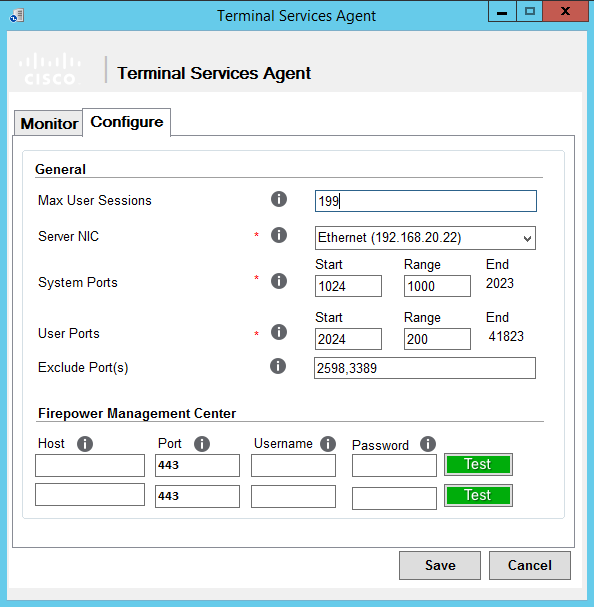
Here we can set how many users can use the server at the same time (Max User Sessions). In this version of the agent, 199 users are the maximum.
We select the server’s network card, and which ports we can and cannot use for translation.
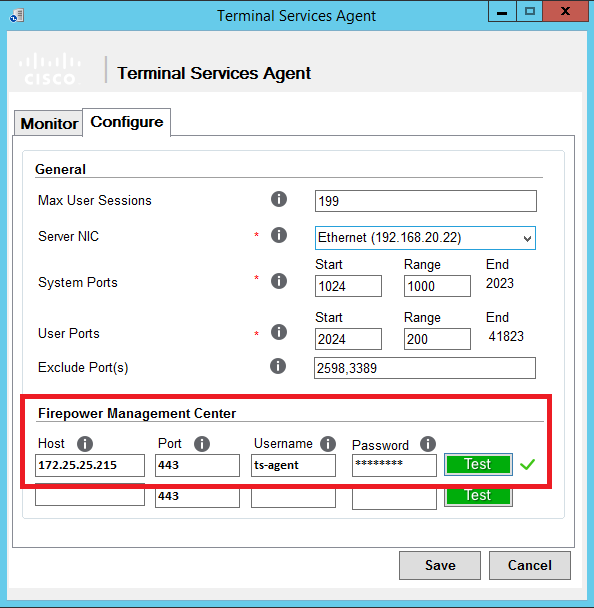
For the system to work, you must specify the IP address of the FMC and the user who has the rights to use REST VDI. By default, the following user roles have rights:
- Access admin
- Admin
- Network admin
You can create a separate role for the agent on the FMC, which I did for the test.
System tab -> Users -> User Roles. Click Create User Role:
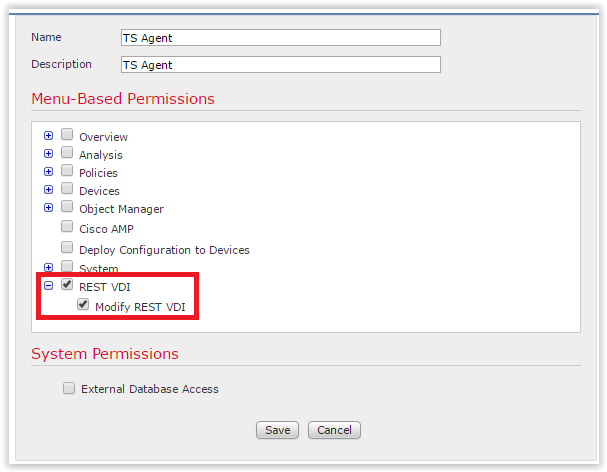
Select “Rest VDI” from the submenu.
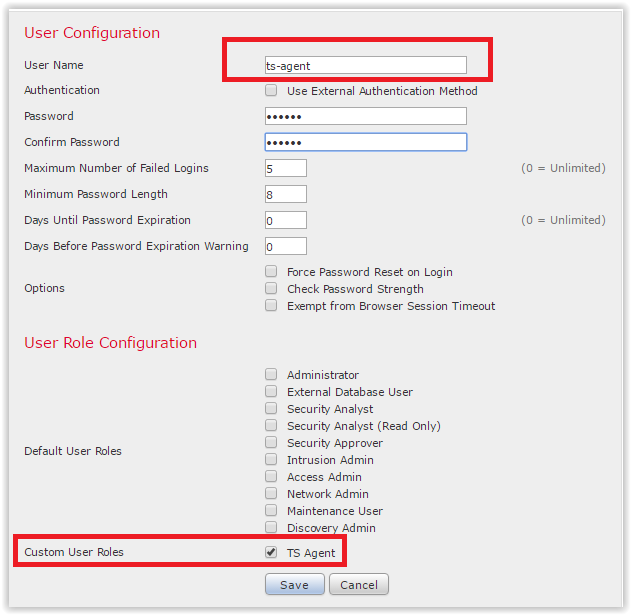
Next, create the ts-agent user and assign the newly created TS Agent role to it. On the Users tab, click Create User:
Go back to the agent, enter the IP address of the FMC, user ts-agent and his password. Click Test:
Click Save. There is a nuance: the agent will ask you to restart the server. There is nothing to be done, we obey the will of a soulless machine. By the way (or by the way), making any changes to the agent settings also requires a reboot.
All is ready. You can check what happened. Let's make two access rules for FMC. The first rule is for a group from AD “IT department”, which will allow full access to the Internet. The second rule is for all other users. According to this rule, we block access to social services. networks. Setup:

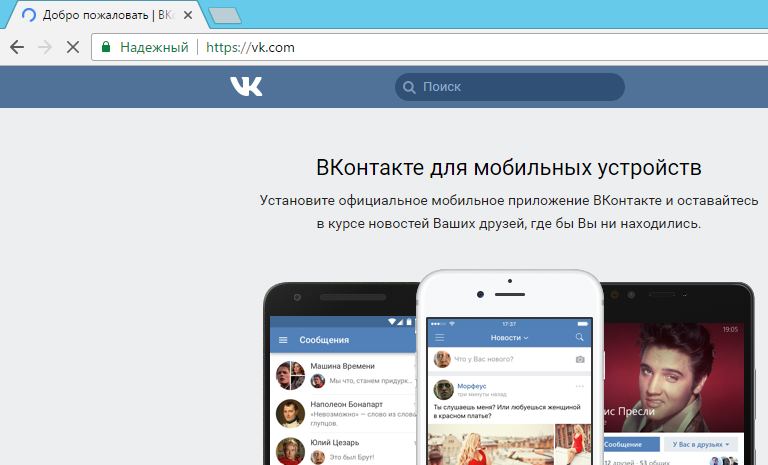
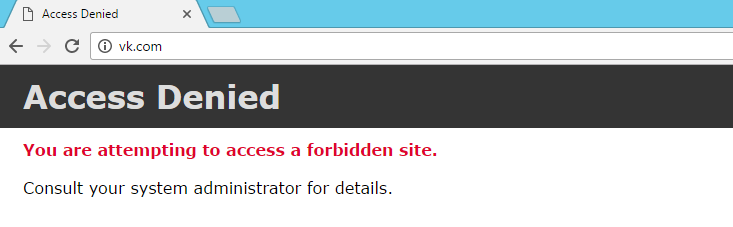
We go under two users on the vehicle. The first user of “Uskov” is a member of the IT department group. The second user, “Vasiliy”, is not part of the IT department. Accordingly, for “Uskov” will be allowed to go to the social. network, for "Vasiliy" - is prohibited. We check.
For "Uskov":
For "Vasiliy":
Fuh, the tsiskodel did not deceive, it works! Let's see the logs. The agent shows which port ranges are issued to users:
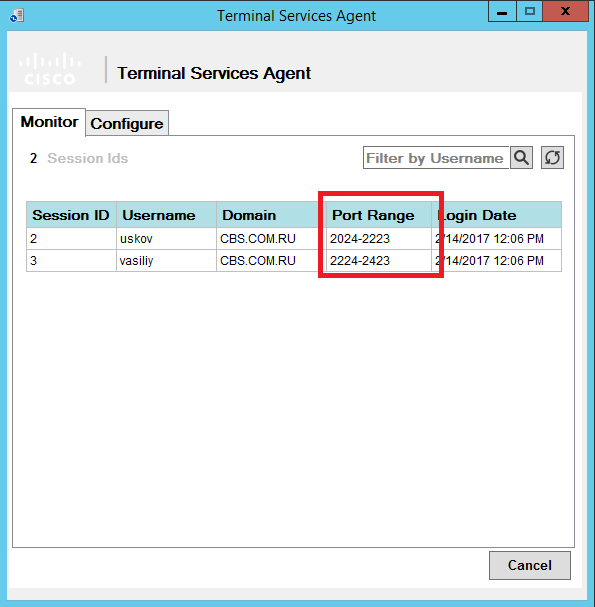
On the FMC, on the Analysis → Users → User Activity tab, port information appeared:

Everything works as intended.
What agent is installed on
- Windows Server 2008 R2
- Windows Server 2012
- Windows Server 2012 R2
The following virtualization systems are supported:
- Citrix XenDesktop
- Citrix XenApp
- Xen Project Hypervisor
- VMware vSphere Hypervisor / VMware ESXi 6.0
- Windows Terminal Services / Windows Remote Desktop Services (RDS)
Limitations and notes for the first version of the agent (1.0.0-36)
- Up to 199 users on the vehicle;
- Only one TS network card can be used;
- The time on the vehicle must be synchronized with the time on the FMC;
- At FMC, user information received from TS Agent is higher than information from other passive authentication sources: User Agent and Cisco ISE. This is logical, otherwise there would be no miracle. Active Authentication should not be paired with TS Agent.