Slate - a “silver bullet” for arranging windows on OS X screens
Hello, Habr! I want to share a very interesting tool for “taming” the position of windows in OS X. In short, here is a link to the repository with the wonderful Slate application. For details, welcome to cat.
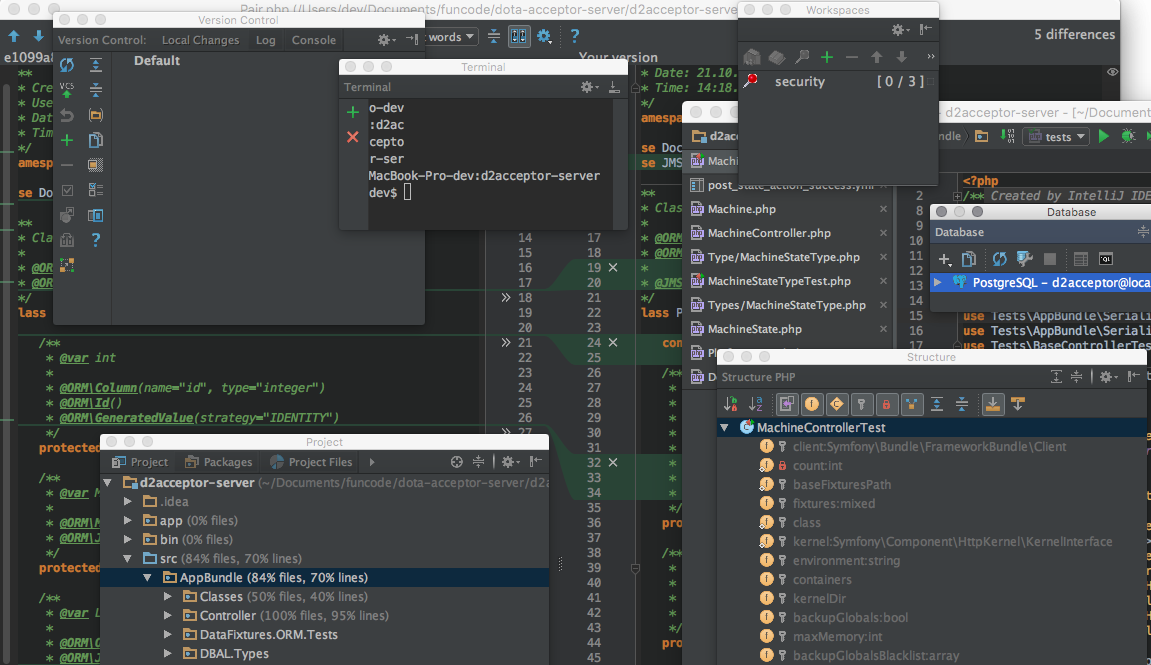
I ran into the problem of the location (and, most importantly, maintaining this position!) Of windows on several monitors in OS X. This problem is especially relevant if the main working machine is a laptop, and you have to work a lot, and, therefore, connect different monitors and in different quantities. For example, I have a rather large monitor in the office, smaller at home, and on the road - there is no way to connect a second monitor at all. As a result, my every working session begins with the inclusion of the IDE and the location of all the tool windows (terminal, version history, project structure, class inspector, etc.) of the IDE on monitors. This process is greatly accelerated by applications like ShiftItbut you still have to spend time on the exact location of each window. You just want to press the treasured key combination and watch how the windows themselves are located at predetermined positions.
And today I found a solution that covers all my needs with a head and I want to share it with you.
Actually, the application is called Slate. Here is the link to the github. This application allows you to create your own configurations of window layout on monitors in the form of a JS configuration file. Slate provides a very powerful and at the same time easy-to-understand API for manipulating windows, allows you to bind events to keyboard shortcuts, has excellent documentation and (most importantly) works!
To create your own configuration, you need to create the ~ / .slate.js file and describe the location of the windows there.
So, for example, it turned out for me:
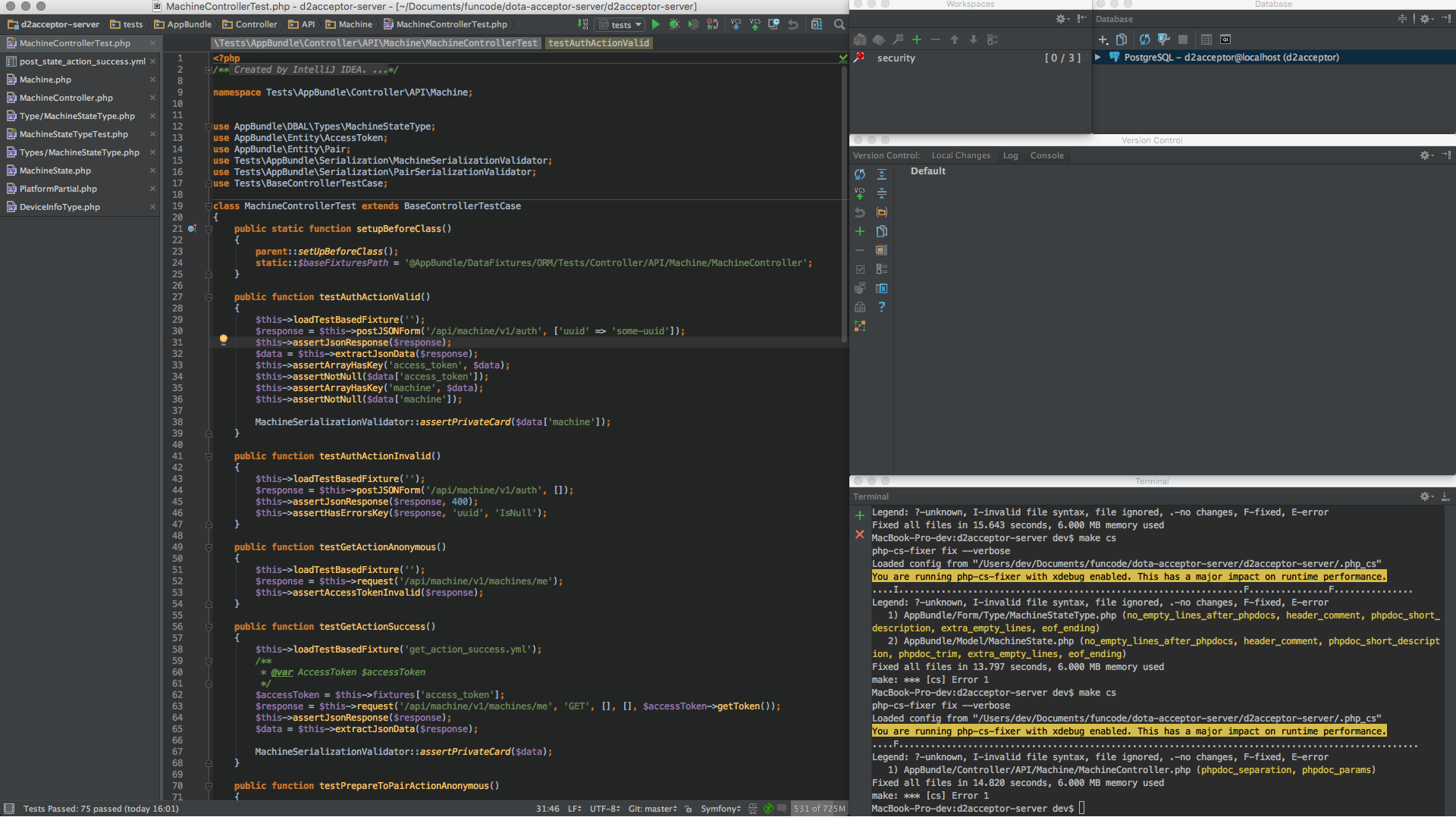
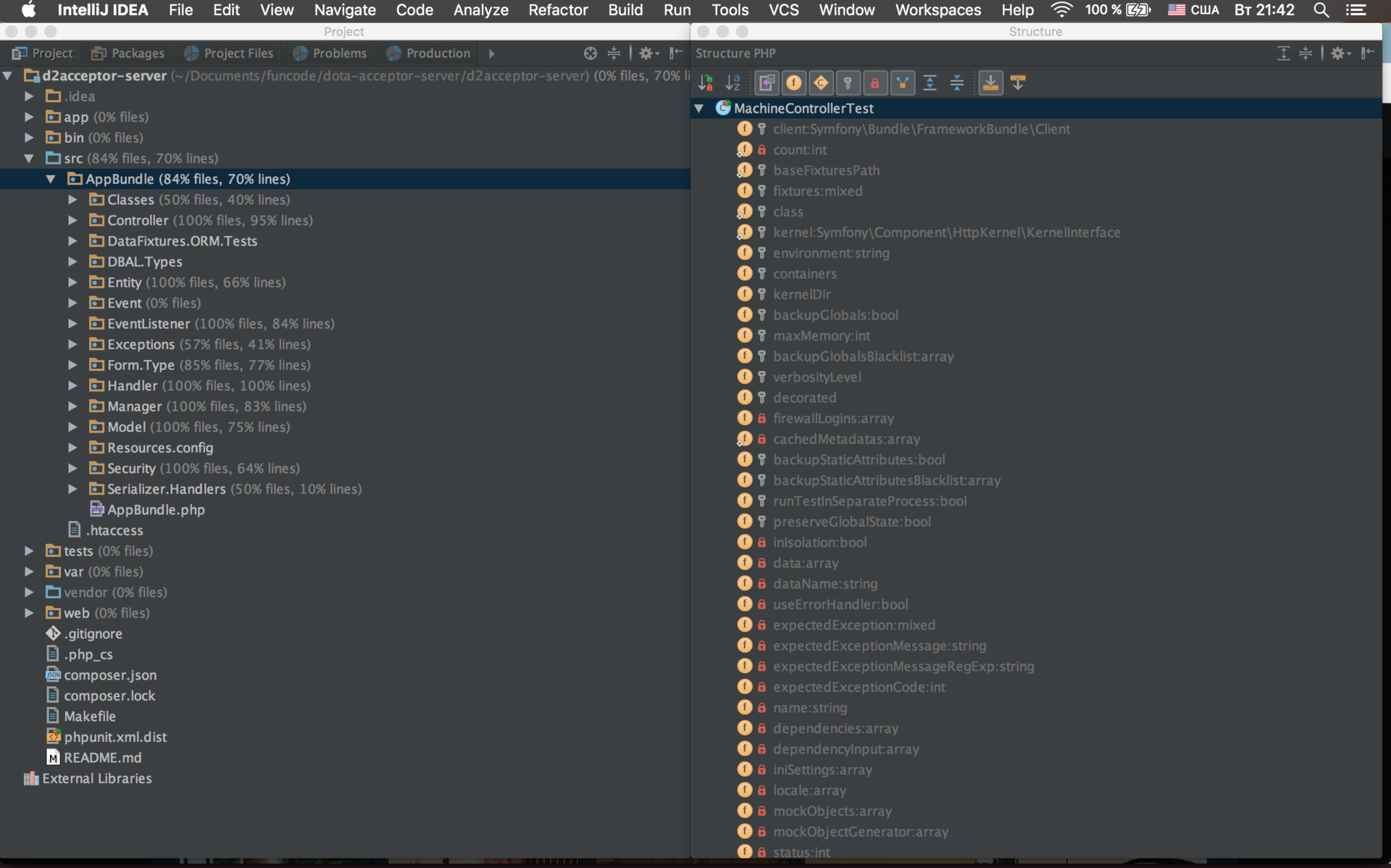
And here is the result:
Thank you for your attention!
I ran into the problem of the location (and, most importantly, maintaining this position!) Of windows on several monitors in OS X. This problem is especially relevant if the main working machine is a laptop, and you have to work a lot, and, therefore, connect different monitors and in different quantities. For example, I have a rather large monitor in the office, smaller at home, and on the road - there is no way to connect a second monitor at all. As a result, my every working session begins with the inclusion of the IDE and the location of all the tool windows (terminal, version history, project structure, class inspector, etc.) of the IDE on monitors. This process is greatly accelerated by applications like ShiftItbut you still have to spend time on the exact location of each window. You just want to press the treasured key combination and watch how the windows themselves are located at predetermined positions.
And today I found a solution that covers all my needs with a head and I want to share it with you.
Actually, the application is called Slate. Here is the link to the github. This application allows you to create your own configurations of window layout on monitors in the form of a JS configuration file. Slate provides a very powerful and at the same time easy-to-understand API for manipulating windows, allows you to bind events to keyboard shortcuts, has excellent documentation and (most importantly) works!
To create your own configuration, you need to create the ~ / .slate.js file and describe the location of the windows there.
So, for example, it turned out for me:
// При нажатии на ctrl+alt+cmd+shift+1 будем расставлять окна на место
slate.bind("1:ctrl,alt,cmd,shift", function() {
        // Пока что не будем обрабатывать ситуацию, когда количество мониторов не равно 2-м.
	if (slate.screenCount() !== 2) {
		return;
	}
        // Выберем более большой по размеру монитор как главный, а второй как дополнительный
	var screen0 = slate.screenForRef('0');
	var screen1 = slate.screenForRef('1');
	var mainScreen = null,
		additionalScreen = null;
	if (screen0.rect().width * screen0.rect().height > screen1.rect().width * screen1.rect().height) {
		mainScreen = screen0;
		additionalScreen = screen1;
	} else {
		mainScreen = screen1;
		additionalScreen = screen0;
	}
        // Пробежимся по всем открытым приложениям
	slate.eachApp(function(app) {
                // Но работать будем только с окнами IntelliJ IDEA
		var appName = app.name();
		if (appName !== 'IntelliJ IDEA') {
			return;
		}
		app.eachWindow(function(win) {
                        //В зависимости от названия окна - инструмента IntelliJ IDEA зададим ему позицию, размеры и монитор
			var w, h, xOffset, yOffset, screen;
			switch (win.title()) {
				case 'Terminal':
					w = 5;
					h = 5;
					xOffset = 7;
					yOffset = 7;
					screen = mainScreen;
					break;
				case 'Version Control':
					w = 5;
					h = 5;
					xOffset = 7;
					yOffset = 2;
					screen = mainScreen;
					break;
				case 'Database':
					w = 3;
					h = 2;
					xOffset = 9;
					yOffset = 0;
					screen = mainScreen;
					break;
				case 'Workspaces':
					w = 2;
					h = 2;
					xOffset = 7;
					yOffset = 0;
					screen = mainScreen;
					break;
				case 'Project':
					w = 6;
					h = 12;
					xOffset = 0;
					yOffset = 0;
					screen = additionalScreen;
					break;
				case 'Structure':
					w = 6;
					h = 12;
					xOffset = 6;
					yOffset = 0;
					screen = additionalScreen;
					break;
				default:
					w = 7;
					h = 12;
					xOffset = 0;
					yOffset = 0;
					screen = mainScreen;
			}
                        // Применим изменения к окну
			win.doOperation(slate.operation('move', {
				'x': 'screenOriginX+screenSizeX/12*' + xOffset,
				'y': 'screenOriginY+screenSizeY/12*' + yOffset,
				'width': 'screenSizeX/12*' + w,
				'height': 'screenSizeY/12*' + h,
				'screen': screen
			}));
		});
	});
});
And here is the result:
Thank you for your attention!