We make a startup simple and technological. Lighthouses Eddystone
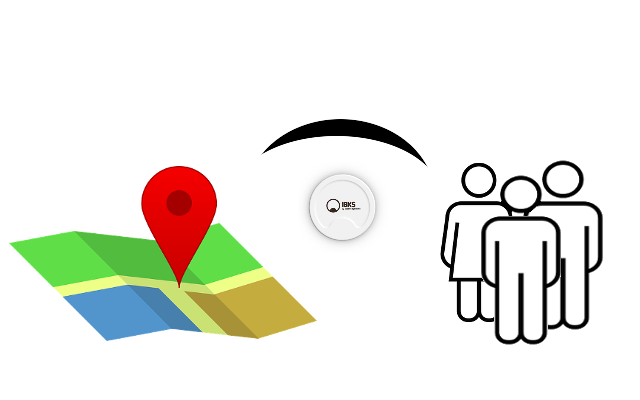
Have you ever been to the Louvre? Got to Mona Lisa? If so, then you probably saw only a large line in front of her, and the picture itself is only from afar and not at full size. People want to study the canvas in more detail, remember every detail of it, find out all the details about it, so they will stay with it for a long time. But what if you transfer all this information directly to your smartphone? Make the picture itself tell the device about itself, and it conveys information to you?
An article by Alexey Naberezhny, as part of the Devces Lab by Google project .
In this article, we describe iBeacon and Eddystone technologies that may very well solve our problem. These technologies use small Bluetooth Low Energy devices - the so-called beacons. We will tell you what beacons are, how they are arranged and how to work with them.
Let's see what a beacon is. For review habrahabr.ru provided an iBKS105 model manufactured by Accent Systems. The beacon is a small round box with double-sided tape pasted on one side for convenient fixing on any surface, for example, on the glass of a store.
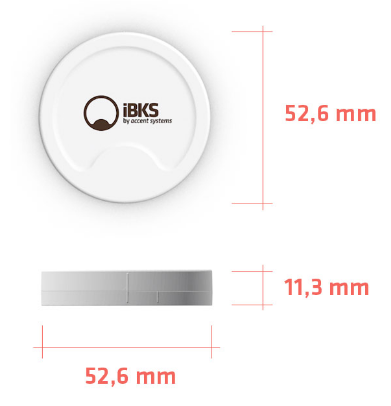
This is how it looks:

The beacon can run on a single CR2477 battery for as long as 40 months thanks to the BLE module NRF51822 manufactured by Nordic Semiconductors. At the same time, the iBKS105 supports the iBeacon and Eddystone protocols, sending a maximum of 5 Advertisment packets (1 for iBeacon and 4 for Eddystone).
iBeacon , a proprietary technology introduced by Apple in 2013, provides for the transmission of one packet containing UUID (16 bytes), Major and Minor (2 bytes each), as well as TX Power (1 byte): a total of 21 bytes. UUID is usually used to determine the application that works with the beacon, Major - to determine the group of beacons, and Minor - to determine the number of the beacon in the group. Apple suggests using the UUIDGEN utility to generate this information and provides the following example of a beacon in a store.
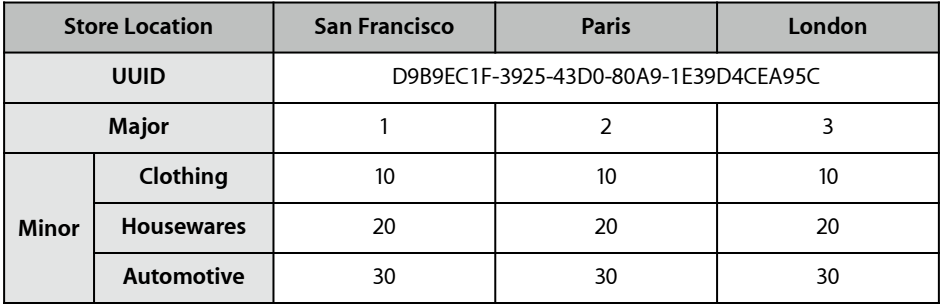
Apple offers a closed beacon tuning standard. However, to obtain information about it, you must obtain an iBeakon License. Eddystone
Technologycoined by Google in July 2015. Unlike iBeacon, the Eddystone standard is open and therefore supported by devices based on any operating system. Eddystone can do much more than its competitor: it translates up to 4 data packets - Eddystone-UID (20 bytes), Eddystone-URL (up to 20 bytes), Eddystone-TLM (14 or 18 bytes) and, from March 14, 2016 , Eddystone-EID (10 bytes). Eddysone-UID is an analogue of the package used in iBeacon, while the Eddystone-URL transmits some kind of URL that can be opened on the device receiving the package. Eddystone-TLM package contains telemetry information such as transmitter battery voltage, ambient temperature, time from power on, etc. Eddystone-EID (Ephemeral IDs) is an encrypted identifier that allows registering a beacon in WEB services. It supports AES encryption, as well as the latest version of Eddystone-TLM. For security reasons, when establishing a connection, devices exchange public keys, and the beacon changes the identifier pseudo-randomly (with an interval of 1 second to 9 hours). Google invented an open standard for setting Eddystone beaconsGATT Configuration Service . For more information on the Eddystone protocol, see the link on Github .
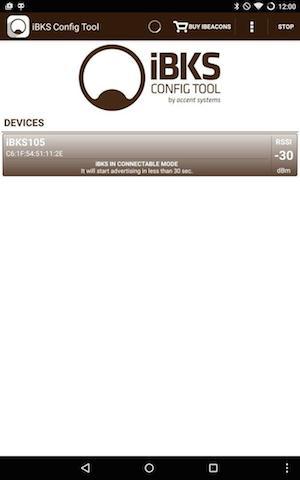
As already mentioned, our beacon can work with both iBeacon and Eddystone. Accent Systems has released iBKS Config Tool apps for iOS and Android that let you customize their beacons. By default, the beacon can enter the setup mode only in the first 30 seconds after switching on, so when purchasing a beacon, do not rush to pull out the protective tab! Otherwise, the beacon will have to open and remove the battery, and then insert it back.
The Android application has more advantages, as it allows you to see telemetry information. If you try to connect to the beacon, you will be asked for the password recorded in non-volatile memory, if it was installed.
Then you can choose the mode in which the beacon operates - iBeacon, Eddystone UID, Eddystone URL or a mixture of these modes. Eddystone-EID packets are sent if one of the Eddystone modes is enabled.
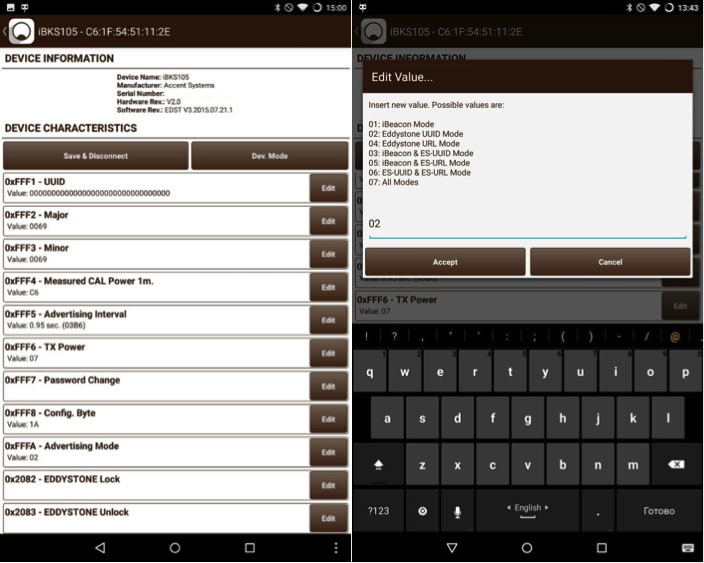
Then you can try other types of settings:
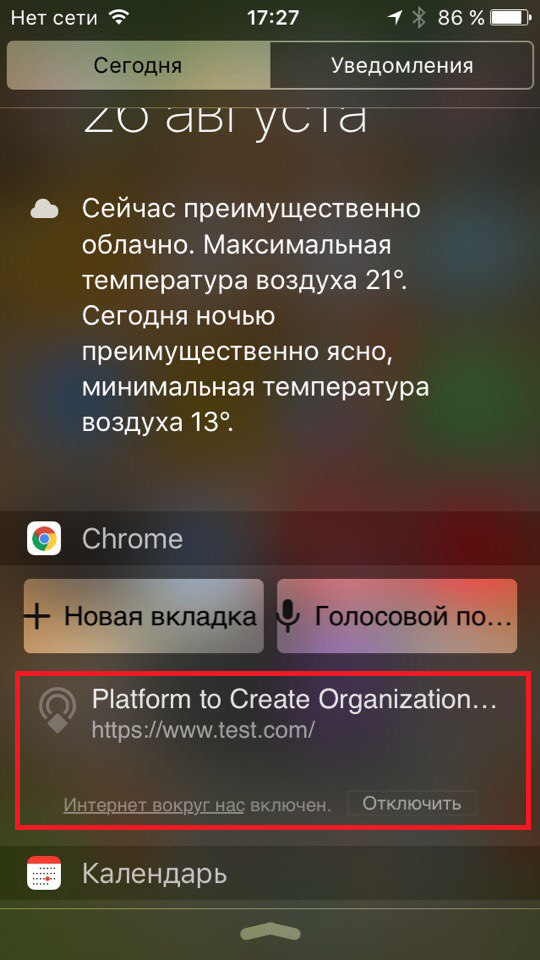
Please note that if no beacon applications are installed on the device, iOS will not react in any way to their appearance, while Android should display a notification (using Google Play Services). We checked the beacons using the iPhone. As it turned out, this is easiest to do using Google Chrome.
Let's try to look at what the beacon sends us.
Create a BeaconNotifier test project and add the permissions BLUETOOTH and BLUETOOTH_ADMIN. We also mark our future Reciever and Service: Reciever will catch a change in the status of Bluetooth, and Service will look for our beacons.
Reciever catches two Actions - turning Bluetooth on and off, as well as the intent, which we ourselves will send when we open the application, for the first time to revitalize our service.
Service will contain a stream that is looking for Bluetooth Low Energy devices. When we find the device, issue a notification and continue the search.
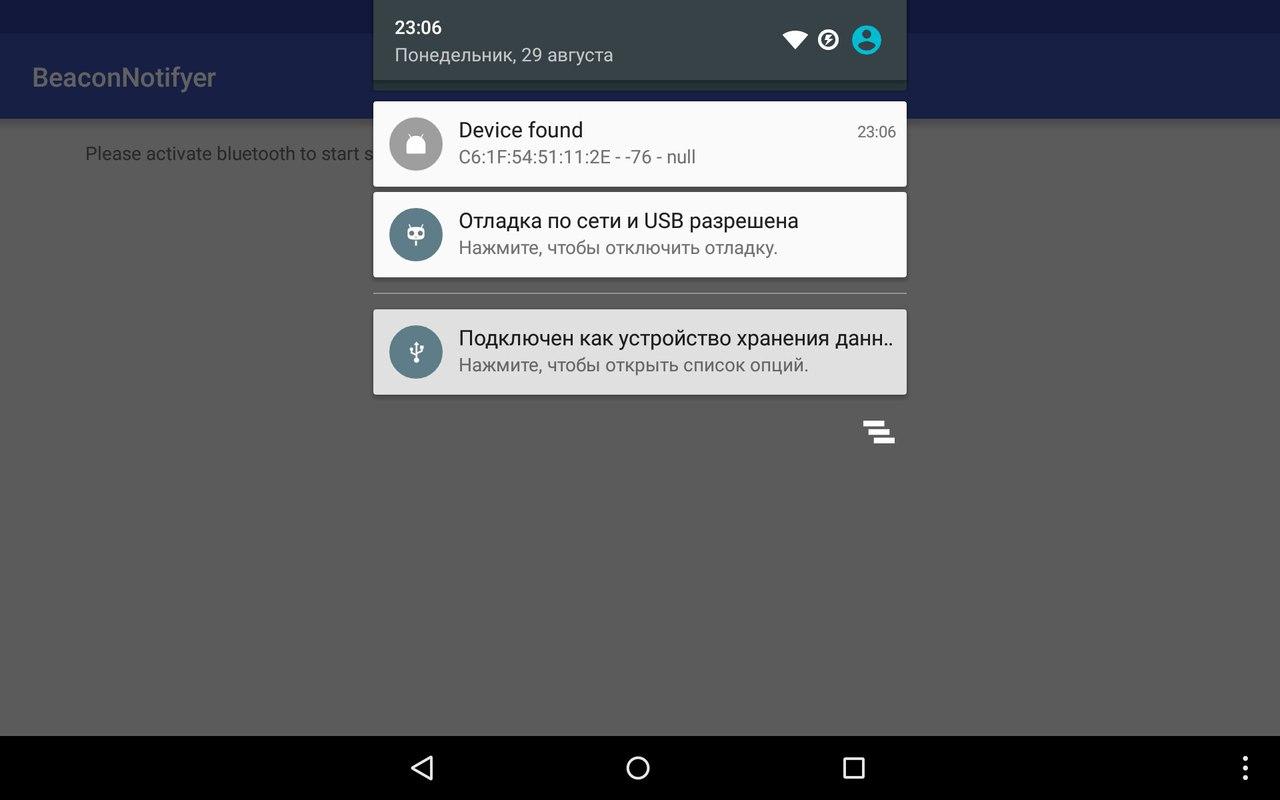
This is all you need to do to get data from the beacon. Here's what we got:
The source code of the application is available on Github .
Unfortunately, we will have to install a special application to receive information from the beacons. But not all users have it installed. It is much easier to turn on Bluetooth on your phone and immediately get the information you need without installing the application. Google will help us with this.
Google
Admittedly, Google has invaded our world. Android OS, which occupies 82.8% of the smartphone market , has long supplanted iOS. Many iOS users prefer to install the Google Chrome browser on their smartphone. It is not surprising that Google has become a company whose name is closely linked to such a promising development as beacons. There are several Internet services that help supplement the small amount of information that these BLE devices can transmit, for example, pubnub, but Google has implemented support for its cloud service directly in Google Play Services, which can be found on almost any Android device. Therefore, we can say that Google is a monopolist in this area. Therefore, in our article we will consider Google services.
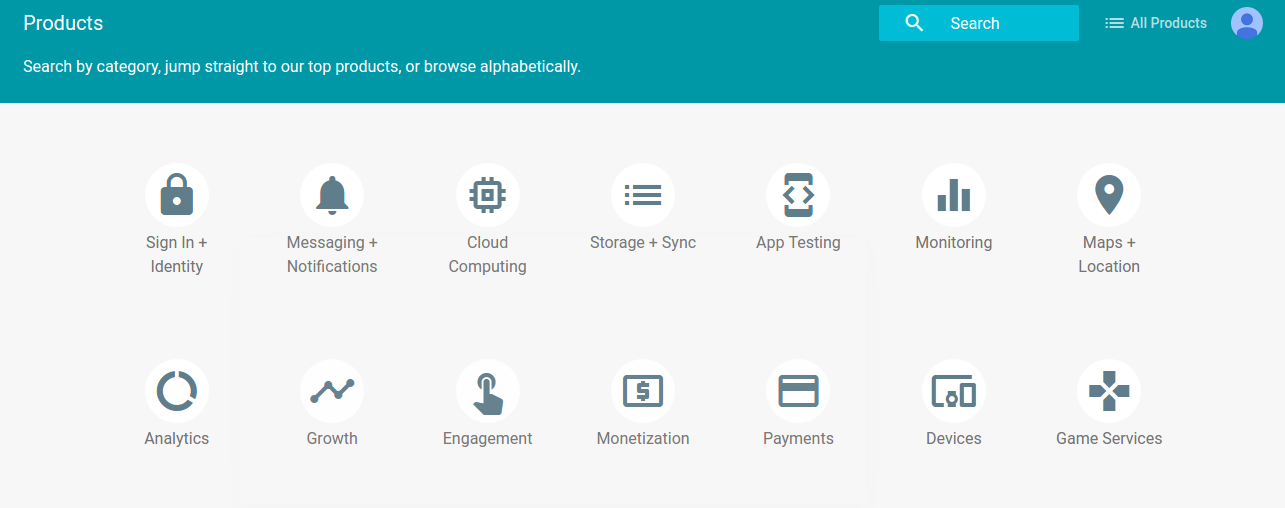
As you know, Google in its arsenal has a huge number of services for developers.
The Google Beacon Service is available at the following link: https://developers.google.com/beacons/dashboard . Google warmly welcomes us with this notification:
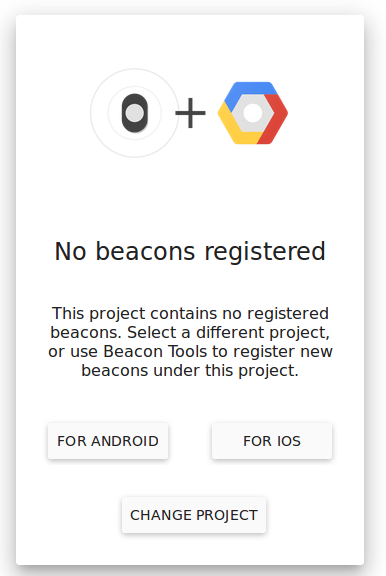
To use the service, you must put the beacon in Eddystone transfer mode - UID or URL. For this action, we had to update iBKS105 using the nRF Connect application.
Download the Beacon Tools application (it is available for iOS and Android). We enter there under our Google account and select our project. The beacon appears in the “Unregistered” tab. Select it and click on “Register Beacon”. Done, the beacon has been added to our project.
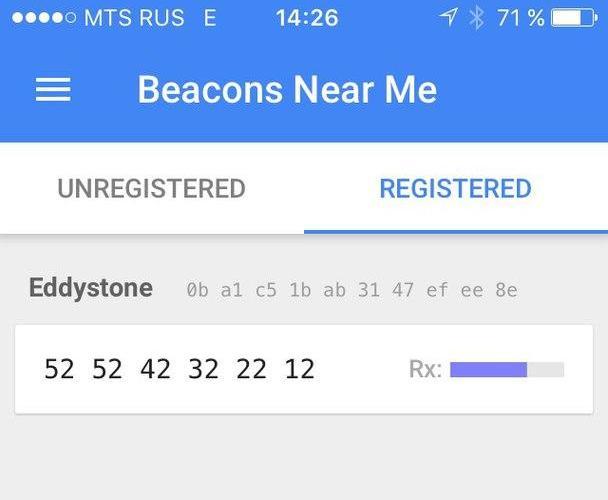
Now we saw a beacon on the site. This is a good sign.
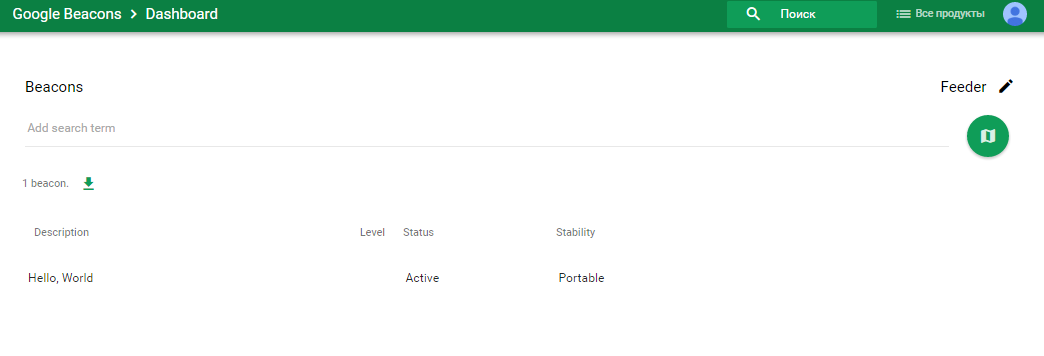
We select it for customization.
We can set the beacon description, location, floor, stability parameter, as well as other properties that are needed for specific applications.

The stability parameter determines whether the beacon is stationary or moving. If the beacon is in the store, it is logical to determine the place on the map and the floor, and also indicate that it is stationary. And if you stick the beacon on the windshield of the bus, you should indicate that it is portable, and also do not indicate the place and floor (only if we are not in London).
Now we need to make the beacon transmit the information we really need. Open the “View beacon details” drop-down list and select “Nearby Notifications”.
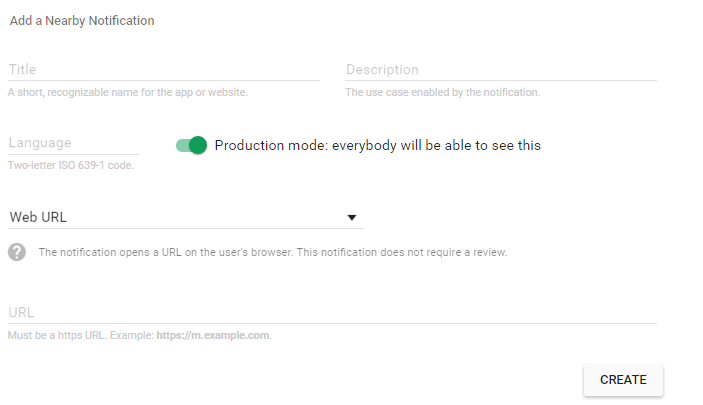
At first we see only 4 text fields, but do not underestimate the capabilities of the beacons! So what can a beacon connected to Google Cloud tell us? He can:
Set the notification name in the Title field, and its description in the Description field. The language field is used to define the language of the notification so that users can see the content in their native language. The language sets the ISO 639-1 code (most often 2 lowercase letters, for example, ru).
Next we see a drop-down list.
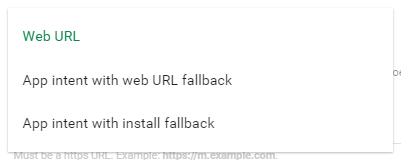
When we are done with these settings, click on the Create button. This will save our labors.
Now we can check the result. To do this, select on the Android device in the settings Google -> Nearby Notifications -> Scan. We should see the data that we configured in the configurator on the site.
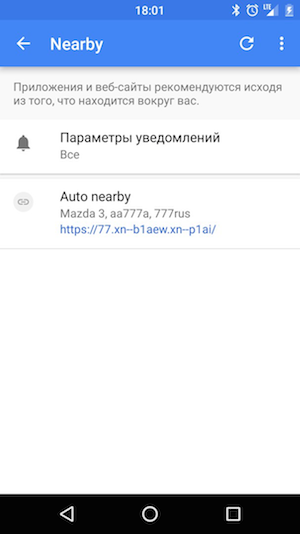
It immediately becomes apparent that beacons are a technology for programmers. We had to sit at the table for 4 hours and try to optimize everything. We reflashed Beacon, dealt with localization, selected various Property. This is provided that we are strong in understanding Package, Exported, Action, Intent, Binder, and many other Android terms.
I want everything to work for the user, there was no need to install anything, so the steps for setting up the smartphone were very simple.
There is an idea to create a Market Place, a service connecting people who want to organize an IT event (customers) and people who are ready to set up beacons (performers). This will be the most common bulletin board for proposals for organizing IT events with beacons.
For example, one day a notification will come to the performer:
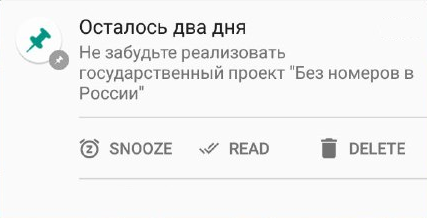
The contractor will recall that on our service he took an order to replace Eddystone car numbers with beacons. This will help road services identify vehicles and reduce the number of stolen cars. Performing it, guided by our article, he will receive a reward, and the world - technology.
We have already registered our car, there are only 7 million left.
We hope that after reading this article you will be interested in new technologies. We are confident that in a few years, beacons will become part of everyday life along with smartphones.
An article by Alexey Naberezhny, as part of the Devces Lab by Google project .
In this article, we describe iBeacon and Eddystone technologies that may very well solve our problem. These technologies use small Bluetooth Low Energy devices - the so-called beacons. We will tell you what beacons are, how they are arranged and how to work with them.
Beacon for software engineer
Let's see what a beacon is. For review habrahabr.ru provided an iBKS105 model manufactured by Accent Systems. The beacon is a small round box with double-sided tape pasted on one side for convenient fixing on any surface, for example, on the glass of a store.
This is how it looks:
The beacon can run on a single CR2477 battery for as long as 40 months thanks to the BLE module NRF51822 manufactured by Nordic Semiconductors. At the same time, the iBKS105 supports the iBeacon and Eddystone protocols, sending a maximum of 5 Advertisment packets (1 for iBeacon and 4 for Eddystone).
iBeacon , a proprietary technology introduced by Apple in 2013, provides for the transmission of one packet containing UUID (16 bytes), Major and Minor (2 bytes each), as well as TX Power (1 byte): a total of 21 bytes. UUID is usually used to determine the application that works with the beacon, Major - to determine the group of beacons, and Minor - to determine the number of the beacon in the group. Apple suggests using the UUIDGEN utility to generate this information and provides the following example of a beacon in a store.
Apple offers a closed beacon tuning standard. However, to obtain information about it, you must obtain an iBeakon License. Eddystone
Technologycoined by Google in July 2015. Unlike iBeacon, the Eddystone standard is open and therefore supported by devices based on any operating system. Eddystone can do much more than its competitor: it translates up to 4 data packets - Eddystone-UID (20 bytes), Eddystone-URL (up to 20 bytes), Eddystone-TLM (14 or 18 bytes) and, from March 14, 2016 , Eddystone-EID (10 bytes). Eddysone-UID is an analogue of the package used in iBeacon, while the Eddystone-URL transmits some kind of URL that can be opened on the device receiving the package. Eddystone-TLM package contains telemetry information such as transmitter battery voltage, ambient temperature, time from power on, etc. Eddystone-EID (Ephemeral IDs) is an encrypted identifier that allows registering a beacon in WEB services. It supports AES encryption, as well as the latest version of Eddystone-TLM. For security reasons, when establishing a connection, devices exchange public keys, and the beacon changes the identifier pseudo-randomly (with an interval of 1 second to 9 hours). Google invented an open standard for setting Eddystone beaconsGATT Configuration Service . For more information on the Eddystone protocol, see the link on Github .
Beacon Setting
As already mentioned, our beacon can work with both iBeacon and Eddystone. Accent Systems has released iBKS Config Tool apps for iOS and Android that let you customize their beacons. By default, the beacon can enter the setup mode only in the first 30 seconds after switching on, so when purchasing a beacon, do not rush to pull out the protective tab! Otherwise, the beacon will have to open and remove the battery, and then insert it back.
The Android application has more advantages, as it allows you to see telemetry information. If you try to connect to the beacon, you will be asked for the password recorded in non-volatile memory, if it was installed.
Then you can choose the mode in which the beacon operates - iBeacon, Eddystone UID, Eddystone URL or a mixture of these modes. Eddystone-EID packets are sent if one of the Eddystone modes is enabled.
Then you can try other types of settings:
- select signal strength, packet sending frequency (0.1 - 10 seconds);
- set a password, select a URL and UID;
- activate the developer mode, which allows you to connect to the beacon at any time and transmit telemetry packets in iBeacon mode;
- Perform calibration to pass the signal strength parameter. This setting is desirable for new beacons. To fulfill it, you need to measure the force at a certain distance from the beacon and enter it in the desired field of the configurator.
Please note that if no beacon applications are installed on the device, iOS will not react in any way to their appearance, while Android should display a notification (using Google Play Services). We checked the beacons using the iPhone. As it turned out, this is easiest to do using Google Chrome.
Inside Android SDK
Let's try to look at what the beacon sends us.
Create a BeaconNotifier test project and add the permissions BLUETOOTH and BLUETOOTH_ADMIN. We also mark our future Reciever and Service: Reciever will catch a change in the status of Bluetooth, and Service will look for our beacons.
<<b>uses-permission android:name="android.permission.BLUETOOTH"</b> />
   <<b>uses-permission android:name="android.permission.BLUETOOTH_ADMIN"</b> />
   <<b>uses-feature android:name="android.hardware.bluetooth_le" android:required="true"</b> />
   <<b>application …</b>>
       <<b>activity android:name=".MainActivity"</b>>
           <<b>intent-filter</b>>
               <<b>action android:name="android.intent.action.MAIN"</b> />
               <<b>category android:name="android.intent.category.LAUNCHER"</b> />
           </<b>intent-filter</b>>
       </<b>activity</b>>
       <<b>receiver android:name=".BTReceiver"</b>>
           <<b>intent-filter</b>>
               <<b>action android:name="android.bluetooth.adapter.action.STATE_CHANGED"</b> />
               <<b>action android:name="ru.racoondeveloper.beaconnotifyer.WAKE_RECEIVER"</b>/>
           </<b>intent-filter</b>>
       </<b>receiver</b>>
       <<b>service android:name=".BService"</b> />
   </<b>application</b>>
Reciever catches two Actions - turning Bluetooth on and off, as well as the intent, which we ourselves will send when we open the application, for the first time to revitalize our service.
<b>public class</b> BTReceiver <b>extends</b> BroadcastReceiver {
   <b>private</b> Intent <b>BServiceIntent</b>;
   @Override
   <b>public void</b> onReceive(Context context, Intent intent) {
       <b>final</b> String action = intent.getAction();
       <b>if</b> (action.equals(BluetoothAdapter.<i><b>ACTION_STATE_CHANGED</i></b>)) {
           <b>final int</b> state = intent.getIntExtra(BluetoothAdapter.<i><b>EXTRA_STATE</i></b>, BluetoothAdapter.<i><b>ERROR</i></b>);
 <b>if</b> (state == BluetoothAdapter.<i><b>STATE_TURNING_OFF</i></b>) {
               <i>// Bluetooth выключился — убиваем сервис</i><b>if</b> (<b>BServiceIntent</b> != <b>null</b>) {
                   context.stopService(<b>BServiceIntent</b>);
                   <b>BServiceIntent</b> = <b>null</b>;
               }
           }
           <b>if</b> (state == BluetoothAdapter.<i><b>STATE_ON</i></b>) {
               <i>// Bluetooth включился — запускаем сервис</i><b>if</b> (<b>BServiceIntent</b> == <b>null</b>) {
                   <b>BServiceIntent</b> = <b>new</b> Intent(context, BService.<b>class</b>);
                   context.startService(<b>BServiceIntent</b>);
               }
           }
       }
       <b>if</b> (action.equals(<b>"ru.racoondeveloper.beaconnotifyer.WAKE_RECEIVER"</b>)) {
           <i>// Поймали событие запуска приложения — запускаем сервис</i><b>if</b> (<b>BServiceIntent</b> == <b>null</b>) {
               <b>BServiceIntent</b> = <b>new</b> Intent(context, BService.<b>class</b>);
               context.startService(<b>BServiceIntent</b>);
           }
       }
   }
}
Service will contain a stream that is looking for Bluetooth Low Energy devices. When we find the device, issue a notification and continue the search.
<b>public class</b> BService <b>extends</b> Service {
   BeaconFinderThread <b>thread</b>;
   <b>boolean live </b>= <b>true</b>;
   @Override
   <b>public</b> IBinder onBind(Intent arg0) {
       <b>return null</b>;
   }
   @Override
   <b>public int</b> onStartCommand(Intent intent, <b>int</b> flags, <b>int</b> startId) {
       <i>// создаем экземпляр потока и запускаем его</i><b>thread </b>= <b>new</b> BeaconFinderThread();
       <b>thread</b>.start();
       <b>return <i>START_STICKY</i></b>;
   }
   @Override
   <b>public void</b> onDestroy() {
       <i>// останавливаем поток</i><b>live </b>= <b>false</b>;
       <b>thread </b>= <b>null</b>;
       <b>super</b>.onDestroy();
   }
   <b>private class</b> BeaconFinderThread <b>extends</b> Thread{
       @Override
       <b>public void</b> run() {
           <i>// создаем экземпляры BluetoothAdapter и BluetoothLeScanner</i><b>final</b> BluetoothAdapter mBluetoothAdapter = BluetoothAdapter.<i>getDefaultAdapter</i>();
           <b>final</b> BluetoothLeScanner mBluetoothLeScanner = mBluetoothAdapter.getBluetoothLeScanner();
           <i>// когда устройство будет обнаружено, будет вызван колбек</i>
           ScanCallback mScanCallback = <b>new</b> ScanCallback() {
               @Override
               <b>public void</b> onScanResult(<b>int</b> callbackType, ScanResult result) {
                   <i>// собираем данные о результате поиска</i>
                   ScanRecord mScanRecord = result.getScanRecord();
                   mScanRecord.
                   String resulty = result.getDevice().getAddress() + <b>" — "</b>
                           + result.getRssi() + <b>" — "</b>
                           + mScanRecord.getDeviceName();
                   <i>// показываем уведомление!</i>
                   showNotification(resulty);
                   <i>// повторяем поиск, пока не указано, что поток остановлен</i><b>if</b> (mBluetoothAdapter.getState() == BluetoothAdapter.<i><b>STATE_ON </i></b>&& <b>live</b>)
                       mBluetoothLeScanner.startScan(<b>this</b>);
               }
           };
           <b>if</b> (mBluetoothAdapter.getState() == BluetoothAdapter.<i><b>STATE_ON </i></b>&& <b>live</b>)
               mBluetoothLeScanner.startScan(mScanCallback);
           <b>super</b>.run();
       }
   }
   <b>private void</b> showNotification(String name) {
       <i>// отправляем уведомление</i>
       Context context = getApplicationContext();
       Intent notificationIntent = <b>new</b> Intent(context, MainActivity.<b>class</b>);
       PendingIntent contentIntent = PendingIntent.<i>getActivity</i>(context,
               0, notificationIntent,
               PendingIntent.<i><b>FLAG_CANCEL_CURRENT</i></b>);
       Notification.Builder builder = <b>new</b> Notification.Builder(context);
       builder.setContentIntent(contentIntent)
               .setSmallIcon(R.mipmap.<i><b>ic_launcher</i></b>)
               .setContentTitle(<b>"Device found"</b>)
               .setContentText(name);
       Notification notification = builder.build();
       NotificationManager notificationManager = (NotificationManager) context
               .getSystemService(Context.<i><b>NOTIFICATION_SERVICE</i></b>);
       notificationManager.notify(0, notification);
   }
}
This is all you need to do to get data from the beacon. Here's what we got:
The source code of the application is available on Github .
Unfortunately, we will have to install a special application to receive information from the beacons. But not all users have it installed. It is much easier to turn on Bluetooth on your phone and immediately get the information you need without installing the application. Google will help us with this.
Admittedly, Google has invaded our world. Android OS, which occupies 82.8% of the smartphone market , has long supplanted iOS. Many iOS users prefer to install the Google Chrome browser on their smartphone. It is not surprising that Google has become a company whose name is closely linked to such a promising development as beacons. There are several Internet services that help supplement the small amount of information that these BLE devices can transmit, for example, pubnub, but Google has implemented support for its cloud service directly in Google Play Services, which can be found on almost any Android device. Therefore, we can say that Google is a monopolist in this area. Therefore, in our article we will consider Google services.
Beacon Setting
As you know, Google in its arsenal has a huge number of services for developers.
The Google Beacon Service is available at the following link: https://developers.google.com/beacons/dashboard . Google warmly welcomes us with this notification:
To use the service, you must put the beacon in Eddystone transfer mode - UID or URL. For this action, we had to update iBKS105 using the nRF Connect application.
Connect the beacon to the Google Beacons service
Download the Beacon Tools application (it is available for iOS and Android). We enter there under our Google account and select our project. The beacon appears in the “Unregistered” tab. Select it and click on “Register Beacon”. Done, the beacon has been added to our project.
Now we saw a beacon on the site. This is a good sign.
We select it for customization.
We can set the beacon description, location, floor, stability parameter, as well as other properties that are needed for specific applications.
The stability parameter determines whether the beacon is stationary or moving. If the beacon is in the store, it is logical to determine the place on the map and the floor, and also indicate that it is stationary. And if you stick the beacon on the windshield of the bus, you should indicate that it is portable, and also do not indicate the place and floor (only if we are not in London).
Now we need to make the beacon transmit the information we really need. Open the “View beacon details” drop-down list and select “Nearby Notifications”.
At first we see only 4 text fields, but do not underestimate the capabilities of the beacons! So what can a beacon connected to Google Cloud tell us? He can:
- pass url address;
- Offer to install the application on the device;
- send intent to the system, opening the application, if it is installed.
Set the notification name in the Title field, and its description in the Description field. The language field is used to define the language of the notification so that users can see the content in their native language. The language sets the ISO 639-1 code (most often 2 lowercase letters, for example, ru).
Next we see a drop-down list.
- We select the Web URL if we want the beacon to transmit any network address. For configuration, only one field is offered - the address itself. In contrast to the regular Eddystone URL of the site, a beacon using the Google service will also convey its description. Another plus is the transfer of links of any length, unlike the 16 characters of the Eddystone-URL protocol.
- If we want the beacon to advertise an application to users, select App intent with install fallback. There are 3 fields - 2 we use to select the intent, and in one we write the package name of the desired application. If the application is not installed, we will be transferred to Google Play. Otherwise, the application will be sent the intent.
- Another option is App intent with web URL fallback. It is similar to the previous one, but if the application is not installed on the user's device, we will be sent to the specified URL.
When we are done with these settings, click on the Create button. This will save our labors.
Now we can check the result. To do this, select on the Android device in the settings Google -> Nearby Notifications -> Scan. We should see the data that we configured in the configurator on the site.
Is Eddystone setup difficult
It immediately becomes apparent that beacons are a technology for programmers. We had to sit at the table for 4 hours and try to optimize everything. We reflashed Beacon, dealt with localization, selected various Property. This is provided that we are strong in understanding Package, Exported, Action, Intent, Binder, and many other Android terms.
I want everything to work for the user, there was no need to install anything, so the steps for setting up the smartphone were very simple.
There is an idea to create a Market Place, a service connecting people who want to organize an IT event (customers) and people who are ready to set up beacons (performers). This will be the most common bulletin board for proposals for organizing IT events with beacons.
For example, one day a notification will come to the performer:
The contractor will recall that on our service he took an order to replace Eddystone car numbers with beacons. This will help road services identify vehicles and reduce the number of stolen cars. Performing it, guided by our article, he will receive a reward, and the world - technology.
We have already registered our car, there are only 7 million left.
Conclusion
We hope that after reading this article you will be interested in new technologies. We are confident that in a few years, beacons will become part of everyday life along with smartphones.