August 8, 2016 at 15:38
iOS 10: Notification Content Extension
- Tutorial
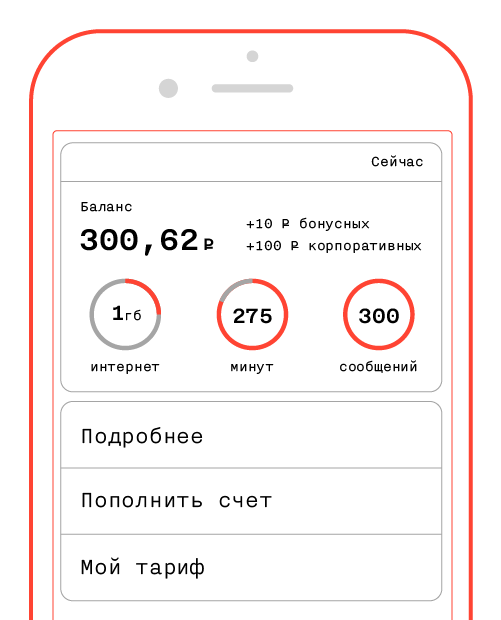
This article will focus on a new feature in iOS 10 - Notification Content Extension. This is a type of extension that allows the user to display their own interface when interacting with a notification (remote or local). And we will separately touch on what is possible and what cannot be done in this new extension - including how flexibly it is configured and configured.
Notification Content Extension allows you to interact with the application without formally launching it. This extension brings maximum productivity if the user requires one or more simple actions in response to an accepted notification. In the latest beta version, the ability of users to interact with such notifications is not limited to devices with 3D Touch support, on older devices the extension screen will appear with a gesture down on the notification banner.
We will analyze in detail this new mechanism on a test project, which you can find here :
- Adding target for extension to the project.
- Design and styling of the interface.
- Adding actions and processing them.
- Limitations on customization of the interface.
Adding target for extension to the project
To create the project, we need Xcode 8 (a beta version is currently available). We create a new project in a way that is familiar to us, then we need to create a new target for the extension through the File - New - Target menu and select Notification Content Extension.
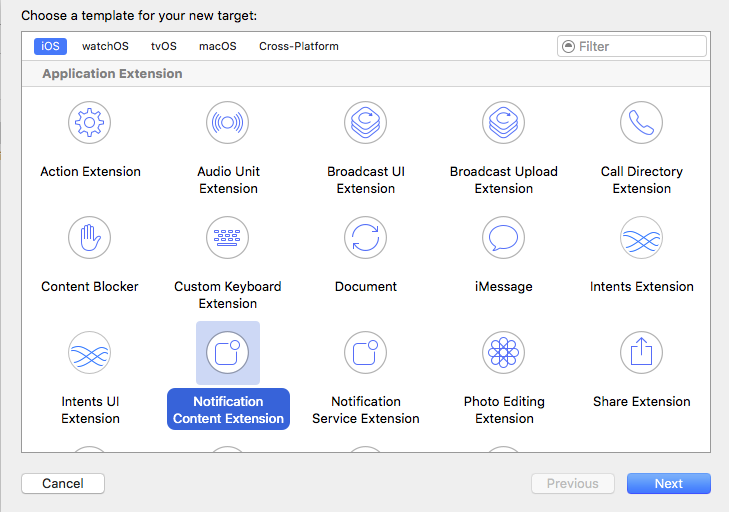
To expand, create your own storyboard and view controller, which obeys the protocol . It contains one mandatory method
UNNotificationContentExtension.
func didReceive(_ notification: UNNotification)
which is called when a new notification is received at the moment when the extension is displayed on the screen. In this method, we can get the necessary information from the notification and display it. In this example, for simplicity, we will not implement it.
Next we will use another optional method.
func didReceive(_ response: UNNotificationResponse, completionHandler completion: (UNNotificationContentExtensionResponseOption) -> Swift.Void)
to handle button clicks (Notification Actions) and make changes to the interface, open the main application.
Interface design and styling
Then we make up the interface as you please in the storyboard-file, configure in the inherited methods
UIViewController.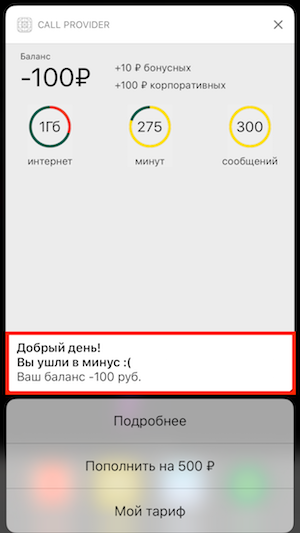
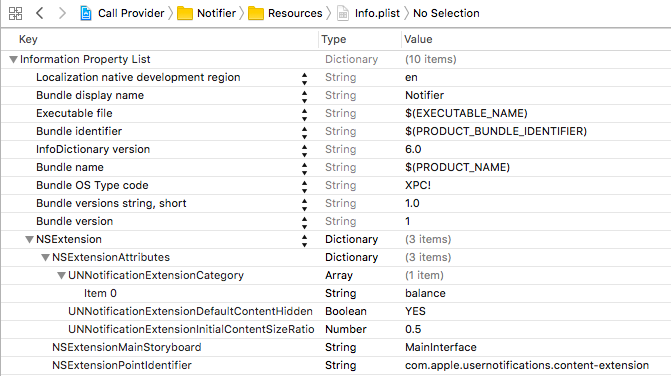
If we do not want the title, subtitle, notification text to appear in the extension screen, we need to specify the key
UNNotificationExtensionDefaultContentHiddenwith the value YESin plist. When displaying a screen with an extension, you may notice a problem with its height. Unfortunately, the mechanism for automatic height calculation is not available to us here. You can fix this with the following code, for example, in a method
viewDidLoad, assuming a height of 50%, sufficient to display all the content:let size = view.bounds.size
preferredContentSize = CGSize(width: size.width, height: size.width / 2)In this case, artifacts may be observed when showing - the user may notice an animation of changing the height of the screen.
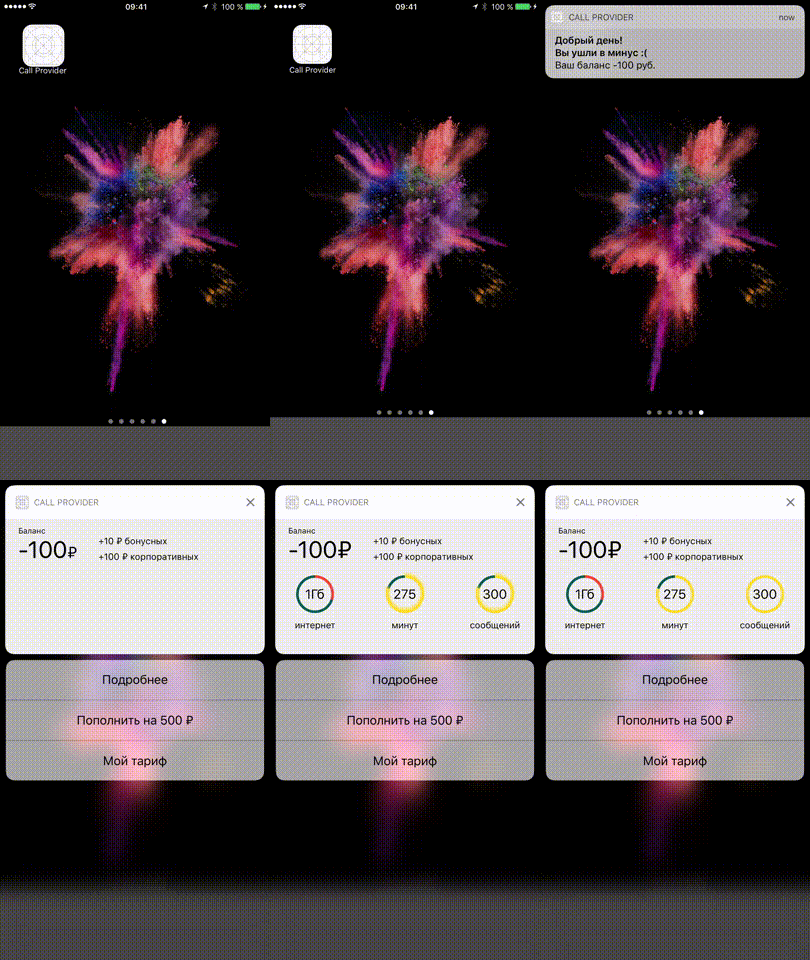
Fortunately, this can be fixed by setting the ratio of the maximum height to plist (key
UNNotificationExtensionInitialContentSizeRatio). The final plist looks like this:
Adding and processing actions
In order to configure custom actions with a notification (Notification Actions), you need to prepare them in advance - create a notification category and assign it possible actions on the notification:
let showMoreAction = UNNotificationAction(identifier: "showMore", title: "Подробнее", options: [])
let addBalanceAction = UNNotificationAction(identifier: "addBalance", title: "Пополнить на 500 ₽", options: [])
let myPlanAction = UNNotificationAction(identifier: "myPlan", title: "Мой тариф", options: [])
let balanceCategory = UNNotificationCategory(identifier: "balance", actions: [showMoreAction, addBalanceAction, myPlanAction], intentIdentifiers: [], options: [])
UNUserNotificationCenter.current().setNotificationCategories([balanceCategory])
The category is needed in order for the operating system to show possible actions by its identifier. The category should come in the appropriate field in the push:
{
   aps : {
        alert : "Текст пуша",
        category: "balance"
   }
}
In order for these actions to be applied to the local notification, you need to fill in the corresponding field of the class
UNNotificationContent:content.categoryIdentifier = "balance"
Additionally, to show a specific extension (if there are several), you need to add the
UNNotificationExtensionCategorycategory identifier in the plist to the array with the key . If the operating system does not find the category key in the available extensions, the notification is processed standardly (without showing any extension screen). Button presses are processed like this:
switch response.actionIdentifier {
case "addBalance":
    addBalance()
    completion(.doNotDismiss)
case "myPlan":
    openMainApplication()
    completion(.dismiss)
case "showMore":
     openMainApplication()
     completion(.dismiss)
default:
     completion(.dismiss)
}
In this method, we can perform any (including asynchronous) operations, but the time to process the action is limited, so do not overload the method with complex and lengthy processes.
Completion must be invoked with an enumeration element
UNNotificationContentExtensionResponseOption:- dismiss - notification will disappear after execution
- doNotDismiss - notification will not disappear after execution
- dismissAndForwardAction - after execution, the notification will disappear and the action will be redirected to the main application in the
func userNotificationCenter(_ center:, didReceive response:, withCompletionHandler completionHandler: )delegate methodUNUserNotificationCenterDelegate
In our test application, we replenish the account asynchronously:
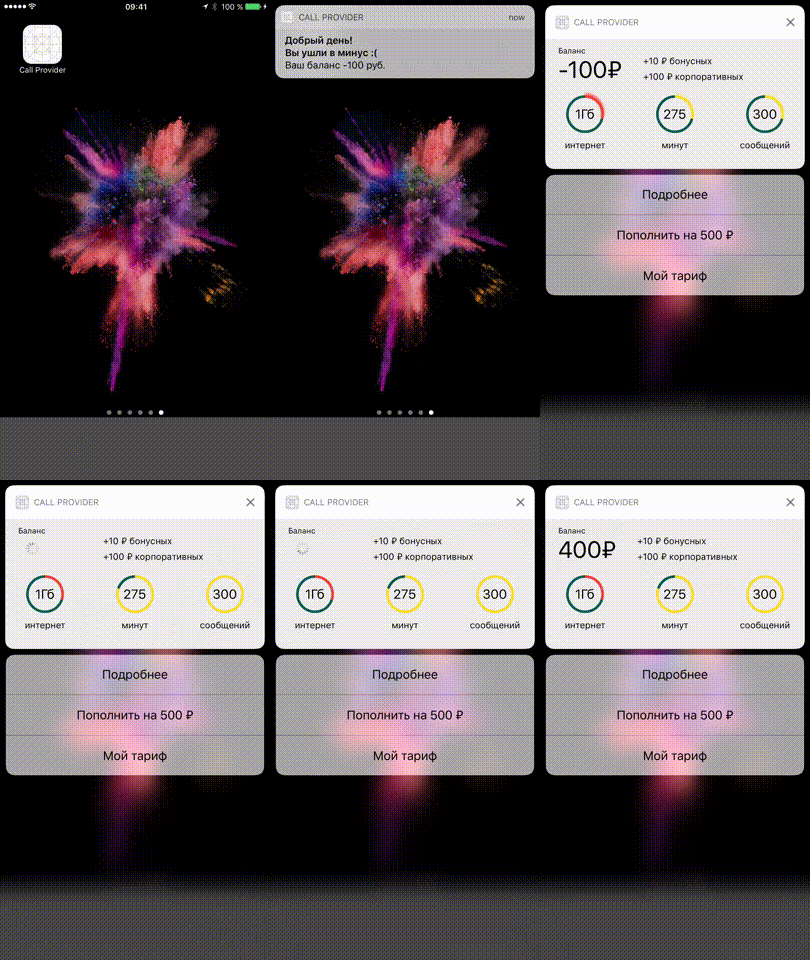
For other actions, we transfer to the main application in the usual way for extension (by registering the application’s URL-scheme beforehand):
if let url = URL(string: "callProvider://") {
    extensionContext?.open(url, completionHandler: nil)
}
Interface customization restrictions
In conclusion, I will list the restrictions on customizing the extension (this knowledge should be shared with designers):
- The styles of the action buttons for a notification are not customizable. You cannot change the font, alignment, add icons to buttons, etc.
- The background of the expansion screen does not support (I hope this applies only to the beta version) transparency. All attempts to set the background to transparent and get a standard blur on the background (how this works in the widget) were unsuccessful.
- The white title of the extension screen (with the name of the application and the “close” icon) is also completely non-configurable.
Learn more about notifications in lectures from WWDC 2016: Introduction to Notifications and Advanced Notifications .
Thanks for the design: Stepanov Nikita, Otroshchenko Denis.