
Fast transition to a new platform
- Tutorial
Some time ago, a new version of the e-commerce platform for the products "1C-Bitrix: Site Management" and "1C-Bitrix: Enterprise" was released.
We tried to simplify the migration process, but still changing the platform is a responsible matter, and some users may be afraid to make changes to their established, debugged system. Especially if the site is large enough. Therefore, we decided to make this small tutorial, which described the simple process of migration to the new e-commerce platform “1C-Bitrix: Site Management” as clearly as possible.
To successfully change the platform, you must first install a series of updates. As an example, take a standard online store with a default template. Moreover, let it be specially the old template, originally created not for the new platform, but for the previous version 14.5.
We’ll roll the release updates to this test store immediately, without installing beta versions in between.
After the installation is completed and the page is updated, we see the following picture:
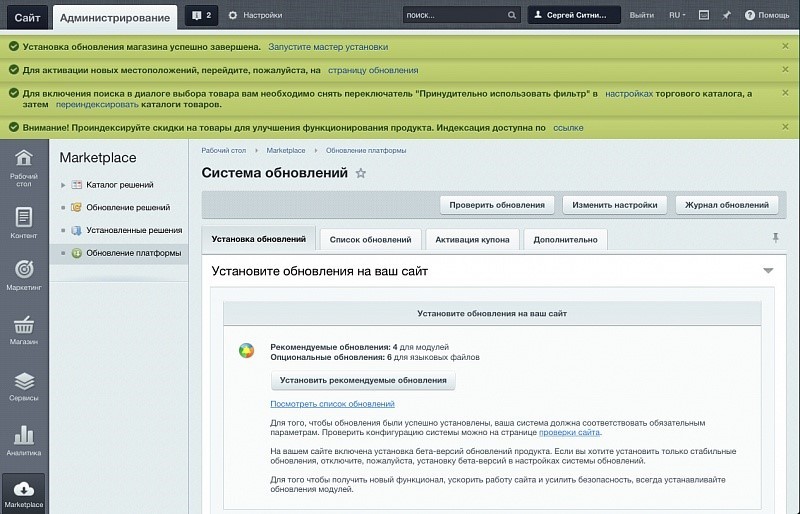
After installing the updates, you must run the wizard, which will transfer the online store to a new platform. You can find a link to launch the wizard in the first green line (in the previous illustration).
In order not to pile up a lot of screenshots here, we recorded a short video showing the process of moving the store to a new platform:
Important points to pay attention to:
So, the transition is completed, but something else needs to be done. Return to the “Platform Updates” section and install the available updates.

Checking the project after switching to a new platform
After installing updates for the new platform, we check whether everything works as it should:
As you can see in the video, the ordering component in the public section received a new design. This is a beta version, which we will talk about in a future article. Also, soon we will consider the innovations that appeared in the platform.
We tried to simplify the migration process, but still changing the platform is a responsible matter, and some users may be afraid to make changes to their established, debugged system. Especially if the site is large enough. Therefore, we decided to make this small tutorial, which described the simple process of migration to the new e-commerce platform “1C-Bitrix: Site Management” as clearly as possible.
Install Updates
To successfully change the platform, you must first install a series of updates. As an example, take a standard online store with a default template. Moreover, let it be specially the old template, originally created not for the new platform, but for the previous version 14.5.
We’ll roll the release updates to this test store immediately, without installing beta versions in between.
After the installation is completed and the page is updated, we see the following picture:
Launch the upgrade wizard
After installing the updates, you must run the wizard, which will transfer the online store to a new platform. You can find a link to launch the wizard in the first green line (in the previous illustration).
In order not to pile up a lot of screenshots here, we recorded a short video showing the process of moving the store to a new platform:
Important points to pay attention to:
- Before starting the wizard, be sure to create a full backup of your project.
- Ask the developers leading your project to check the compatibility of their improvements with the new platform and, if possible, make adjustments. The new platform was available for more than six months in the form of beta updates, and everyone who is interested in compatibility has already released updates of their solutions.
- In our example, a location conversion was performed during the transition. The new version of locations was released more than six months ago, so in your wizard this stage may not be. This means that you’ve already upgraded to a new version of locations before.
- At the end of the transition, you will see new forms of order management. This suggests that the transition is completed successfully.
Install updates after upgrading to a new platform
So, the transition is completed, but something else needs to be done. Return to the “Platform Updates” section and install the available updates.
Checking the project after switching to a new platform
After installing updates for the new platform, we check whether everything works as it should:
As you can see in the video, the ordering component in the public section received a new design. This is a beta version, which we will talk about in a future article. Also, soon we will consider the innovations that appeared in the platform.