
About Order Management on the new 1C-Bitrix platform
“Order management” is an important part of the life of an online store. Our users spend a considerable part of their time in this section, controlling orders, adjusting and tracking shipments and payments, and changing statuses. Therefore, we revised and improved the section "Order Management" taking into account the wishes of users. And here we want to talk about the changes and innovations made.
The general principles of the logic of the work of new forms maintain continuity with the previous version of the section "Order Management".
There were always two order states in the forms:
In the previous forms, you asked us not to change the data on the order amounts and product line amounts instantly, but to give the opportunity to update the data on the order at the request of the manager. In the new forms, we have implemented this possible and the button “Recalculate the order” appeared in the forms, which recalculates the order at the current moment, updating all discounts and changes in goods and prices. Otherwise, the forms store all the information on the order as part of the order, which makes it possible to discuss the order with the client, seeing it in its pristine condition.

Here you will find:
Order, shipment, and payment documents are now modular. They are divided into logical blocks that can be minimized, change their location, thereby adjusting the form to your needs.

By default, different forms appear slightly differently:
We also made a short video demonstrating the flexibility of the form setup process:
As part of order management, it became possible to display all the discounts that applied to the order: discounts on goods and a general basket, discounts on delivery and payment.
In the order view, we can only see discounts already applied. And you can remove and add discounts in the form of editing an order. In this case, you can immediately see how this affects the cost of individual items and the entire order. For example, this screenshot shows how in the order editing mode you can manage discounts by removing and installing the necessary checkmarks.

Let's see in the video how it works:
Please note that in this example the discount does not change in any way if you change its name or conditions (the discount is stored as part of a specific order). And only when choosing another product to which the changed discount belongs, it will be added as new. Therefore, even if the discount conditions are no longer valid, or the old discount is deleted, you will see all the discounts that affected the order.
The main innovation in the form of order management was the separation of shipping and payment chains into separate documents, which made it possible to create many shipments and payments.
In what situations is the new form structure useful?
Etc. etc. Situations when the order went on the "non-standard path", you can come up with a lot.
This is how the created order looks in the shipment and payment block:

After the customer has placed an order, we can view its contents, where shipping and payment will be automatically created.
Important : if the status of the order has not changed, and you need to make corrections for the quantity of goods or the set of items, then you do not need to touch the created shipments and payments. Just go to the order editing and make the necessary changes, and the documents of shipment and payment will be recounted automatically.
The shipment block and the payment block are automatically minimized, and only statuses and amounts are displayed on them. You can expand each block individually and get detailed information, as well as delete and edit the payment and delivery document.
Above the payments, a consolidated block is placed in which you can see the total cost of the order, how much has already been paid and how much is left to pay.
This is how a detailed delivery document looks like:

Here we see:
In this block, you can enter the identifier of the shipment, after which a letter will be sent to the client. Each shipment also contains a shipment number. And at the end we see a list of goods in this shipment.
Below is a detailed view of a payment document. It indicates the payment method chosen by the client or indicated by the manager, the payment amount (it may be less than the order amount) and the payment status.
Find out more about how to use the new forms by viewing the webinar that we have prepared for you with Alexei Kirsanov, the lead developer of the new order management system:
The logic of the forms
The general principles of the logic of the work of new forms maintain continuity with the previous version of the section "Order Management".
There were always two order states in the forms:
- View order : a control panel in which it was possible to change any status, monitor the progress of work on the order, quickly view data on the client. However, the contents of the order itself cannot be changed. In the new order viewing form, new options for managing shipping and payment have appeared. Also in the viewing form, you can now quickly create, delete or change data in shipments and payments.
- Editing an order : here you can change the order itself, and in new forms the possibilities for managing discounts have expanded.
In the previous forms, you asked us not to change the data on the order amounts and product line amounts instantly, but to give the opportunity to update the data on the order at the request of the manager. In the new forms, we have implemented this possible and the button “Recalculate the order” appeared in the forms, which recalculates the order at the current moment, updating all discounts and changes in goods and prices. Otherwise, the forms store all the information on the order as part of the order, which makes it possible to discuss the order with the client, seeing it in its pristine condition.
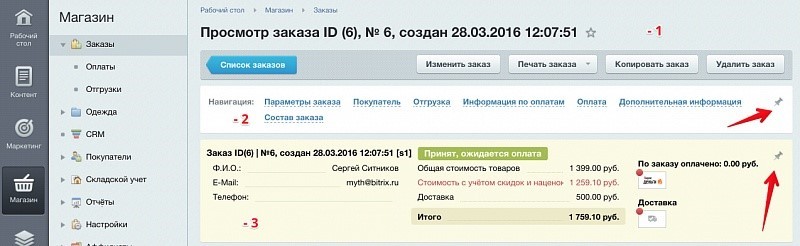
Order management form header
- The output of the order header has changed. Now it displays the ID, number, time and date of creation of the order, which can be formed according to its display scheme.
- The navigation menu is a fairly large form that you do not always want to scroll through. Therefore, now various sections can be fixed with pins (shown by red arrows), they will always be displayed in the header and quickly move in shape.
- In order not to come flipping through the block of information on the order, we placed the most important data in the header. It is different in color and immediately attracts attention. The block, like the navigation menu, can be pinned with a pin, and it will always be on top. The block displays information on the status of the order, customer contact information, cost of the order and delivery. On the right side of the block are the icons of all delivery services and payment systems that are used in the order, and the status of the order is displayed as a color indicator. Red color - the order has not yet been shipped or not delivered, green - sending / delivery in the final stage.
Order Analysis Tab
Here you will find:
- A summary of the goods in the order, how much has already been shipped and how much is left to ship on order.
- List of all related documents on order. We can easily go to any document and open it, numbers and statuses of documents are displayed here. When you switch to another document, you will also see the “Order Analysis” tab, where summary information will also be displayed.
Customizing the shape to your needs
Order, shipment, and payment documents are now modular. They are divided into logical blocks that can be minimized, change their location, thereby adjusting the form to your needs.
By default, different forms appear slightly differently:
- Place an order (create an order) . When a customer makes a phone call and places an order, he usually first specifies the assortment of goods, availability, etc., and then reports delivery and payment data. The checkout form is also constructed according to the same scheme: on top we show a block for goods, then comes information on the client, and below - on delivery and payment.
- View and change the order . First, information about the client and delivery and payment units are displayed, and the general list of goods of the order goes to the very bottom.
We also made a short video demonstrating the flexibility of the form setup process:
Work with discounts in "Order Management"
As part of order management, it became possible to display all the discounts that applied to the order: discounts on goods and a general basket, discounts on delivery and payment.
In the order view, we can only see discounts already applied. And you can remove and add discounts in the form of editing an order. In this case, you can immediately see how this affects the cost of individual items and the entire order. For example, this screenshot shows how in the order editing mode you can manage discounts by removing and installing the necessary checkmarks.
Let's see in the video how it works:
Please note that in this example the discount does not change in any way if you change its name or conditions (the discount is stored as part of a specific order). And only when choosing another product to which the changed discount belongs, it will be added as new. Therefore, even if the discount conditions are no longer valid, or the old discount is deleted, you will see all the discounts that affected the order.
Division of the order, new documents “Shipment” and “Payment”
The main innovation in the form of order management was the separation of shipping and payment chains into separate documents, which made it possible to create many shipments and payments.
In what situations is the new form structure useful?
- The client made an order, it was collected and packaged. And then the client asks to add more goods. Thanks to the new structure of the order form, you quickly add new items and make a separate shipment.
- The client placed an order and it turns out that he does not have enough money to pay in the chosen way. He asks to make payment partly through Yandex.Money, and partly by credit card. You simply divide the payment into two parts and assign them the appropriate methods, after which the client makes the payment through a personal account.
- The client placed an order for 5 pieces of one product, and you only have 3 in the warehouse. You call up the client, agree on the division of the order and ship the first 3 products with a separate document, and then form the second shipment into two more copies.
Etc. etc. Situations when the order went on the "non-standard path", you can come up with a lot.
This is how the created order looks in the shipment and payment block:
After the customer has placed an order, we can view its contents, where shipping and payment will be automatically created.
Important : if the status of the order has not changed, and you need to make corrections for the quantity of goods or the set of items, then you do not need to touch the created shipments and payments. Just go to the order editing and make the necessary changes, and the documents of shipment and payment will be recounted automatically.
The shipment block and the payment block are automatically minimized, and only statuses and amounts are displayed on them. You can expand each block individually and get detailed information, as well as delete and edit the payment and delivery document.
Above the payments, a consolidated block is placed in which you can see the total cost of the order, how much has already been paid and how much is left to pay.
This is how a detailed delivery document looks like:
Here we see:
- service that will deliver
- cost of delivery,
- statuses
- shipping information.
In this block, you can enter the identifier of the shipment, after which a letter will be sent to the client. Each shipment also contains a shipment number. And at the end we see a list of goods in this shipment.
Below is a detailed view of a payment document. It indicates the payment method chosen by the client or indicated by the manager, the payment amount (it may be less than the order amount) and the payment status.
Find out more about how to use the new forms by viewing the webinar that we have prepared for you with Alexei Kirsanov, the lead developer of the new order management system: