How the DHCP lease duration and the DNS garbage collection process are related
- Transfer
As a preface. When communicating with colleagues, answering their questions about the joint configuration of DNS and DHCP, I often refer them to a wonderful article by Sean Ivy on Technet. Unfortunately, I did not find similar material in Russian. Once again, verbally translating it to a friend, I decided to draw up a written translation in order to be able to send it to him.
Hi everyone, my name is Sean Ivy and I'm US PFE (Premier Field Engineer). My area of expertise is Windows and Active Directory. Simply put, I specialize in Active Directory and related network services. Recently, with three different clients, I helped SCCM administrators who had a problem installing the SCCM agent. An error appeared in the ccm.log logFailed to get token for current process (5) . We found that the problem was not in SCCM, but in the interaction of DNS and DHCP. As it turned out, other services also experienced problems associated with this, simply either showed different symptoms, or did not show them at all. Let's talk about why it happened and how it can be prevented!
Consider the following scenario:
So far so good. This is a fairly typical DHCP server scenario and everything happens exactly as we expect. Let's add a DNS server here.
(If, suddenly, you don’t know what “zone cleaning”, “blocking / updating interval” is, then I recommend you read my colleague’s blog . It’s gorgeous! Note: since you are reading a translation of the original article, it may be easier for you read the Russian-language material )
Now everything is not so good. This happens much more often than you might think. Now, for Clients A and B, the DNS records refer to the same IP address.
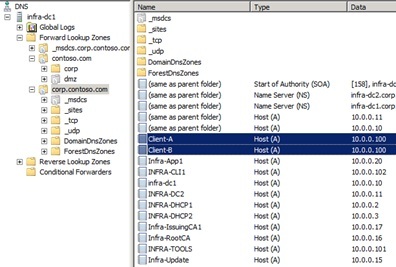
Figure 1
So, in DNS we have two different names that refer to the same IP address. And, most likely, this is exactly how it will remain for at least 6 days, until the intervals described above expire. What problems can this cause? Let's get a look.
I already mentioned that a symptom of this situation was the problem with installing the SCCM client, but, in fact, we can use a simpler example - access to a shared folder. The principle is the same.
Let's imagine that I need to access a shared folder on Client A. For example, take one of the shared administrative folders.
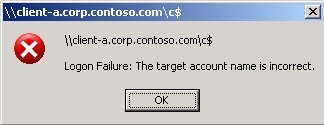
Figure 2
But this is already interesting. First, client A is not even included ... but we get a response on his behalf. And this is an authentication error! Some of you have already guessed that this happens when you send a Kerberos session key intended for one computer to another, but let's take it in order.
We see that our computer (Infra-App1) sends a DNS query to the name client-a.corp.contoso.com. In response, he receives the IP address 10.0.0.100.

Figure 3
As far as DNS knows, the way it is. Client A does have an address of 10.0.0.100, but Client B has exactly the same address.
Great, now we get the Kerberos session key. The only DNS request was in the name of Client A, so the response from the Kerberos service will also be in the name of Client A.
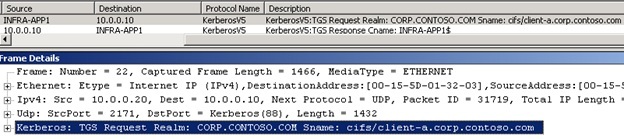
Figure 4

Figure 5
We see the query in Figure 4 and the response of the domain controller in Figure 5.
Now, having received the key, we can try to connect , to what we consider Client A.

Figure 6
Here we see the Kerberos session key.
And finally, we see an error message from Client A. Why? Because client A is not Client A, but Client B.
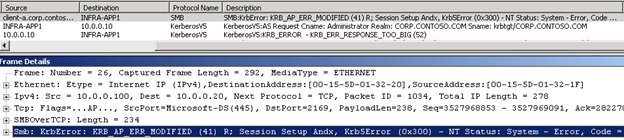
Figure 7
All this only confirms what you probably already knew. In order for Kerberos to work properly, you must contact the correct recipient with the correct session key (If you want to learn more about Kerberos, read Rob Green's blog “ Kerberos for busy admins ” Note: I did not find similar material in Russian, but with general information can be found here ).
Of course, everything will work fine if, instead of the FQDN of the name, we turn to the IP address. Why? Because in this case NTLM authentication will be used instead of Kerberos. Using the IP address, we make no assumptions about which client we are connecting to. We just connect to a specific IP address. Some of you might think that for FQDN it should work. In the end, when we get an error when using Kerberos, we have to switch to NTLM, right? Not really. I will not go into details, but we will switch to NTLM only if we could not agree on the use of Kerberos. You can read more about this here . In any case, Kerberos did not return errors to us, it regularly answered us with a session key.
Now that we’ve found out that the problem is caused by outdated DNS records, let's discuss how we can prevent this from happening. There are several different ways to do this. Let's discuss each of them.
Note: I recommend reducing the cleaning interval for each of these methods to 1-3 days. The default 7-day interval allows problematic records to remain in the DNS for too long.
Try experimenting with refresh and block intervals and DHCP leases. You may find that changing the default intervals is beneficial for your network services. Short leases DHCP are often used for wireless networks. At the same time, do not forget about the additional load that you place on the server, especially if you configure frequent (every few hours) cleaning for a very large DNS zone.
Almost all! Now we understand why such a situation occurs, when a problem arises and how to prevent it. But how can we easily and quickly find such records if the trouble has already happened? You can easily find such paired records in DNS using a simple PowerShell script (this, of course, is not the only way).
The following is sample output from this script:
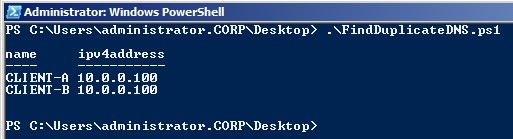
Figure 8
The script is very simple. Consider it as an example only. It will return duplicate IP addresses registered for computer accounts in Active Directory. Remember that he will request all computer objects from the Active Directory domain and check the DNS IP address of each of them in DNS. If you have many computers, use the -searchbase switch along with the get-adcomputer command to limit the number of objects polled each time. If your computer is not included in the Active Directory domain, then you cannot find it with the get-adcomputer command. My script is specifically designed to get duplicate DNS records for the script that I described above.
There are so many articles about setting up DHCP and DNS integration. The goal of this is to summarize how these two services work together to make it easier for you to understand. Summarize:
I hope the article was useful to you! Properly configured DNS and DHCP integration will save you from this kind of problem on your network!
Hi everyone, my name is Sean Ivy and I'm US PFE (Premier Field Engineer). My area of expertise is Windows and Active Directory. Simply put, I specialize in Active Directory and related network services. Recently, with three different clients, I helped SCCM administrators who had a problem installing the SCCM agent. An error appeared in the ccm.log logFailed to get token for current process (5) . We found that the problem was not in SCCM, but in the interaction of DNS and DHCP. As it turned out, other services also experienced problems associated with this, simply either showed different symptoms, or did not show them at all. Let's talk about why it happened and how it can be prevented!
Consider the following scenario:
DHCP
- In DHCP, the IP address area is configured, with a lease period of 8 days
- There are few free IP addresses in the DHCP area
- Client A did not renew the lease of his address for 8 days and it expired
- Client B requests a new IP address
- DHCP server gives Client B the address that Client A used before
So far so good. This is a fairly typical DHCP server scenario and everything happens exactly as we expect. Let's add a DNS server here.
DNS
- Active Directory Integrated DNS Zone with Customized Zone Cleaning
- Settings are clever by default: “Block interval = 7 days” and “Update interval = 7 days”
- Server settings are also by default: “Cleaning period = 7 days”
- Client A updated the DNS record 8 days ago (on the same day that he received his address)
- Client A is the owner of his DNS record and it cannot be deleted by the DHCP server (at default settings)
- Client B is trying to register a DNS record with the new address that it received from the DHCP server
- This is the same IP address used by Client A!
- The DNS server will not be able to clean out the old Client record And another 6 days!
(If, suddenly, you don’t know what “zone cleaning”, “blocking / updating interval” is, then I recommend you read my colleague’s blog . It’s gorgeous! Note: since you are reading a translation of the original article, it may be easier for you read the Russian-language material )
Now everything is not so good. This happens much more often than you might think. Now, for Clients A and B, the DNS records refer to the same IP address.
Figure 1
So, in DNS we have two different names that refer to the same IP address. And, most likely, this is exactly how it will remain for at least 6 days, until the intervals described above expire. What problems can this cause? Let's get a look.
Problem
I already mentioned that a symptom of this situation was the problem with installing the SCCM client, but, in fact, we can use a simpler example - access to a shared folder. The principle is the same.
Let's imagine that I need to access a shared folder on Client A. For example, take one of the shared administrative folders.
Figure 2
But this is already interesting. First, client A is not even included ... but we get a response on his behalf. And this is an authentication error! Some of you have already guessed that this happens when you send a Kerberos session key intended for one computer to another, but let's take it in order.
We see that our computer (Infra-App1) sends a DNS query to the name client-a.corp.contoso.com. In response, he receives the IP address 10.0.0.100.
Figure 3
As far as DNS knows, the way it is. Client A does have an address of 10.0.0.100, but Client B has exactly the same address.
Great, now we get the Kerberos session key. The only DNS request was in the name of Client A, so the response from the Kerberos service will also be in the name of Client A.
Figure 4
Figure 5
We see the query in Figure 4 and the response of the domain controller in Figure 5.
Now, having received the key, we can try to connect , to what we consider Client A.
Figure 6
Here we see the Kerberos session key.
And finally, we see an error message from Client A. Why? Because client A is not Client A, but Client B.
Figure 7
All this only confirms what you probably already knew. In order for Kerberos to work properly, you must contact the correct recipient with the correct session key (If you want to learn more about Kerberos, read Rob Green's blog “ Kerberos for busy admins ” Note: I did not find similar material in Russian, but with general information can be found here ).
Of course, everything will work fine if, instead of the FQDN of the name, we turn to the IP address. Why? Because in this case NTLM authentication will be used instead of Kerberos. Using the IP address, we make no assumptions about which client we are connecting to. We just connect to a specific IP address. Some of you might think that for FQDN it should work. In the end, when we get an error when using Kerberos, we have to switch to NTLM, right? Not really. I will not go into details, but we will switch to NTLM only if we could not agree on the use of Kerberos. You can read more about this here . In any case, Kerberos did not return errors to us, it regularly answered us with a session key.
How to prevent
Now that we’ve found out that the problem is caused by outdated DNS records, let's discuss how we can prevent this from happening. There are several different ways to do this. Let's discuss each of them.
Note: I recommend reducing the cleaning interval for each of these methods to 1-3 days. The default 7-day interval allows problematic records to remain in the DNS for too long.
- Increase the DHCP lease duration so that it matches the sum of the update and block intervals. In our example, we will increase it to 14 days.
Benefits:- By the time DHCP can issue the address to the new client, the DNS record of the old one can already be deleted
- Ease of implementation
Disadvantages:- If you already have few free IP addresses left in DHCP, then they may just end
- The moment of zone cleaning does not necessarily coincide with the moment when the update and blocking intervals (and therefore the DHCP lease time) expire, and for a short period of time we can get the situation described above. To reduce the number of such problems, we can reduce the cleaning interval to 1 day.
- Reduce the refresh and block intervals so that their sum matches the duration of the DHCP lease. In our example, we will reduce both intervals to 4 days.
Benefits:- Existing DNS record will be cleared earlier. In fact, the result will be similar to the previous option
- Ease of implementation
Disadvantages:- The load on Active Directory replication will increase slightly (unless, of course, this is an Active Directory integrated zone). This is because clients will often update their DNS records (in our case, every 4 days instead of 7)
- The moment of zone cleaning does not necessarily coincide with the moment when the update and blocking intervals (and therefore the DHCP lease time) expire, and for a short period of time we can get the situation described above. To reduce the number of such problems, we can reduce the cleaning interval to 1 day.
- Configure a DHCP server to register DNS records on behalf of clients (you can read how to configure it here Note: in Russian, here )
Benefits:- The DHCP server will delete DNS entries immediately after the lease of the IP address
- When set up correctly, you will never get such problem records
Disadvantages:- More complex setup requires the involvement of more qualified personnel
- The configuration is further complicated by the fact that you need a service account on behalf of which DHCP servers will work or all DHCP servers will need to be added to the DNSUpdateProxy group (a less secure option)
Try experimenting with refresh and block intervals and DHCP leases. You may find that changing the default intervals is beneficial for your network services. Short leases DHCP are often used for wireless networks. At the same time, do not forget about the additional load that you place on the server, especially if you configure frequent (every few hours) cleaning for a very large DNS zone.
Search for DNS records with the same IP addresses
Almost all! Now we understand why such a situation occurs, when a problem arises and how to prevent it. But how can we easily and quickly find such records if the trouble has already happened? You can easily find such paired records in DNS using a simple PowerShell script (this, of course, is not the only way).
#Import the Active Directory Module
import-module activedirectory
#Define an empty array to store computers with duplicate IP address registrations in DNS
$duplicate_comp = @()
#Get all computers in the current Active Directory domain along with the IPv4 address
#The IPv4 address is not a property on the computer account so a DNS lookup is performed
#The list of computers is sorted based on IPv4 address and assigned to the variable $comp
$comp = get-adcomputer -filter * -properties ipv4address | sort-object -property ipv4address
#For each computer object returned, assign just a sorted list of all
#of the IPv4 addresses for each computer to $sorted_ipv4
$sorted_ipv4 = $comp | foreach {$_.ipv4address} | sort-object
#For each computer object returned, assign just a sorted, unique list
#of all of the IPv4 addresses for each computer to $unique_ipv4
$unique_ipv4 = $comp | foreach {$_.ipv4address} | sort-object | get-unique
#compare $unique_ipv4 to $sorted_ipv4 and assign just the additional
#IPv4 addresses in $sorted_ipv4 to $duplicate_ipv4
$duplicate_ipv4 = Compare-object -referenceobject $unique_ipv4 -differenceobject $sorted_ipv4 | foreach {$_.inputobject}
#For each instance in $duplicate_ipv4 and for each instance
#in $comp, compare $duplicate_ipv4 to $comp If they are equal, assign
#the computer object to array $duplicate_comp
foreach ($duplicate_inst in $duplicate_ipv4)
{
    foreach ($comp_inst in $comp)
    {
        if (!($duplicate_inst.compareto($comp_inst.ipv4address)))
        {
            $duplicate_comp = $duplicate_comp + $comp_inst
        }
    }
}
#Pipe all of the duplicate computers to a formatted table
$duplicate_comp | ft name,ipv4address -a
The following is sample output from this script:
Figure 8
The script is very simple. Consider it as an example only. It will return duplicate IP addresses registered for computer accounts in Active Directory. Remember that he will request all computer objects from the Active Directory domain and check the DNS IP address of each of them in DNS. If you have many computers, use the -searchbase switch along with the get-adcomputer command to limit the number of objects polled each time. If your computer is not included in the Active Directory domain, then you cannot find it with the get-adcomputer command. My script is specifically designed to get duplicate DNS records for the script that I described above.
Conclusion
There are so many articles about setting up DHCP and DNS integration. The goal of this is to summarize how these two services work together to make it easier for you to understand. Summarize:
- Scenario
- DHCP lease duration and default update and block intervals = obsolete DNS records
- Symptoms
- SCCM: “Failed to get token for current process (5)”
- Public Folders: “Logon Failure: The target account name is incorrect”
- Any other services using Kerberos may also throw various errors.
- Problem
- Correct Kerberos operation requires that the session key be issued exactly for the computer with which we are trying to establish a connection. Outdated DNS records can lead to situations when we will access one computer with a key for another
- Decision
- Change the refresh and block intervals and / or DHCP lease duration
- Configure DHCP so that the server registers DNS records on behalf of clients
- Search and delete duplicate records
I hope the article was useful to you! Properly configured DNS and DHCP integration will save you from this kind of problem on your network!