DroidShoter - application screenshots at different screen resolutions using one device and Adb
As you know, there are many Android devices ... very many. This gives us a huge number of screens, with a different combination of resolution and pixel density, which greatly complicates the development of applications. At some point, I wanted to try to simplify the verification of the application on different screens and avoid launching on many devices and emulators. Analysis of the problem showed that there is everything necessary to solve the problem and, using Adb, you can do with one connected device. As a result, a cross-platformutility for automatically saving screenshots of the application on different screen parameters of one device, which does not require any additional manipulations with the source code of the application (everything also works with emulators). After the utility is running, screenshots of the application are obtained in the form in which it looks on various devices. In the future, using the obtained screenshots, you can identify the artifacts of the application display and analyze the optimality of layouts.
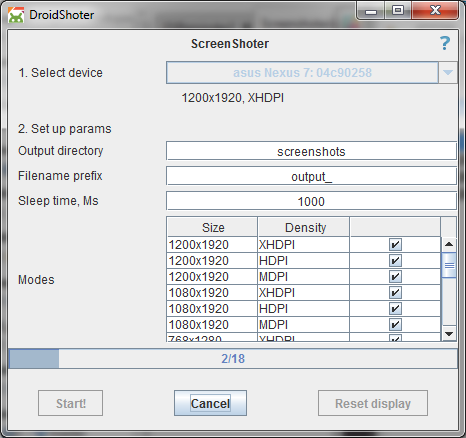
In order not to burden reading people who are not interested in the details of application development, I will immediately give a brief information on working with the program.
Detailed instructions with links to Java and Adb are on GitHub.
The use of DroidShoter itself is extremely simple: we launch the utility, select the device, set the parameters and click "Start!" .
An example of the result of the program you can find under the spoiler at the end of the article.
Attention! There was a message about problems with the Samsung Tab S (SM-T700) with the official firmware Android 5.0.2. If you decide to use the utility with this device, be prepared that you may need to reset the settings. There were no problems on other Samsung devices.
According to official Google documentation , screens are divided into: small, normal, large and xlarge; pixel density: ldpi, mdpi, hdpi, xhdpi:

It can be seen that the variety of screen combinations arises from the intersection of the possible size and pixel density. The combination of screen size and pixel density determines its resolution. Thus, two basic characteristics can be distinguished that sufficiently characterize the screens: resolution and pixel density . It is these characteristics that we can change using Adb . We can also use Adb to take screenshots, which means that nothing prevents us from going through different combinations of screen parameters and taking screenshots on each of them. It was this process that I wanted to automate.
First you had to learn how to take the screen settings. And if there was no problem for devices starting with Android 4.3 (parse the output of the “wm size” and “wm density” commands ), then for the rest it was necessary to find a different method. As a result, I used the “dumpsys window” command , finding a line in the output, like “init = 480x800 240dpi” . Unfortunately, some devices (so far only one Sharp phone) with this approach do not give out density and the utility will not be supported.
The following Adb shell commands are used to change display settings :
Unfortunately, when changing the screen configuration, system elements (status bar, for example) may be incorrectly rendered. This problem lies in Android and could not be solved. However, this does not prevent the application itself from being displayed correctly.
In general, at this point, it was already clear that everything needed for the work was there and the utility was. The matter remained with direct development. As a language, I used Java , as the closest programming language to me at the moment and Swing framework for working with UI. In addition, Java has a great ddmlib library that makes working with Adb much easier .
DroidShoter has a fairly simple basic logic at the moment. When choosing a device, the physical parameters of the screen are determined, and on their basis the order of the display parameters for subsequent work is built. Then, after clicking on “Start” , the process of changing the screen settings and taking screenshots begins.
As a display parameter queue, all combinations of screen resolution and pixel density values from the “base” are used, which are less than the physical parameters of the device. Those. for a screen with a physical resolution of 720x1280, a resolution of 1020x1980 will not be used. The same thing with a density of 320 at a physical density of 240.
Strictly speaking, Adb allows you to use parameters that exceed the physical characteristics of the device, but at the moment I decided to abandon their use, because there will be a loss of some pixels and the appearance of the application will not correspond to the real one (for example, element separators may appear in lists in general).
The logic was framed by additional features for convenience:
For some applications, a situation may arise when it “crashes” with any screen settings. In such cases, it is enough to exclude this mode from work (but, of course, it is better to consider the cause of the “crash” - there may be a problem in the application).
From the point of view of the operating system, changing the display settings is a change in the screen configuration, which entails the standard process of re-creating the current activity . The configuration change takes place according to the screenSize parameter and can be intercepted in activity by registering in manifest with the tag
This implies an additional plus of DroidShoter: the correctness of the restoration by the application of the state after a configuration change is tested.
DroidShoter development plan, if the program is claimed by the community:
Your ideas, problems and suggestions are welcome in the comments, as an issue on GitHub, or can be sent in person.
PS Not a single device was damaged during operation.
Samsung distinguished itself again (since the development of the Intent Sender plug-in to IDEA has been offended by them): Samsung Tab S (SM-T700) went into reboot after a few screenshots and subsequently did not start (only via hard reset).
Quick start
In order not to burden reading people who are not interested in the details of application development, I will immediately give a brief information on working with the program.
- You can download it on GitHub in the Releases section . Unfortunately, due to the GitHub policy, it is impossible to attach * .jar files in their pure form, so I had to wrap it in a zip archive.
- Requirements: Java installed (JRE enough) and Adb .
- Launch: double-click on the DroidShoter.jar file or the java -jar DroidShoter.jar command in the terminal.
Detailed instructions with links to Java and Adb are on GitHub.
The use of DroidShoter itself is extremely simple: we launch the utility, select the device, set the parameters and click "Start!" .
An example of the result of the program you can find under the spoiler at the end of the article.
Attention! There was a message about problems with the Samsung Tab S (SM-T700) with the official firmware Android 5.0.2. If you decide to use the utility with this device, be prepared that you may need to reset the settings. There were no problems on other Samsung devices.
Some details
According to official Google documentation , screens are divided into: small, normal, large and xlarge; pixel density: ldpi, mdpi, hdpi, xhdpi:
It can be seen that the variety of screen combinations arises from the intersection of the possible size and pixel density. The combination of screen size and pixel density determines its resolution. Thus, two basic characteristics can be distinguished that sufficiently characterize the screens: resolution and pixel density . It is these characteristics that we can change using Adb . We can also use Adb to take screenshots, which means that nothing prevents us from going through different combinations of screen parameters and taking screenshots on each of them. It was this process that I wanted to automate.
First you had to learn how to take the screen settings. And if there was no problem for devices starting with Android 4.3 (parse the output of the “wm size” and “wm density” commands ), then for the rest it was necessary to find a different method. As a result, I used the “dumpsys window” command , finding a line in the output, like “init = 480x800 240dpi” . Unfortunately, some devices (so far only one Sharp phone) with this approach do not give out density and the utility will not be supported.
The following Adb shell commands are used to change display settings :
- wm size [WxH] (since Android 4.3) and am display-size [WxH] (up to 4.3.) - to change the screen resolution
- wm density [value] (since Android 4.3) and am display-size [value] (up to 4.3.) - for changing the pixel density
- To reset the display parameters, use the above commands with “reset” instead of the set parameters.
Unfortunately, when changing the screen configuration, system elements (status bar, for example) may be incorrectly rendered. This problem lies in Android and could not be solved. However, this does not prevent the application itself from being displayed correctly.
In general, at this point, it was already clear that everything needed for the work was there and the utility was. The matter remained with direct development. As a language, I used Java , as the closest programming language to me at the moment and Swing framework for working with UI. In addition, Java has a great ddmlib library that makes working with Adb much easier .
DroidShoter has a fairly simple basic logic at the moment. When choosing a device, the physical parameters of the screen are determined, and on their basis the order of the display parameters for subsequent work is built. Then, after clicking on “Start” , the process of changing the screen settings and taking screenshots begins.
As a display parameter queue, all combinations of screen resolution and pixel density values from the “base” are used, which are less than the physical parameters of the device. Those. for a screen with a physical resolution of 720x1280, a resolution of 1020x1980 will not be used. The same thing with a density of 320 at a physical density of 240.
Strictly speaking, Adb allows you to use parameters that exceed the physical characteristics of the device, but at the moment I decided to abandon their use, because there will be a loss of some pixels and the appearance of the application will not correspond to the real one (for example, element separators may appear in lists in general).
Basic parameters:
| Dpi | Screen Resolution - Maximum Pixel Density for Resolution |
|---|---|
| XXXHDPI - 640 DPI_560 - 560 XXHDPI - 480 DPI_420 - 420 XHDPI - 320 HDPI - 240 MDPI - 160 | 2560x1600 - XHDPI 2560x1440 - DPI_560 1920x1200 - DPI_560 1920x1080 - DPI_560 1280x768 - DPI_420 1280x720 - DPI_420 854x480 - HDPI 800x480 - HDPI 480x320 - MDPI 320x240 - MDPI |
The logic was framed by additional features for convenience:
- Automatically detect device connection / disconnection
- Ability to specify a folder for screenshots (both relative and absolute paths are supported)
- Specifies the prefix for the name of the screenshot files. The name follows the pattern: [prefix] [width] x [height] _ [density]
- The ability to set a delay before taking a screenshot after changing the mode (necessary in order to allow activity to perform time-consuming operations, for example, to obtain data from the server)
- Saving a list of active operating modes for each device (after restarting DroidShoter, the checkboxes from the modes that were last deactivated will be removed)
- Automatic Adb search in ANDROID_HOME variable. Saving the path to Adb , if the user specified it manually
- A separate button for resetting the screen to physical. The button was introduced just in case, the need for its real use did not arise.
For some applications, a situation may arise when it “crashes” with any screen settings. In such cases, it is enough to exclude this mode from work (but, of course, it is better to consider the cause of the “crash” - there may be a problem in the application).
From the point of view of the operating system, changing the display settings is a change in the screen configuration, which entails the standard process of re-creating the current activity . The configuration change takes place according to the screenSize parameter and can be intercepted in activity by registering in manifest with the tag
android:configChanges="screenSize"
This implies an additional plus of DroidShoter: the correctness of the restoration by the application of the state after a configuration change is tested.
An example of the result of the work of DroidShoter:
We used the Nexus 7 tablet (2013) and the native application “Calculator”. The calculator is interesting in that, at different screen resolutions, additional functions are displayed differently on a green background, which clearly shows a change in layout.
Screenshots folder contents
1200x1920_MDPI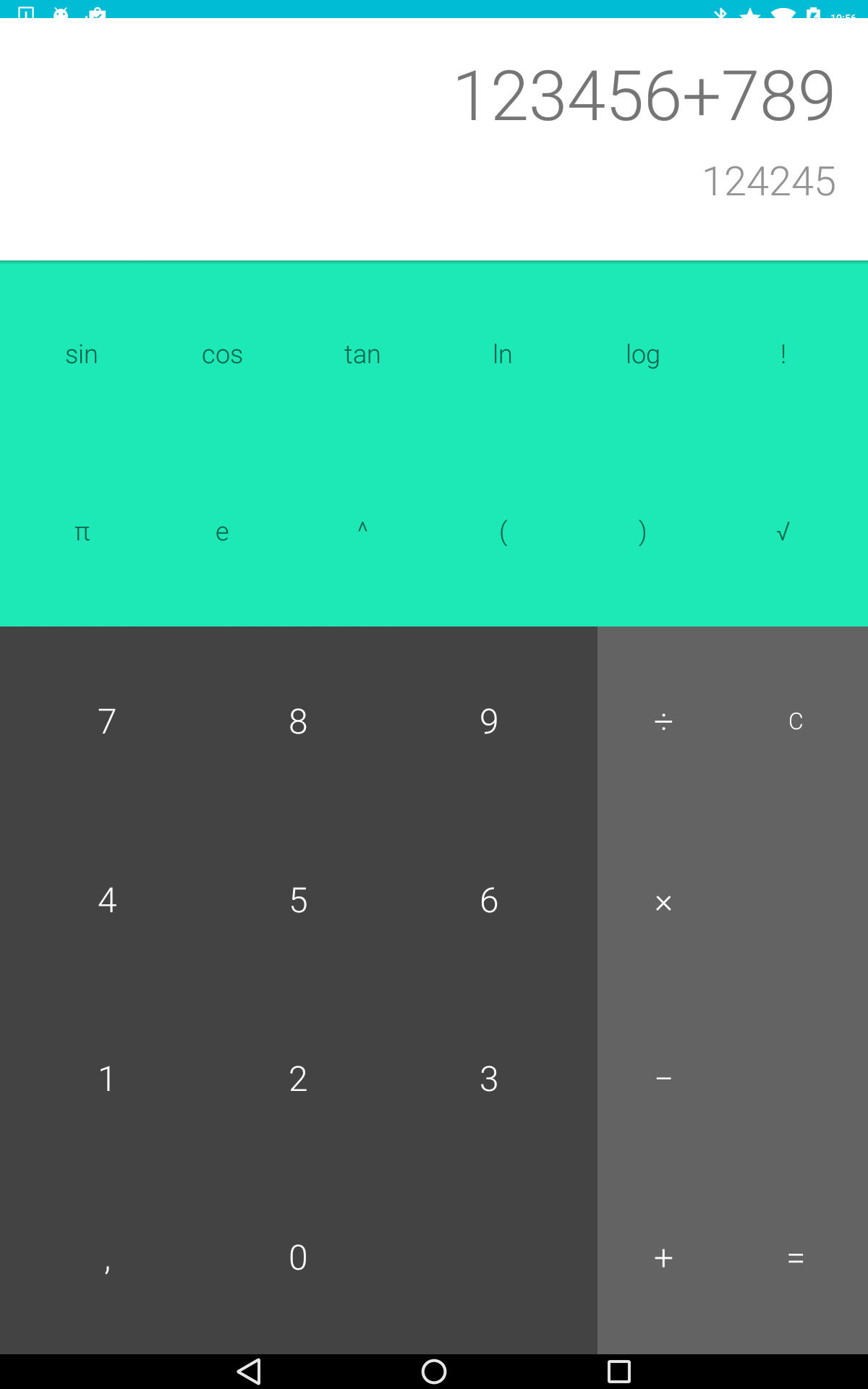
768x1280_XHDPI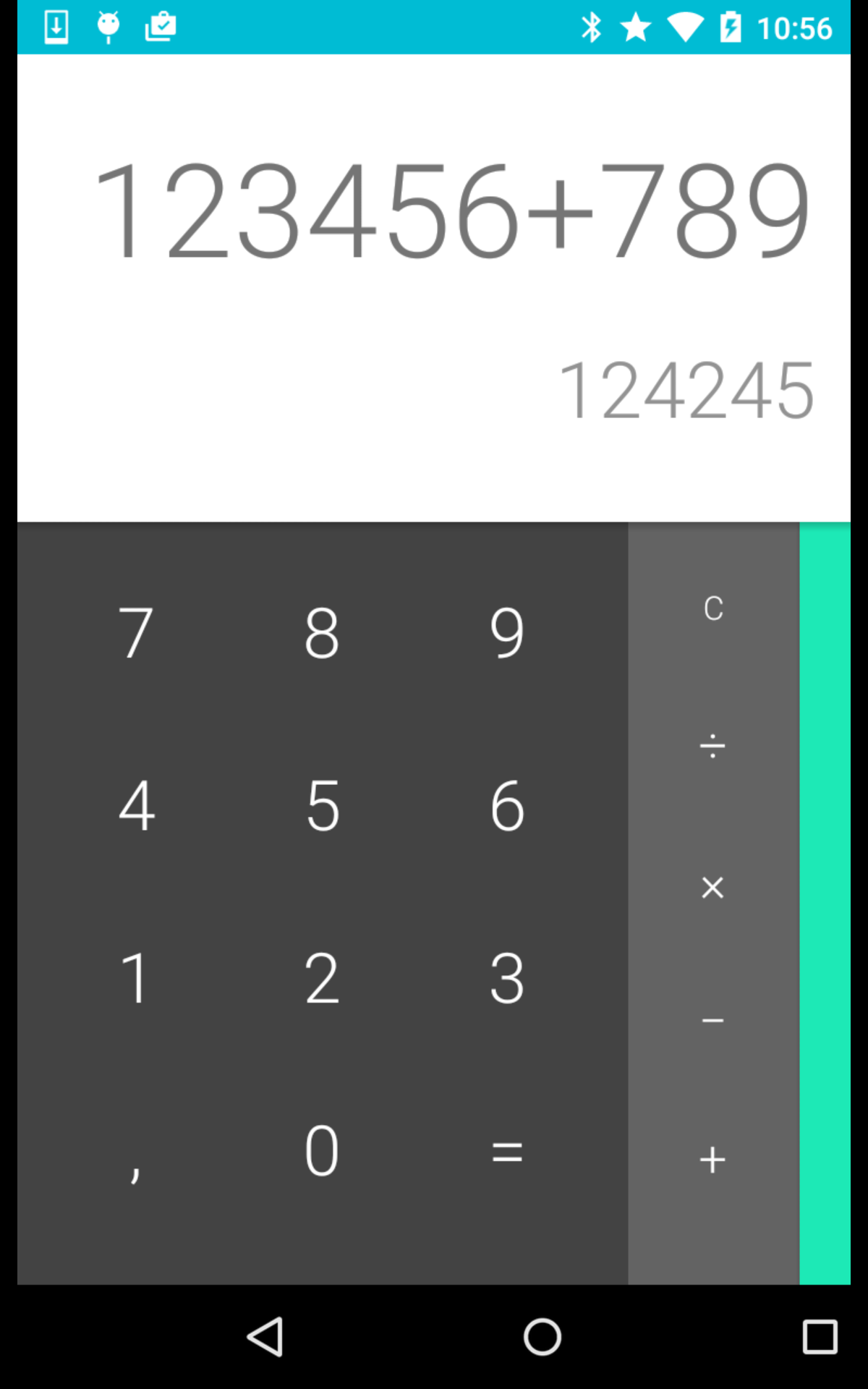
480x854_MDPI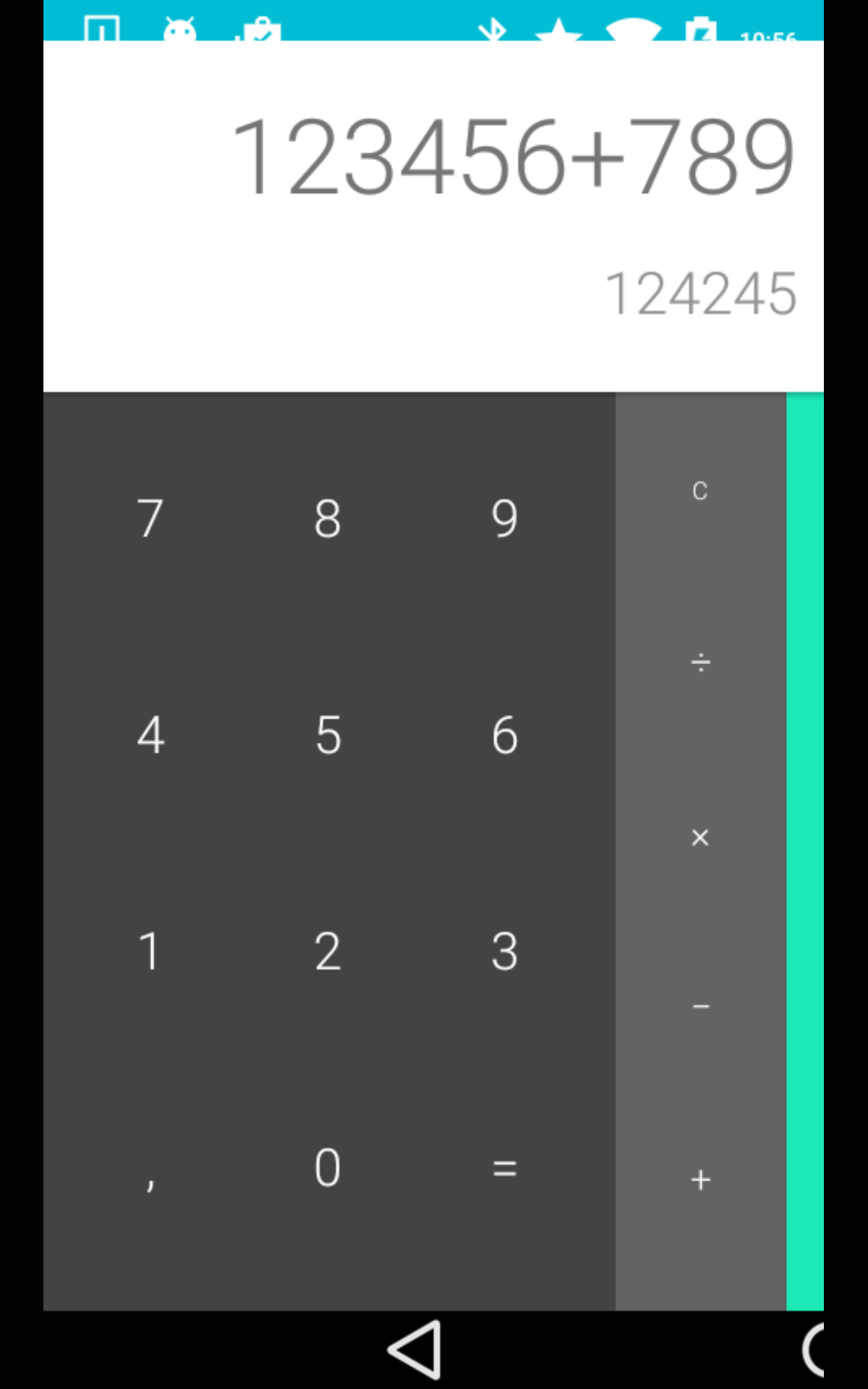
320x480_MDPI
Work video
On video, the size of the content is reduced, but in reality the device’s screen is almost full.
Resolution changes approximately every 5 seconds.
Resolution changes approximately every 5 seconds.
DroidShoter development plan, if the program is claimed by the community:
- Orientation Support
- Localization Change Support
- Automatically launch various application screens (with necessary Intent extra )
- Ensuring integration into CI systems
Your ideas, problems and suggestions are welcome in the comments, as an issue on GitHub, or can be sent in person.
Samsung distinguished itself again (since the development of the Intent Sender plug-in to IDEA has been offended by them): Samsung Tab S (SM-T700) went into reboot after a few screenshots and subsequently did not start (only via hard reset).
Only registered users can participate in the survey. Please come in.
Will DroidShoter be useful for you?
- 5.2% No 6
- 36.5% Maybe it will be useful later 42
- 8.6% Yes, after more development 10
- 49.5% Yes 57