
 February 1, 2016 at 11:24
Skeleton 2D animation in Unity with the Puppet2D plugin
Perhaps, all beginner "igrodely" in the development of games faced with the animation of their characters. We are faced with a choice of sprite or skeletal animation. In this article I will discuss the basic principles of working with the Puppet2D plugin for skeletal animation.
So, the work begins with the purchase and installation of the plugin itself from the Asset Store:
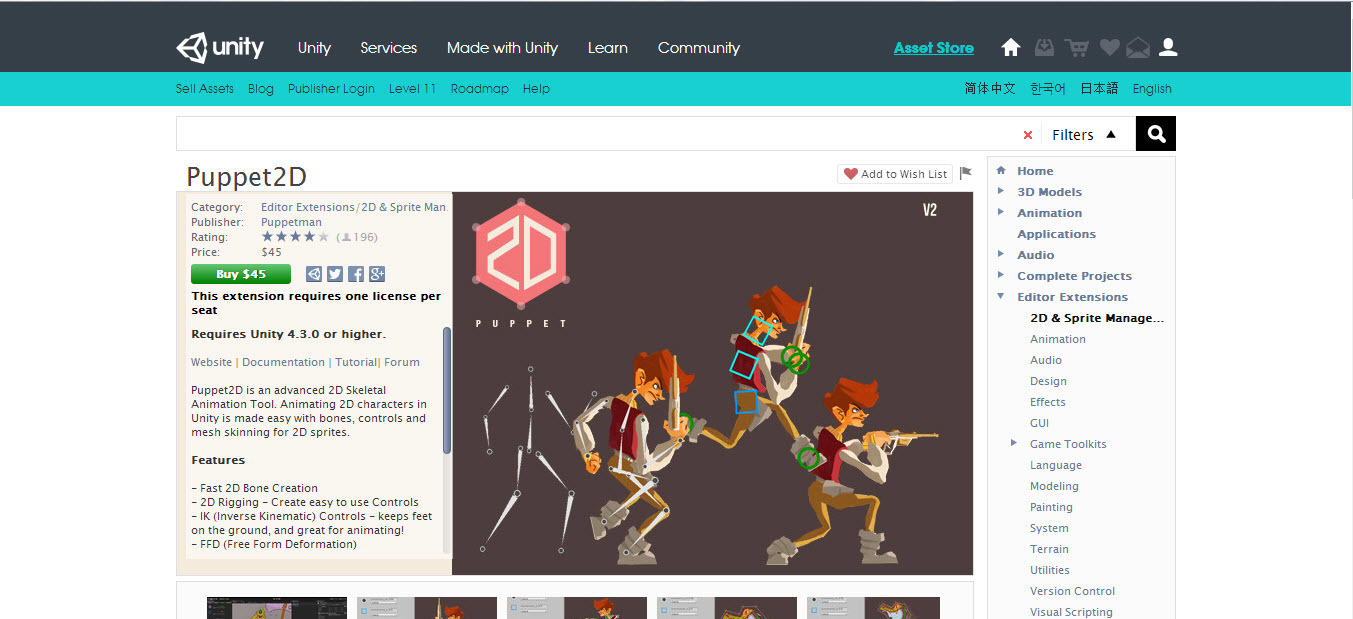
Next, add the plugin to the workspace: Window >> Puppet2D

Before creating the skeleton, we build the sprites on the stage and create a Layer for the character (where we put the sprites, I called it “Player”):


and Sorting Layer for bones and controllers (here “Bones” and “Controllers”). Along the way, set the layer for bones and controllers in Puppet itself:

We proceed directly to the creation of the skeleton itself. For convenience, so that the sprites do not interfere and do not stand out, block their layer:

Creating begins with the Create Bone Tool button (1)

Click LMB in the right places, at the end - RMB or Finish Bone (2). If we first click on an existing bone and create another bone from it, then it will become the parent bone.

For ranges of people and animals there is a button “Create Spline Tool” (3). We mark the start and end points, and the indicator (4) is the number of bones between these points. At the ends of these points, controllers will automatically appear. End the spline with the “Finish Spline” button (5).

As a result, you should get something like this skeleton:

Further, everything is simple - we hang the controls on the limbs:

(1) - The controller for the limbs (arms, legs)
(2) - The parent-controller
(3) - The controller only for turns (for example, the head)
There are 2 ways to bind:
In the first case, everything is very simple: select the desired bones, select the desired sprite and press the "Parent Object To Bones" button:

In the second, you will have to be a little confused, because you need to convert the sprite to a mesh. Select the sprite and click the “Convert Sprite To Mesh” button:

The “Type of Mesh” indicator (1) (0 to 4) indicates the number of triangles in the polygon. The higher the type, the more there are.
The next step is to bind this mesh to the bones. We select it, select the bones and click "Bind Smoth Skin":
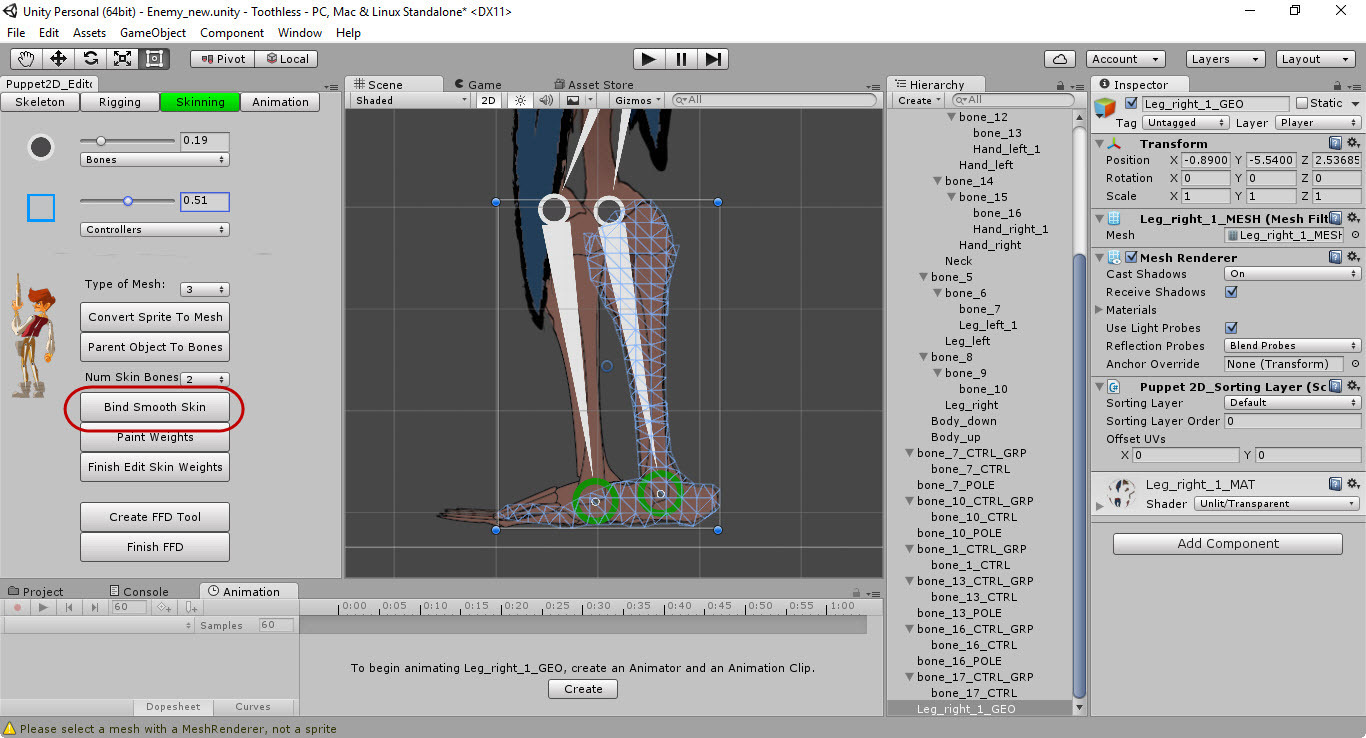
But since everything automated is not always beautiful in practice, and your hero’s hand suddenly bends in the middle of the bone, we proceed to the final point of building the skeleton:
To put it simply, the weights show which bone bends which mesh. Select the desired mesh, then edit, starting with the “Paint Weights” button:

Select the desired bone and where white is the color — the bone is oppressed by the mesh, where black is not —

select the thickness and hardness of the brush and paint over the weights using LMB:

Shift + LMB = Fracture softening
Ctrl + LMB = Erase weights
Finish editing with the “Finish Edit Skin Weights” button.
The final stage of course will be animation. Here your imagination is unlimited. We move the controls, set the poses and, voila, our skeleton is already running:

Finally, I’ll add a tutorial from the official Puppet2D YouTube channel:
1. Installation
So, the work begins with the purchase and installation of the plugin itself from the Asset Store:
Next, add the plugin to the workspace: Window >> Puppet2D
2. The creation of the skeleton. Training
Before creating the skeleton, we build the sprites on the stage and create a Layer for the character (where we put the sprites, I called it “Player”):
and Sorting Layer for bones and controllers (here “Bones” and “Controllers”). Along the way, set the layer for bones and controllers in Puppet itself:
3.Creating a skeleton
We proceed directly to the creation of the skeleton itself. For convenience, so that the sprites do not interfere and do not stand out, block their layer:
Creating begins with the Create Bone Tool button (1)
Click LMB in the right places, at the end - RMB or Finish Bone (2). If we first click on an existing bone and create another bone from it, then it will become the parent bone.
For ranges of people and animals there is a button “Create Spline Tool” (3). We mark the start and end points, and the indicator (4) is the number of bones between these points. At the ends of these points, controllers will automatically appear. End the spline with the “Finish Spline” button (5).
As a result, you should get something like this skeleton:
4. The creation of the skeleton. We hang controls
Further, everything is simple - we hang the controls on the limbs:
(1) - The controller for the limbs (arms, legs)
(2) - The parent-controller
(3) - The controller only for turns (for example, the head)
5. The creation of the skeleton. Skeleton binding sprites
There are 2 ways to bind:
- if one bone corresponds to one bone;
- if 2 or more bones correspond to one sprite.
In the first case, everything is very simple: select the desired bones, select the desired sprite and press the "Parent Object To Bones" button:
In the second, you will have to be a little confused, because you need to convert the sprite to a mesh. Select the sprite and click the “Convert Sprite To Mesh” button:
The “Type of Mesh” indicator (1) (0 to 4) indicates the number of triangles in the polygon. The higher the type, the more there are.
The next step is to bind this mesh to the bones. We select it, select the bones and click "Bind Smoth Skin":
But since everything automated is not always beautiful in practice, and your hero’s hand suddenly bends in the middle of the bone, we proceed to the final point of building the skeleton:
6. Creating a skeleton. Weight adjustment
To put it simply, the weights show which bone bends which mesh. Select the desired mesh, then edit, starting with the “Paint Weights” button:
Select the desired bone and where white is the color — the bone is oppressed by the mesh, where black is not —
select the thickness and hardness of the brush and paint over the weights using LMB:
Shift + LMB = Fracture softening
Ctrl + LMB = Erase weights
Finish editing with the “Finish Edit Skin Weights” button.
7. Animation
The final stage of course will be animation. Here your imagination is unlimited. We move the controls, set the poses and, voila, our skeleton is already running:
Finally, I’ll add a tutorial from the official Puppet2D YouTube channel: