January 29, 2016 at 15:01
Texture compression in Android: format comparison and code examples
- Transfer
What is the best texture compression format? Maybe it's PNG, ETC, PVRTC, S3TC, or some other one? The question is not simple, but very important. The quality of visual design, speed and size of Android applications depend on the answer. The matter is complicated by the fact that a universal “best format” simply does not exist. It all depends on the needs of the developer.
The technology for applying textures to two-dimensional or three-dimensional models is widely used in computer graphics. This is done in order to improve the detail of objects that are represented by models. Android supports many texture compression formats, each of which has its own advantages and disadvantages.
Texture mapping is a method of “sticking” an image onto the surface of shapes or polygons. In order to make it clearer, the figure can be compared with a box, and the texture with patterned wrapping paper, in which this box is wrapped in order to put something good in it and give it to someone. Therefore, in English literature, texture mapping is also called texture wrapping, which can be translated as texture wrapping.

The first tank is a polygonal model, and the second is the same model on which the textures are superimposed.
MIP cards (Mipmaps) are optimized groups of images that are generated for the main texture. Usually they are created in order to increase the speed of rendering images and to smooth images (anti-aliasing), that is, to get rid of the effect of "stepped" lines. Each level of the map (it is called “mip”, in fact - this is one of the raster images, they consist of a set of textures included in the MIP card) - this is the version of the original texture with a lower resolution.
Such an image is used in cases when a textured object is visible from a great distance, or when its size is reduced. The idea of using MIP cards is based on the fact that we simply cannot distinguish between small details of an object that is far from us or has small dimensions. Based on this idea, various fragments of the map can be used to represent different parts of the texture based on the size of the object. This increases the rendering speed due to the fact that smaller versions of the main texture have much less texels (texture pixels), that is, the GPU has to process less data to output a textured model. In addition, since MIP cards are usually smoothed, the number of noticeable artifacts is seriously reduced. Here we look at MIP cards in PNG, ETC (KTX),
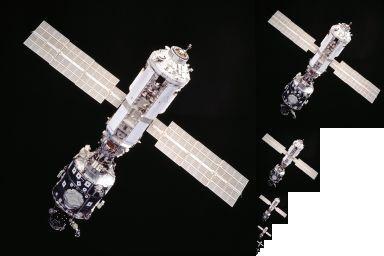
MIP card
PNG is a raster image storage format that is especially noticeable in that it uses an algorithm for compressing graphic data without loss of information. It supports color indexed images (24-bit RGB or 32-bit RGBA), full-color and grayscale images, as well as an alpha channel.
Ericsson Texture Compression is a texture compression format that operates on 4x4 pixel blocks. Khronos originally used ETC as the standard format for Open GL ES 2.0. (this version is also called ETC1). As a result, this format is available on almost all Android devices. With the release of OpenGL ES 3.0. the ETC2 format is used as a new standard - a revised version of ETC1. The main difference between the two standards is the algorithm that operates with pixel groups. Improvements in the algorithm have led to higher accuracy of the output of small image details. As a result, image quality has improved, but file size has not.
ETC1 and ETC2 support 24-bit RGB data compression, but they do not support alpha-image compression. In addition, there are two different file formats related to the ETC algorithm: these are KTX and PKM.
KTX is the standard Khronos Group file format, it provides a container in which you can store many images. When a MIP card is created using KTX, a single KTX file is generated. The format of a PKM file is much simpler, such files are mainly used to store individual images. As a result, using PKM during the creation of the MIP card will result in several PKM files instead of a single KTX. Therefore, it is not recommended to use the PKM format for storing MIP cards.
To compress images in ETC, you can use the Mali GPU Texture Compression Tool and the ETC-Pack Tool .
PowerVR Texture Compression is a fixed-level compression format for lossy graphic data that is used mainly in Imagination Technology PowerVR MBX, SGX and Rogue devices. It is used as a standard image compression method on iPhone, iPod, iPad.
Unlike ETC and S3TC, the PVRTC algorithm does not work with fixed pixel blocks. It uses bilinear magnification and low-precision blending of two low-resolution images. In addition to the unique compression process, PVRTC supports the RGBA format (with transparency) for both the 2-bpp option (2 bits per pixel) and the 4-bpp option (4 bits per pixel).
For compression, you can use PVRTexTool .
S3 Texture Compression is a lossy graphic data compression format with a fixed compression level. Its features make this format ideal for compressing textures used in 3D applications designed to use a graphics accelerator. The integration of S3TC with Microsoft DirectX 6.0 and OpenGL 1.3 contributed to its widespread adoption. There are at least 5 different S3TC format options (from DXT1 to DXT5). The sample application supports the most commonly used options (DXT1, DXT3, and DXT5).
DXT1 provides the most powerful compression. Each input 16-pixel block is converted to a 64-bit block, consisting of two 16-bit 5: 6: 5 RGB color values and a 2-byte 4x4 lookup table. Support for transparency is limited to one color (1-bit transparency).
DXT3 converts each block of 16 pixels into 128 bits, 64 bits per alpha channel data, 64 bits per color information. DXT3 is very suitable for images or textures with sharp transitions between transparent and opaque areas. However, if there are no gradations of transparency, and there are transparent areas in the image, it is worth considering the use of DXT1.
DXT5, like DXT3, converts each block of 16 pixels into 128 bits, 64 bits per alpha channel data, 64 bits per color information. However, unlike DXT3, DXT5 is suitable for images or textures with smooth transitions between transparent and opaque areas.
To work with this format, you can use the DirectX Texture Tool from DirectX (included in the DX SDK)
Most file formats for storing compressed textures include a header in front of the image data. Typically, the header contains information about the name of the texture compression format, the width and height of the texture, its color depth, data size, internal format, and other information about the file.
Our goal is to load texture data from various files and overlay them on a two-dimensional model to compare image quality and data size. The title, which is located before the graphic data, should not be processed as part of the texture, if you consider it a fragment of the image and superimpose it on the model, this will lead to distortions. The file headers differ for different texture compression formats, so each format needs individual support, otherwise it will not work correctly to load and apply texture.
The PVRTC header is packed taking into account the presence of a data member of the 64-bit pixel format (mPixelFormat in the example). In the code compiled for ARM, the header is aligned with 4 additional bytes added to it, as a result, from the original 52-byte, it becomes 56-byte. This leads to the fact that when outputting to ARM devices, the image is distorted. In the code compiled for Intel processors, this does not happen. Header packaging solves the alignment problem on ARM devices; as a result, the texture is displayed correctly on both ARM devices and Intel devices.
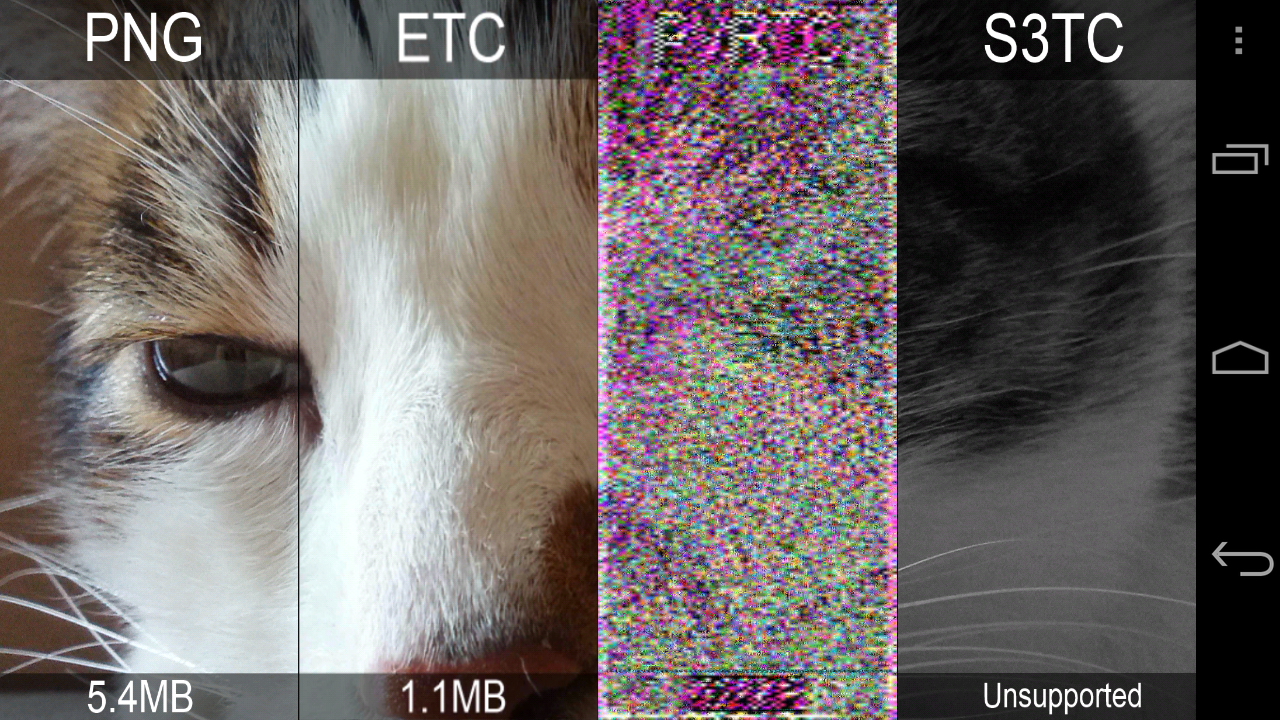
Here's how the image distortion on an ARM device caused by title alignment looks like
An example of Android Texture Compression, fragments of which will be given below, allows everyone to quickly compare the quality of textures in five formats. Namely, these are Portable Network Graphics (PNG), Ericsson Texture Compression (ETC), Ericsson Texture Compression 2 (ETC2), PowerVR Texture Compression (PVRTC), and S3 Texture Compression (S3TC), sometimes called DirectX Texture Compression (DXTC) .
The example shows how to load and use the textures of these formats using OpenGL ES in Android. Images stored in different formats are located next to each other, which allows you to compare their size and quality. Choosing the most suitable format for storing compressed textures for a specific project allows the developer to find the right balance between application size, visual picture quality and performance.
In the example, the image stored in the file of each of the formats is loaded, the coordinates for its overlay on the model are determined, and a fragment of each texture is displayed. The result is a single image, divided into four textures of the corresponding format. The formats are indicated at the top of the screen, the file size is shown below.
The example discussed here is based on the code created by William Guo. Christiano Ferreira, Intel Graphics Specialist, supplemented it with an example of using texture compression ETC2. You can download the code here .

Texture compression formats: sizes and quality
You can work with PNG MIP cards using the simple glGenerateMipmap function from Khronos OpenGL, which was created specifically for this purpose. We used the code prepared by Sean Barret, stb_image.c, which is publicly available, to read and download PNG files. This code is also used to find and select a portion of the texture that needs to be processed.
As mentioned above, ETC textures can be stored in KTX and PKM files. KTX is a standard compression format used as a container for multiple images; it is ideal for creating MIP cards. In turn, PKM was created to store individual compressed images, so the creation of MIP-cards on its basis makes it necessary to generate many files, and this is inefficient. Support for MIP cards for ETC in the example is limited to the KTX format.
Khronos provides an open source library written in C (libktx) that supports the loading of MIP cards from KTX files. We used this library and implemented the code in the LoadTextureETC_KTX function, which is responsible for loading textures. A function that directly downloads KTX files is called ktxLoadTextureM. It allows you to load the desired texture from the data in memory. This function is part of the libktx library, and its documentation can be found on the Khronos website .
Here is a code snippet that initializes the texture and provides MIP card support for the ETC (KTX) format.
Support for MIP cards for PVRTC textures is a bit more complicated task. After reading the header, an offset is determined that equals the sum of the header sizes and metadata. Metadata follows the title; they are not part of the image. For each generated level of the map, pixels are grouped into blocks (the differences depend on whether the encoding is 4 bits per pixel or 2 bits - both are suitable for PVRTC). Next, a search for boundaries occurs, the width and height of the blocks are fixed. Then the function glCompressedTexImage () is called, it identifies a two-dimensional image in the compressed PVRTC format. Next, the size of the pixel data is calculated and what happened is added to the previously found offset in order to group the set of pixels for the next fragment of the map. This process is repeated until
After downloading a file that stores S3TC textures, its format is determined and the MIP card located behind the header is read. A map fragment is bypassed, pixels are grouped into blocks. Then, to identify the two-dimensional image in the compressed data, the glCompressedTexImage () function is called. The total block size is then added to the offset so that you can find the beginning of the next fragment of the map and perform the same actions. This is repeated until all map levels have been processed. Here is a code snippet that initializes the texture and provides support for MIP cards for the S3TC format.
Depending on the specific situation, choosing the most suitable format for storing compressed textures can improve the appearance of images, seriously reduce the size of the application and significantly improve performance. Careful selection of the optimal texture compression method can give developers and their applications serious competitive advantages. The Android Texture Compression sample application shows how to work with the textures of the most popular formats in the Android environment. Download the code and add support for the most suitable texture compression formats to your projects.
Preliminary information on working with textures and their storage formats
Texture mapping is a method of “sticking” an image onto the surface of shapes or polygons. In order to make it clearer, the figure can be compared with a box, and the texture with patterned wrapping paper, in which this box is wrapped in order to put something good in it and give it to someone. Therefore, in English literature, texture mapping is also called texture wrapping, which can be translated as texture wrapping.
The first tank is a polygonal model, and the second is the same model on which the textures are superimposed.
MIP cards (Mipmaps) are optimized groups of images that are generated for the main texture. Usually they are created in order to increase the speed of rendering images and to smooth images (anti-aliasing), that is, to get rid of the effect of "stepped" lines. Each level of the map (it is called “mip”, in fact - this is one of the raster images, they consist of a set of textures included in the MIP card) - this is the version of the original texture with a lower resolution.
Such an image is used in cases when a textured object is visible from a great distance, or when its size is reduced. The idea of using MIP cards is based on the fact that we simply cannot distinguish between small details of an object that is far from us or has small dimensions. Based on this idea, various fragments of the map can be used to represent different parts of the texture based on the size of the object. This increases the rendering speed due to the fact that smaller versions of the main texture have much less texels (texture pixels), that is, the GPU has to process less data to output a textured model. In addition, since MIP cards are usually smoothed, the number of noticeable artifacts is seriously reduced. Here we look at MIP cards in PNG, ETC (KTX),
MIP card
Portable Network Graphics (PNG)
PNG is a raster image storage format that is especially noticeable in that it uses an algorithm for compressing graphic data without loss of information. It supports color indexed images (24-bit RGB or 32-bit RGBA), full-color and grayscale images, as well as an alpha channel.
Benefits
- The format uses lossless compression of graphic data, as a result, PNG-images are very high quality.
- Supports both 8-bit and 16-bit transparency.
disadvantages
- Files are large. This increases application size and memory consumption.
- Comparatively high demand for computing resources (which leads to poor performance).
Ericsson Texture Compression (ETC)
Ericsson Texture Compression is a texture compression format that operates on 4x4 pixel blocks. Khronos originally used ETC as the standard format for Open GL ES 2.0. (this version is also called ETC1). As a result, this format is available on almost all Android devices. With the release of OpenGL ES 3.0. the ETC2 format is used as a new standard - a revised version of ETC1. The main difference between the two standards is the algorithm that operates with pixel groups. Improvements in the algorithm have led to higher accuracy of the output of small image details. As a result, image quality has improved, but file size has not.
ETC1 and ETC2 support 24-bit RGB data compression, but they do not support alpha-image compression. In addition, there are two different file formats related to the ETC algorithm: these are KTX and PKM.
KTX is the standard Khronos Group file format, it provides a container in which you can store many images. When a MIP card is created using KTX, a single KTX file is generated. The format of a PKM file is much simpler, such files are mainly used to store individual images. As a result, using PKM during the creation of the MIP card will result in several PKM files instead of a single KTX. Therefore, it is not recommended to use the PKM format for storing MIP cards.
Benefits
- The size of ETC files is noticeably smaller than the size of PNG files.
- The format supports hardware acceleration on almost all Android devices.
disadvantages
- The quality is not as high as that of PNG (ETC is an image compression format with loss of information).
- No transparency support.
To compress images in ETC, you can use the Mali GPU Texture Compression Tool and the ETC-Pack Tool .
PowerVR Texture Compression (PVRTC)
PowerVR Texture Compression is a fixed-level compression format for lossy graphic data that is used mainly in Imagination Technology PowerVR MBX, SGX and Rogue devices. It is used as a standard image compression method on iPhone, iPod, iPad.
Unlike ETC and S3TC, the PVRTC algorithm does not work with fixed pixel blocks. It uses bilinear magnification and low-precision blending of two low-resolution images. In addition to the unique compression process, PVRTC supports the RGBA format (with transparency) for both the 2-bpp option (2 bits per pixel) and the 4-bpp option (4 bits per pixel).
Benefits
- Support for alpha channels.
- RGBA support for option 2-bpp (2 bits per pixel) and option 4-bpp (4 bits per pixel).
- File size is much smaller than PNG.
- Support for hardware acceleration on GPU PoverVR.
disadvantages
- The quality is not as high as when using PNG (PVRTC is a lossy image compression format).
- PVRTC is only supported on PoverVR hardware.
- Support is provided for square POT textures, that is, textures whose width and height are a power of 2, although in some cases there is support for rectangular textures.
- Compressing textures into this format can be slow.
For compression, you can use PVRTexTool .
S3 Texture Compression (S3TC) or DirectX Texture Compression (DXTC)
S3 Texture Compression is a lossy graphic data compression format with a fixed compression level. Its features make this format ideal for compressing textures used in 3D applications designed to use a graphics accelerator. The integration of S3TC with Microsoft DirectX 6.0 and OpenGL 1.3 contributed to its widespread adoption. There are at least 5 different S3TC format options (from DXT1 to DXT5). The sample application supports the most commonly used options (DXT1, DXT3, and DXT5).
DXT1 provides the most powerful compression. Each input 16-pixel block is converted to a 64-bit block, consisting of two 16-bit 5: 6: 5 RGB color values and a 2-byte 4x4 lookup table. Support for transparency is limited to one color (1-bit transparency).
DXT3 converts each block of 16 pixels into 128 bits, 64 bits per alpha channel data, 64 bits per color information. DXT3 is very suitable for images or textures with sharp transitions between transparent and opaque areas. However, if there are no gradations of transparency, and there are transparent areas in the image, it is worth considering the use of DXT1.
DXT5, like DXT3, converts each block of 16 pixels into 128 bits, 64 bits per alpha channel data, 64 bits per color information. However, unlike DXT3, DXT5 is suitable for images or textures with smooth transitions between transparent and opaque areas.
Benefits
- The file size is much smaller than a similar PNG file.
- Decent quality, low percentage of artifacts in the form of strips associated with the imposition of colors.
- Good coding and decoding speed.
- Hardware acceleration on multiple GPUs. On desktop systems it is supported by almost all solutions, it is gradually distributed on the Android platform.
disadvantages
- The quality is lower than that of PNG (S3TC is an image compression format with loss of information).
- Not supported on all Android devices.
To work with this format, you can use the DirectX Texture Tool from DirectX (included in the DX SDK)
Access texture data
Most file formats for storing compressed textures include a header in front of the image data. Typically, the header contains information about the name of the texture compression format, the width and height of the texture, its color depth, data size, internal format, and other information about the file.
Our goal is to load texture data from various files and overlay them on a two-dimensional model to compare image quality and data size. The title, which is located before the graphic data, should not be processed as part of the texture, if you consider it a fragment of the image and superimpose it on the model, this will lead to distortions. The file headers differ for different texture compression formats, so each format needs individual support, otherwise it will not work correctly to load and apply texture.
note
The PVRTC header is packed taking into account the presence of a data member of the 64-bit pixel format (mPixelFormat in the example). In the code compiled for ARM, the header is aligned with 4 additional bytes added to it, as a result, from the original 52-byte, it becomes 56-byte. This leads to the fact that when outputting to ARM devices, the image is distorted. In the code compiled for Intel processors, this does not happen. Header packaging solves the alignment problem on ARM devices; as a result, the texture is displayed correctly on both ARM devices and Intel devices.
Here's how the image distortion on an ARM device caused by title alignment looks like
About the sample application
An example of Android Texture Compression, fragments of which will be given below, allows everyone to quickly compare the quality of textures in five formats. Namely, these are Portable Network Graphics (PNG), Ericsson Texture Compression (ETC), Ericsson Texture Compression 2 (ETC2), PowerVR Texture Compression (PVRTC), and S3 Texture Compression (S3TC), sometimes called DirectX Texture Compression (DXTC) .
The example shows how to load and use the textures of these formats using OpenGL ES in Android. Images stored in different formats are located next to each other, which allows you to compare their size and quality. Choosing the most suitable format for storing compressed textures for a specific project allows the developer to find the right balance between application size, visual picture quality and performance.
In the example, the image stored in the file of each of the formats is loaded, the coordinates for its overlay on the model are determined, and a fragment of each texture is displayed. The result is a single image, divided into four textures of the corresponding format. The formats are indicated at the top of the screen, the file size is shown below.
The example discussed here is based on the code created by William Guo. Christiano Ferreira, Intel Graphics Specialist, supplemented it with an example of using texture compression ETC2. You can download the code here .
Texture compression formats: sizes and quality
PNG Download
You can work with PNG MIP cards using the simple glGenerateMipmap function from Khronos OpenGL, which was created specifically for this purpose. We used the code prepared by Sean Barret, stb_image.c, which is publicly available, to read and download PNG files. This code is also used to find and select a portion of the texture that needs to be processed.
  // Инициализация текстуры
    glTexImage2D( GL_TEXTURE_2D, 0, format, width, height, 0, format, GL_UNSIGNED_BYTE, pData );
    // Поддержка MIP-карты
    glGenerateMipmap( GL_TEXTURE_2D );
Download ETC / ETC2
As mentioned above, ETC textures can be stored in KTX and PKM files. KTX is a standard compression format used as a container for multiple images; it is ideal for creating MIP cards. In turn, PKM was created to store individual compressed images, so the creation of MIP-cards on its basis makes it necessary to generate many files, and this is inefficient. Support for MIP cards for ETC in the example is limited to the KTX format.
Khronos provides an open source library written in C (libktx) that supports the loading of MIP cards from KTX files. We used this library and implemented the code in the LoadTextureETC_KTX function, which is responsible for loading textures. A function that directly downloads KTX files is called ktxLoadTextureM. It allows you to load the desired texture from the data in memory. This function is part of the libktx library, and its documentation can be found on the Khronos website .
Here is a code snippet that initializes the texture and provides MIP card support for the ETC (KTX) format.
// Создание обработчика (handle) и загрузка текстуры
    GLuint handle = 0;
    GLenum target;
    GLboolean mipmapped;
        KTX_error_code result = ktxLoadTextureM( pData, fileSize, &handle, &target, NULL, &mipmapped, NULL, NULL, NULL );
    if( result != KTX_SUCCESS )
    {
        LOGI( "KTXLib couldn't load texture %s. Error: %d", TextureFileName, result );
        return 0;
    }
    // Привязка текстуры
    glBindTexture( target, handle );
Download PVRTC
Support for MIP cards for PVRTC textures is a bit more complicated task. After reading the header, an offset is determined that equals the sum of the header sizes and metadata. Metadata follows the title; they are not part of the image. For each generated level of the map, pixels are grouped into blocks (the differences depend on whether the encoding is 4 bits per pixel or 2 bits - both are suitable for PVRTC). Next, a search for boundaries occurs, the width and height of the blocks are fixed. Then the function glCompressedTexImage () is called, it identifies a two-dimensional image in the compressed PVRTC format. Next, the size of the pixel data is calculated and what happened is added to the previously found offset in order to group the set of pixels for the next fragment of the map. This process is repeated until
// Инициализация текстуры
    unsigned int offset = sizeof(PVRHeaderV3) + pHeader->mMetaDataSize;
    unsigned int mipWidth = pHeader->mWidth;
    unsigned int mipHeight = pHeader->mHeight;
    unsigned int mip = 0;
    do
    {
        // Определение размера (ширина * высота * bbp/8), минимальный размер равен 32
        unsigned int pixelDataSize = ( mipWidth * mipHeight * bitsPerPixel ) >> 3;
        pixelDataSize = (pixelDataSize < 32) ? 32 : pixelDataSize;
        // Выгрузка текстурных данных для фрагмента карты
        glCompressedTexImage2D(GL_TEXTURE_2D, mip, format, mipWidth, mipHeight, 0, pixelDataSize, pData + offset);
        checkGlError("glCompressedTexImage2D");
        // Следующий фрагмент имеет в два раза меньший размер, минимум – 1
        mipWidth  = ( mipWidth >> 1 == 0 ) ? 1 : mipWidth >> 1;
        mipHeight = ( mipHeight >> 1 == 0 ) ? 1 : mipHeight >> 1;
        // Переходим к следующему фрагменту
        offset += pixelDataSize;
        mip++;
    } while(mip < pHeader->mMipmapCount);
Download S3TC
After downloading a file that stores S3TC textures, its format is determined and the MIP card located behind the header is read. A map fragment is bypassed, pixels are grouped into blocks. Then, to identify the two-dimensional image in the compressed data, the glCompressedTexImage () function is called. The total block size is then added to the offset so that you can find the beginning of the next fragment of the map and perform the same actions. This is repeated until all map levels have been processed. Here is a code snippet that initializes the texture and provides support for MIP cards for the S3TC format.
// Инициализация текстуры
    // Выгрузка текстурных карт
    unsigned int offset = 0;
    unsigned int width = pHeader->mWidth;
    unsigned int height = pHeader->mHeight;
    unsigned int mip = 0;
    do
    {
        // Определение размера
        // В расширении определено: size = ceil(/4) * ceil(/4) * blockSize
        unsigned int Size = ((width + 3) >> 2) * ((height + 3) >> 2) * blockSize;
         glCompressedTexImage2D( GL_TEXTURE_2D, mip, format, width, height, 0, Size, (pData + sizeof(DDSHeader)) + offset );
        checkGlError( "glCompressedTexImage2D" );
        offset += Size;
        if( ( width <<= 1 ) == 0) width = 1;
        if( ( height <<= 1 ) == 0) height = 1;
        mip++;
    } while( mip < pHeader->mMipMapCount );
conclusions
Depending on the specific situation, choosing the most suitable format for storing compressed textures can improve the appearance of images, seriously reduce the size of the application and significantly improve performance. Careful selection of the optimal texture compression method can give developers and their applications serious competitive advantages. The Android Texture Compression sample application shows how to work with the textures of the most popular formats in the Android environment. Download the code and add support for the most suitable texture compression formats to your projects.