
 January 29, 2016 at 17:14
Caché Class Explorer - Exploring Caché in UML Notation
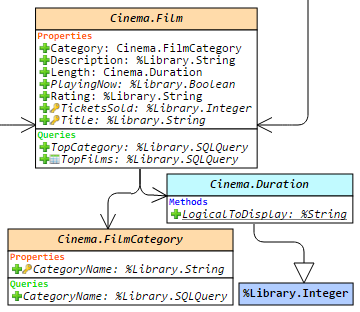 Hello. This article is a short overview of a tool that helps you understand the device and data structure of packages and classes inside a Caché DBMS.
 In short, his mission is to visualize a class or a whole package, show the connections between classes and provide as much information as possible to a programmer or team leader without the need to go to the Studio and watch the program code there.
Those who study or conduct training on InterSystems technologies, spend days looking at or changing the codes of different projects and just interested parties - I invite you to familiarize yourself with the Caché Class Explorer!
Introduction to Caché
Caché is a multimodel DBMS. It can be accessed using SQL queries with some extensions, as well as interacting with stored objects and procedures through interfaces for various programming languages. The third option is to directly develop the application in the native DBMS language - Caché ObjectScript (COS).
Caché supports classes at the DBMS level. There are two main types of classes: Persistent, which can be stored in the database, and Registered, which are not stored in the database, but act as programs and handlers. There are also a number of special types: Serial (classes that can be built into Persistent classes to create complex data types, such as addresses), DataType (create a custom data type), Index, View and Stream.
And now about Class Explorer
Caché Class Explorer - a tool that visualizes the structure of Caché classes in a diagram, shows the dependencies between classes and all the necessary information, including code of methods, queries, xData blocks, comments, documentation and keywords of various elements of the class. Class Explorer uses a modified UML notation to display, because Caché has a variety of entities that are not provided in the standard UML notation, but are important for Caché: queries, xData blocks, a lot of keywords for methods and properties (such as System , ZenMethod, Hidden, ProcedureBlock and others), parent-child, one-many relationships, class types, and so on.
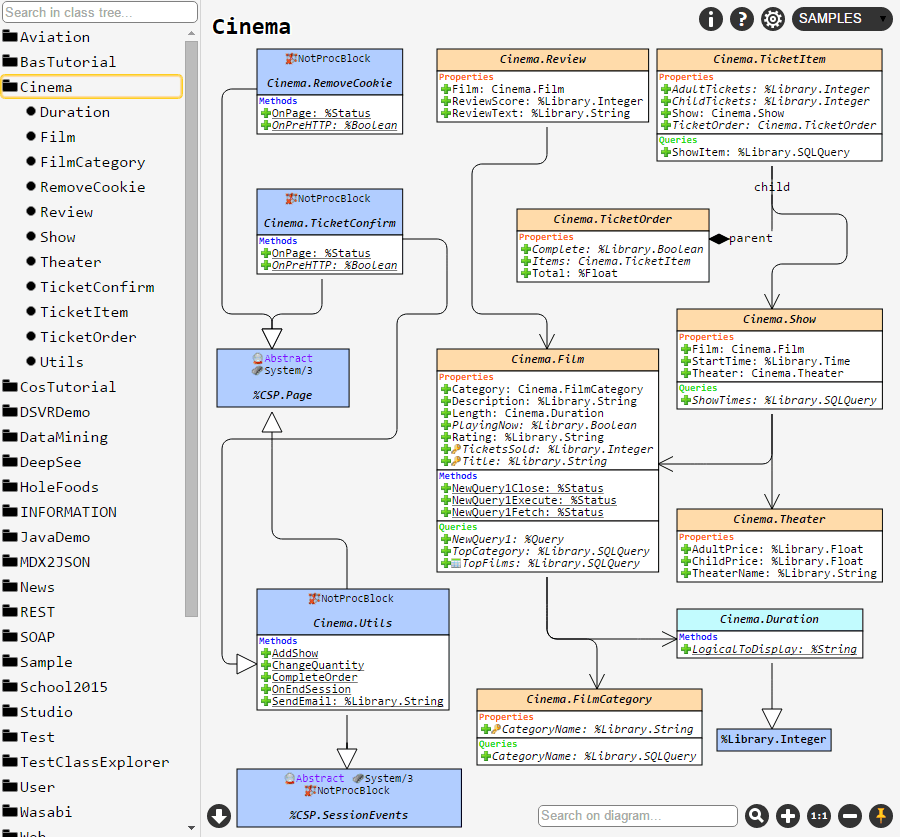
In order to get the most accurate understanding of what will be discussed later, you should first see what the displayed package looks like, and at the same time, the Class Explorer interface. For example, take the Cinema package from the SAMPLES namespace:
About functionality
In Caché Class Explorer (1.14.3) you can:
- Display a package hierarchy, class diagram, or an entire package;
- Edit the appearance of the chart after displaying;
- Save the current class diagram image;
- Remember the current view of the diagram and restore it at the next display;
- Search for any keywords displayed on the diagram or in the class tree;
- Using tooltips, get complete information about classes, their properties, methods, parameters, queries and xData blocks;
- View program code for methods, queries, or xData blocks;
- Enable or disable the display of any chart elements, including graphic icons.
Details and features overview
On the left side of the application is a package tree. To draw the whole package, you need to click on the button on the right side of the package name when you hover over it. To display a separate class and all classes dependent on it, you just need to select it in this tree.
Class Explorer can display several kinds of dependencies between classes:
- Of course, inheritance. It is displayed by a drawn white arrow in the direction of the inherited class;
- An “association”, or relationship between classes. If the field of one of the classes contains the type of another class, such a relationship will be displayed on the diagram;
- Parent-Child and One-Many relationships: data integrity rules.
If you hover over a link, the class will highlight the fields that create this link. It is important to note that Class Explorer will not "go deep" and draw the dependencies of those classes that are outside the current package, it will draw only one class. It will “deepen” endlessly only into classes that are in the current package - if you need to limit it, use the “Dependency level” setting.
The class itself is displayed as a rectangle divided into 6 sections:
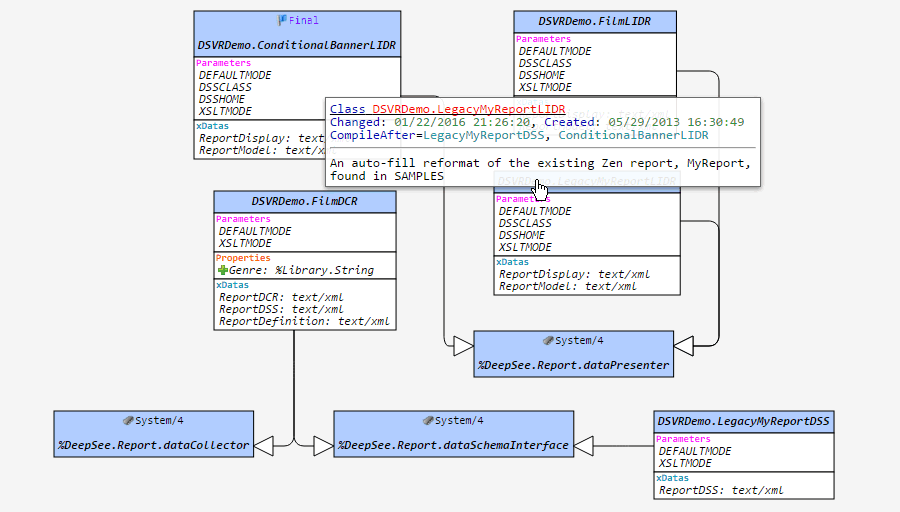
- Class name: by hovering over the class name, you can find out when it was created and modified, see the comment and all the keywords assigned to it. Clicking on the class title will open the documentation;
- Class parameters: all assigned parameters with their types, keywords and comments;
- Class properties, just like with parameters. Inscriptions in italics have a tooltip;
- Methods: you can click on any method and see the source code of this method, the syntax will be highlighted;
- Requests: as well as methods - you can click on them and view the request code;
- xData blocks: blocks mainly containing information in XML. Clicking will display the formatted source code.
By default, the class is displayed with many graphical icons, the interpretation of which you can see by clicking on the Help button. If you need a more or less strict UML notation, then their display, as well as the display of any sections of the class, can be turned off in the settings.
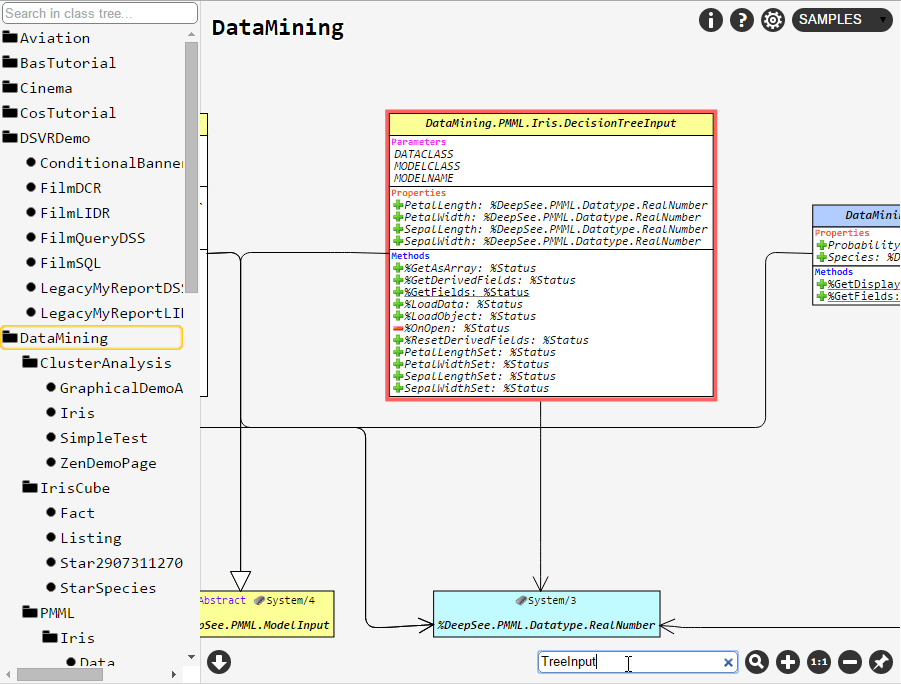
If the chart is large enough and unfamiliar, you can use the quick search on the chart. A class that contains any part of the entered keyword will be highlighted. To go to the class with the following match, just press Enter again or the search button.
And finally, by editing the diagram, deleting all unnecessary connections and placing the elements to achieve the desired appearance, it can be saved by clicking on the lower left button.
Installation
In order to install Caché Class Explorer, you just need to import the latest release into any area. After successful import, you should have a web application
hostname/ClassExplorer/(a slash at the end is necessary).Detailed installation instructions
- Download the latest Caché Class Explorer archive
- Unzip the archive and extract the XML file Cache / CacheClassExplorer-vX.XXxml;
- Import the package into any area in one of the following ways:
- Drag the XML file to an open studio;
- Through the management portal: System Browser -> Classes -> Import, and specify the path to the file;
- The command in the terminal: do ## class (% Installer.Installer) .InstallFromCommandLine (“path / Installer.cls.xml”);
- Look at the import log - if everything is fine, the web application will be available at hostname / ClassExplorer /. If something went wrong - read about it, and make sure that:
- You have sufficient rights to import the package into this area;
- The user of the web application has sufficient rights to go into various areas;
- If error 404 - that you put a slash at the end of the address bar.
And finally - how it looks
Under the spoiler - graphics
Tooltips:
Search by diagram:
View source code of methods:

View source code of xData blocks:

Search by diagram:
View source code of methods:
View source code of xData blocks:
You can see how Class Explorer works in the SAMPLES / USER area: demo . There is also a small video review of the project. Any feedback, suggestions or comments are welcome - leave them in the corporate repository . Have a nice use!